Edit a library
Change name or delete a library
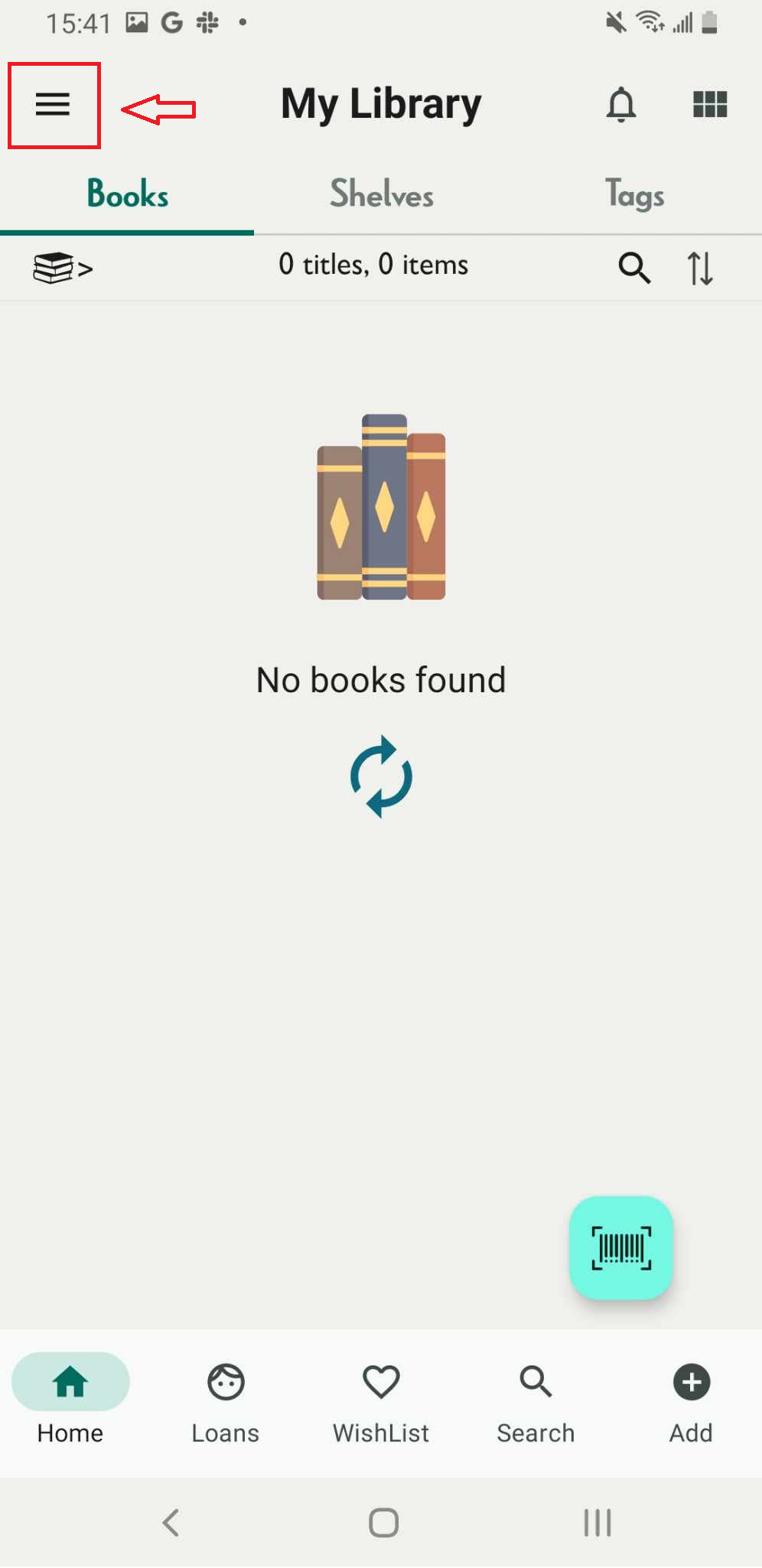
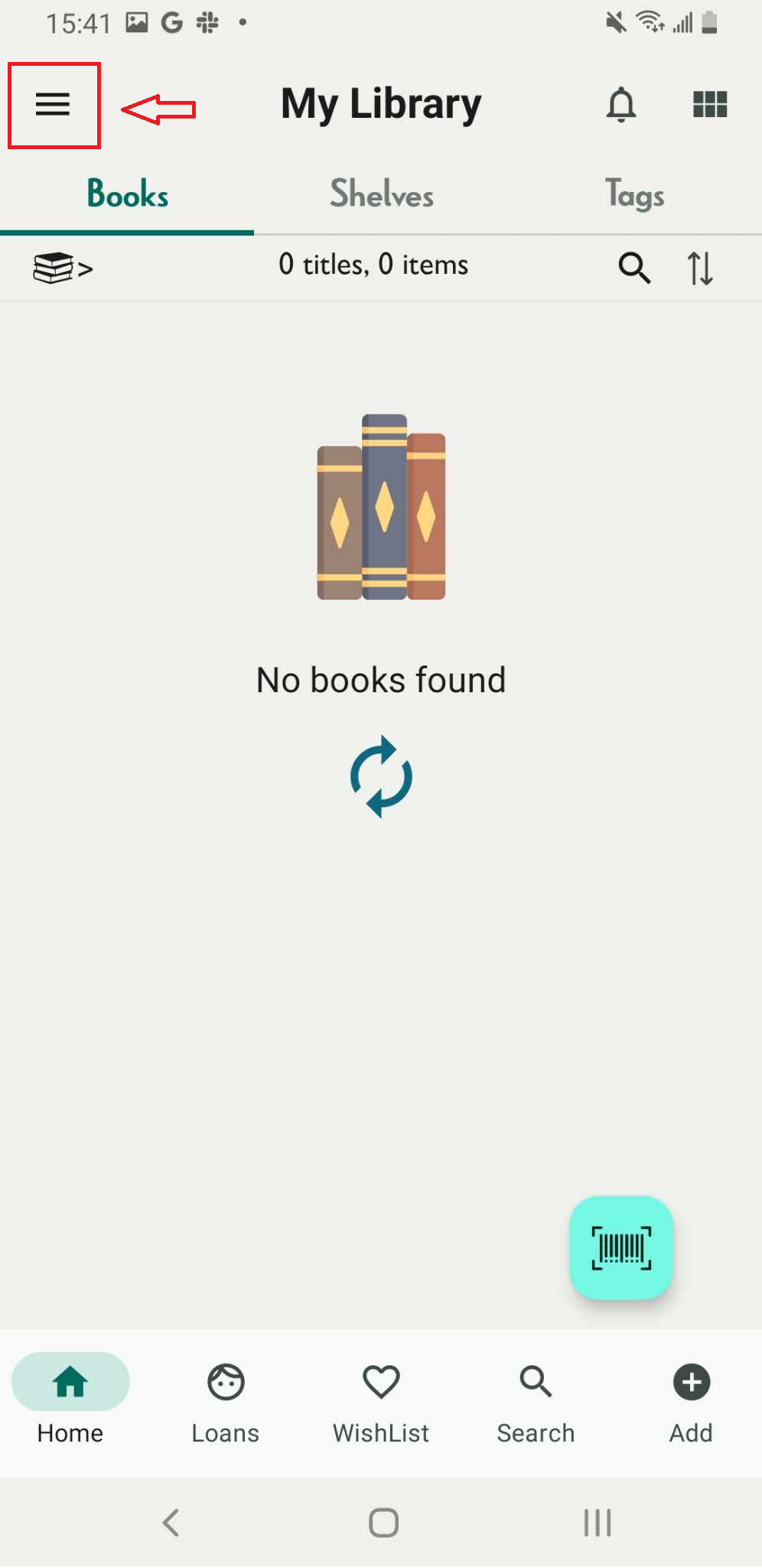
Step 1: Tap on three-line icon. It shows the side menu
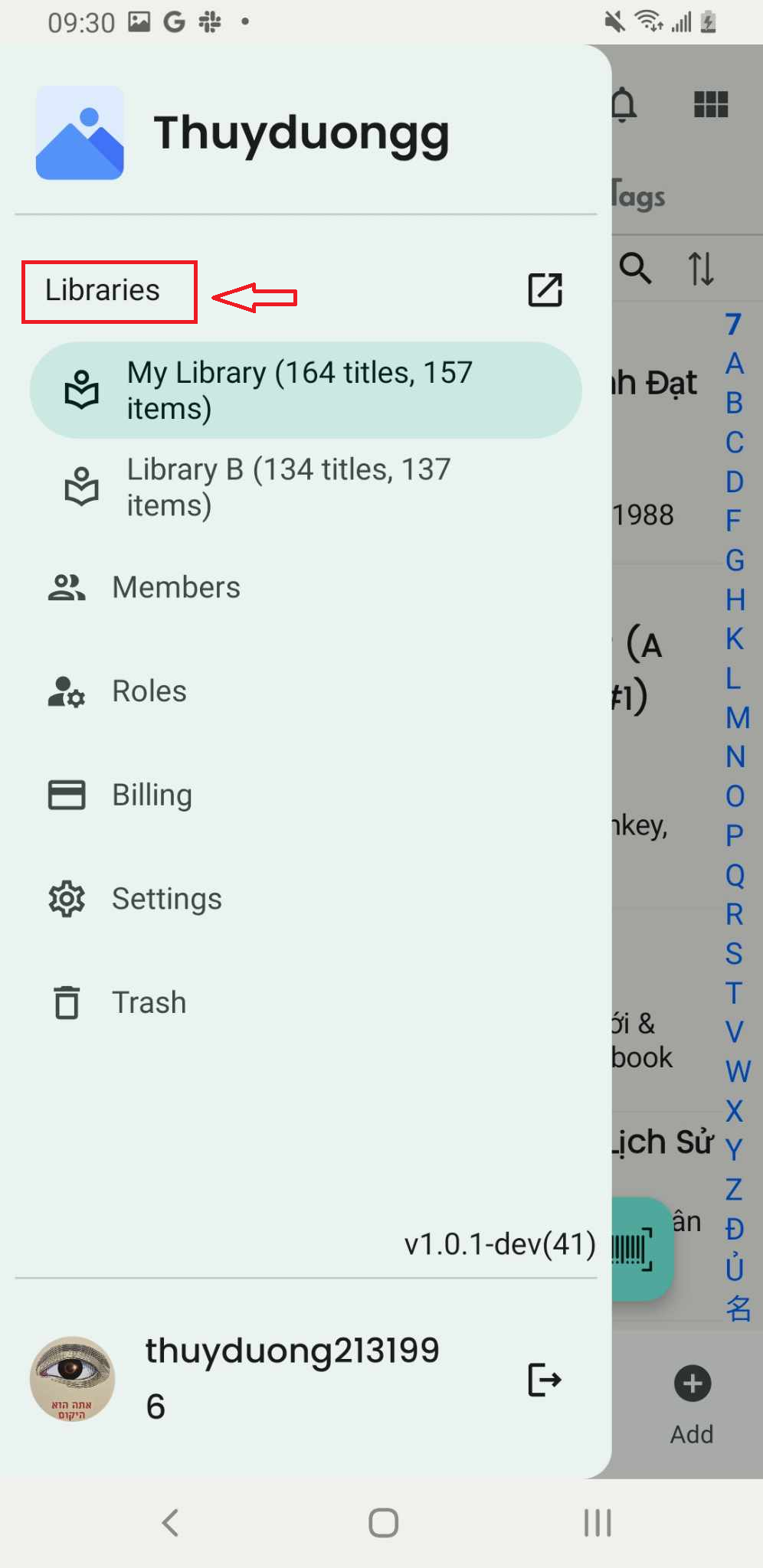
Step 2: Tap on “Libraries”
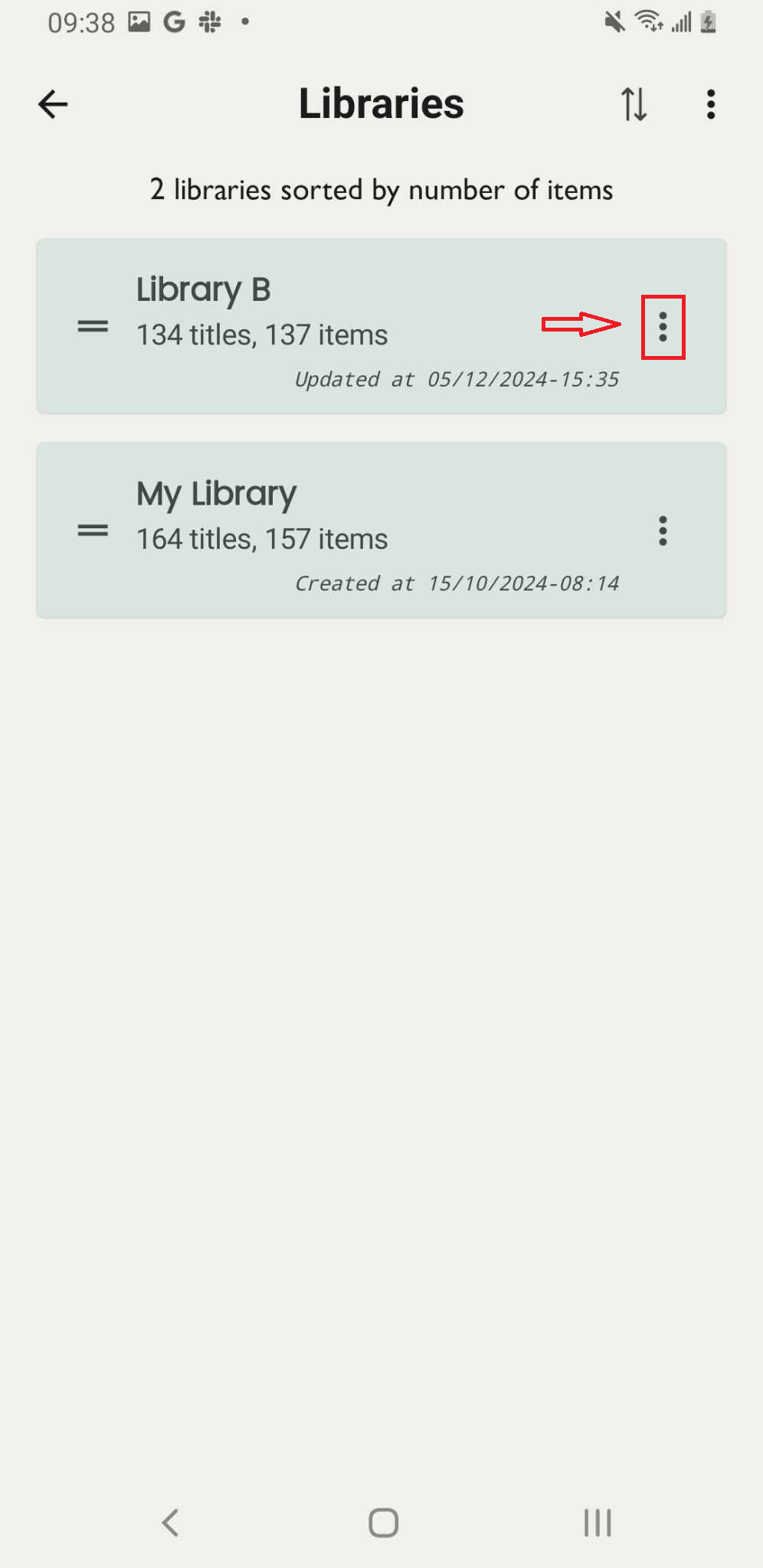
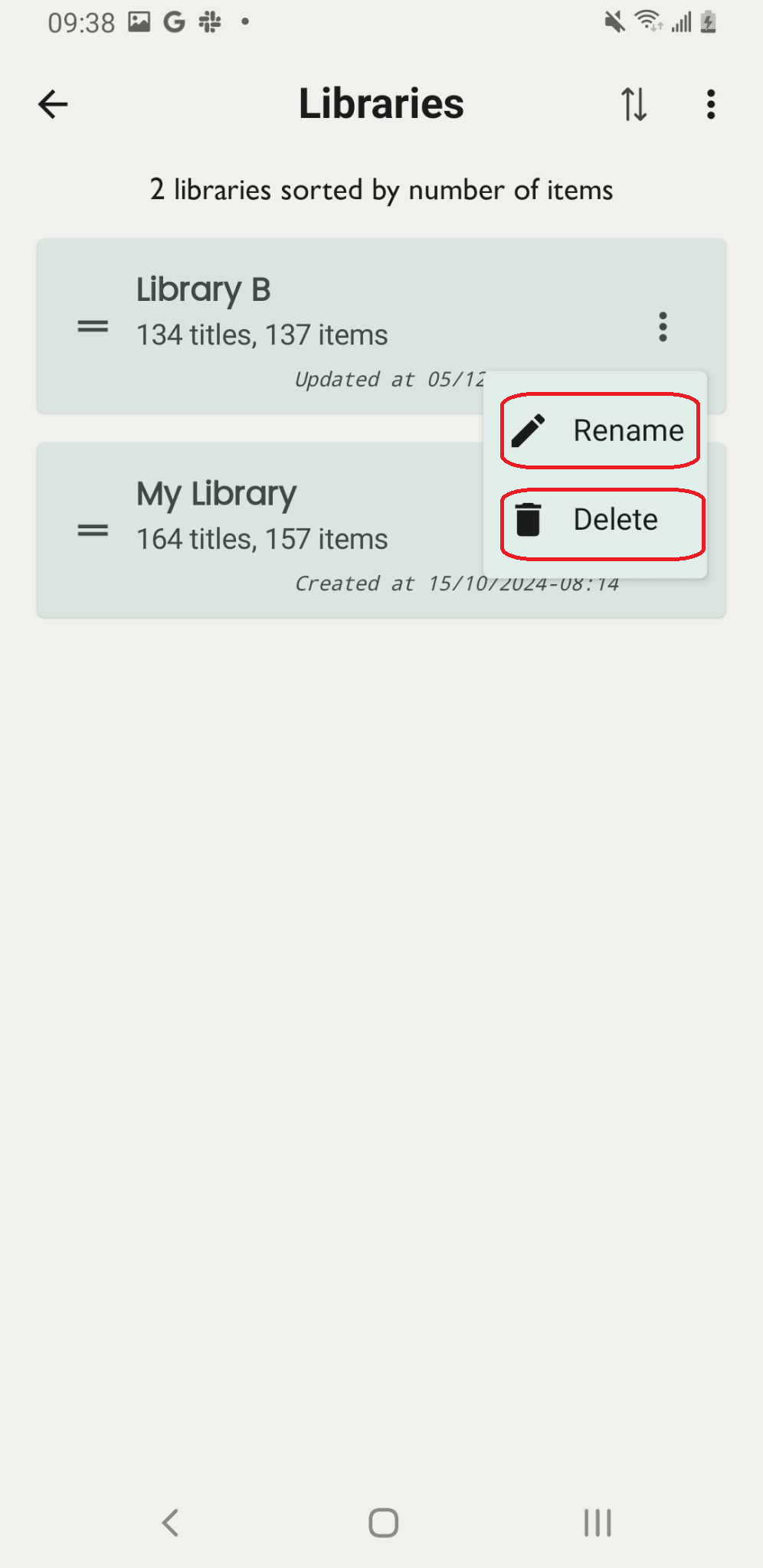
Step 3: It displays all the libraries. Tap the three-dot icon next to the library name.
Step 4: Choose one of two options: “Rename” or “Delete”
Press “Rename” or “Delete”
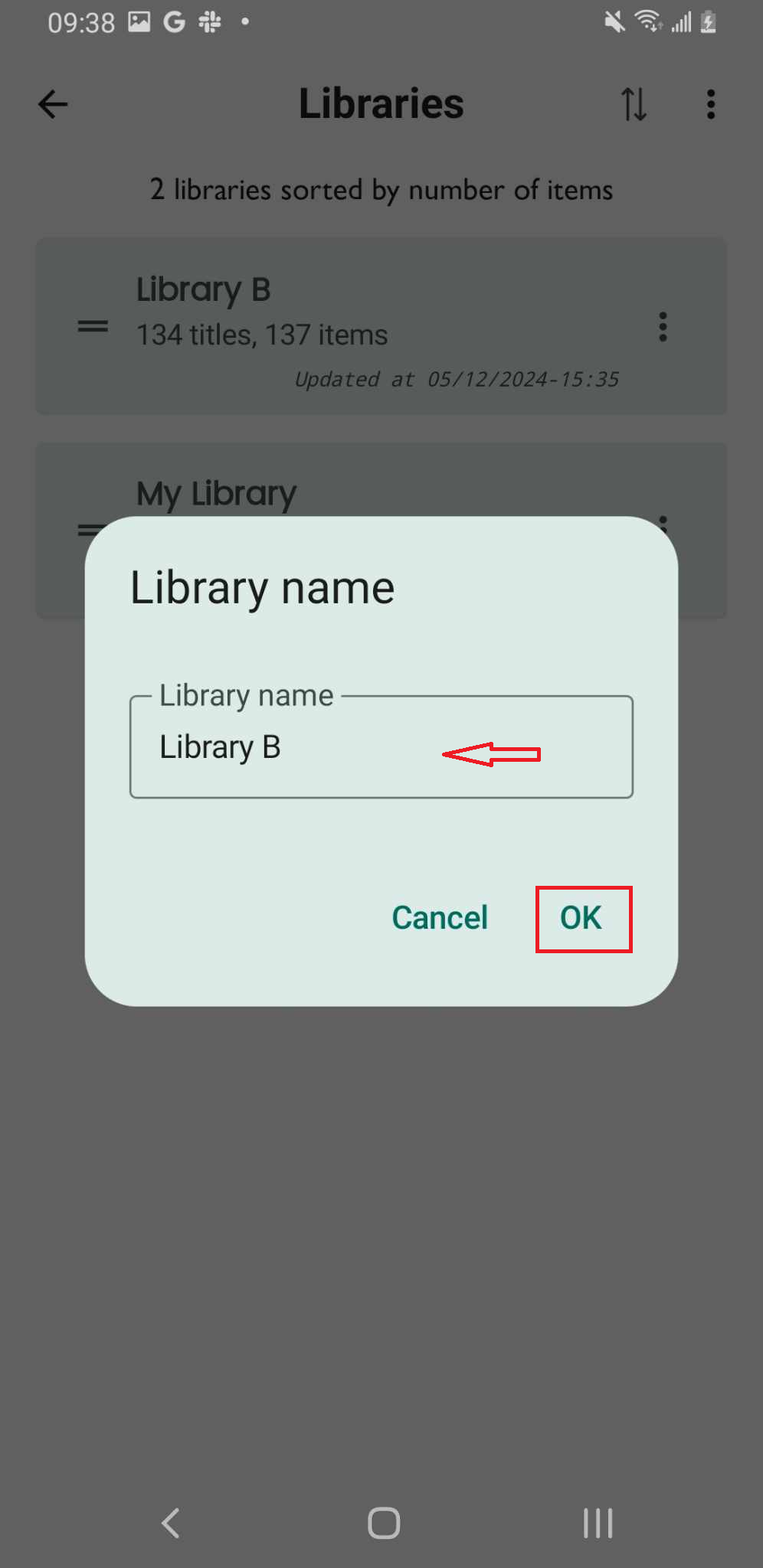
Step 5: Enter the new name of library then tap on OK
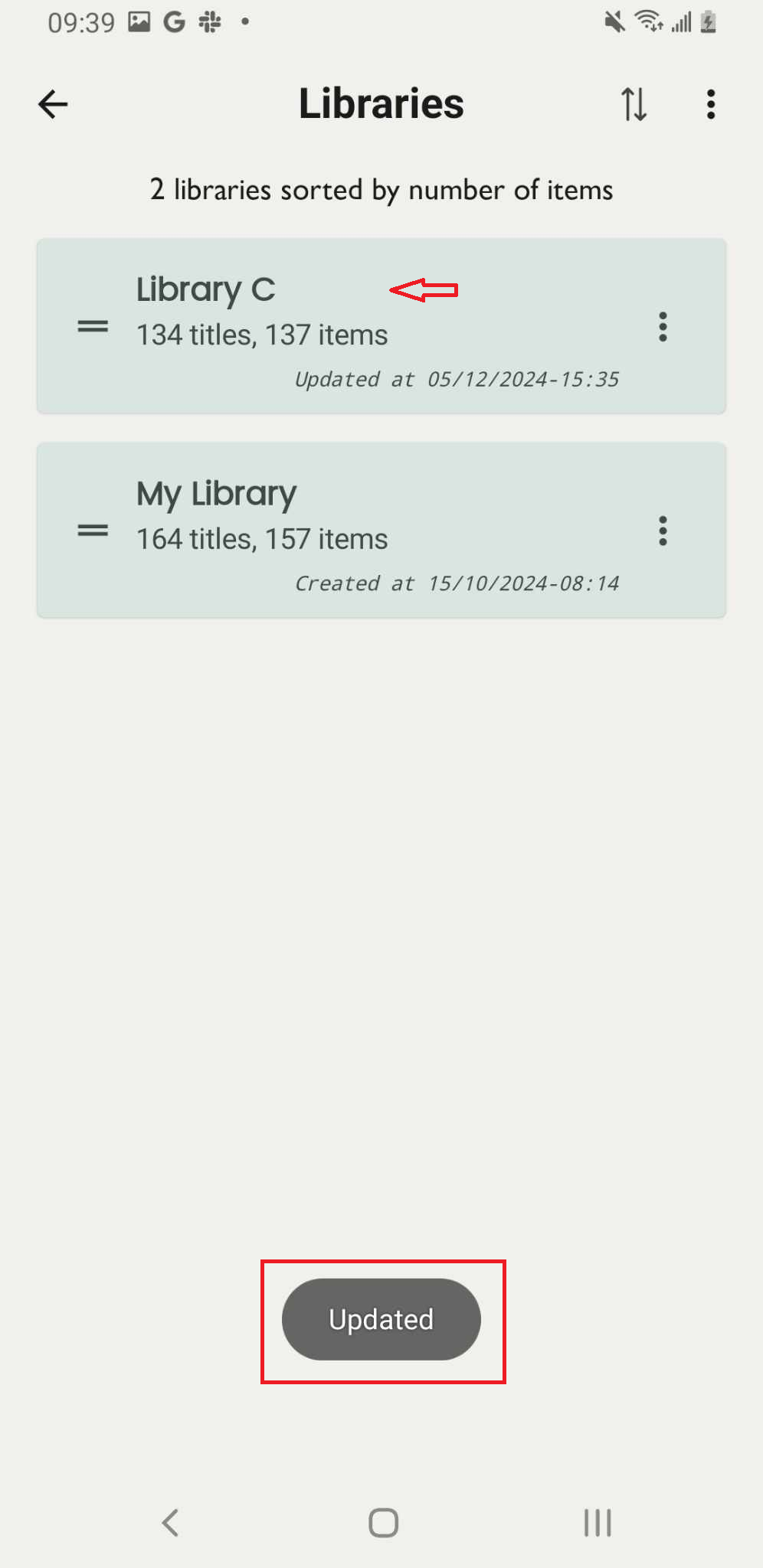
Step 6: The screen shows “Updated”
Show/hide deleted libraries
Step 7: Access the libraries through the side menu by tapping the three-line icon.
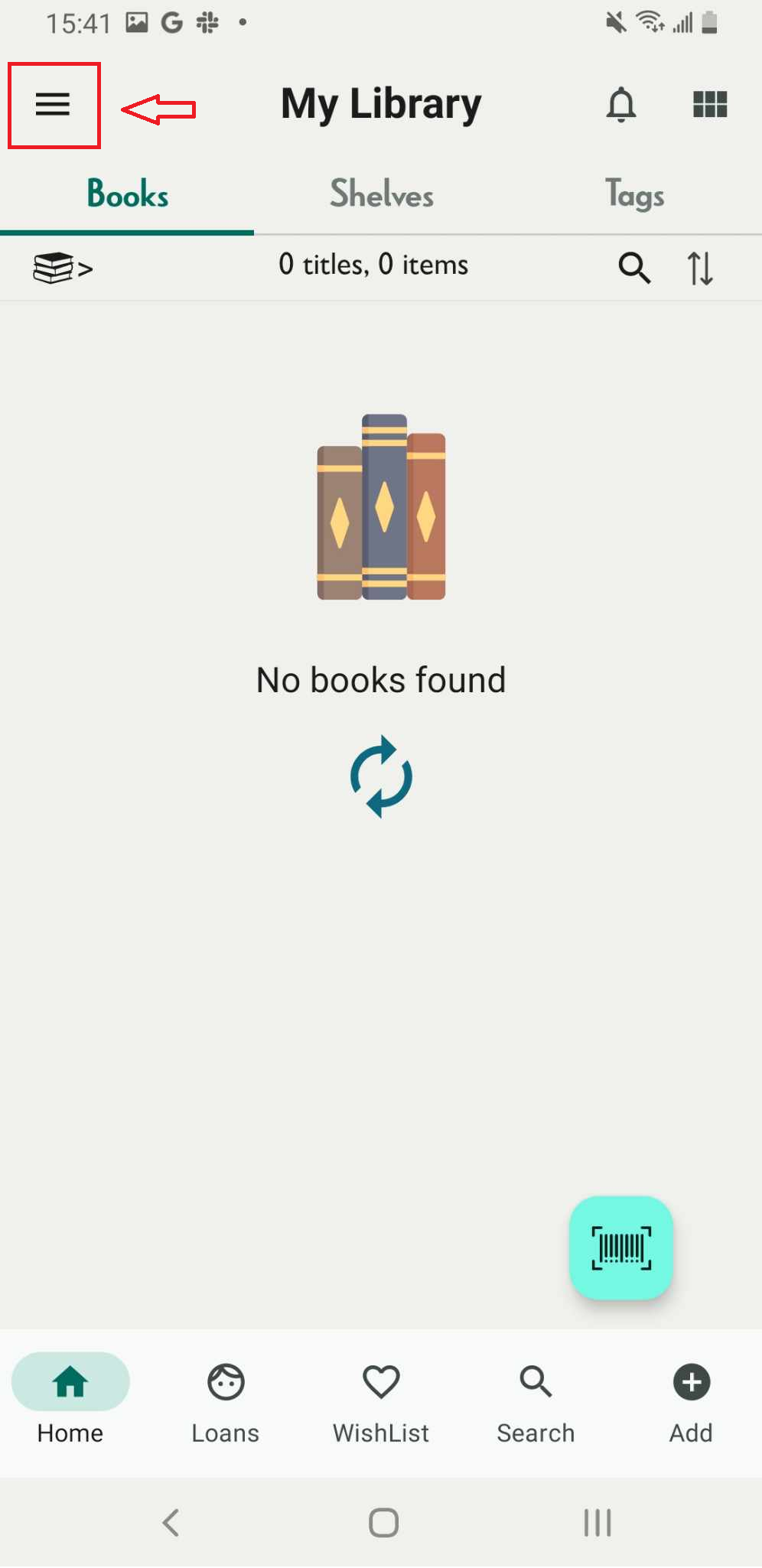
Step 8: Tap on the three-line icon at the right top corner:
- Show deleted libraries
- Hide deleted libraries
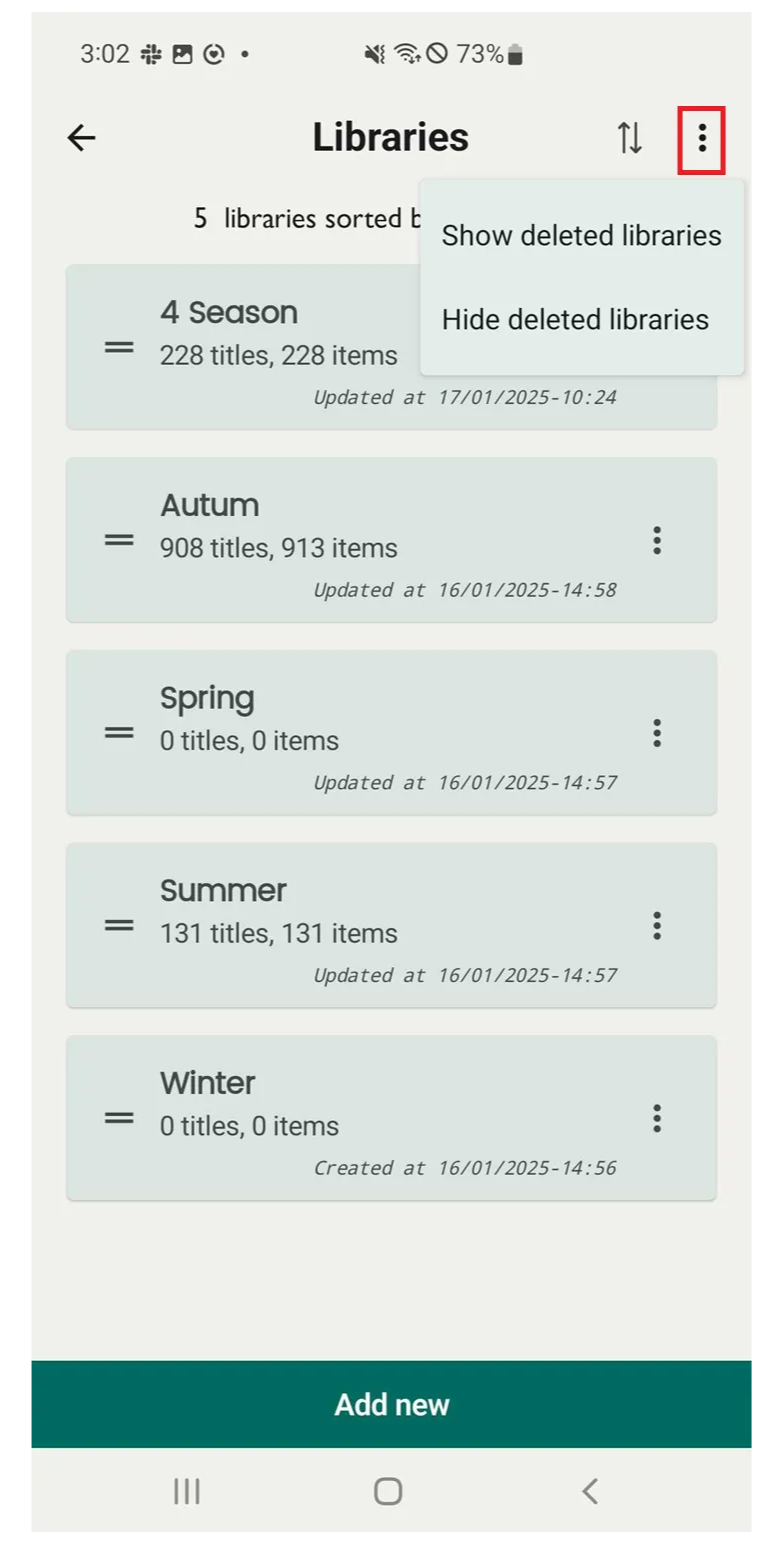
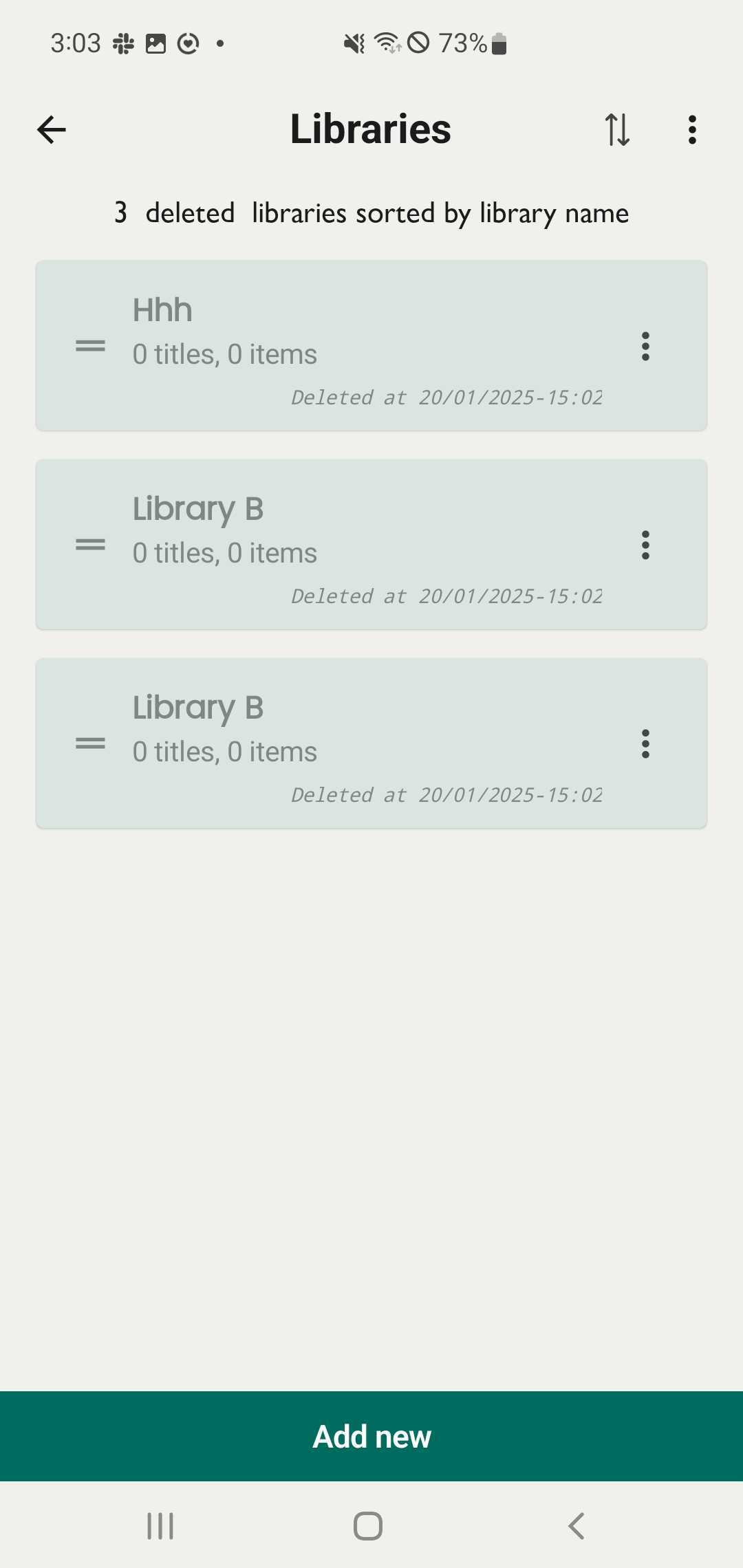
Step 9: Tap on “Show deleted libraries” → The deleted libraries is displayed\
Tap on “Hide the deleted libraries” the deleted libraries will be hidden from view, returning to the main library list.
Sort libraries
Step 10: Tap on the three-line icon in the top corner to open the side menu and access the libraries.
Step 11: Tap on the bidirectional arrow icon.
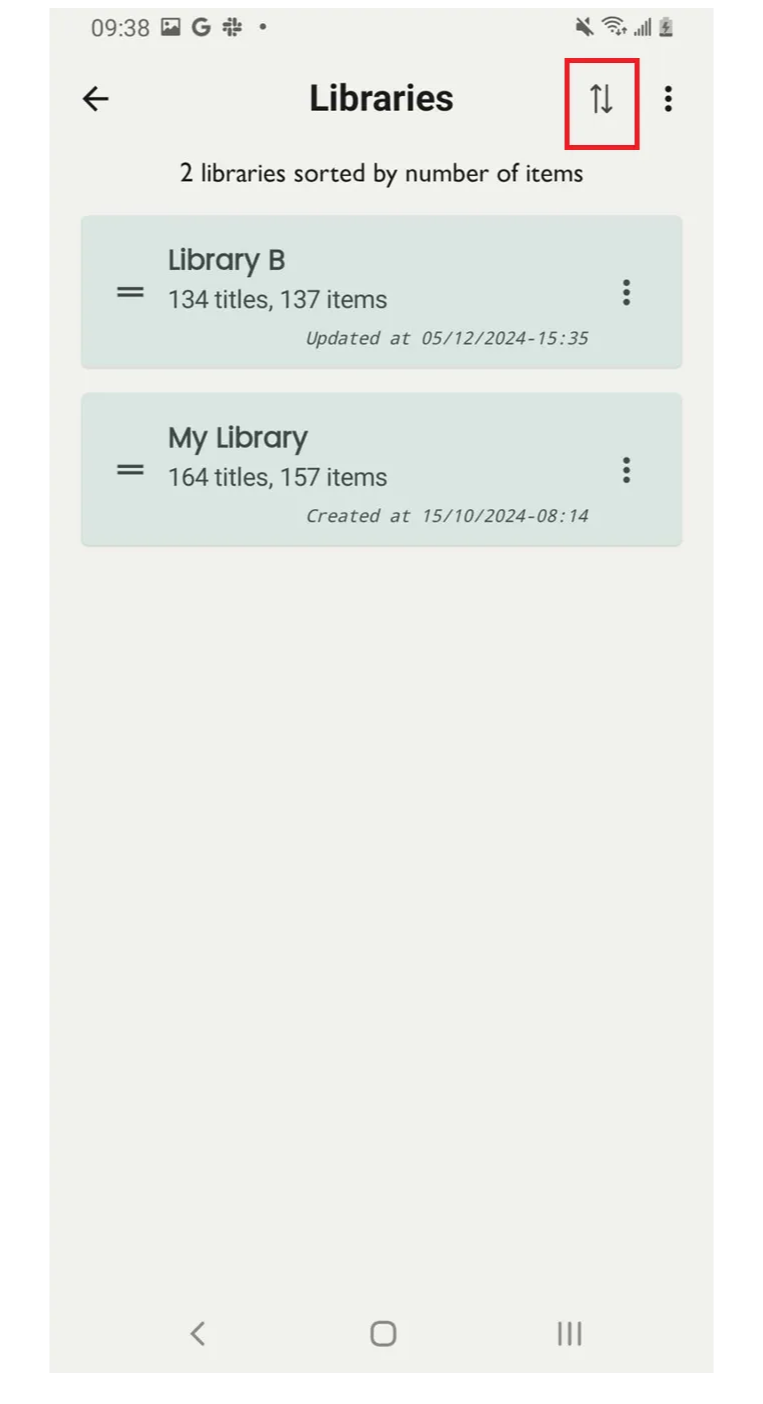
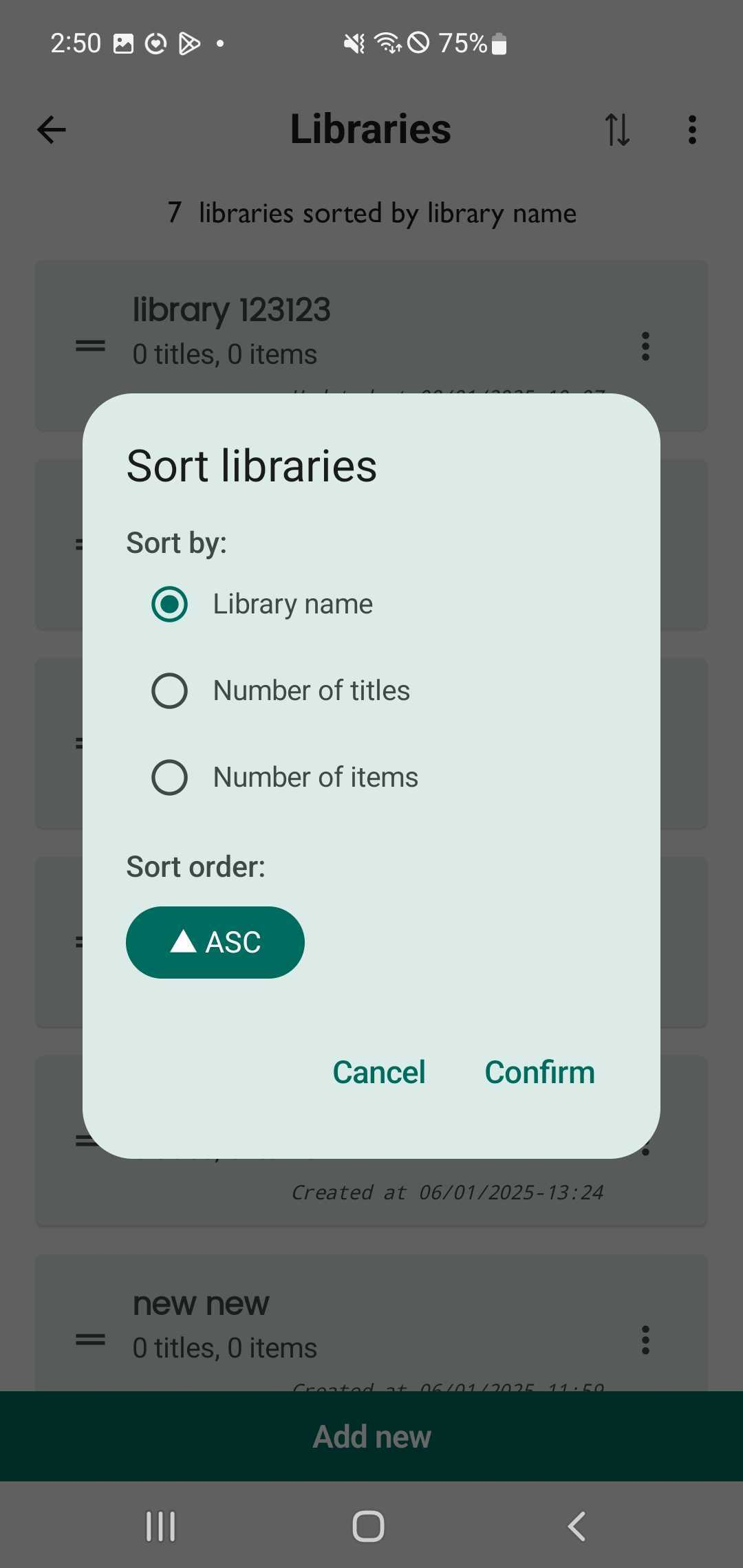
Step 12: Sort libraries by: library name
Number of titles
Number of items
#Sort order: ASC
Cancel - Confirm