Data safety
Export a Library
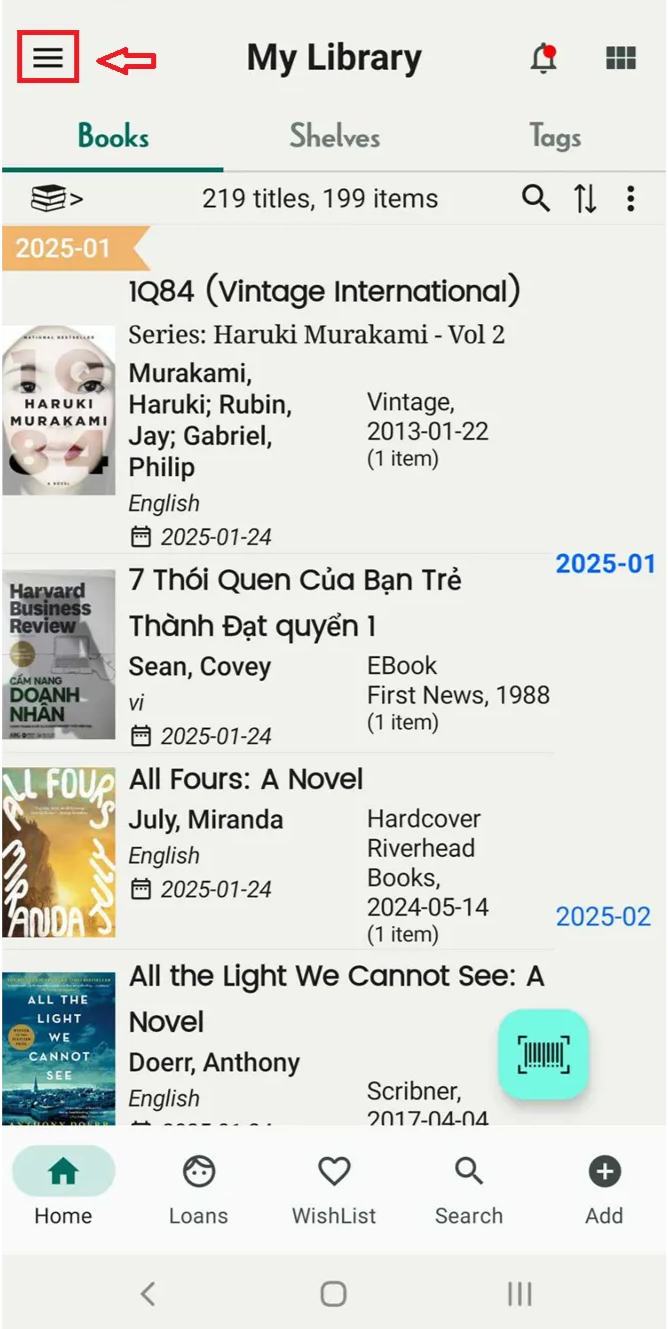
Step 1: Open app and Tap on three-line icon
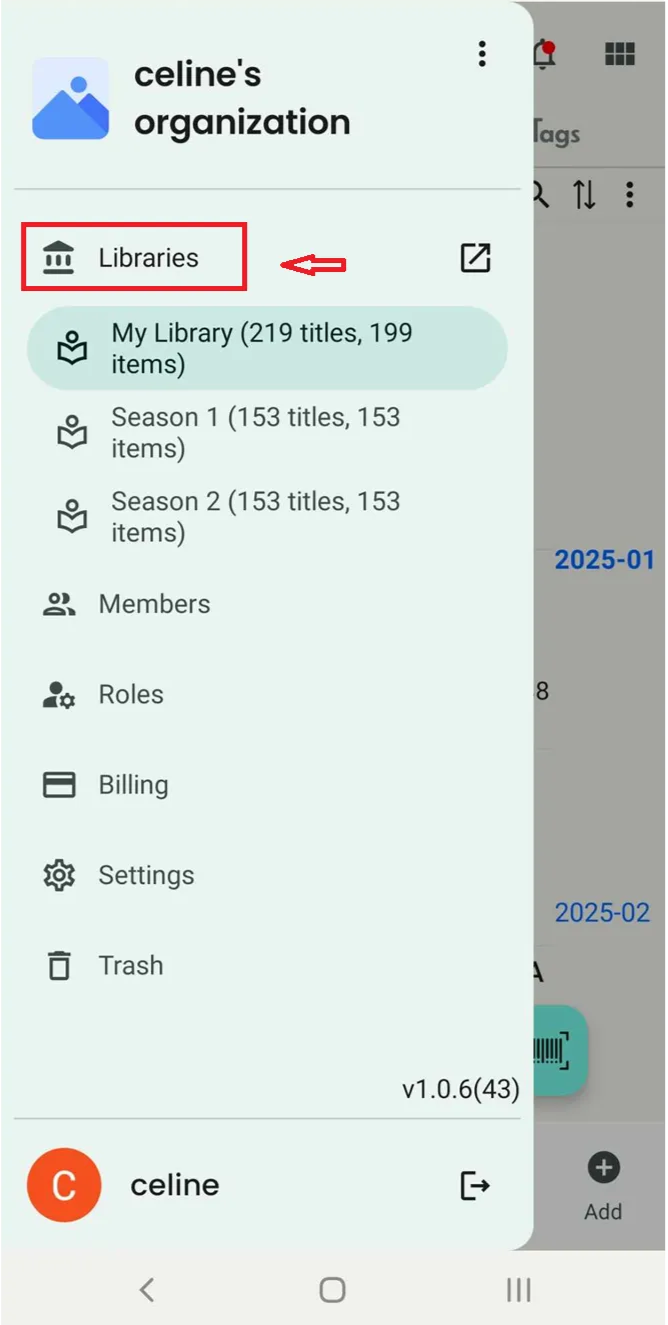
Step 2: Tap on “Libraries”
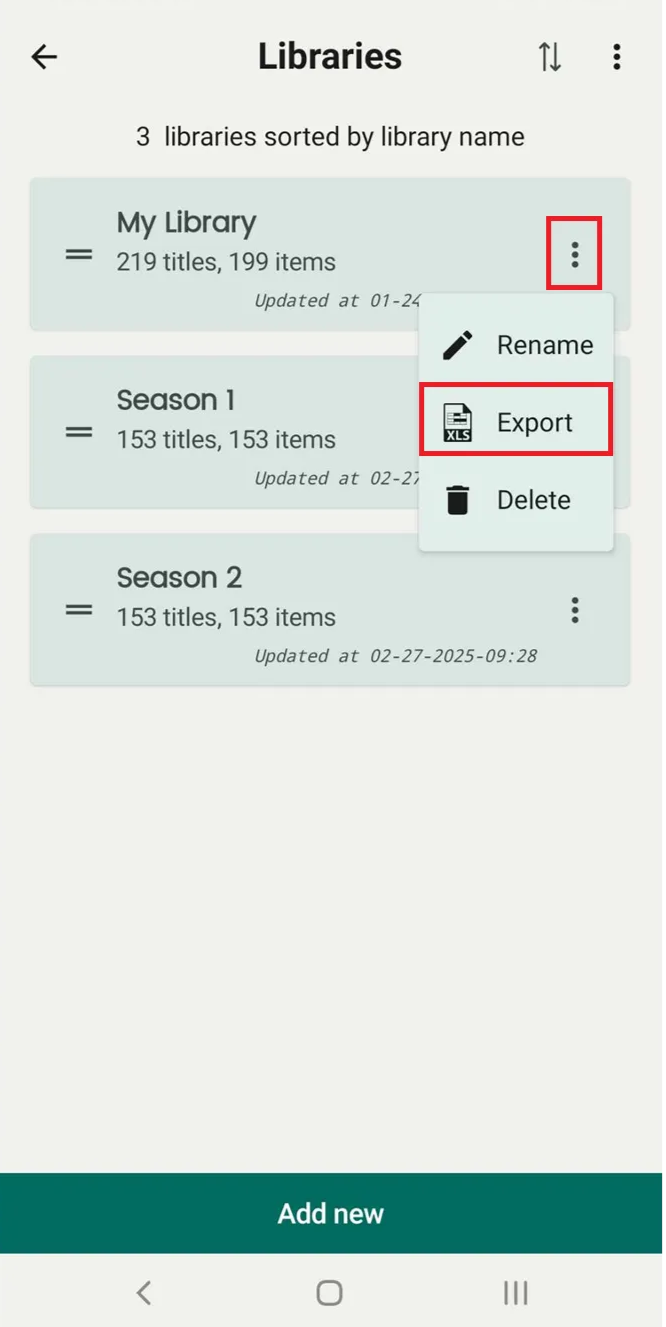
Step 3: It displays all libraries. Tap on the three-line icon next to each library.
- Rename
- Export
- Delete
Select “Export”
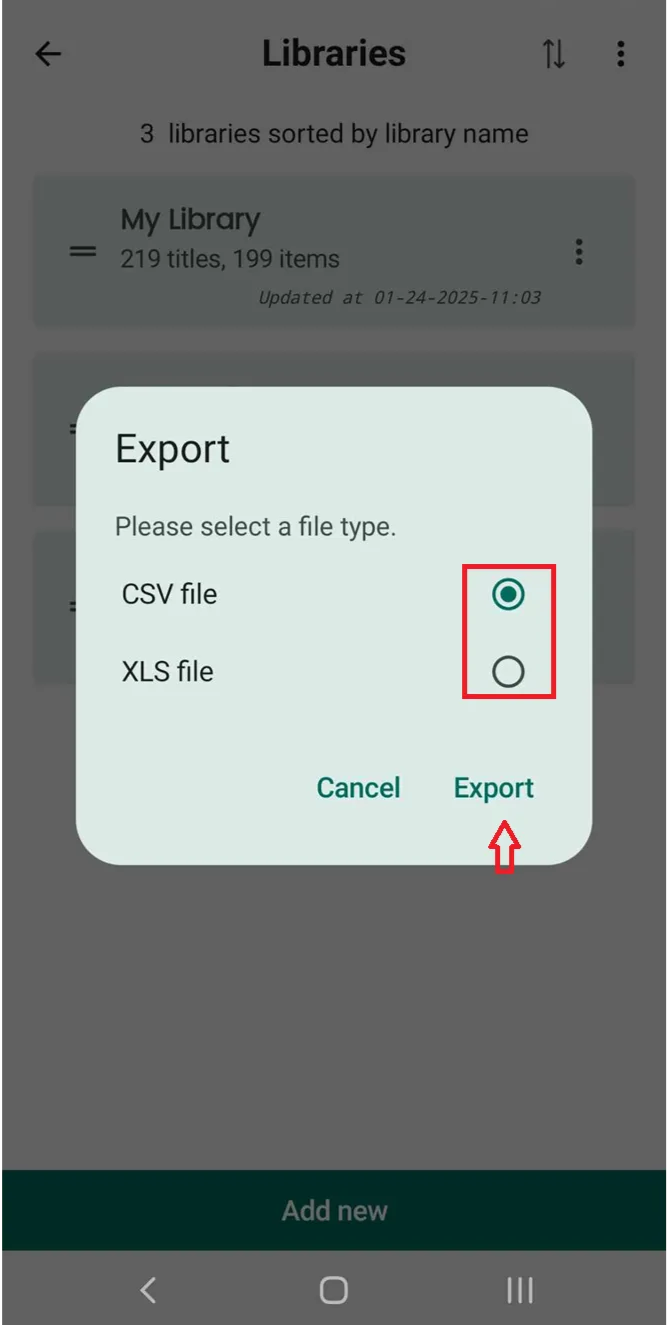
Step 4: Select an option “CSV” or “XLS” then press “Export”
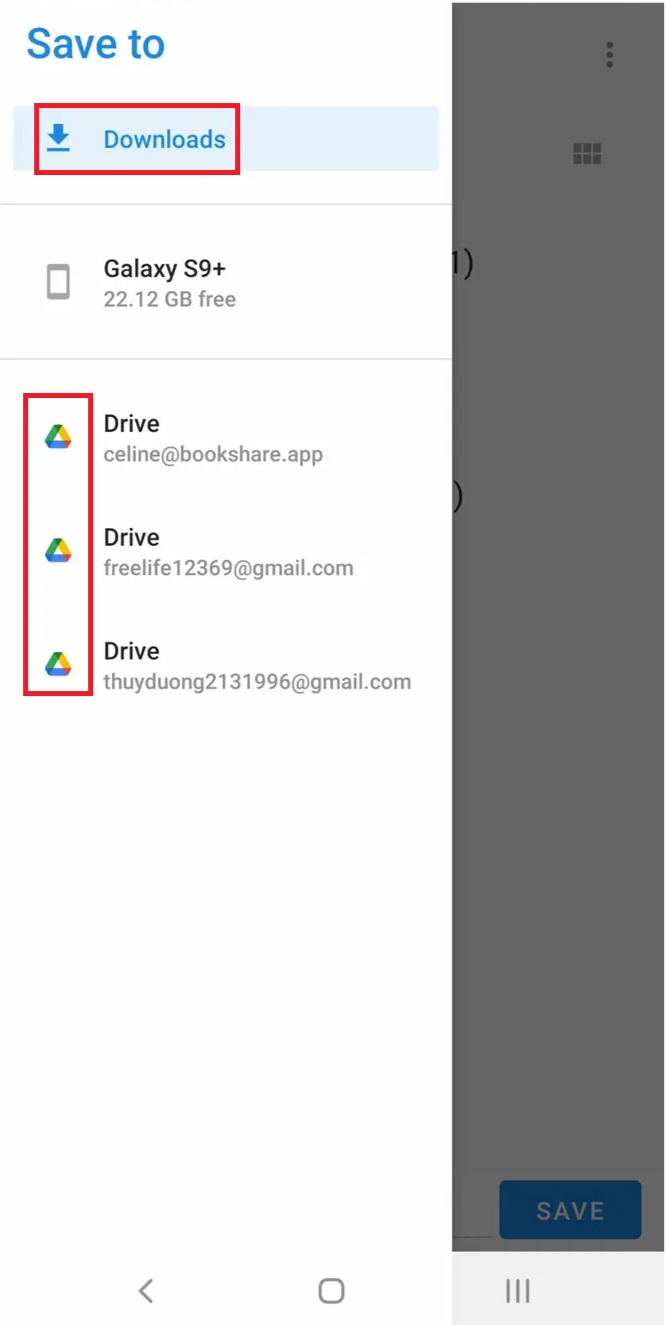
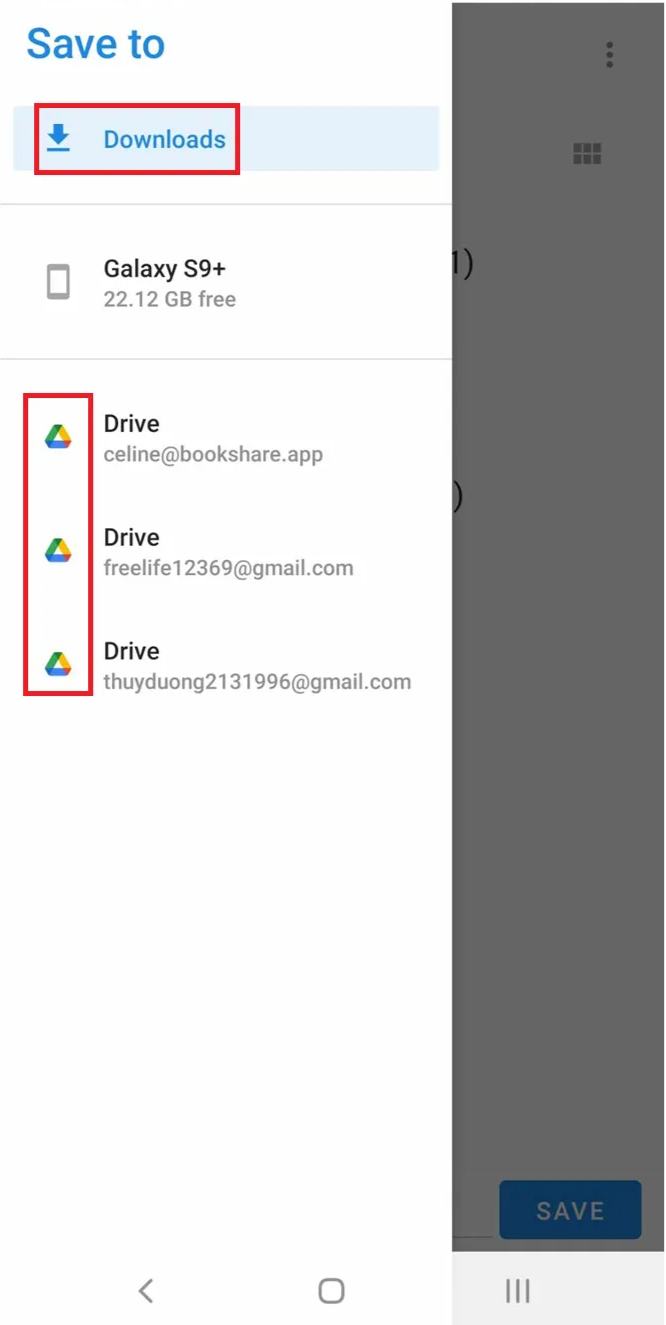
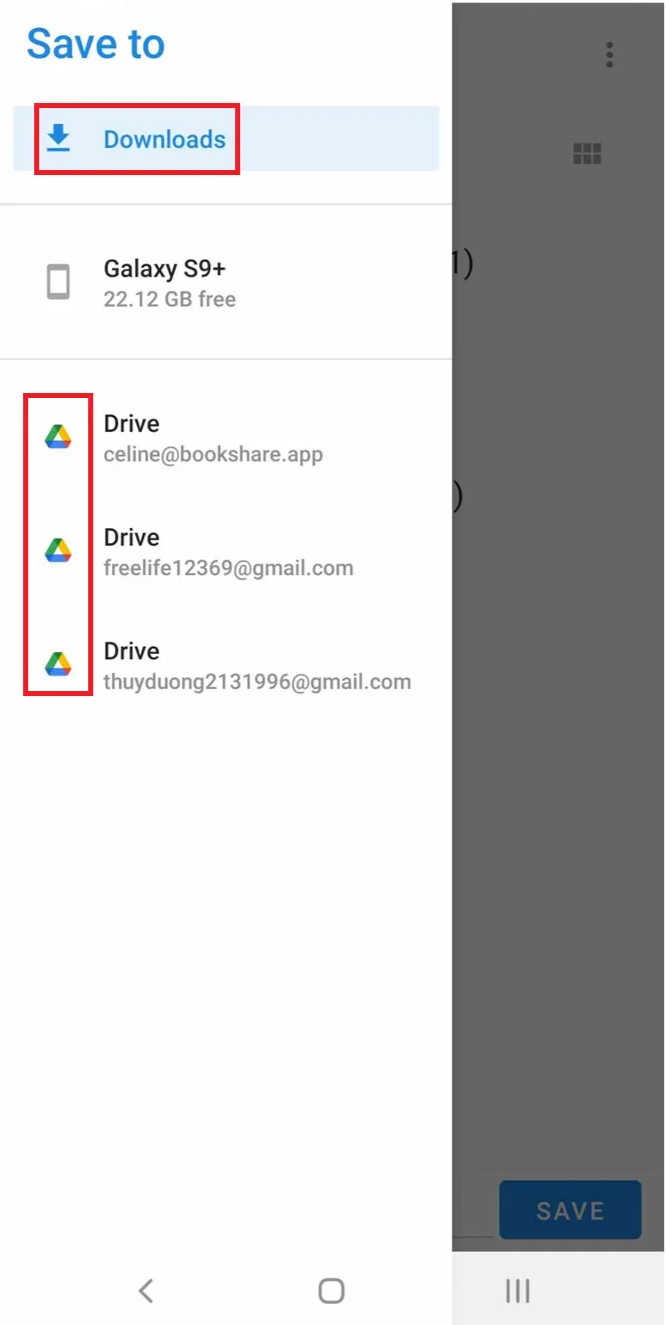
5 You can save the exported file on your device or Google Drive
Export a shelf
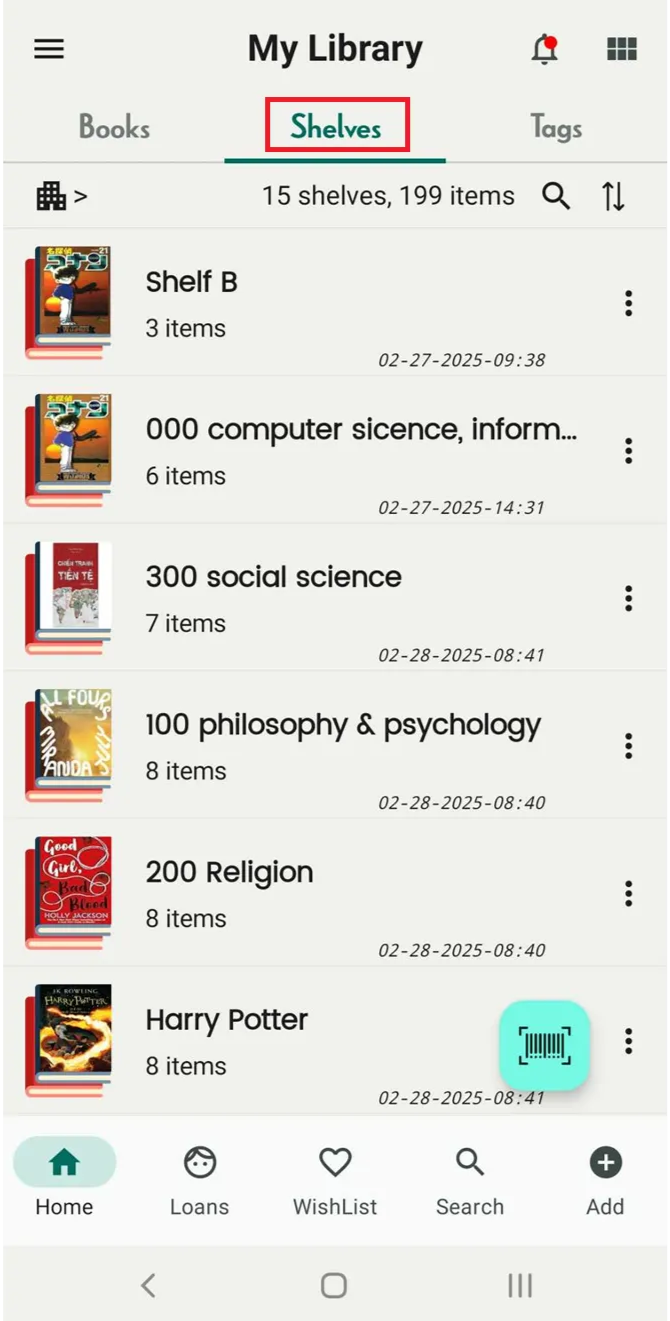
Step 5: Open app and access Shelves Tab
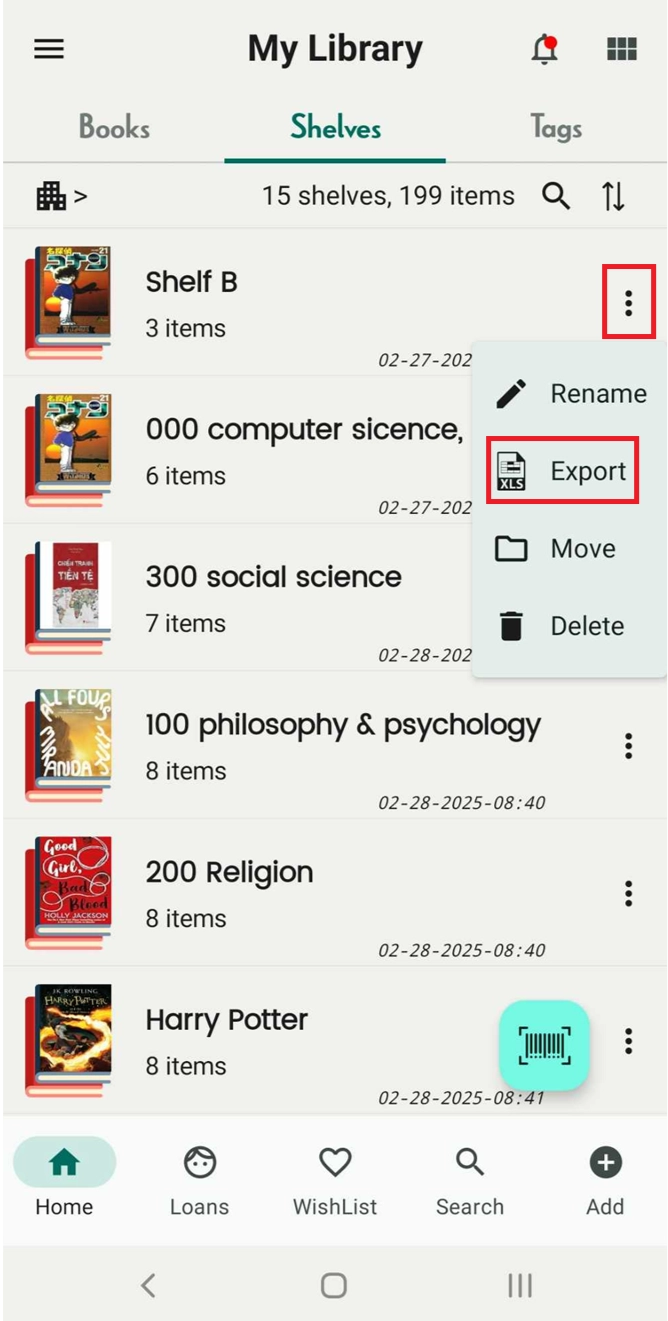
Step 6: Tap on the three-dot icon on the right side of each shelf.
- Rename
- Export
- Move
- Delete
Select “Export”
Step 7: Select an option “CSV” or “XLS” then press “Export”
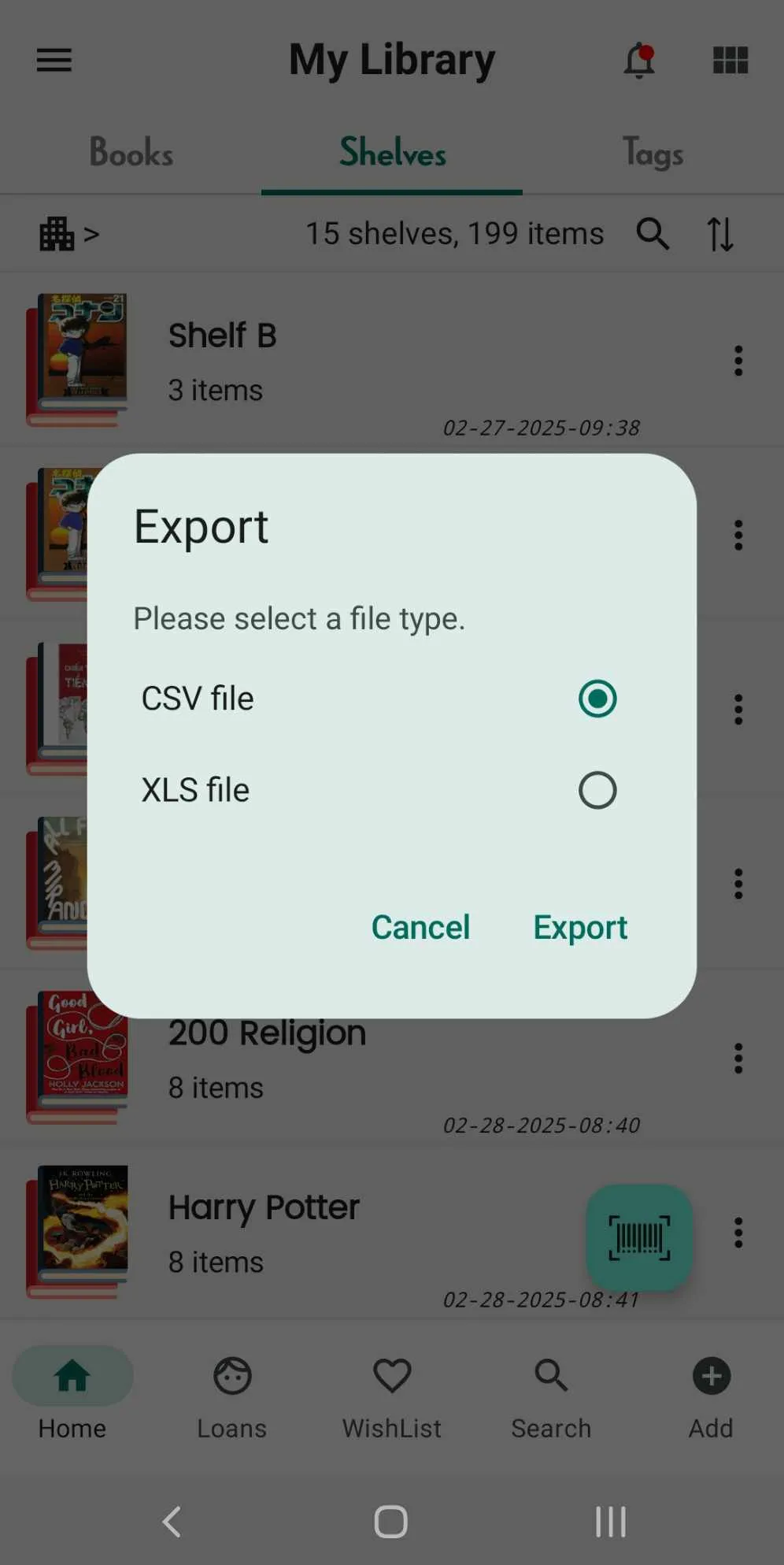
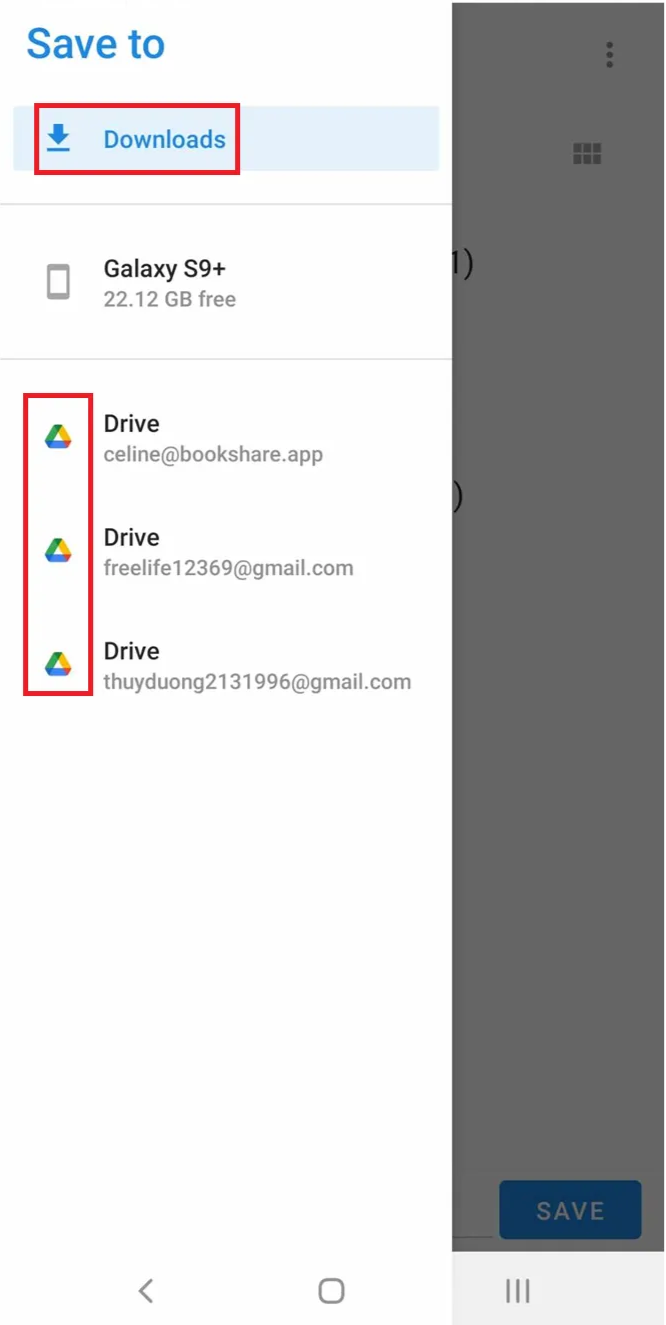
Step 8: You can save the exported file on your device or Google Drive
Export a Tag
Step 9: Open app and access Tags Tab
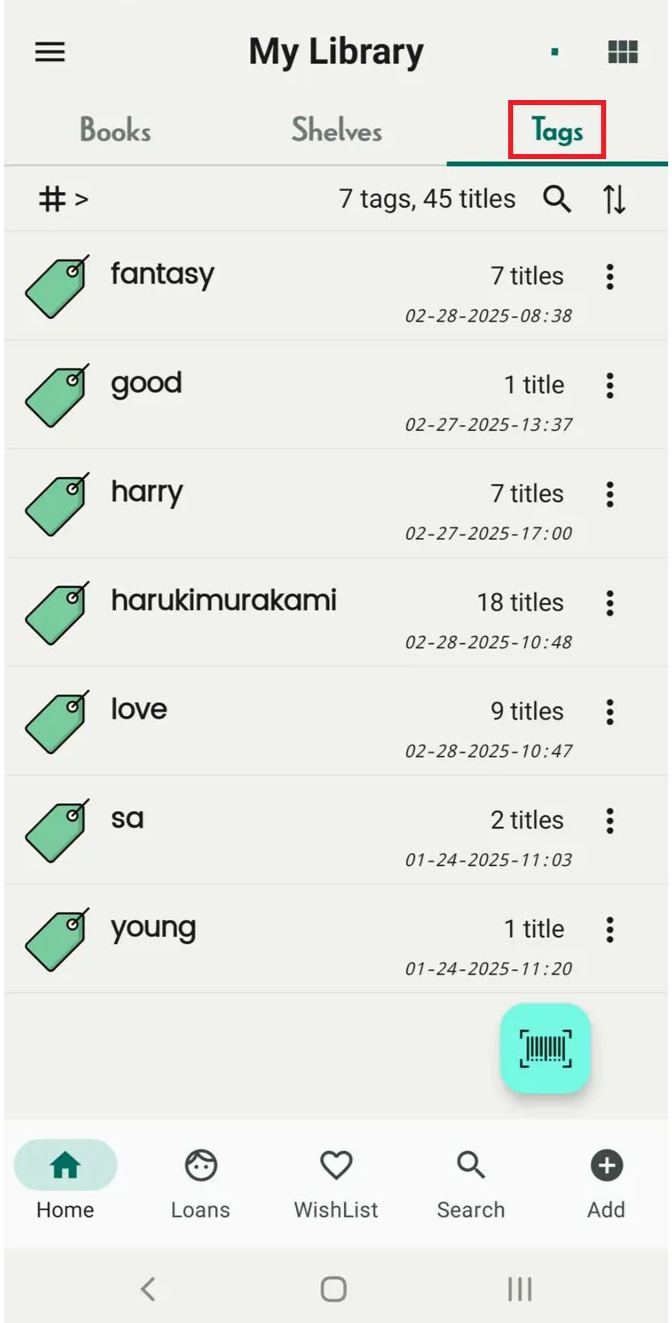
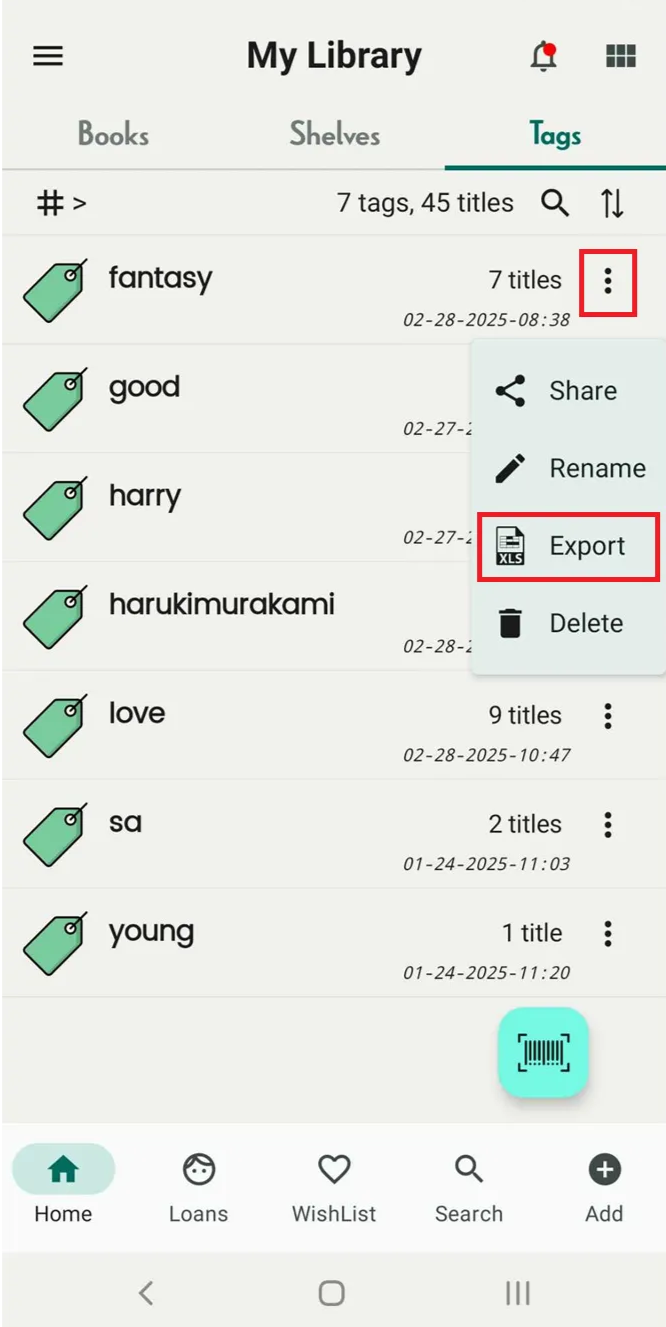
Step 10: Tap on the three-dot icon on the right side of each tag
- Share
- Rename
- Export
- Delete
Select “Export”
Step 11: Select an option “CSV” or “XLS” then press “Export”
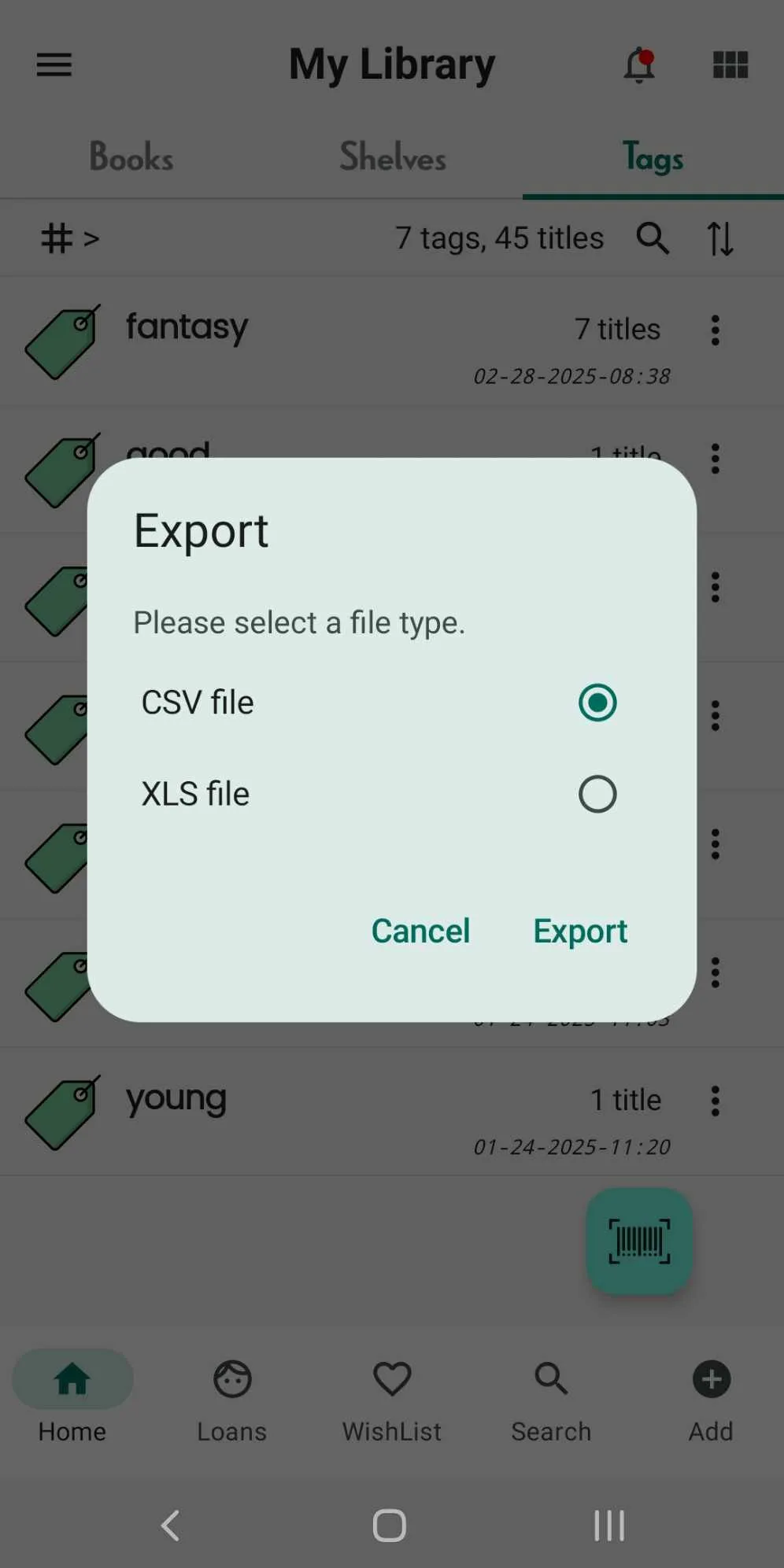
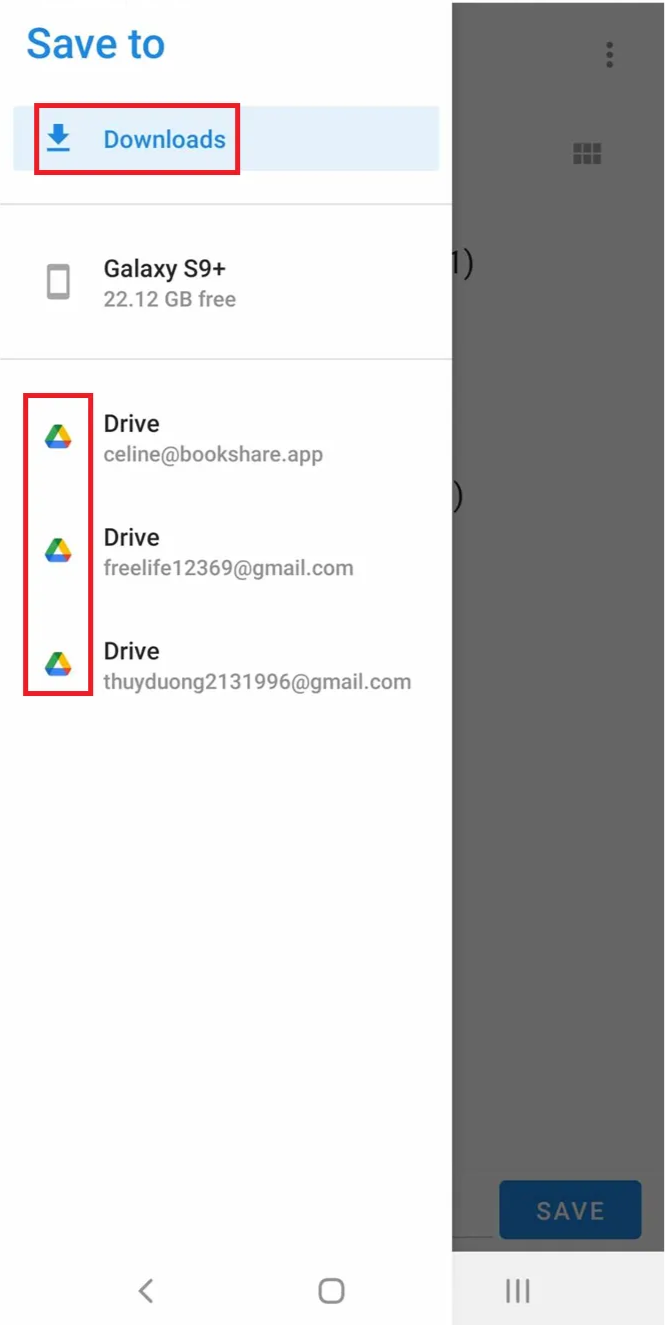
Step 12: You can save exported file in your device or Google Drive
Export Wishlist
Step 13: Access Wishlist and tap on the three-line icon beside the bidirectional arrow icon.
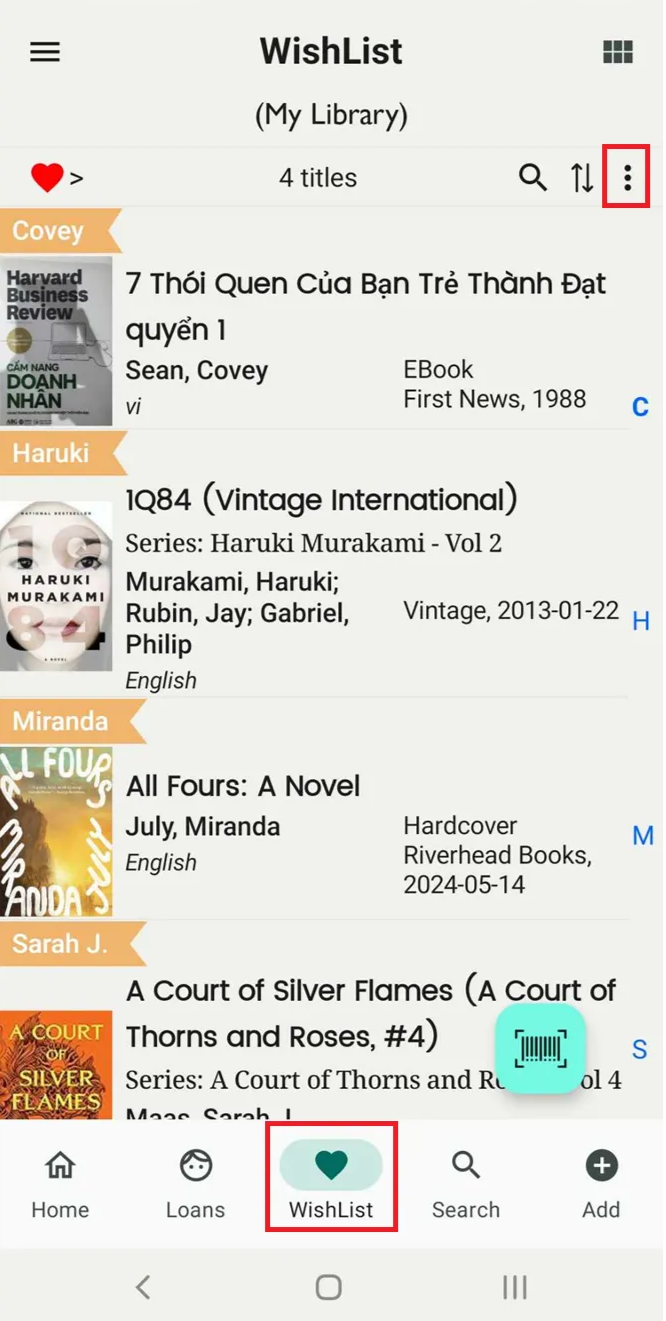
Step 14: It appears “Export”
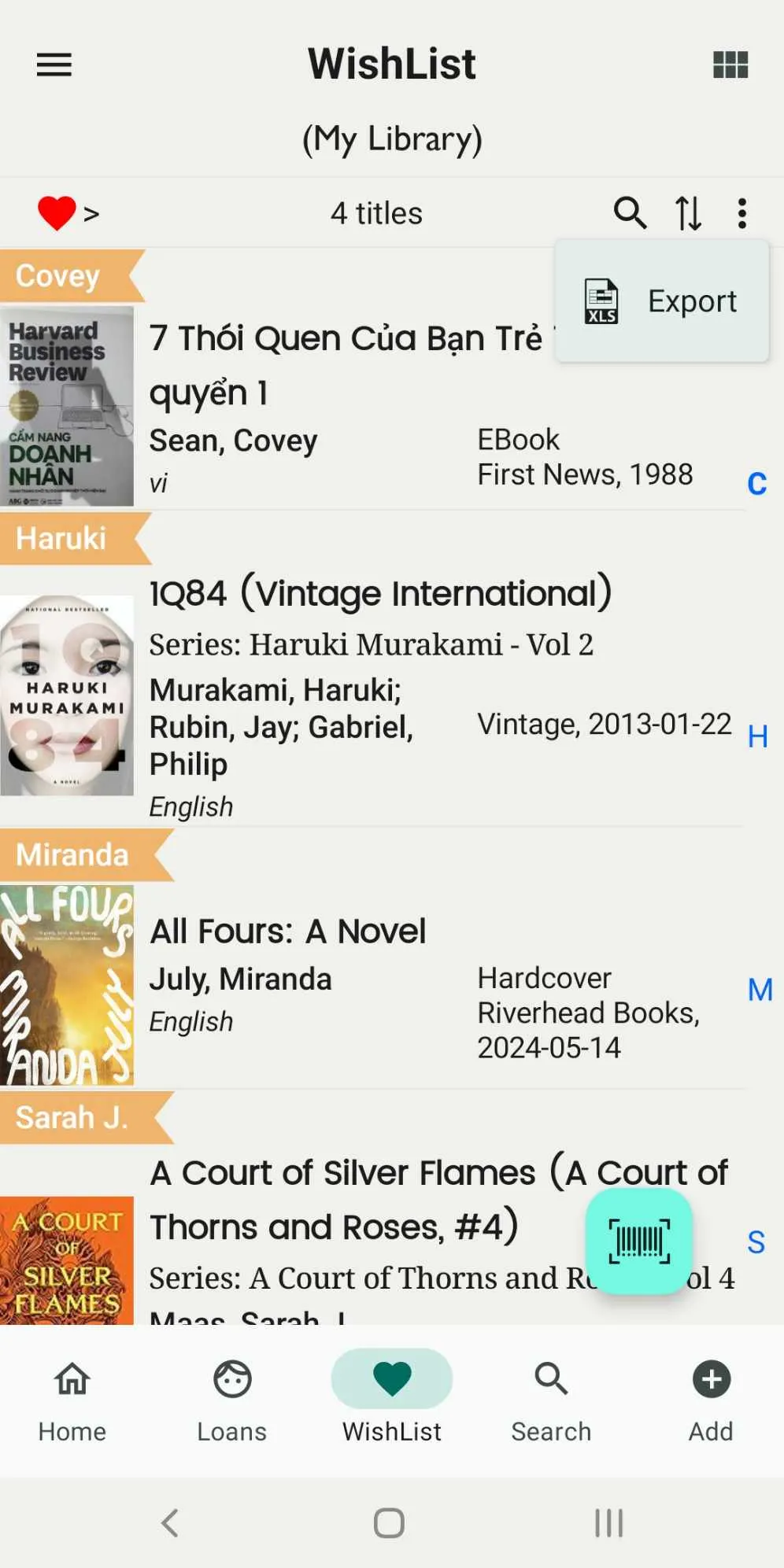
Step 15: Select an option “CSV” or “XLS” then press “Export”
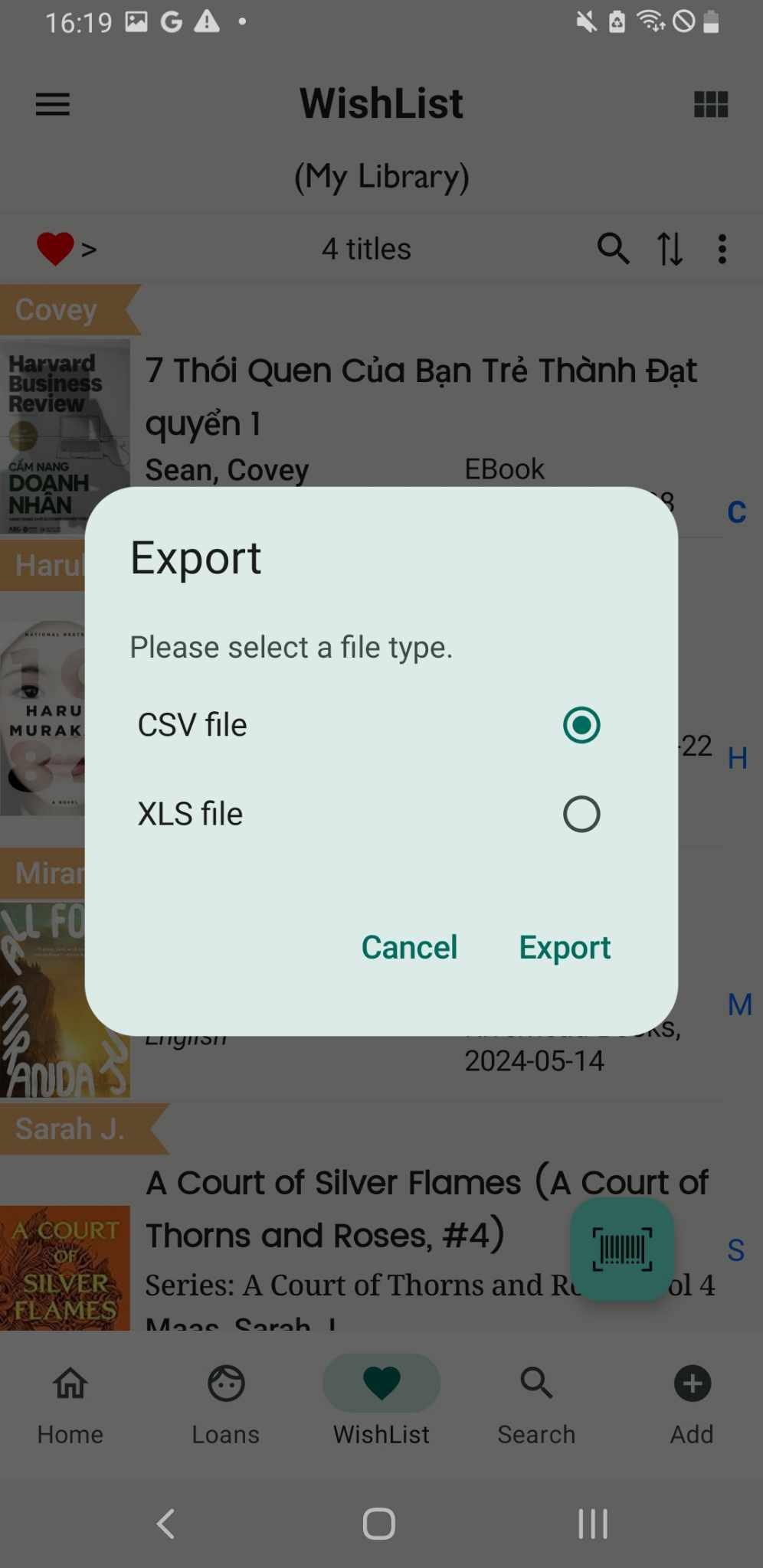
Step 16: You can save exported file in your device or Google Drive
Export all book of a Shelf
Step 17: Open app and access Book tab
Step 18: Tap on three-dot icon next to the bidirectional arrow icon.
Step 19: Select “Export”
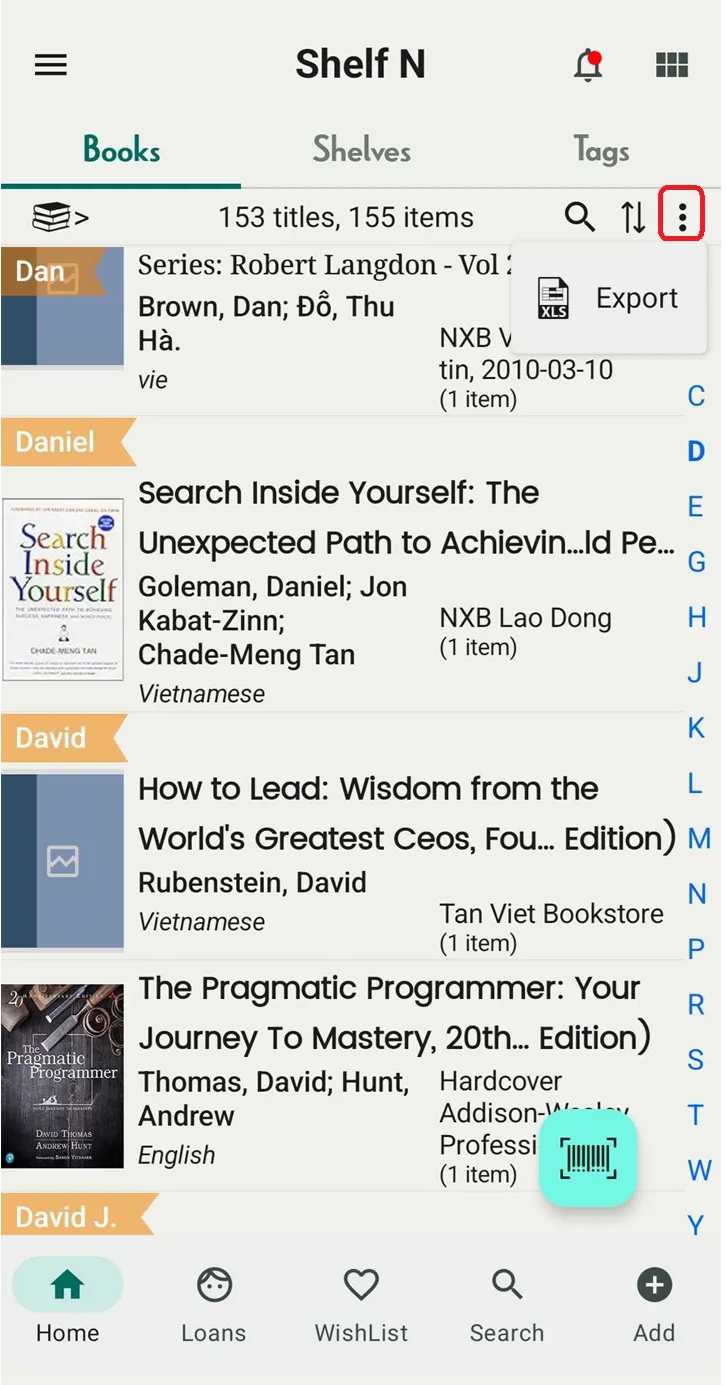
Step 20: Select an option “CSV” or “XLS” then press “Export”
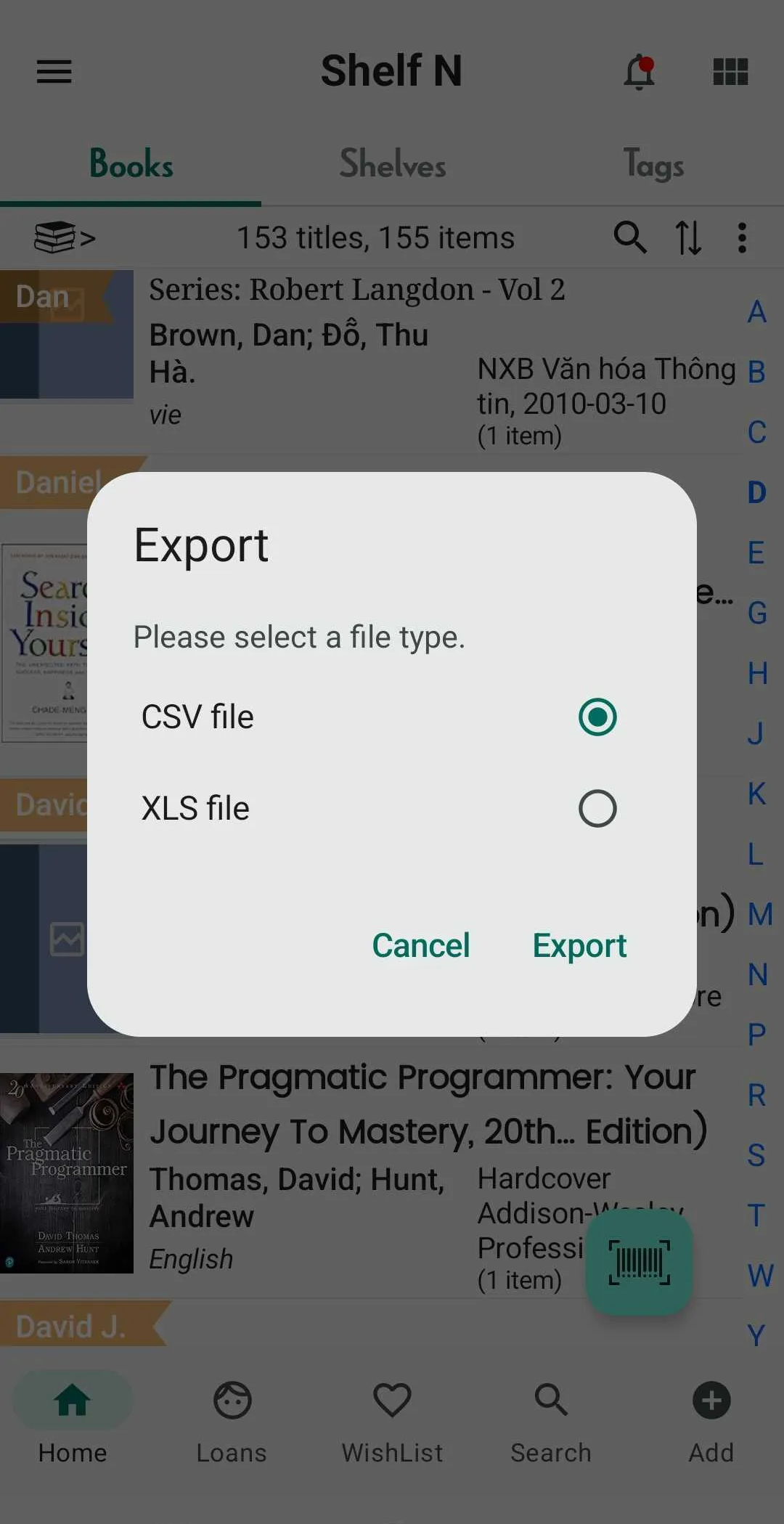
Step 21: You can save the exported file on your device or Google Drive