
Add a member
Step 1: Tap on “Member” at the menu side
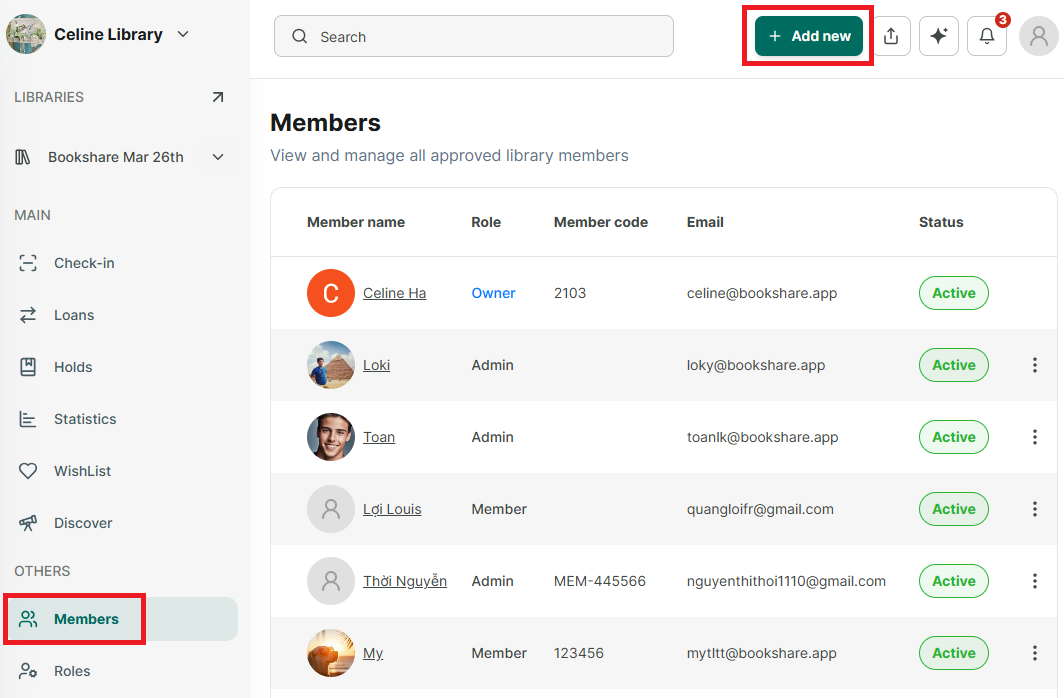
Step 2: The list of members in the organization is displayed on the screen. Tap “Add New” to add a new member.
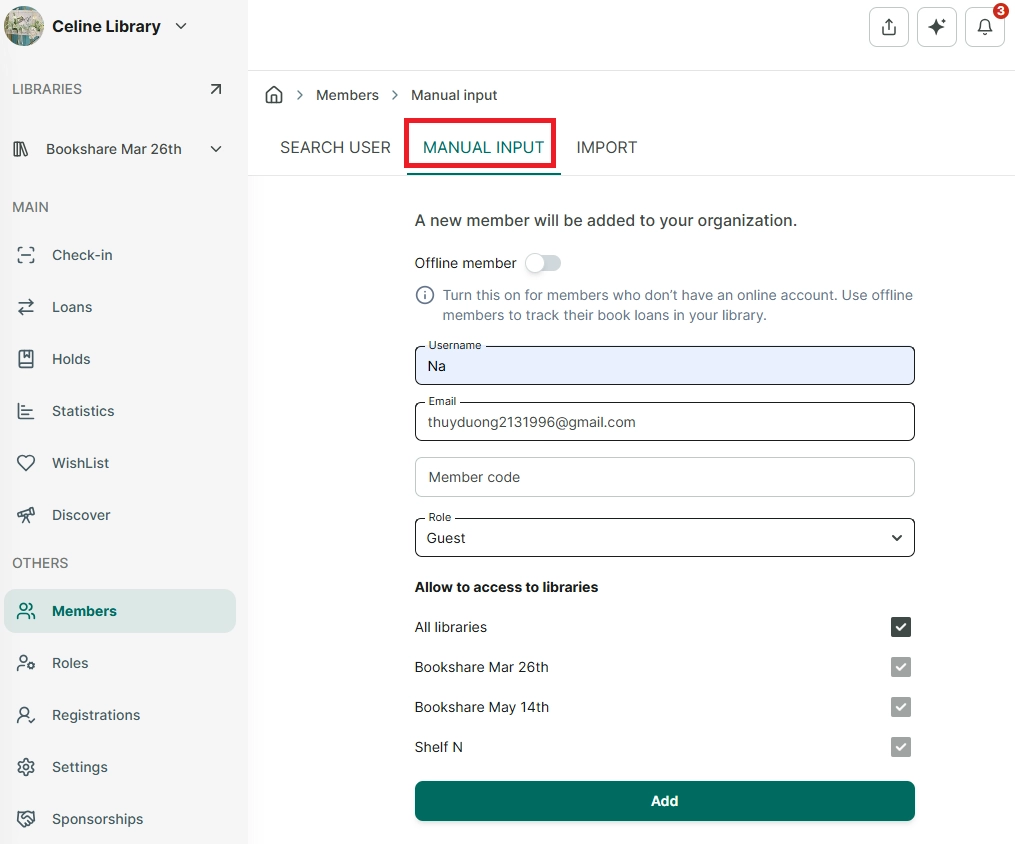
Step 3: If member do not have skoolib account yet. Please choose “Manual imput” option.
Enter the email address, select the user role, member code and grant access to libraries. Tap “ADD” to confirm.

Step 4: The message “Invited” is displayed, the invitation has been successfully sent to the new user via email.
- If a member already has a Skoolib account, after accpecting the invitation,they will be able to access the library immediately.
- If a member does not already have a Skoolib account, after accepting the invitation, they will receive an email with an initial password to log in to Skoolib and access the organization.