Edit a library
Edit a library
Step 1: Tap on “Libraries” at the right side
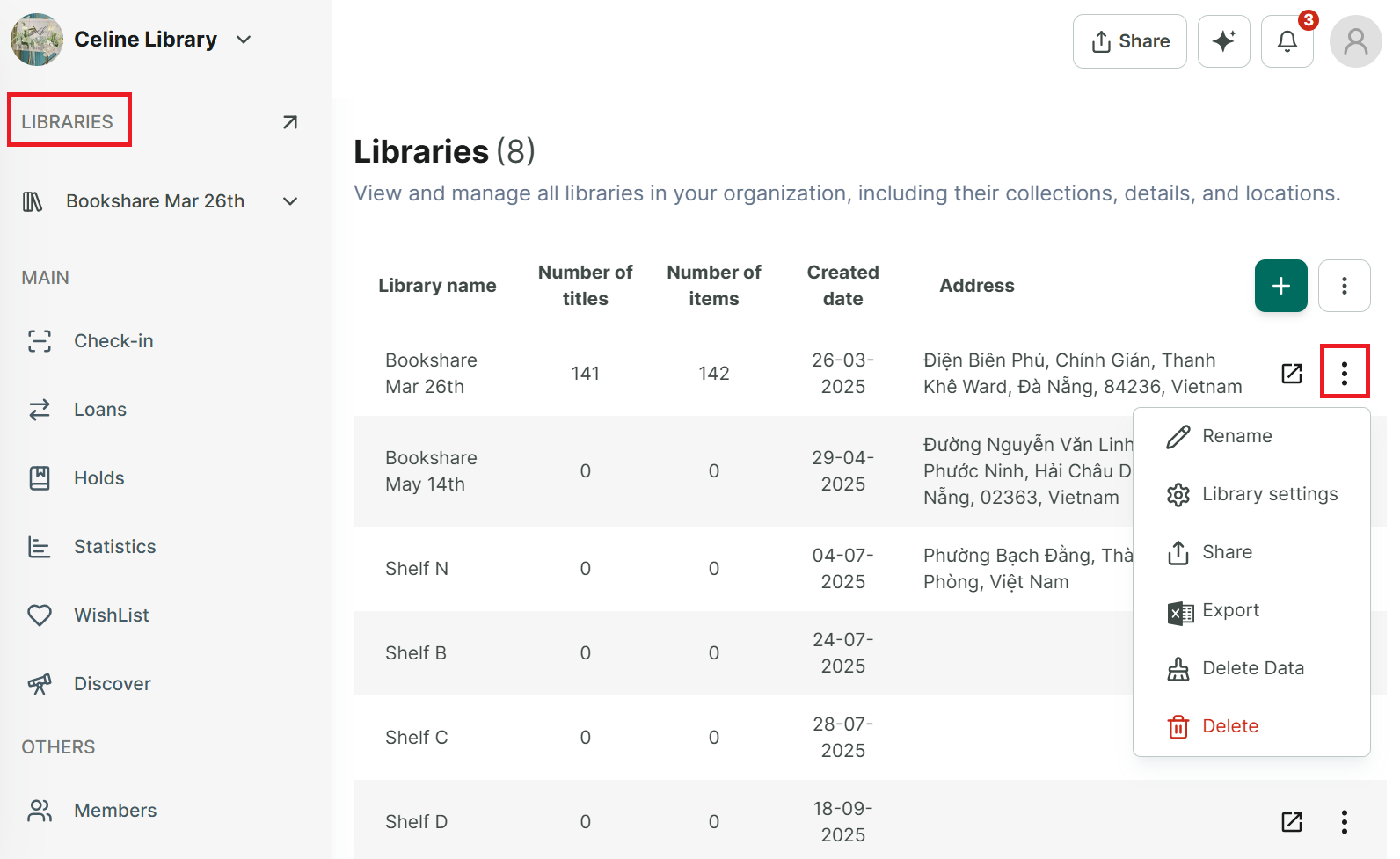
Step 2: It displays all the libraries. Tap the three-dot icon in each library name.
Step 3: Choose one of these options:
- Rename
- Library settings
- Share
- Export
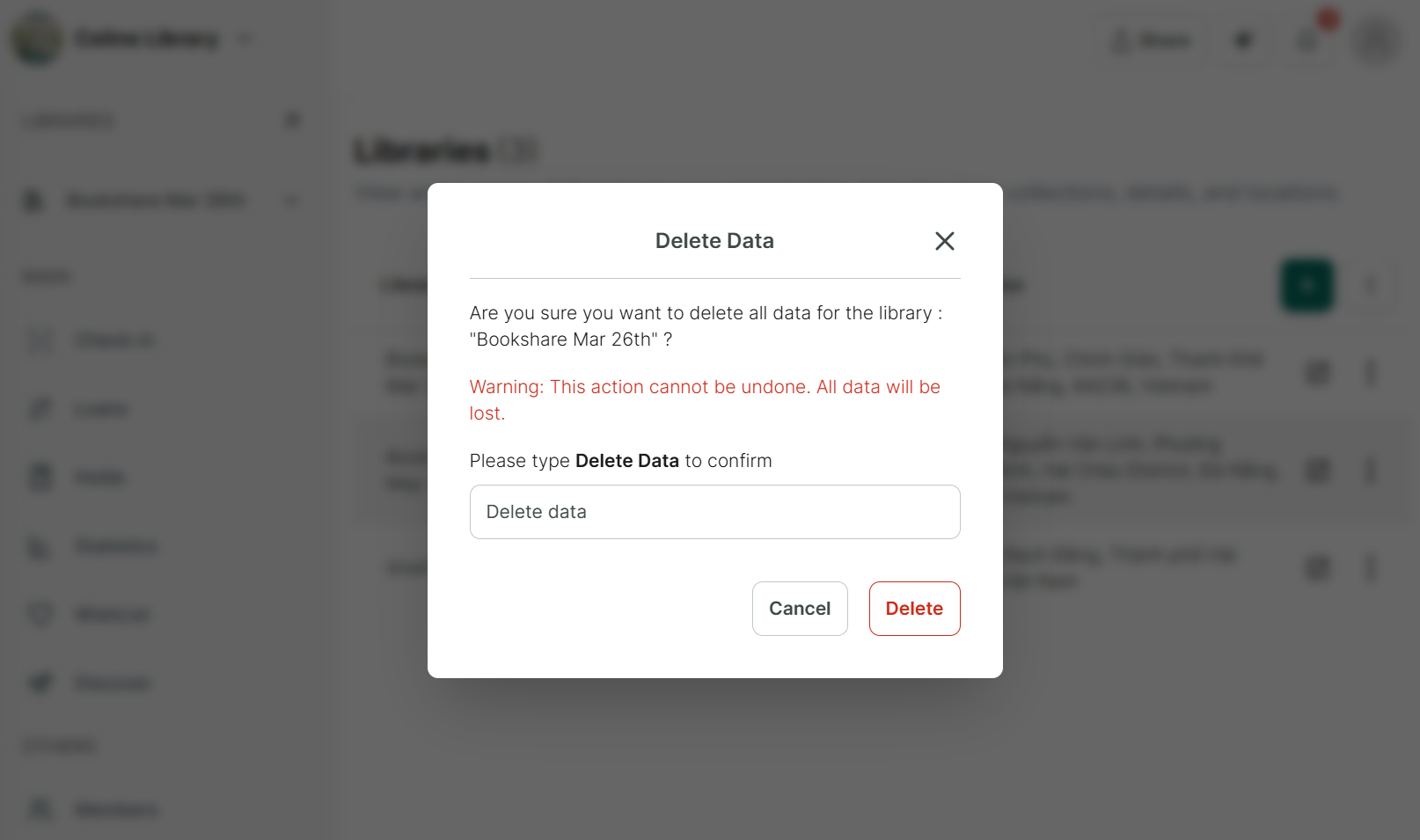
- Delete data
- Delete
View and edit deleted library
Step 4: Tap on “Libraries” at the left side
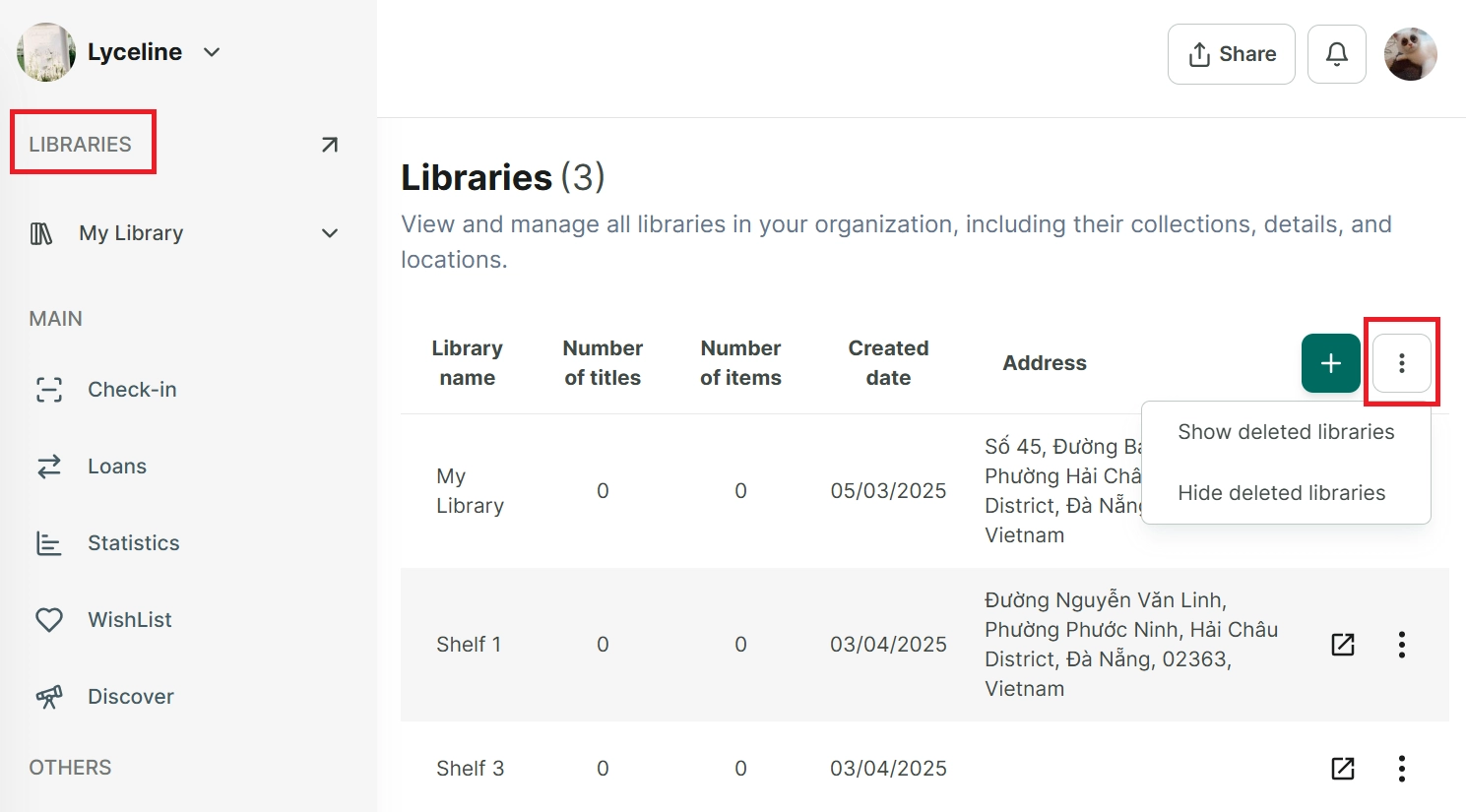
Step 5: Tap on the three-line icon next to the “Add new library” button
- Show deleted libraries
- Hide deleted libraries
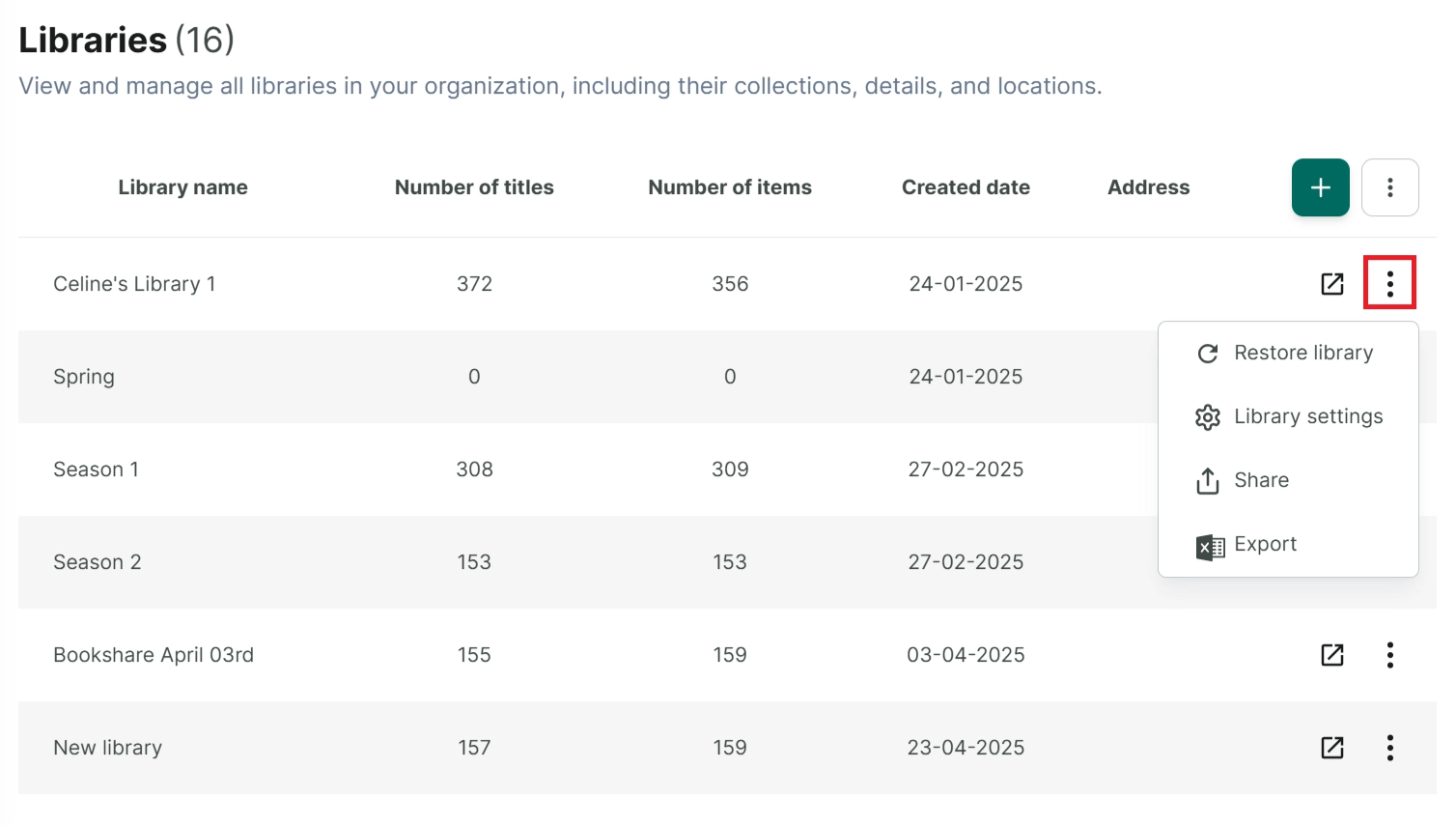
Step 6: Tap on “Show deleted libraries” → The deleted libraries is displayed.
You can try other options such as:
- Restore Library
Step 7: Tap the three-dot menu again and select “Hide the deleted libraries.” The deleted libraries will be hidden from view, returning you to the main library list.
Delete data
Step 8: Tap on “Libraries” section at the side menu to display all libraries
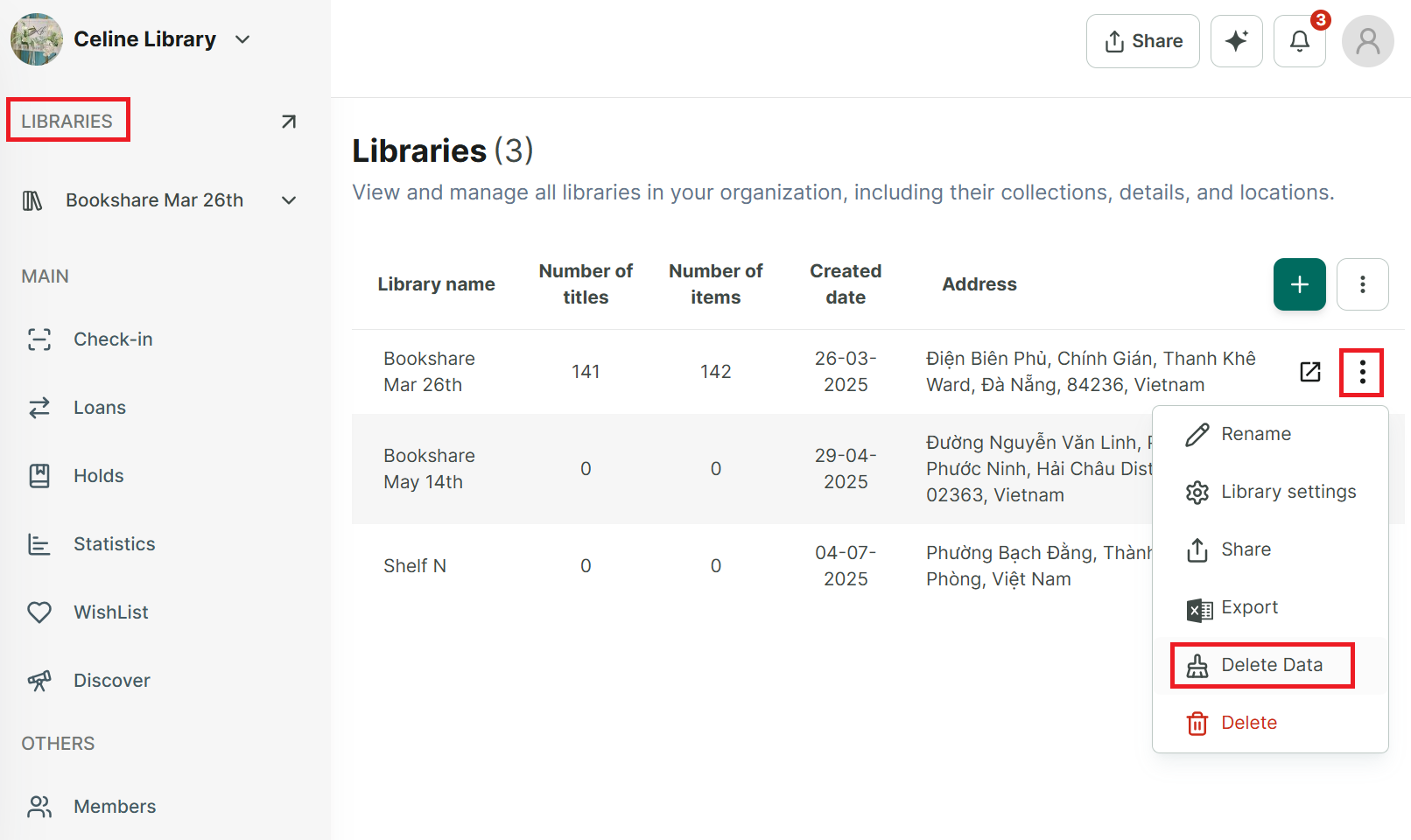
Step 9: Tap on three-dot icon at each library to show more option