Loan
Scan barcode for lending a book or multiple books
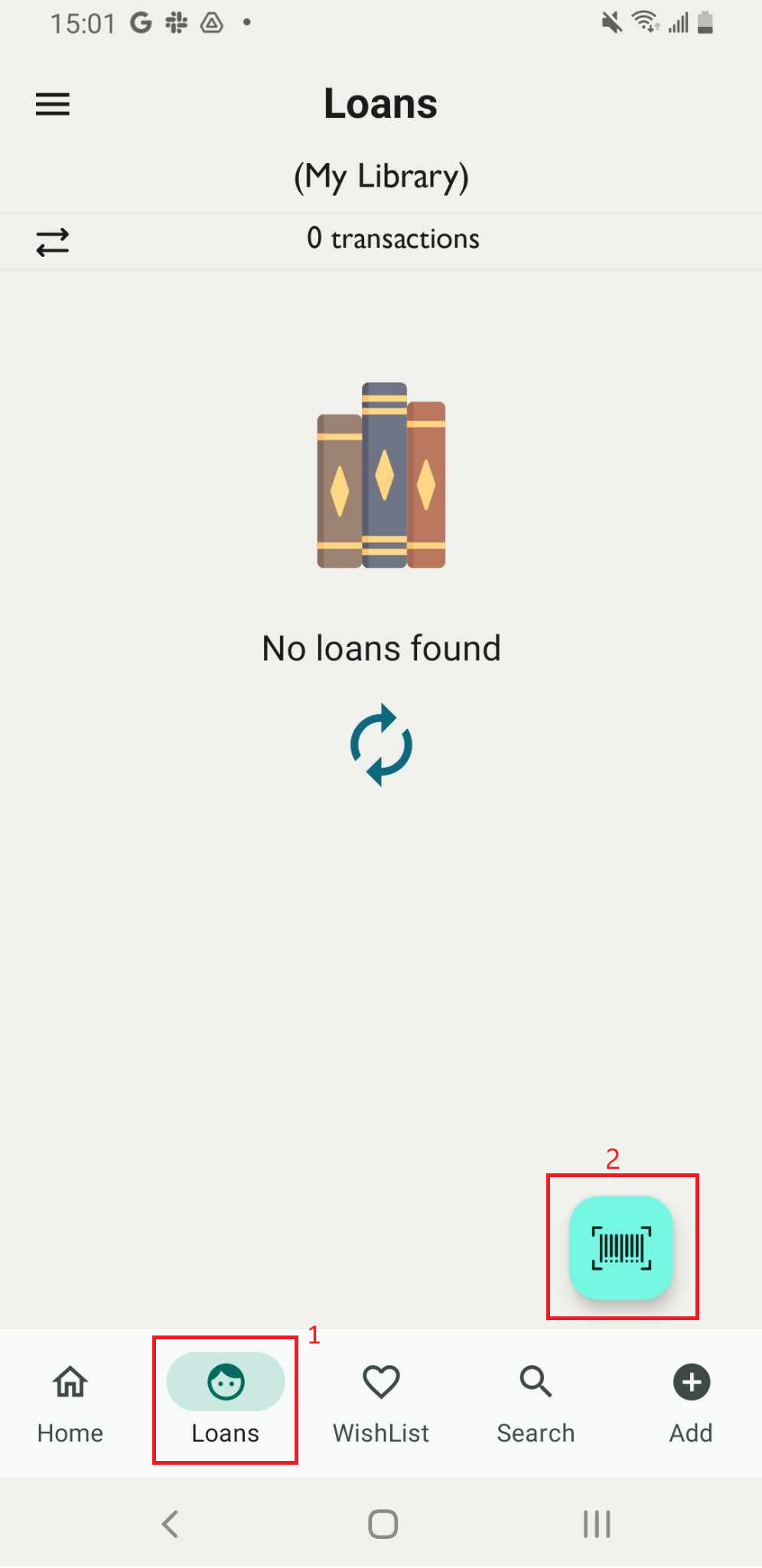
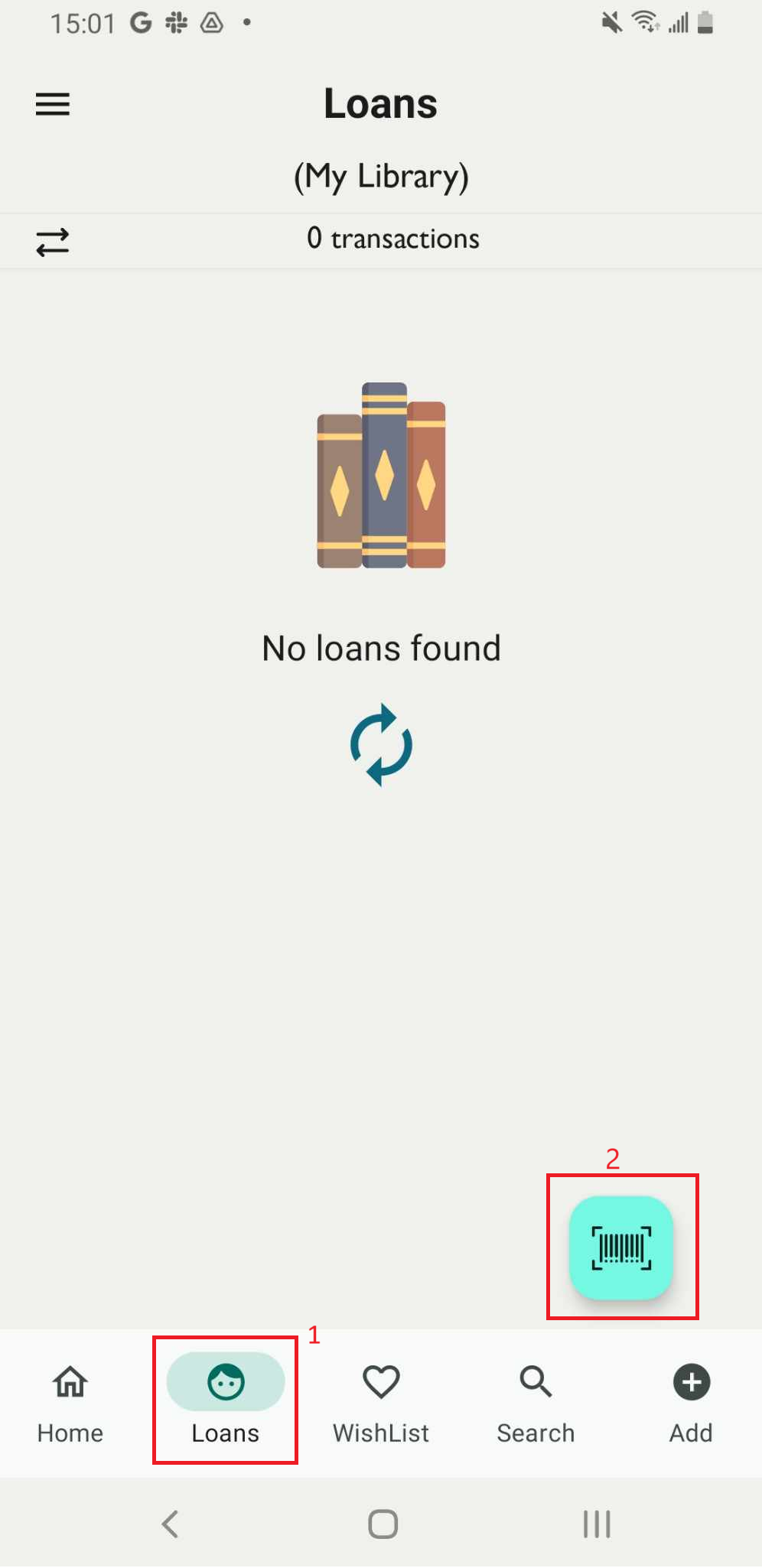
Step 1: Go to the Loan field on the main screen and tap on the barcode icon.
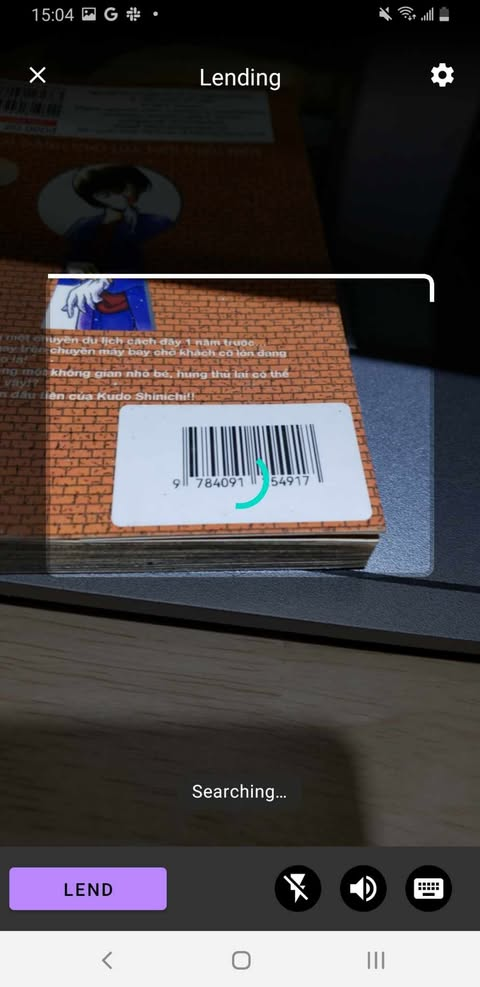
Step 2: Scan the ISBN barcode
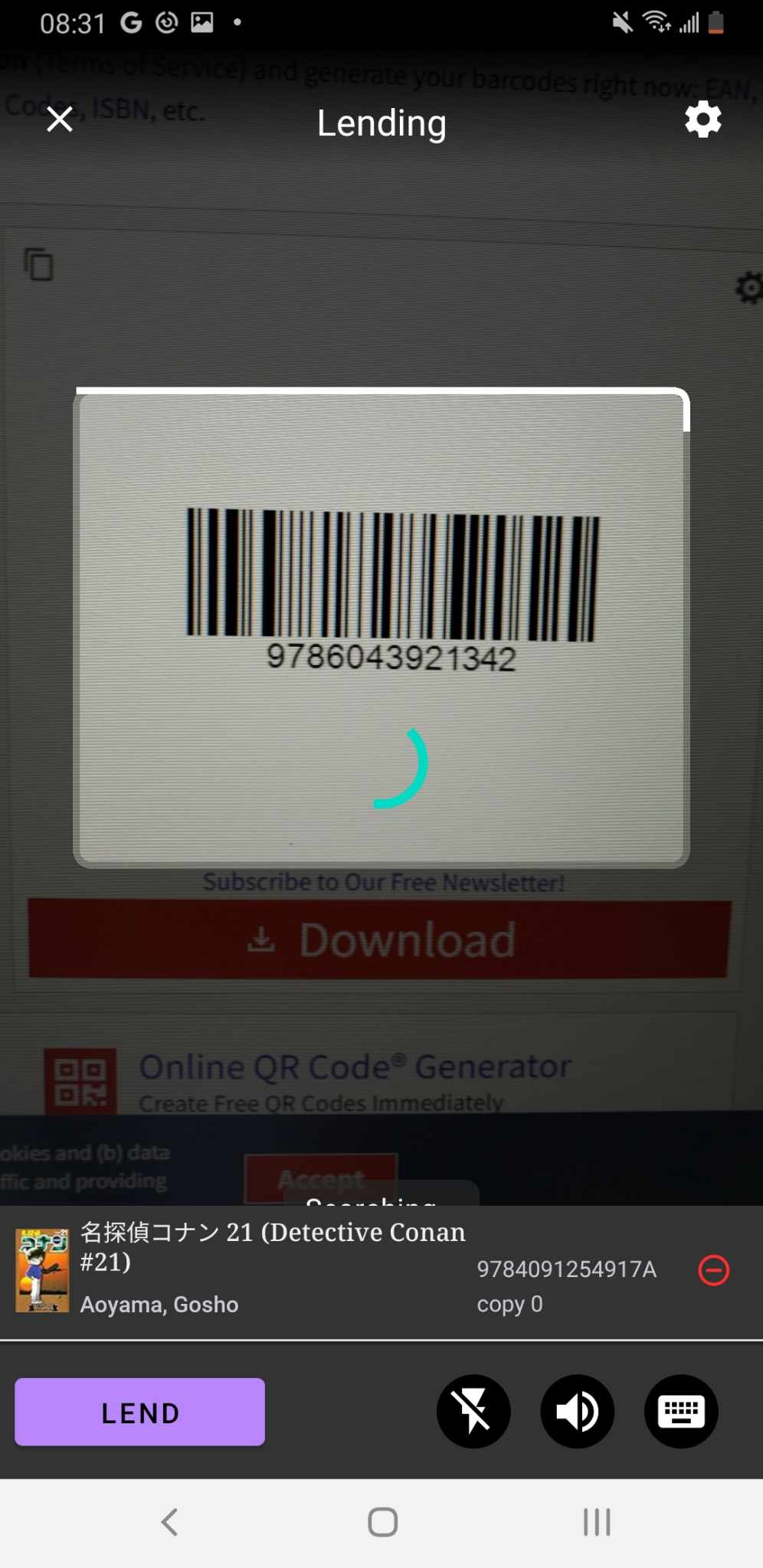
Step 3: The screen displays the list of items in the library. If you wish to lend multiple books, continue scanning additional ISBNs, and they will be added to the list. Then, press LEND.
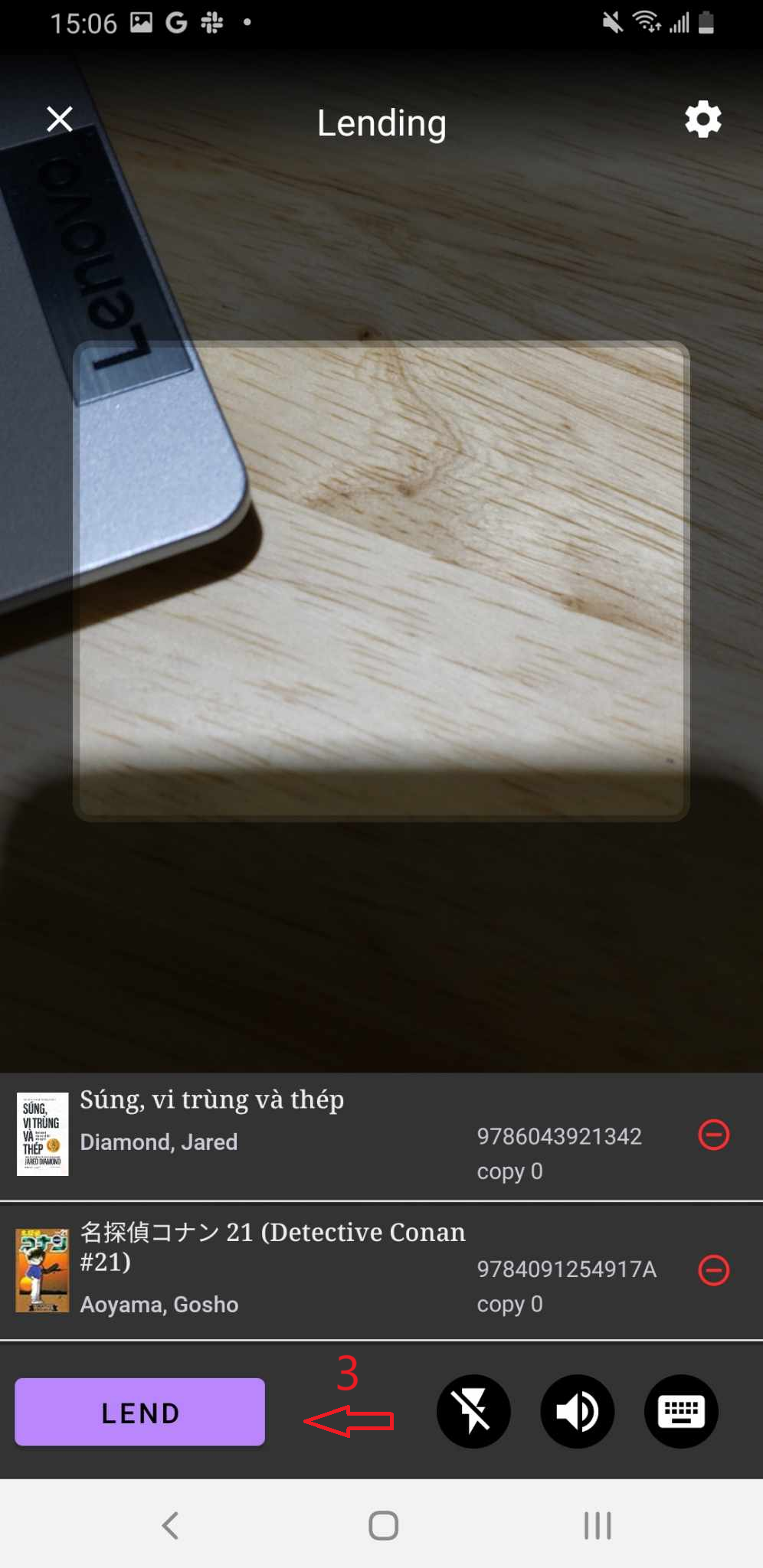
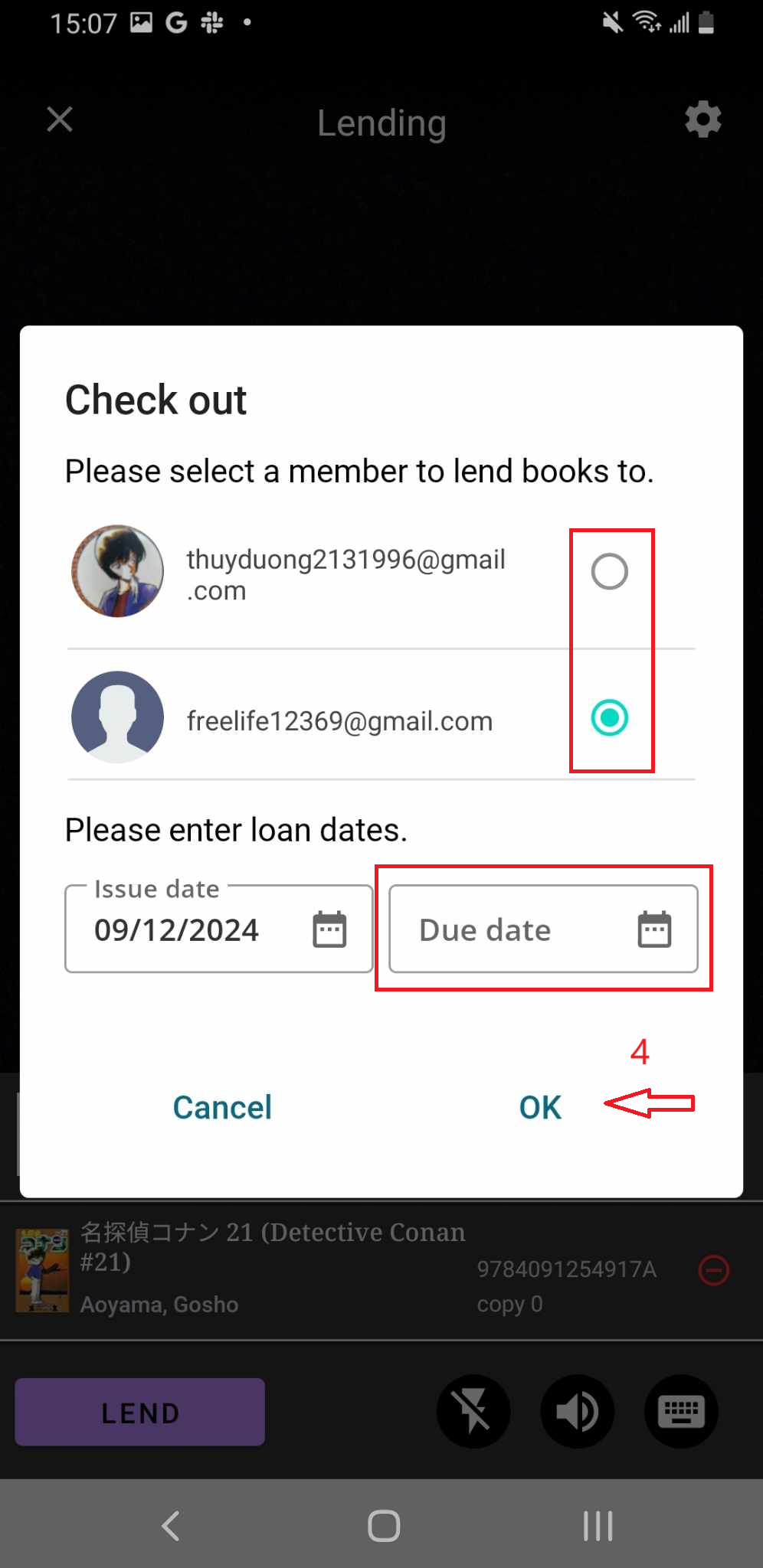
Step 4: The Check Out page will appear. Select a member to lend the book to, enter the loan dates, and tap OK to confirm.
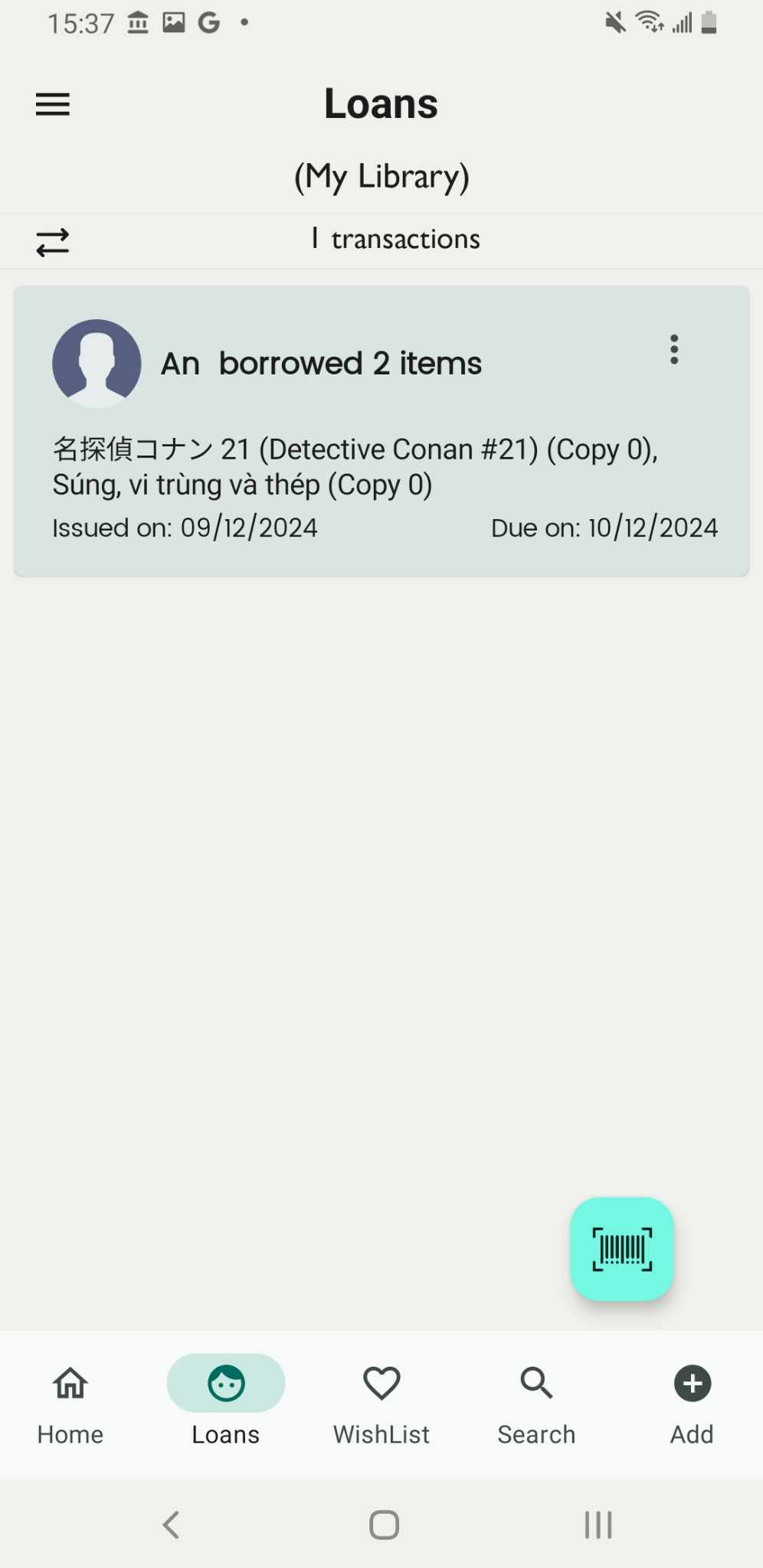
Step 5: The screen will display “Check Out” along with the name of the member who borrowed the book.
Scan and enter the barcode for lending multiple books
Step 6: Access the Loan field on the main screen. Tap on the blue scan icon to scan the ISBN barcode.
Step 7: Point your camera at a barcode.
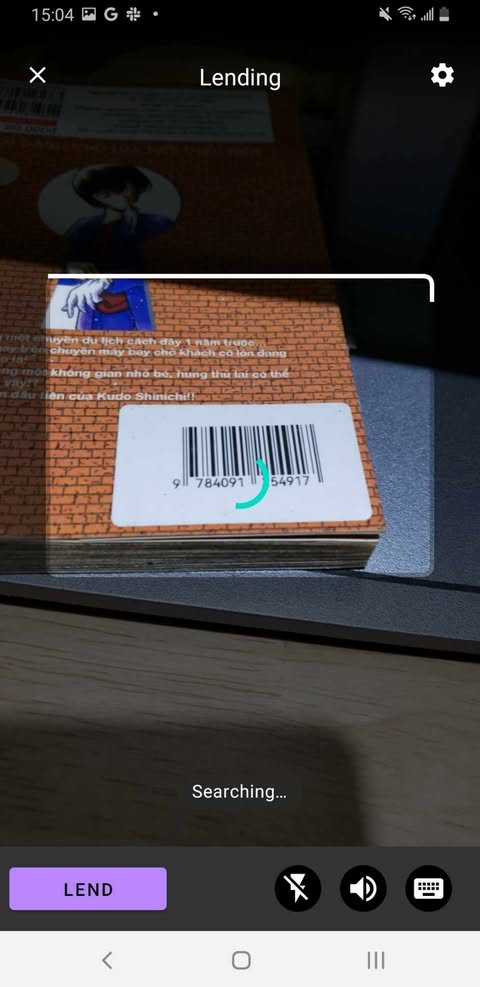
Step 8: The screen shows the items in the library on the screen .
Continue tap on the barcode icon to enter other ISBN barcodes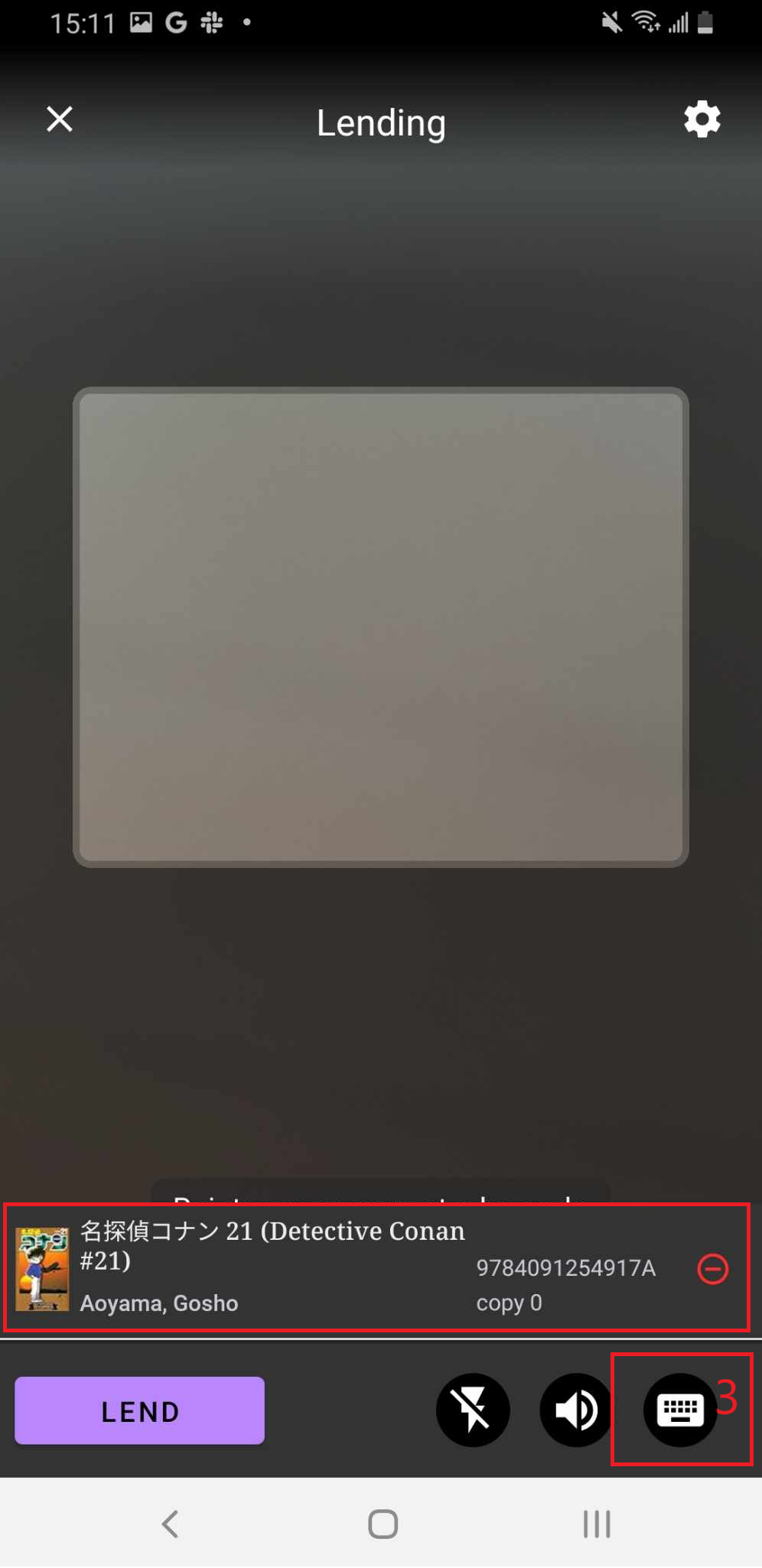
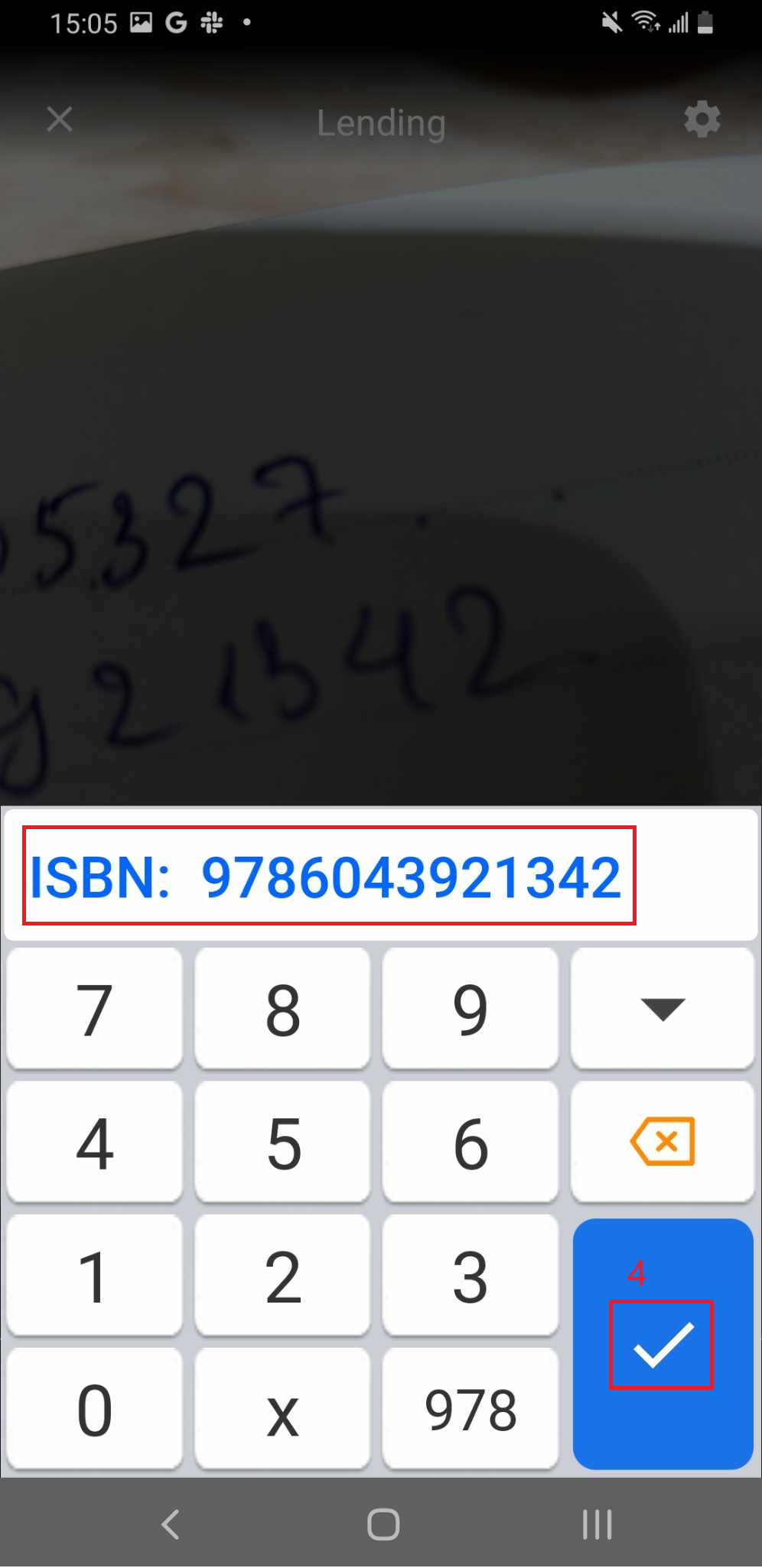
Step 9: The screen displays the list of items in the library. Tap LEND to proceed.
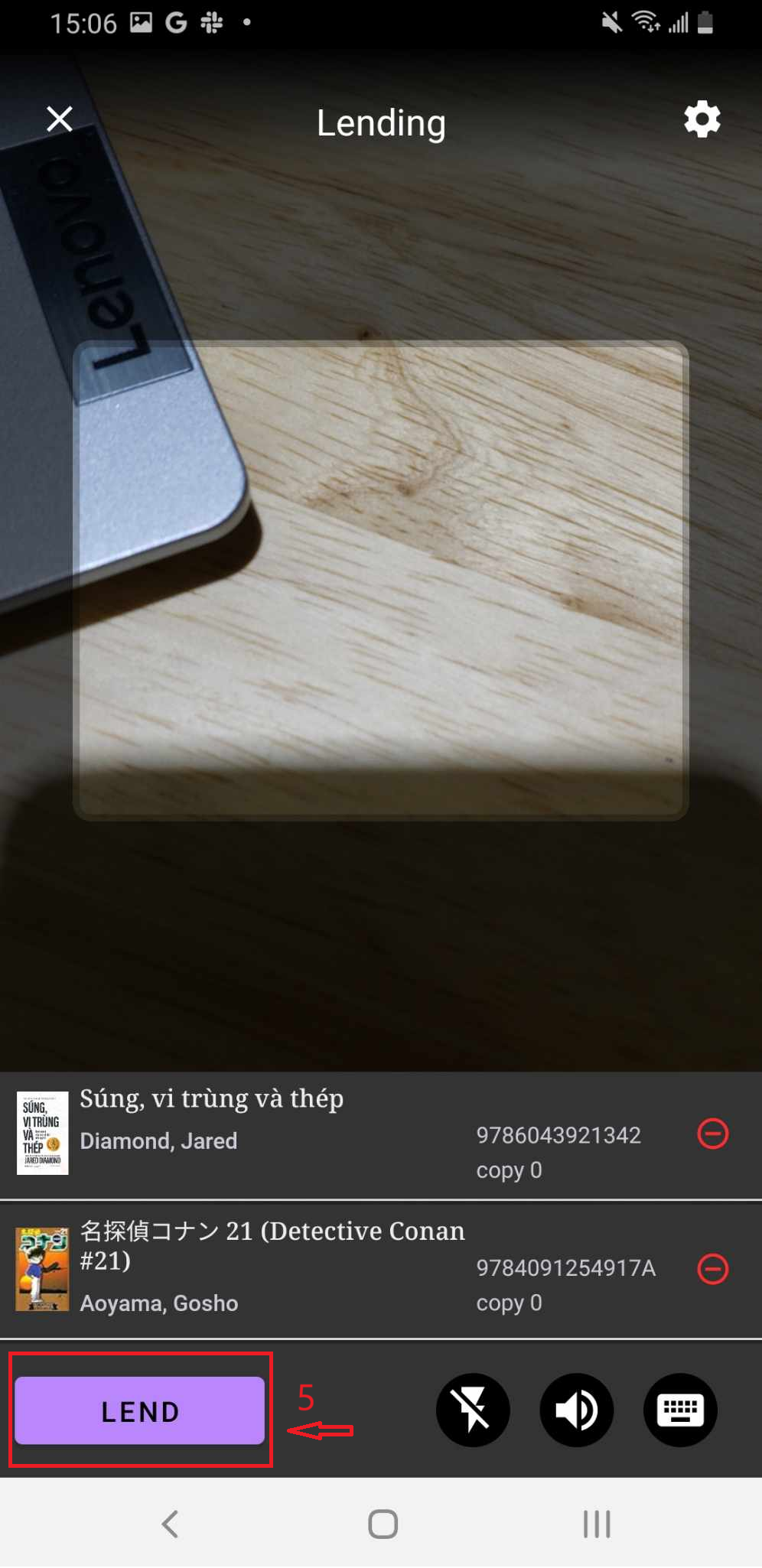
Step 10: The Check Out page will appear. Select a member to lend the book to, enter the loan dates, and tap OK to confirm.
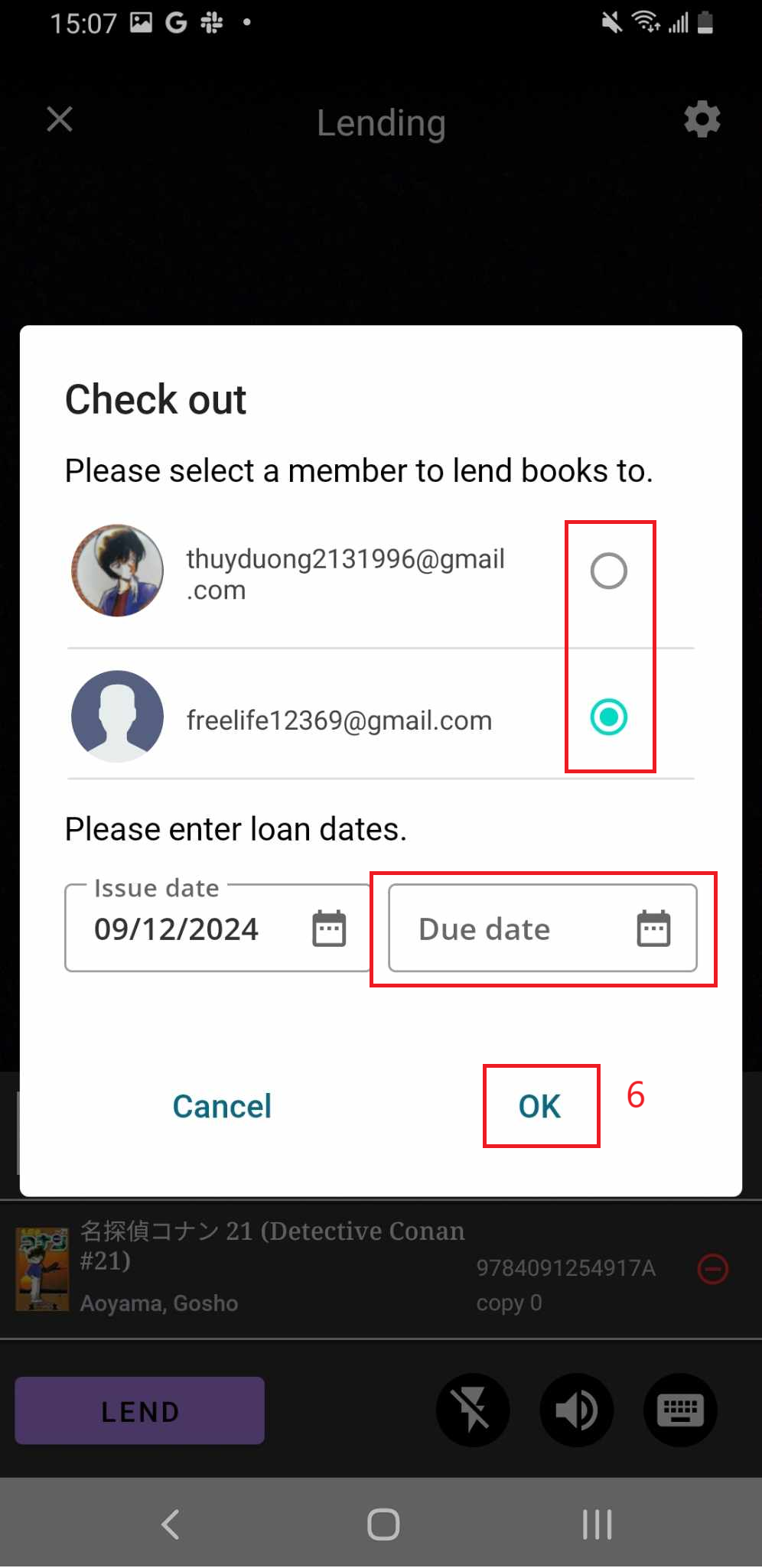
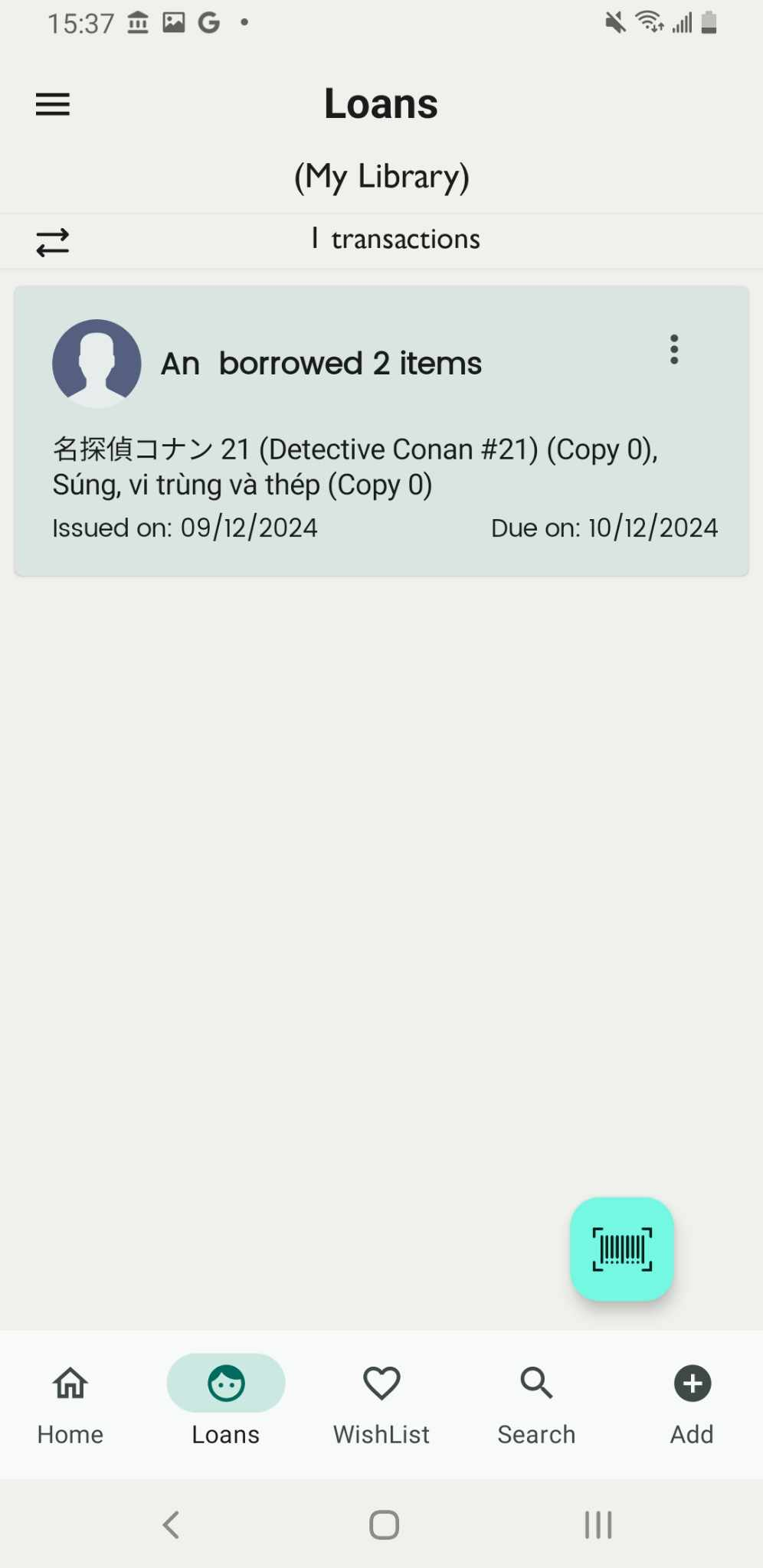
Step 11: The screen will display “Check Out” along with the name of the member who borrowed the book.
Enter barcode for lending a book
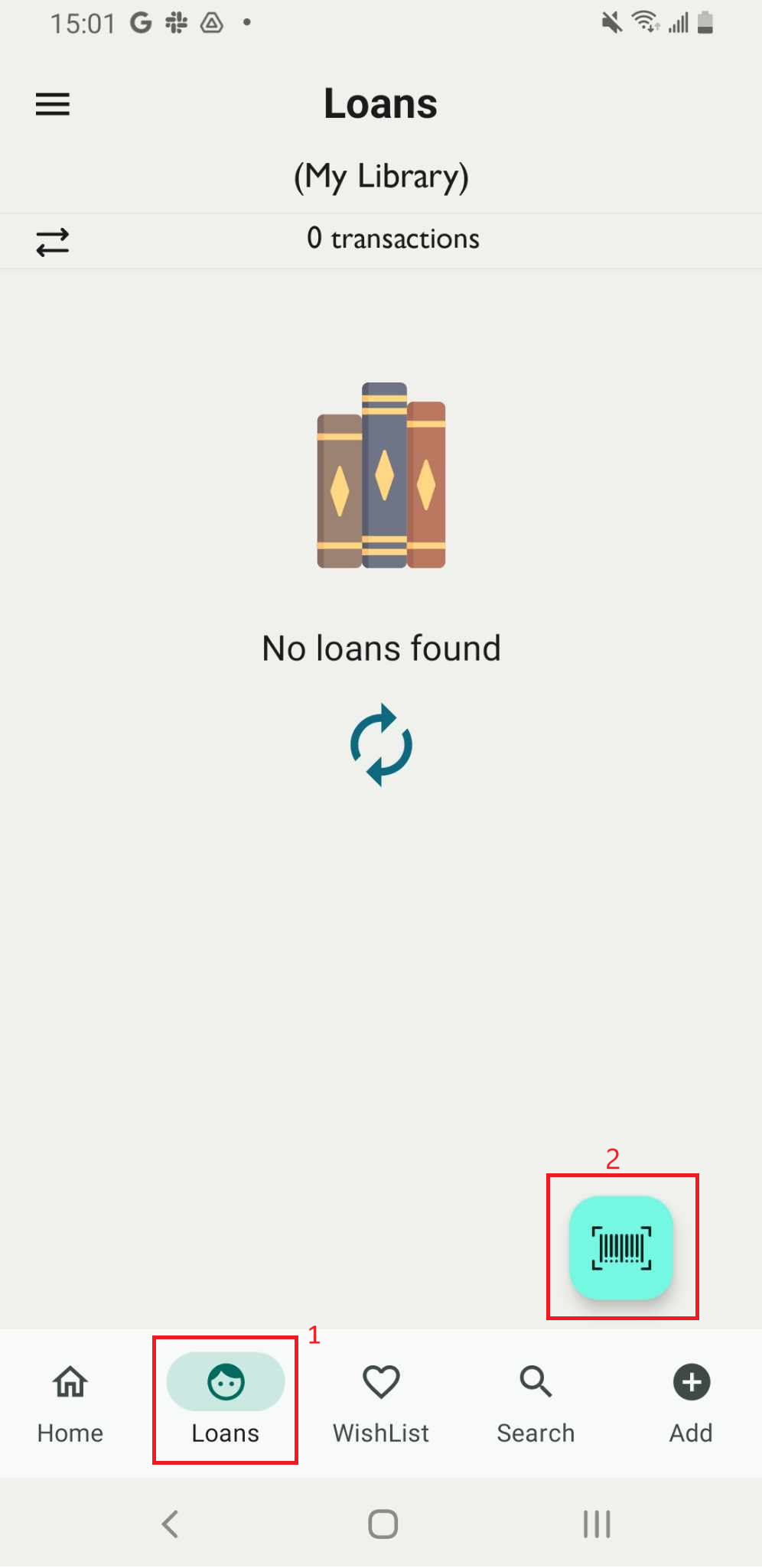
Step 12: Go to the Loan field on the main screen and tap on the barcode icon.
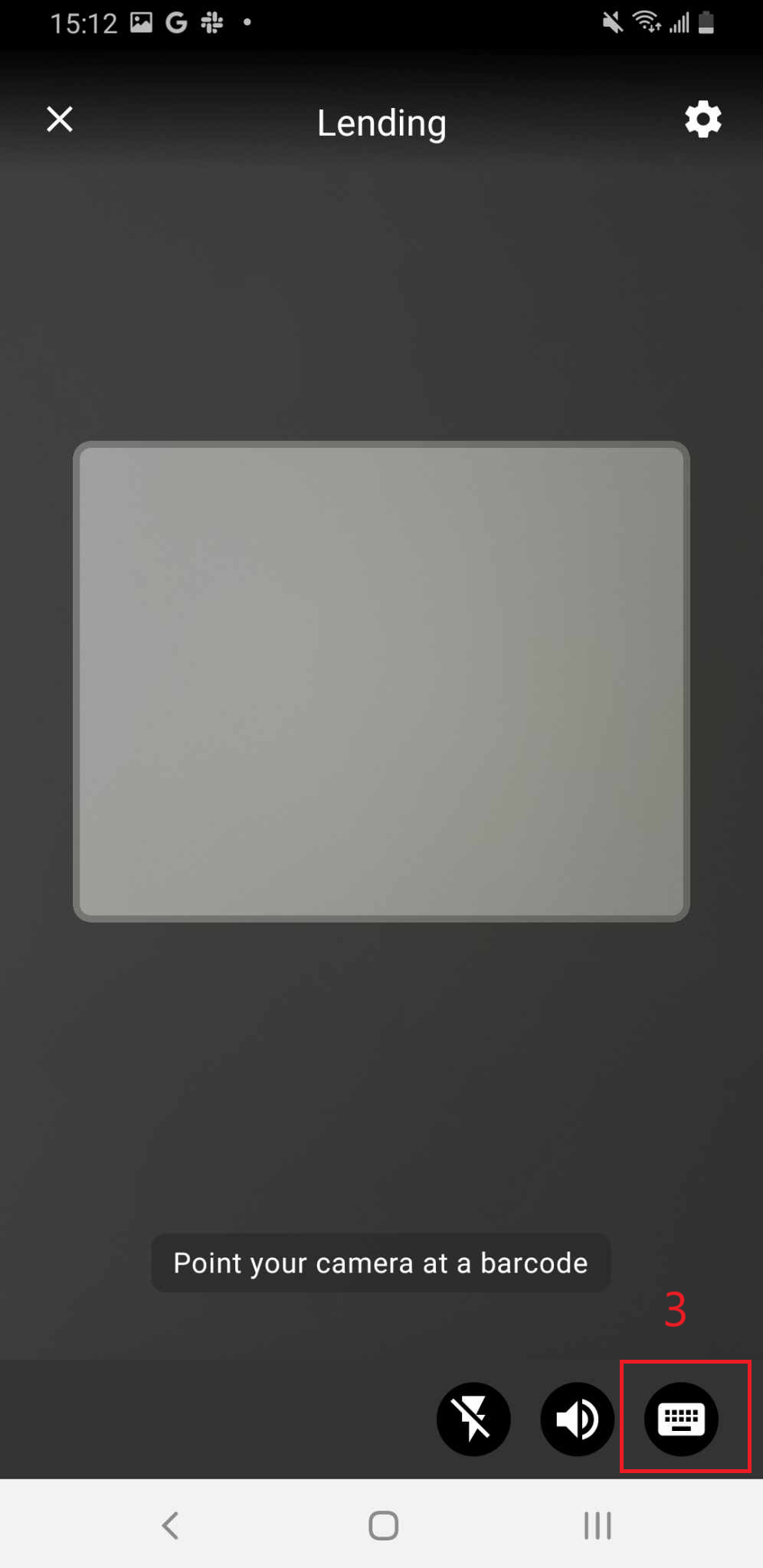
Step 13: Tap on the icon in the bottom right corner, then enter the book’s barcode.
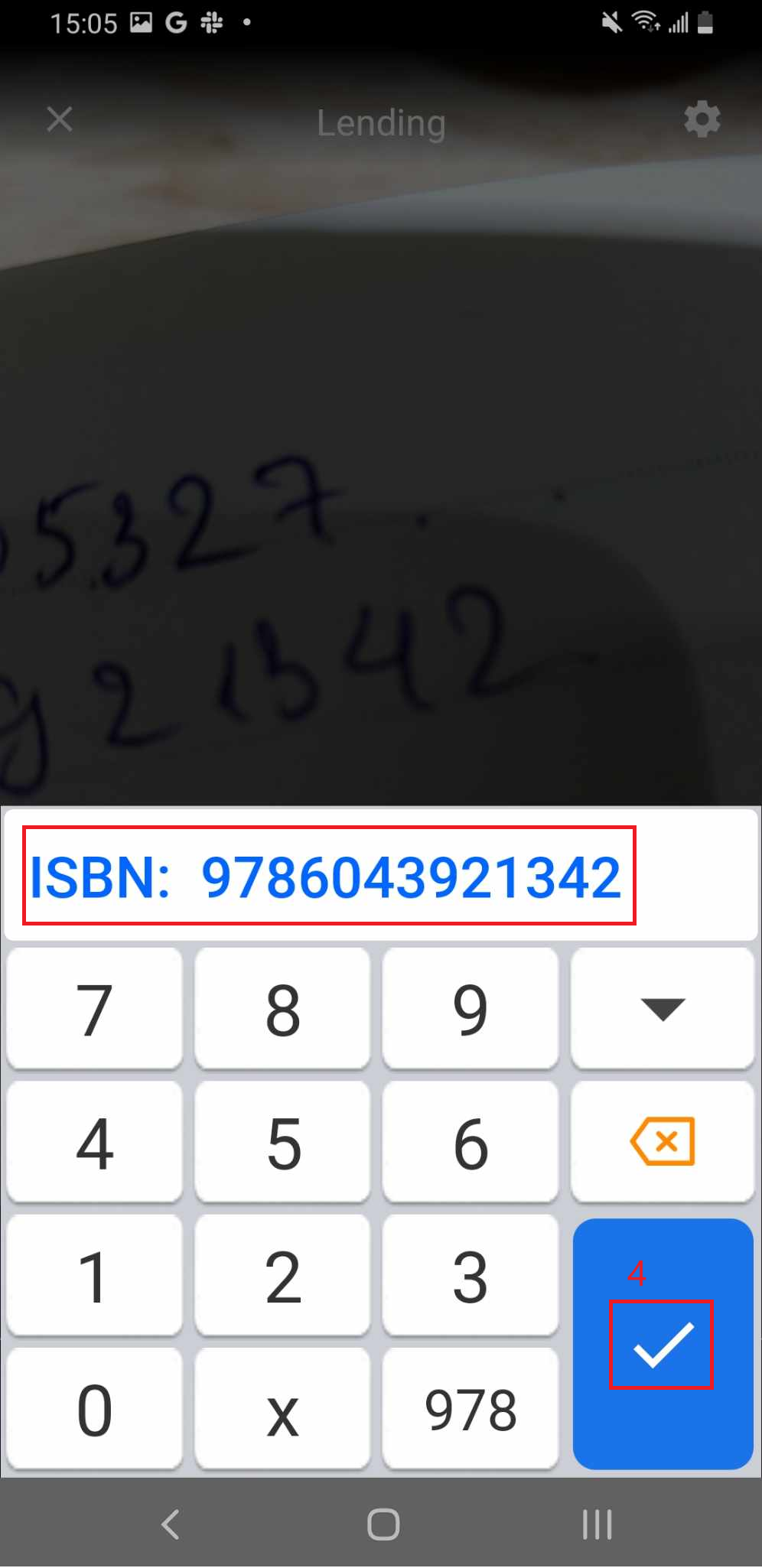
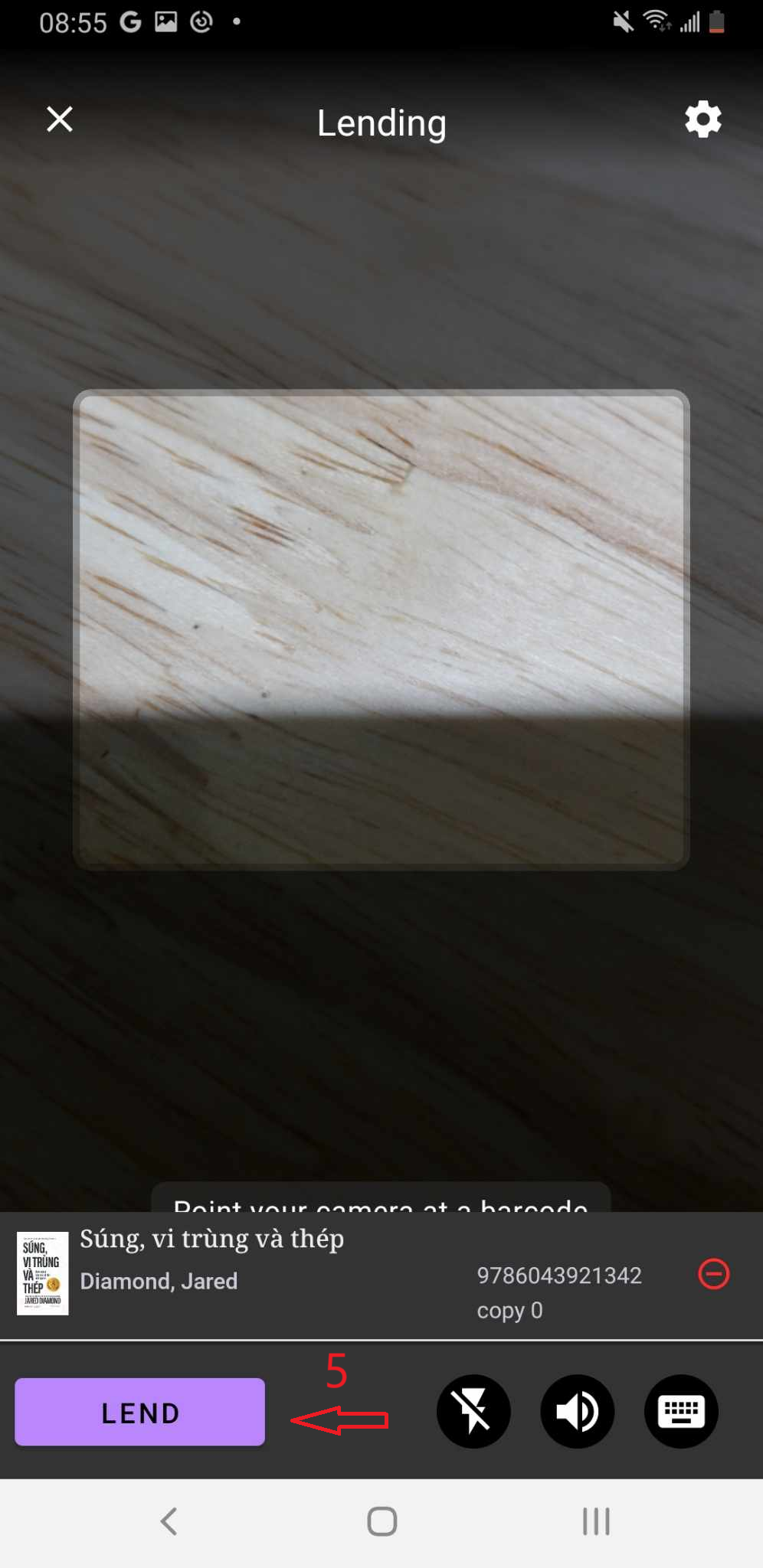
Step 14: The screen displays the list of items in the library. Tap LEND to proceed.
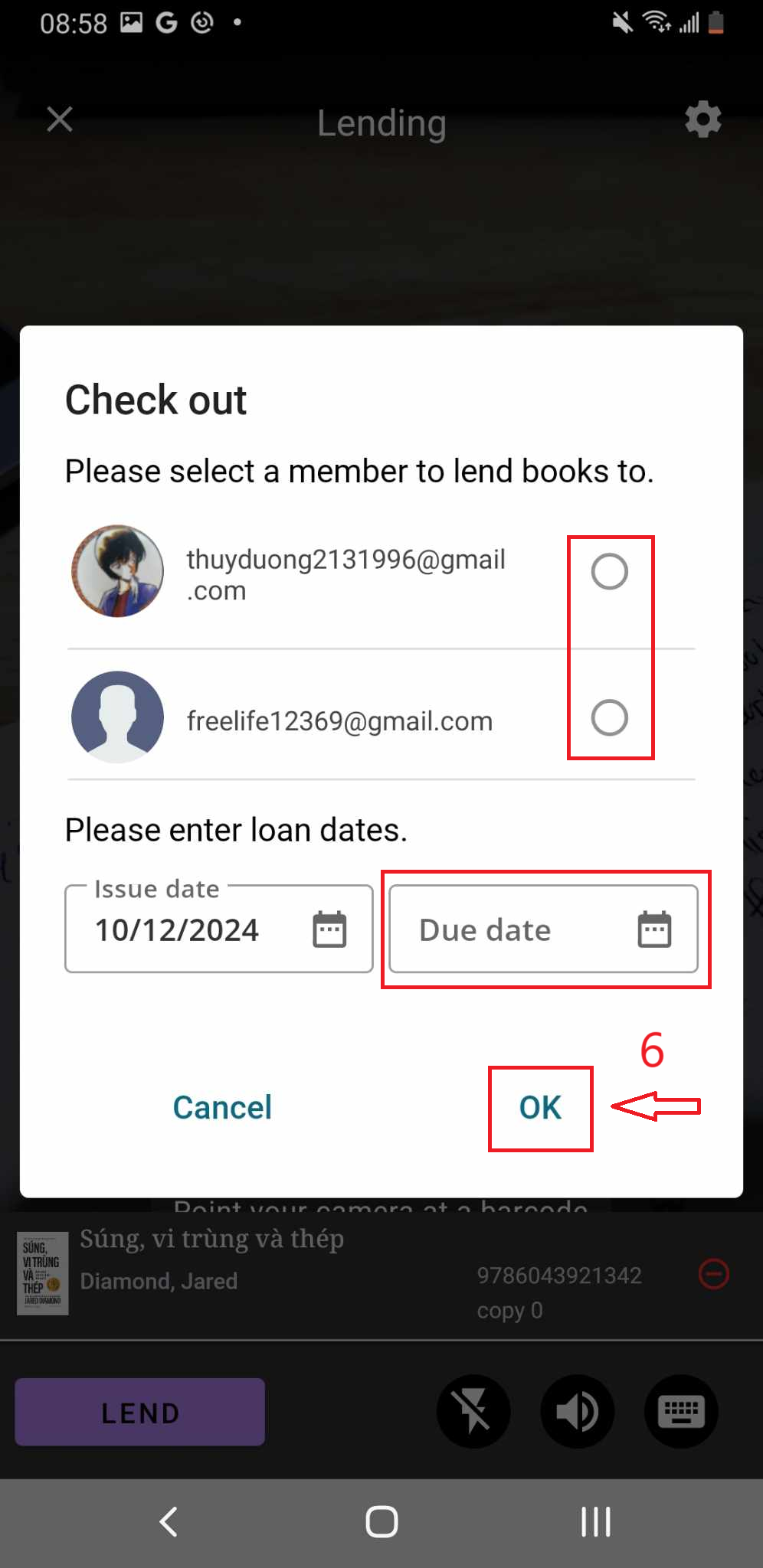
Step 15: The Check Out page will appear. Select a member to lend the book to, enter the loan dates, and tap OK to confirm.
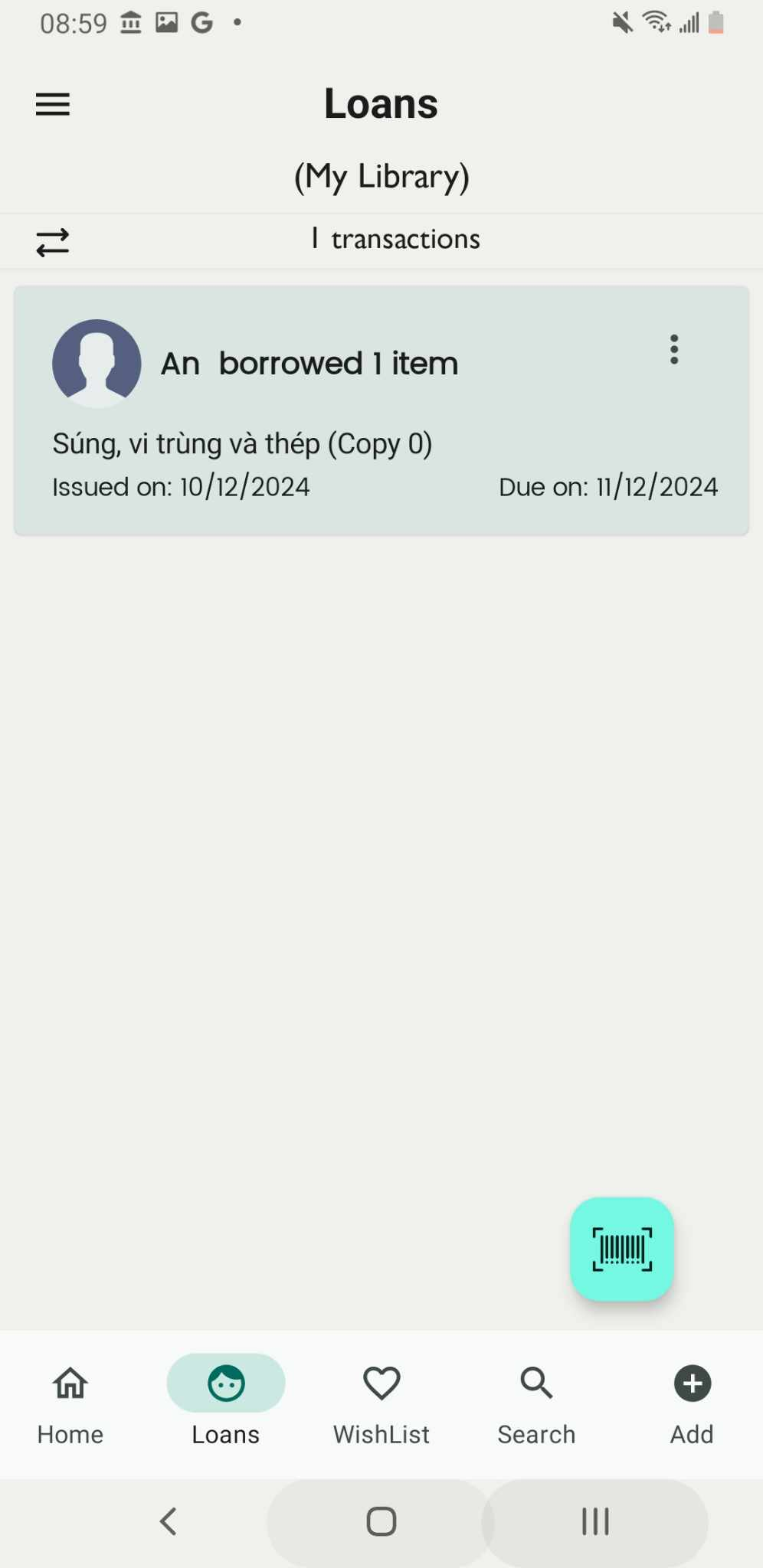
Step 16: The screen shows “Check out” and the member who borrow the book
Scan barcode for lending a book
Step 17: Go to the Loan field on the main screen and tap on the barcode icon.
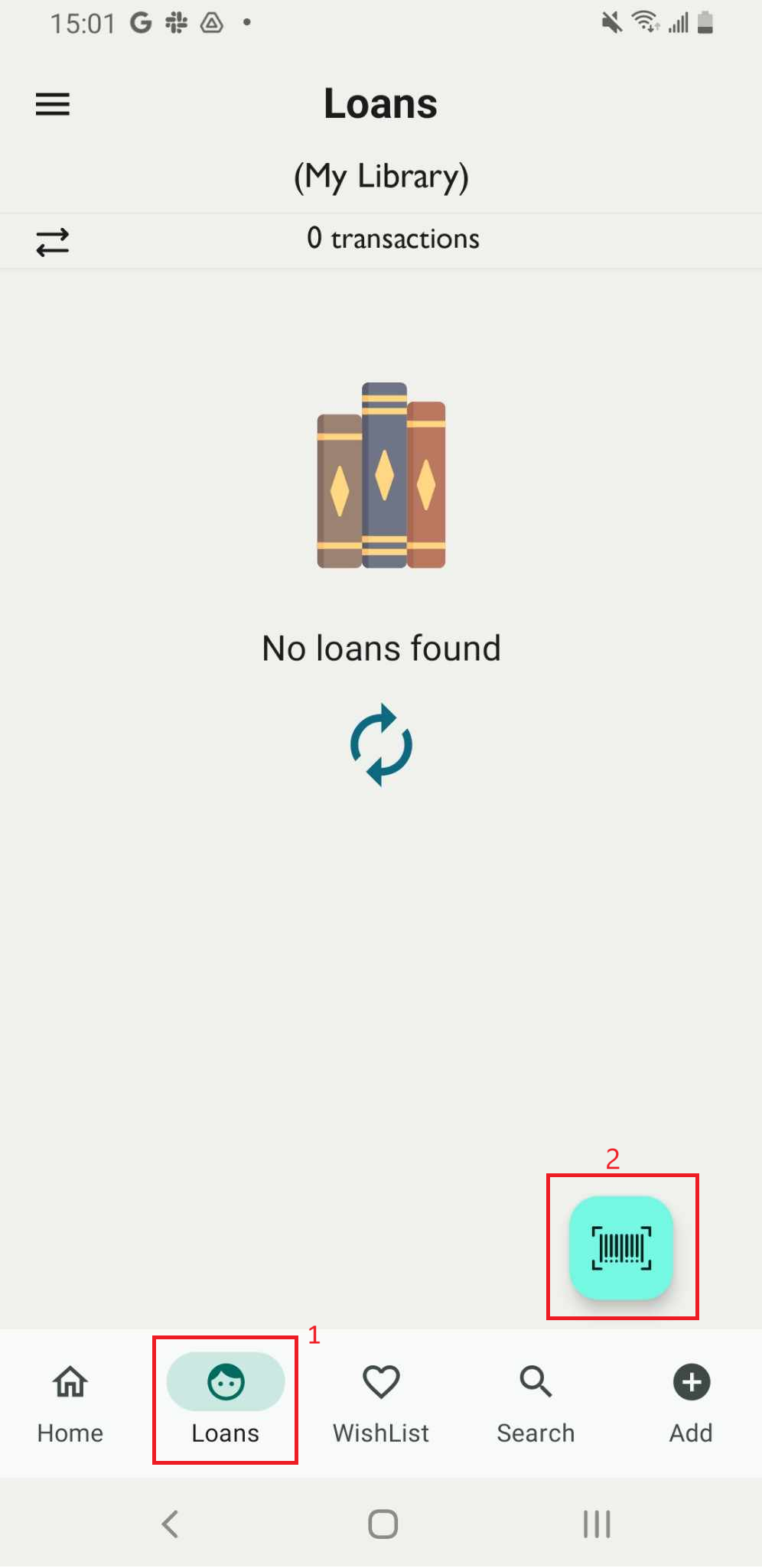
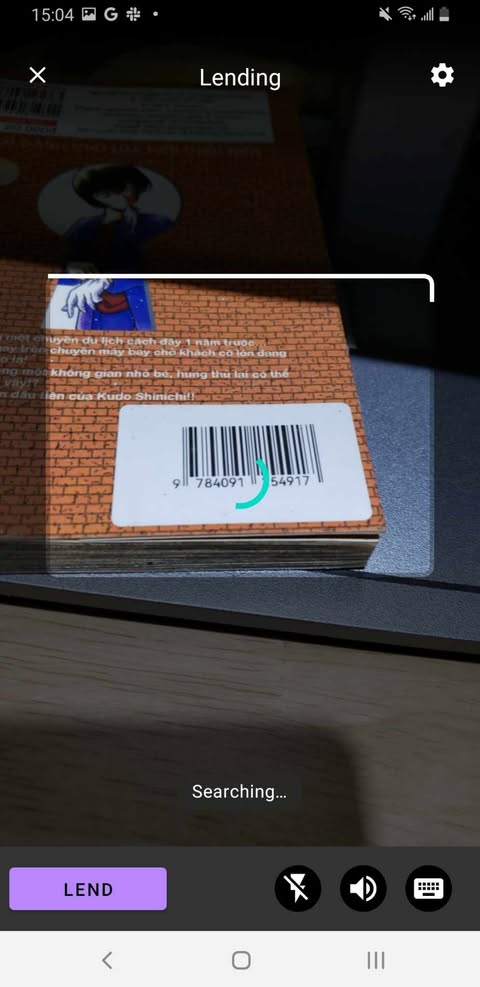
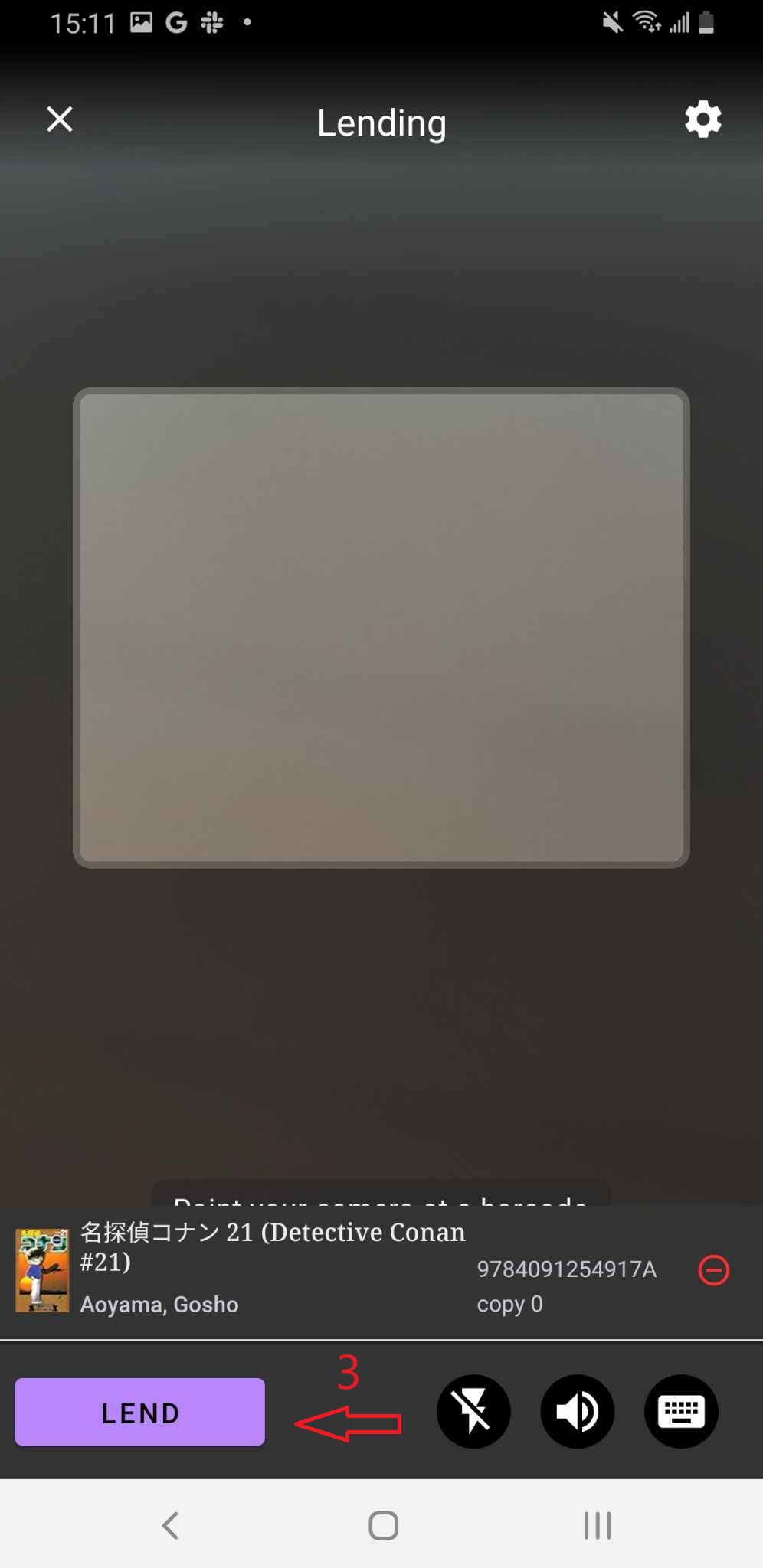
Step 18: Scan the ISBN barcode. The screen will display the list of items in the library.
Tap LEND to proceed.
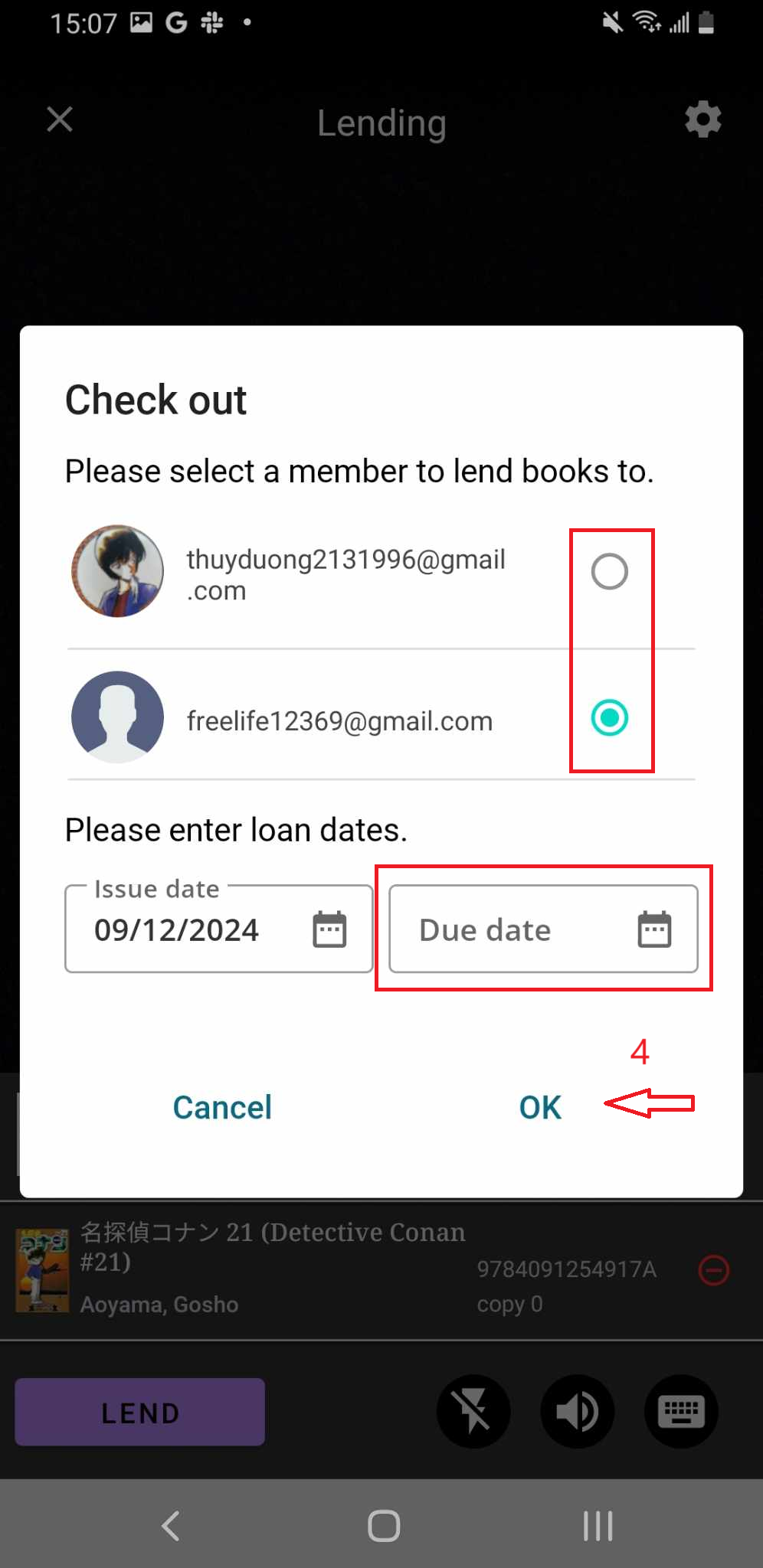
Step 19: The Check Out page will appear. Select a member to lend the book to, enter the loan dates, and tap OK to confirm.
Step 20: The screen will display “Check Out” along with the name of the member who borrowed the book.
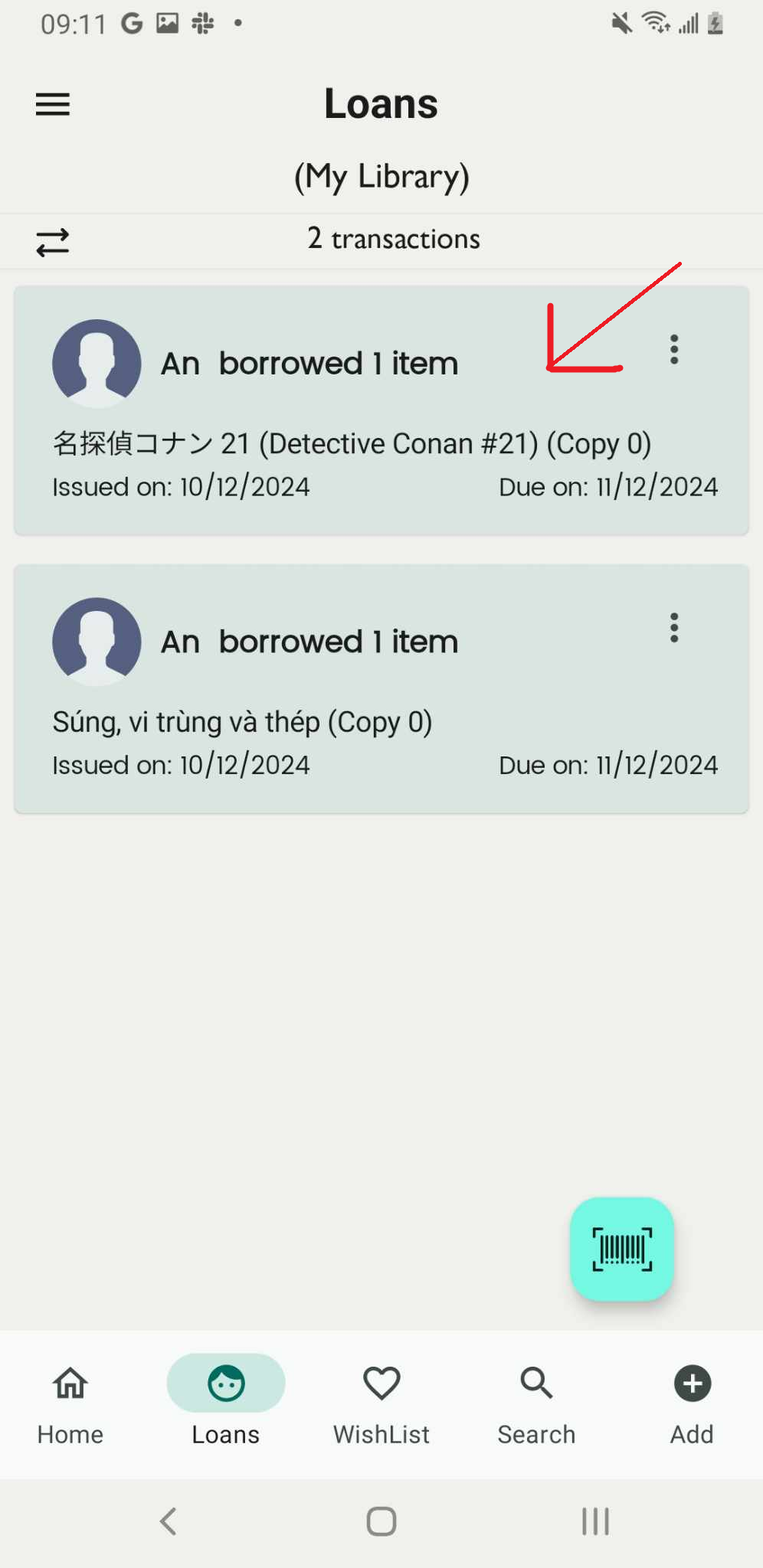
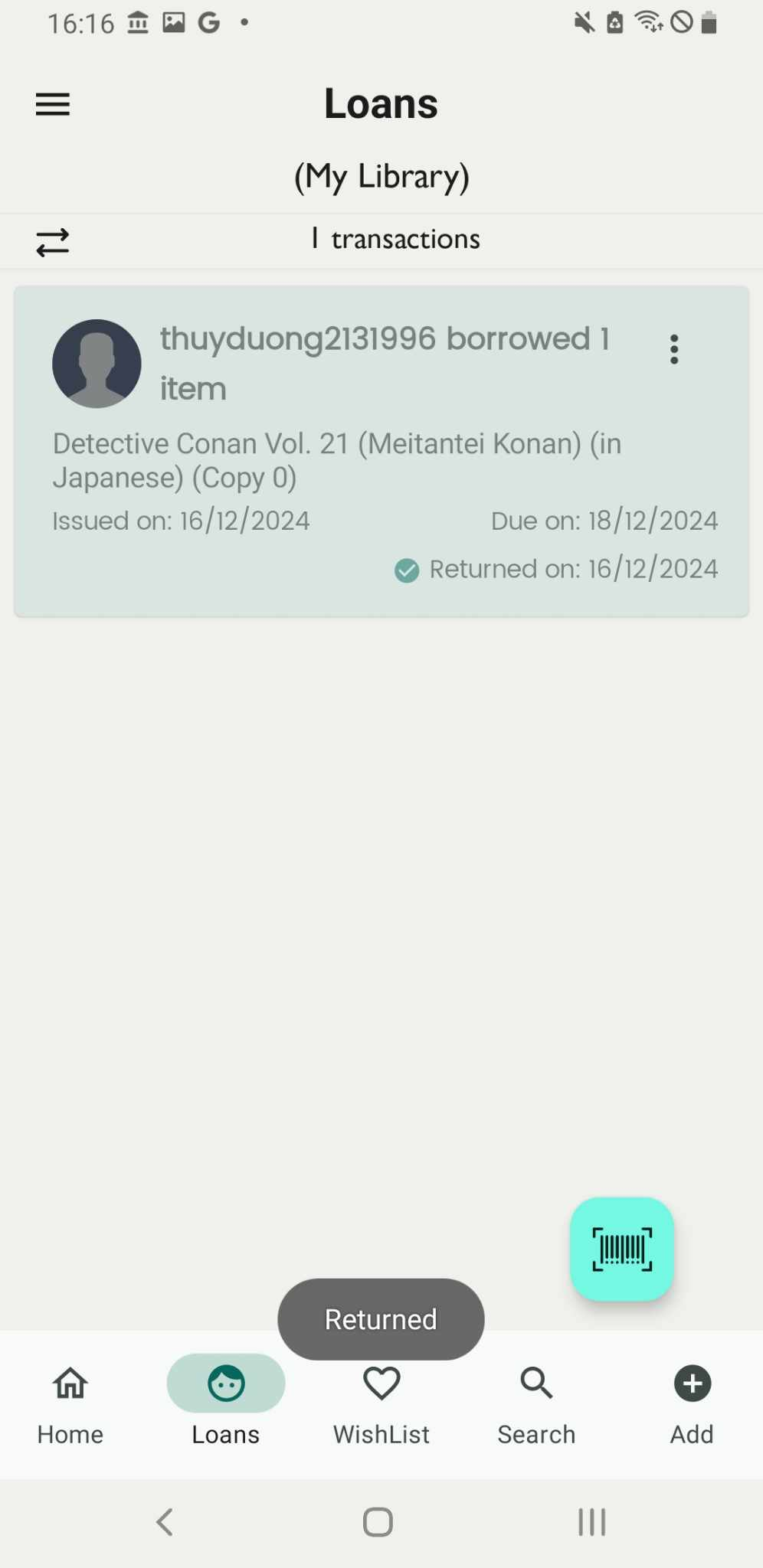
Return the loan
Step 21: Access the Loans field on the main screen. The Loans page will be displayed.
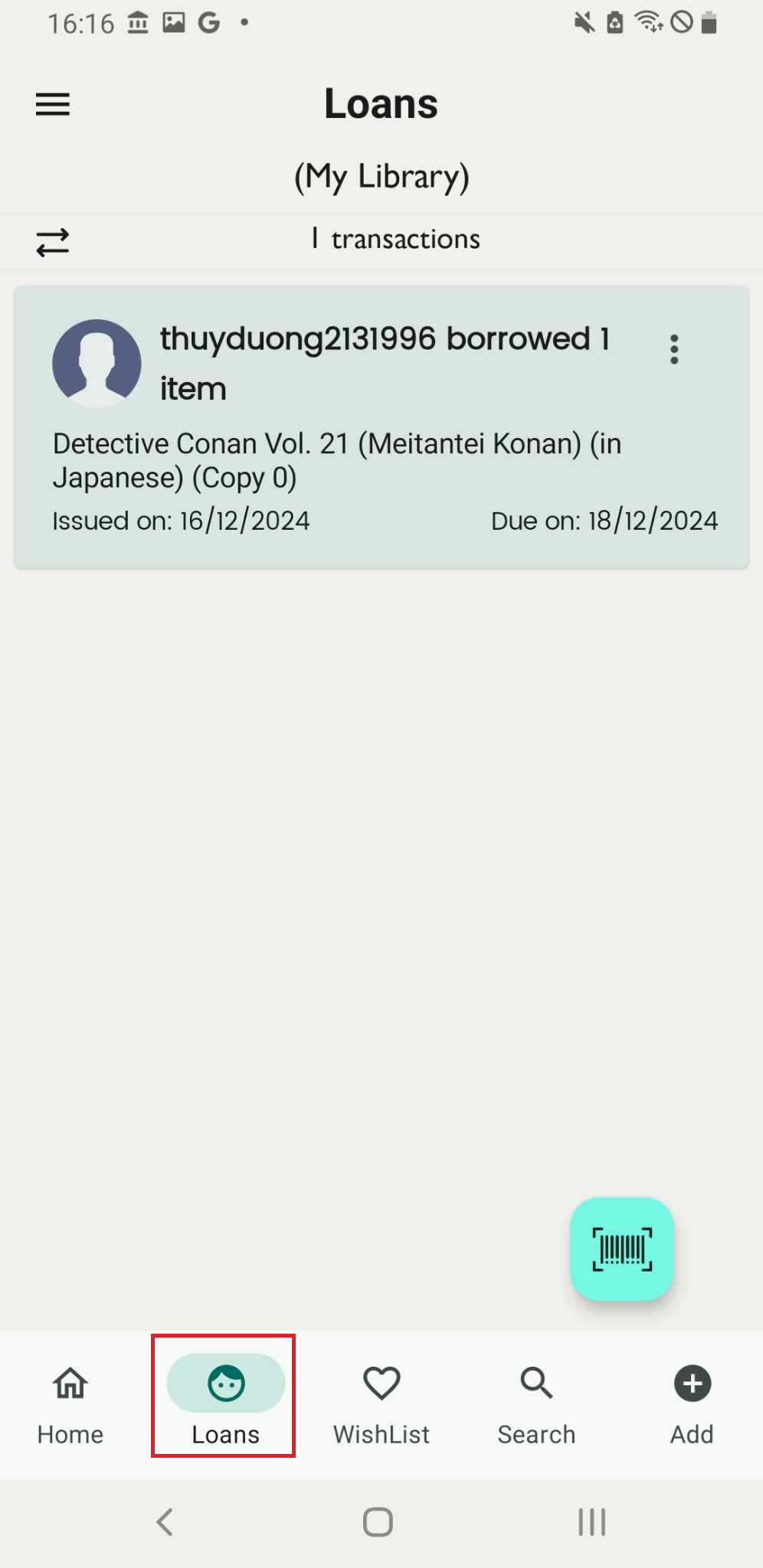
Step 22: Press the three-dot icon next to the member who borrowed the books. Select Return.
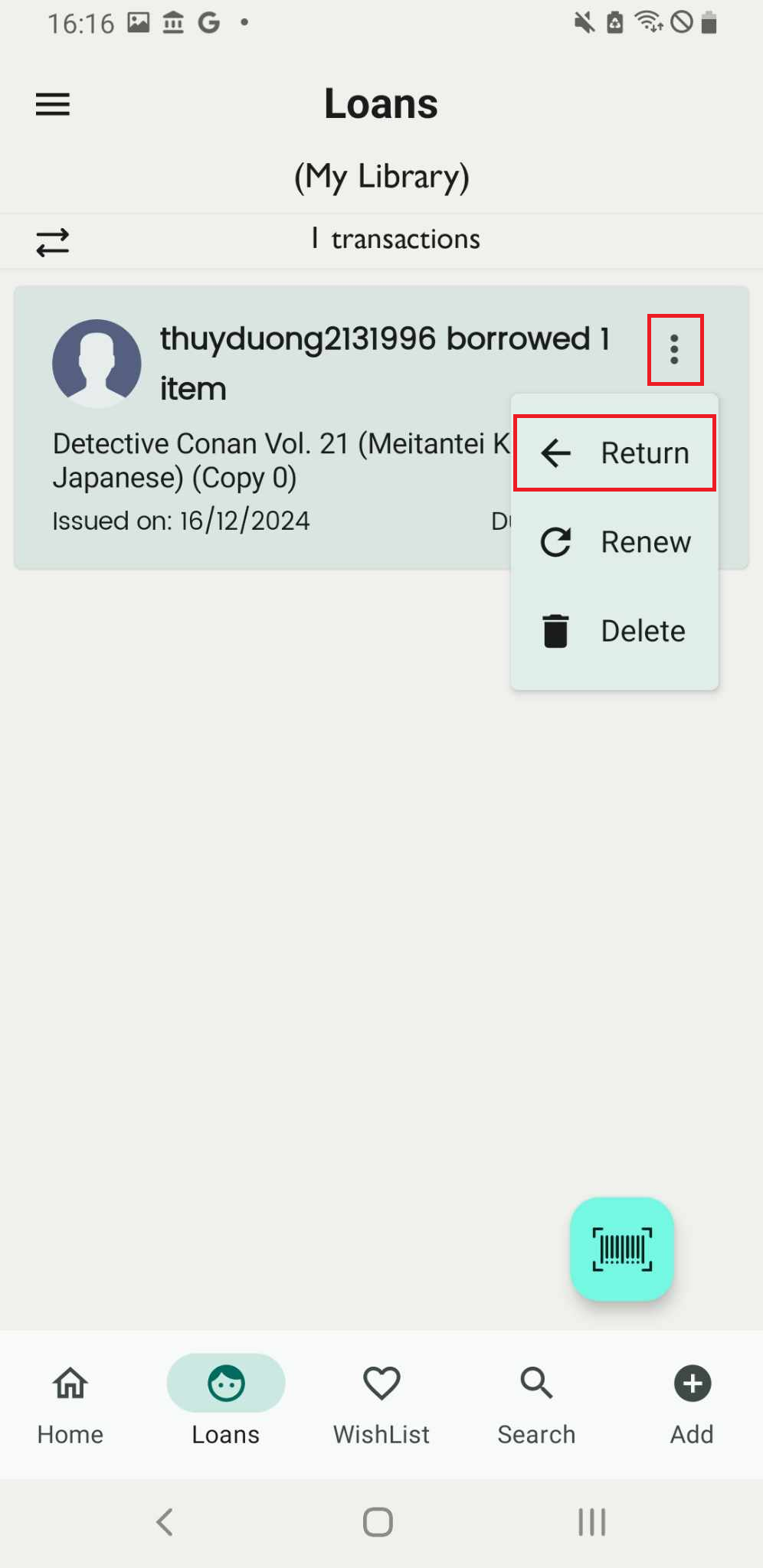
Step 23: Are you sure you want to return this loan?
- Member name:
- Member code:
- Number of items:
Select Return date. Press OK
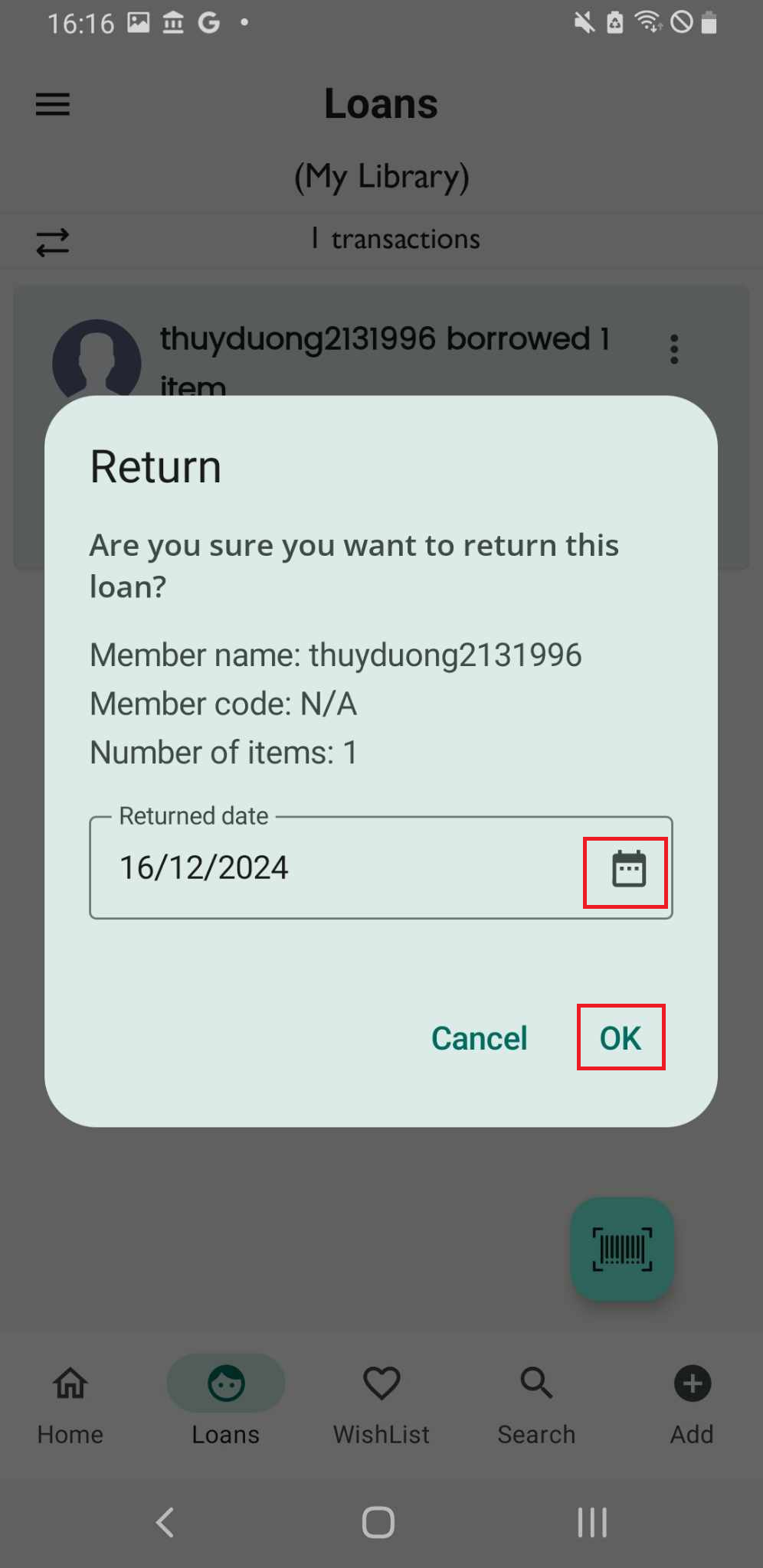
Step 24: The screen displays “Returned”, and the loan appears blurred on the screen.
Renew the loan
Step 25: Access the Loans field on the main screen. The Loans page will be displayed.
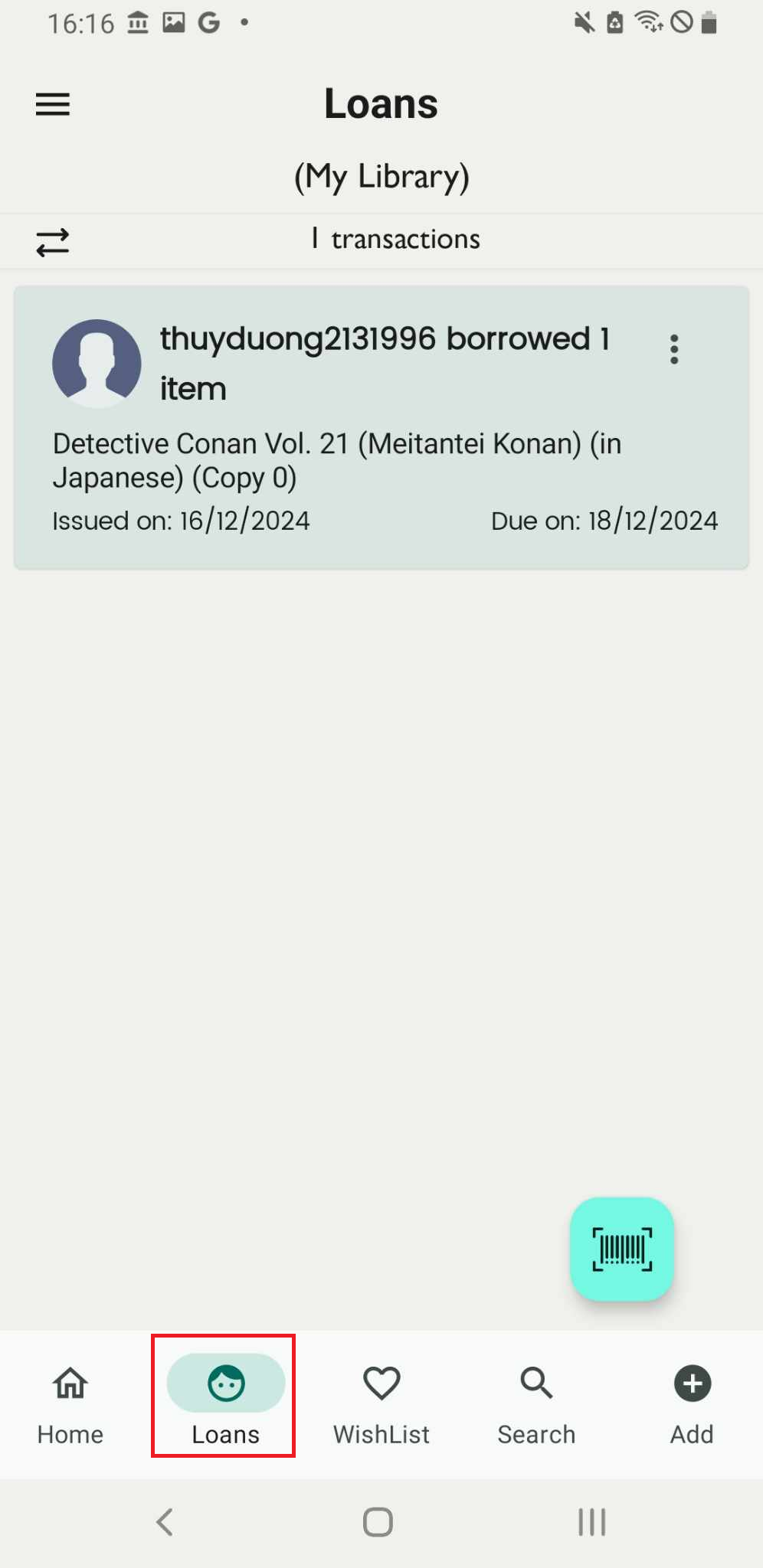
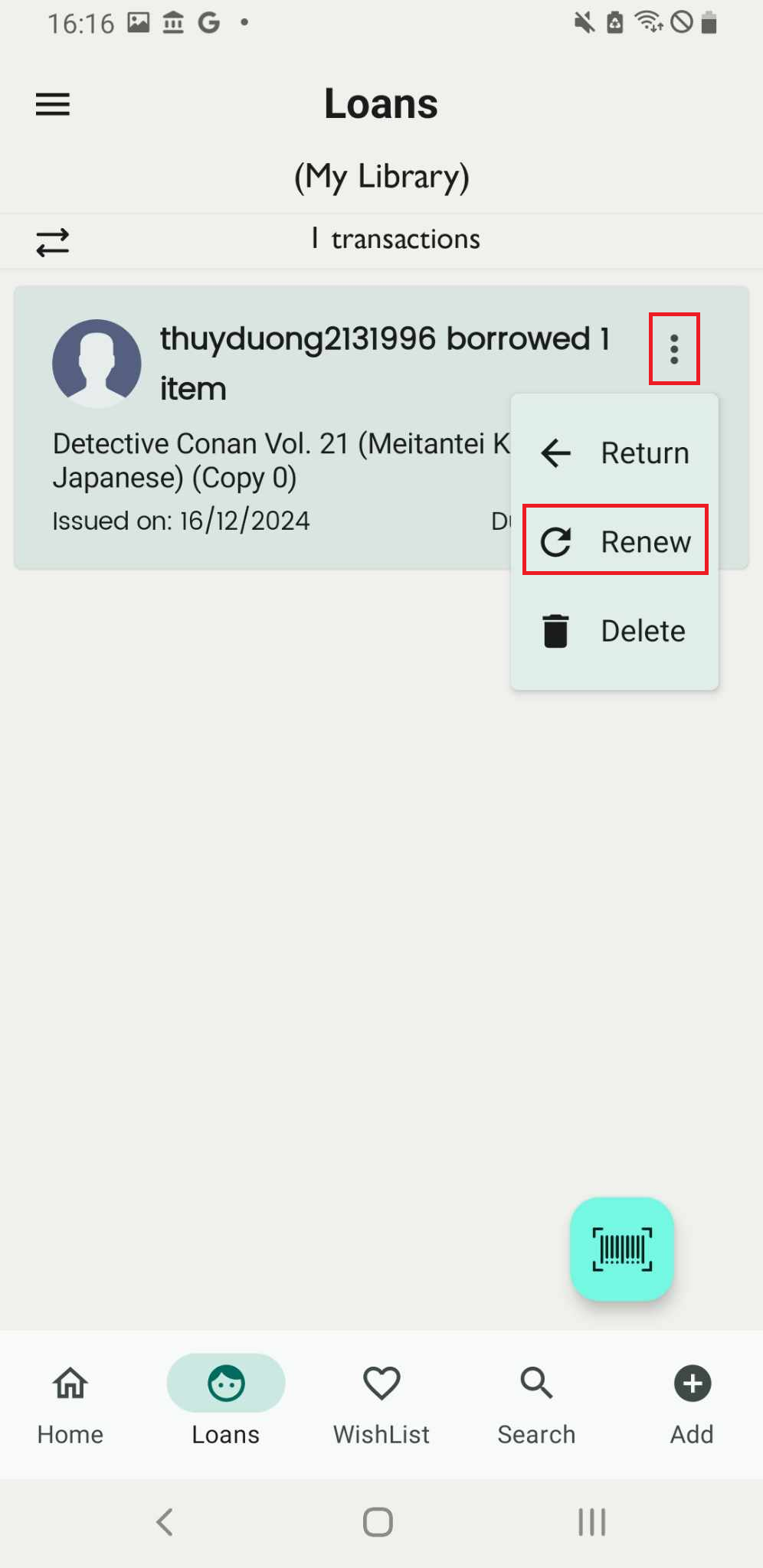
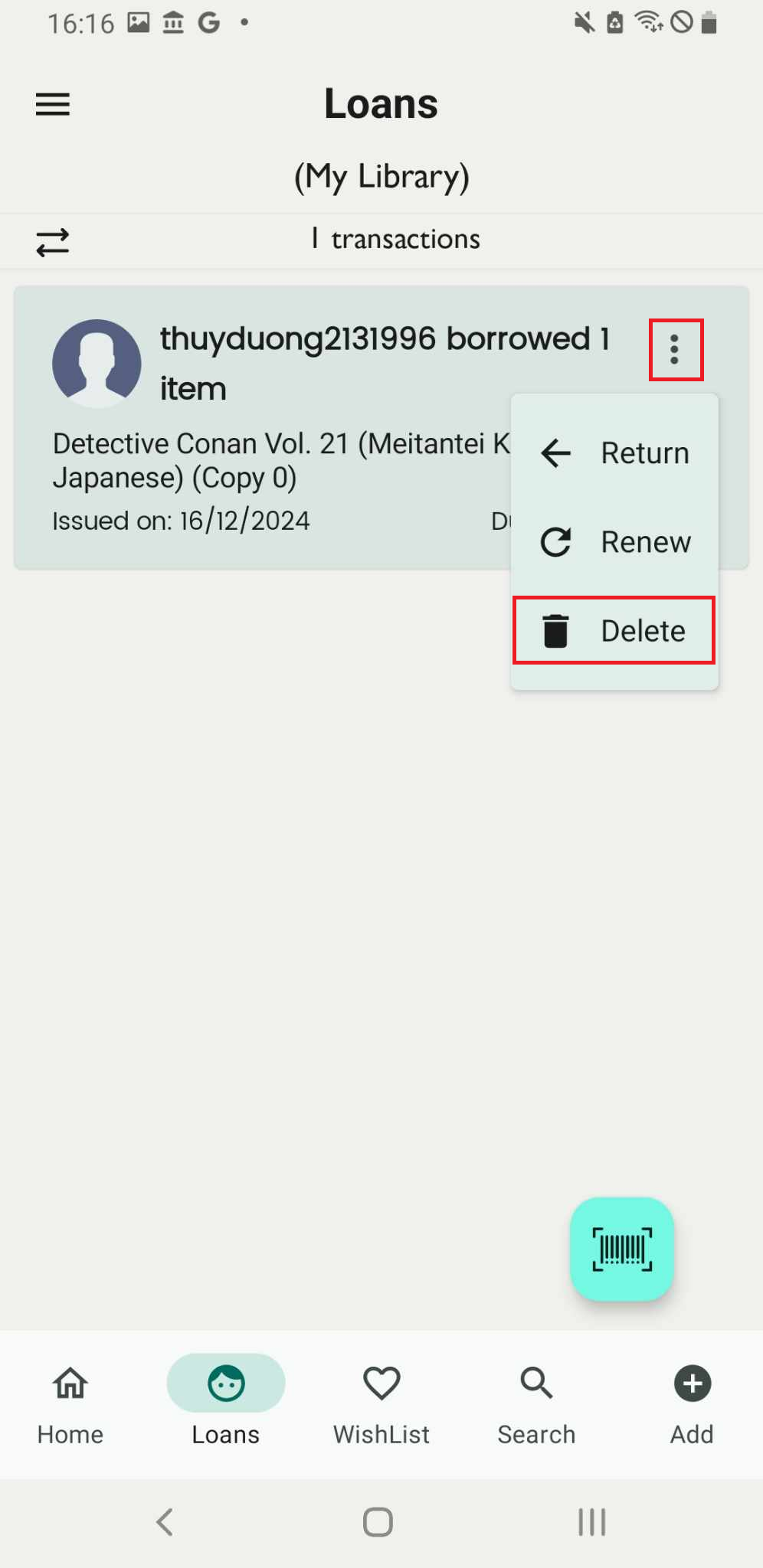
Step 26: Press the three-dot icon next to the member who borrowed the books. Three options:
- Return
- Renew
- Delete
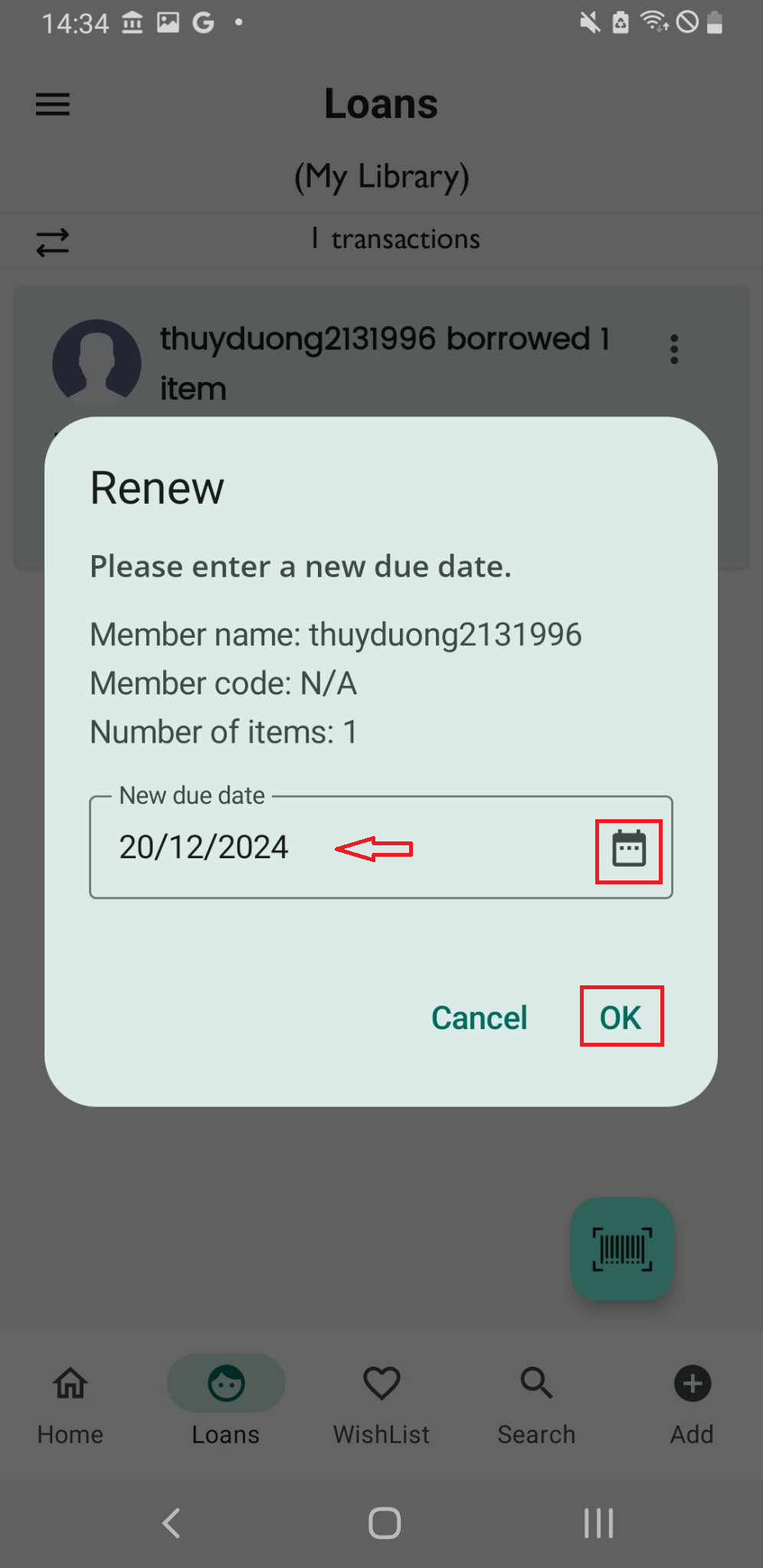
Choose Renew, Please enter a new due day:
- Member code
- Number of items
- Member name
Step 27: Tap on the calendar icon, select a new due date, and press OK to confirm.
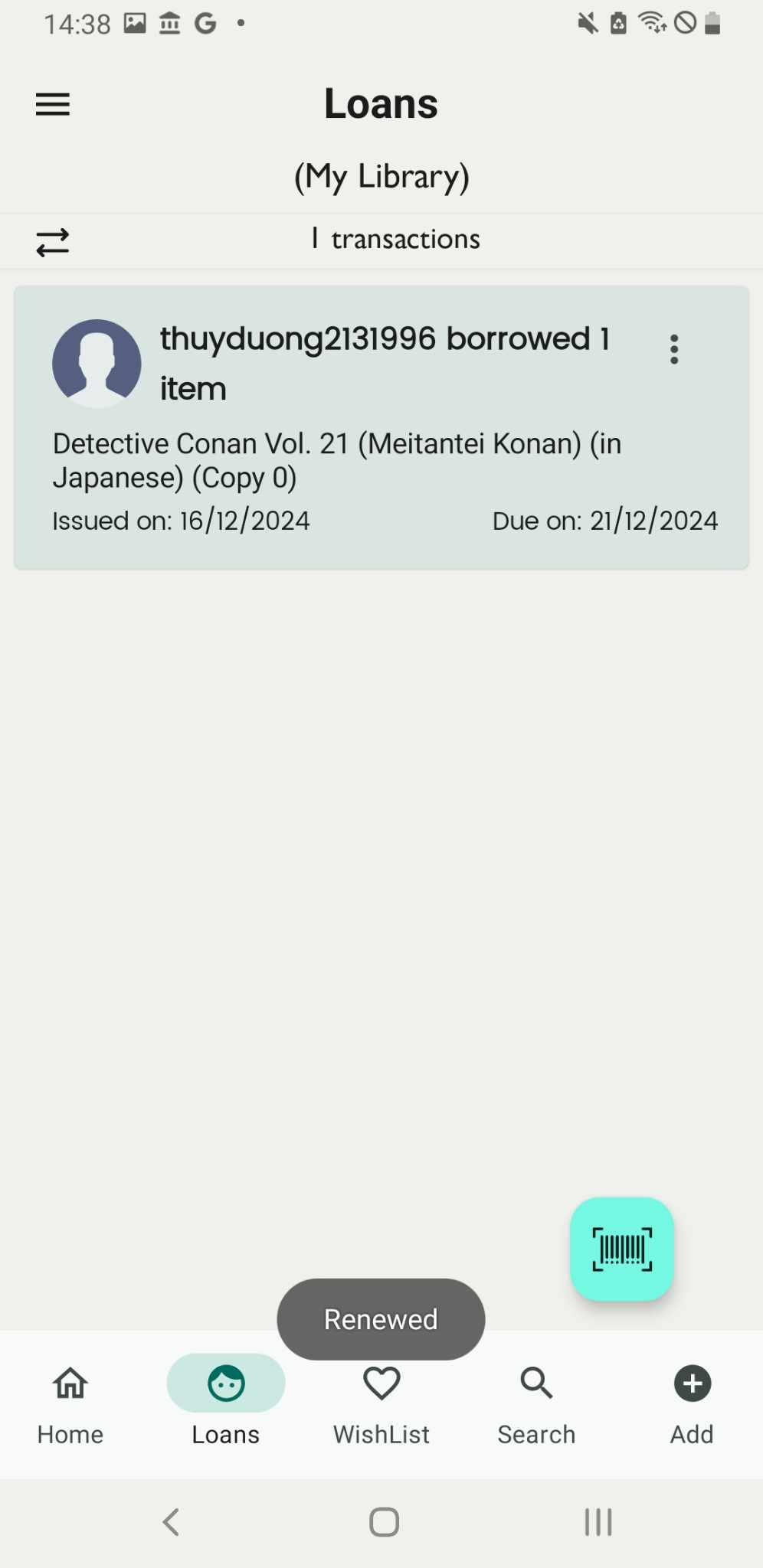
Step 28: The screen displays “renewed”, the loan is updated
Delete the loan
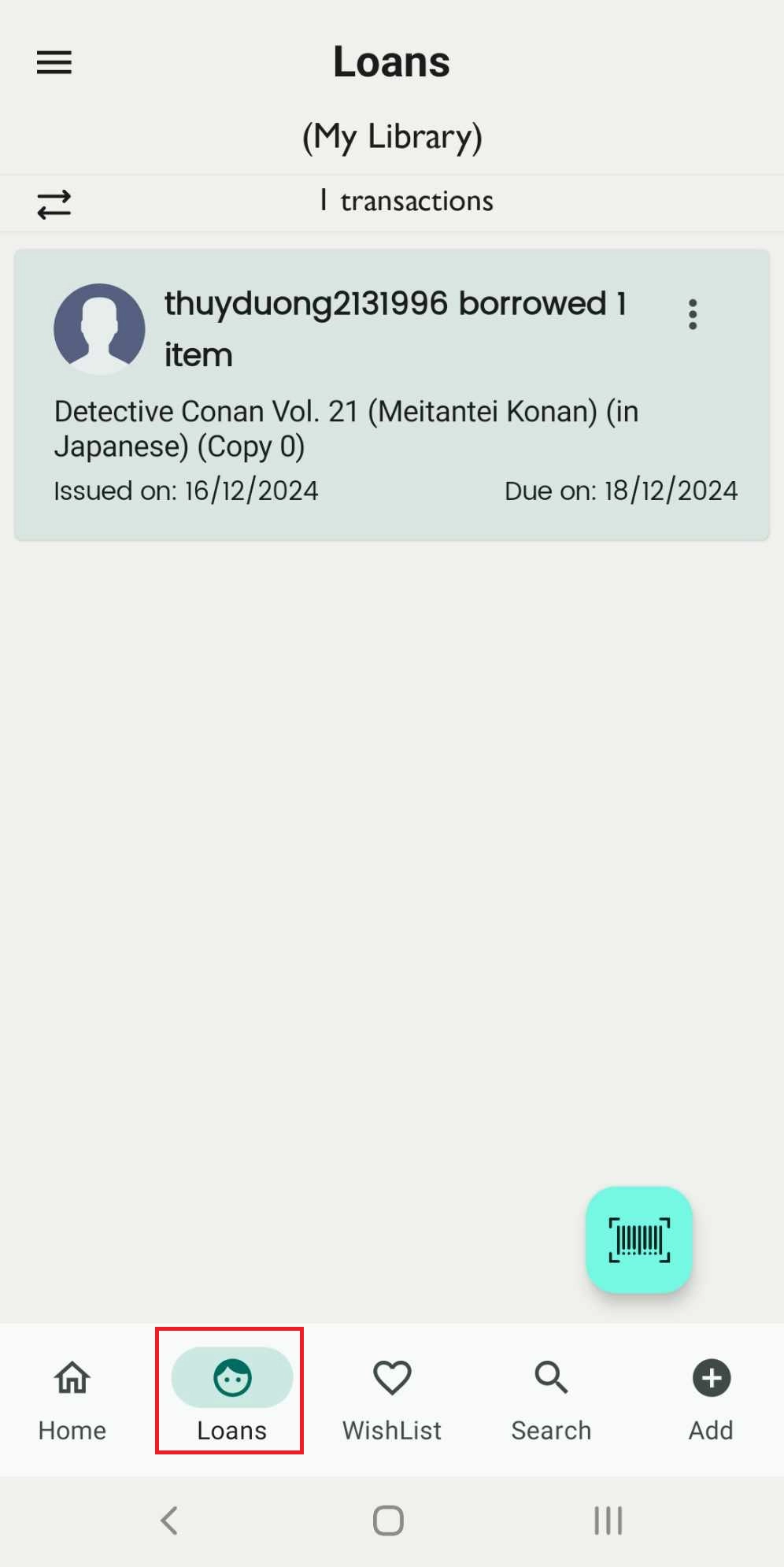
Step 29: Access the Loan field on the main screen.
Step 30: Press the three-dot icon beside the member who borrowed books.
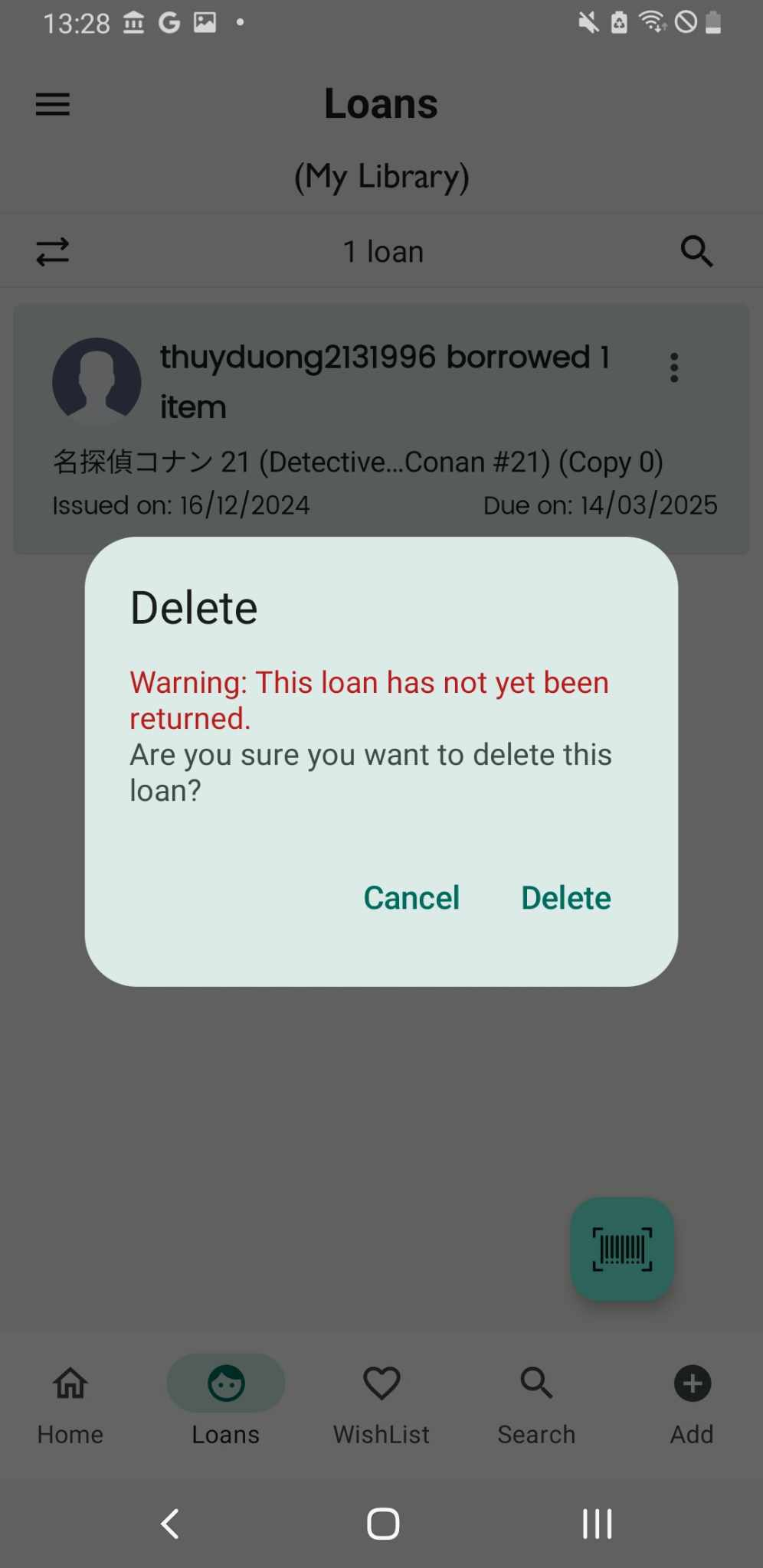
Step 31: If the book has not been returned, a warning message will appear. You can go back to return the loan and try deleting it again or delete it directly.
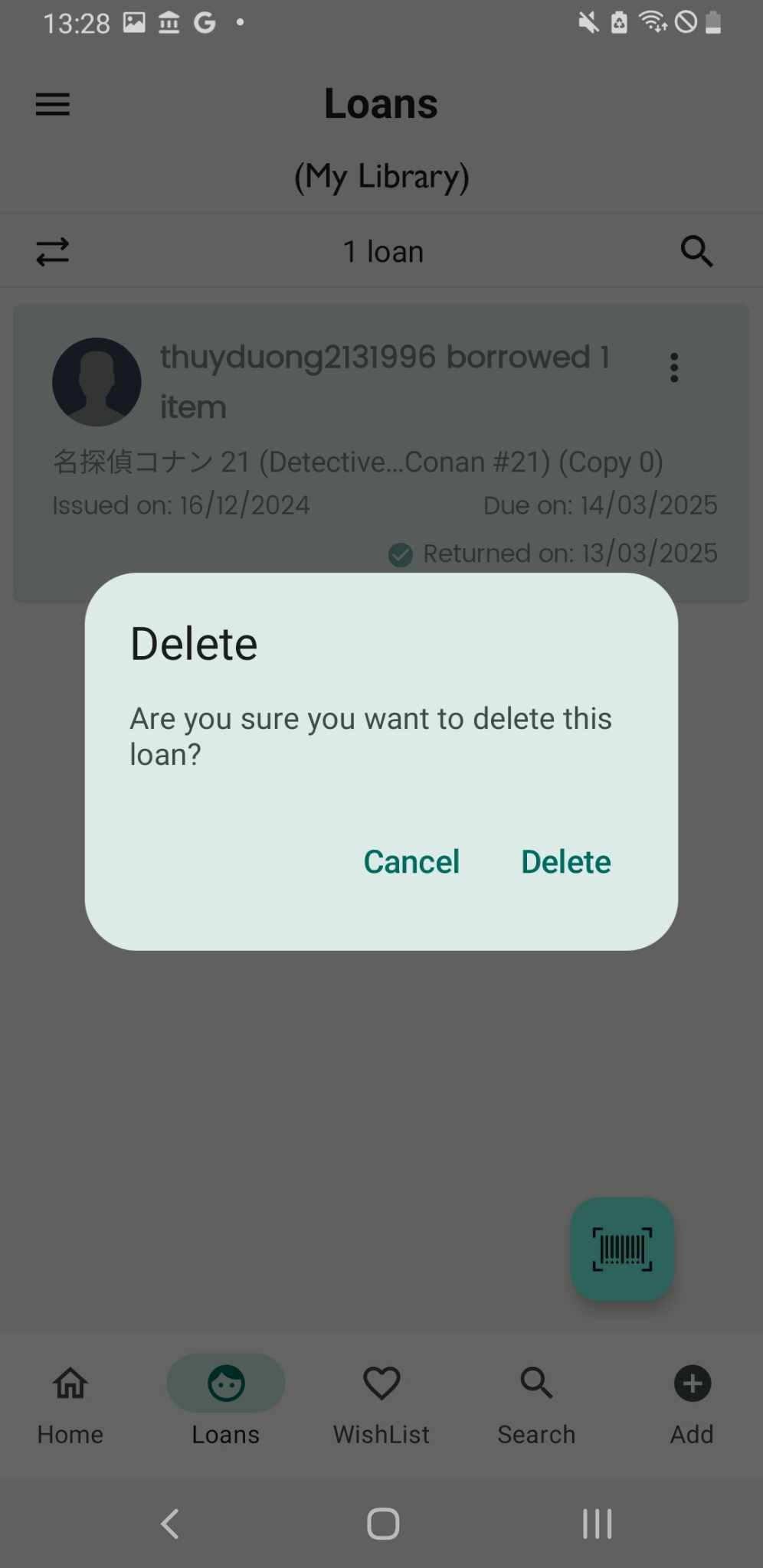
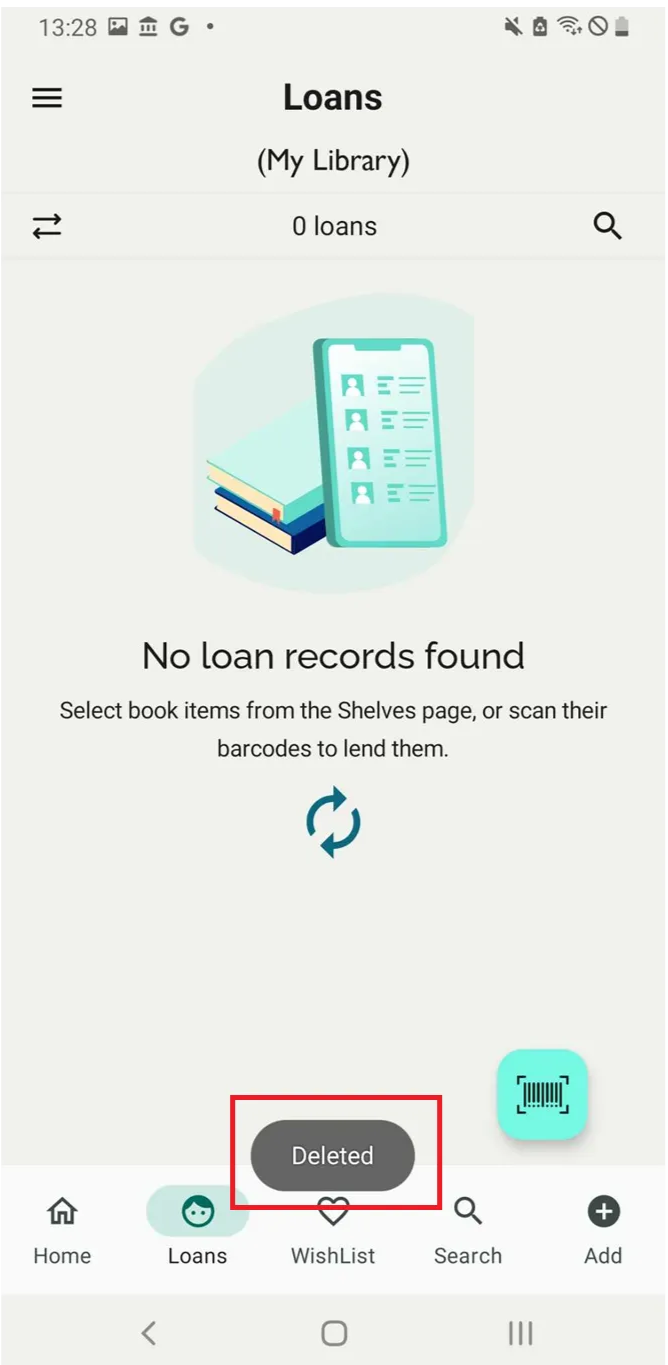
Step 32: The screen shows “Deleted”
Quick Loan Procedure
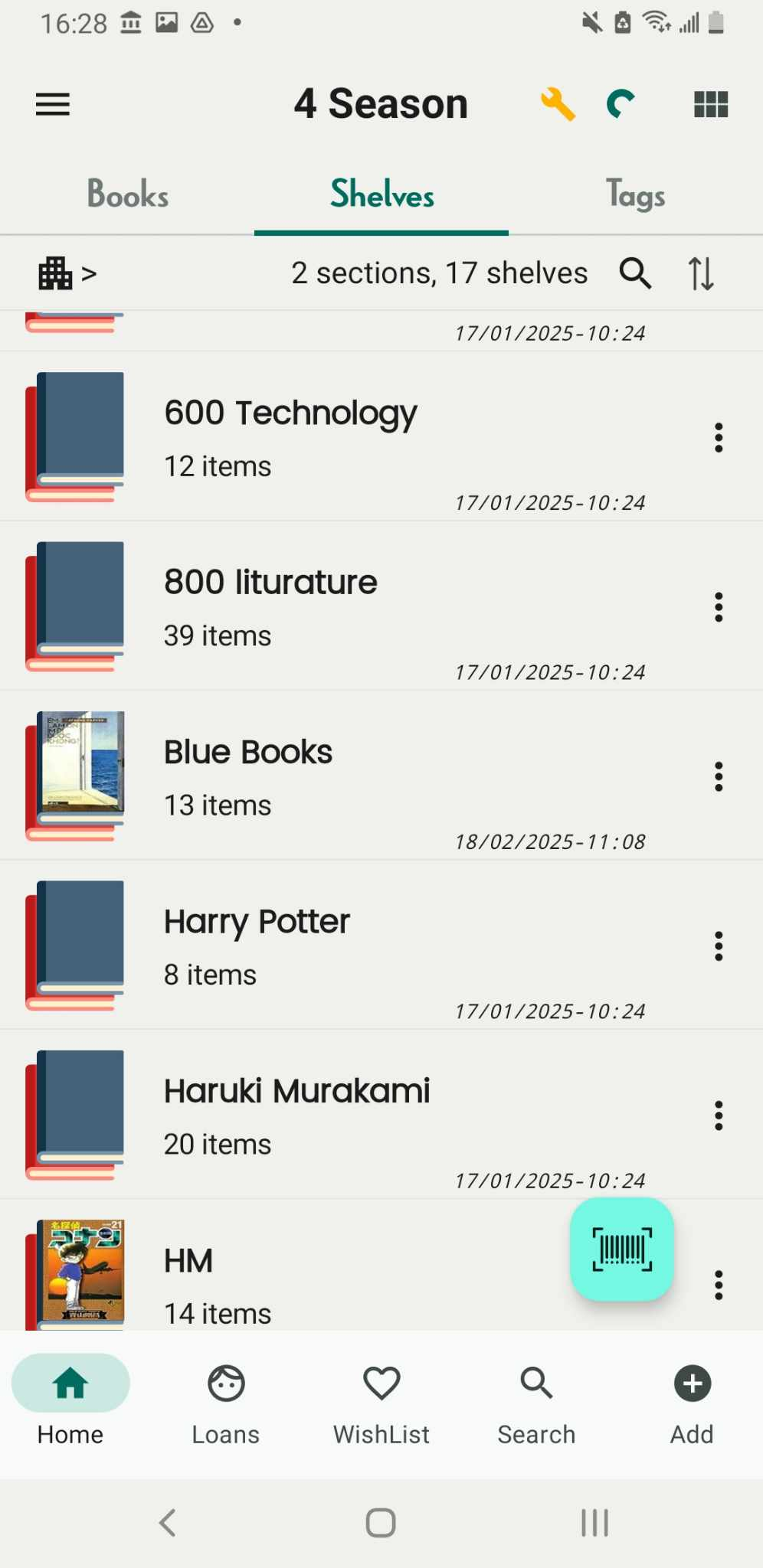
Step 33: Access Shelves tab and find the book you want to lend.
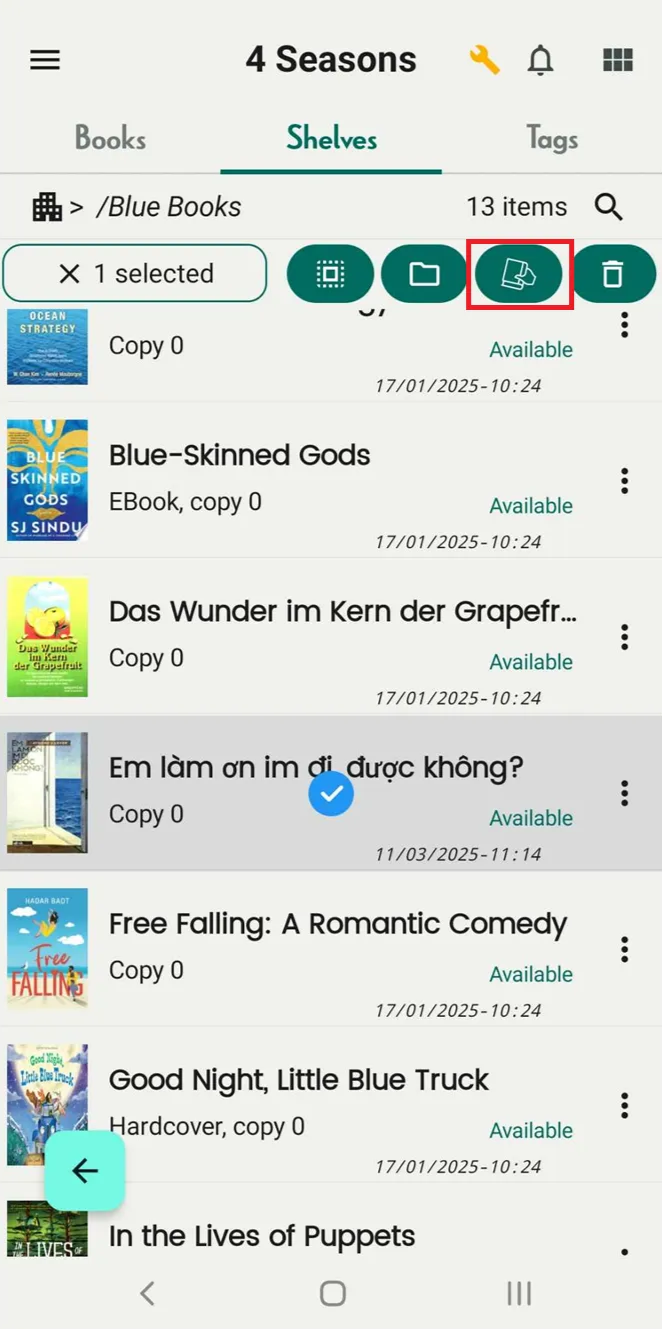
Step 34: Long-press the book, and select more books if you want to lend multiple. Tap on book icon beside the trash bin icon.
Step 35: List of member is shown up, choose member and enter due date. And press OKE
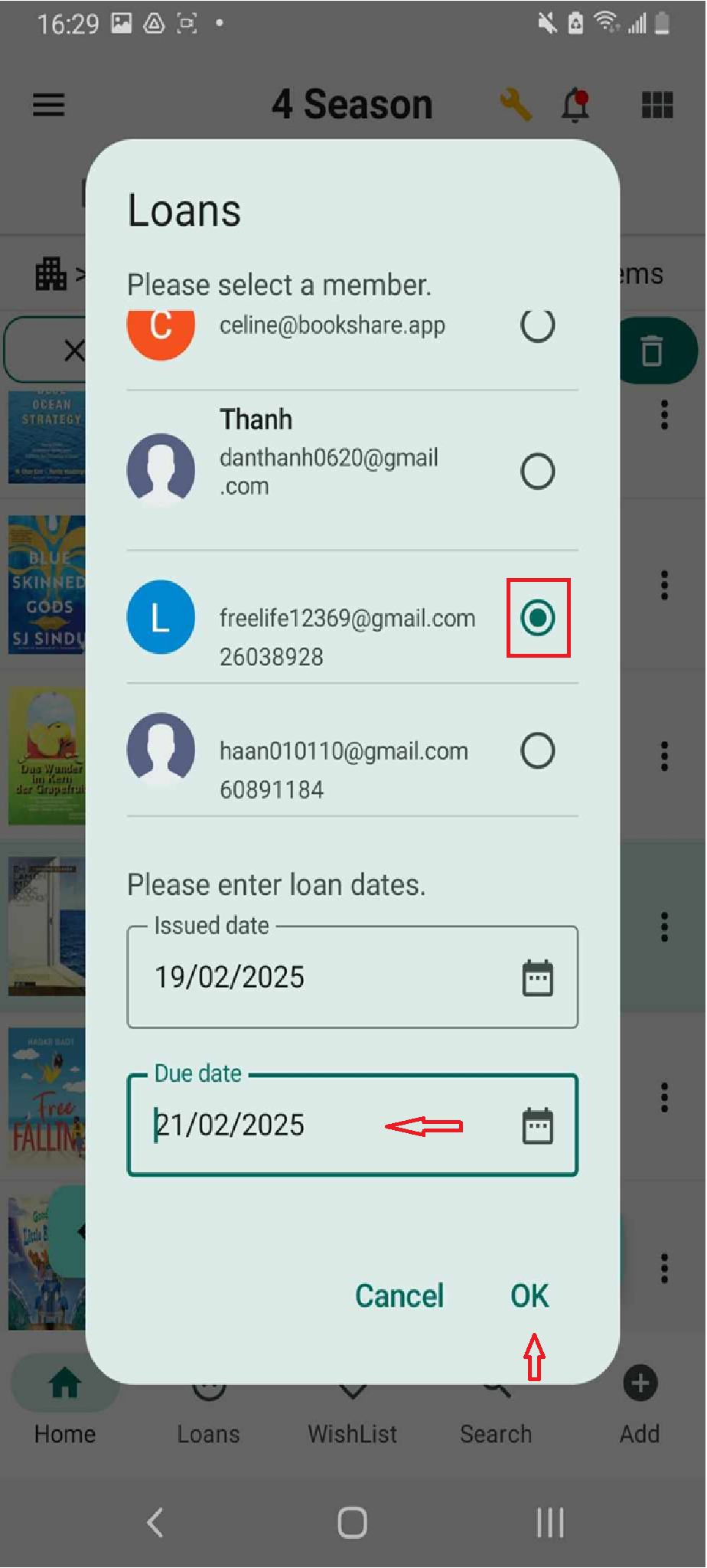
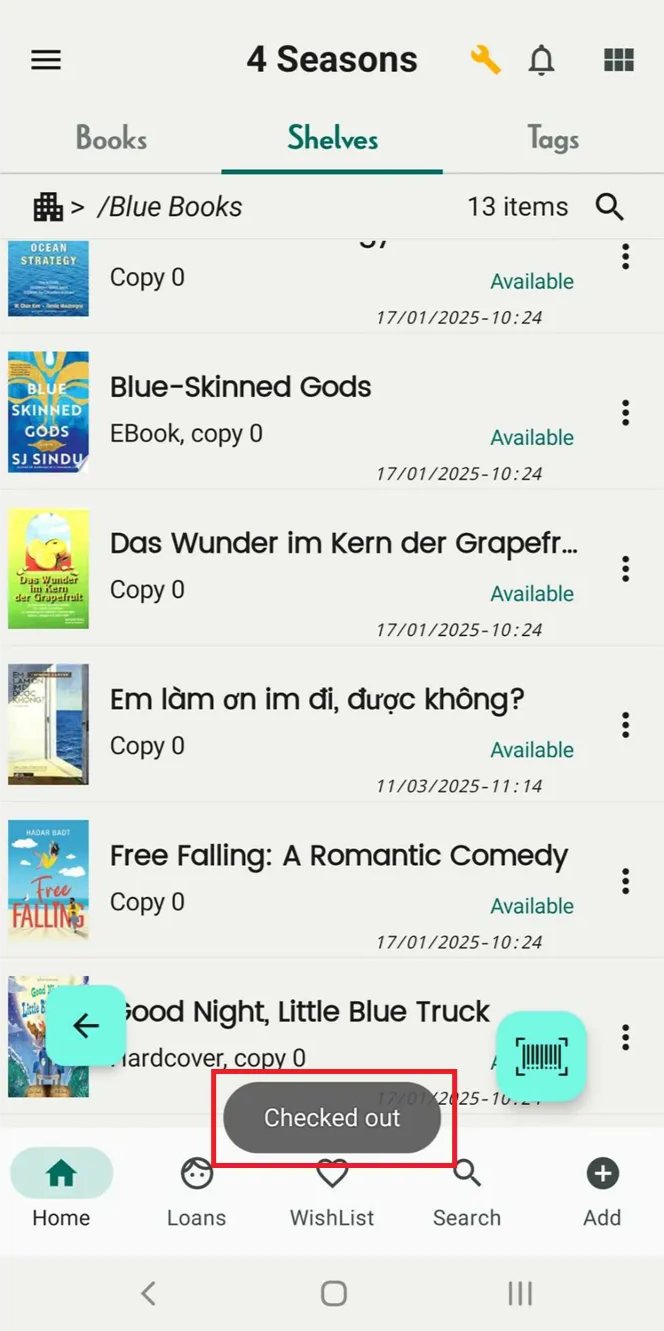
Step 36: “Checked out”
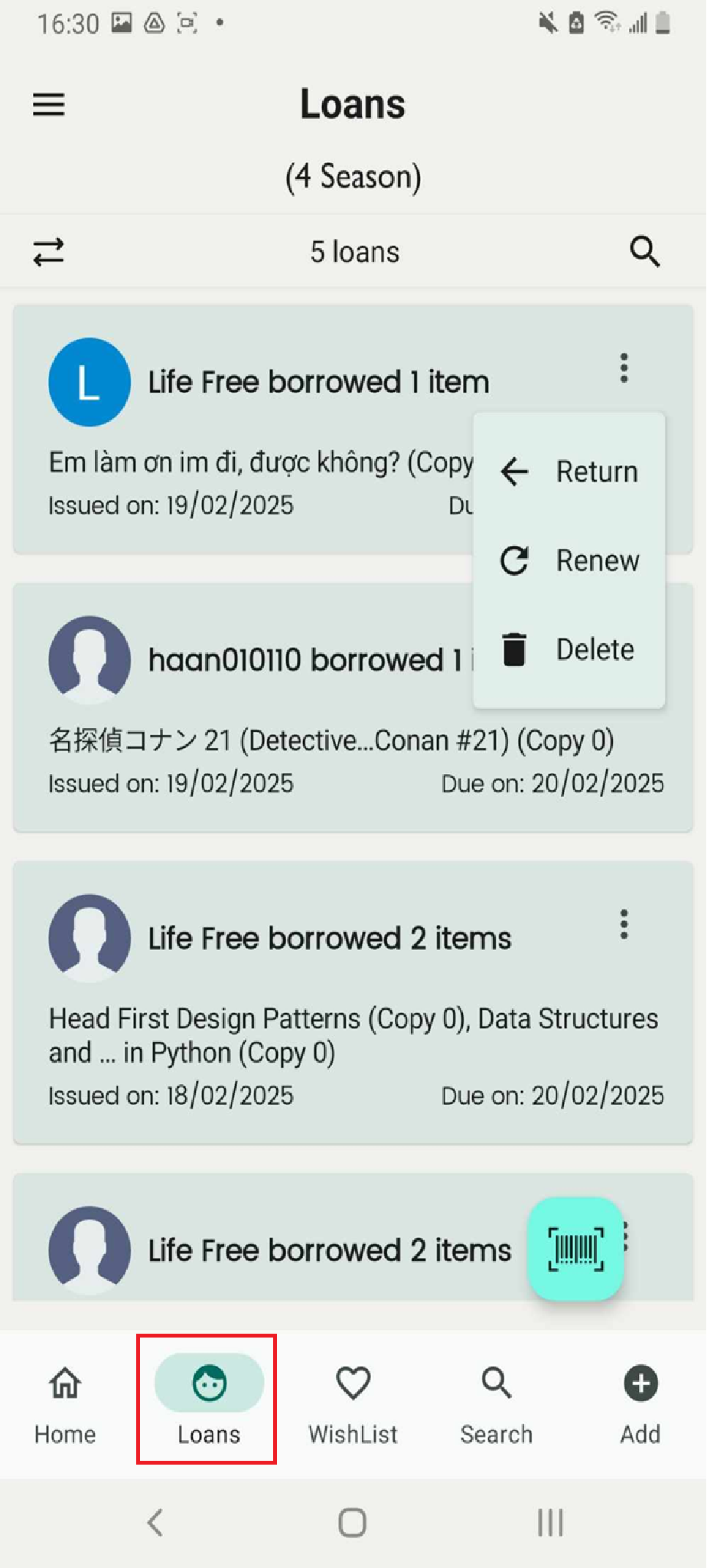
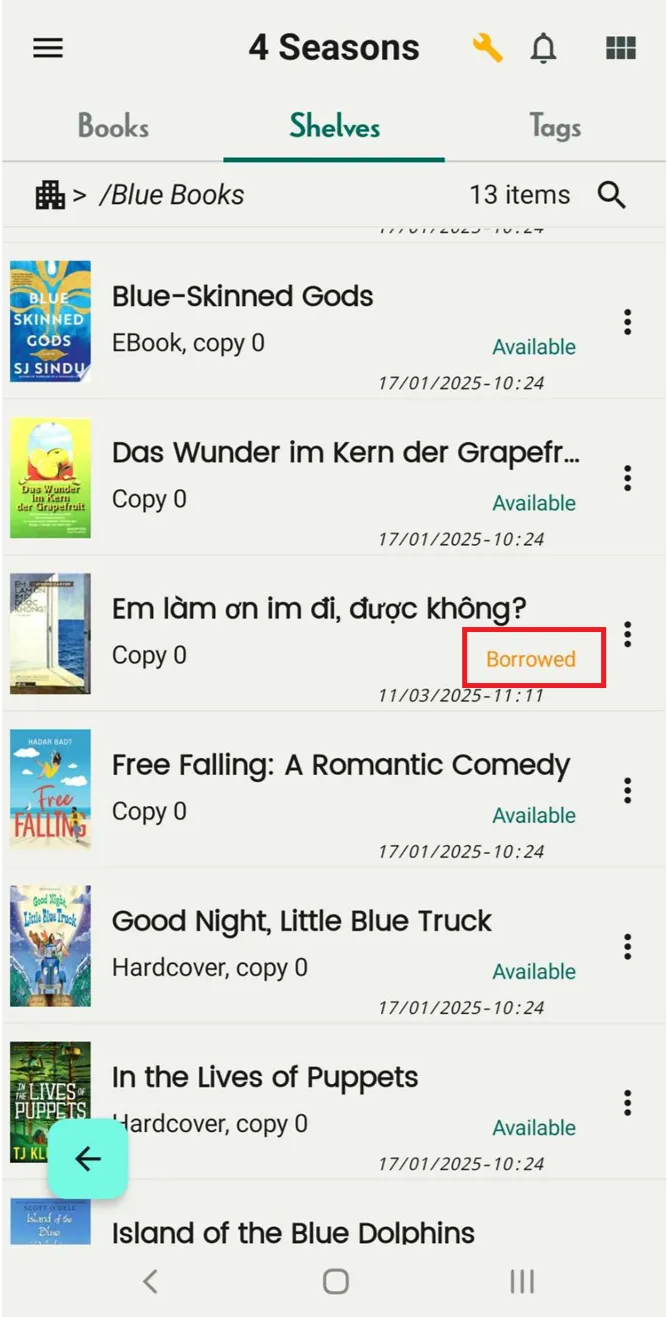
Step 37: You can manage and track it in the Loans section, and the book will be marked as “Borrowed” on the shelf.
Batch delete loans
Step 38: Go to loans field
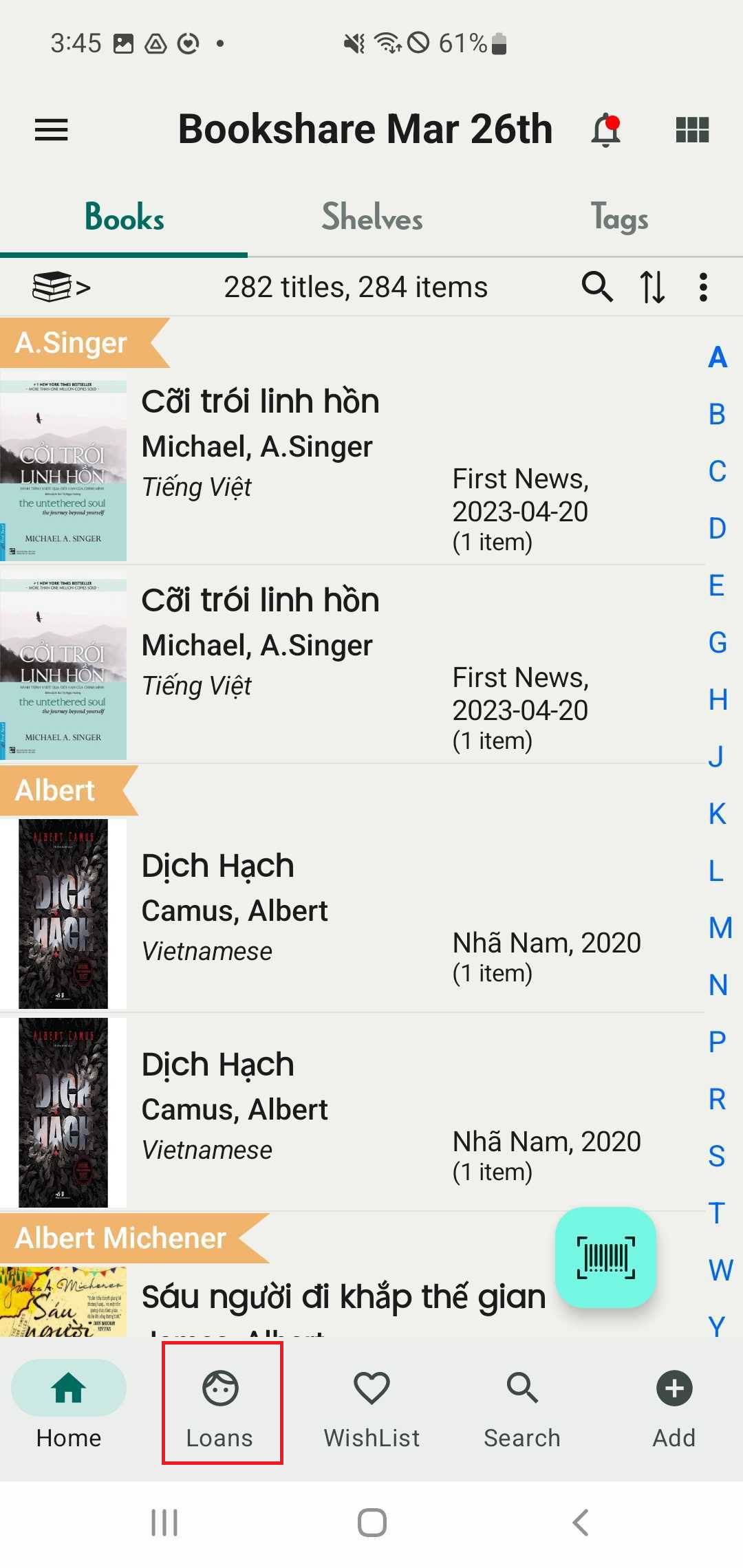
Step 39: Long press a transaction and select more
Step 40: Tap on the trash icon to delete loan transaction
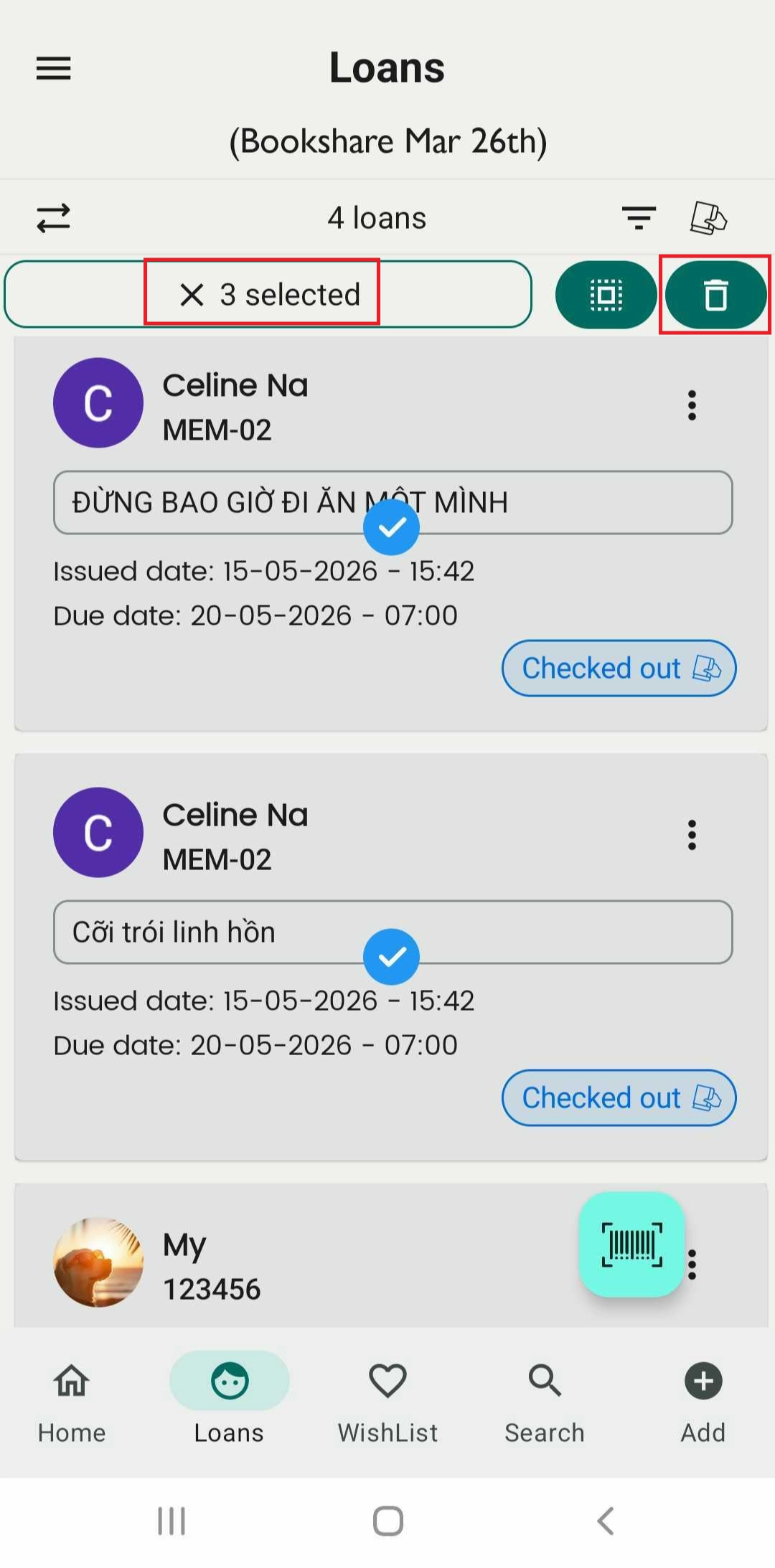
Create a loan
Step 41: Select a shelf and open the Loans section.
Step 42: Tap the holding book icon.
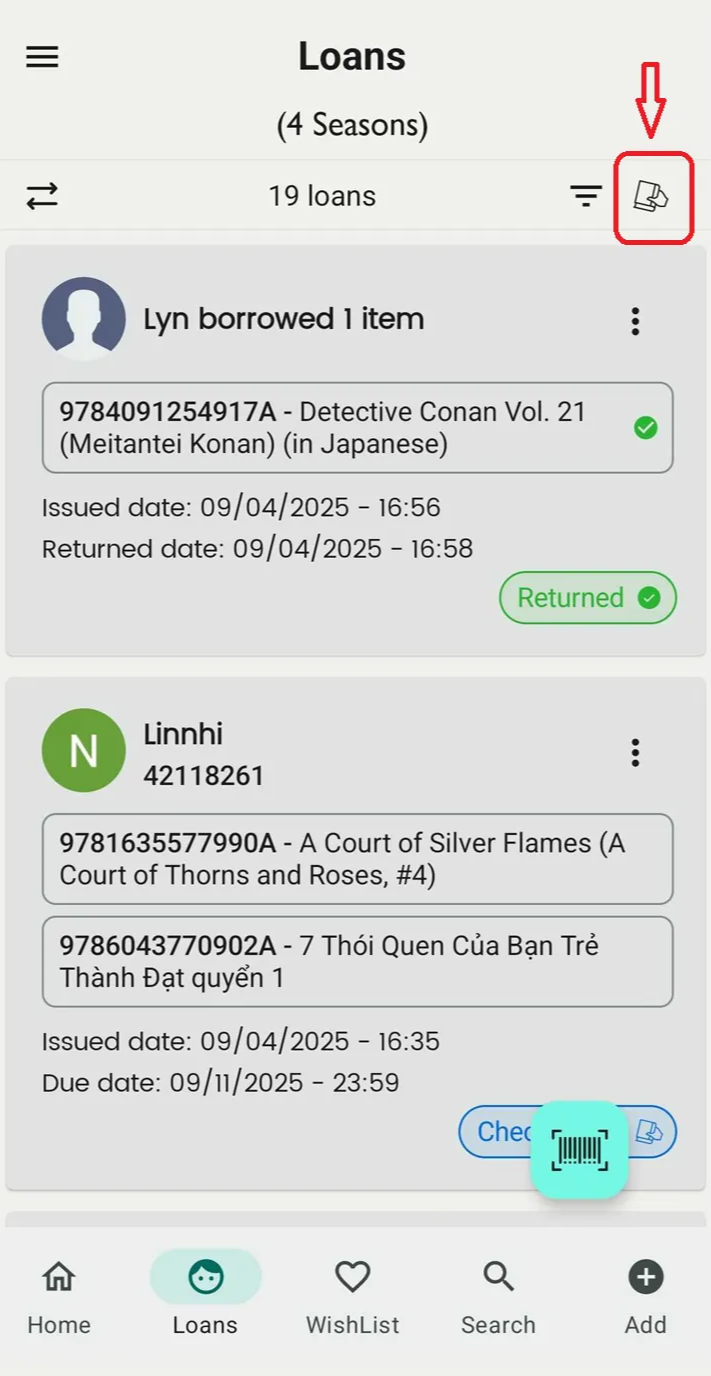
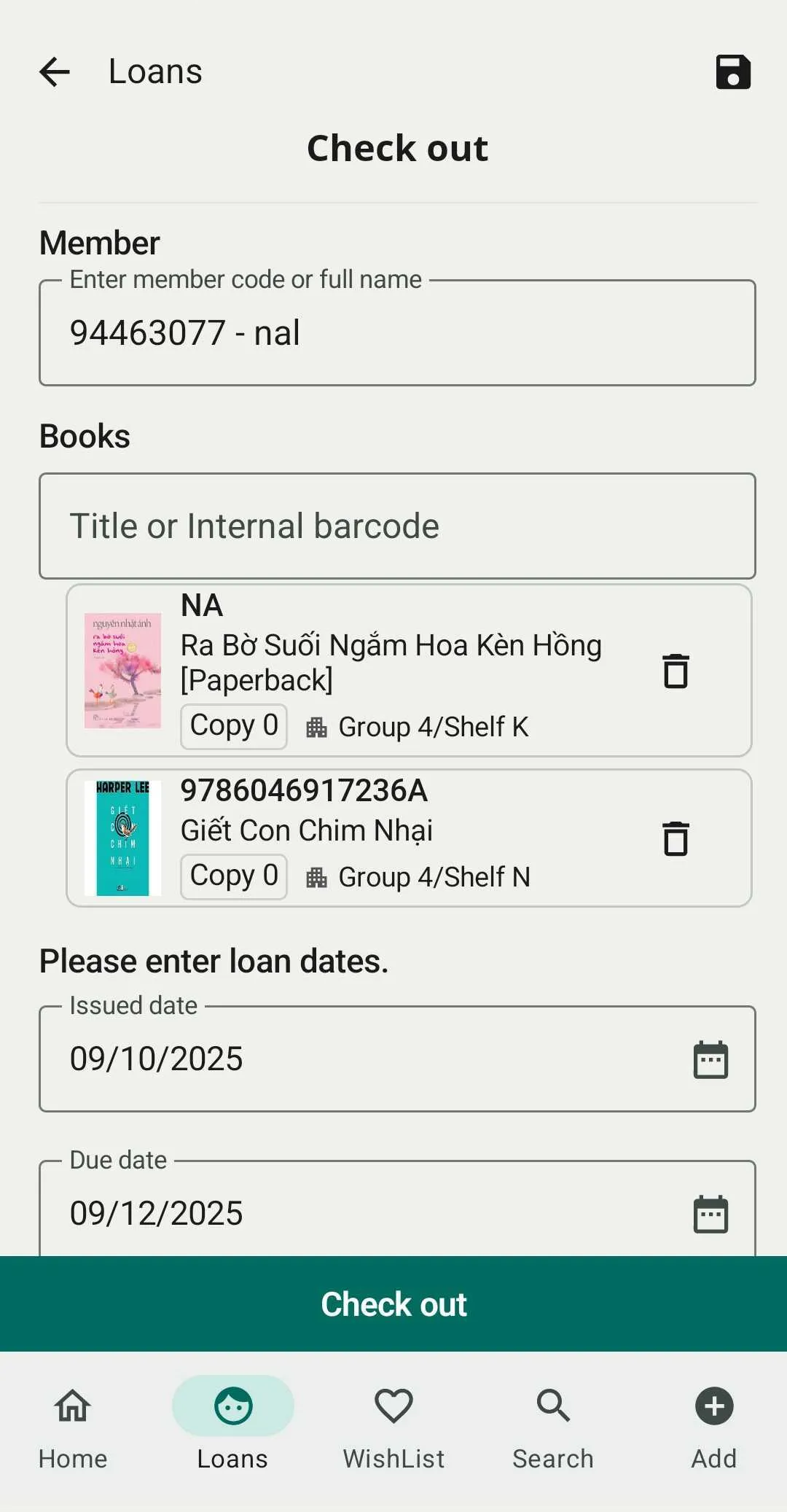
Step 43: Choose a member by entering their name or member code, and select a book by entering the title or internal barcode (you can enter more than one book).
Step 44: Add a due date and note if needed.
Tap Check out.
Filter Loan
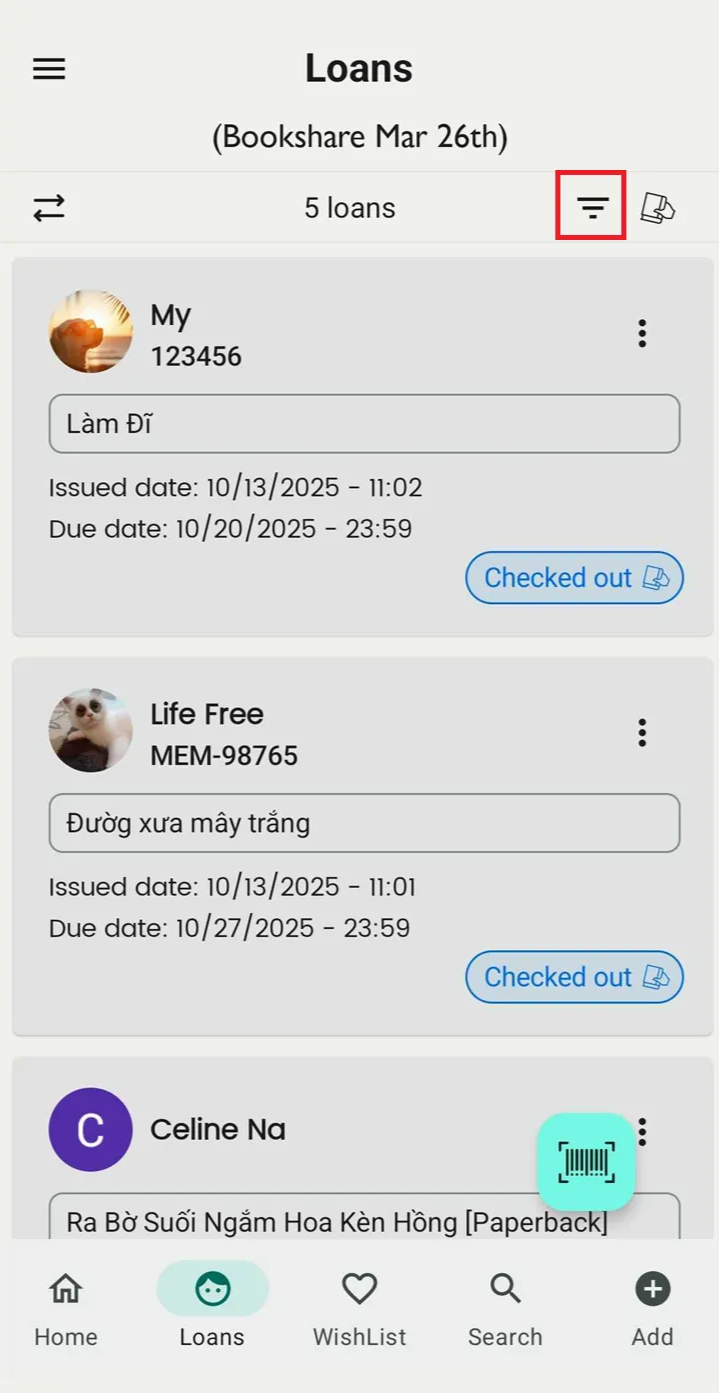
Step 45: Select a shelf and open the Loans section. Then tap on Filter icon
Step 46: Filter loan by status (check-out, returned, lost, overdue….) or member code or internal barcode