Edit a book/item
Btach edit Book
Batch edit Tag
Step 1: Acces a library you want to edit book
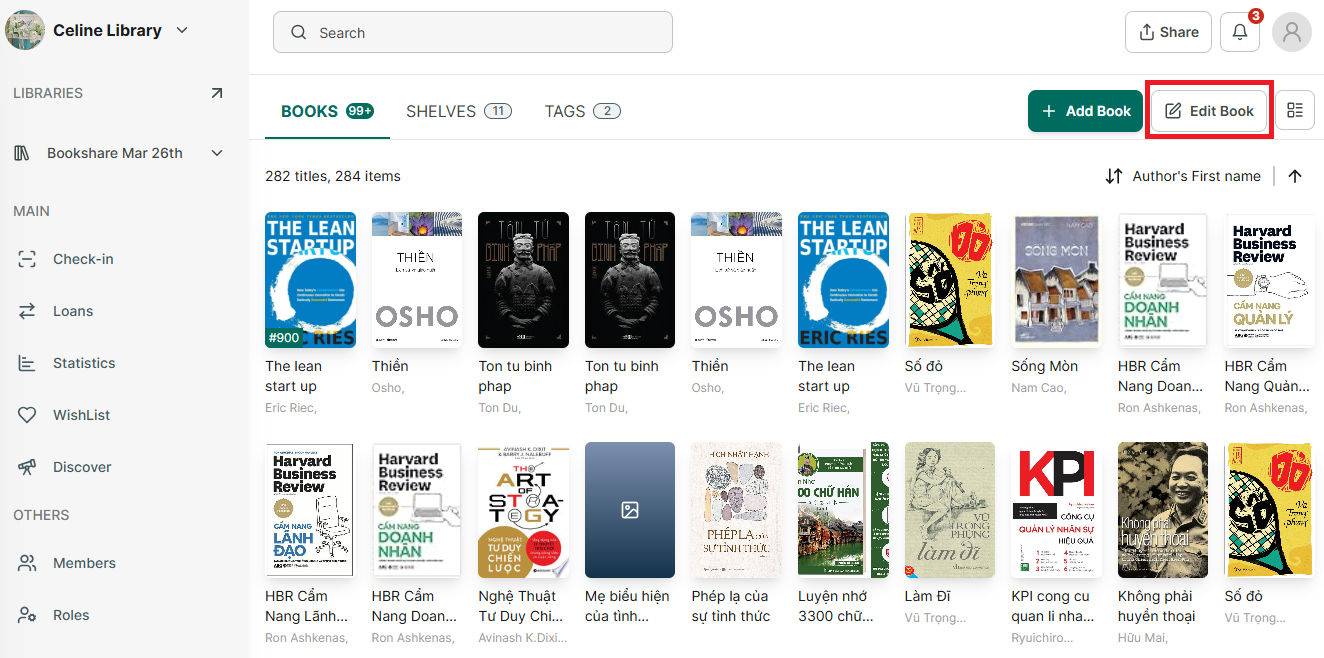
Step 2: Tap on “Edit book” button, then select mutiple book you want to edit tag.
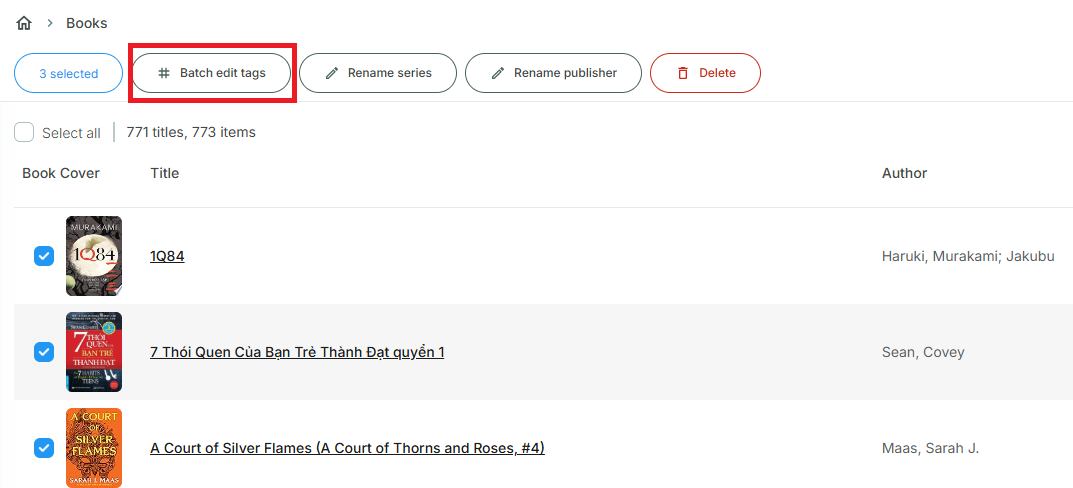
Step 3: Tap on “batch edit tag”
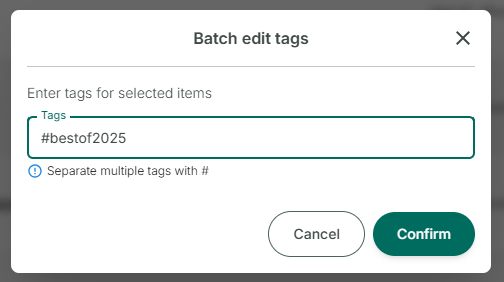
Step 4: Enter tags for selected titles and press confirm.
Step 5: Note that if you want to add more than a tag, separate multiple tag with
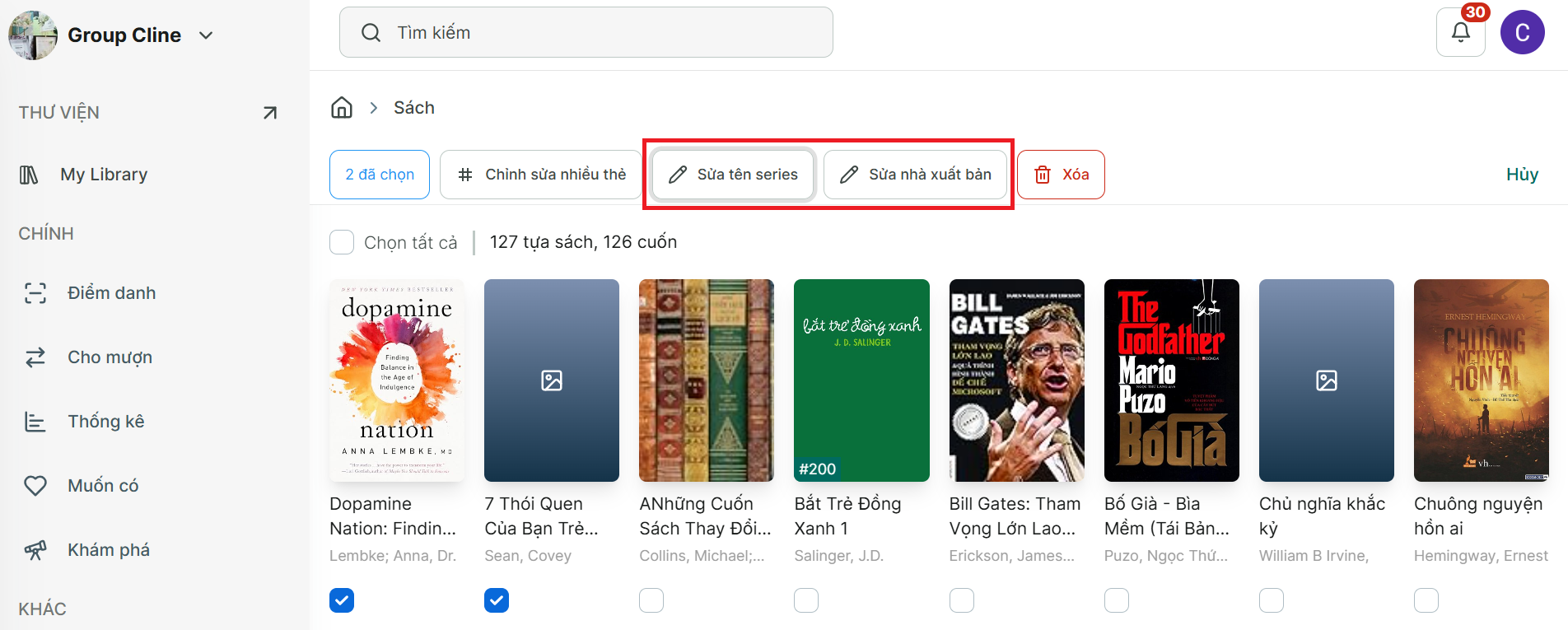
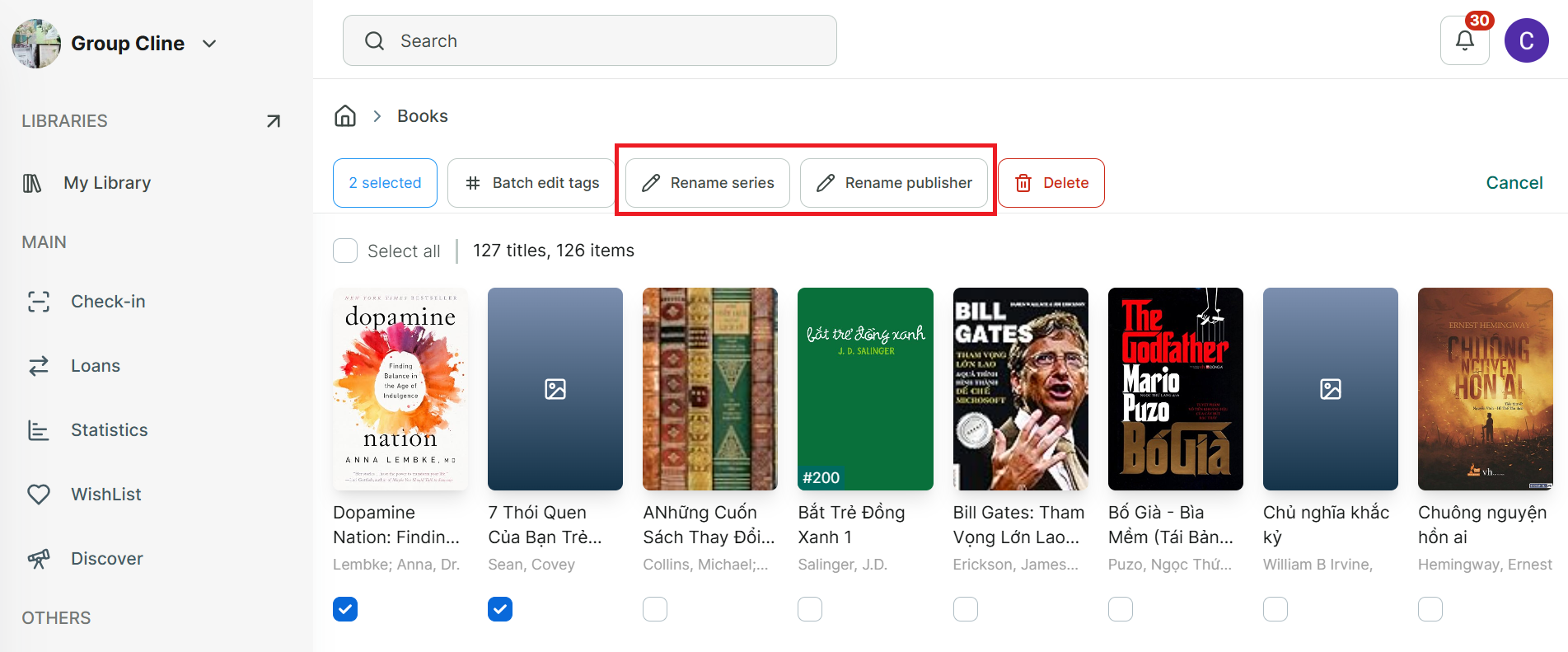
Batch edit details of book - series/publisher
Step 6: Tap on “Edit book” button, then select mutiple book you want to edit.
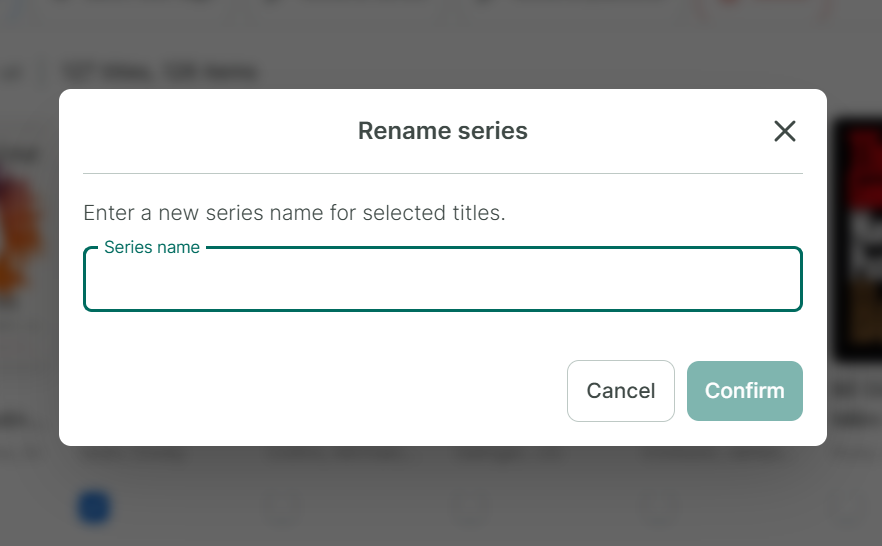
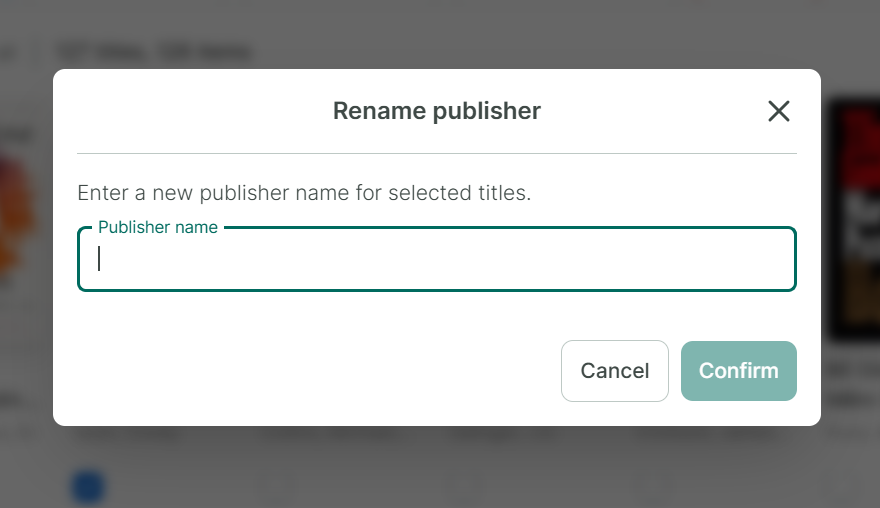
Step 7: You can select “Rename series” or “Rename Publisher” to edit.
Step 8: Enter Series or Publish and press Confirm
Batch delete book
Edit item of Book - Shelves
IN BOOKS TAB:
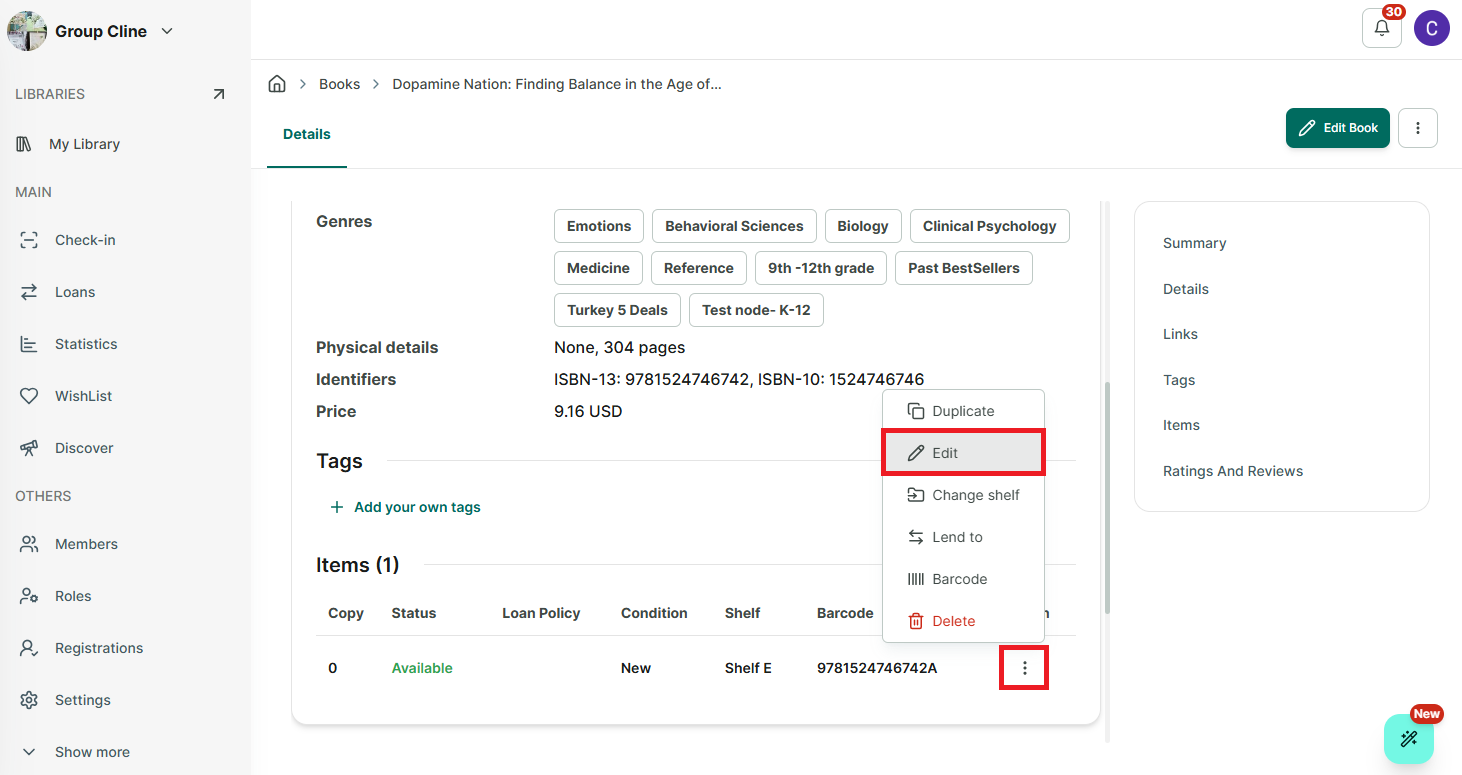
Step 9: Select a library and go to Books tab
Step 10: Access a book you want to edit
Step 11: Scroll down and in the Item section, tap on the three-line icon.
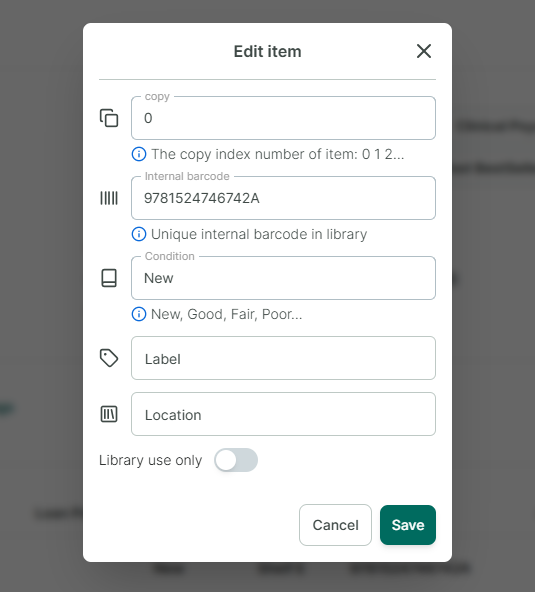
Step 12: Select an option to edit
- Tap on “Edit” you can edit: Number of copy, Internal barcode, Condition of item, Label, LocationIN SHELVES TAB
Step 13: Access the shelf where the book is stored. Tap on the book you want to edit.
Step 14: In the book detail view, tap the “Edit book” button (next to the “Edit item” button).
Step 15: Edit the informations of book and press “Save”
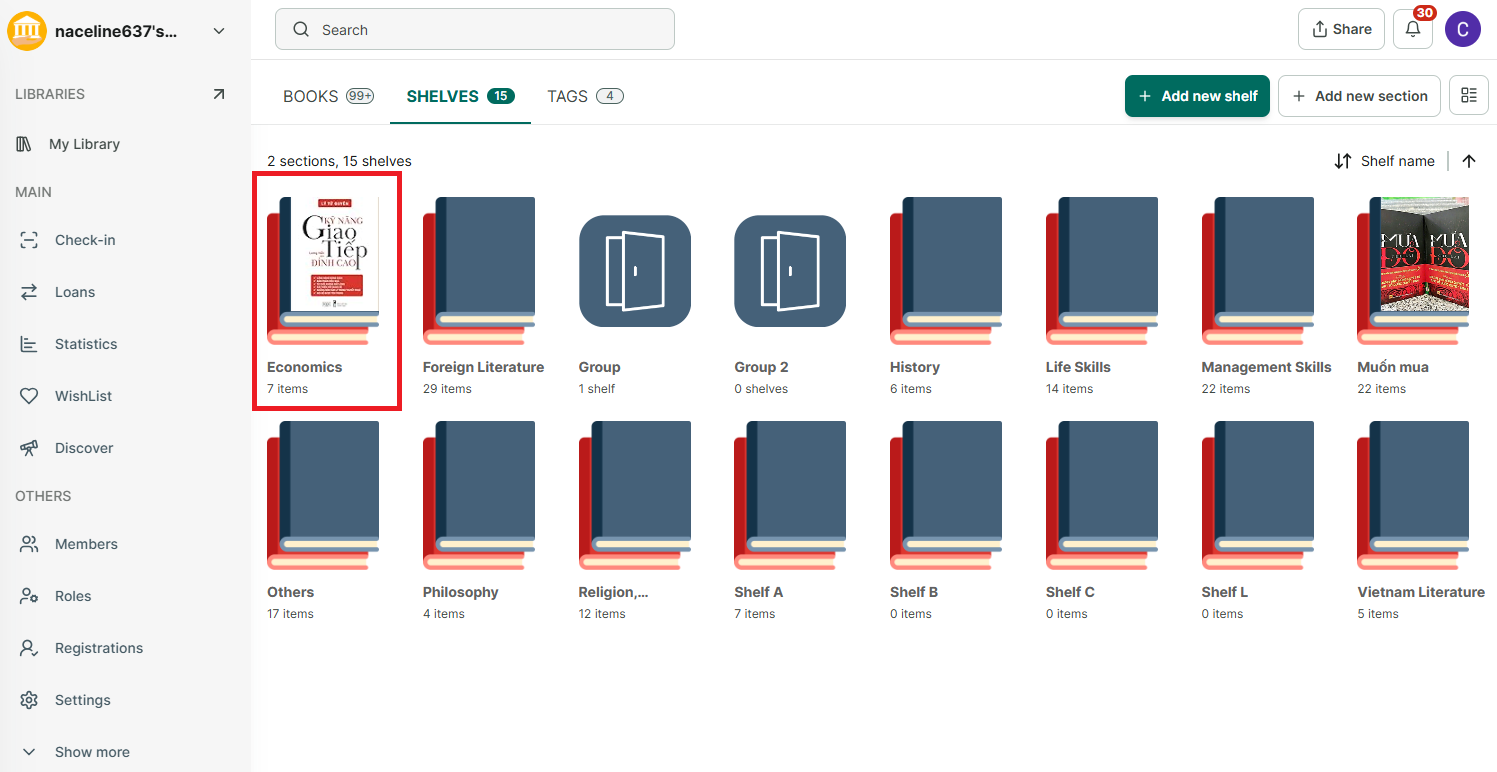
Set item cover as shelf cover
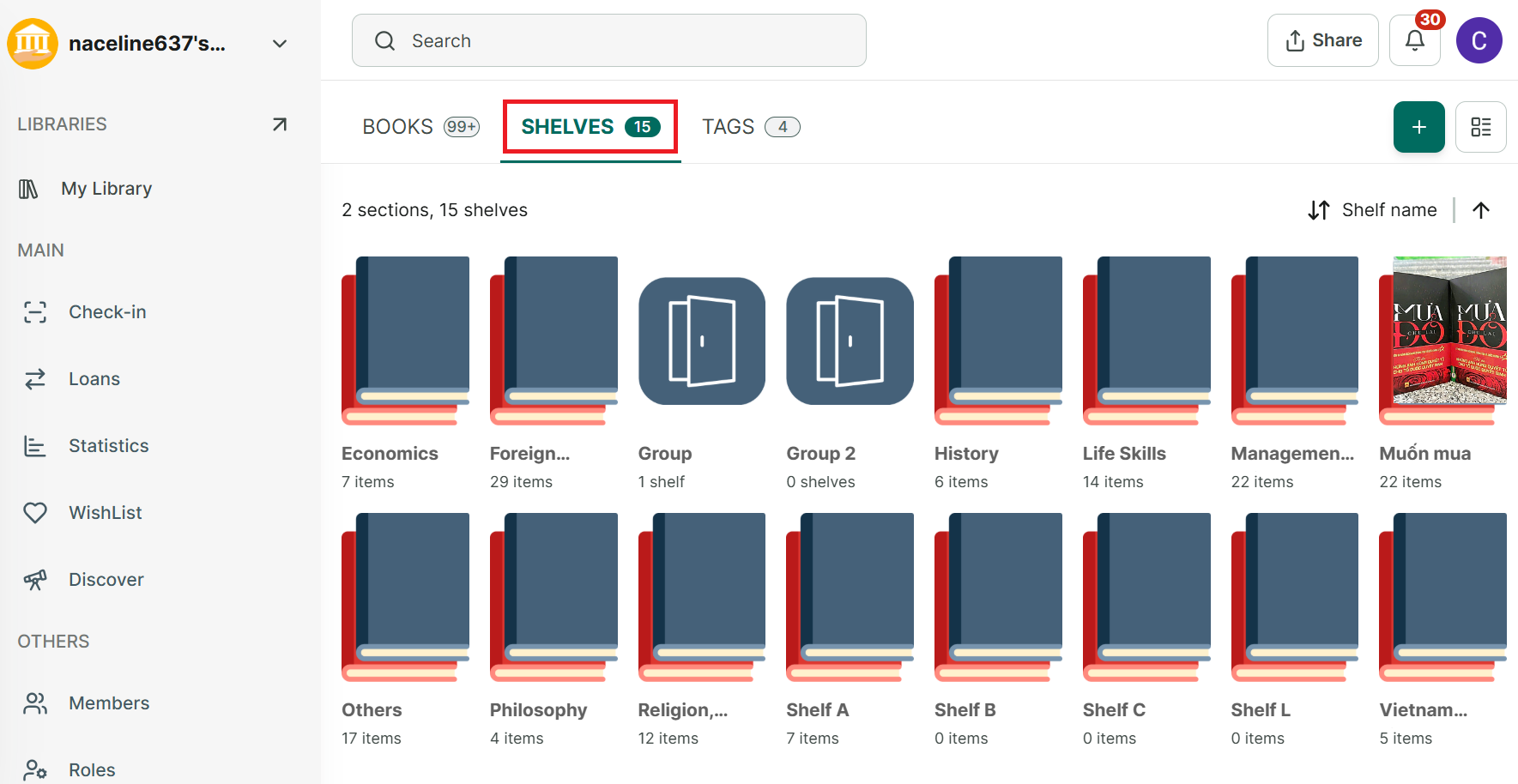
Step 16: Go to the Shelves tab and open a shelf (either directly or within a group shelf).
Step 17: Tap the book you want to use as the cover, then tap “Set item cover as shelf cover” in the top-right corner.
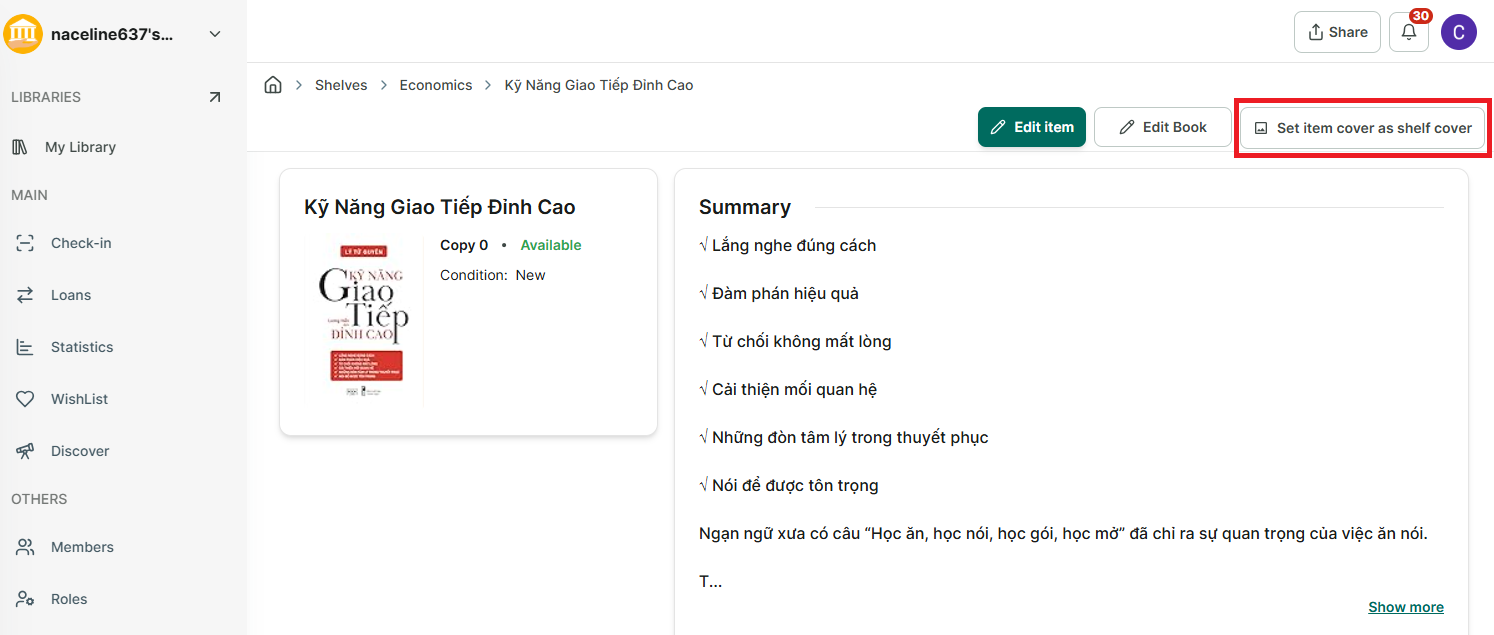
Step 18: The shelf cover will be updated.
Change shelf for item
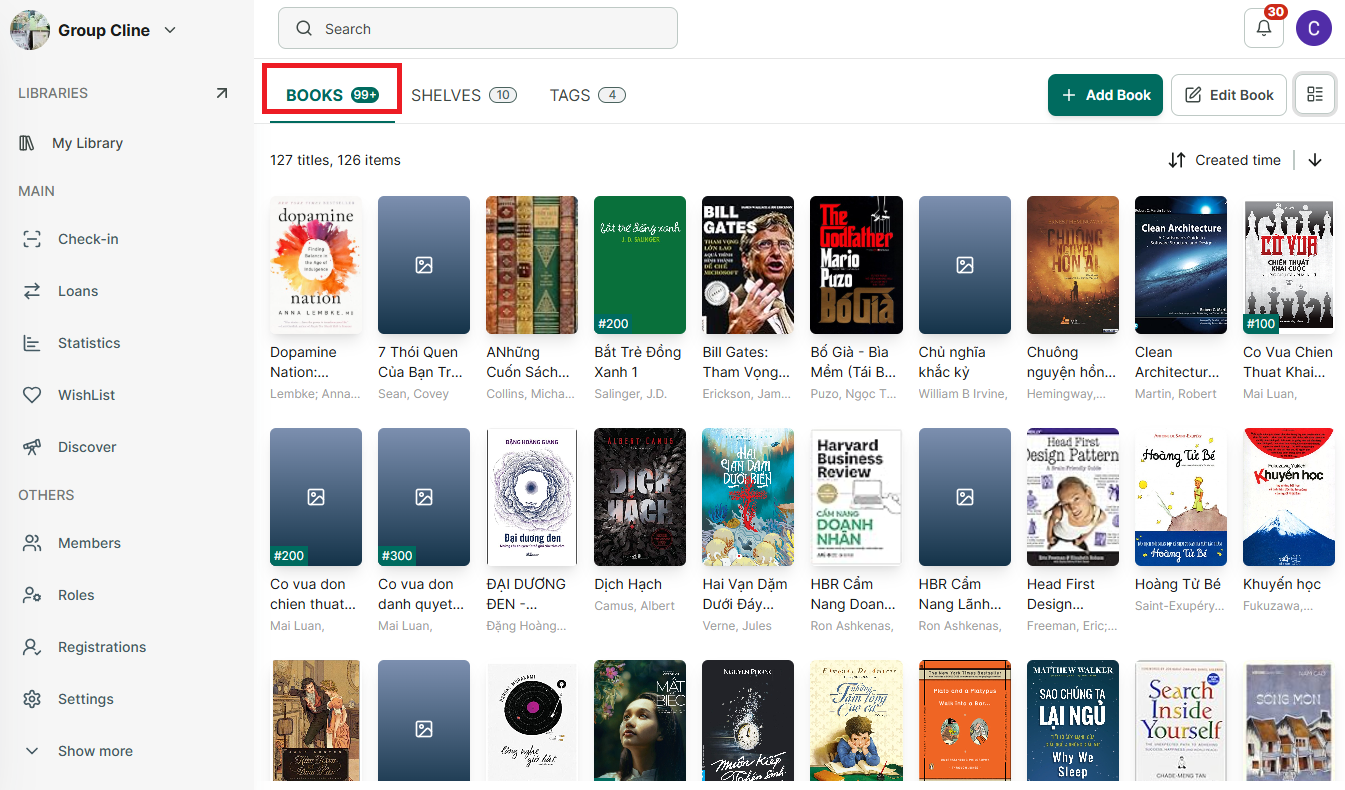
Step 19: Access the details of book in the Book tab
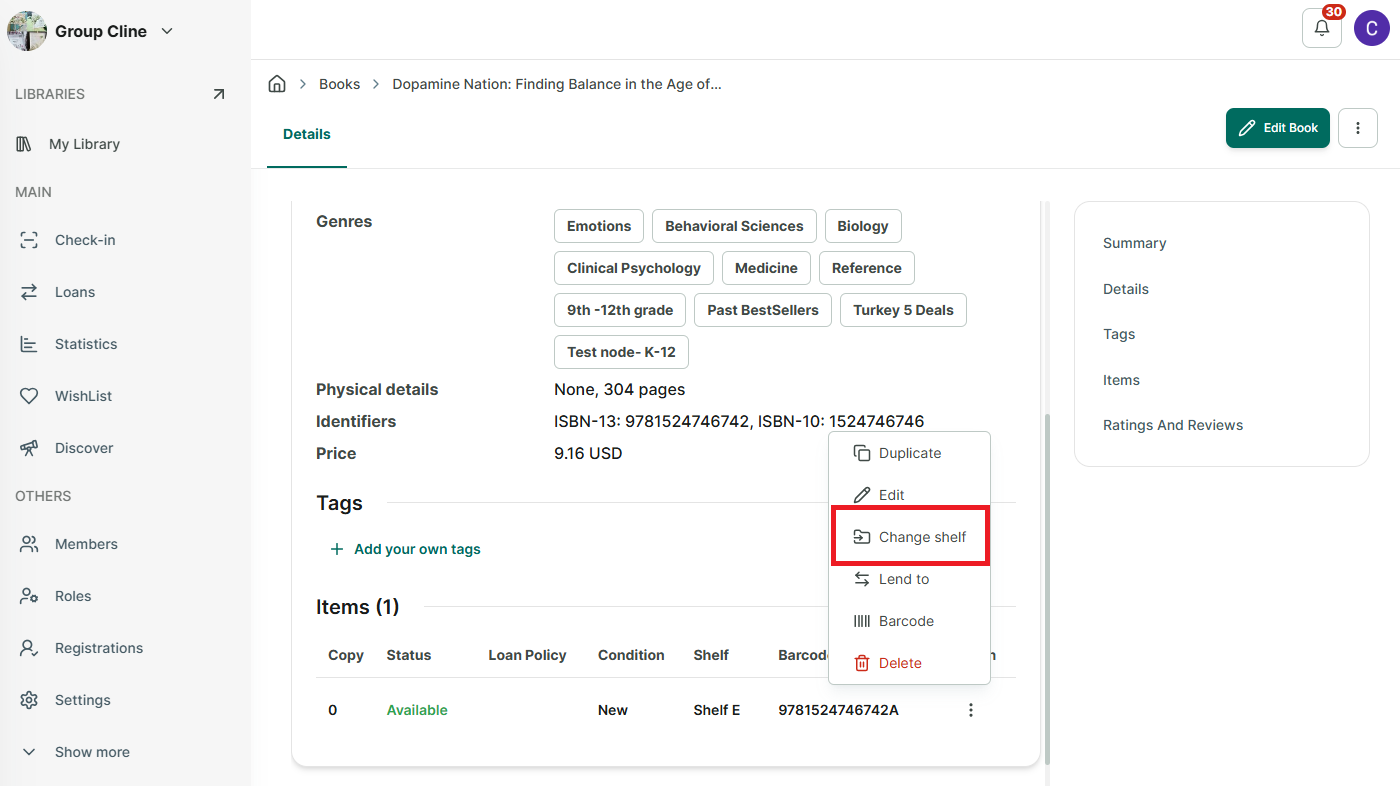
Step 20: Scrol down to view item of book.
Step 21: Tap on the three-dot icon in the right side of their item. There are 5 options:
- Duplicate
- Edit
- Change shelf
- Lend to
- Barcode
- Delete
Select “change shelf”
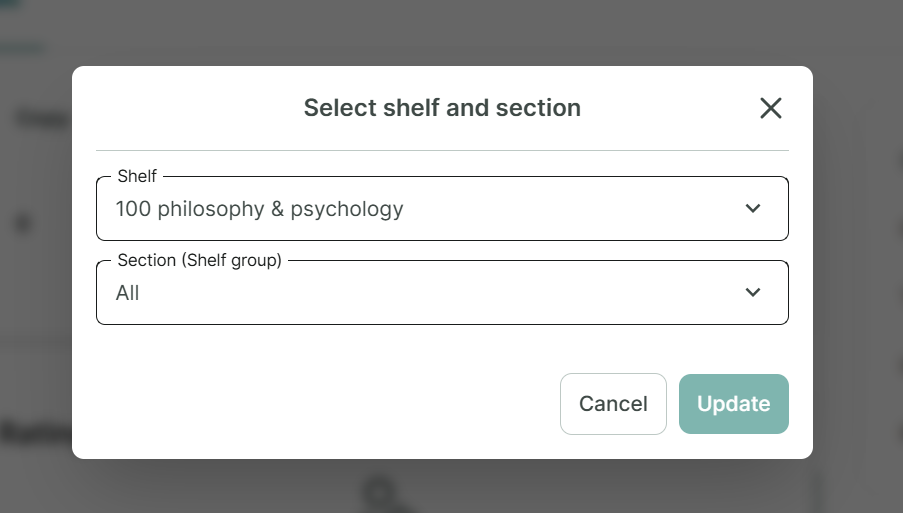
Step 22: Then Select Shelf and section and press “Update”
Another way to change shelf for an item
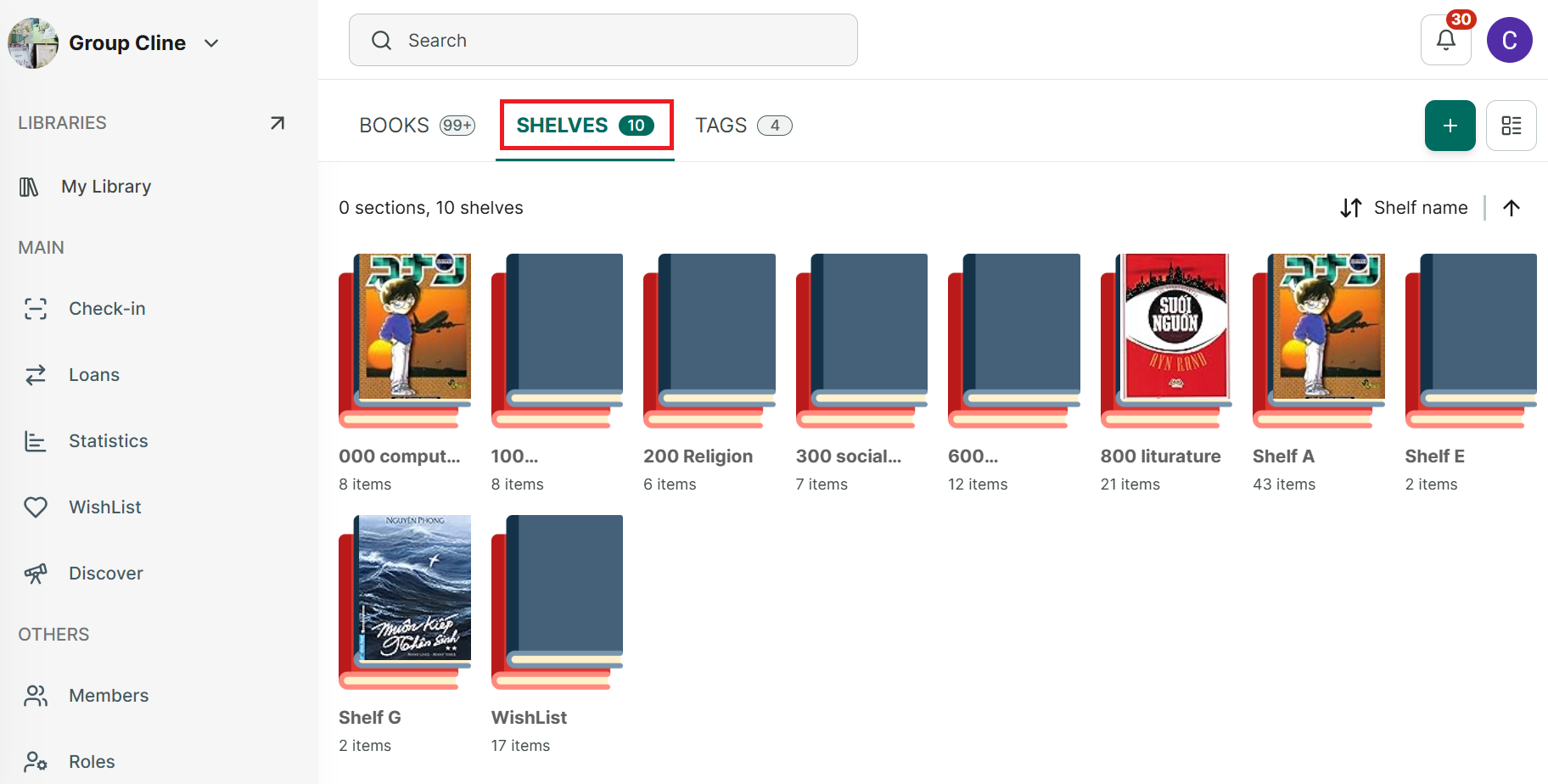
Step 23: Go to Shelves tab and tap on a shelf
Step 24: It appears a item in Shelf
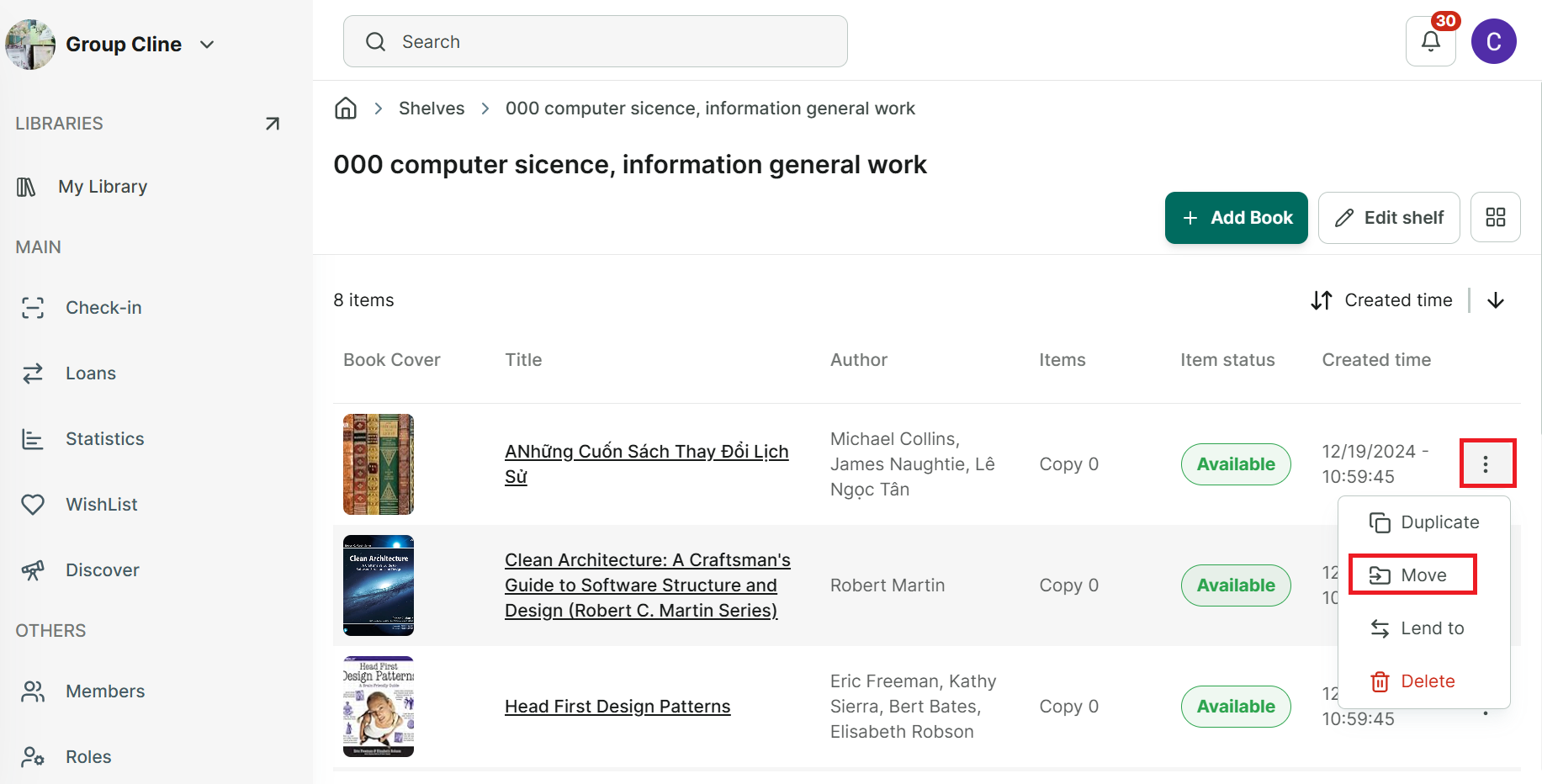
Step 25: In lit view of item, tap on three-dot icon at the each item. There are 5 options:
- Duplicate
- Move
- Lend to
- Delete
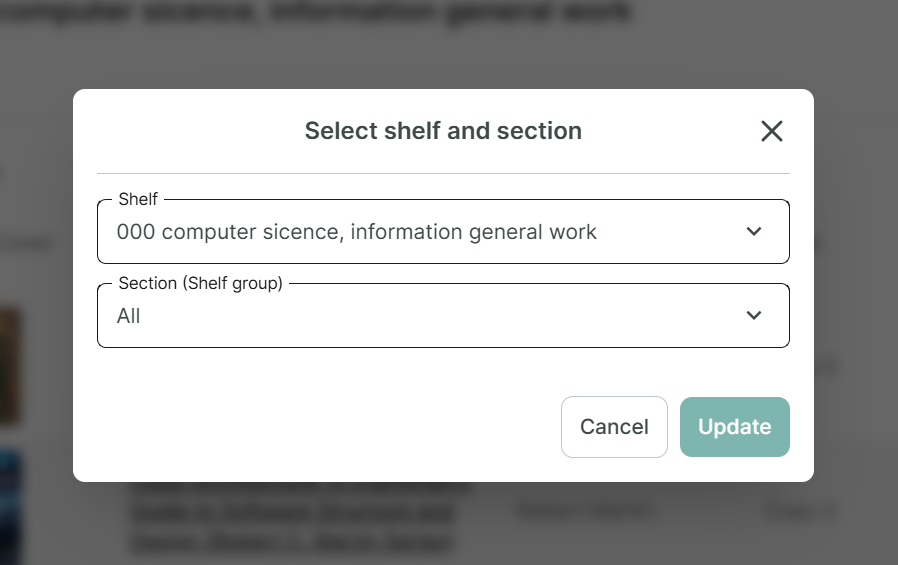
Step 26: Tap on “Move” then select other shelf for item
Step 27: Then select other shelf for item and Press “Update”
Rating and review a book
Create rating and review
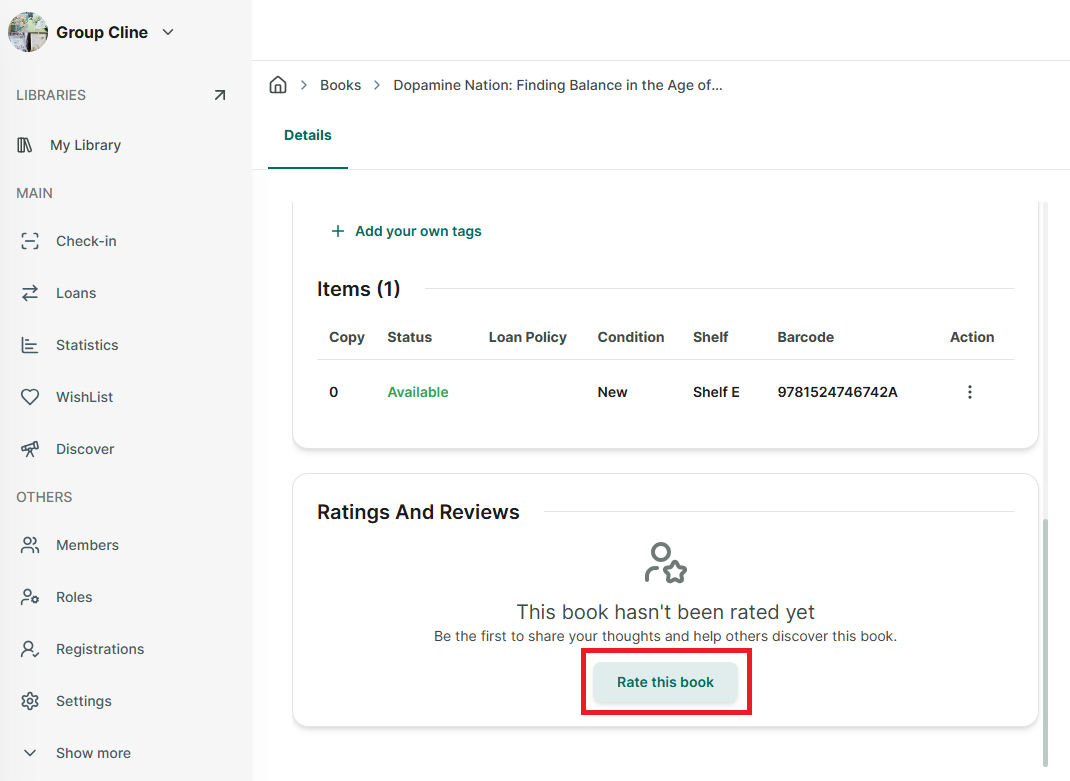
Step 28: Go to the Books tab and open a book.
Step 29: Scroll down to the Ratings & Reviews section.
Step 30: Tap “Rate this book.”
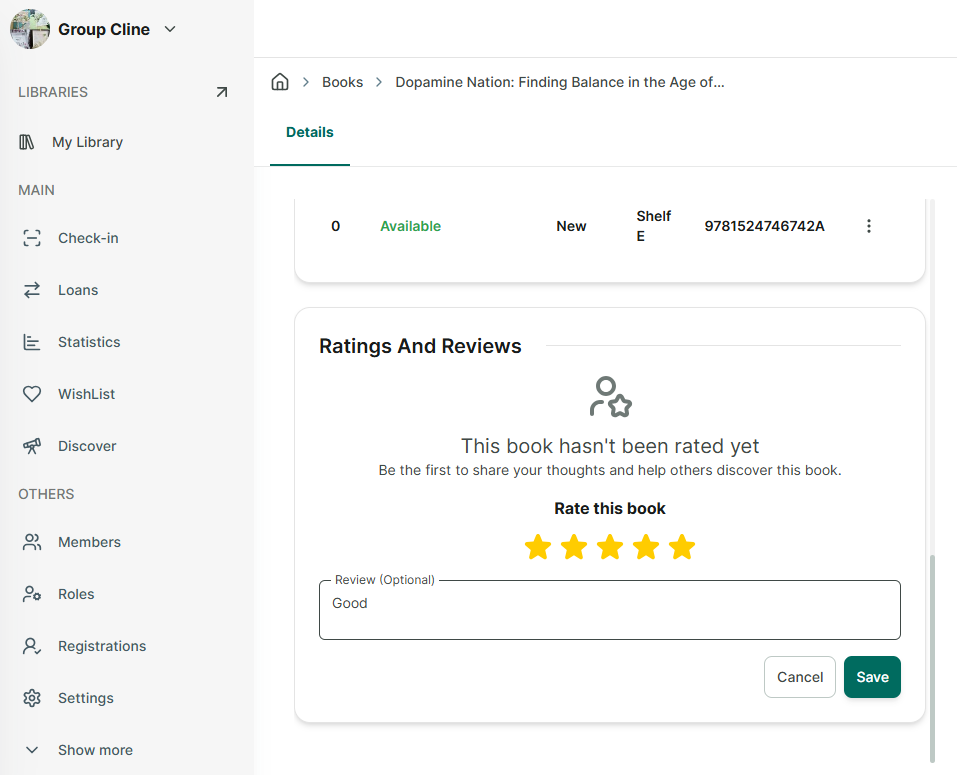
Step 31: Enter your review, select a star rating, and tap “Save.”
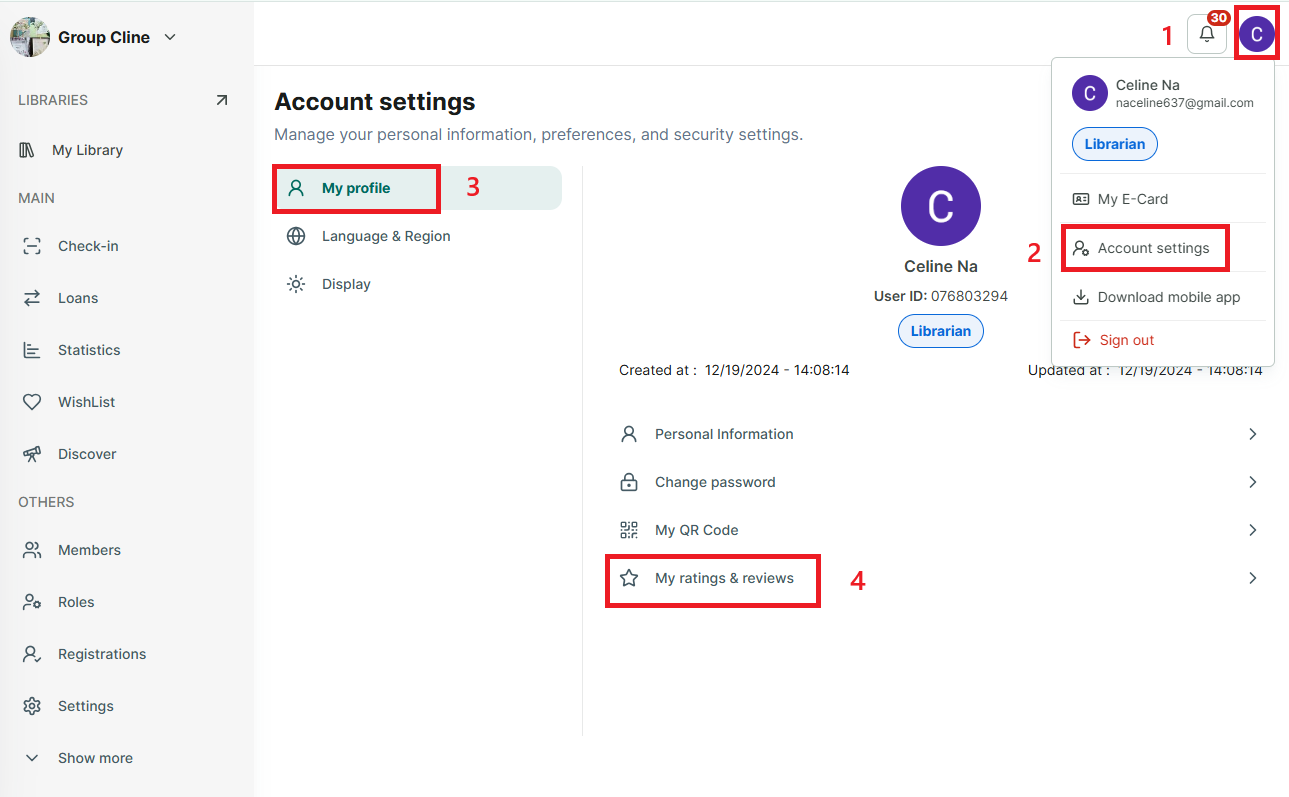
Step 32: You can view your reviews and ratings in “Account setting” → “My Profile” → “View your profile.”
Edit rating and review
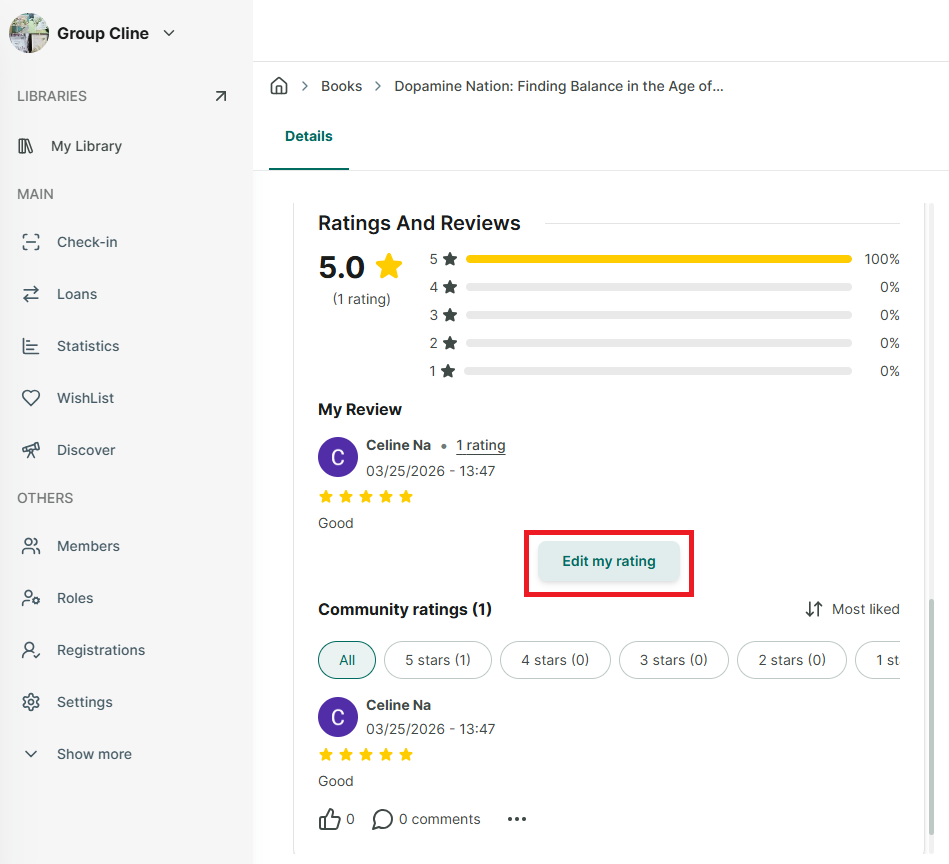
Step 33: Bấm vào cuốn sách trước đó bạn đã đánh giá
Step 34: Tại phần rating and review bấm vào nút Edit my raing
Step 35: You can edit ranting and review → Save
Barcode
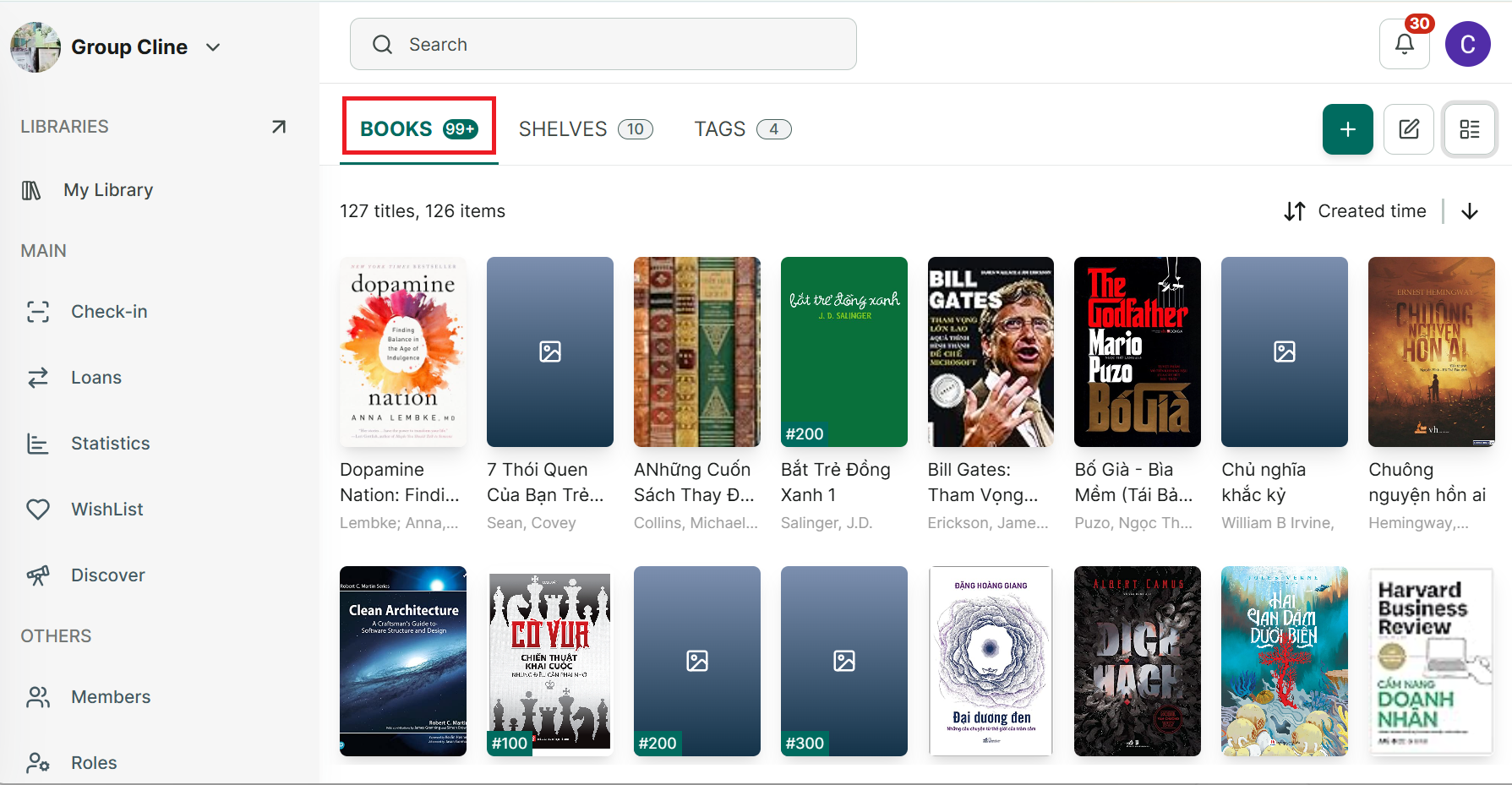
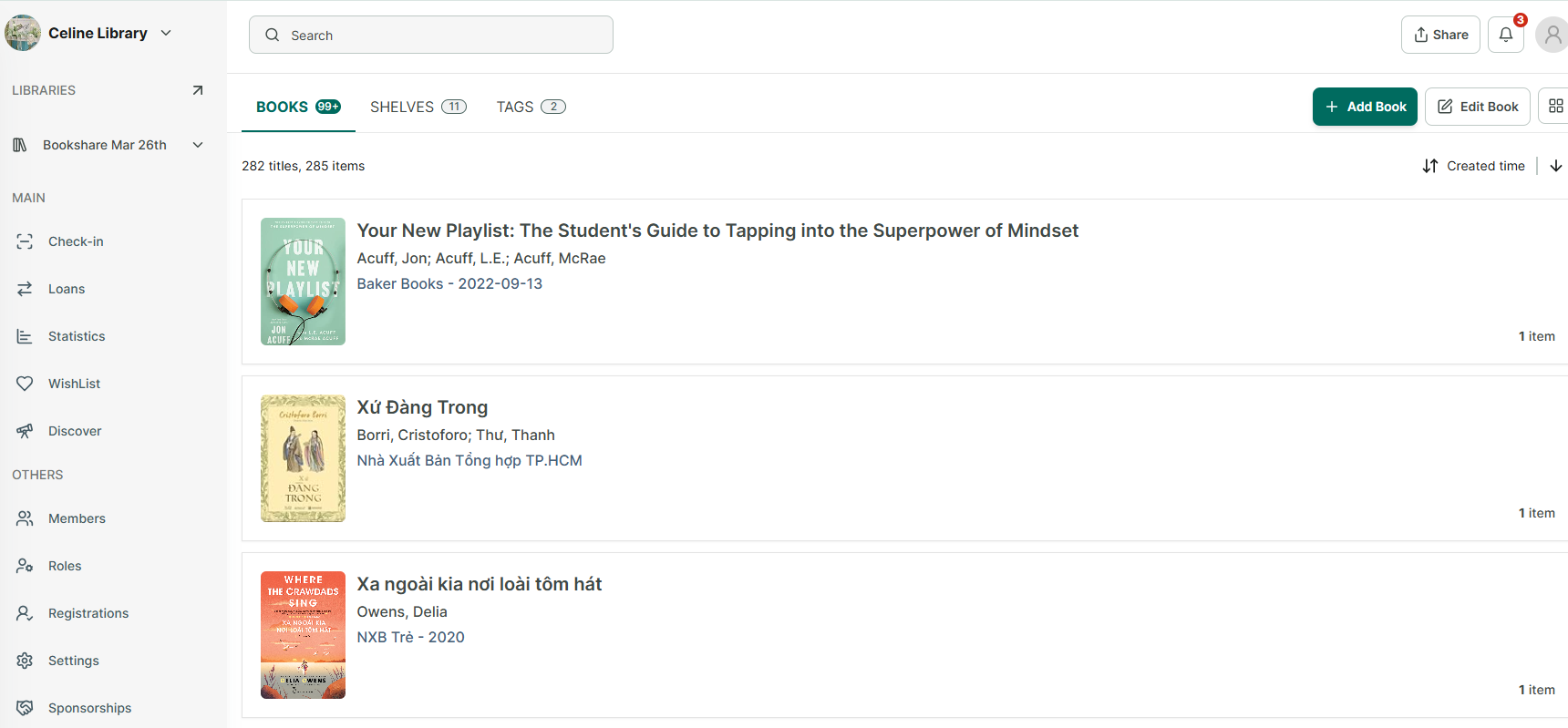
Step 36: After adding books, all books will appear in the Books tab.
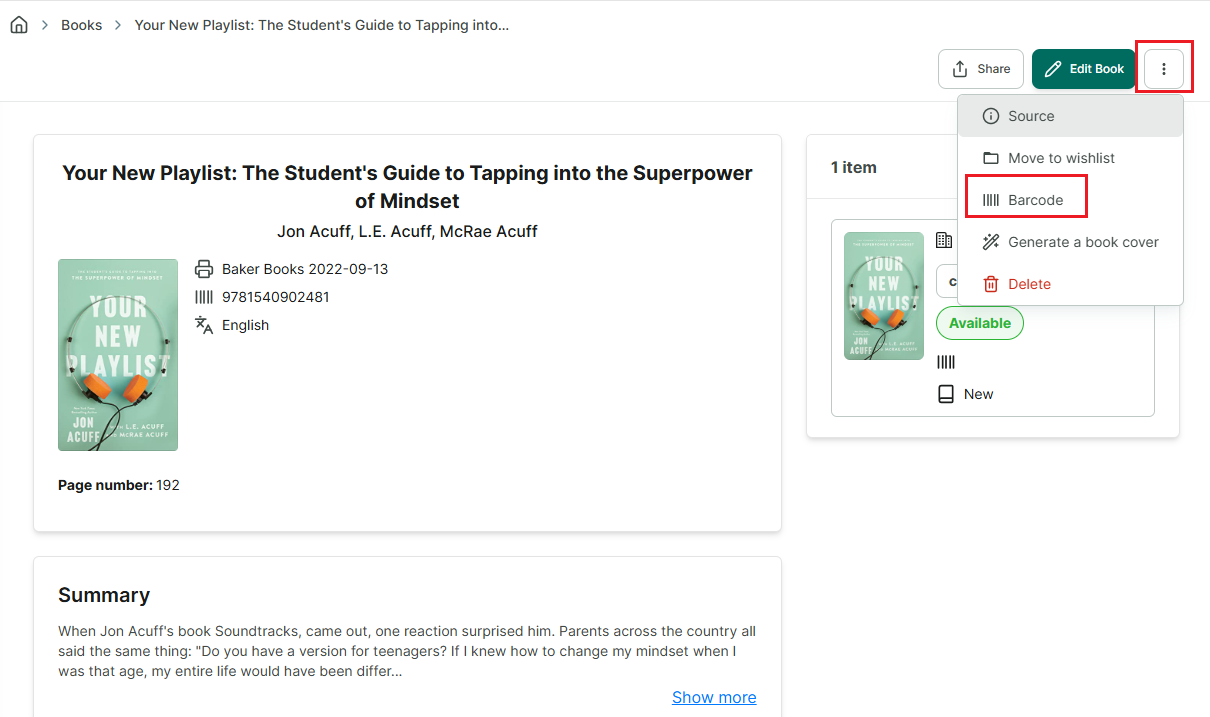
Step 37: Tap on a book to view its details → tap the three-dot button in the top corner of the screen to see more options → select Barcode.
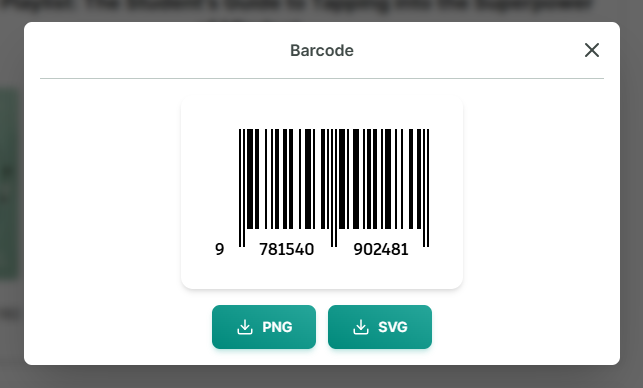
Step 38: The barcode is generated automatically, and you can download it if needed. Please note that a barcode can only be generated if the book information contains an ISBN number.
Source
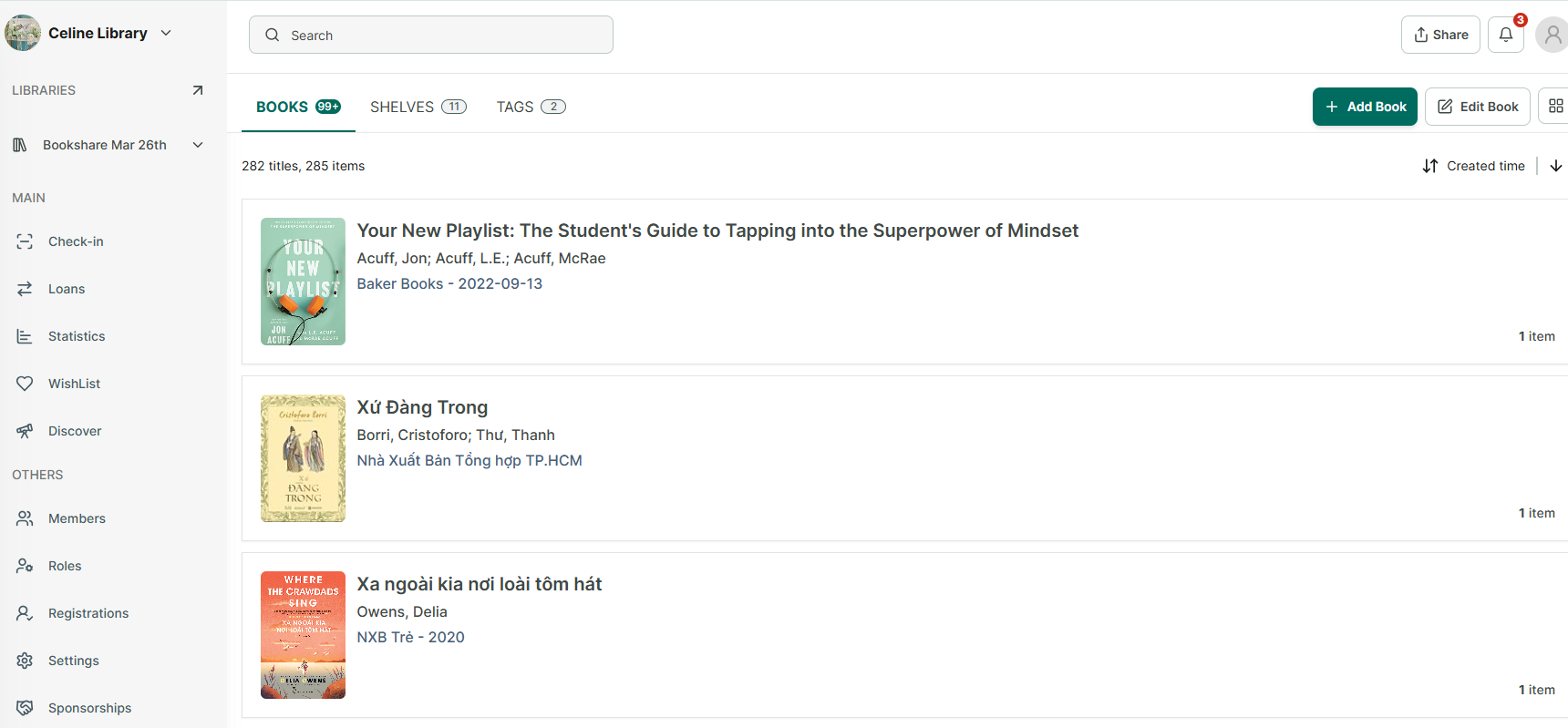
Step 39: After adding books, all books will appear in the Books tab.
Step 40: Tap on a book to view its details → tap the three-dot button in the top corner of the screen to see more options → select Source.
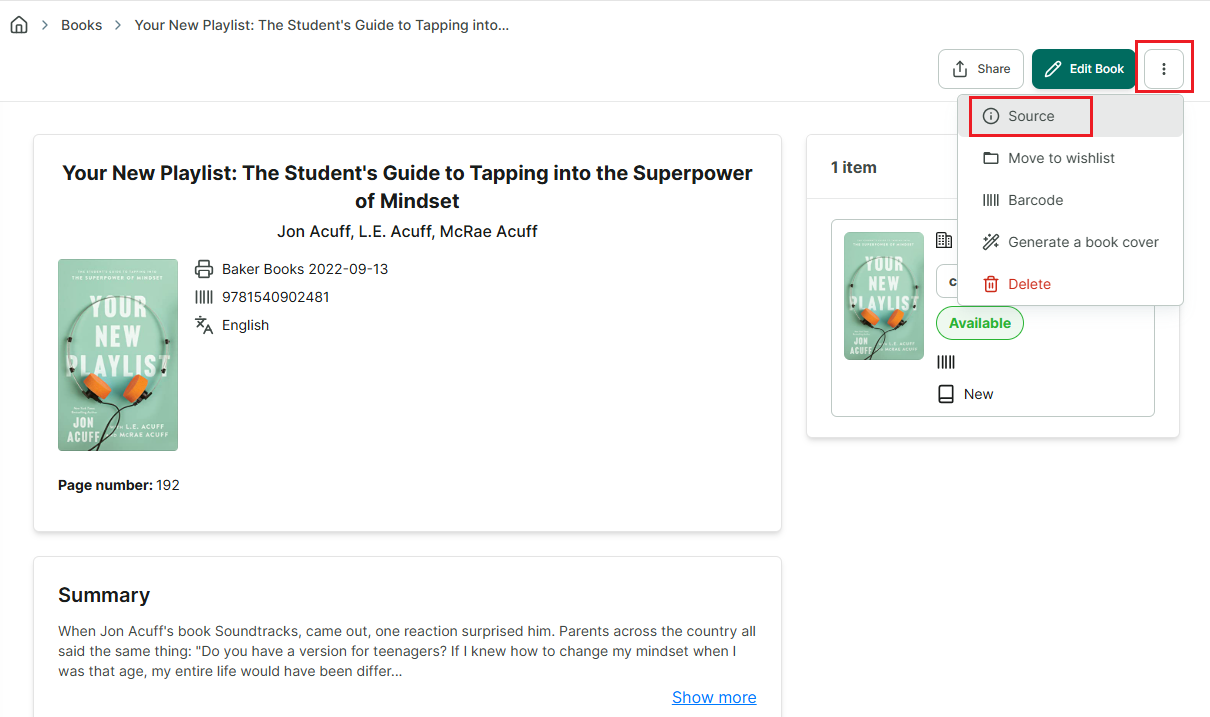
Step 41: