Setting
Import Data From Handy Library
Step 1: In the Handy Library app - Export your library to ZIP file, store it on your PC
Step 2: Open SKoolib app. Tap on the setting section
Step 3: The Import function appears on the screen. Press “Import” to proceed.
Step 4: Tap on “Select file.” Then choose library and press Import.
Step 5: The screen appears “Importing” message and starts import process
Step 6: Then it appears the message “Import completed” and shows all data
Video instructions:
Recording_2025-04-23_090657.mp4
Account setting - Change theme and Date format
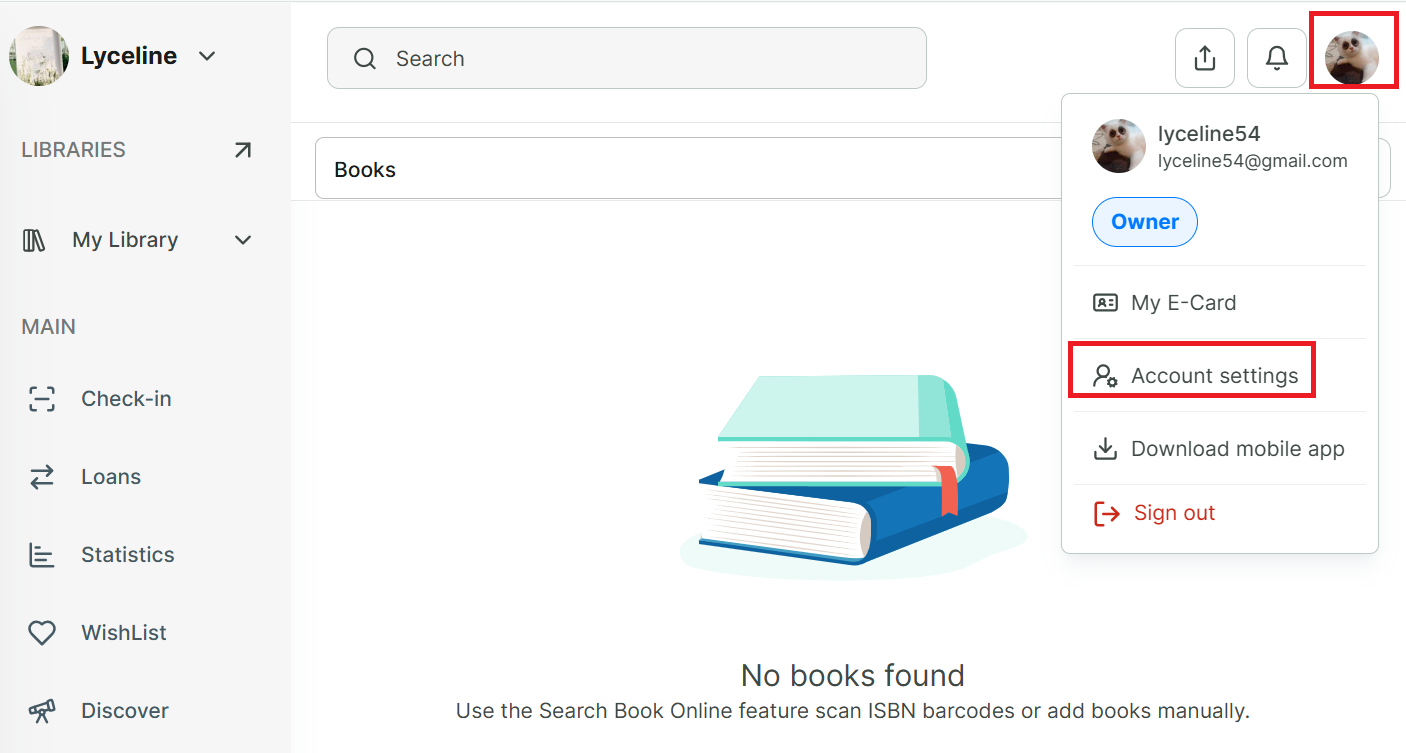
Step 7: Tap on Account icon at the right top of screen
Step 8: Select “Account settings”
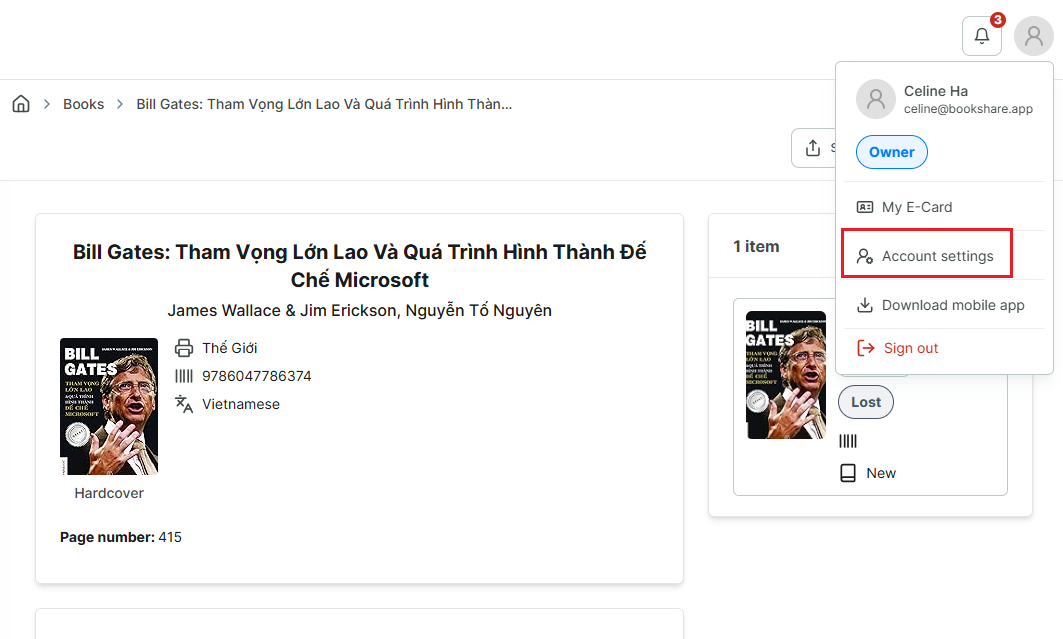
Step 9: Select “Dispay” section
Step 10: You can choose the date format and theme for the app.
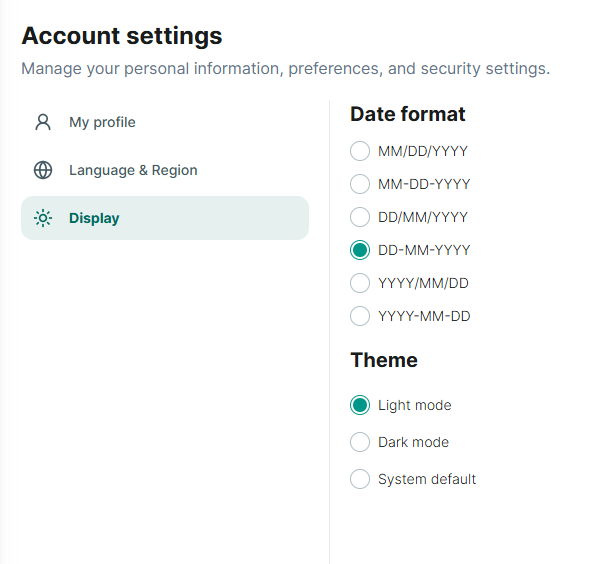
Account setting - Change Language
Step 11: Tap on Account icon at the right top of screen
Step 12: Select “Account settings”
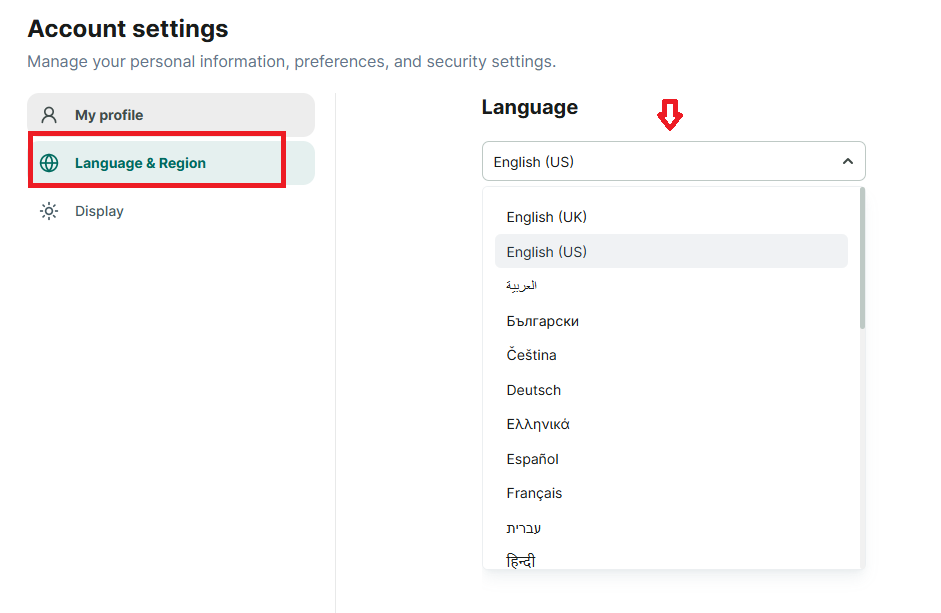
Step 13: Select “Language & Region” section
Step 14: Then select your “language”
Field settings
Step 15: Access “Setting” section at the side menu
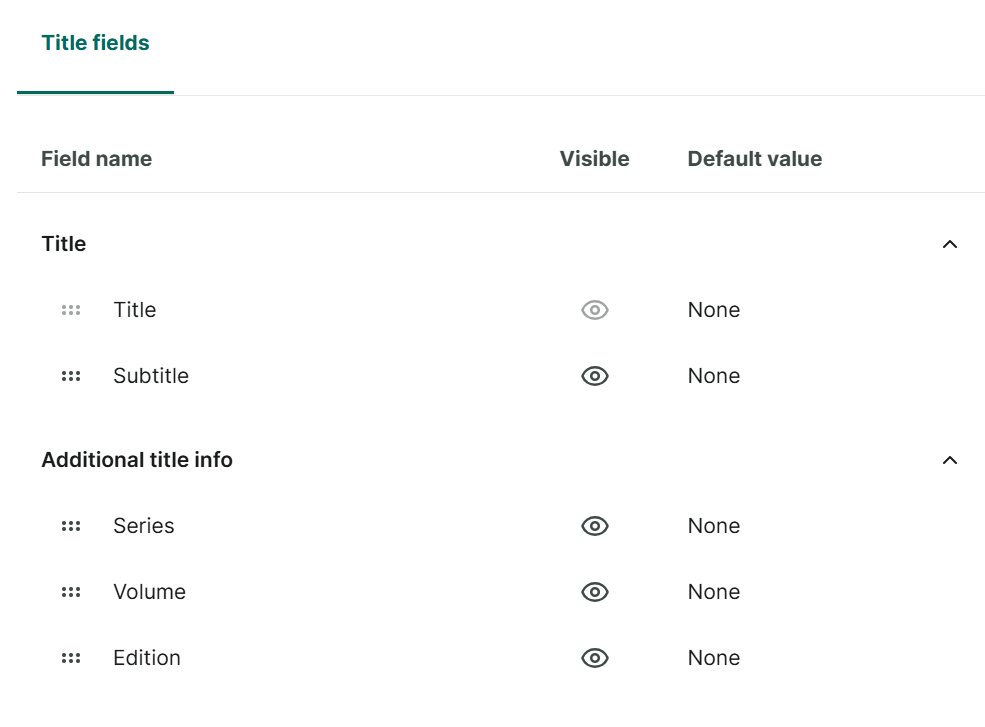
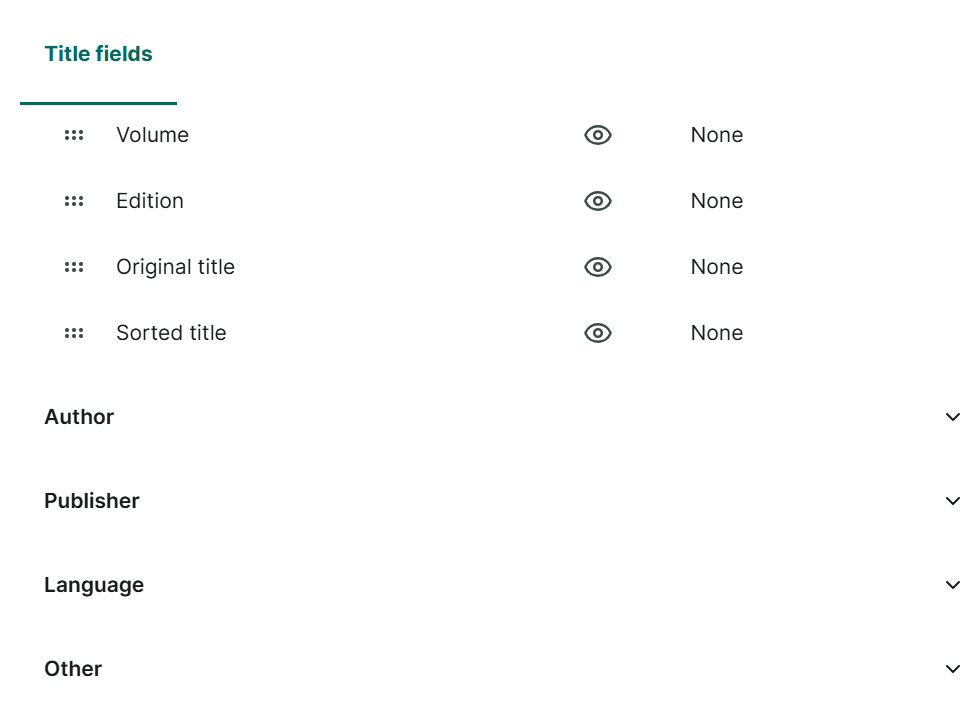
Step 16: Select “Field settings”
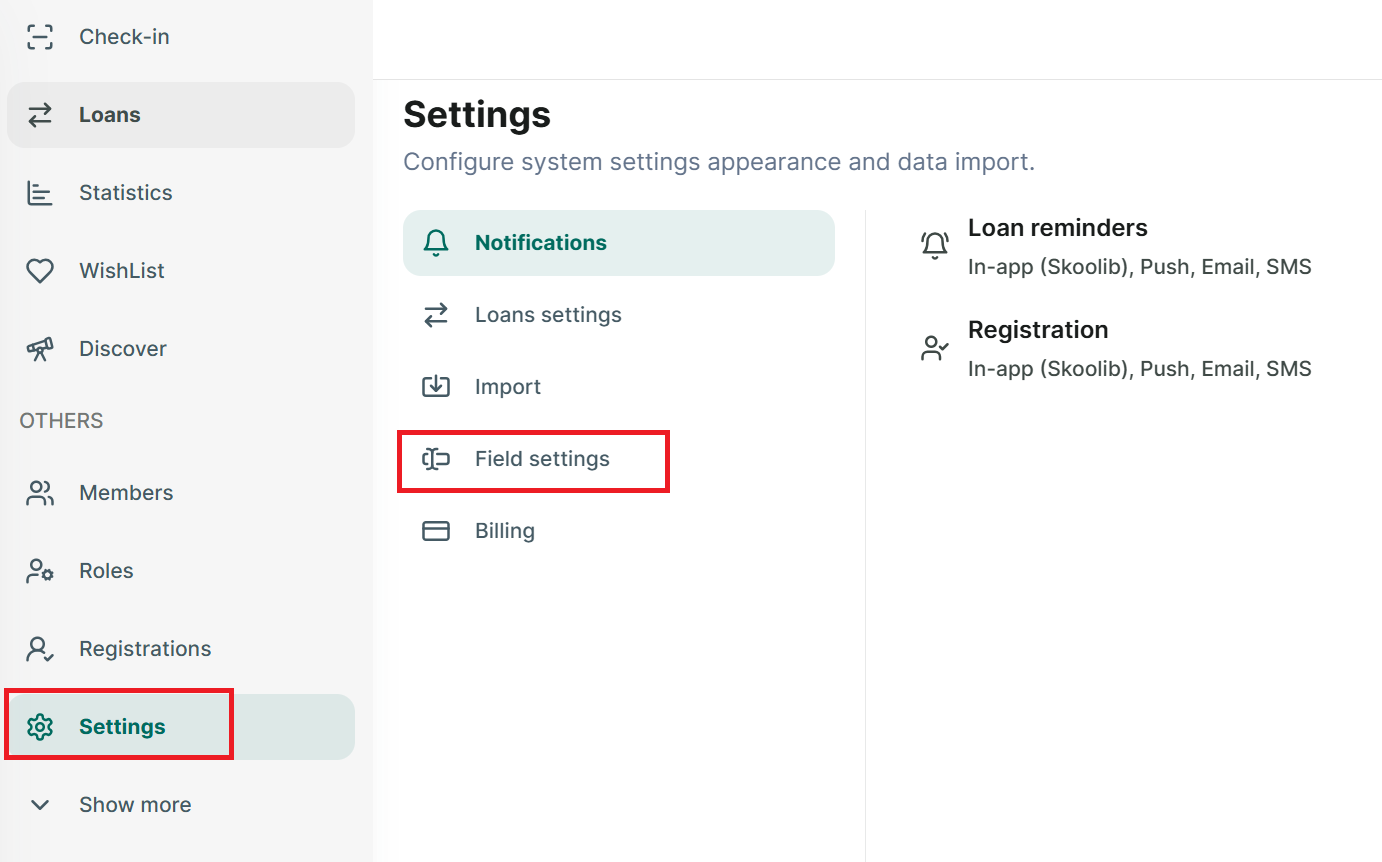
Step 17: You can edit default valued for title filed, additional title infor, author, publisher, language fields…. and choose invisible or visible for these fields.