Change shelf for item
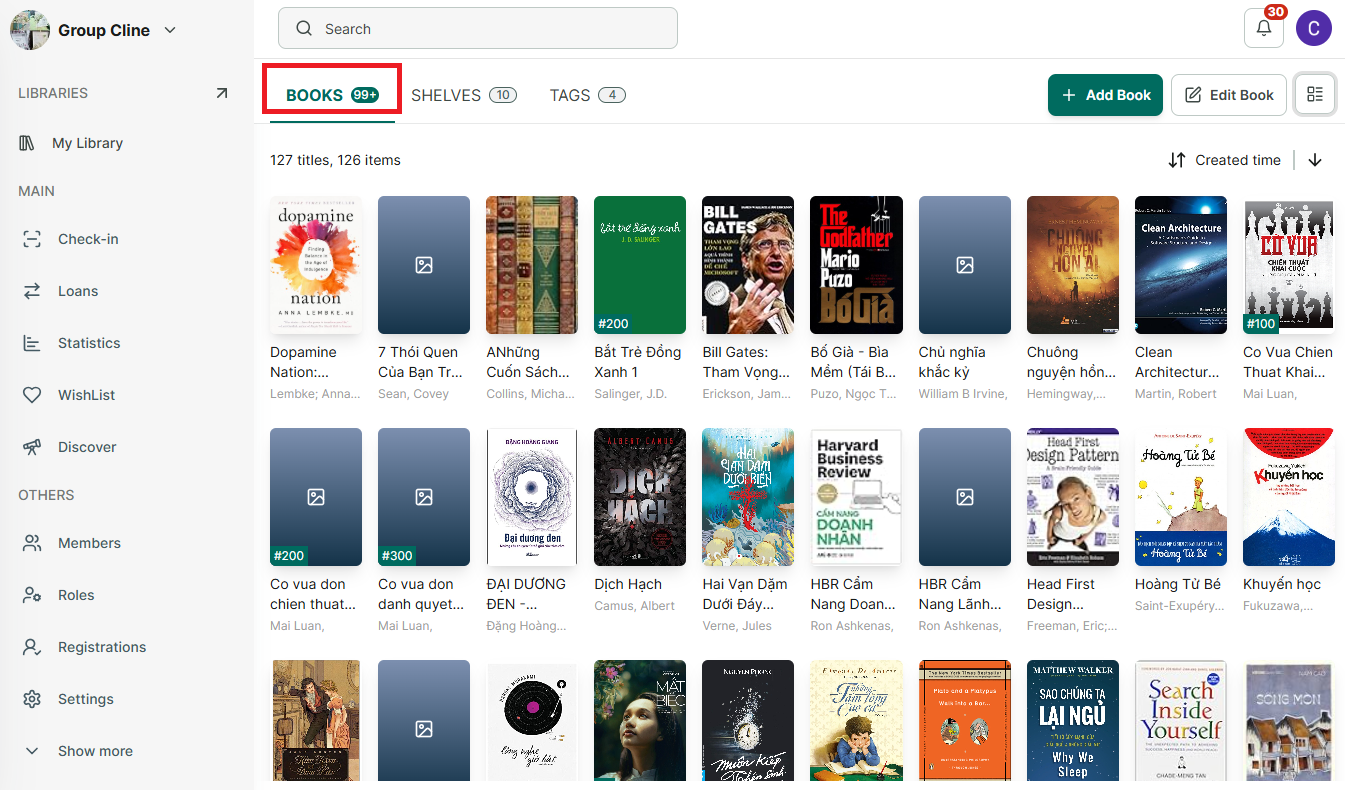
Step 1: Access the details of book in the Book tab
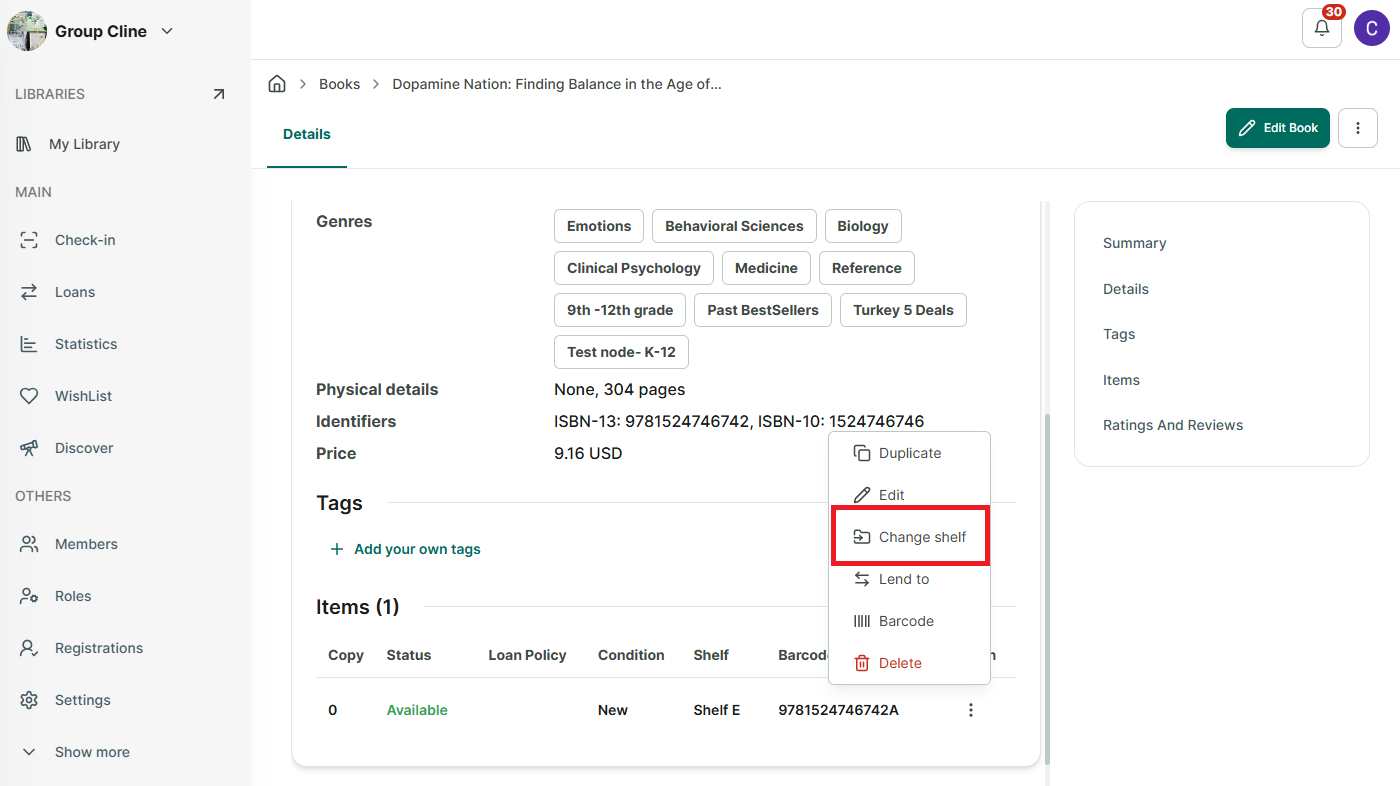
Step 2: Scrol down to view item of book.
Step 3: Tap on the three-dot icon in the right side of their item. There are 5 options:
- Duplicate
- Edit
- Change shelf
- Lend to
- Barcode
- Delete
Select “change shelf”
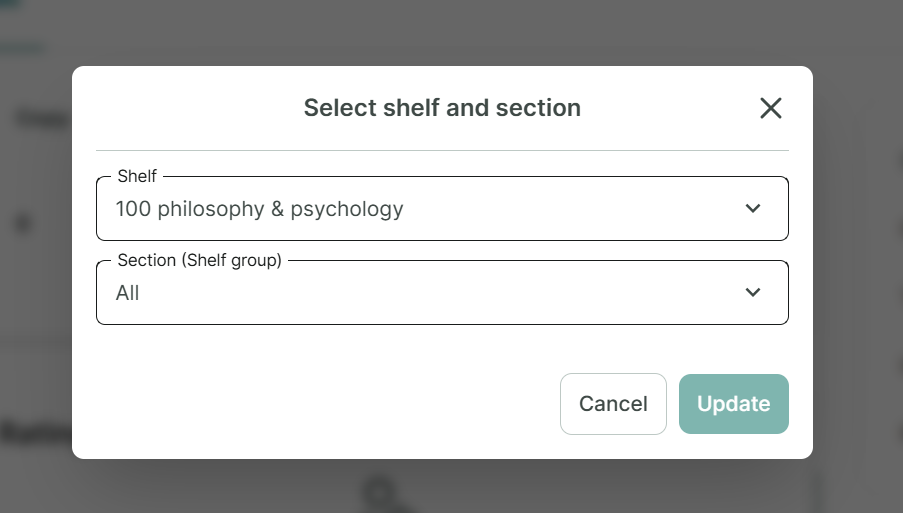
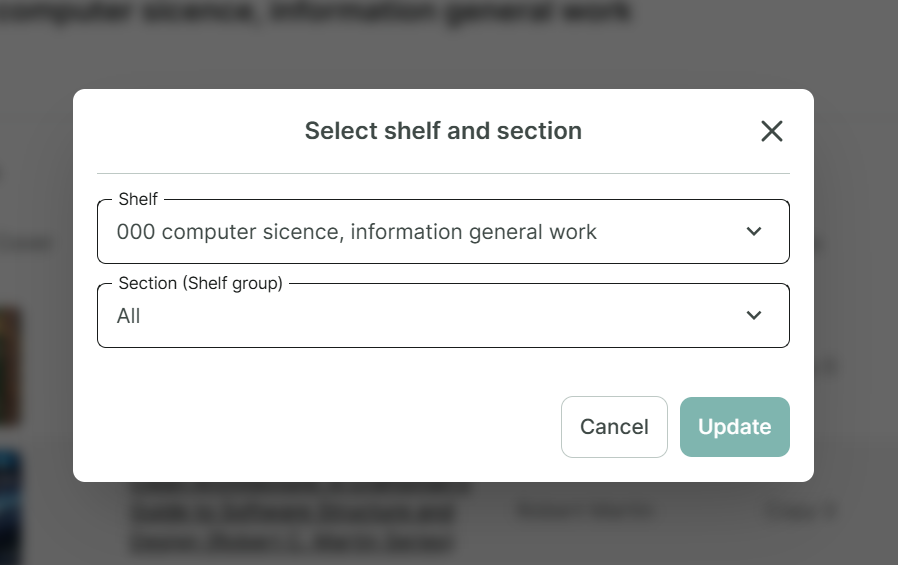
Step 4: Then Select Shelf and section and press “Update”
Another way to change shelf for an item
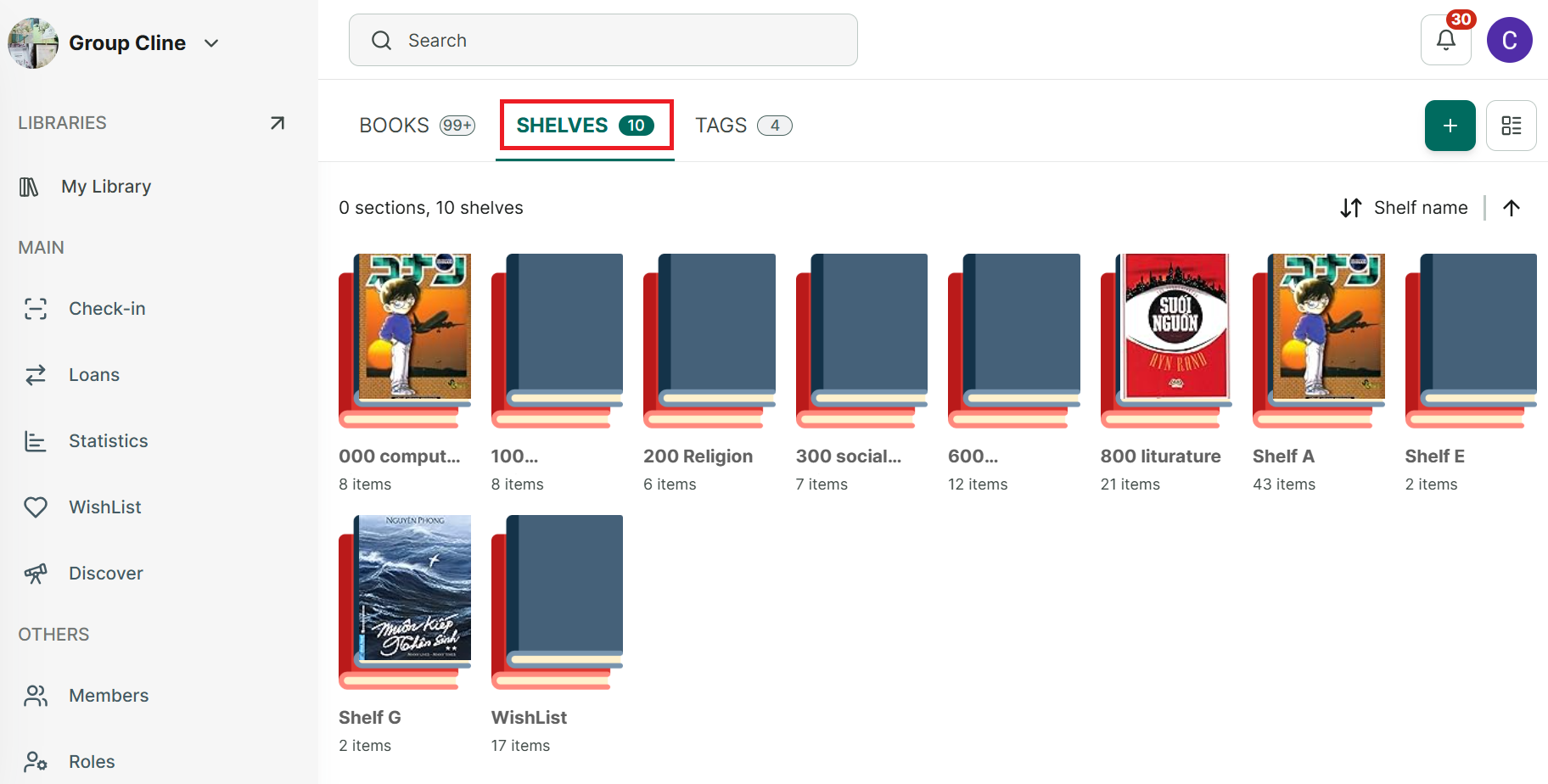
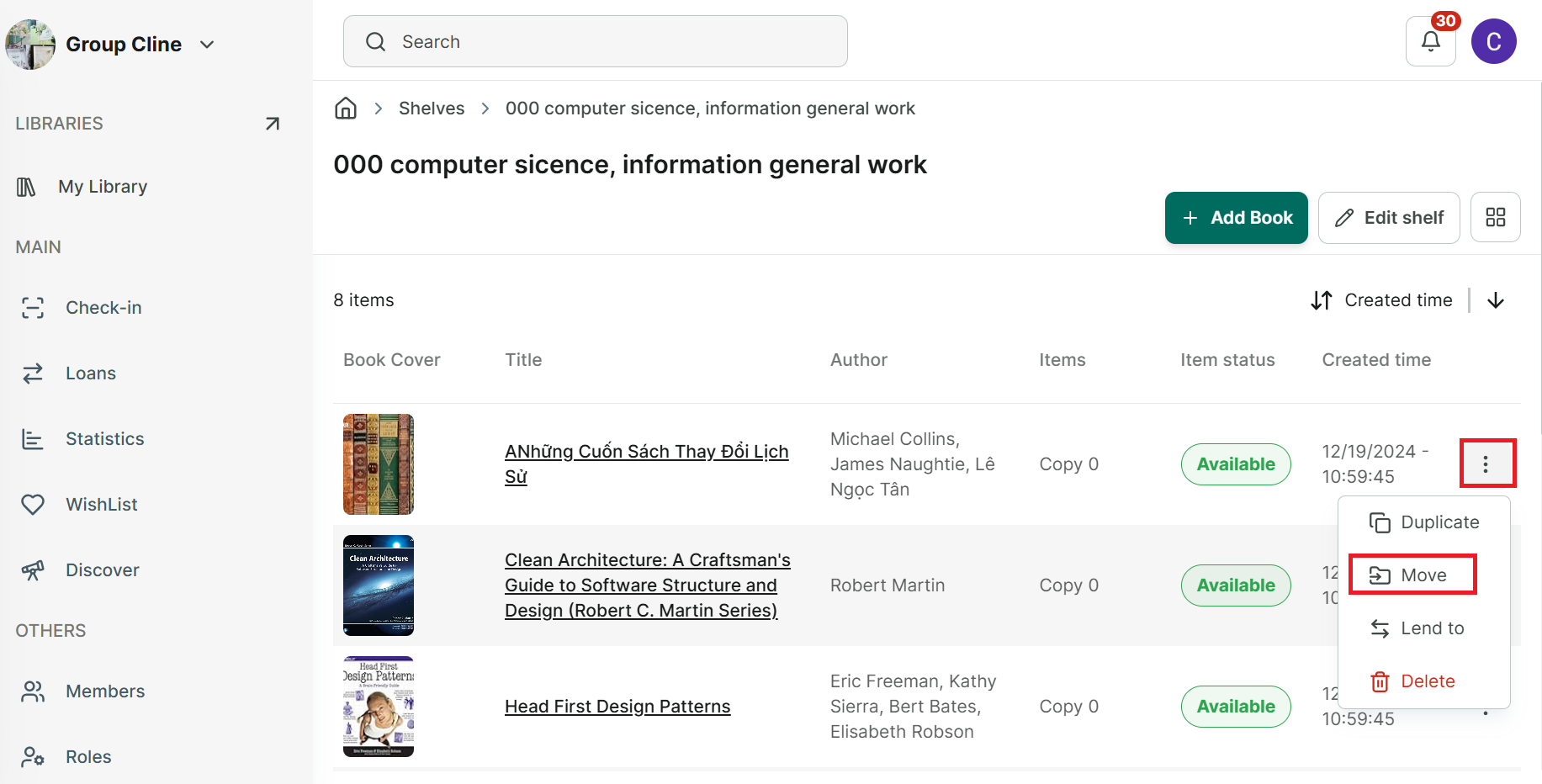
Step 5: Go to Shelves tab and tap on a shelf
Step 6: It appears a item in Shelf
Step 7: In lit view of item, tap on three-dot icon at the each item. There are 5 options:
- Duplicate
- Move
- Lend to
- Delete
Step 8: Tap on “Move” then select other shelf for item
Step 9: Then select other shelf for item and Press “Update”