Add book
Add book by search online
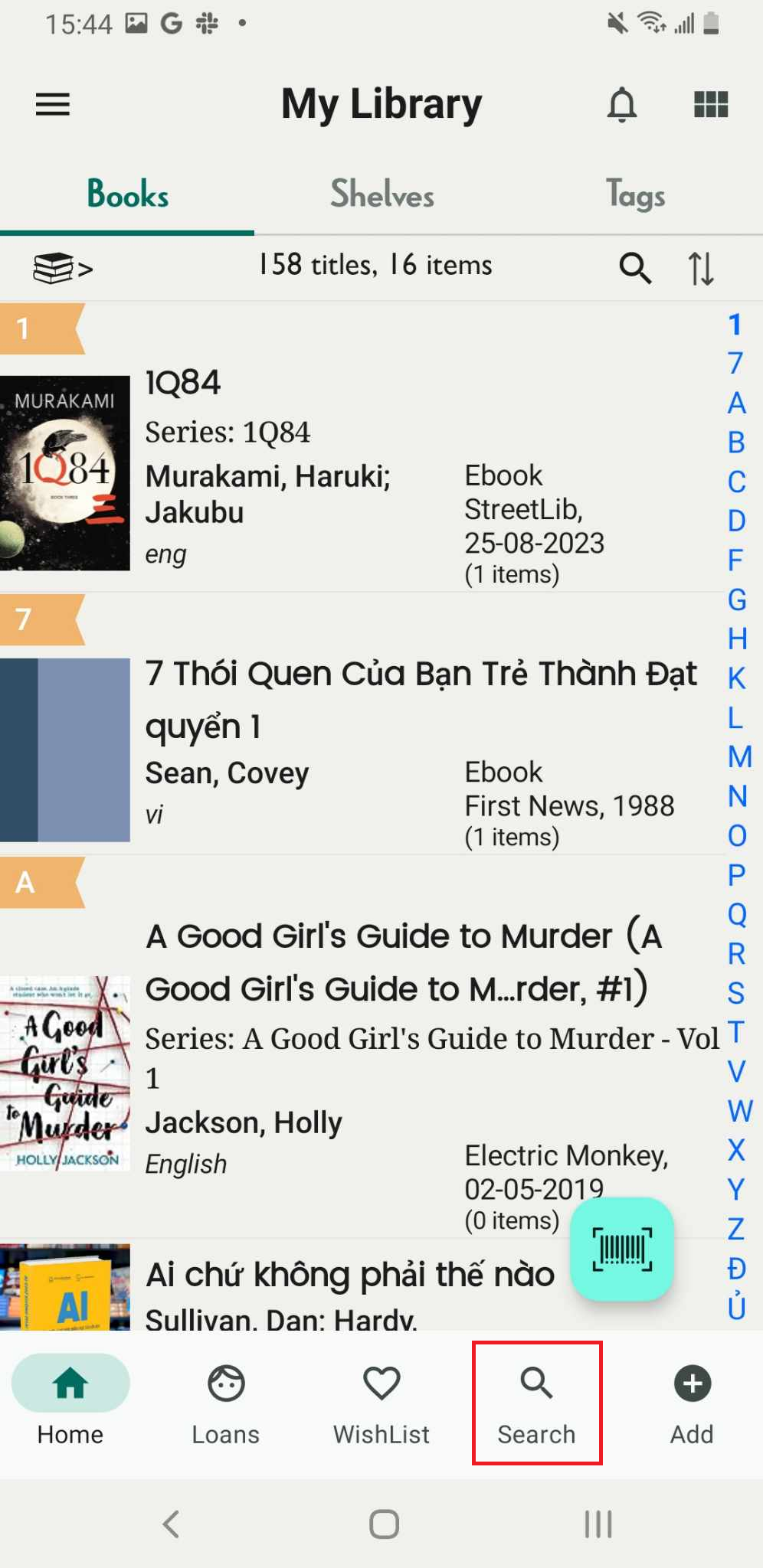
Step 1: Access the Search Online icon
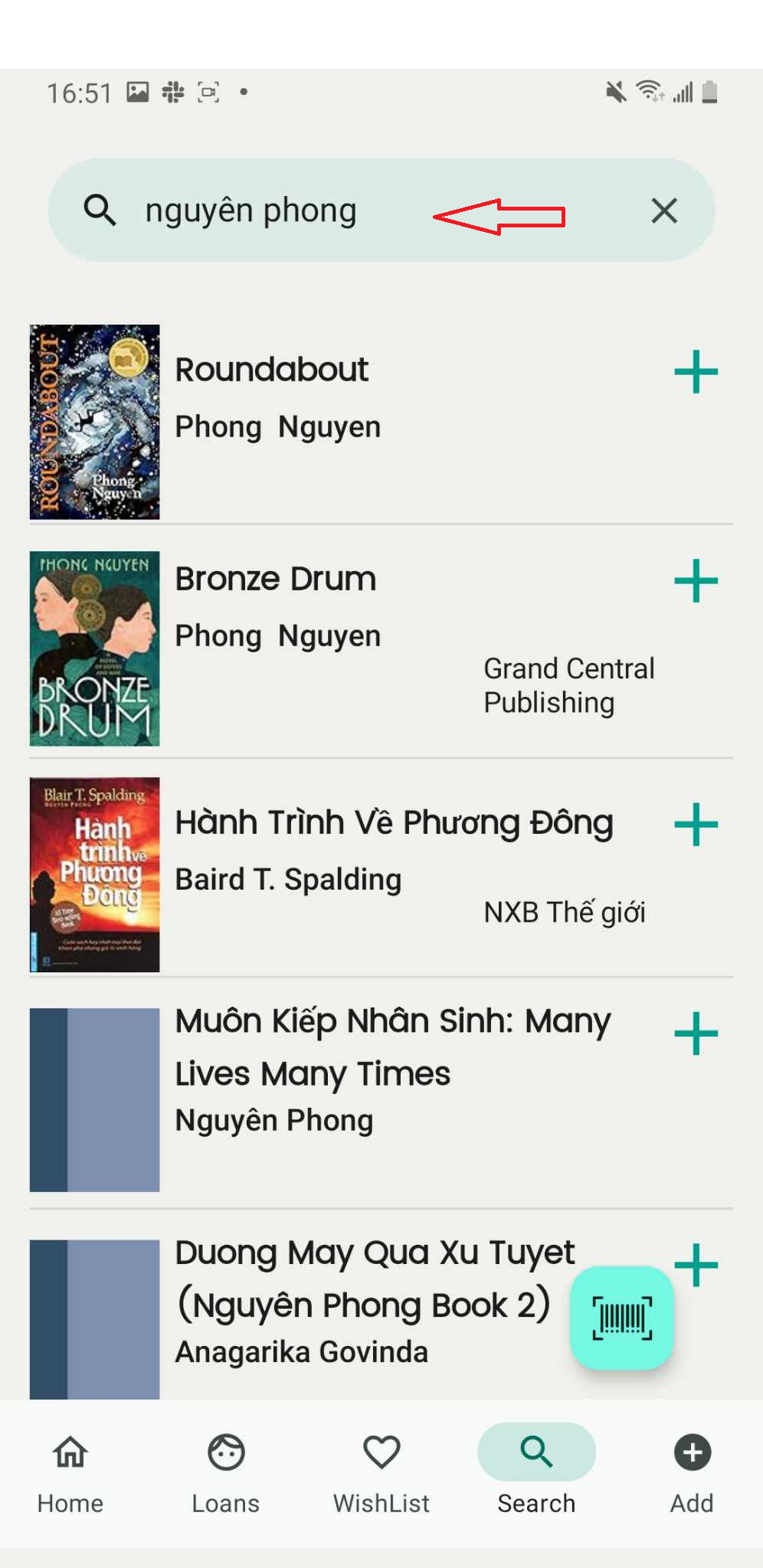
Step 2: Enter the book’s title, author, or ISBN to search.
Step 3: Access the book to view its details and press “ADD.”
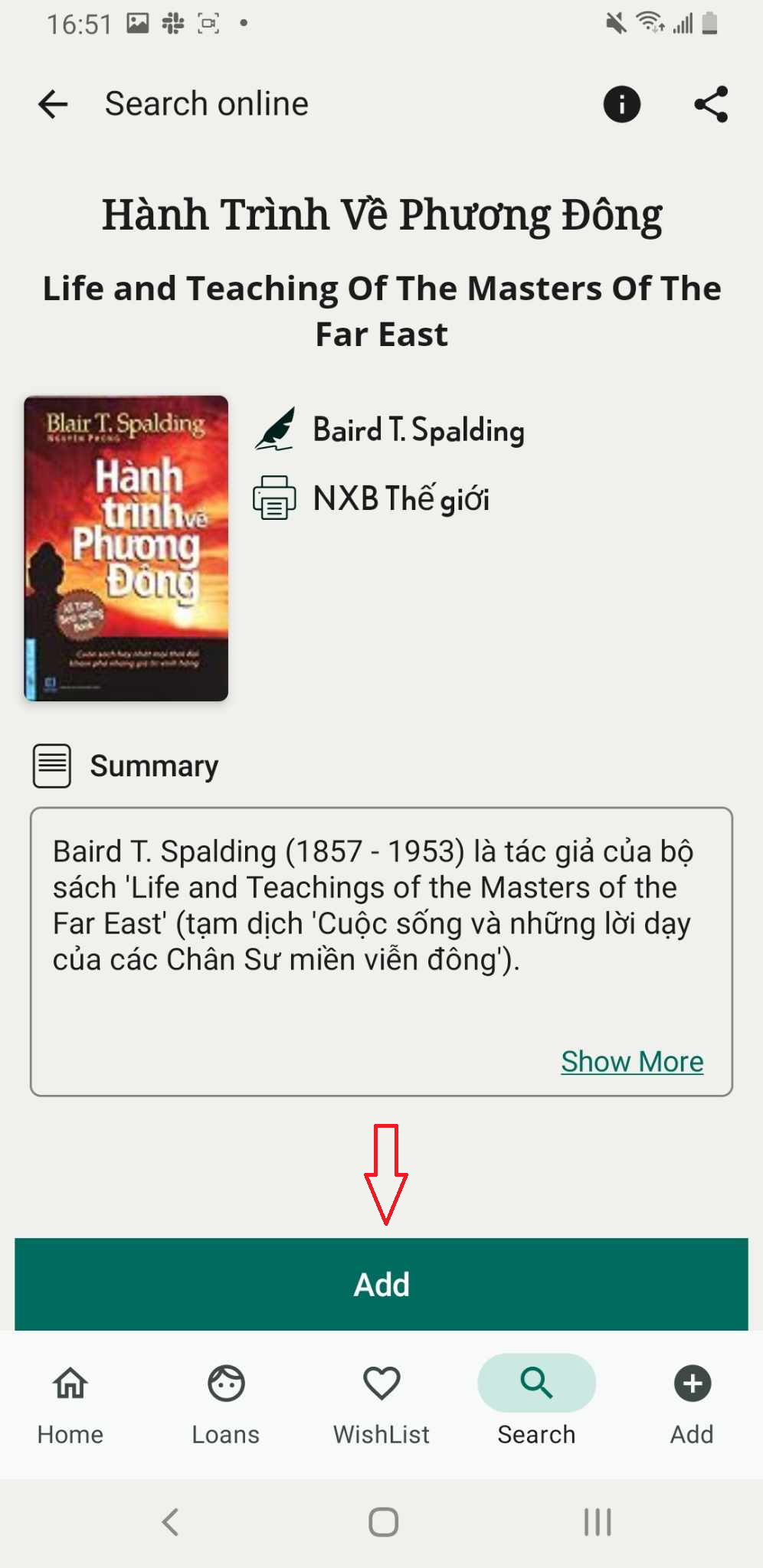
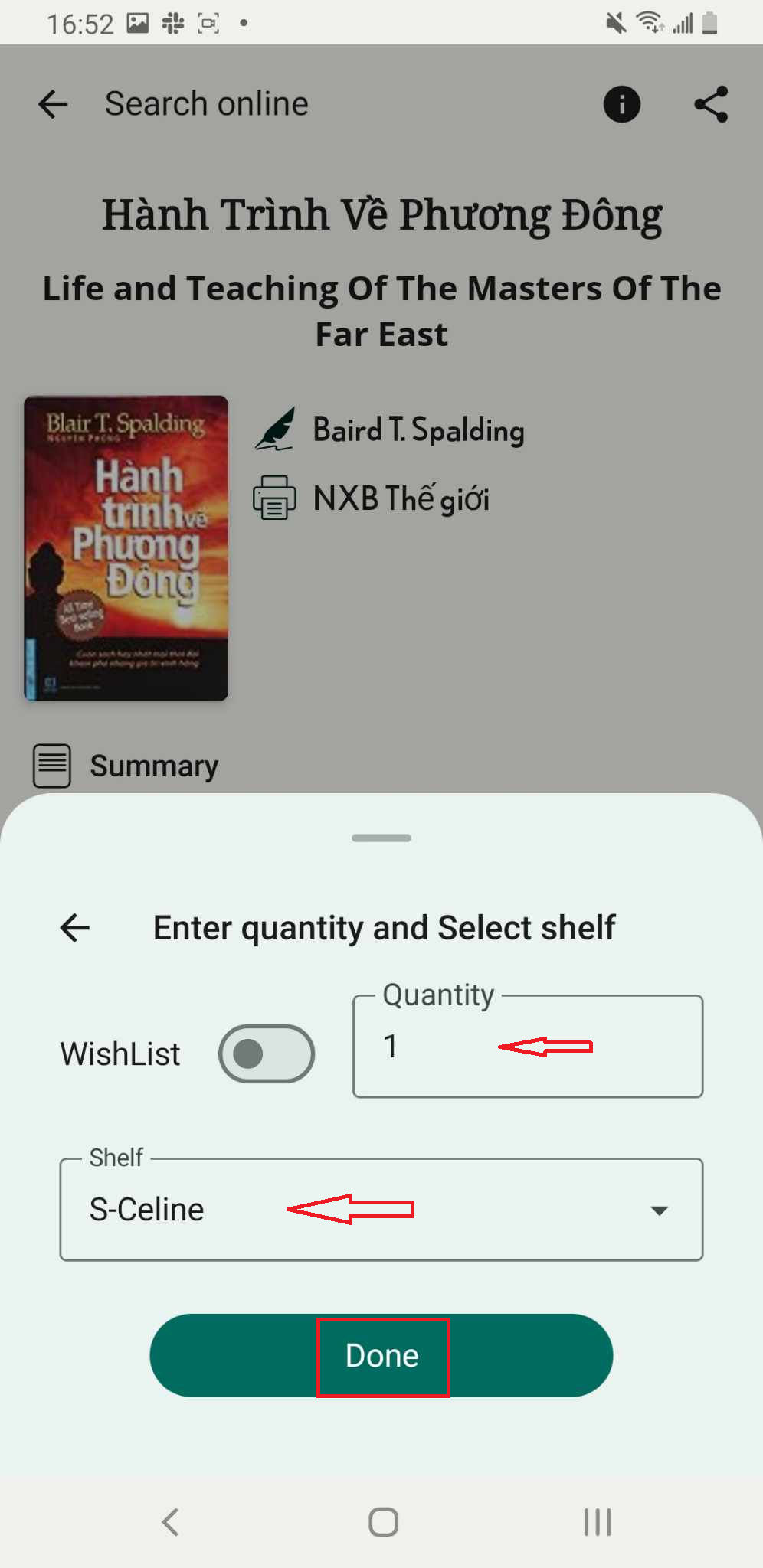
Step 4: Add the book, enter the quantity, select a shelf, and press “Done.”
Add book by manual
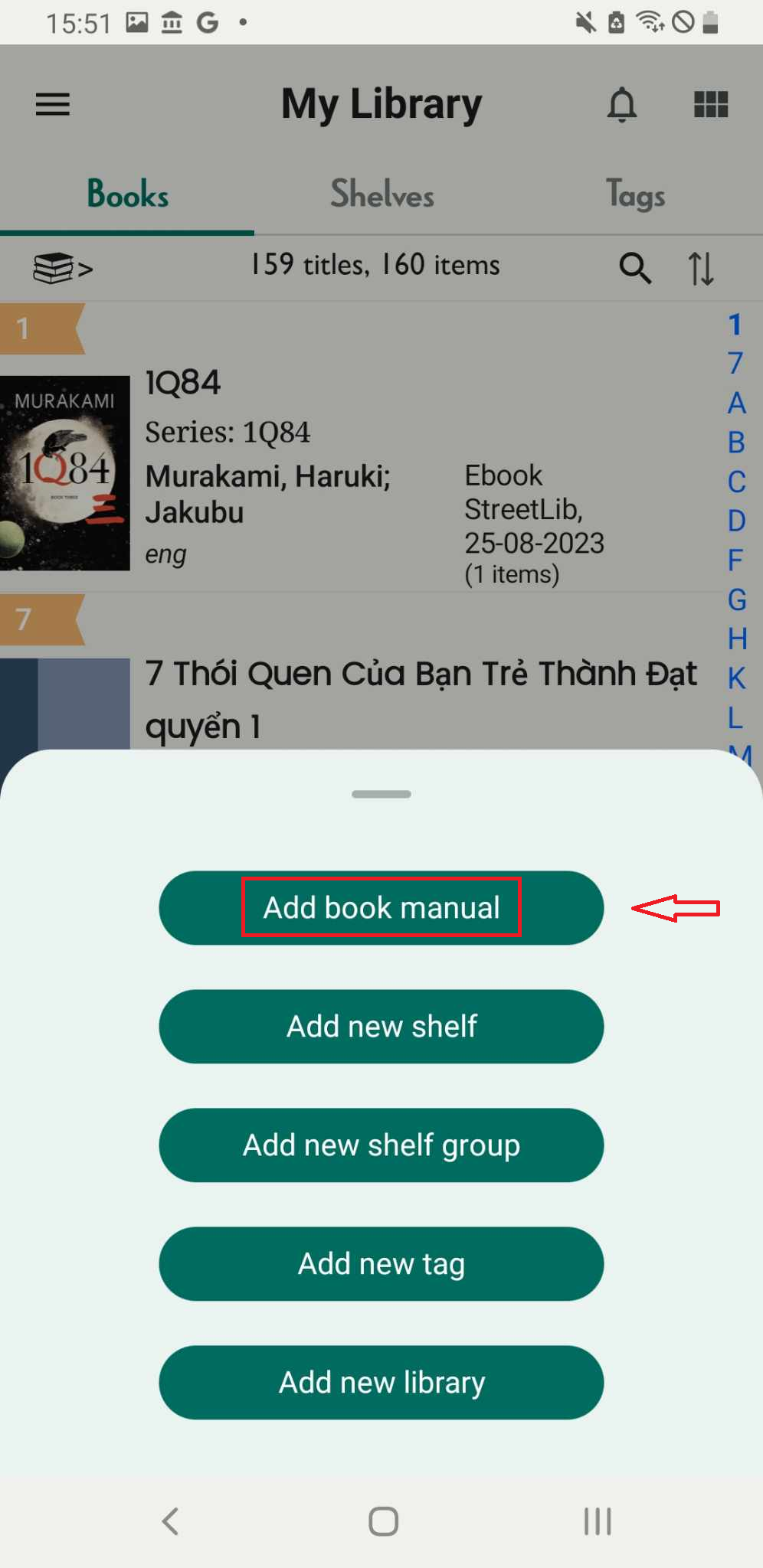
Step 5: Click on the “Add” button, represented by the plus icon.
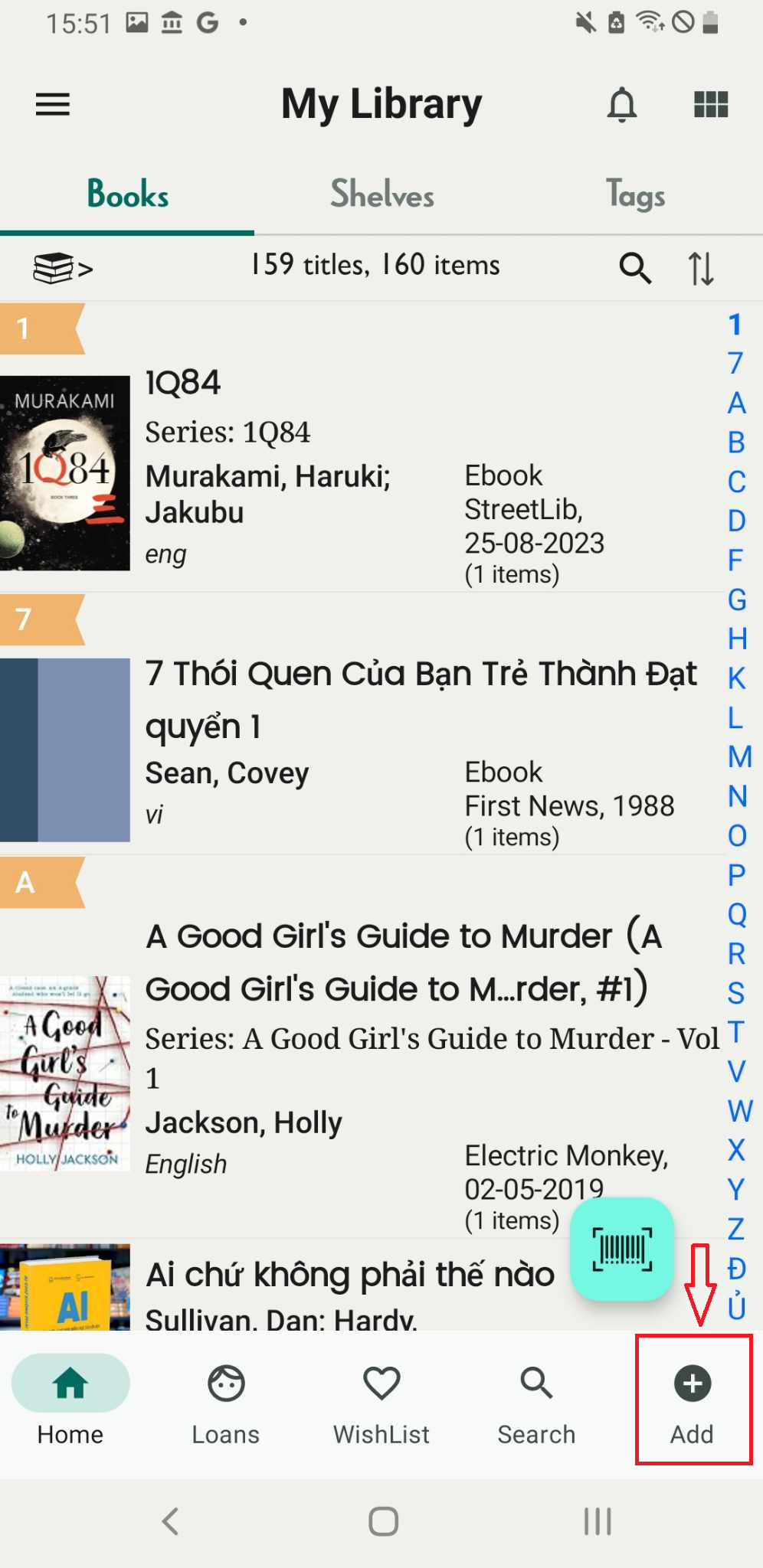
Step 6: Press “Add book manually.
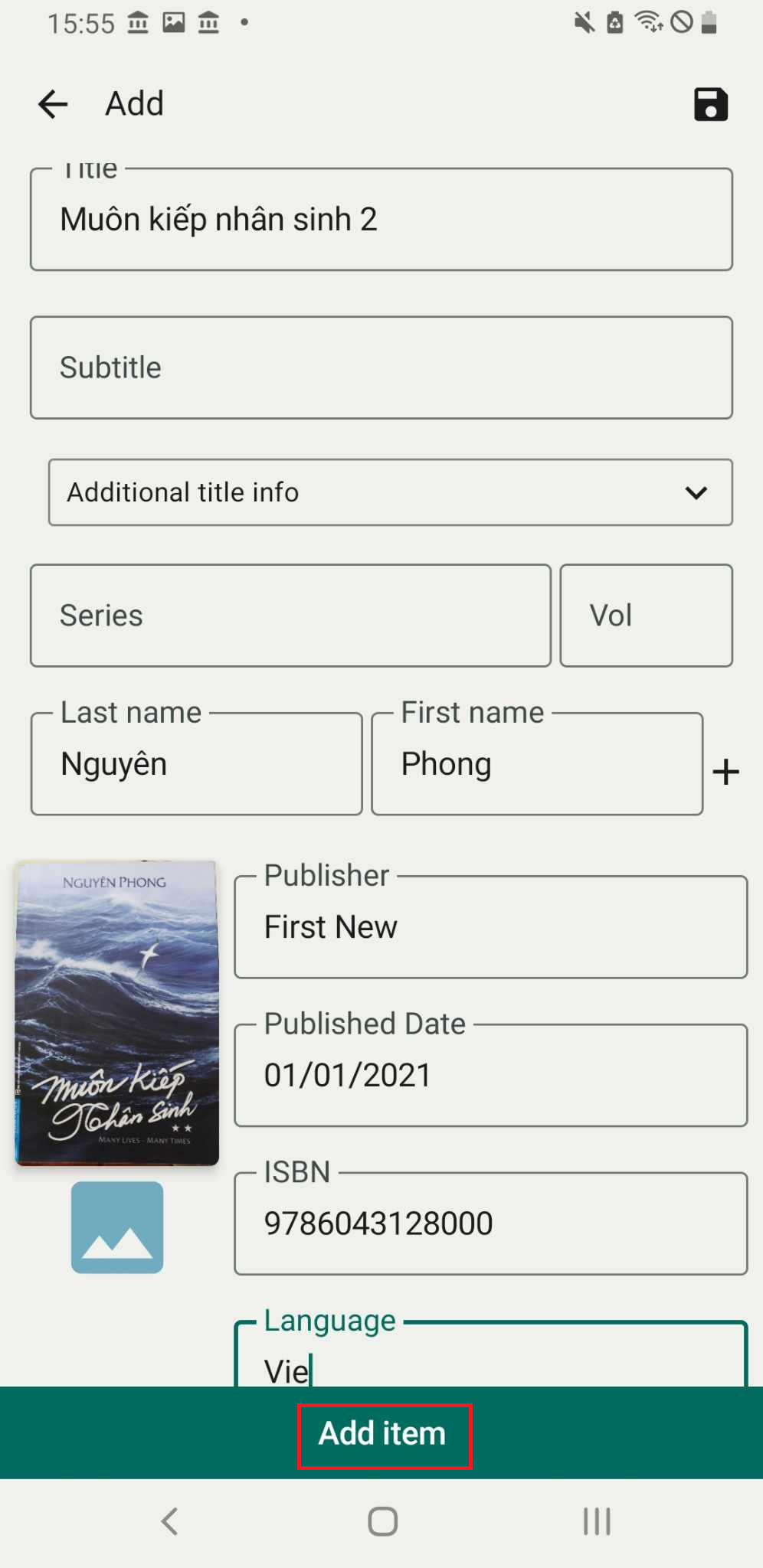
Step 7: Enter the book’s information, then press “Add Item.”
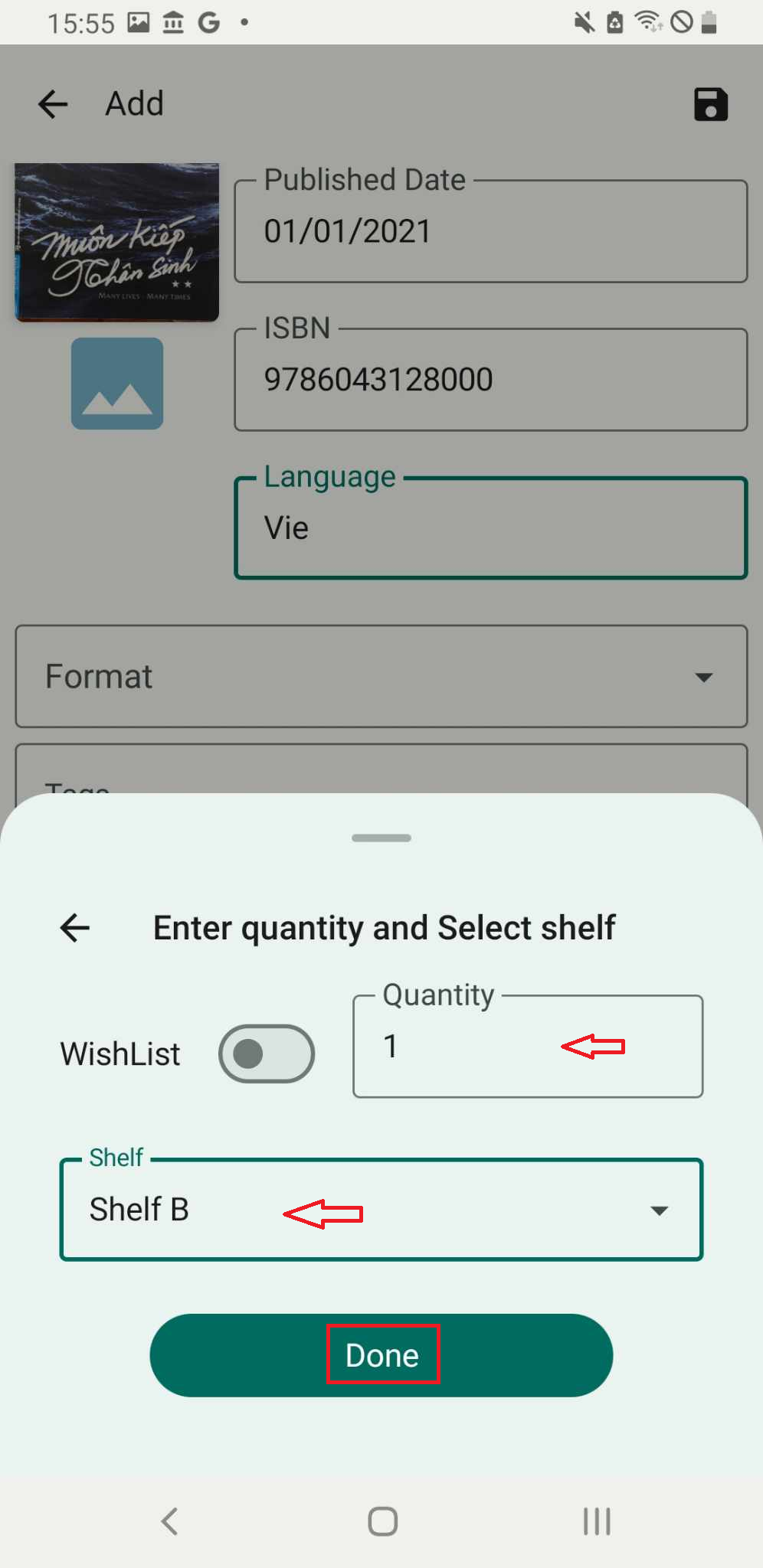
Step 8: Enter quantity and Select shelf
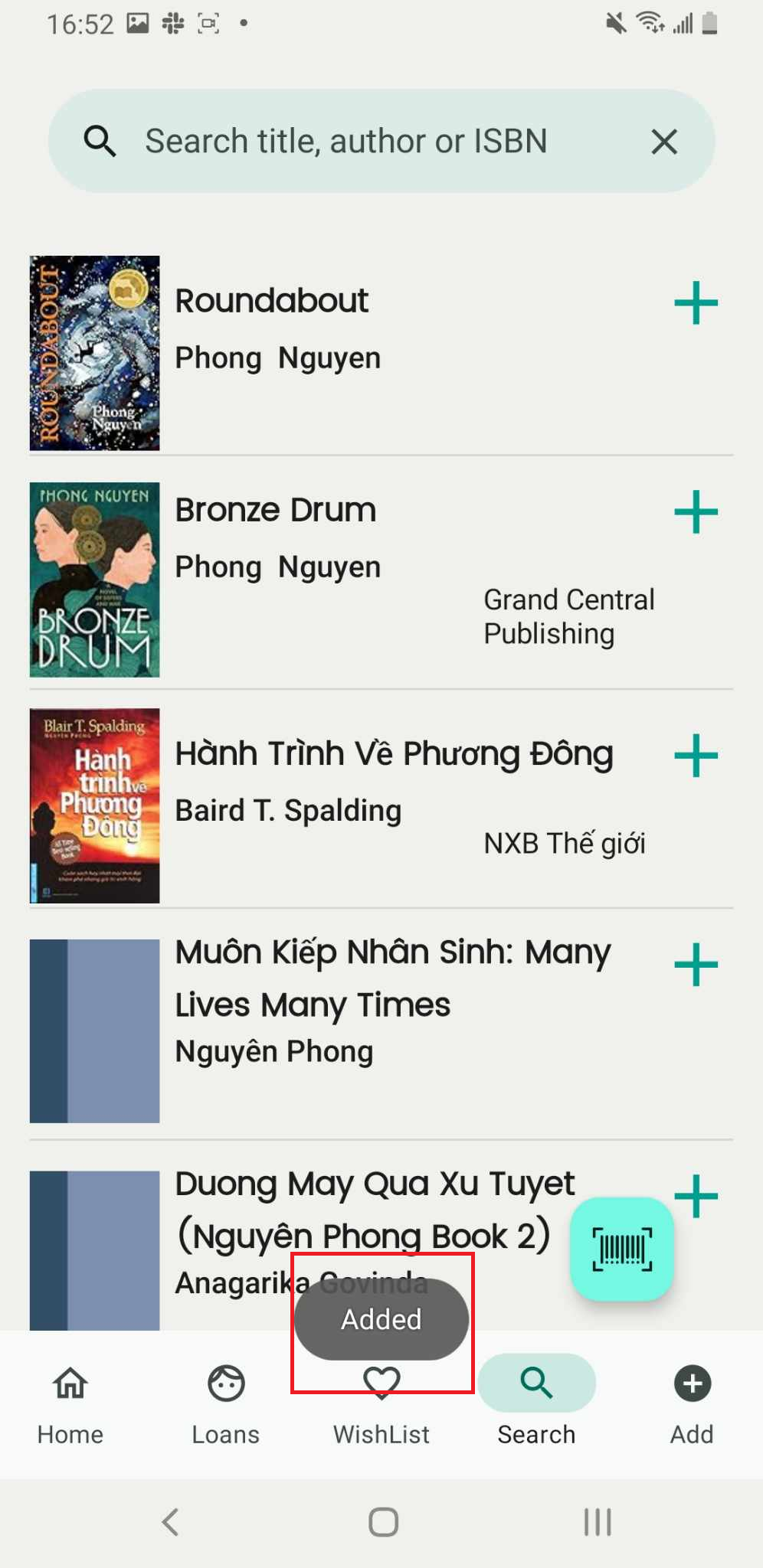
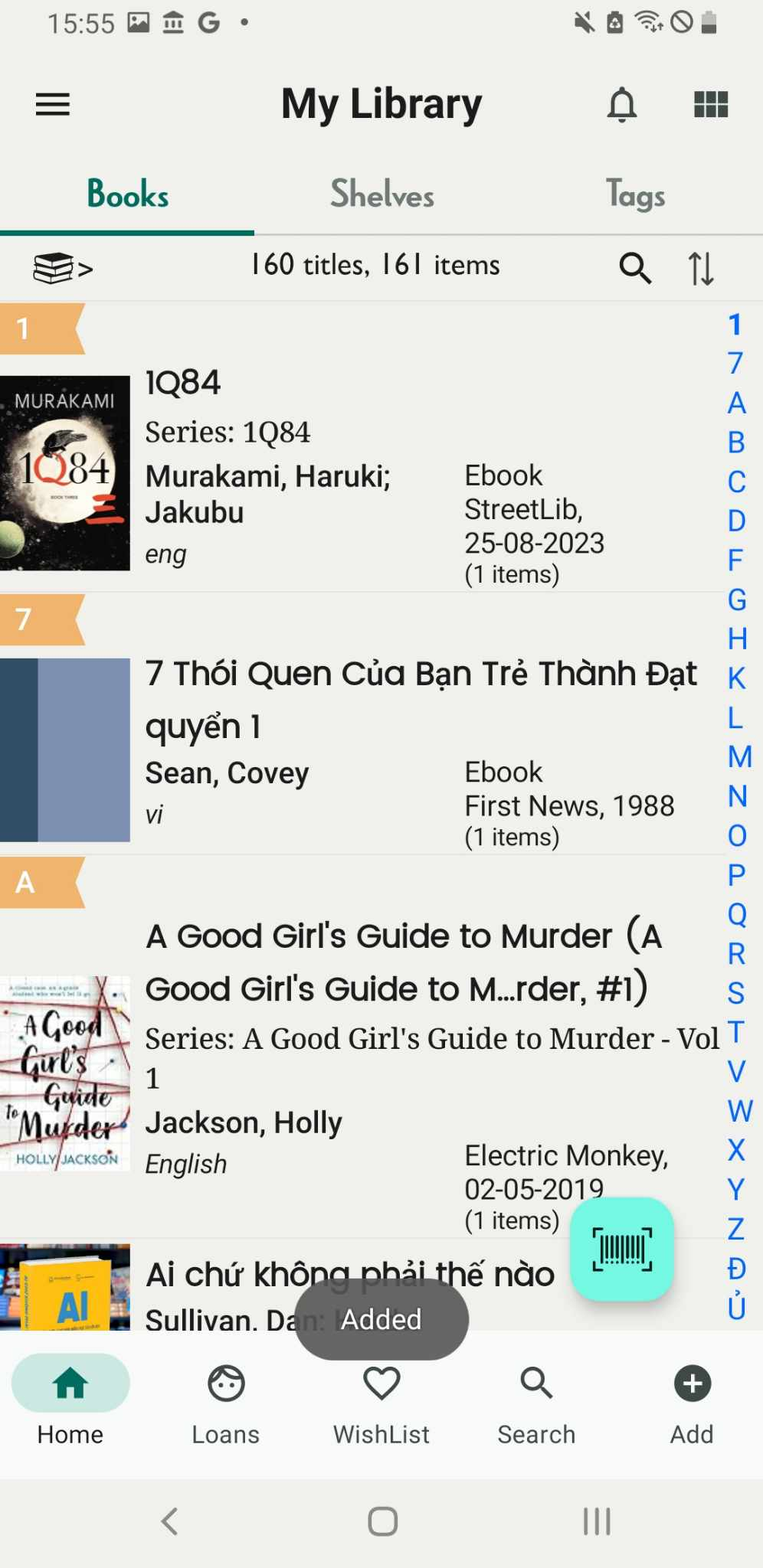
Step 9: Press “Done.” The screen will show “Added.” If the item does not appear on the shelf, please reload.
Add book by scan barcode
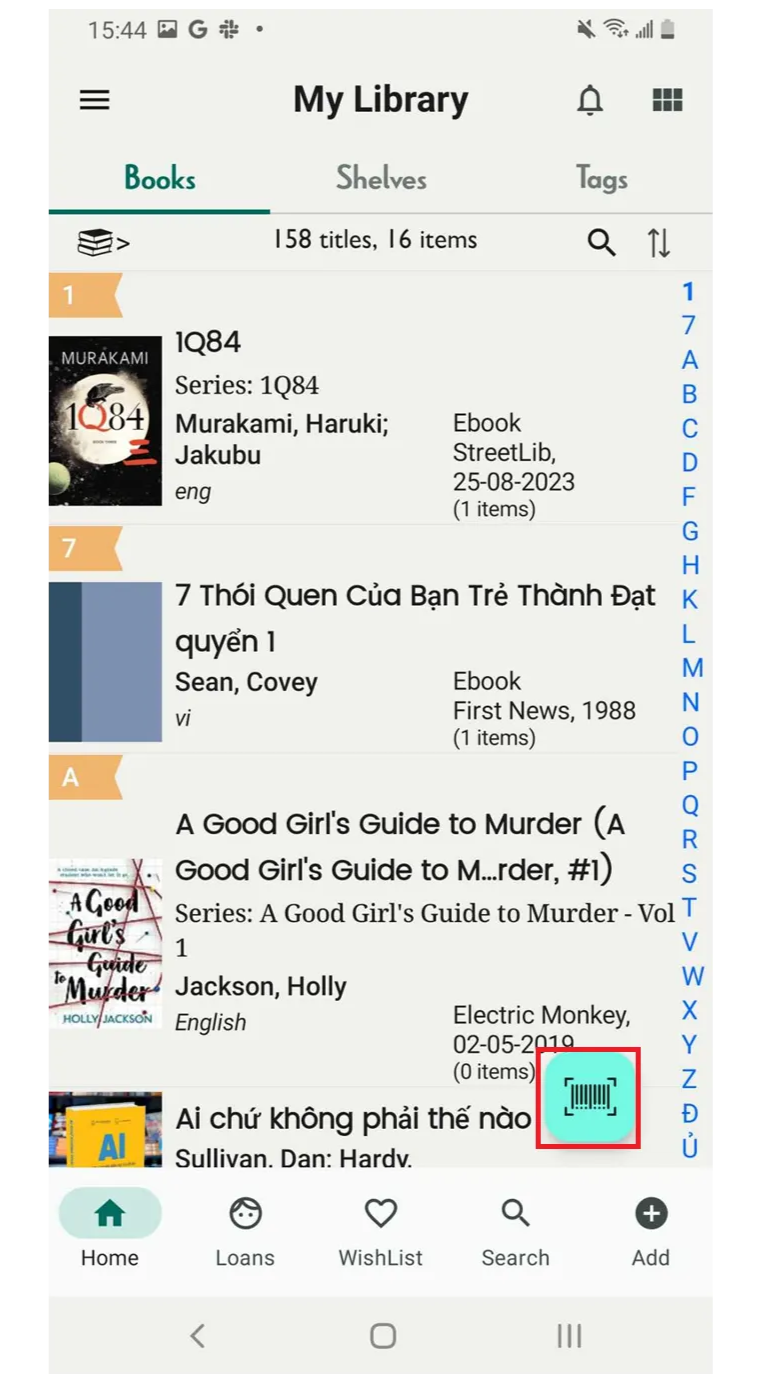
Step 10: On the main screen, tap the barcode icon.
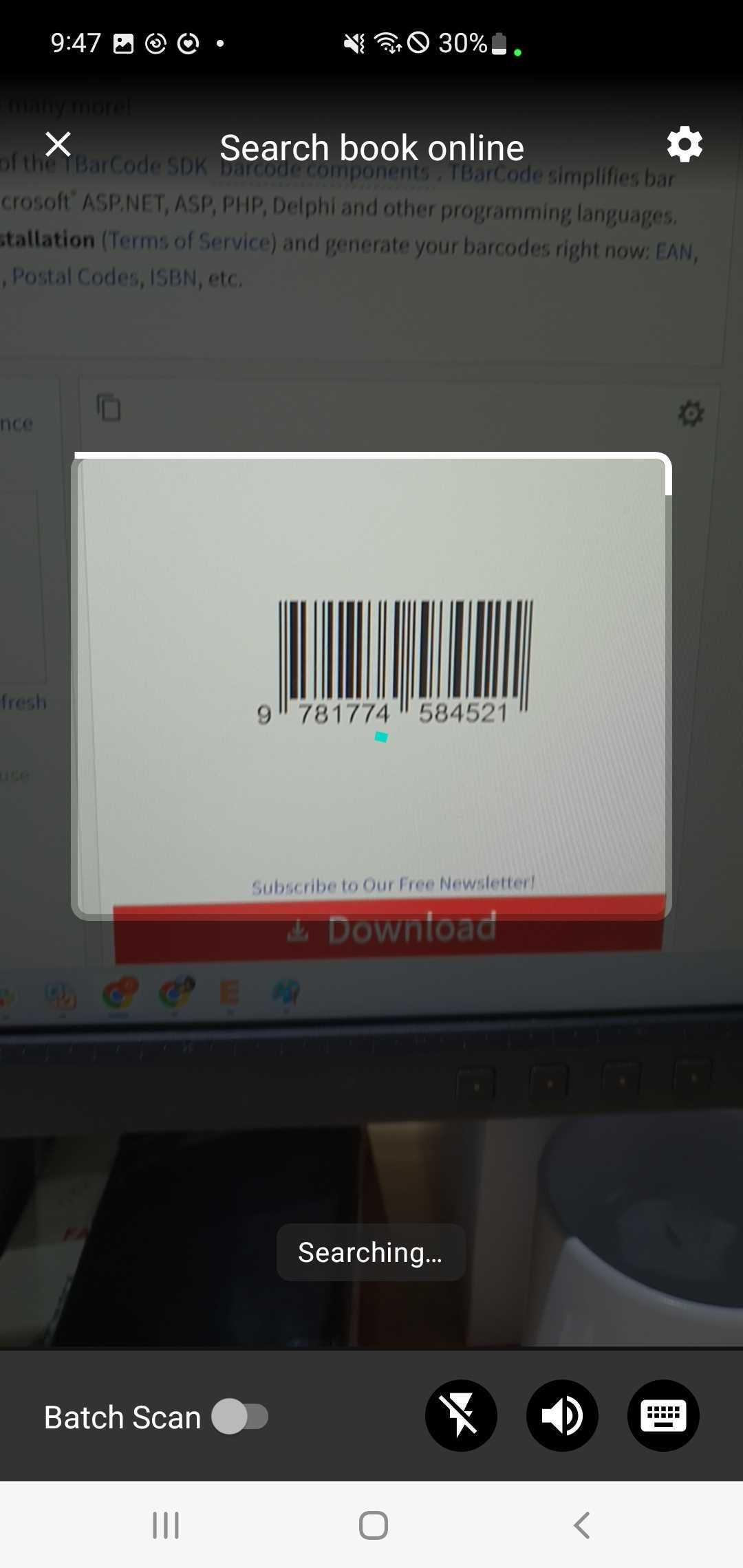
Step 11: Scan the ISBN of the book. It will display the book’s details.
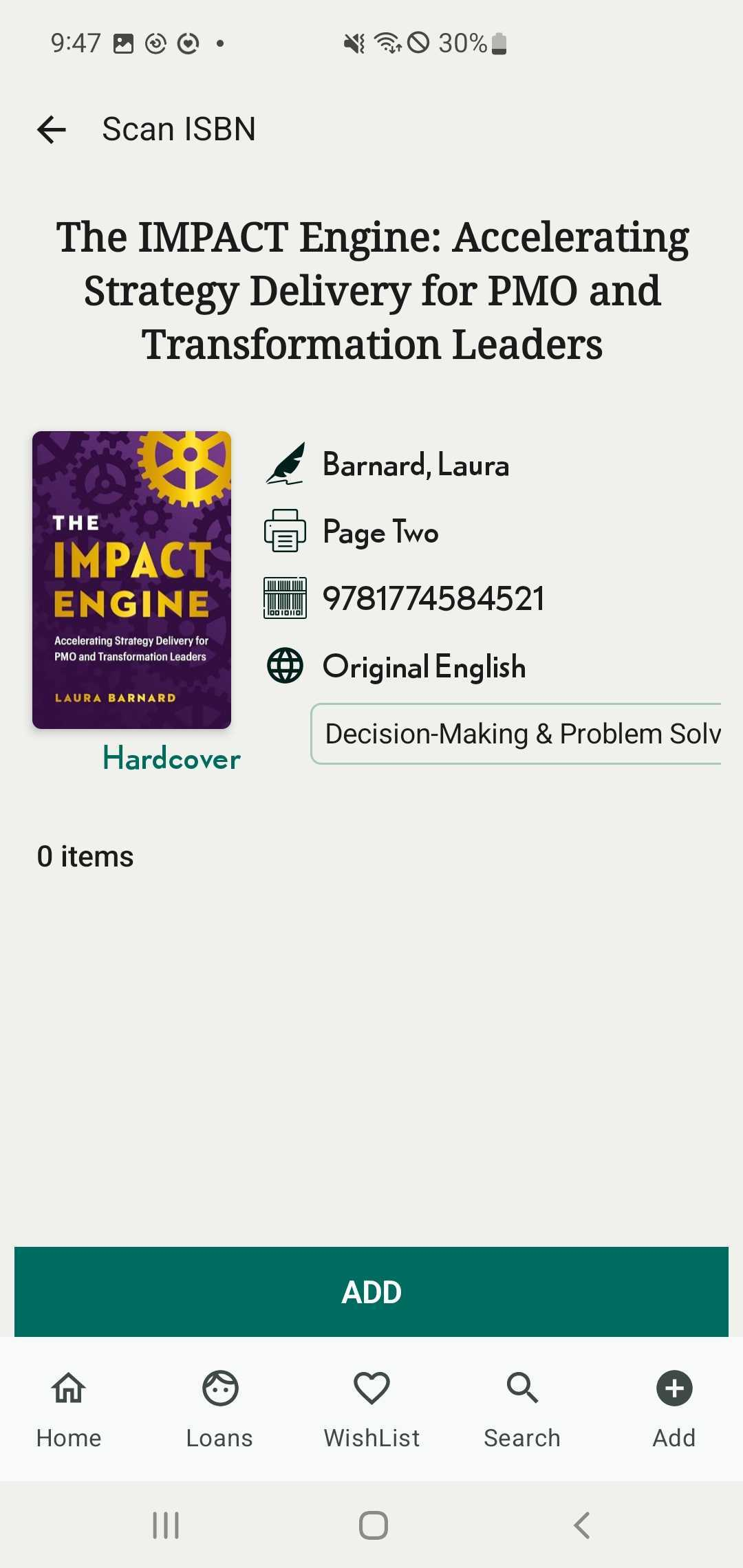
Step 12: Press “Add”
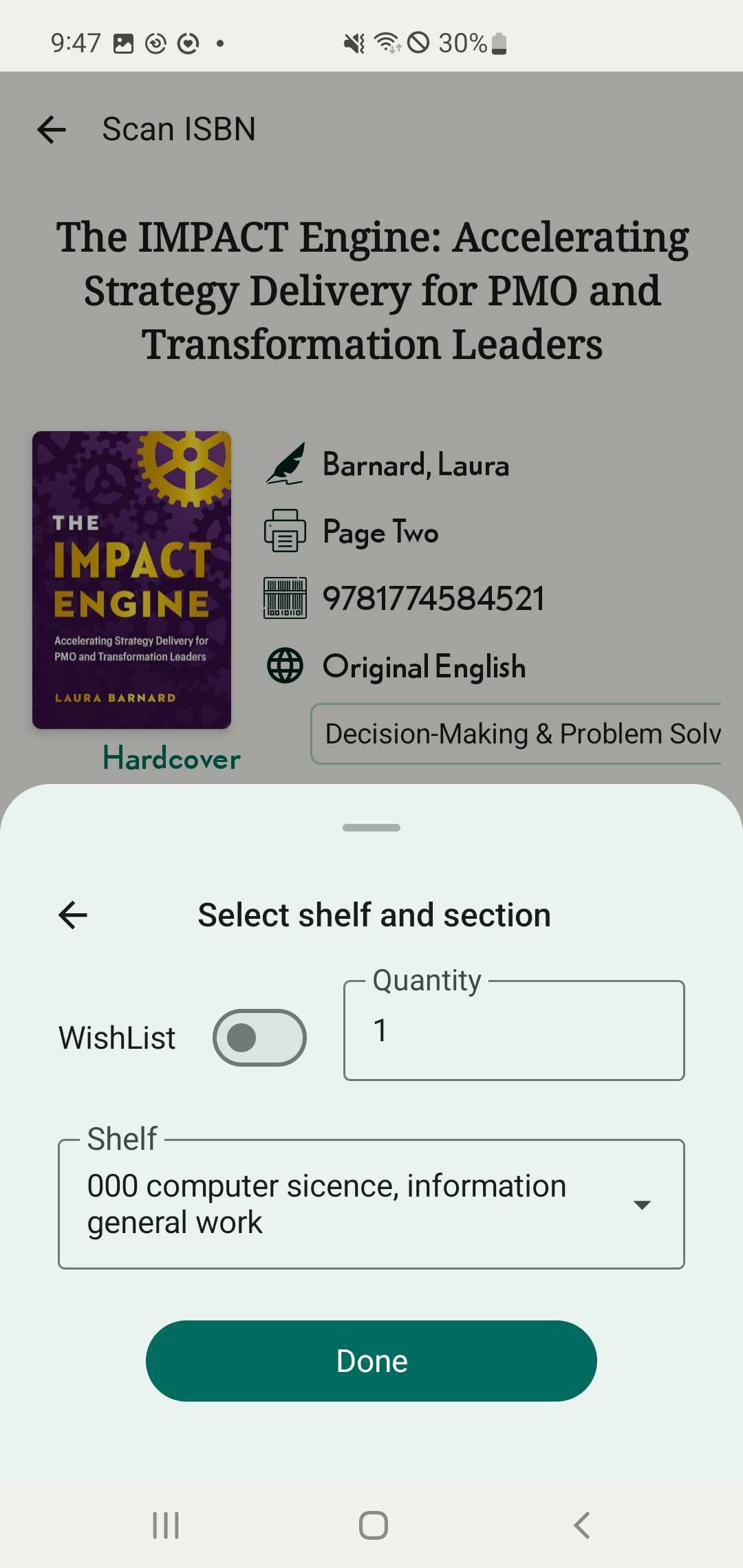
Step 13: Enter the quantity, Select shelf and shelf group. Press Done
Add book to wishlist by search online
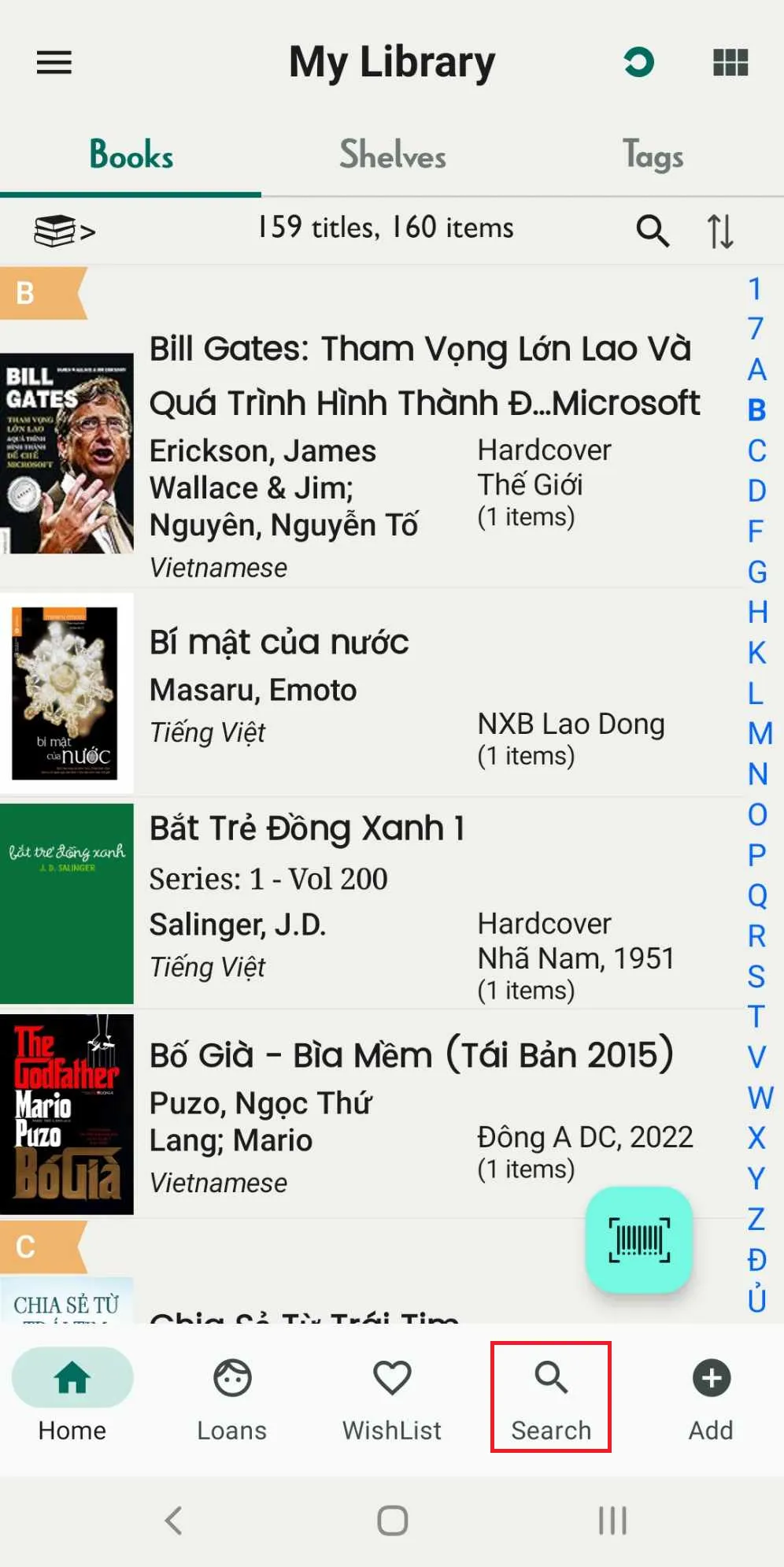
Step 14: On the main screen, tap on search field
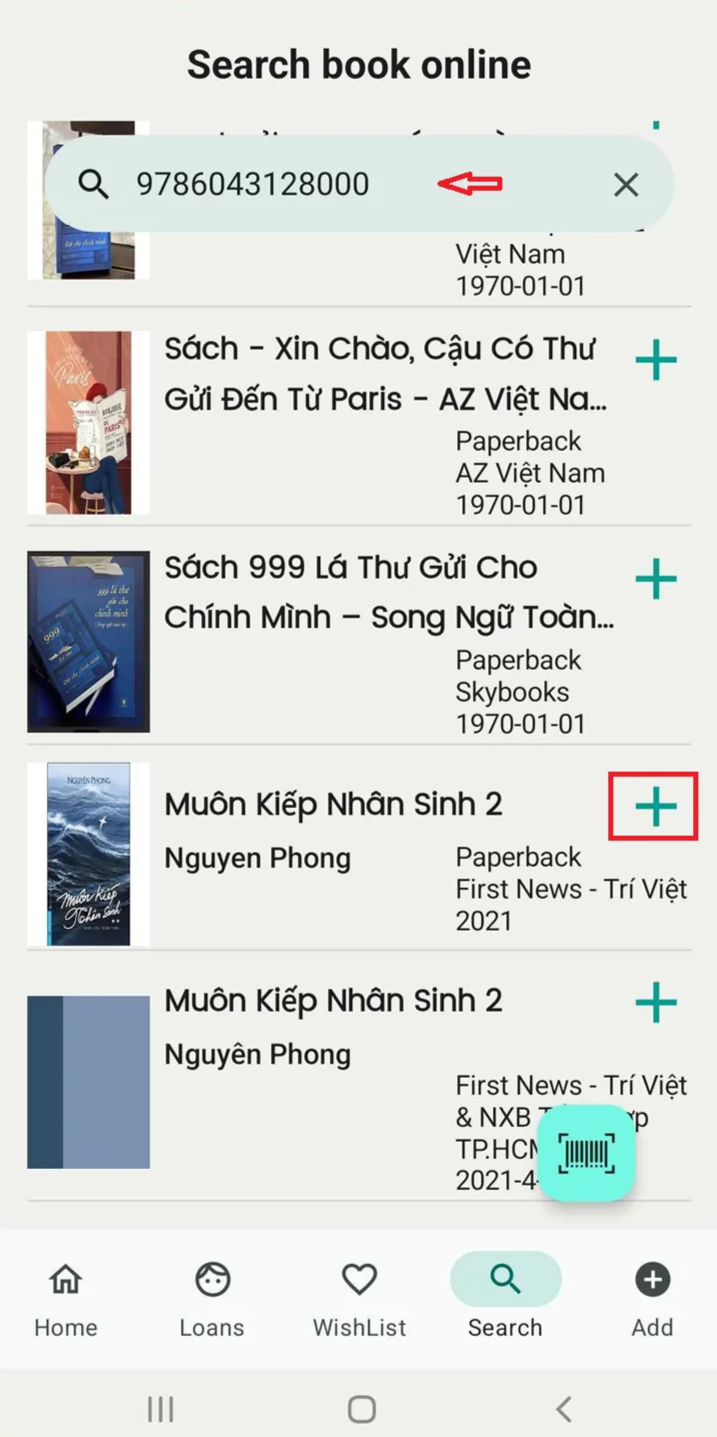
Step 15: Search for the book by ISBN, title, or author. Tap on the book found via online search, then press “Add.”
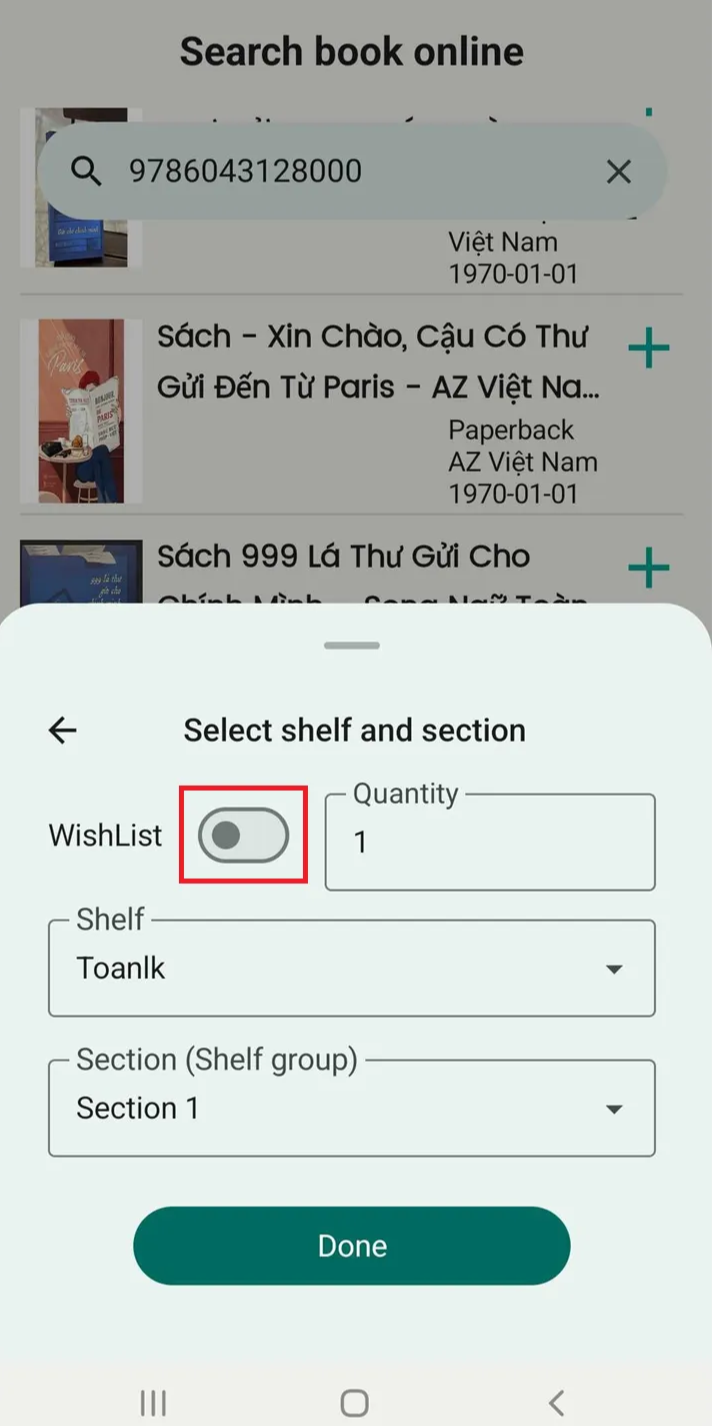
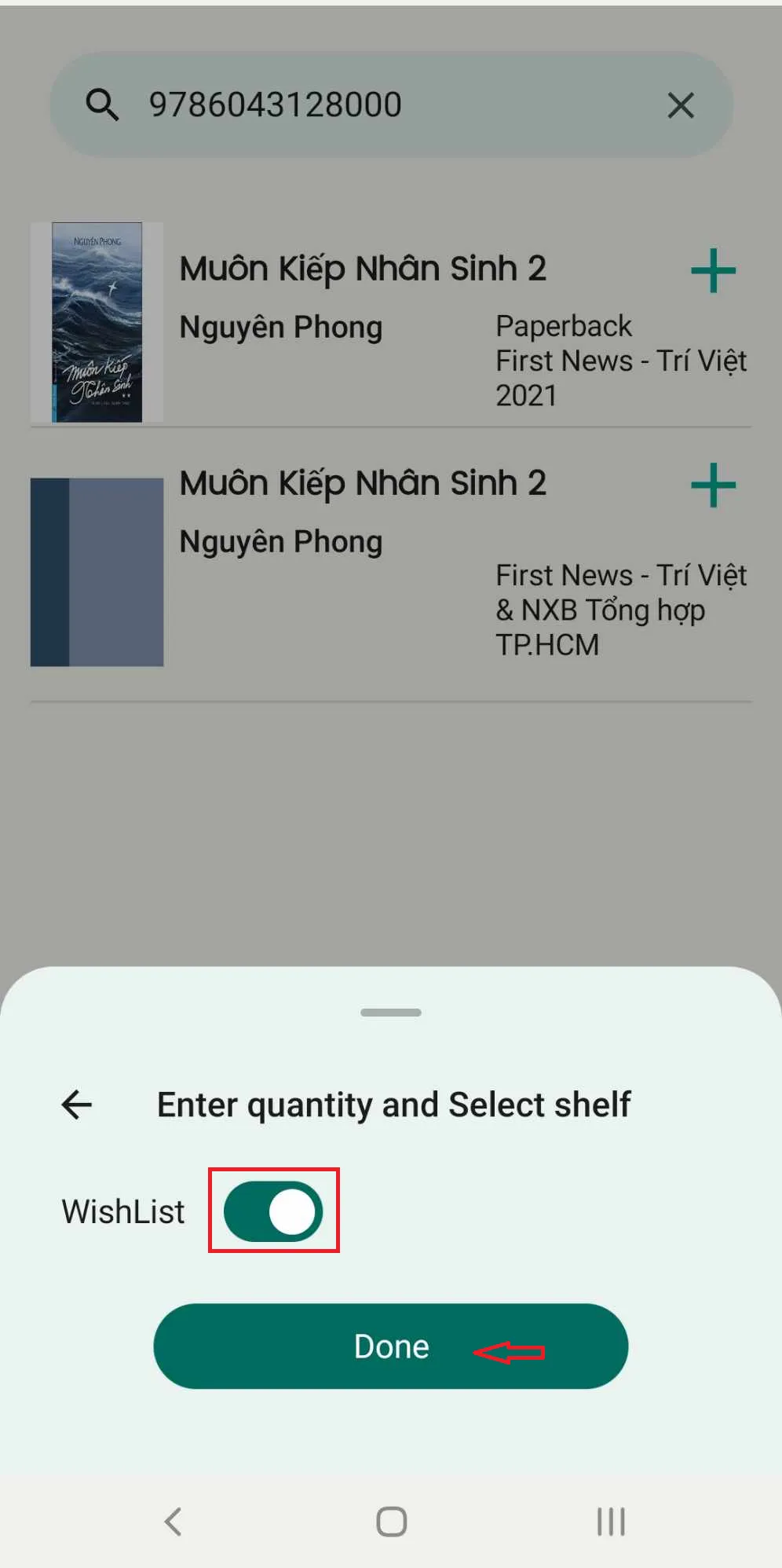
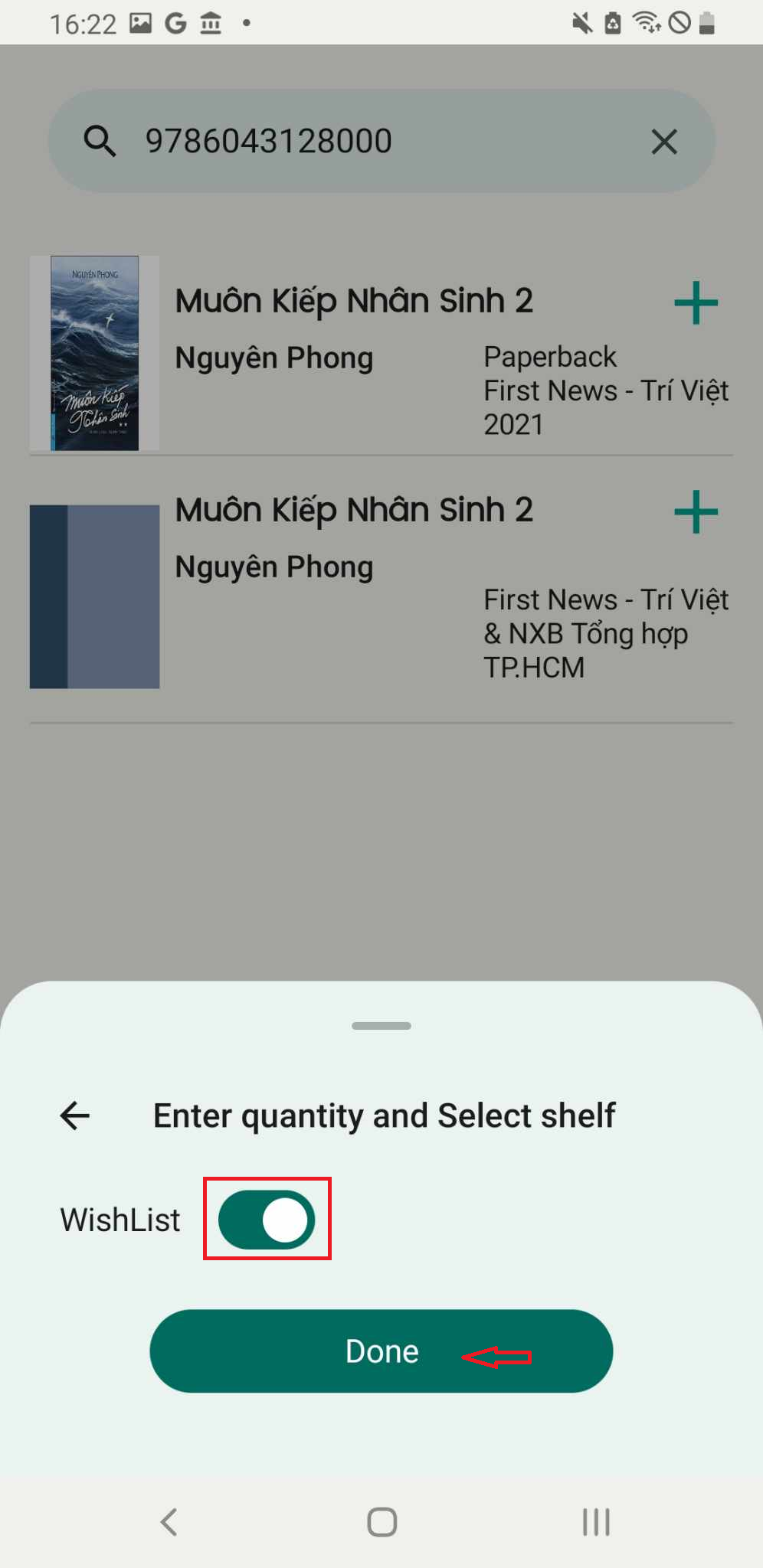
Step 16: Slide the toolbar to select the wishlist. Press Done
In some cases, after pressing “Done,” a message appears indicating that the title already exists in the library. You will be prompted to make a decision → Press “Continue.”
Step 17: Tittle is added successfully
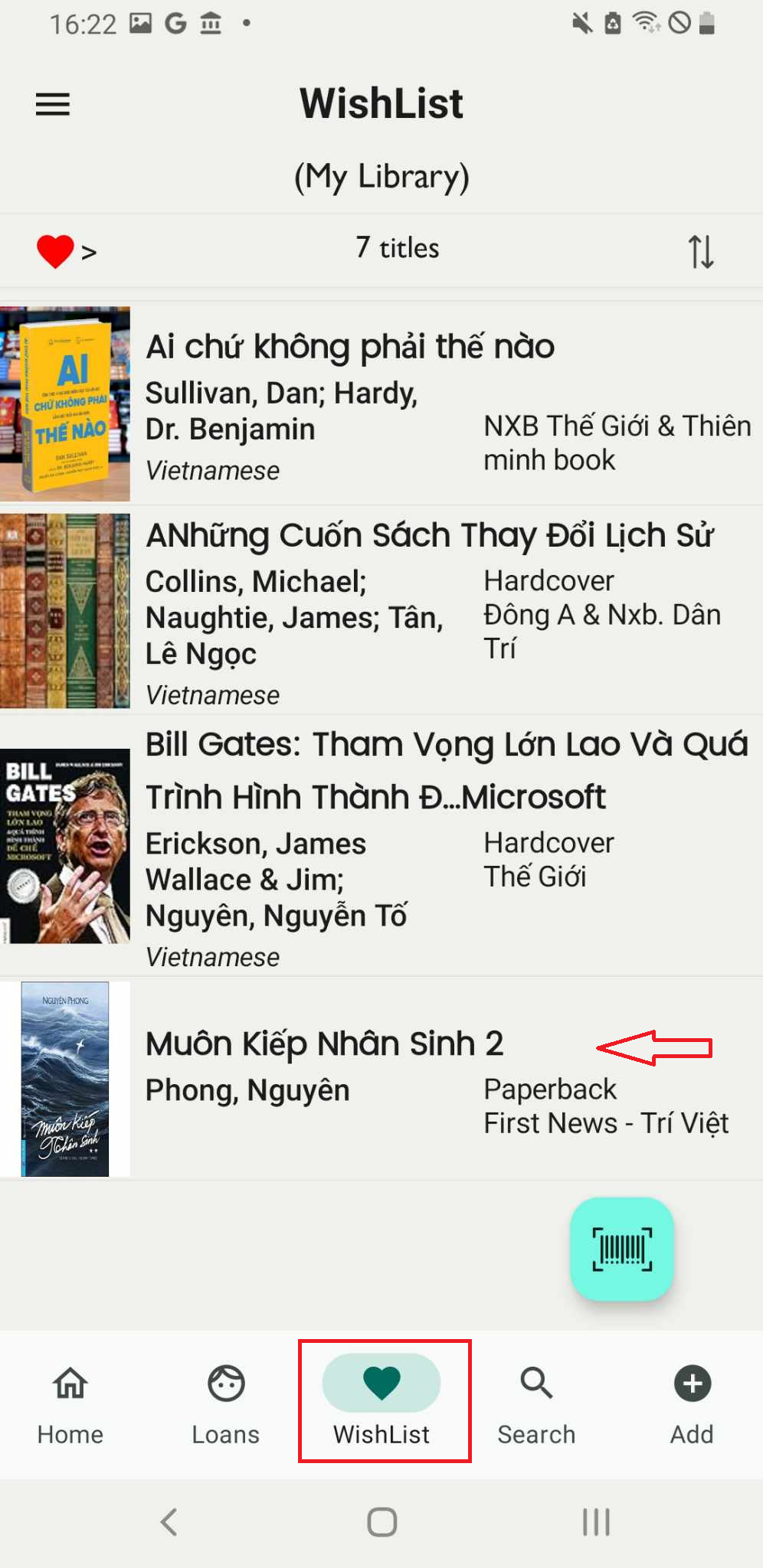
Add book to wishlist by add manual
Step 18: Press the plus icon located on the right side of the screen.
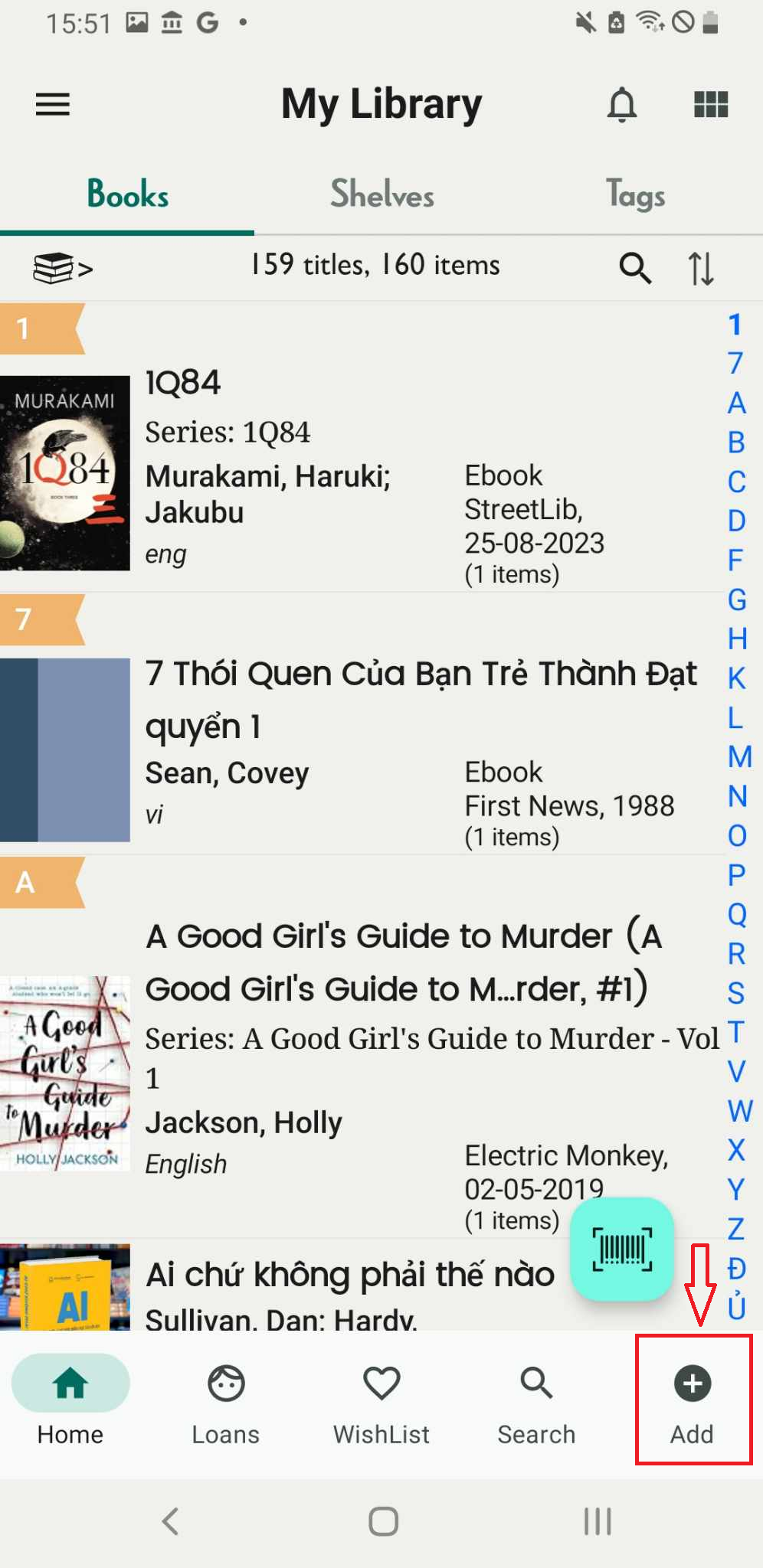
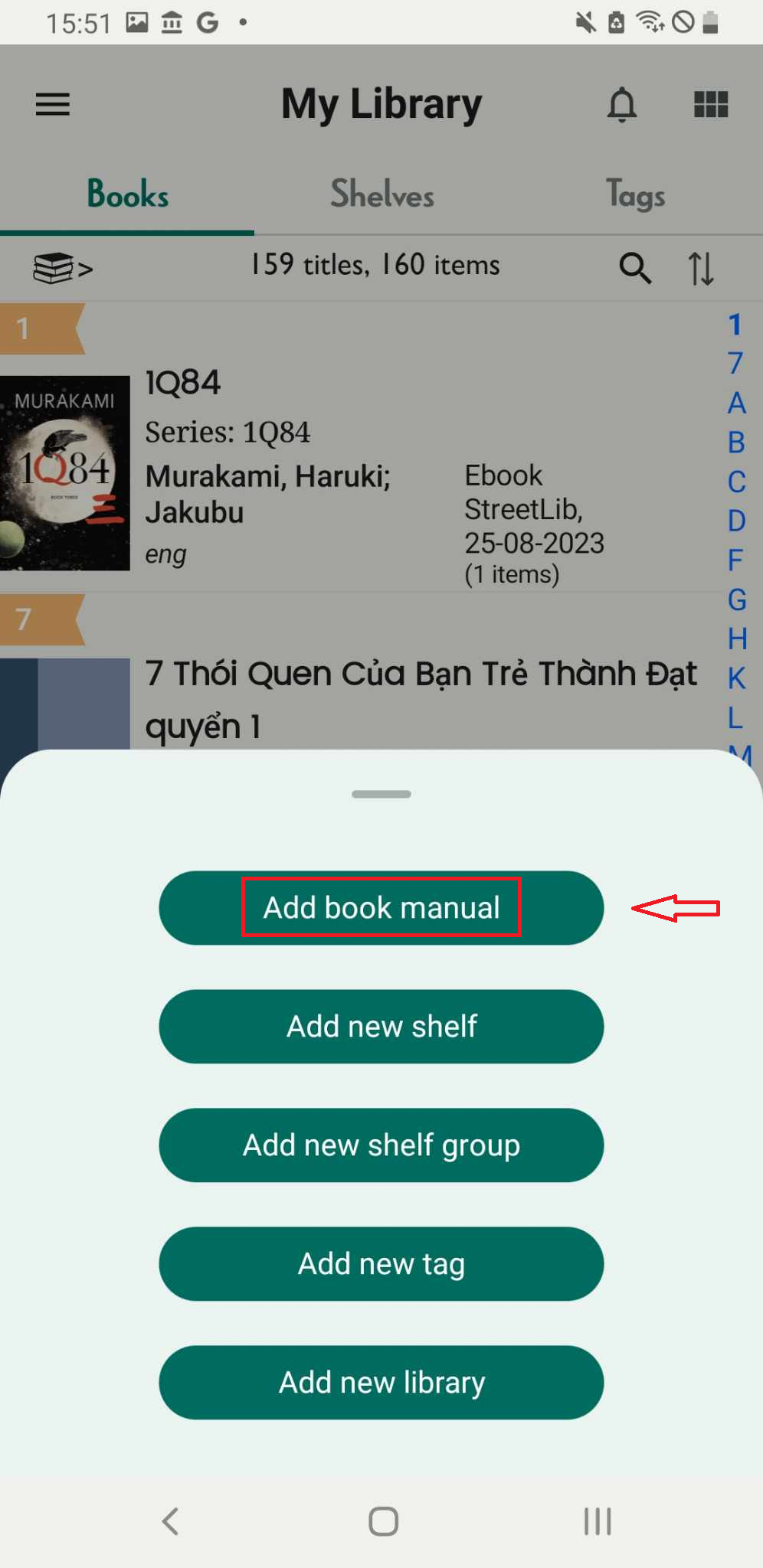
Step 19: Press “Add book manual”
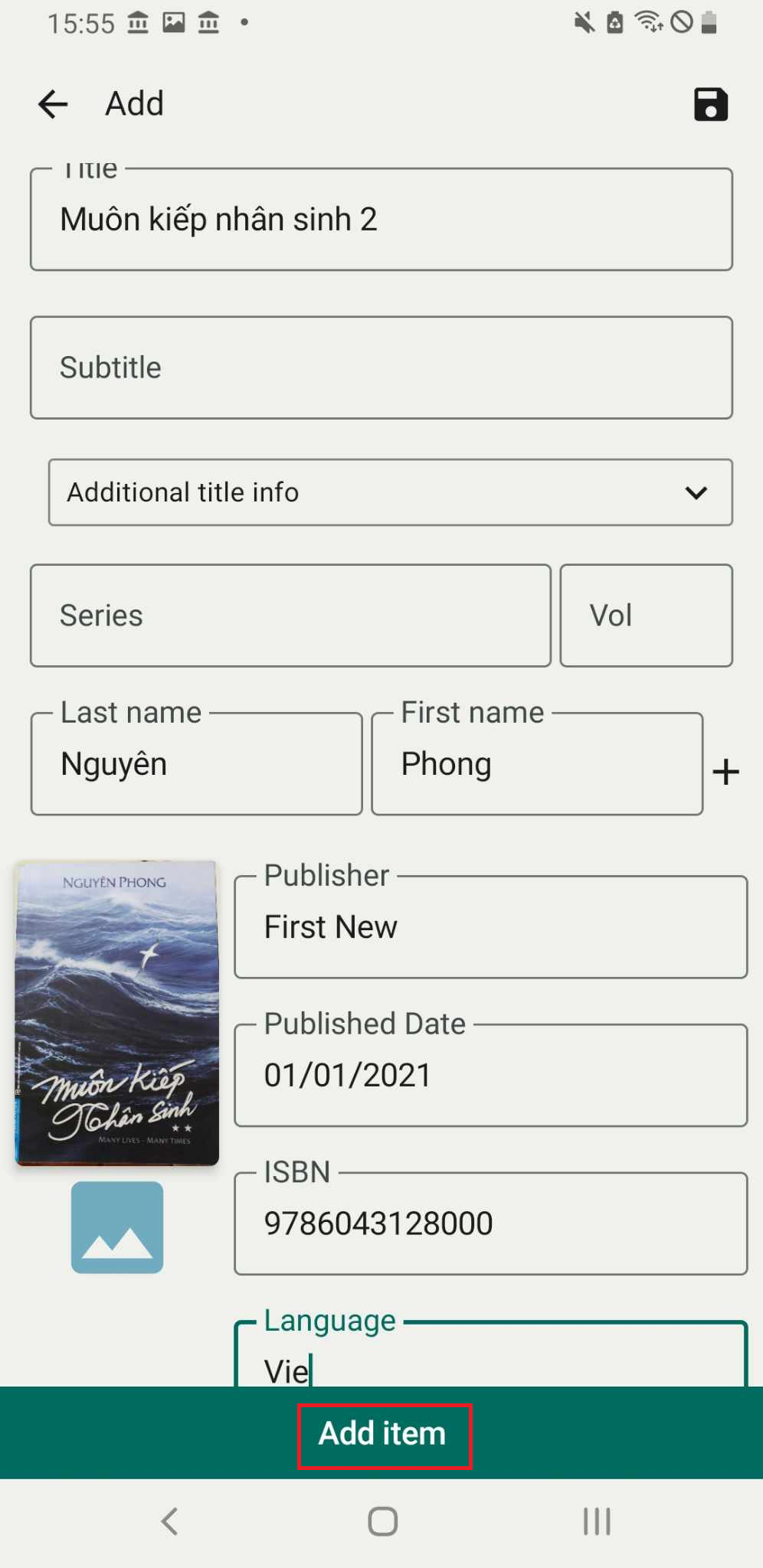
Step 20: Enter the book’s information into each field. Press “Add.”
Step 21: Slide the toolbar to select the wishlist. Press Done
Add book to wishlist by Scan barcode
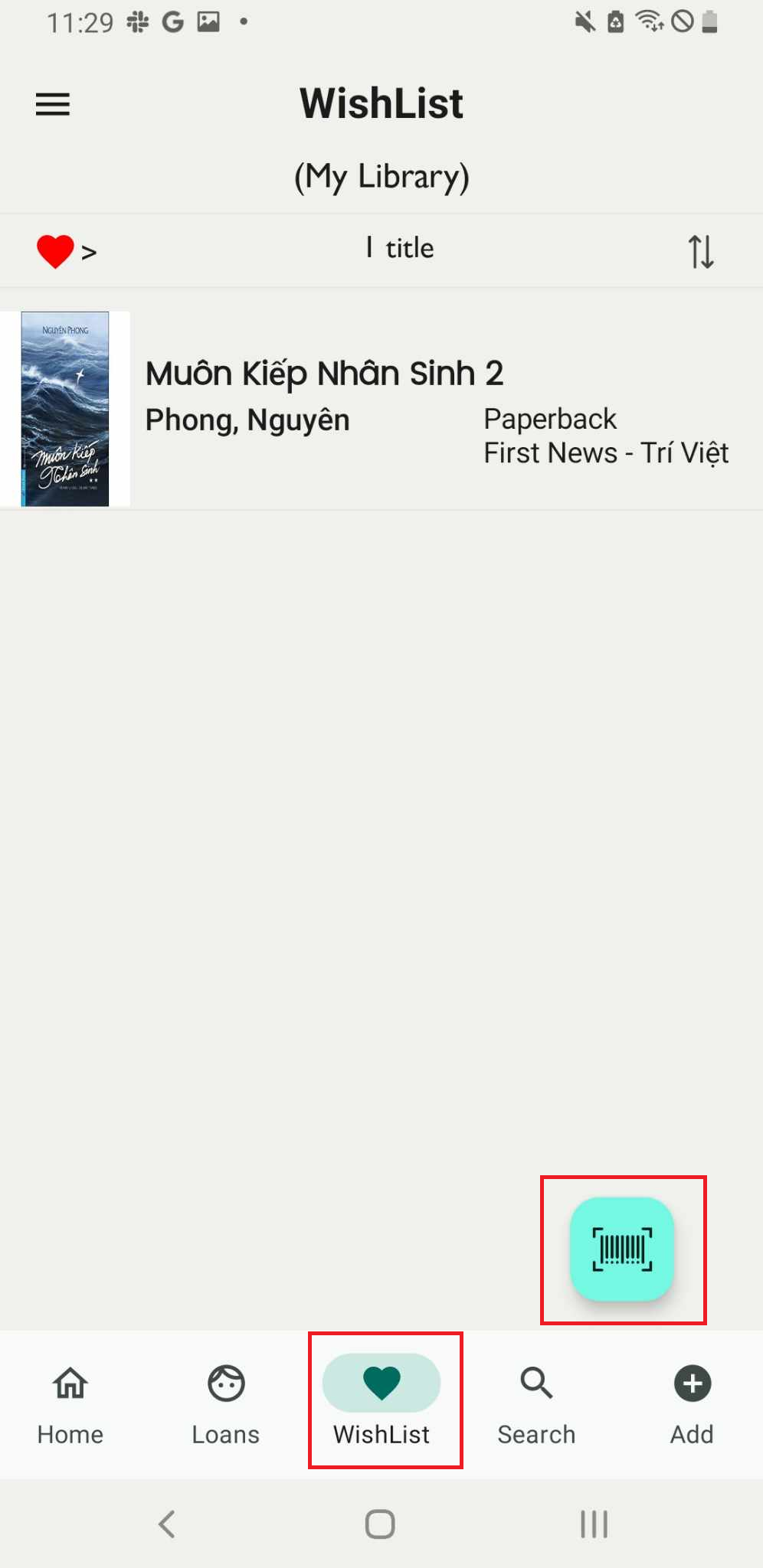
Step 22: On the main screen, tap on the “Wishlist” field and then access the barcode icon.
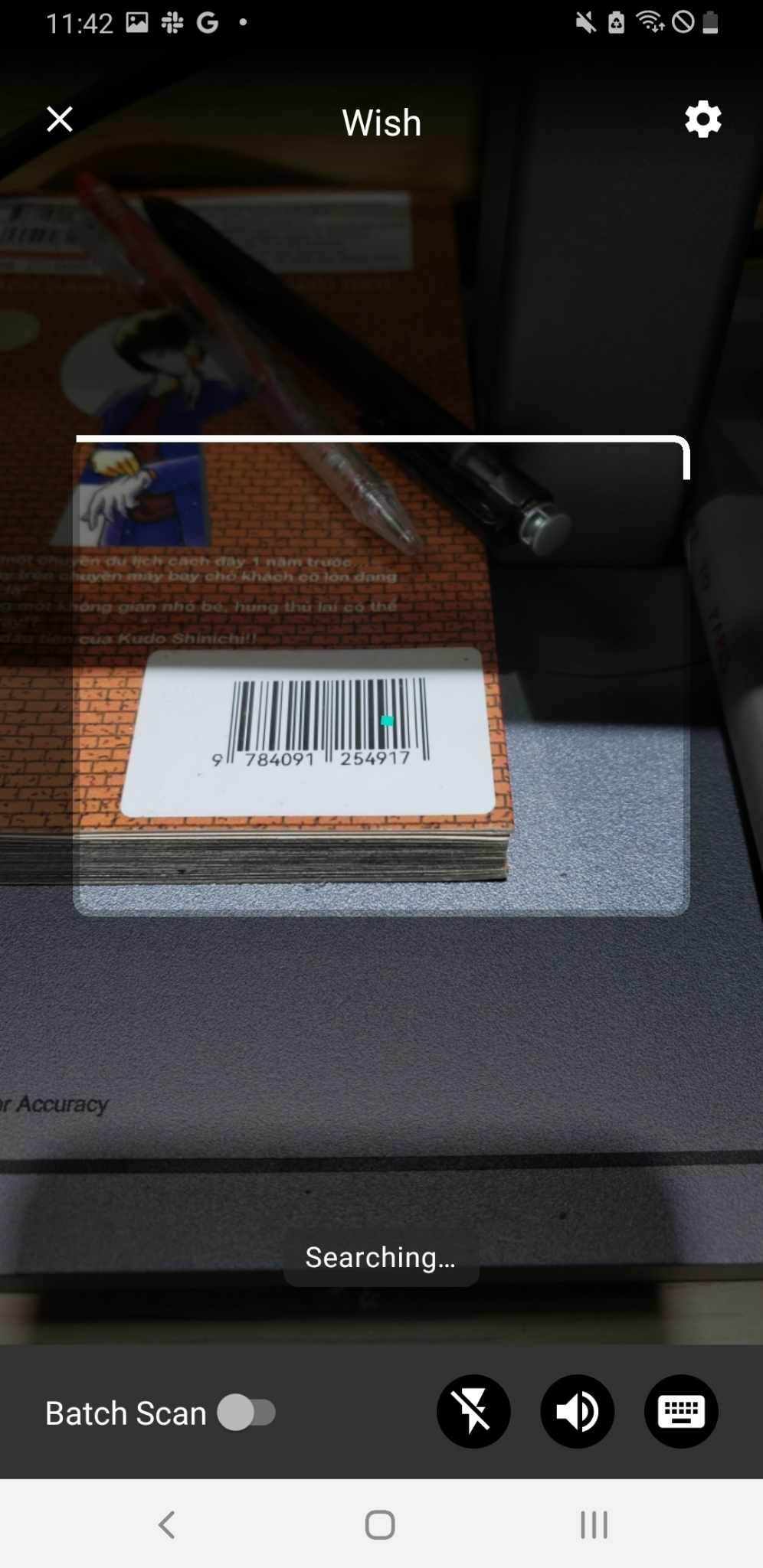
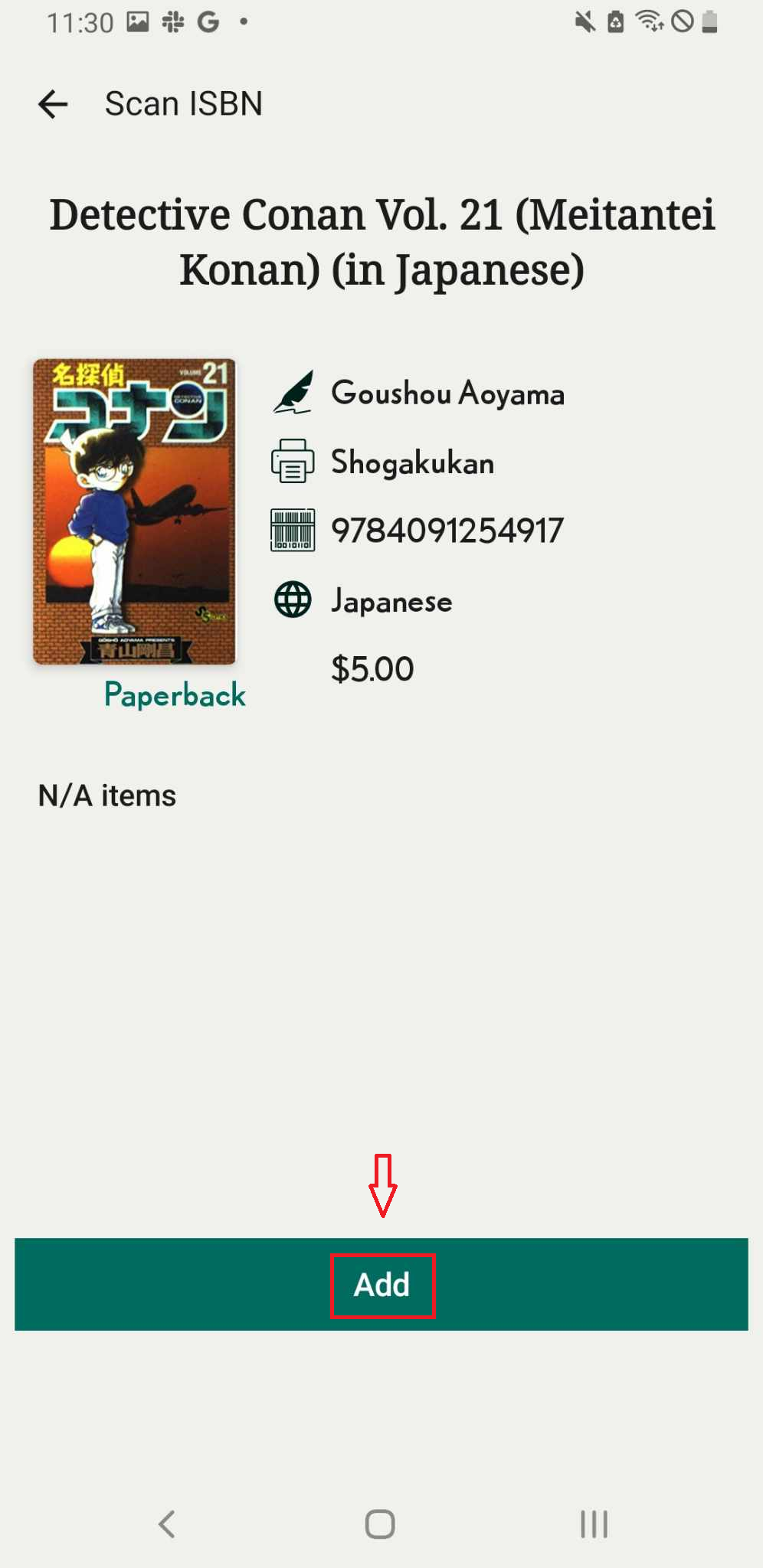
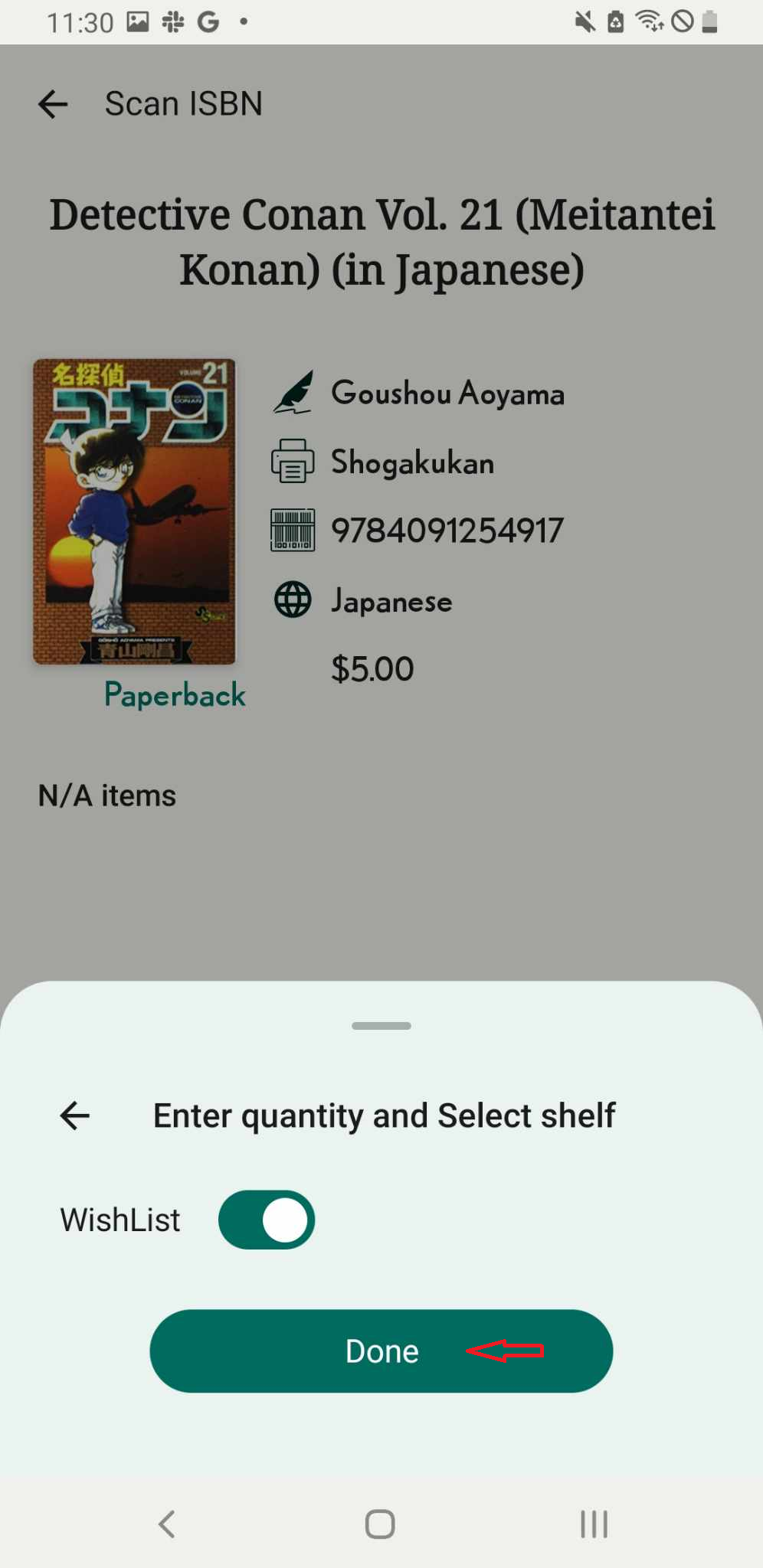
Step 23: Scan the ISBN of the book. The app will display the book data. Press “Add.”
Step 24: Slide the toolbar to select the wishlist. Press Done
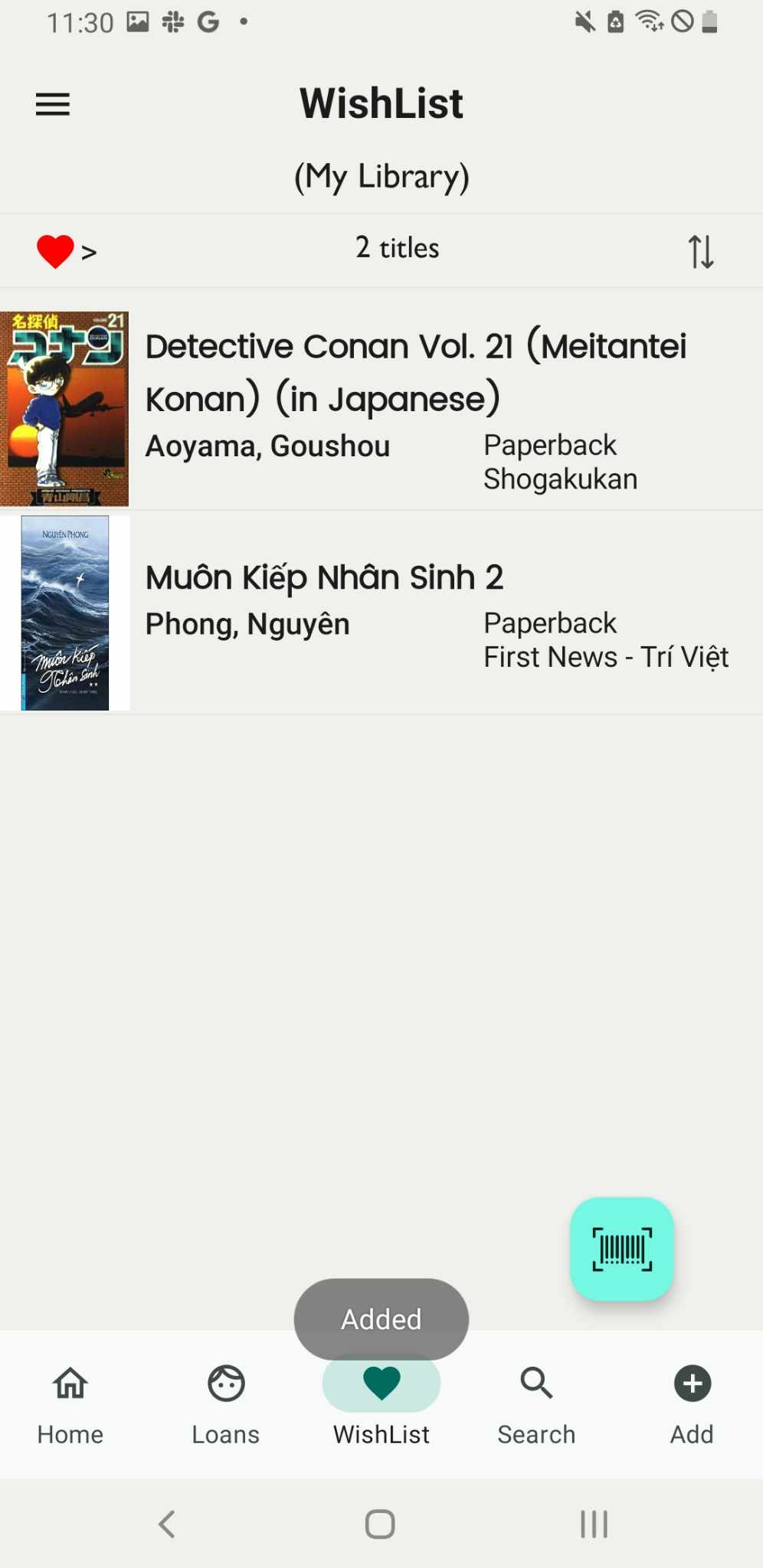
Step 25: The book is dispalyed in the wishlist
Add book for lending books by scan barcode
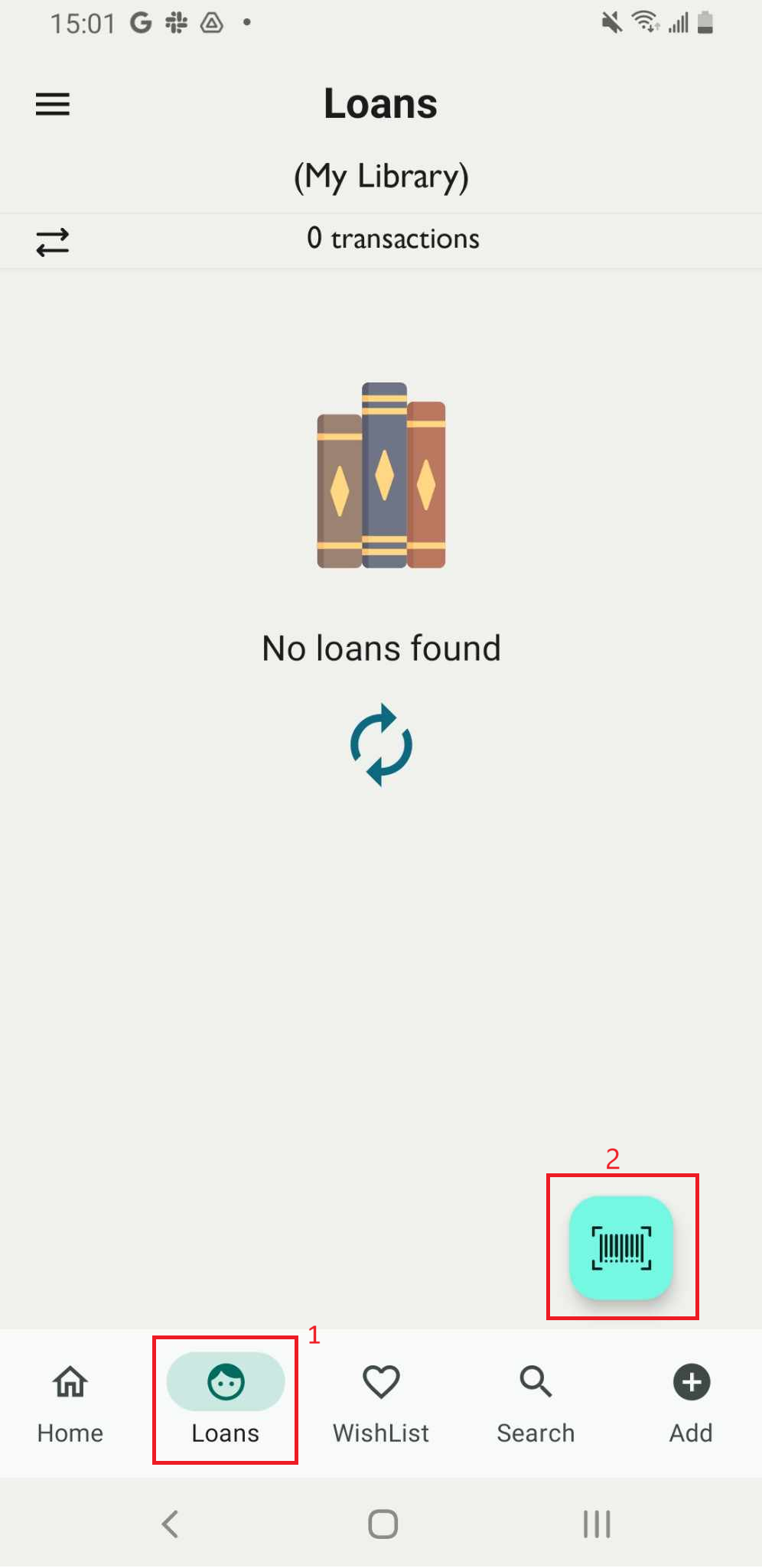
Step 26: Access the Loan field on the main screen
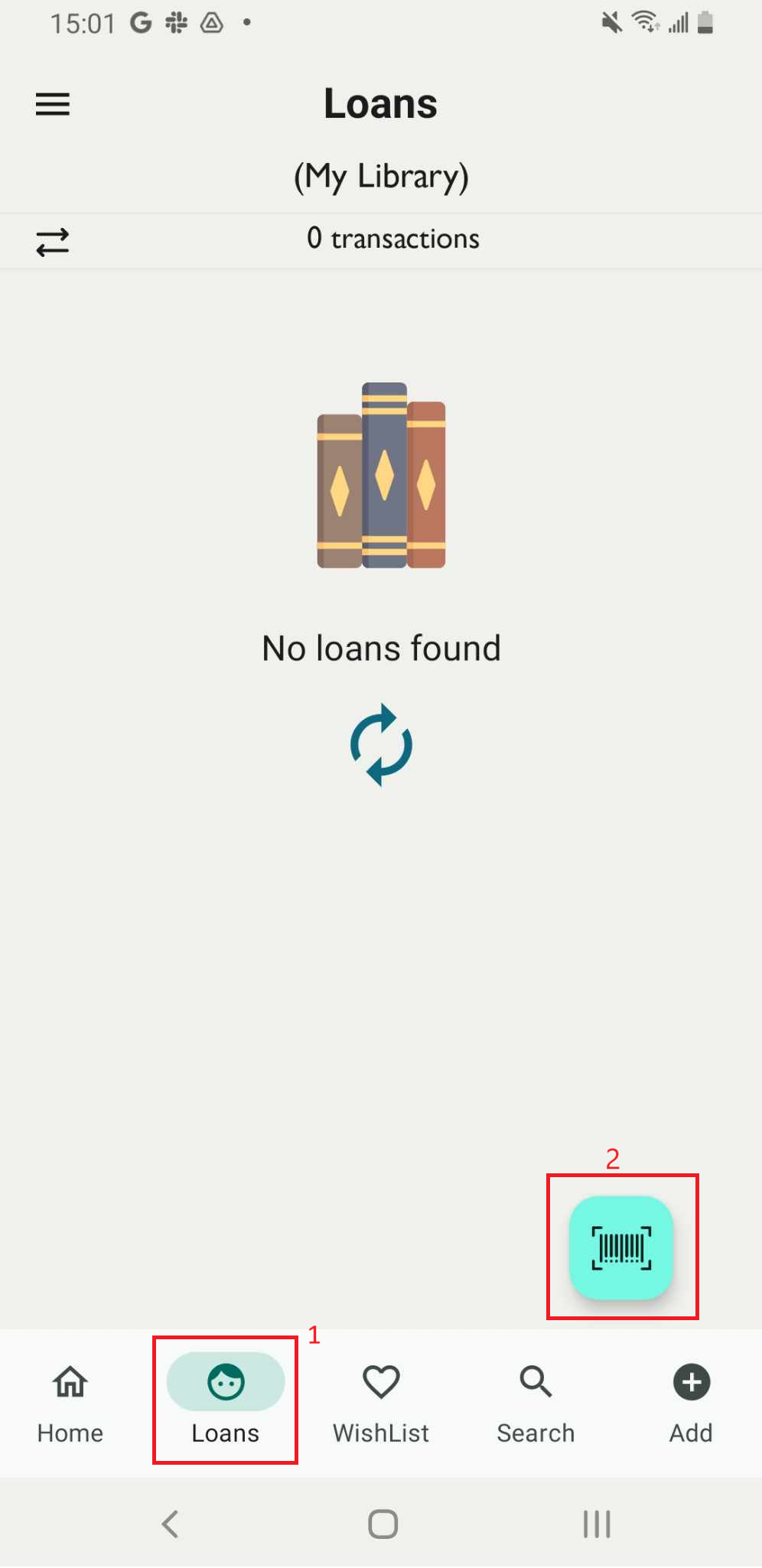
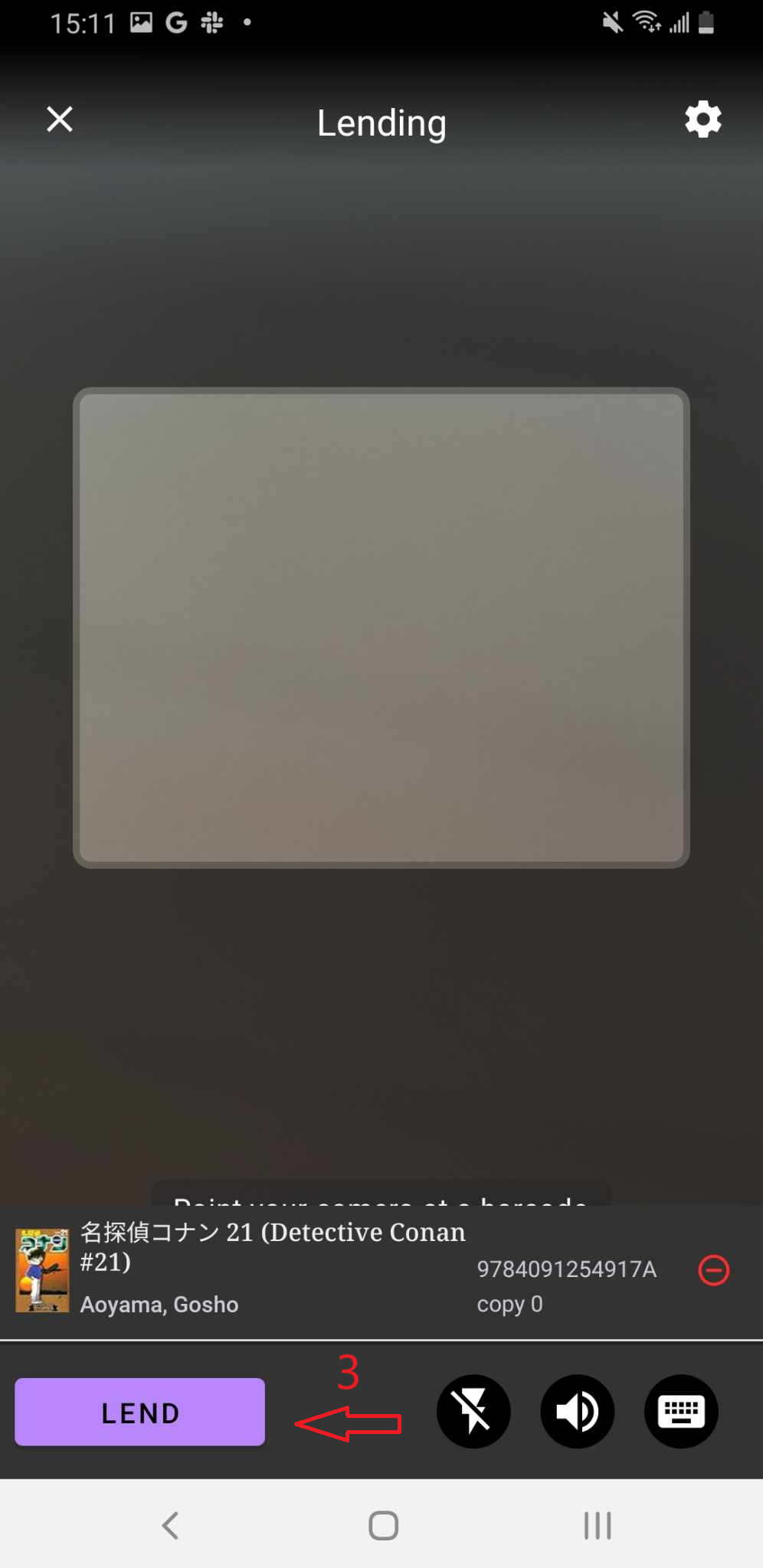
Step 27: Scan the ISBN barcode. The screen shows the list of items in the library on the screen
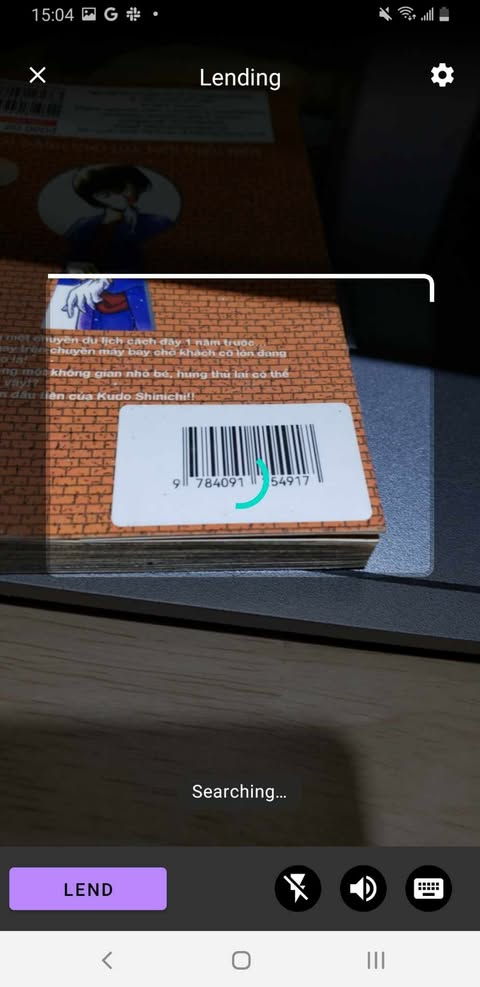
Step 28: Press LEND.
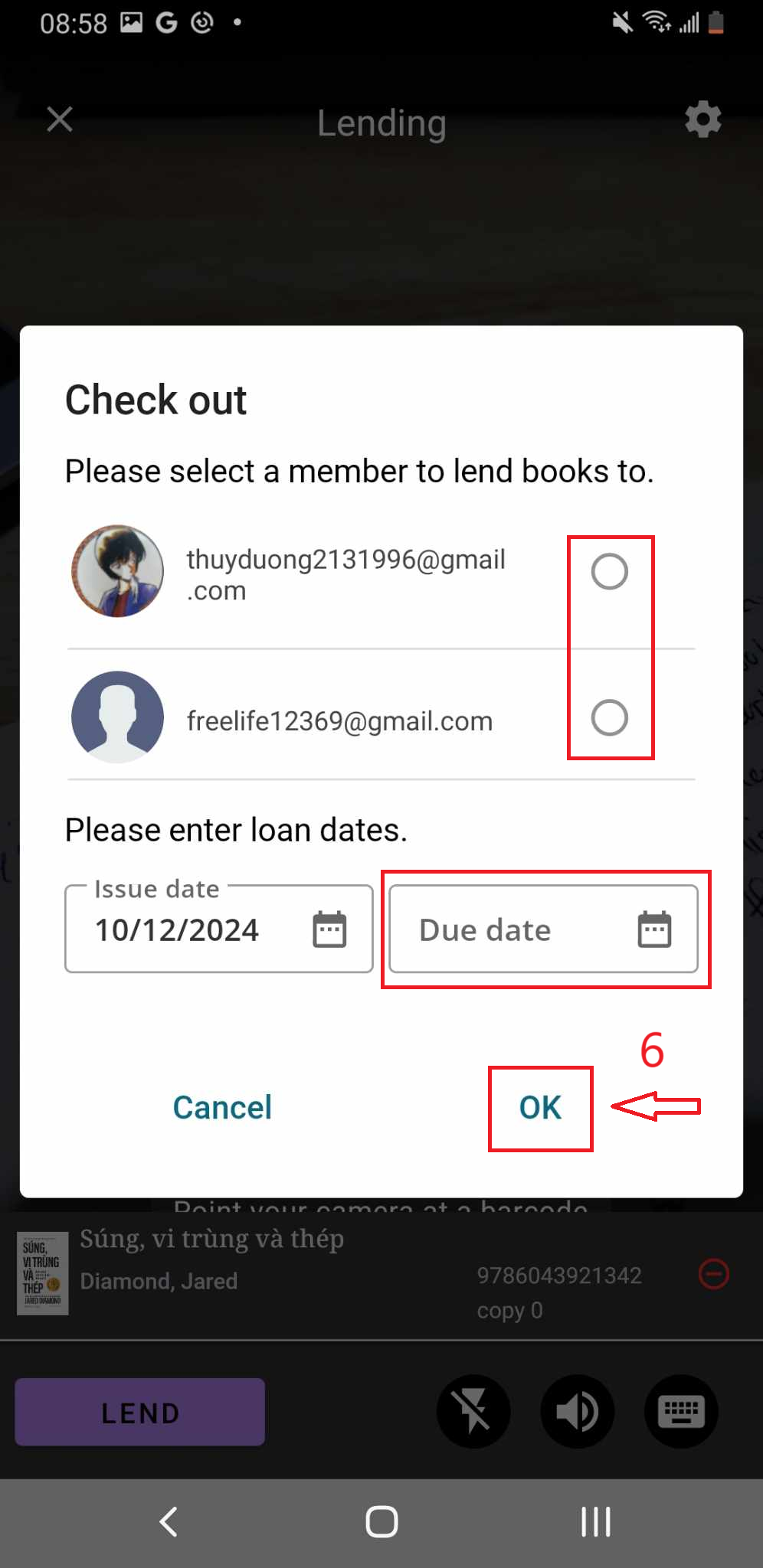
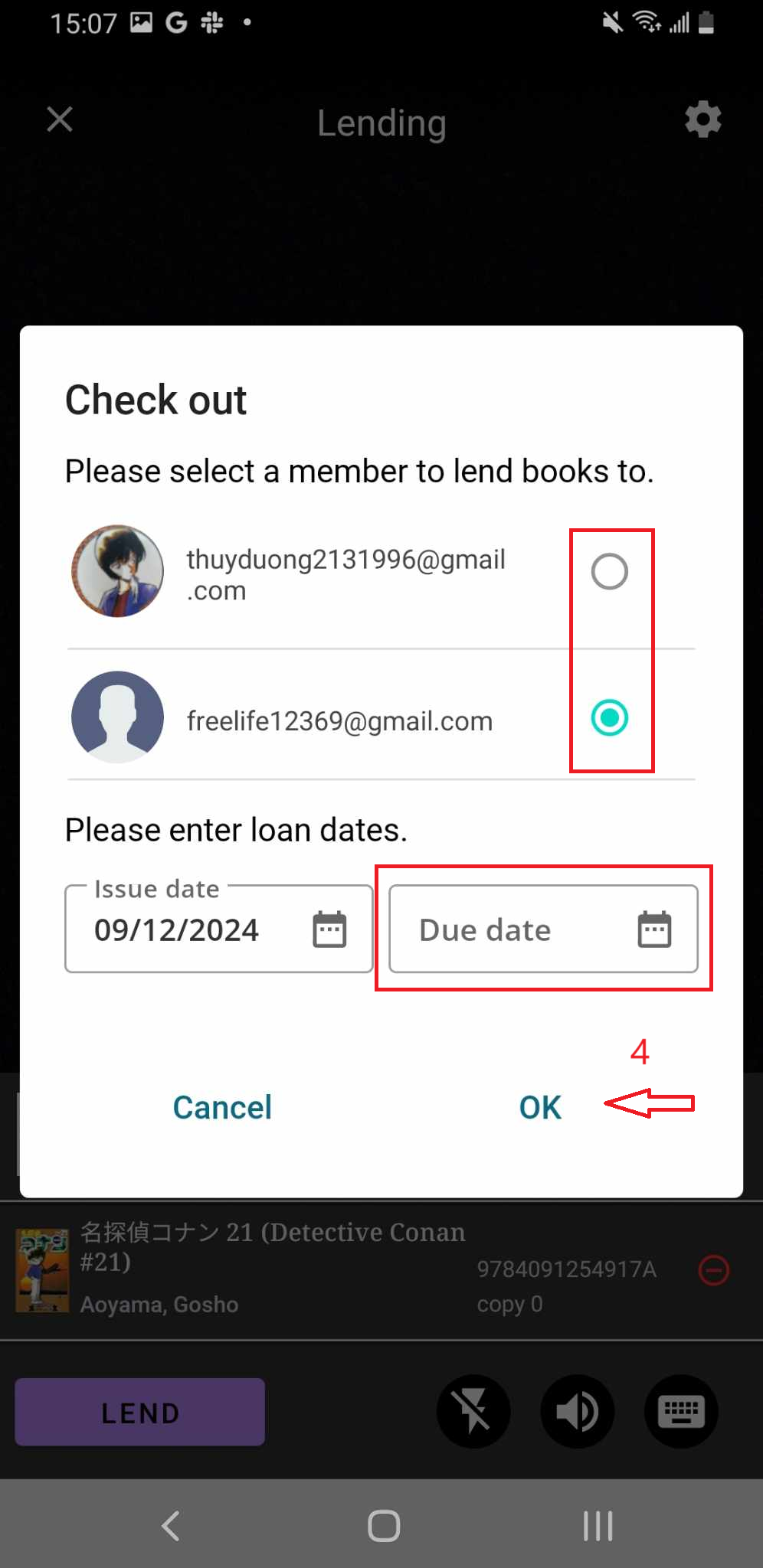
Step 29: Check out page is shown up. Select a member to lend a book to. Enter loan dates. OK to confirm
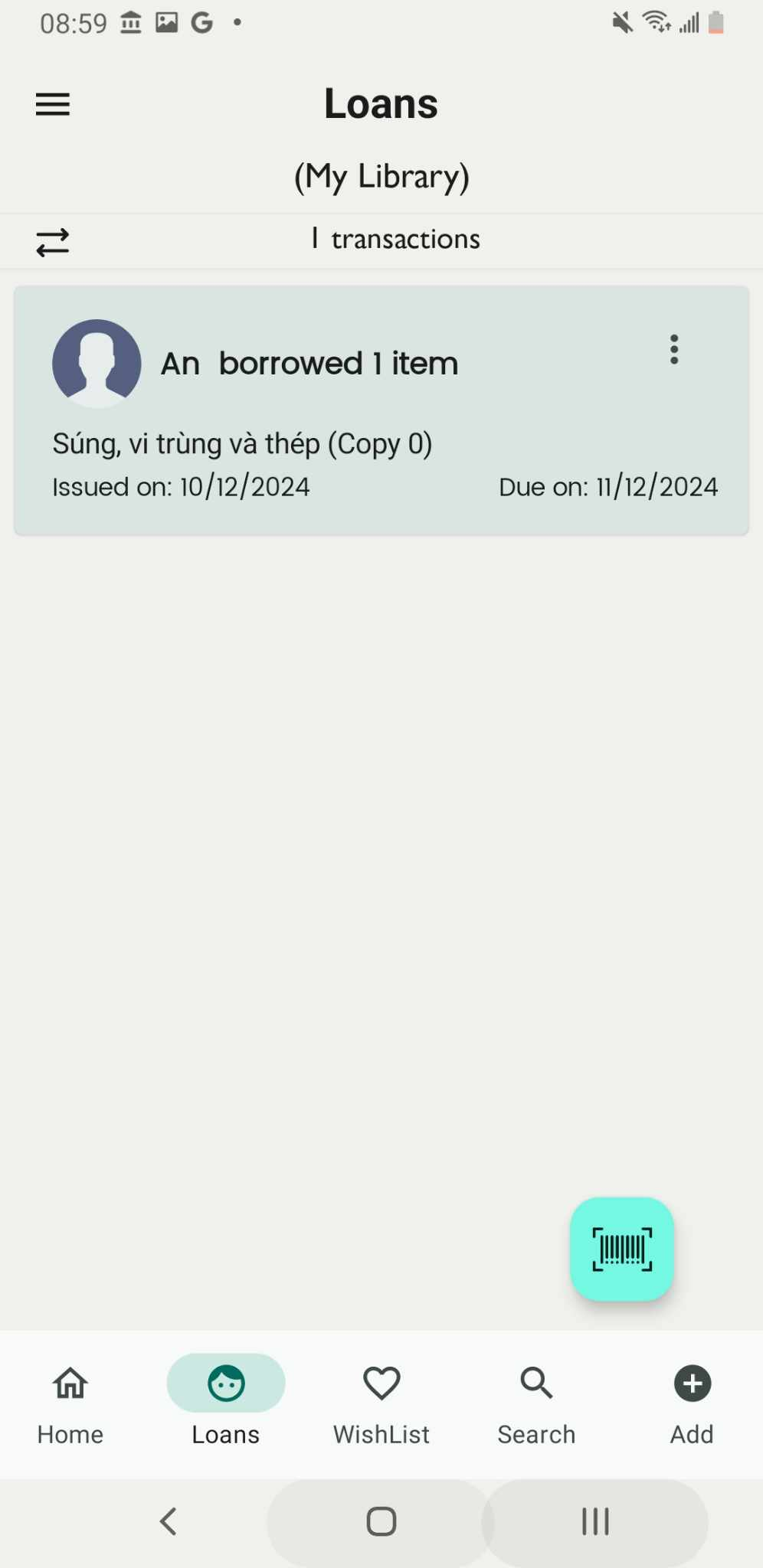
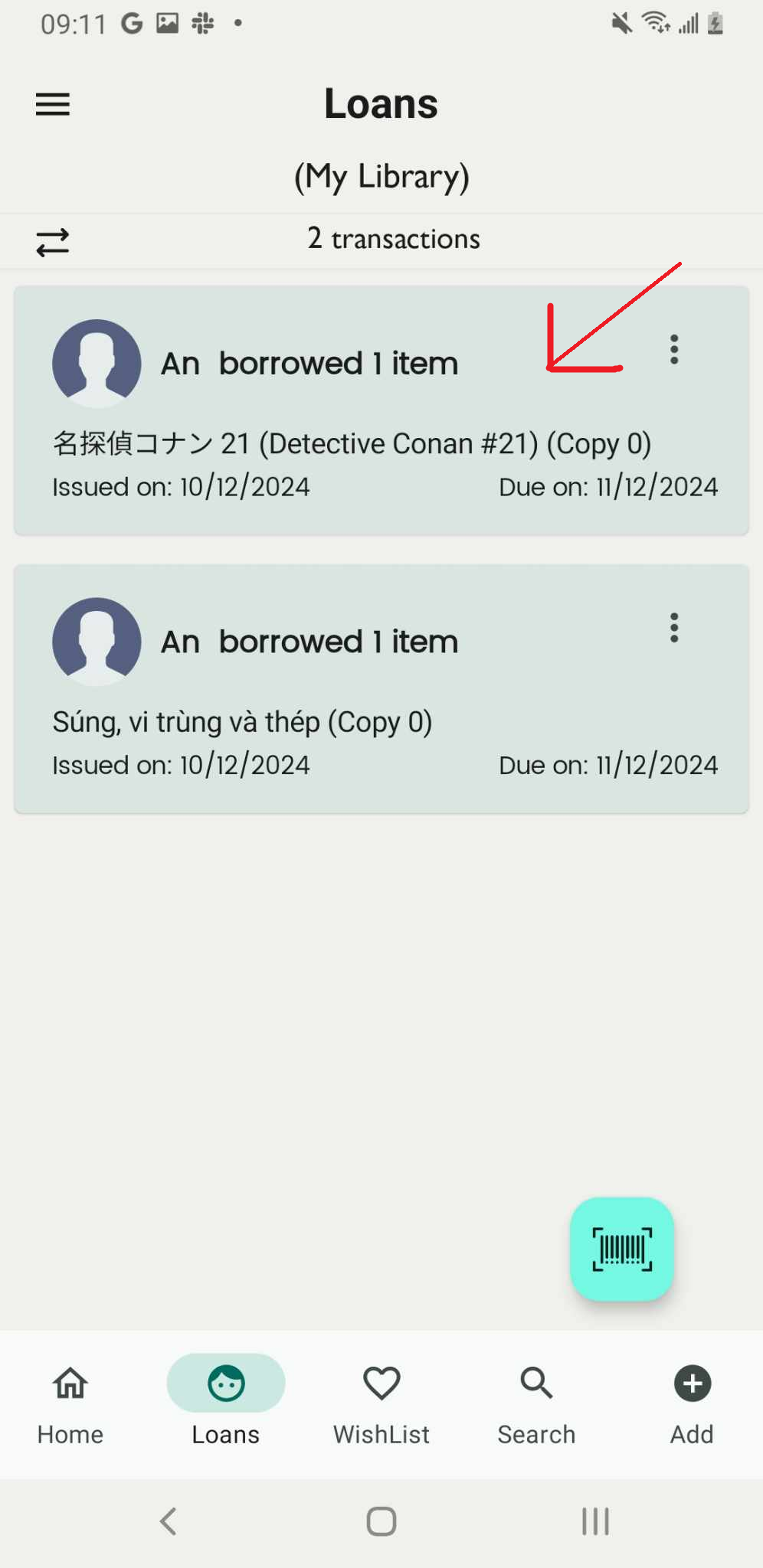
Step 30: The screen shows “Check out” and the member who borrow the book
Add book for lending books by enter the ISBN
Step 31: Access the Loan field on the main screen. Tap on the scan iconThe camera is turned on
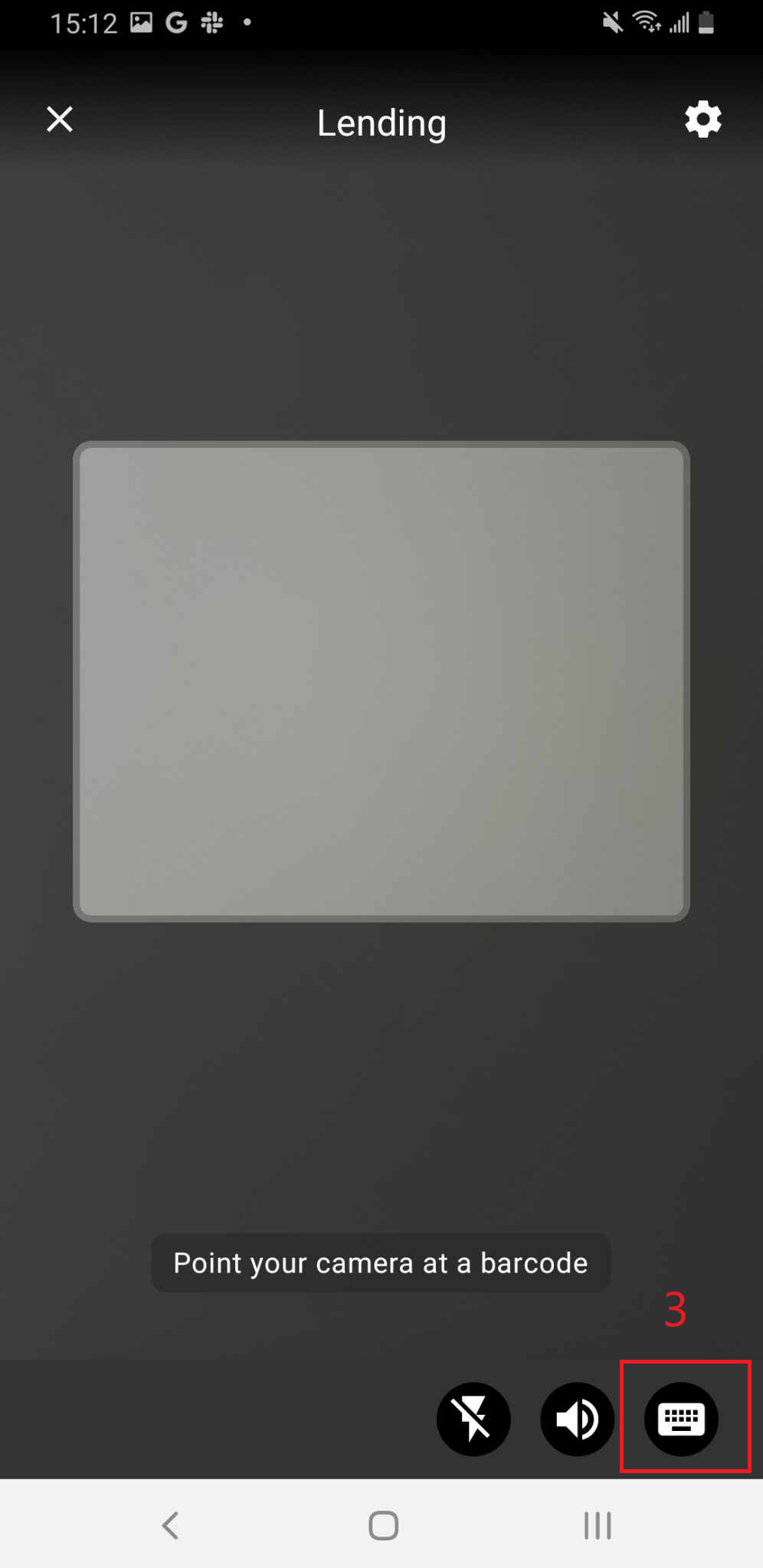
Step 32: The camera is turned on, access the keyboard icon. Enter the ISBN of the book
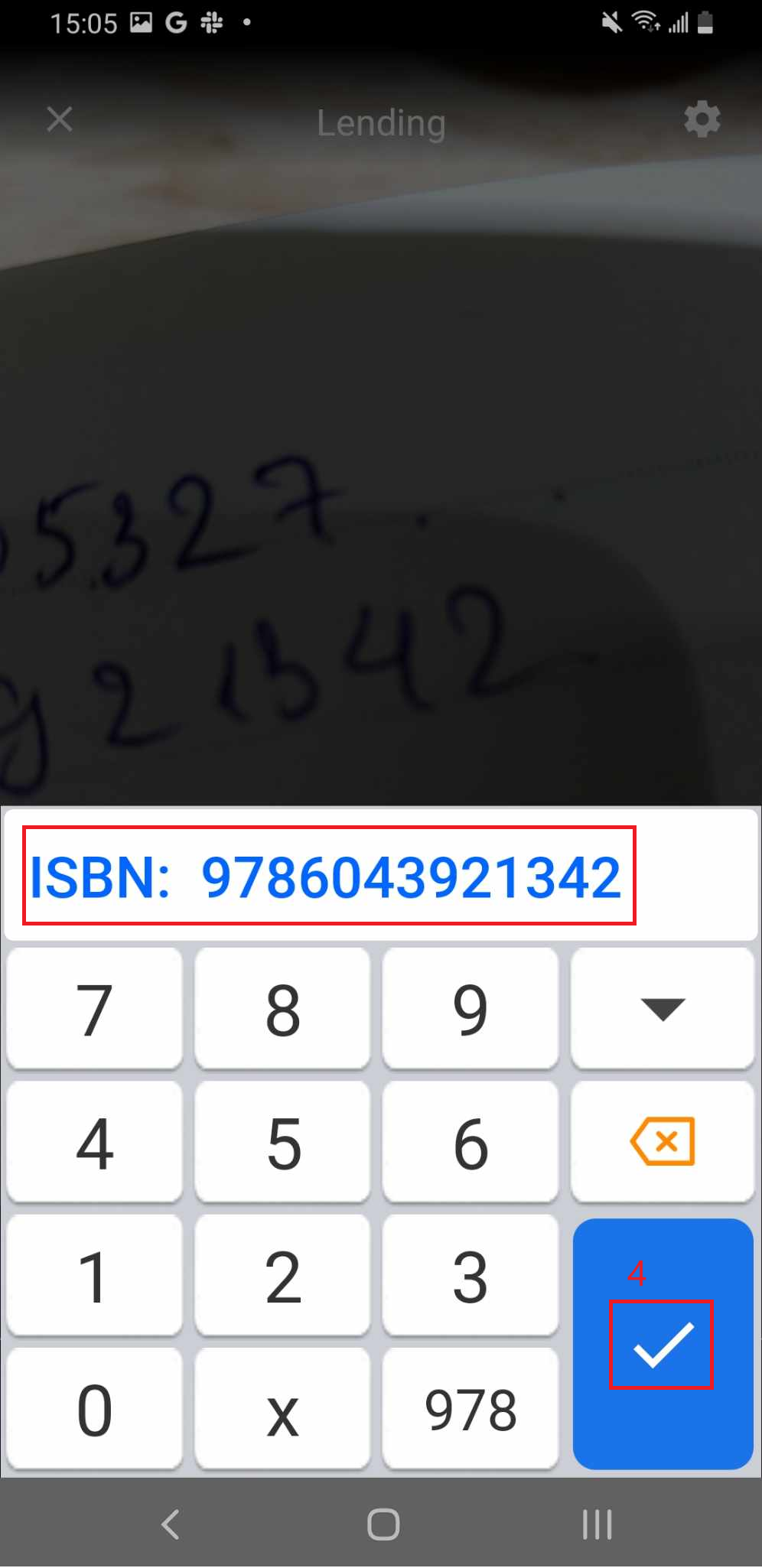
Step 33: Enter ISBN and press tick icon
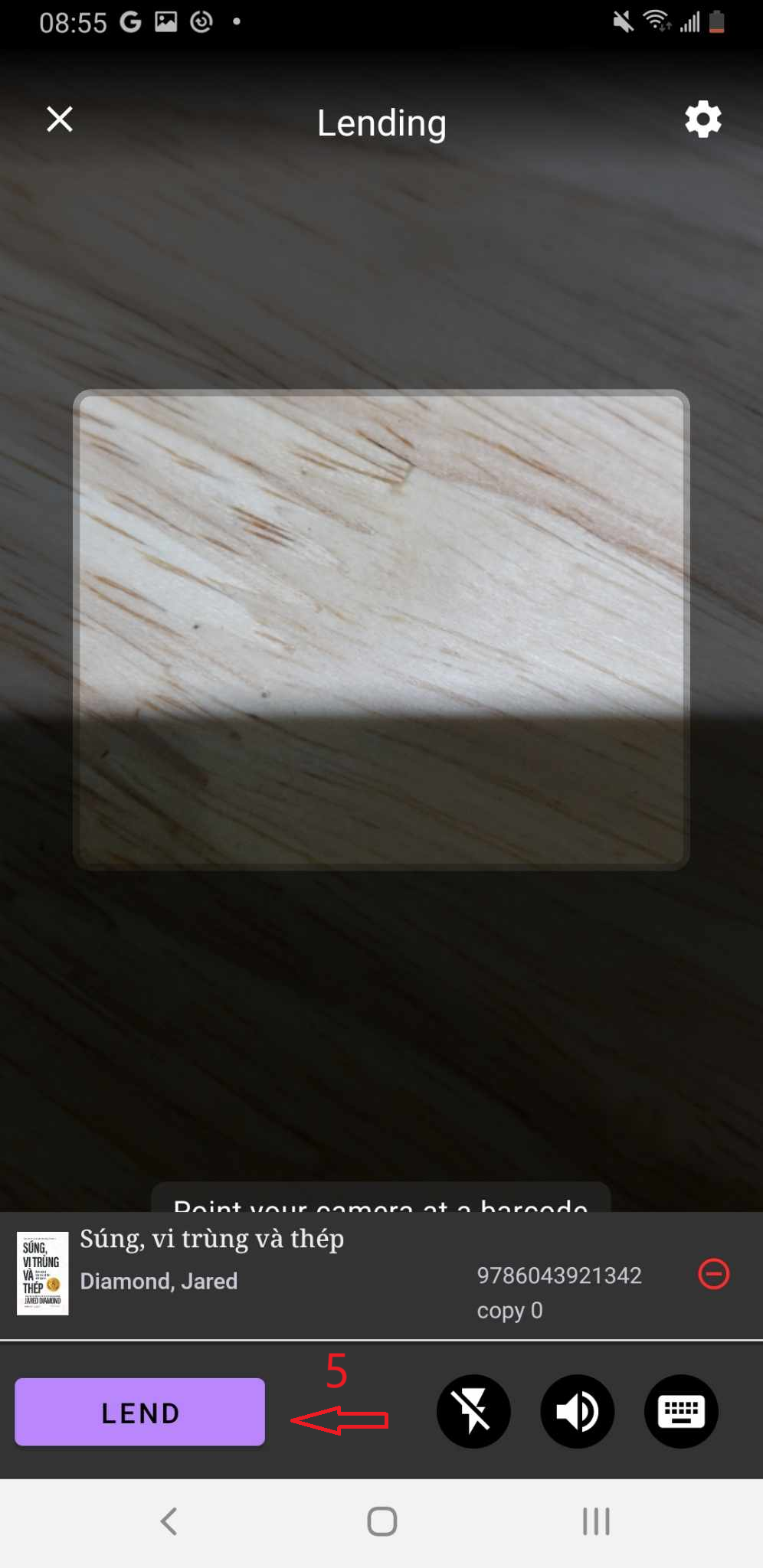
Step 34: The screen shows the list of items in the library on the screen. Press LEND.
Step 35: Check out page is shown up.
- Select a member to lend a book to
- Enter loan dates
- OK to confirm