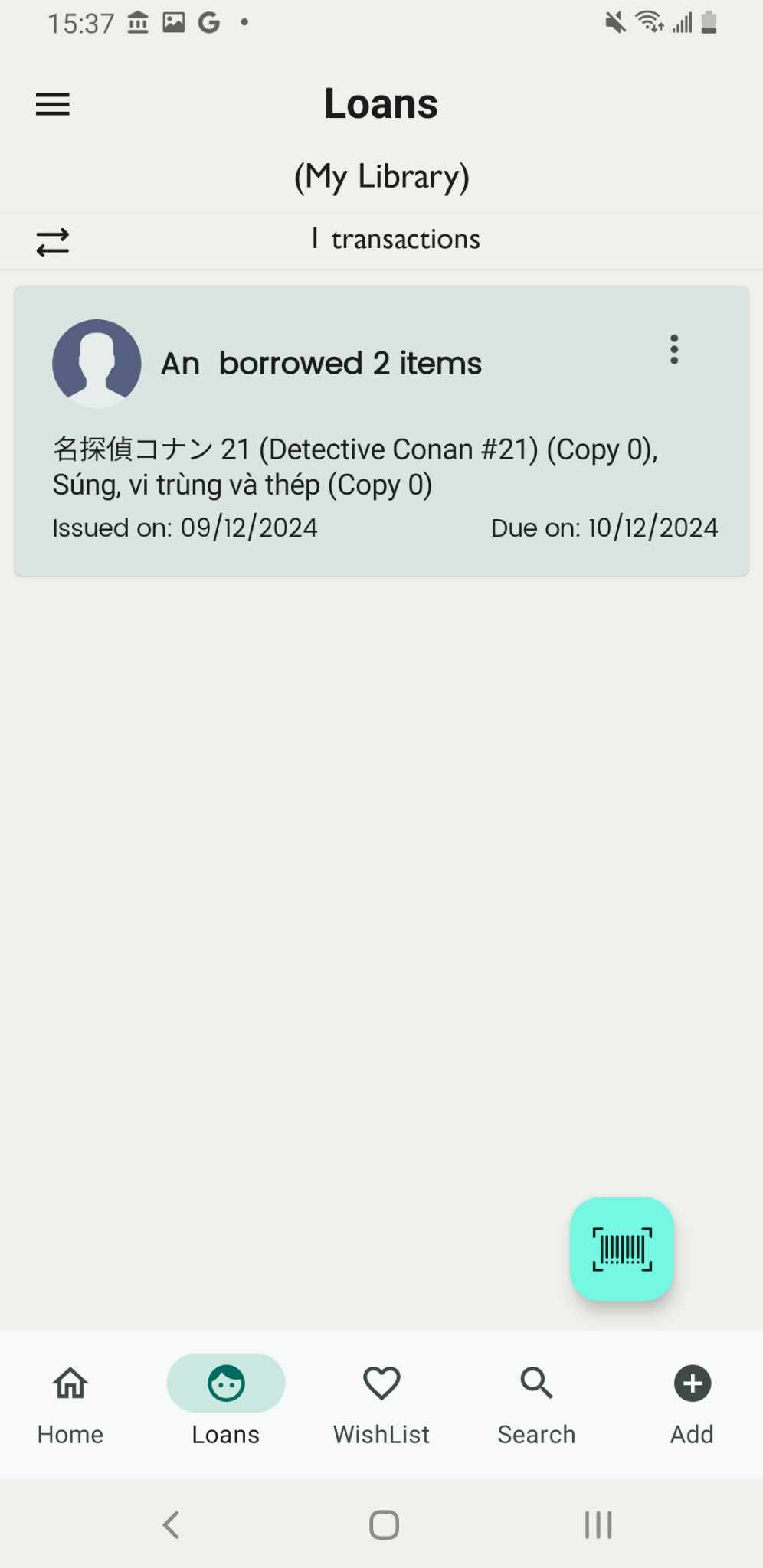
Scan and enter the barcode for lending multiple books
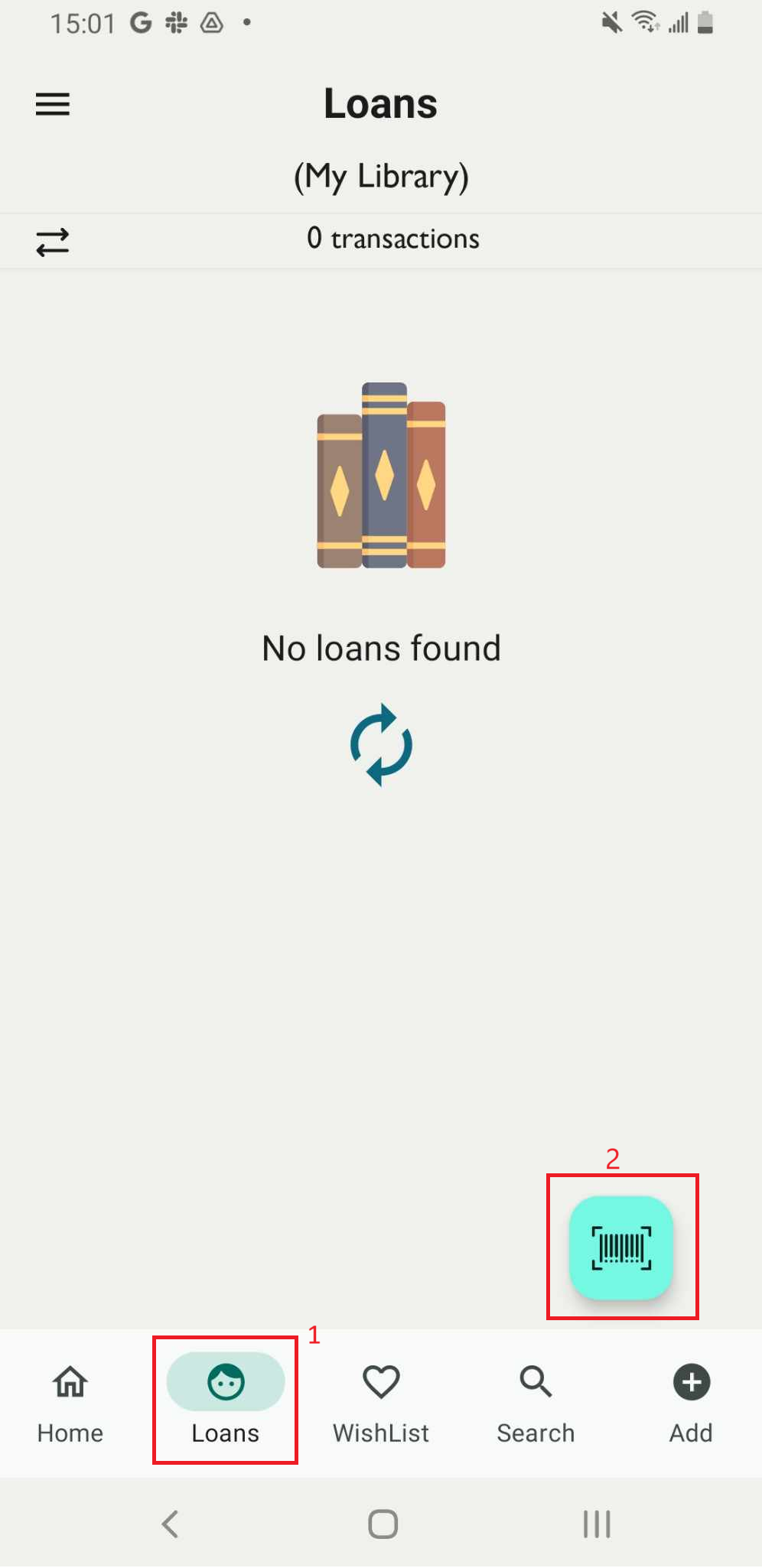
Step 1: Access the Loan field on the main screen. Tap on the blue scan icon to scan the ISBN barcode.
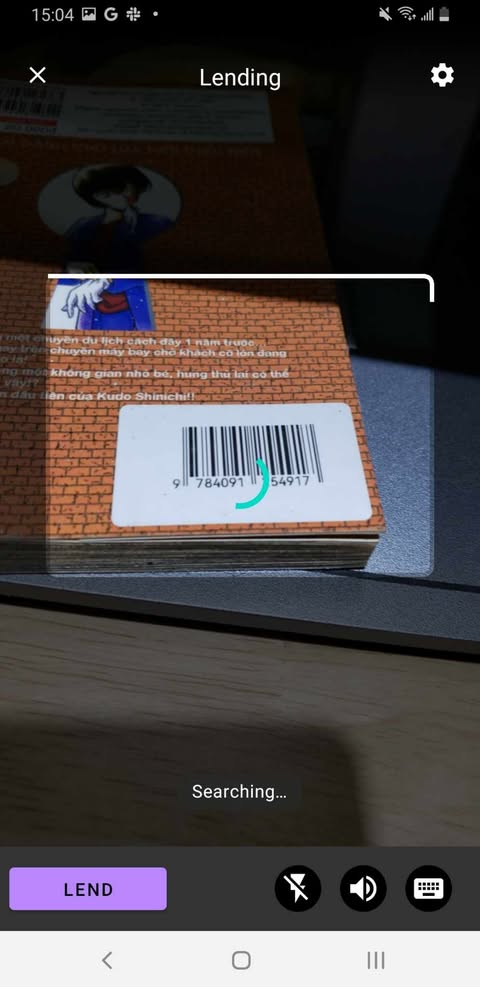
Step 2: Point your camera at a barcode.
Step 3: The screen shows the items in the library on the screen .
Continue tap on the barcode icon to enter other ISBN barcodes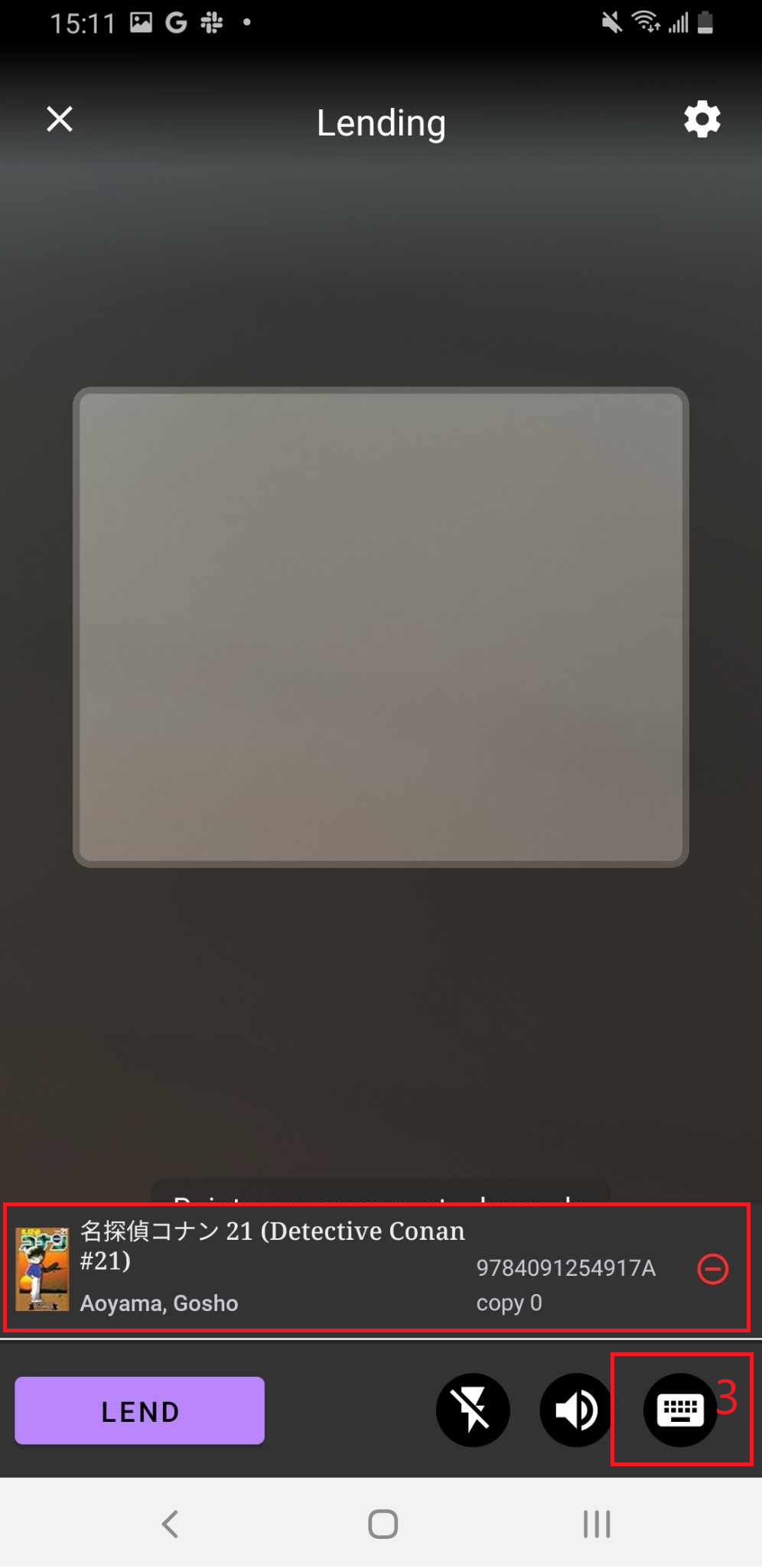
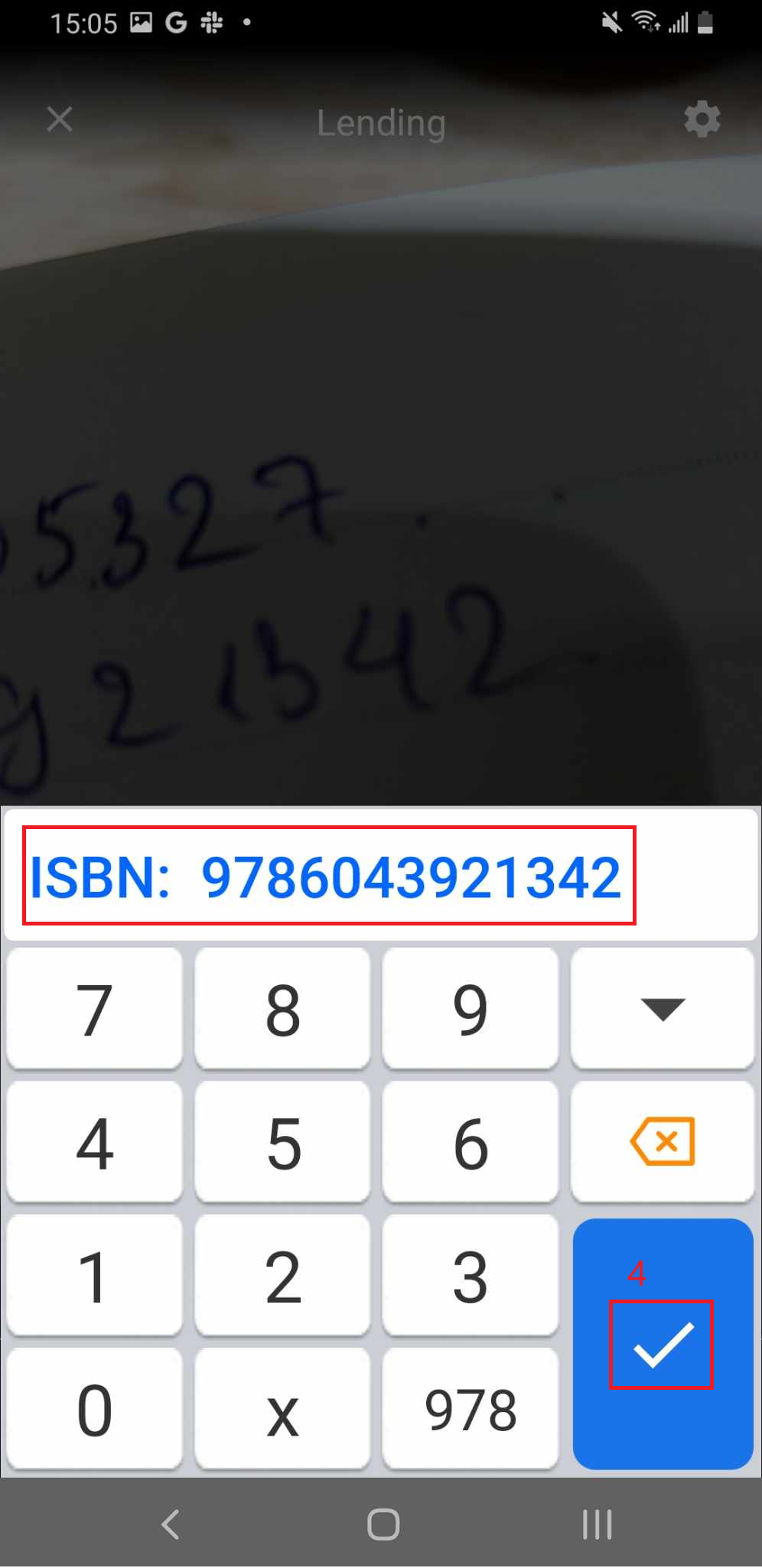
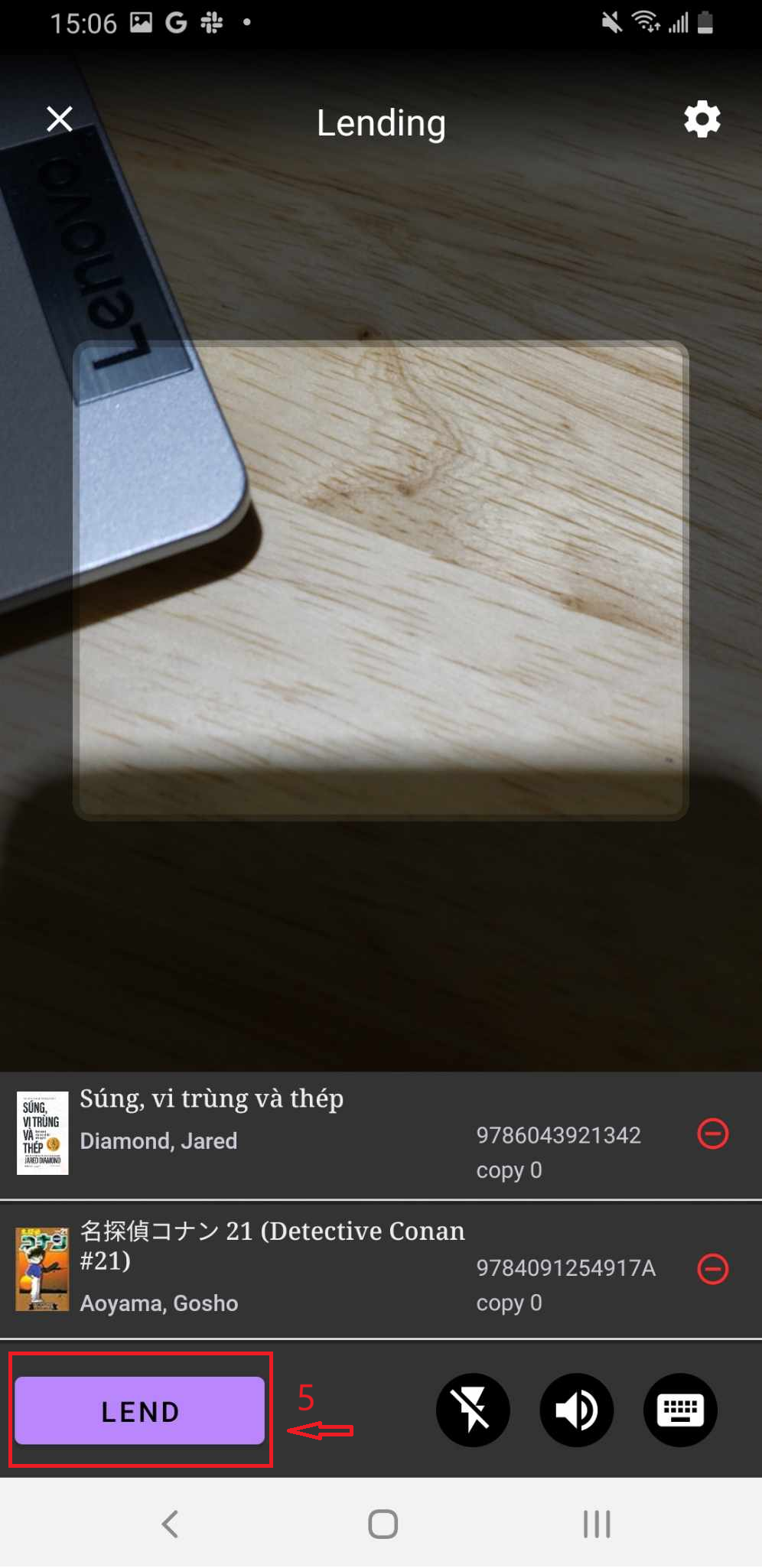
Step 4: The screen displays the list of items in the library. Tap LEND to proceed.
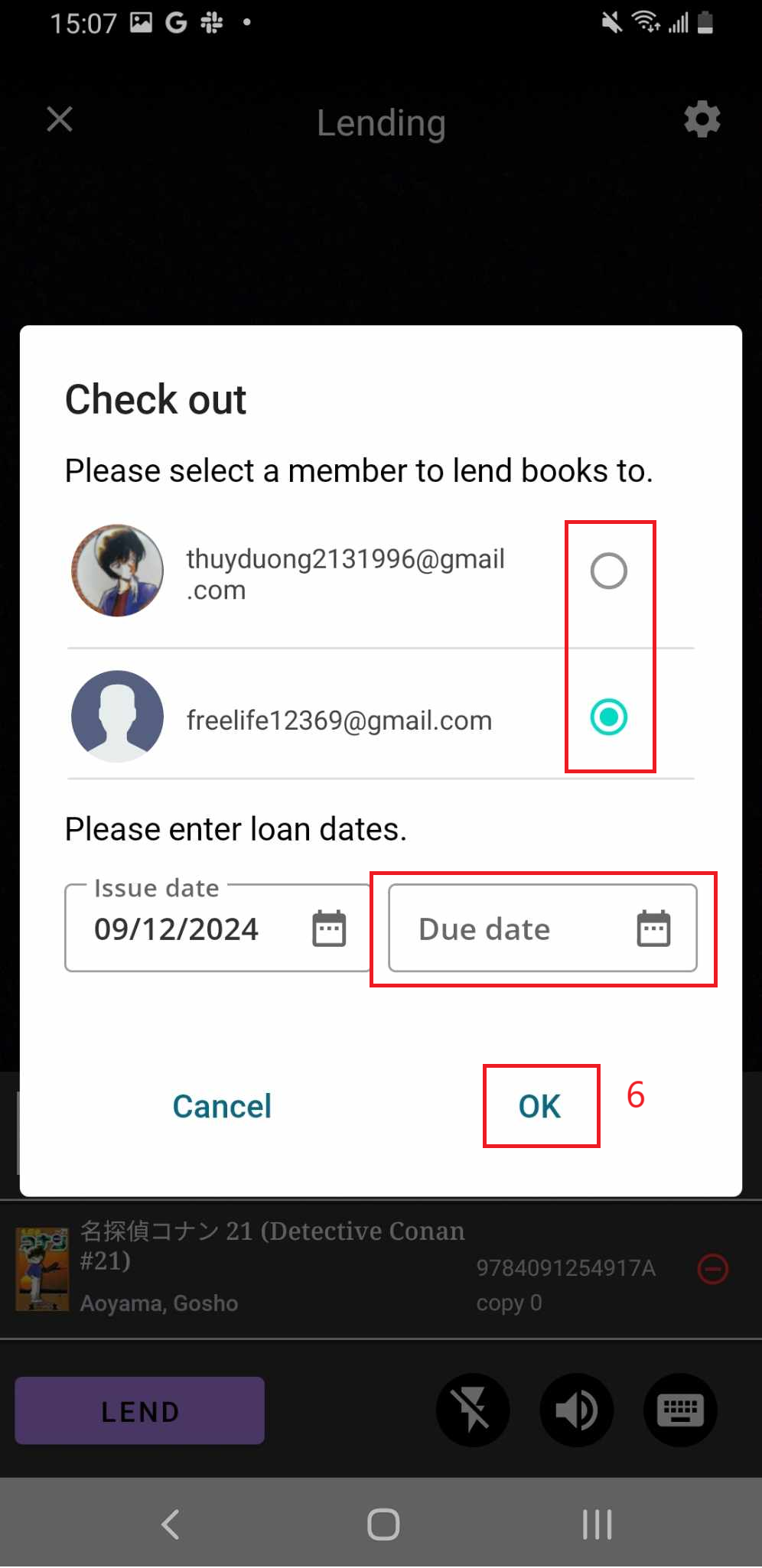
Step 5: The Check Out page will appear. Select a member to lend the book to, enter the loan dates, and tap OK to confirm.
Step 6: The screen will display “Check Out” along with the name of the member who borrowed the book.