Add new member
Step 1: Access “Members” section
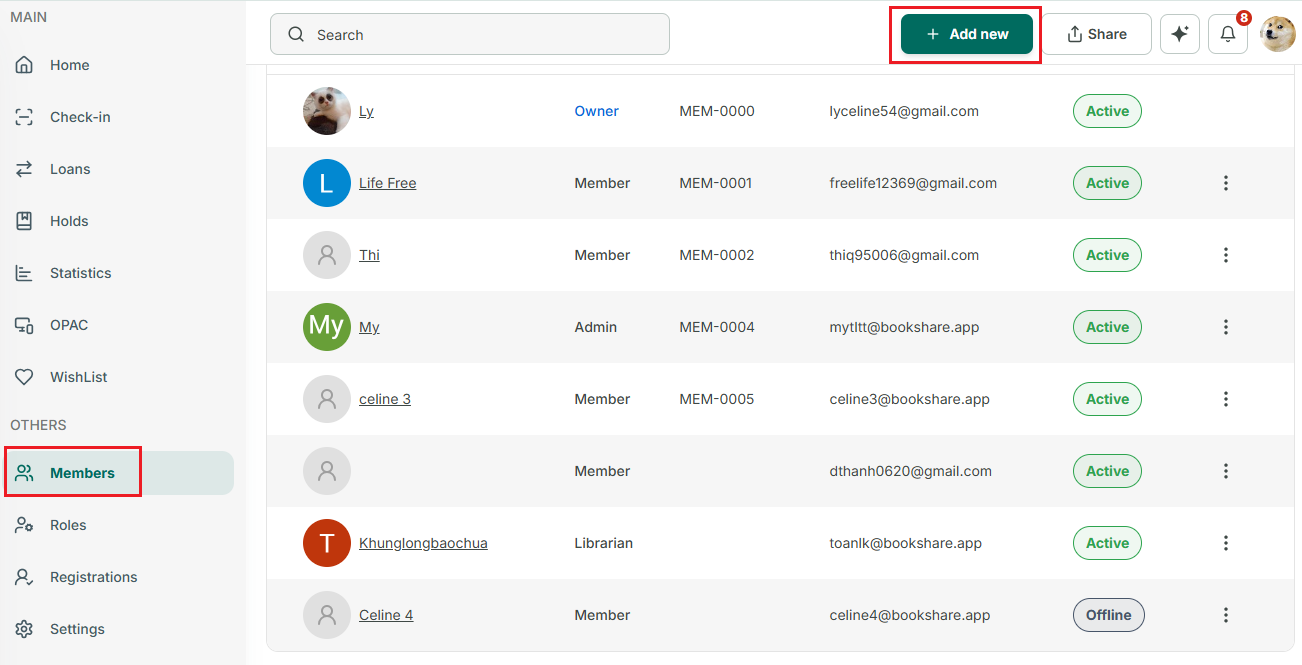
Step 2: Press “+Add new” button
Step 3: Select an option:
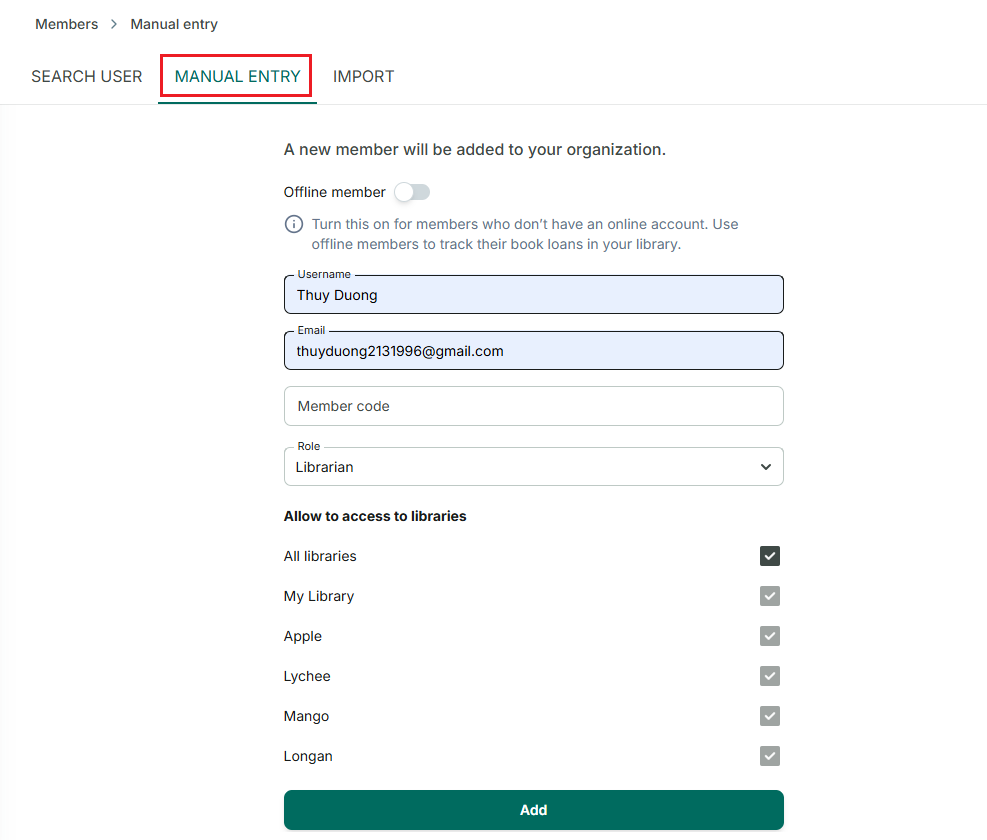
- Manual entry → Enter Username, email, meber code (if needed), role, select Library → press Add → the invitation send to user
If the member is a student or only needs to borrow books, you can simply add them as an offline member. Just toggle the Offline member option and enter a username to add the member.
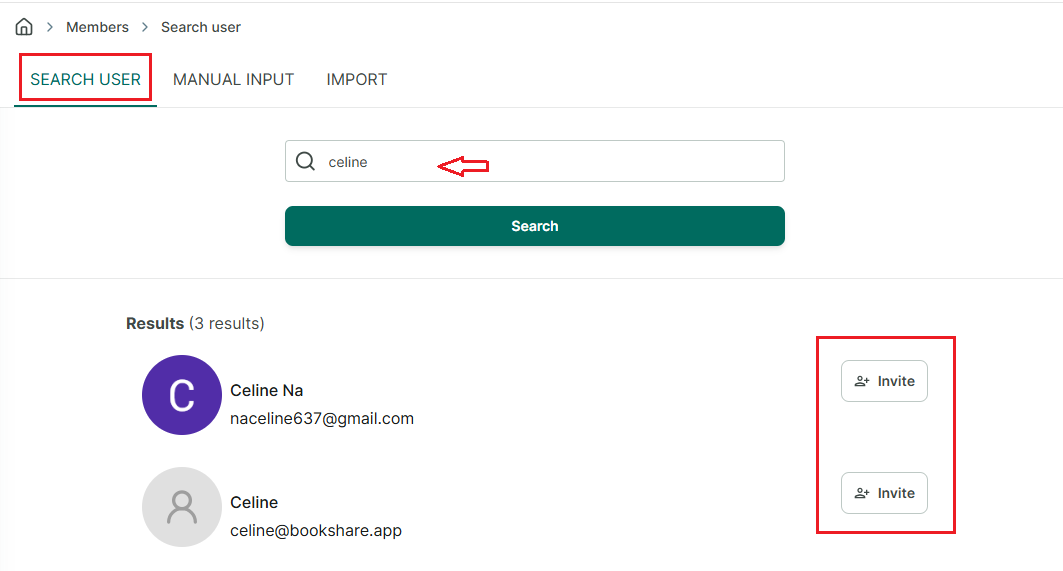
- Search User → Enter username or email → press search → press “invite” to send invitation to user
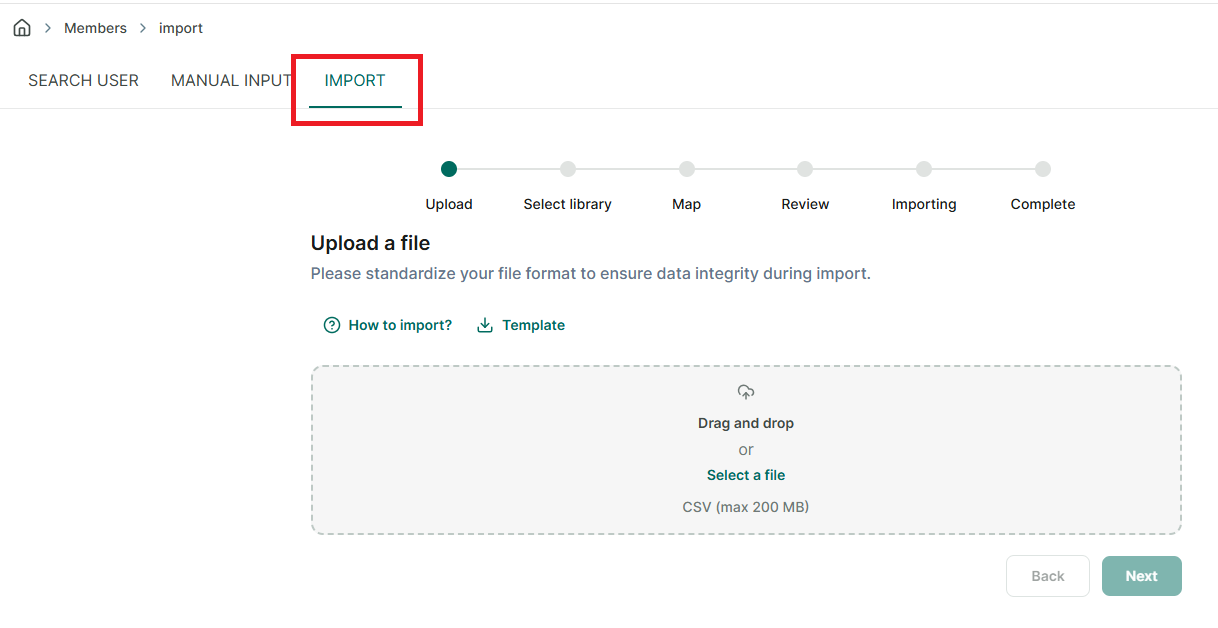
- Import → Select library → Drag and drop or select a file → map data → review → importing → complete Refer to the template for correct format file All members added will automatically be set as offline members.
Please access the for more details: Link