Other Features
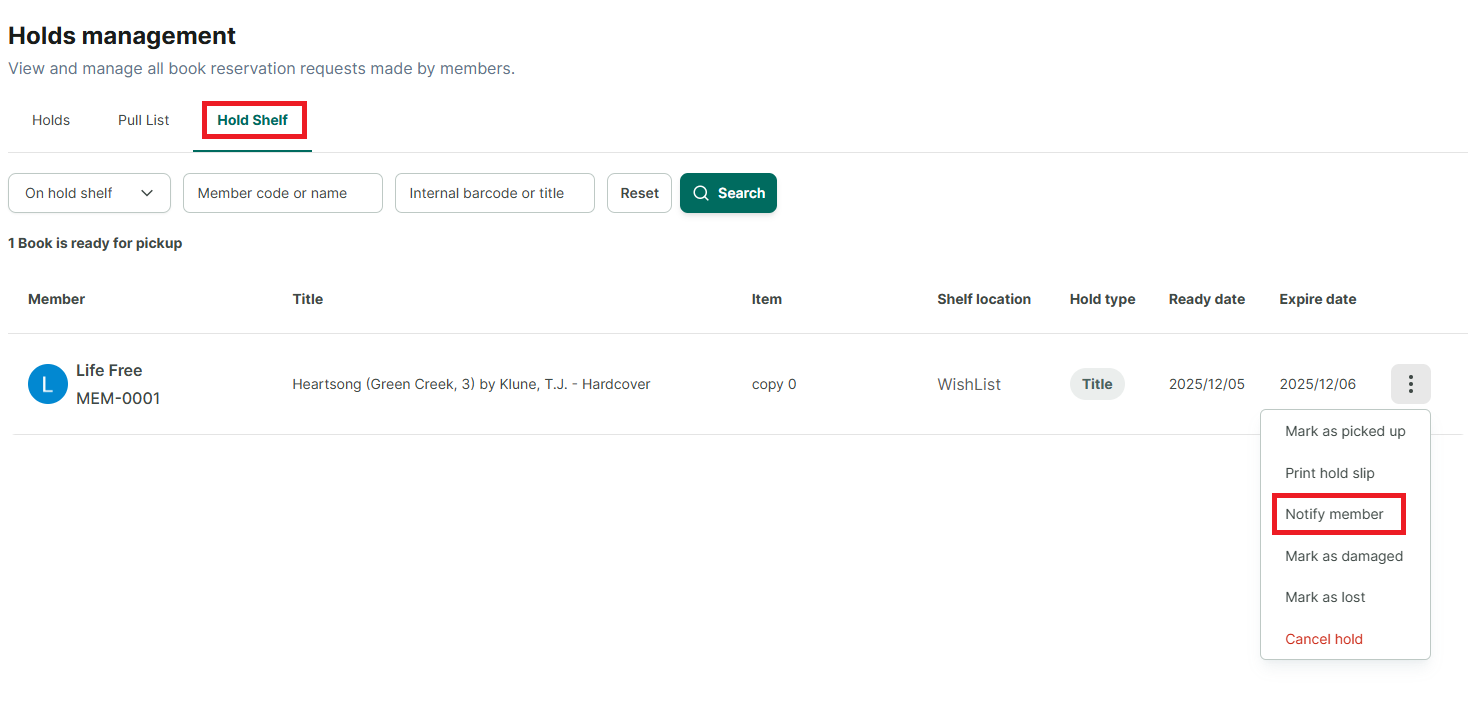
NOTIFY MEMBER
When a book is ready for a member to pick up and is placed on the “Holds Shelf,” the application will automatically send an email to the member. However, the librarian can also manually send a reminder notification email to the member.
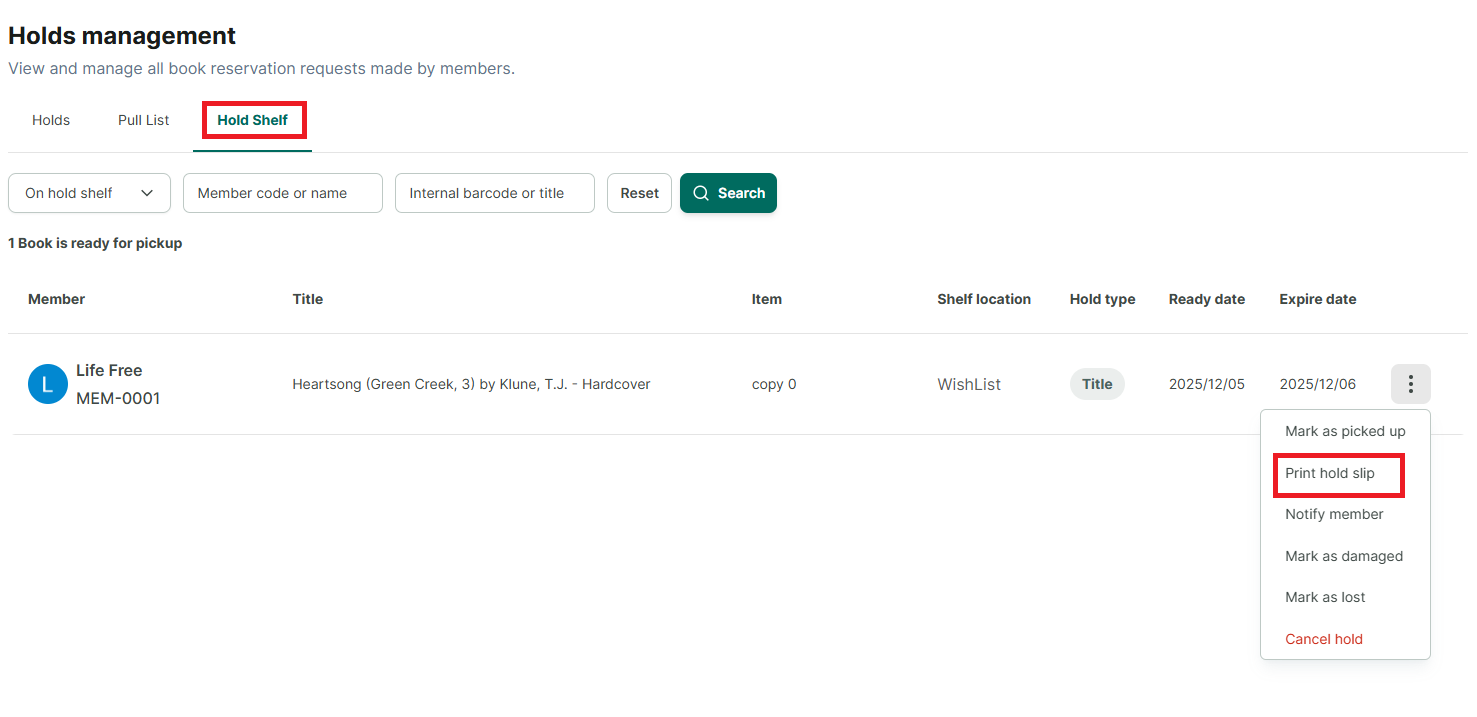
PRINT HOLD SLIPS
The librarian can print hold slips for management purposes, to give to the member upon book collection, or for other uses.
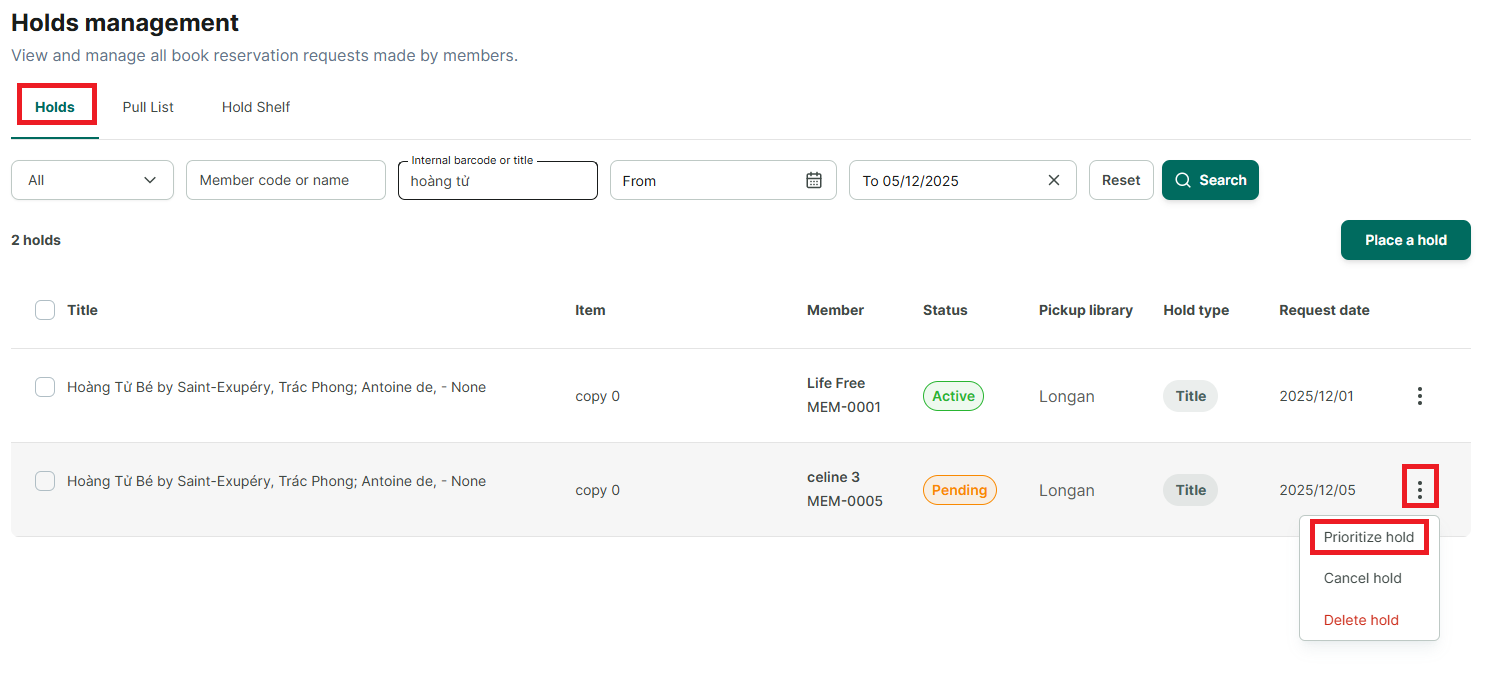
HOLD PRIORITY
The librarian can set priority for holds that are in the “Pending” status. When one member’s prior hold is fulfilled, the next hold will automatically be assigned to the prioritized member.
HOLD SETTINGS
General Settings for All Libraries
In the “Settings” section, the librarian can configure general options for book holds, such as enabling/disabling the feature, limiting the number of holds per member, setting the expiration time for holds, or setting notifications for the “Place a Hold” feature.
Step 1: Go to the “Settings” option in the left-hand menu and select “Hold Settings.”
Step 2: There are three main sections: “General Settings,” “Pickup & Fulfill,” and “Hold Notifications.”
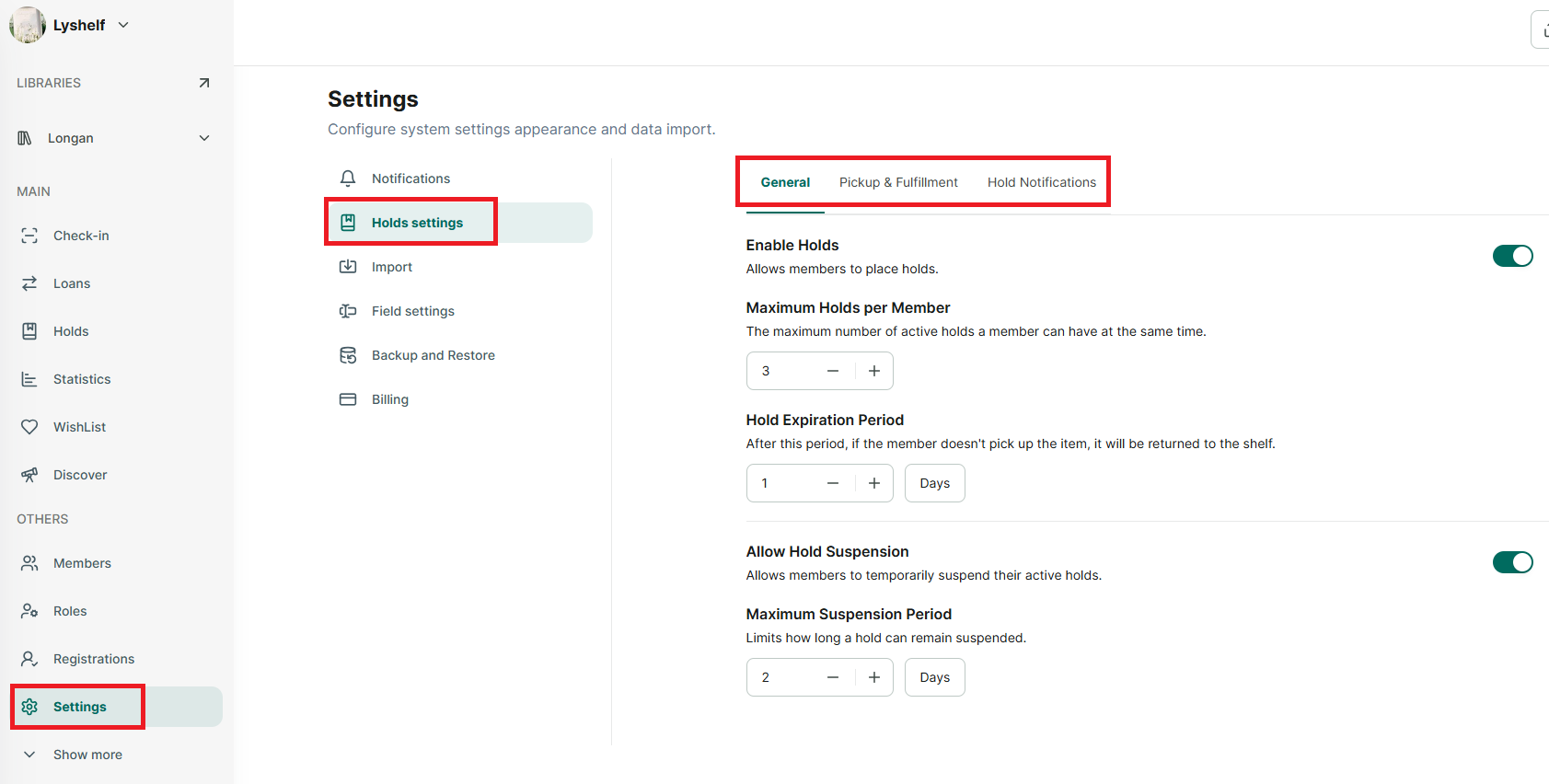
General Settings include:
- Enable Book Holds: If disabled, the “Book Hold” menu will be hidden, and no one will be allowed to place holds.
- Maximum Holds per Member
- Hold Expiration Period: The librarian sets this period to limit the time a member has to pick up the book after it is ready and placed on the “Holds Shelf.”
- Allow Hold Suspension (or Allow Suspending Reservations)
- Maximum Suspension Period
Receive & Fulfill includes:
- Holds Shelf Capacity Limit
Hold Notifications:
- When enabled, members will receive notifications regarding their book reservations.
Settings for Individual Libraries
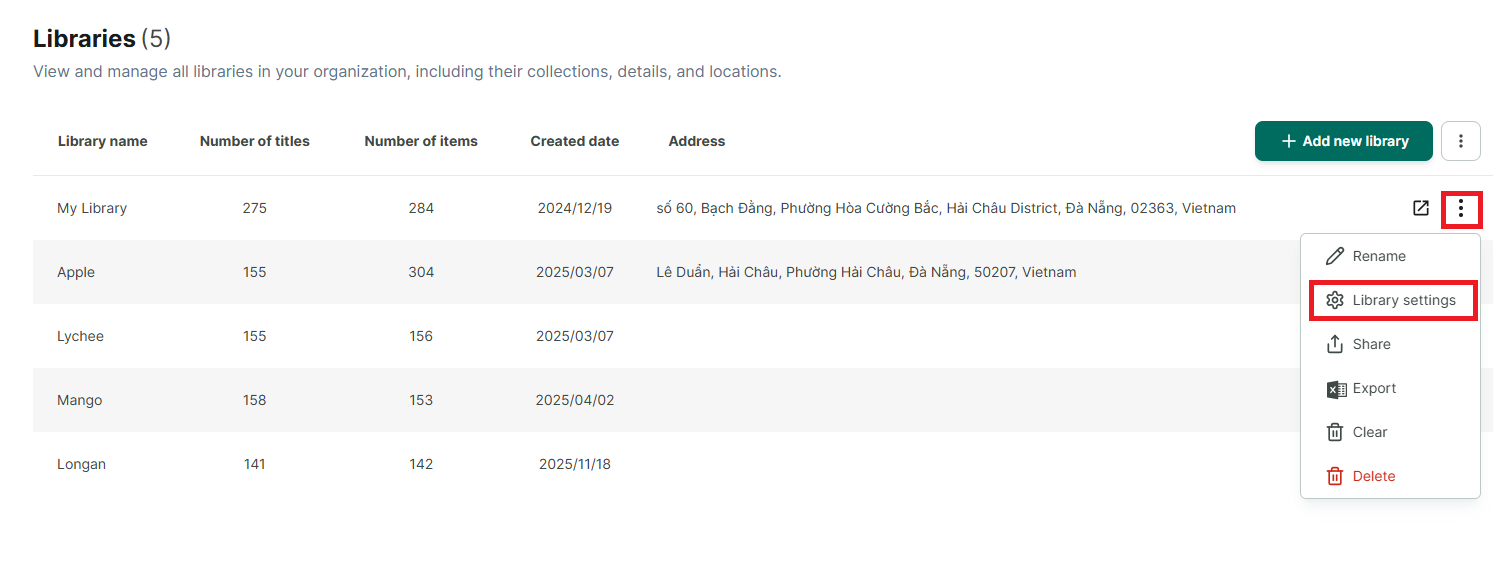
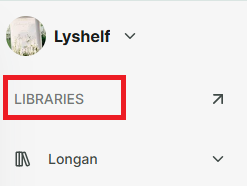
Step 3: Click on the “Libraries” menu item on the left to display all organizational libraries.
Step 4: Click the three-dot icon (⋮) next to each library to display options. Then select “Library Settings.”