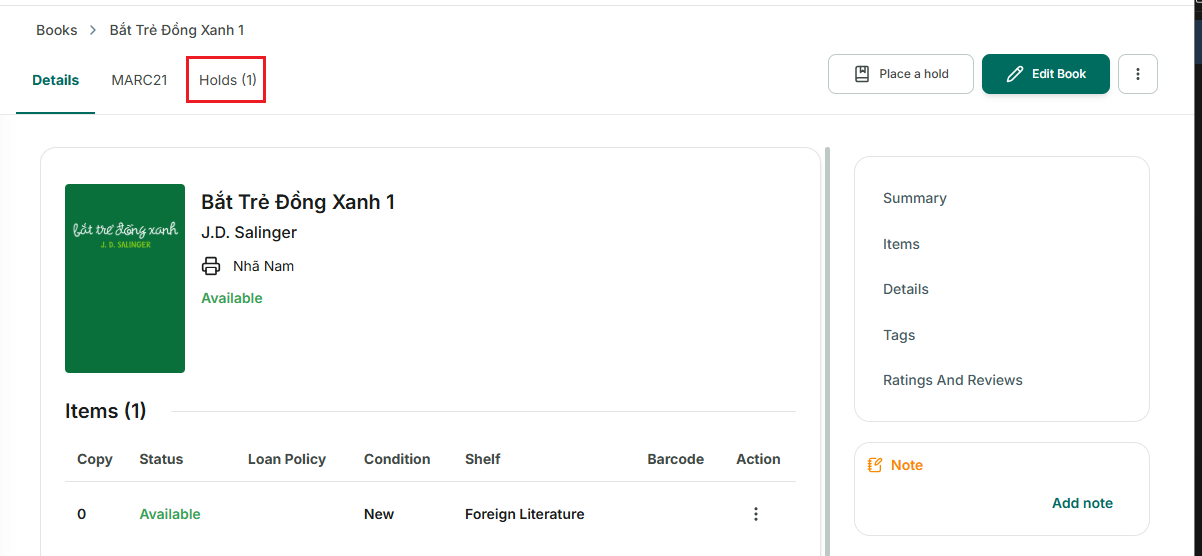
How to place a hold: Placing a hold on an available book
Method 1: Placing a Hold from the “Holds” Section
Step 1: Click on the “Holds” section in the left menu.
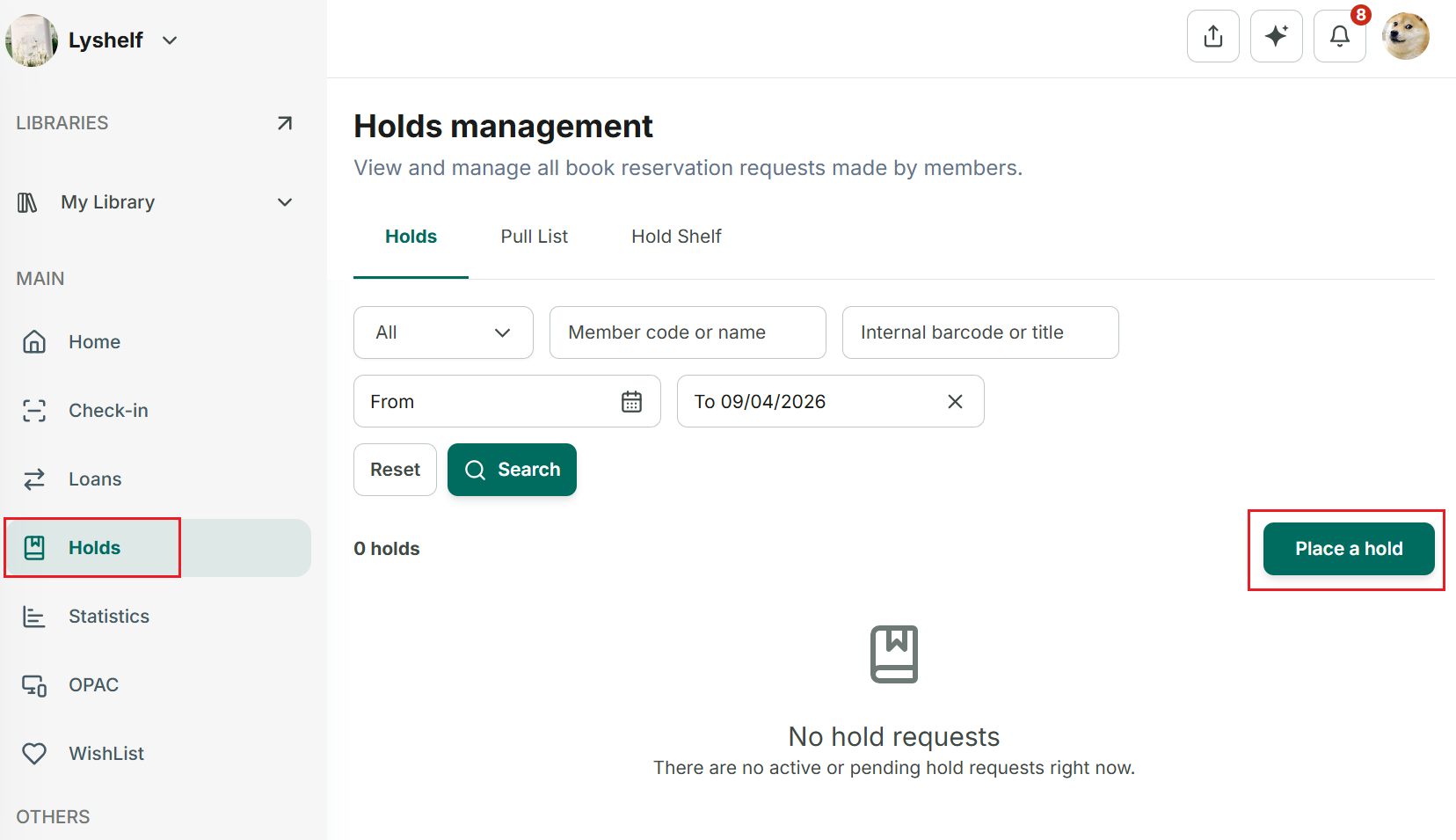
Step 2: Click the “Place a Hold” button on the screen.
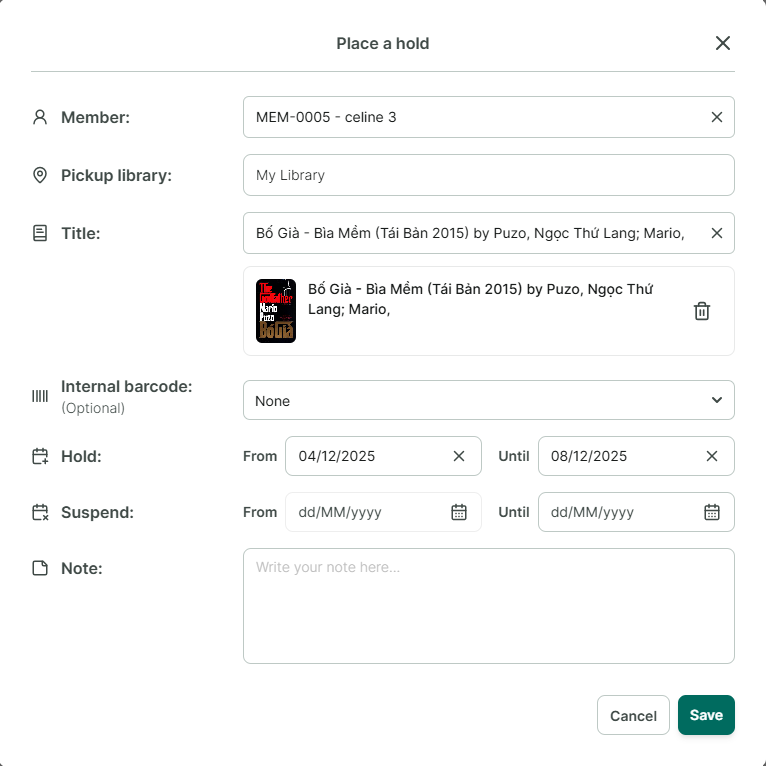
Step 3: The detailed hold form will appear, including:
- **Member** (search by name or member ID)- **Pickup Library** where the member will pick up the book- **Book Title**- **Barcode** (optional - will automatically select the available copy or the newest copy)- **Hold Time** (Start Date/Duration)- **Suspend Time** (can be added later if needed)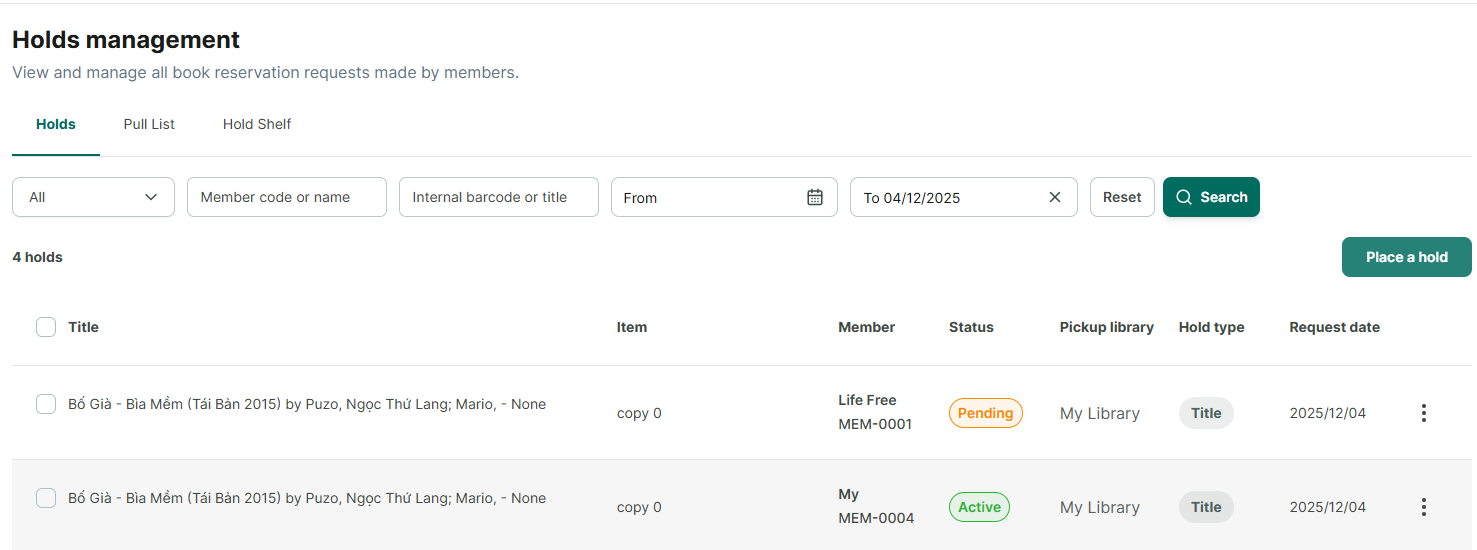
Step 4: Fill in the above fields and click “Save.”
Step 5: The hold is completed and is in the “Active” status. A single book may have multiple holds; therefore, subsequent holds for the same book will be in the “Pending” status.
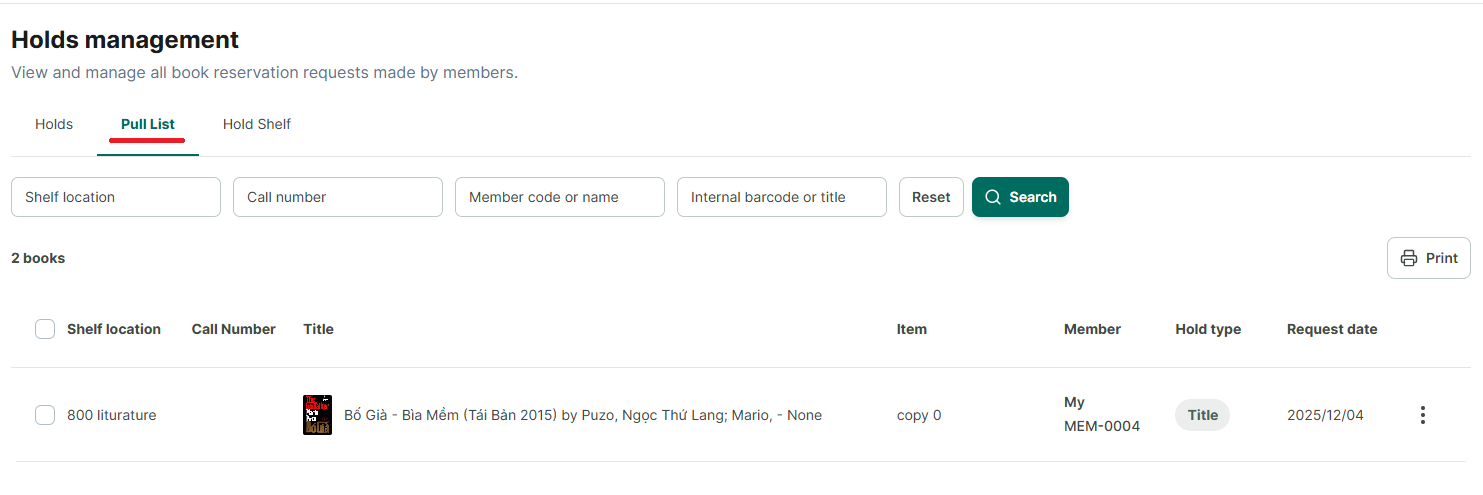
Step 6: The book will appear in the “Pull List.” This is the list of books that the librarian needs to retrieve to move to the hold shelf, ready for the member to collect.
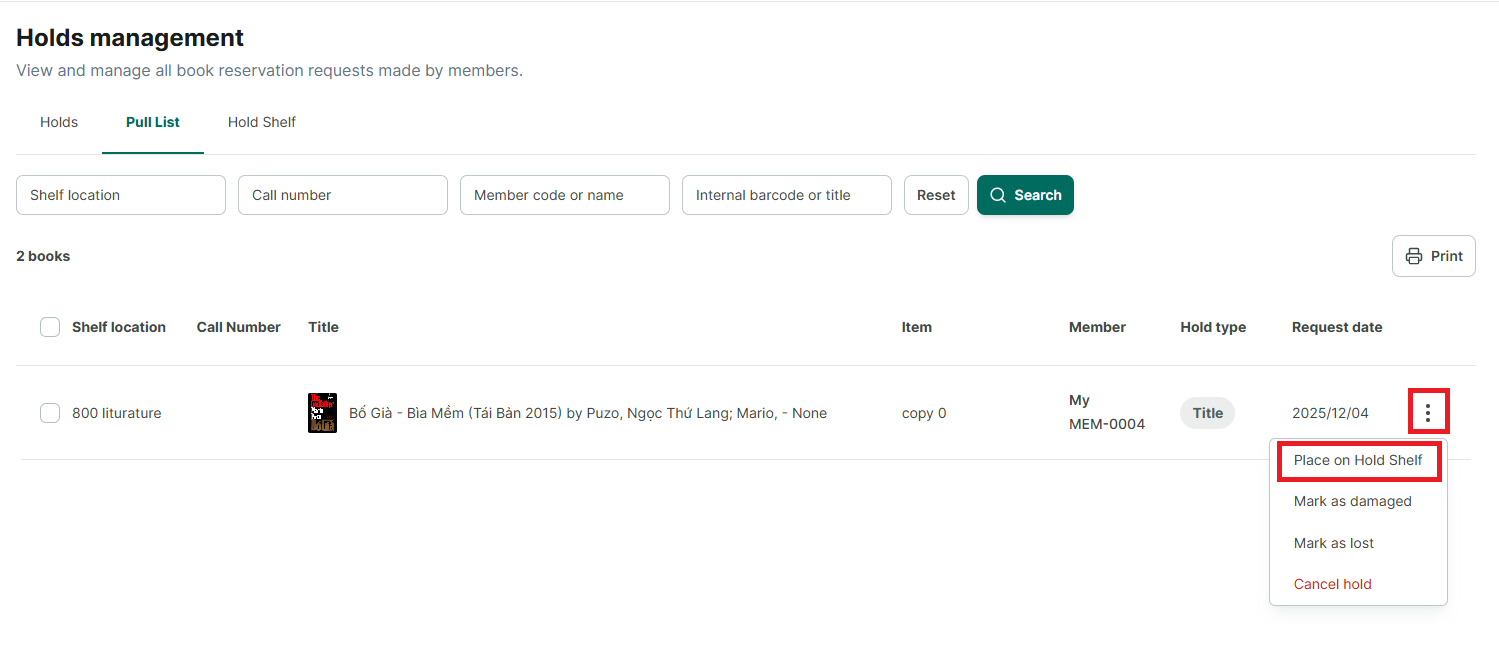
Step 7: Once the librarian has retrieved the book, they need to transfer it from the “Pull List” to the “Hold Shelf” to indicate that the book is ready for collection.
- Click the three-dot button (ellipses) and then select "**Place on Hold Shelf**."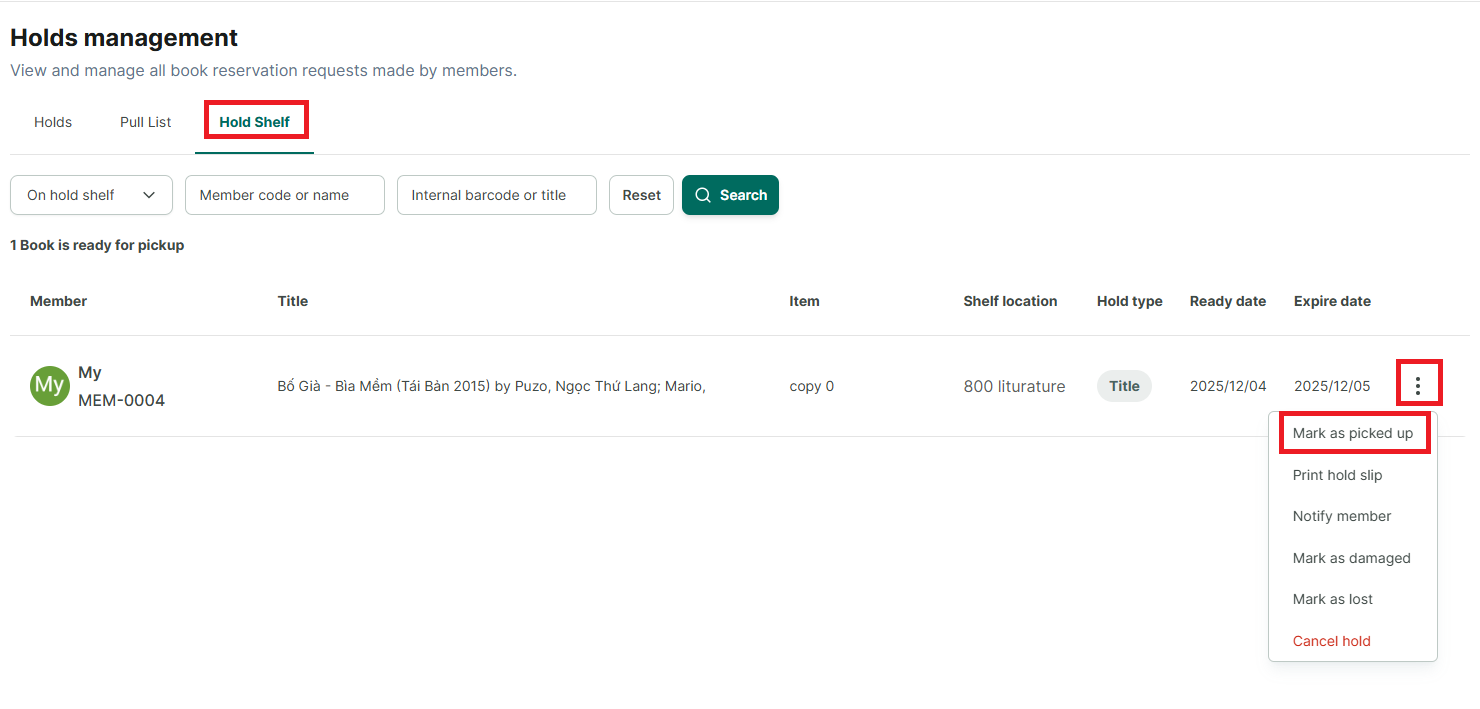
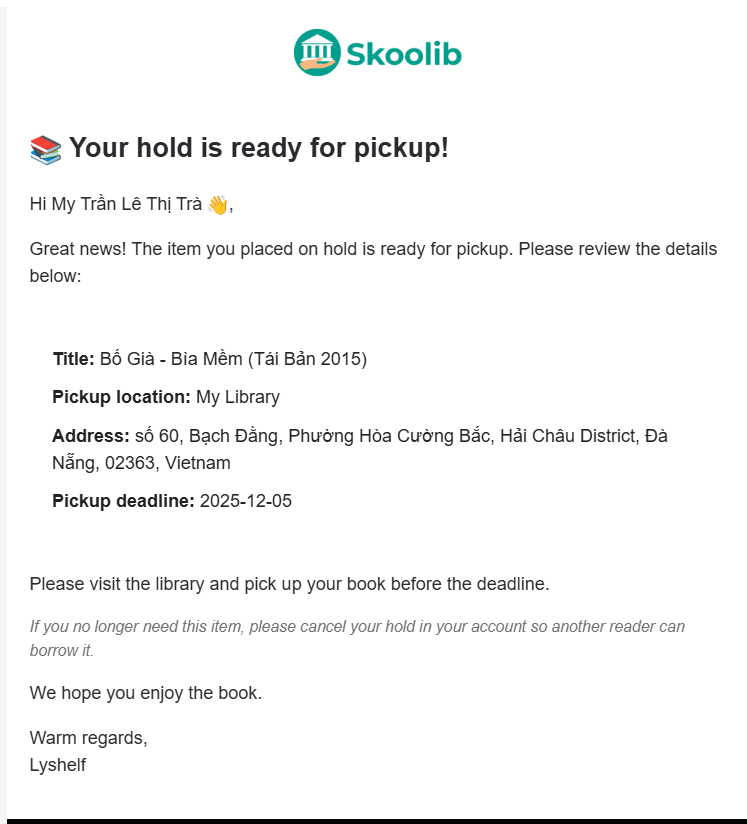
Step 8: When a book appears in the “Hold Shelf” section, the member will receive an email notification that the book is ready for pickup. This notification applies to both online and offline members, provided their email information has been updated.
Concurrently, the book’s status will change from “Available” to “On Hold Shelf” and will not be available for lending transactions to other members during this time.
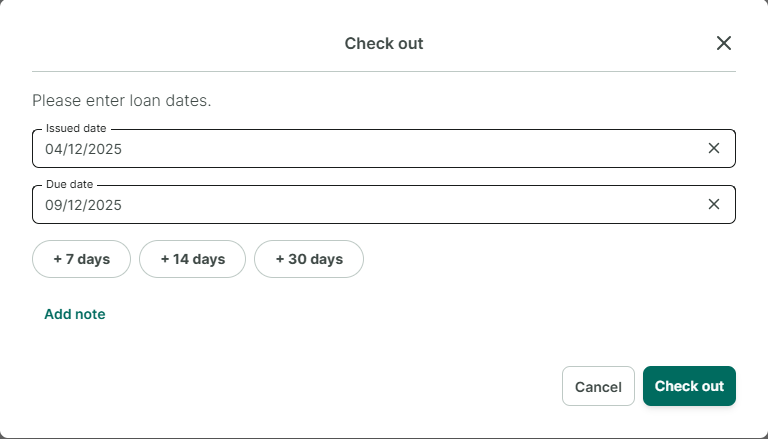
Step 9: After the member has arrived to collect the book, the librarian needs to mark the book as collected to create a loan transaction for this book.
Step 10: The Create Loan Transaction form appears. Add the due date and click “Lend” (Check Out).
Step 11: The book will be recorded as borrowed in the “Loans” section.
Method 2: Placing a Hold from the Book Details Section
Step 12: Open the details of a book for which you want to create a hold.
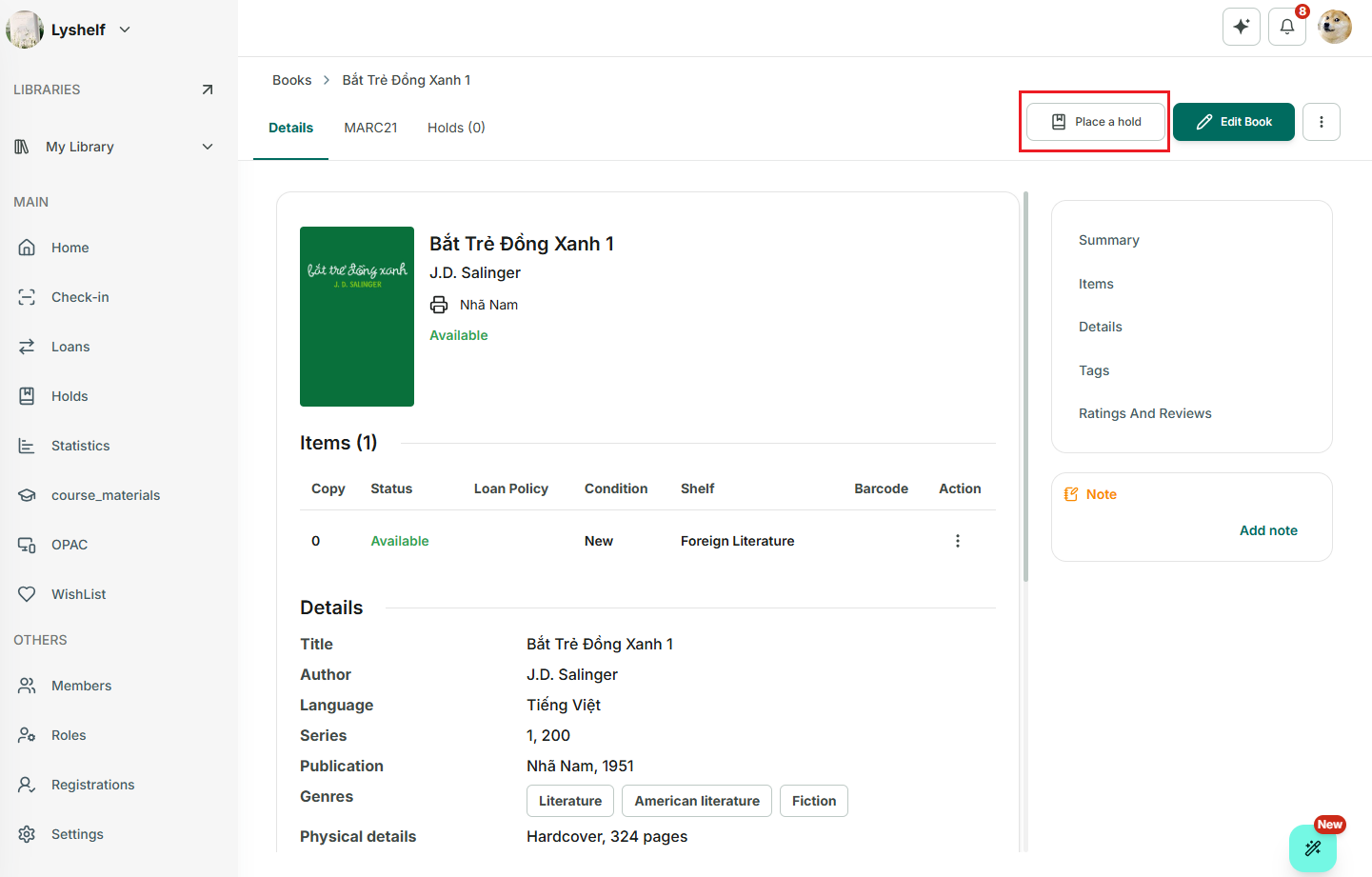
Step 13: Click the Place a Hold button on the toolbar.
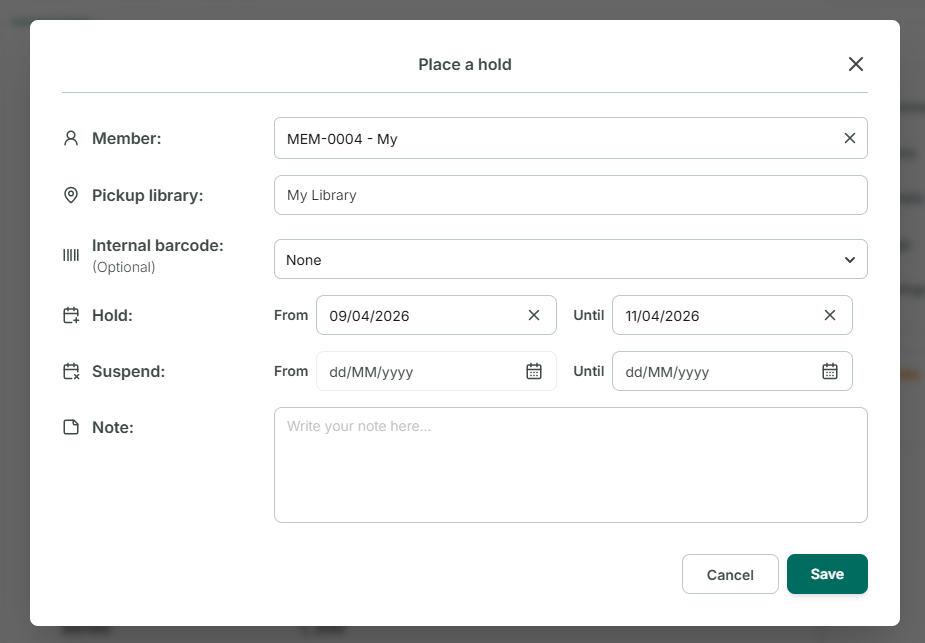
Step 14: Fill in the detailed hold form. The detailed hold form will appear, including:
- **Member** (search by name or member ID)- **Pickup Library** where the member will pick up the book- **Book Title**- **Barcode** (optional - will automatically select the available copy or the newest copy)- **Hold Time** (Start Date/Duration)- **Suspend Time** (can be added later if needed)