Sharing
Share a book
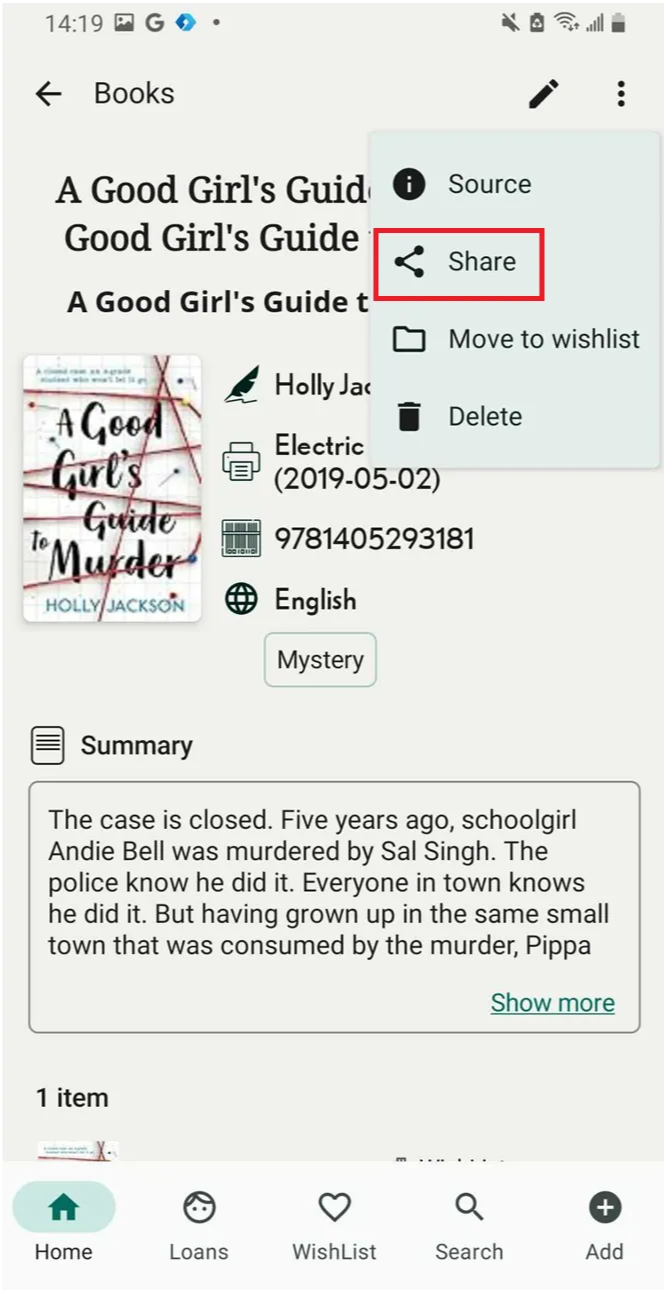
Step 1: Access the detail of book in Book tab. Tab on the three-dot icon at the right top of corner

Step 2: Tap on “Share”
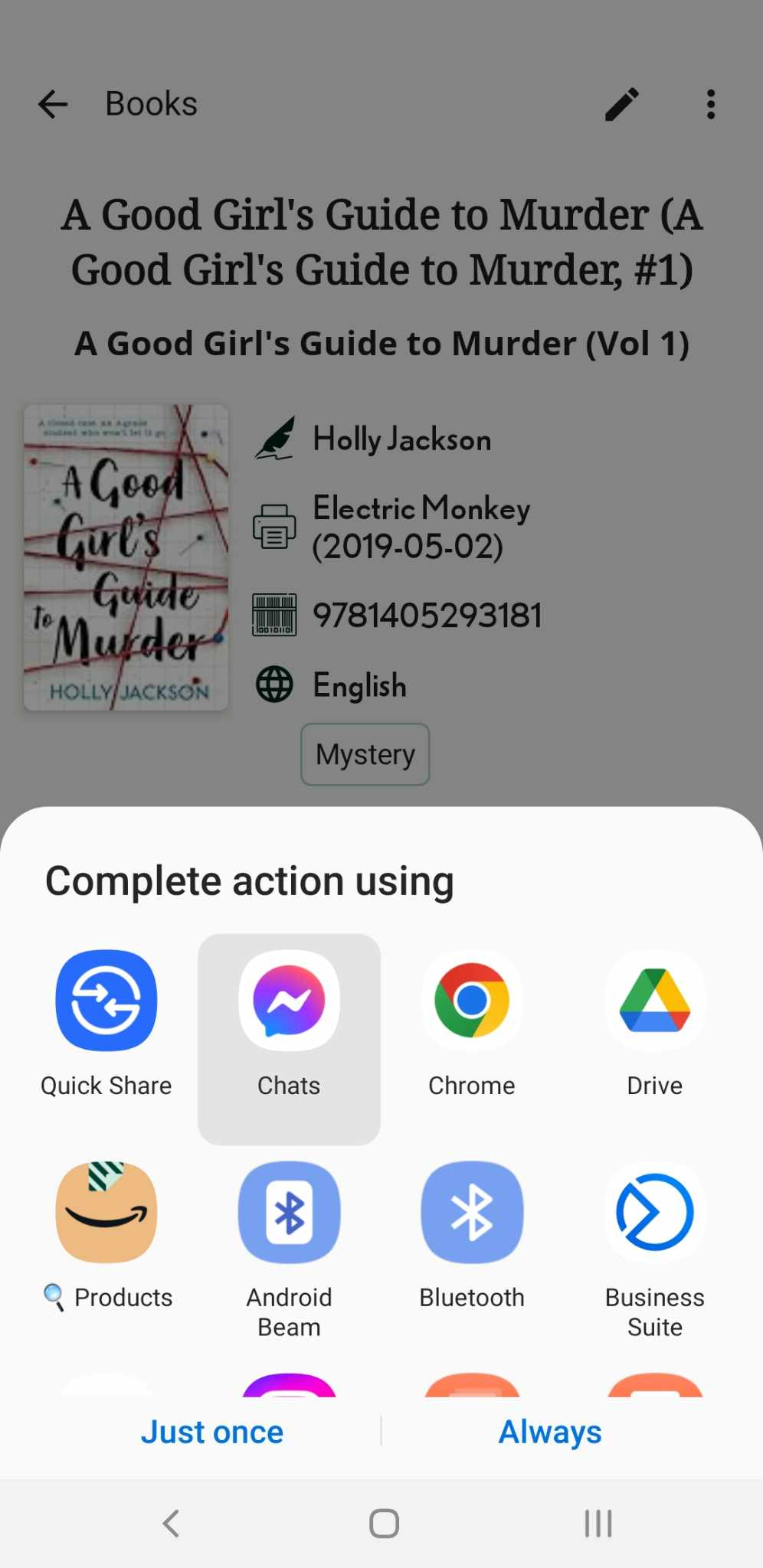
Step 3: Choose the other app to share. This book will be share with other people
Share a tag link
Step 4: Select the Library contains the tg name you want to share.
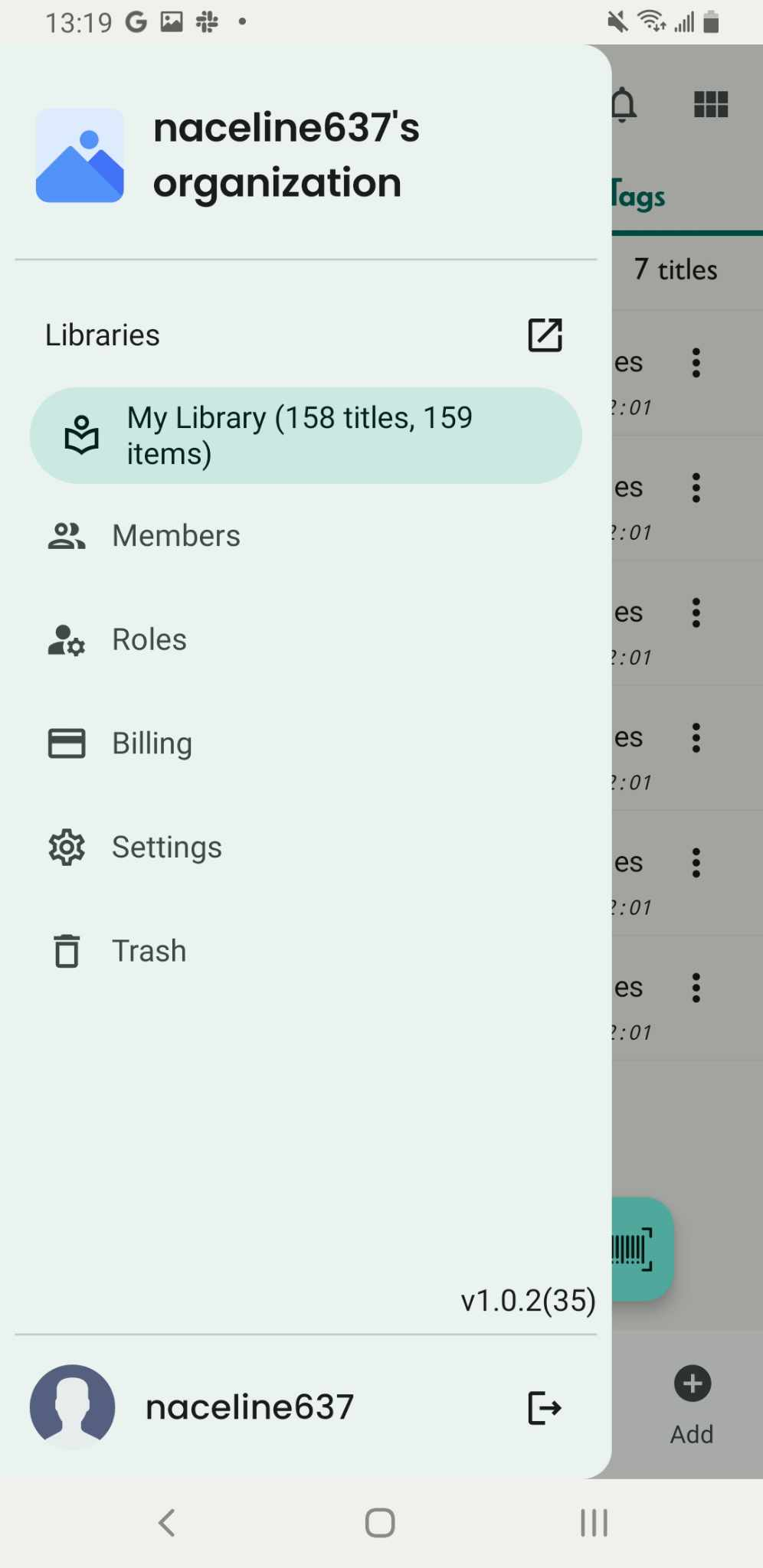
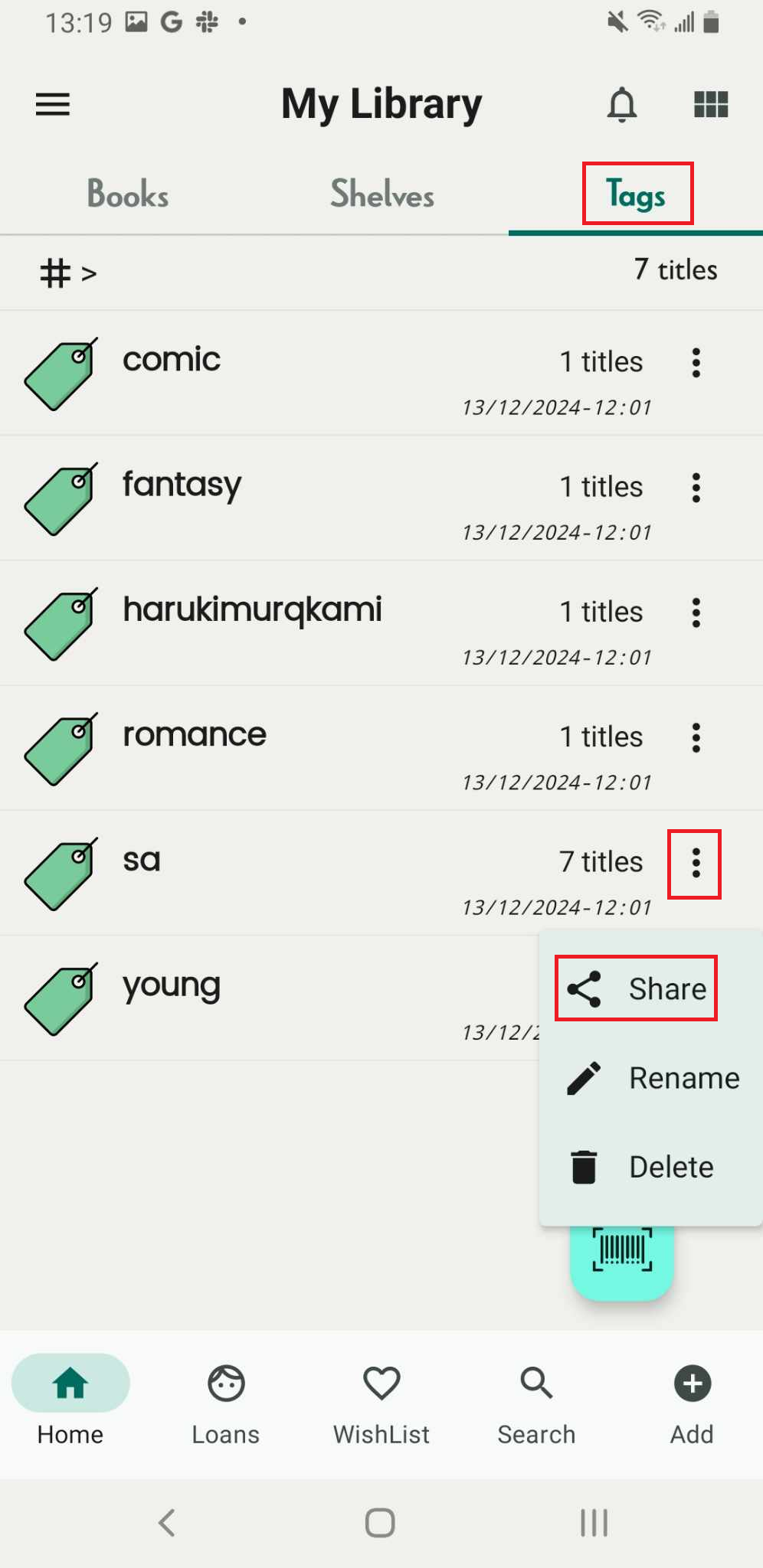
Step 5: Access the Tags Tab and all tag are shown up. Access the three-dot icon beside the name of the tag.
There are 3 options
- Share
- Rename
- Delete
Tap on “Share”
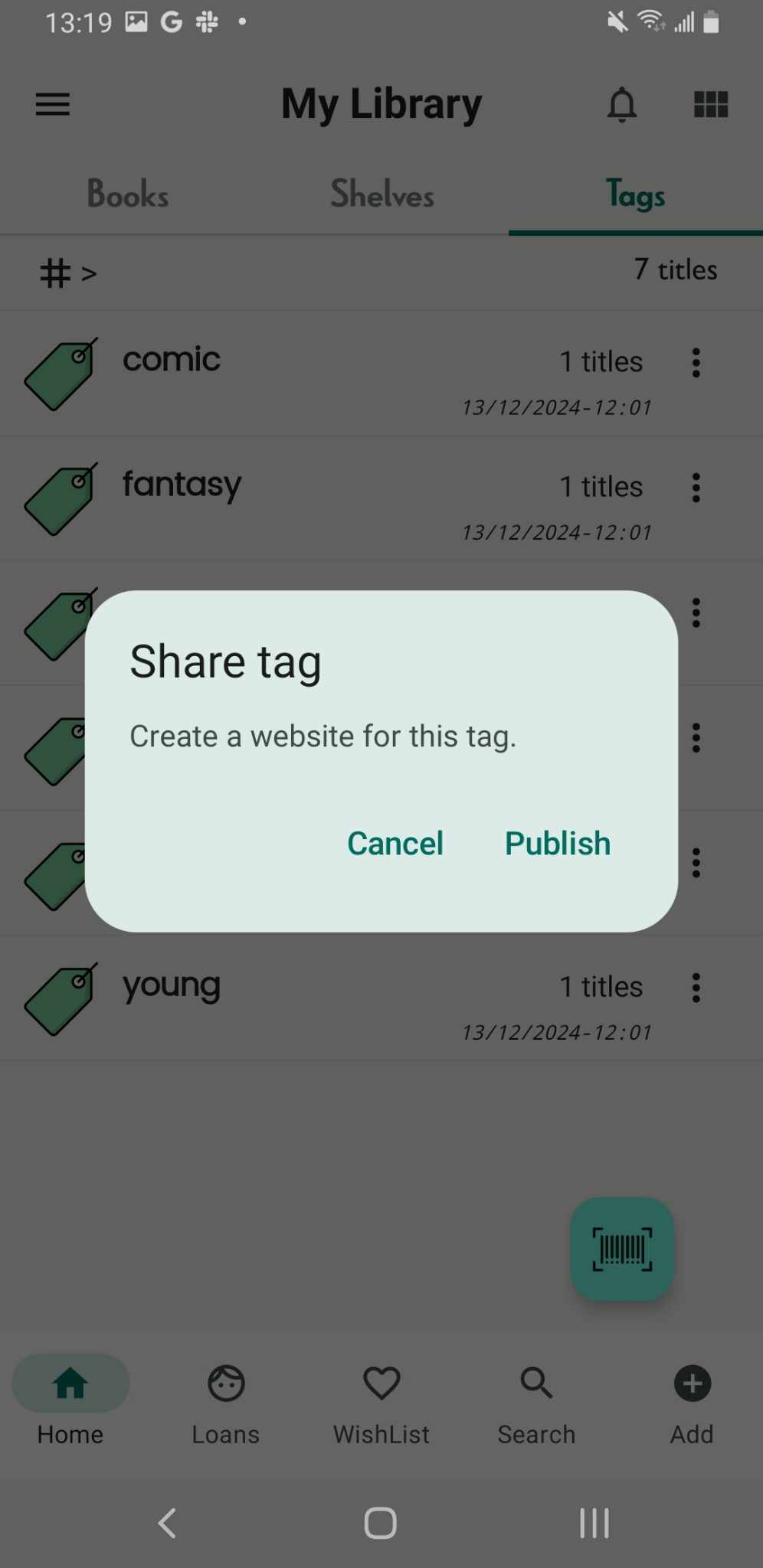
Step 6: Publish to web: Create website for this tag
- Cancel
- Publish
Tap on “publish”
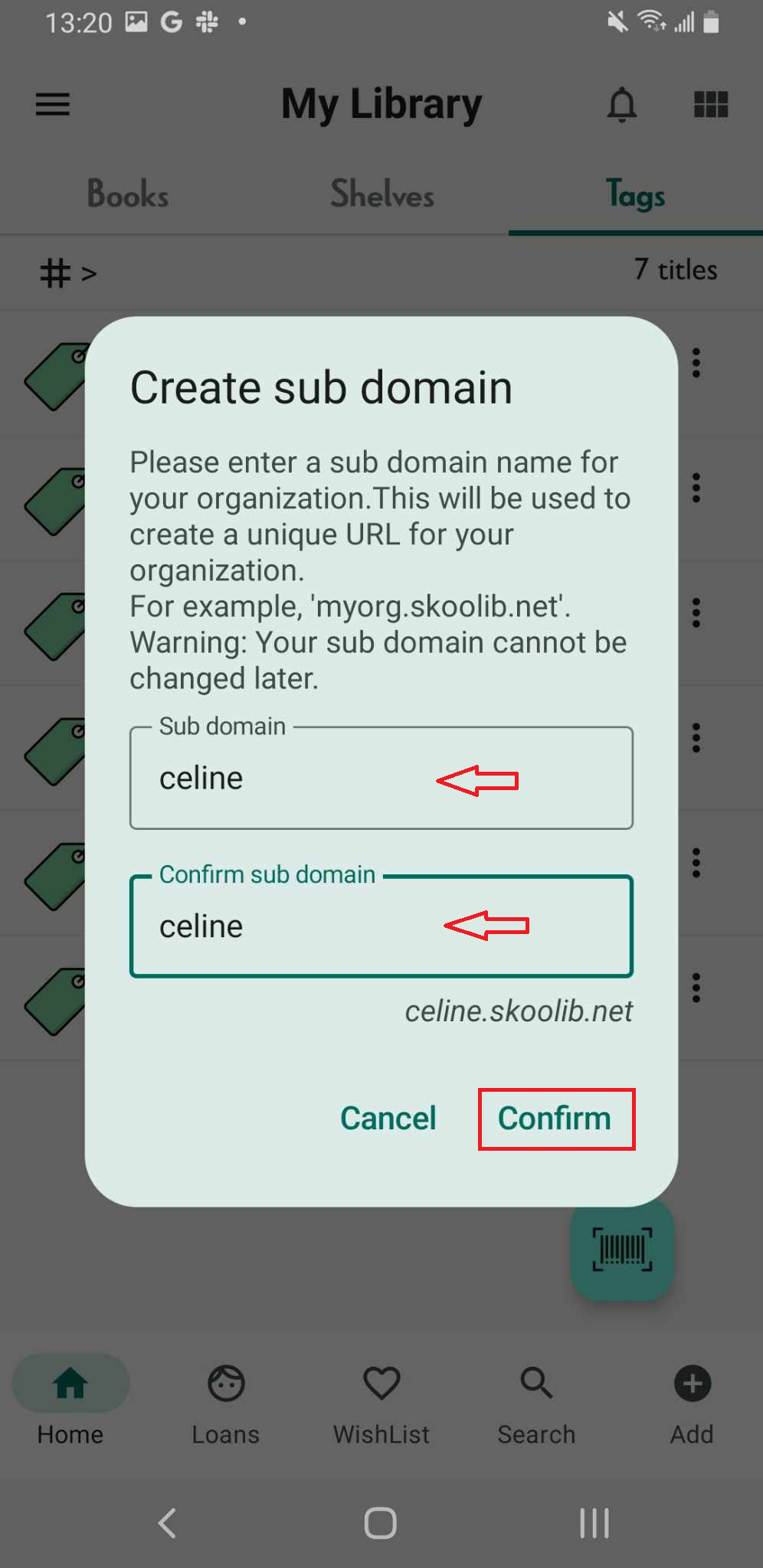
Step 7: Create sub domain for the organization with .skoolib.org. Enter the sub domain name
Then press “Confirm”. It shows the message “Subdomain created”
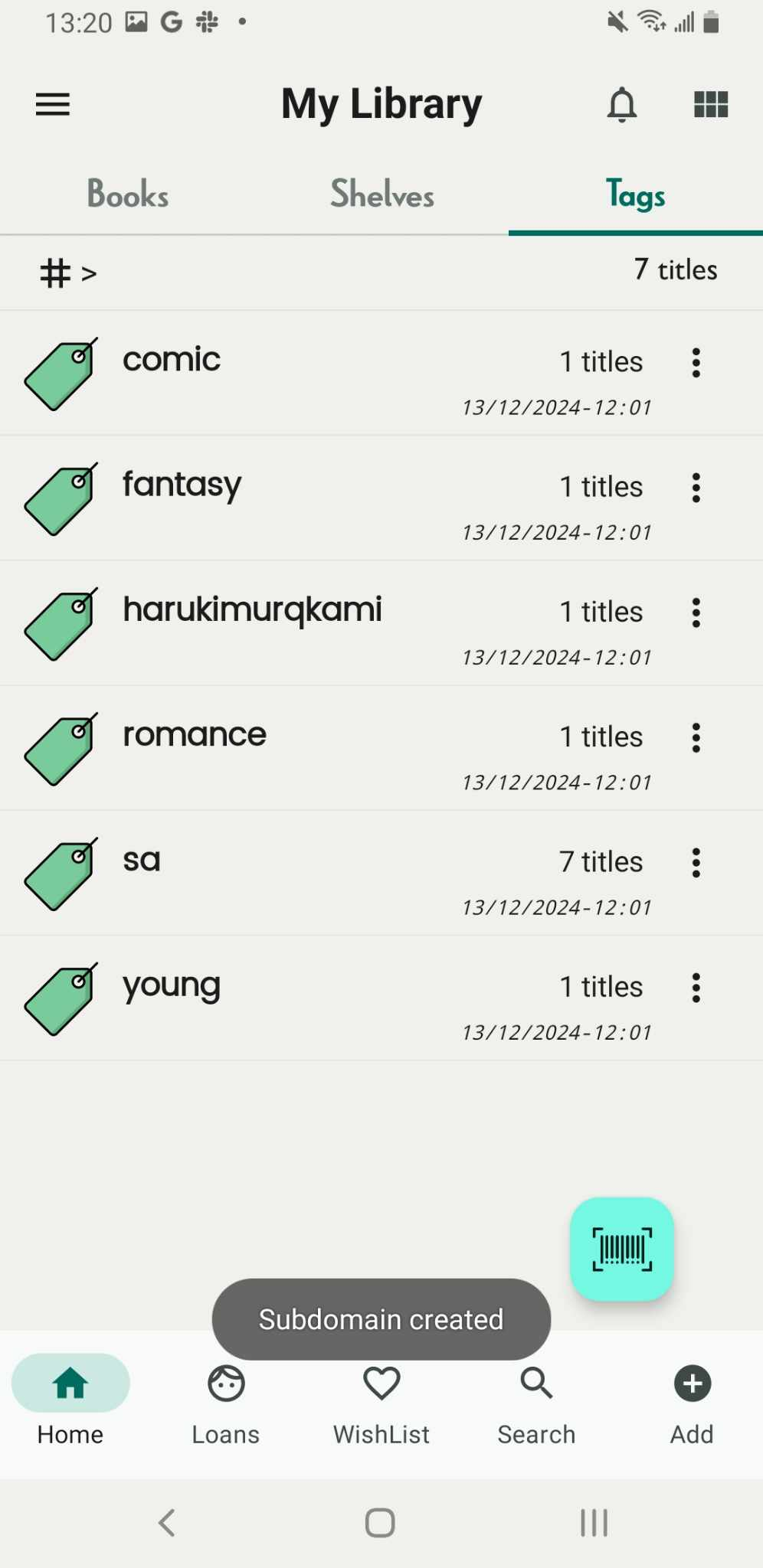
Step 8: Tap on tags tab again. Tap on the three-line icon beside the name of the tag
There are 3 options
- Share
- Rename
- Delete
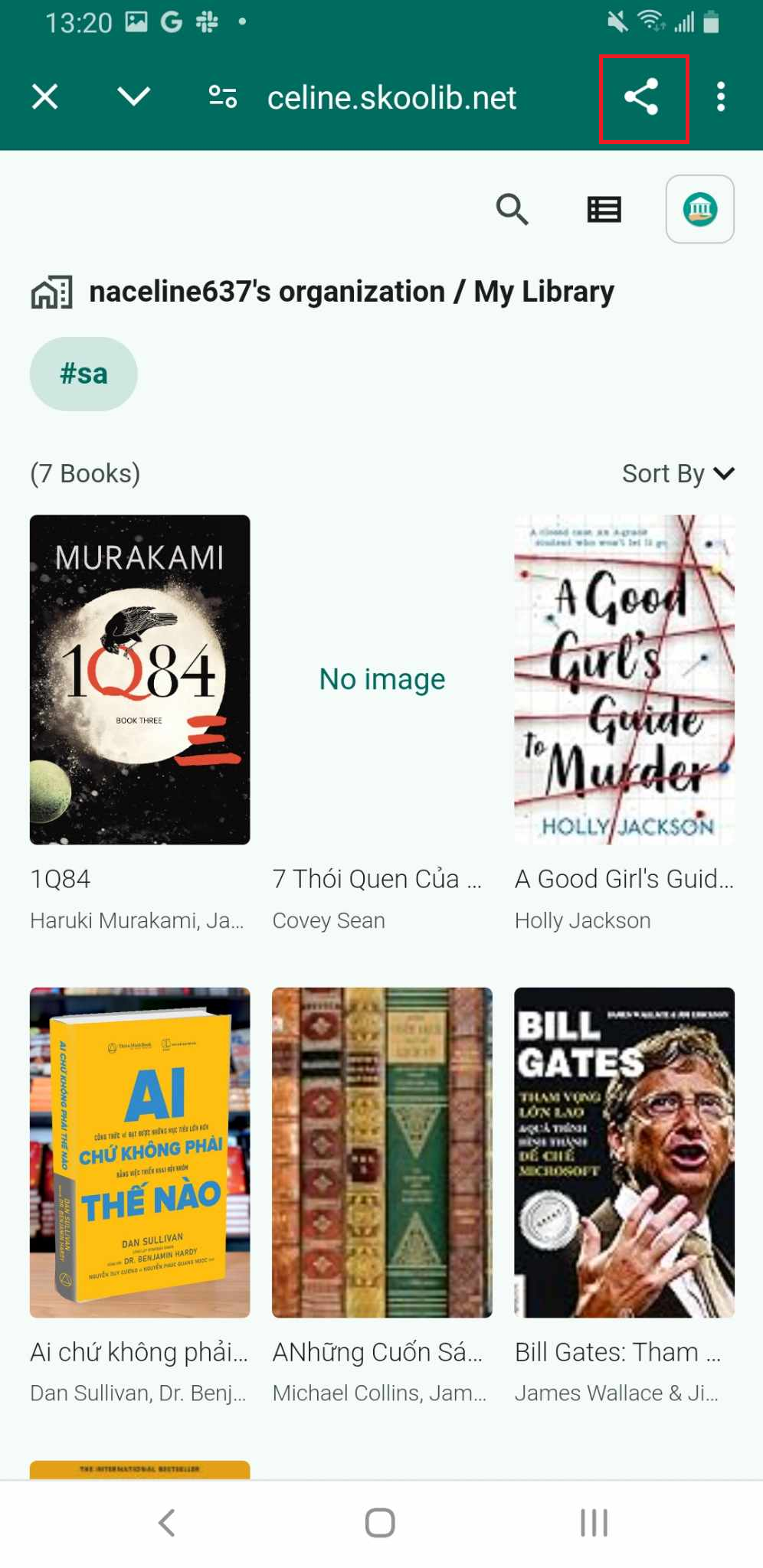
Tap on “Share”, It shows the link of book with tag you choose
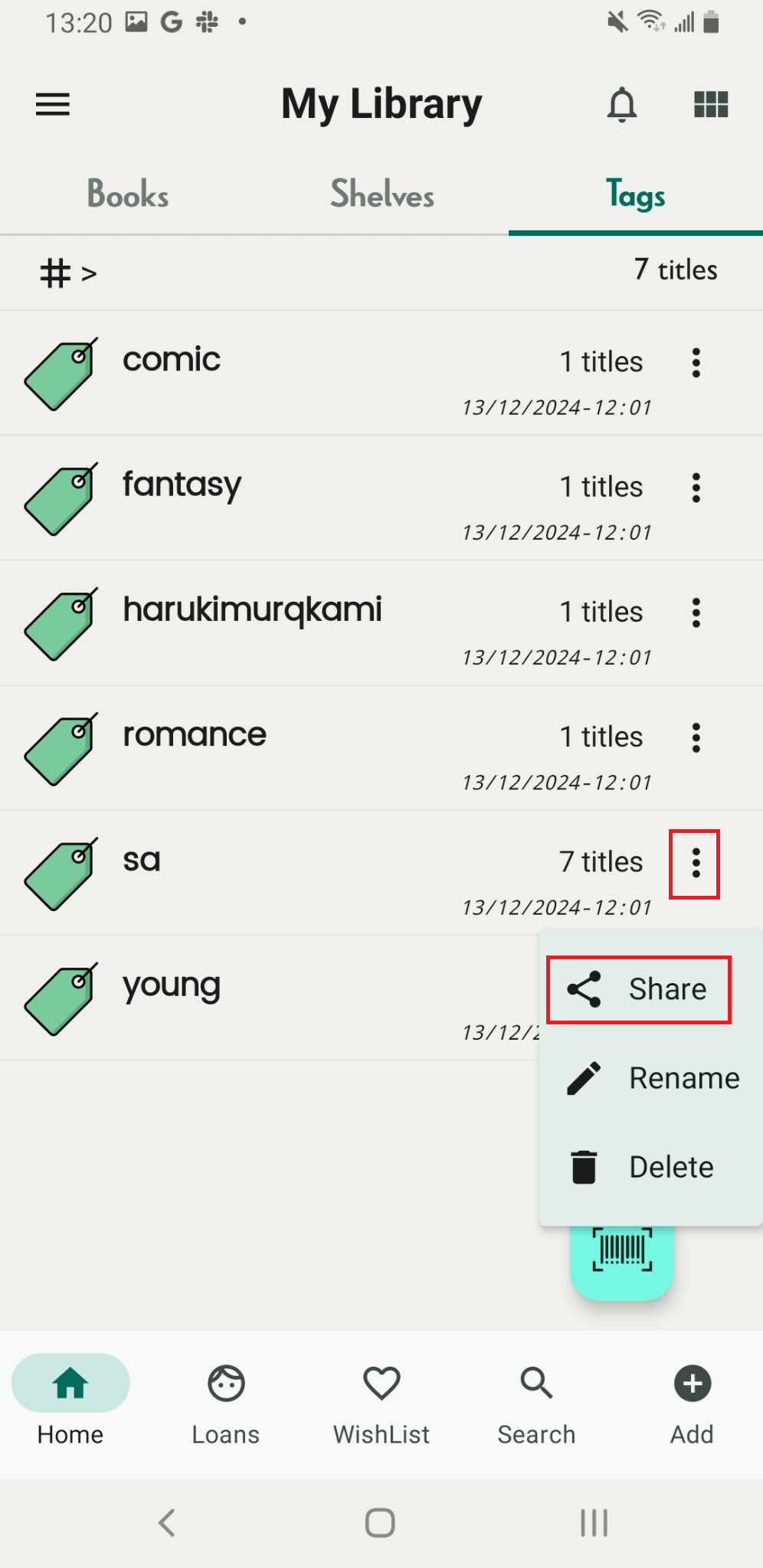
Step 9: Tap on the share icon. User can share link with others
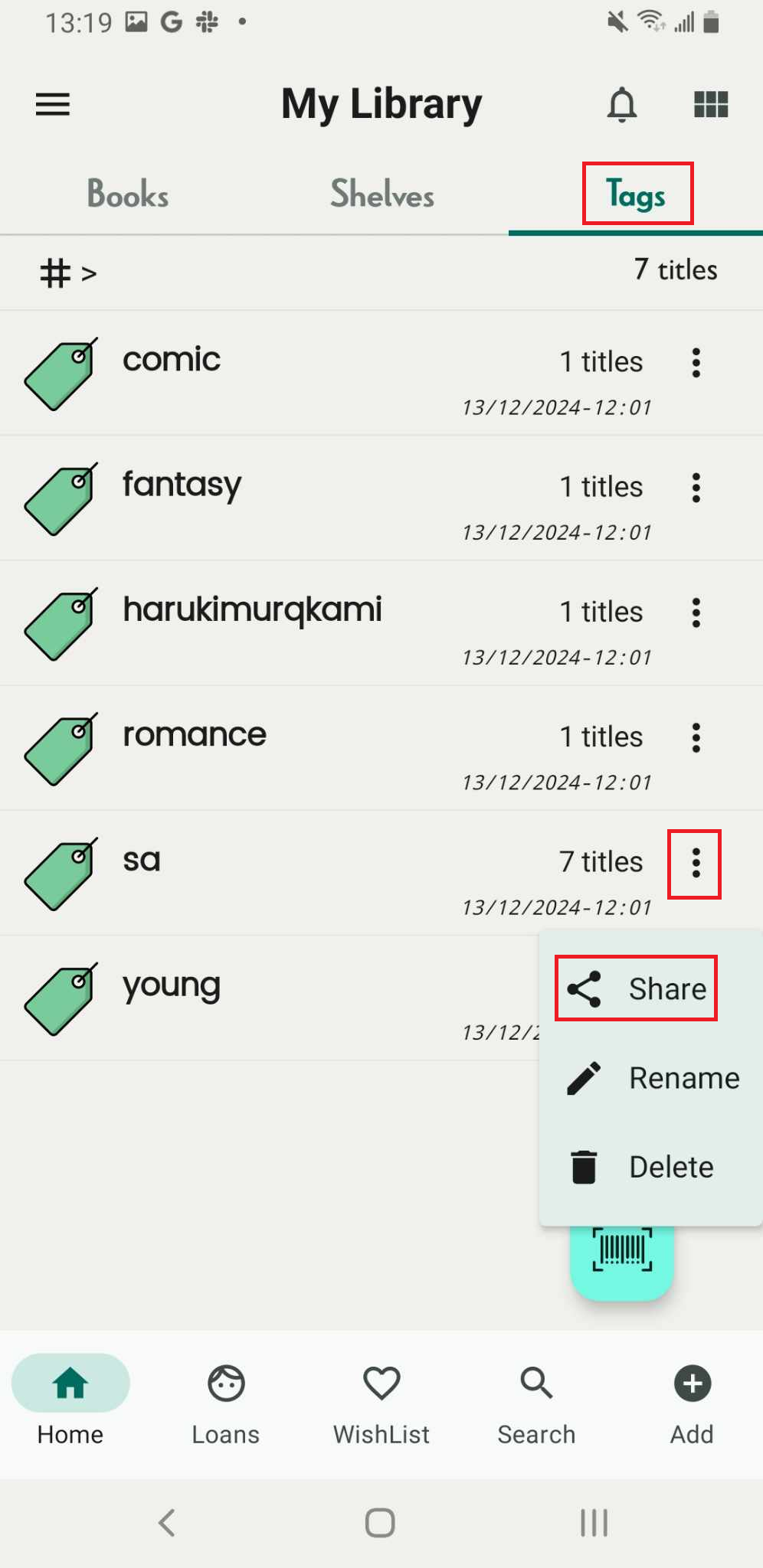
Unpublish a tag link
Step 10: Access the Tags Tab on the main screen. All the tags are displayed in a list format.
Step 11: Access the three-dot icon beside the name of the tags.
There are 3 options
- Share
- Rename
- Delete
Tap on “Share”
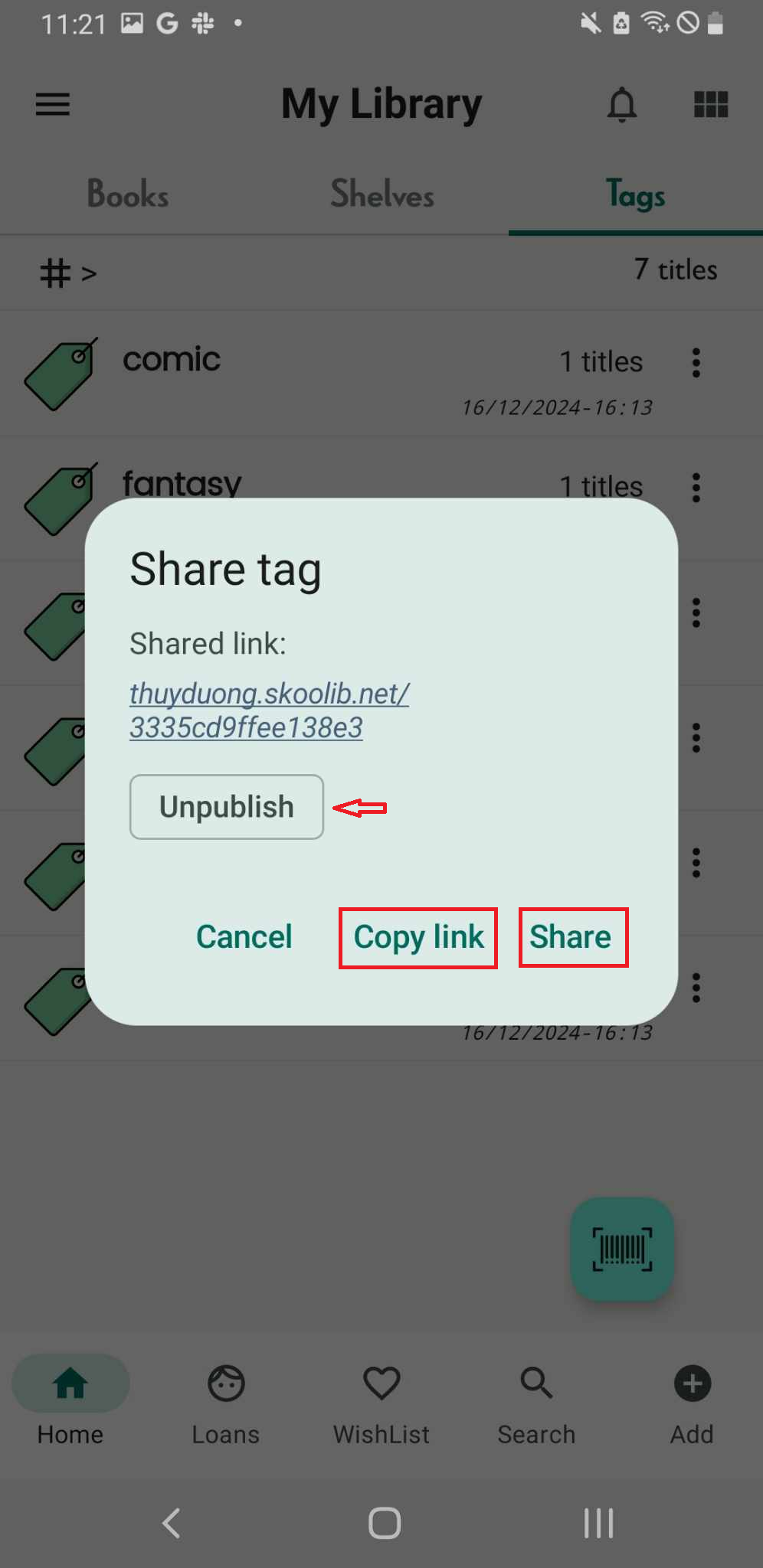
Step 12: Shared link” name.skoolib.org/
Unpublish:
- Cancel
- Copy link
- Share
Tap on “Unpublish”, the user who was sent the link can no longer access it.
Export a library
Step 13: Tap the three-dot icon to open the side menu.
Step 14: Tap “Library” to view all libraries and their information.
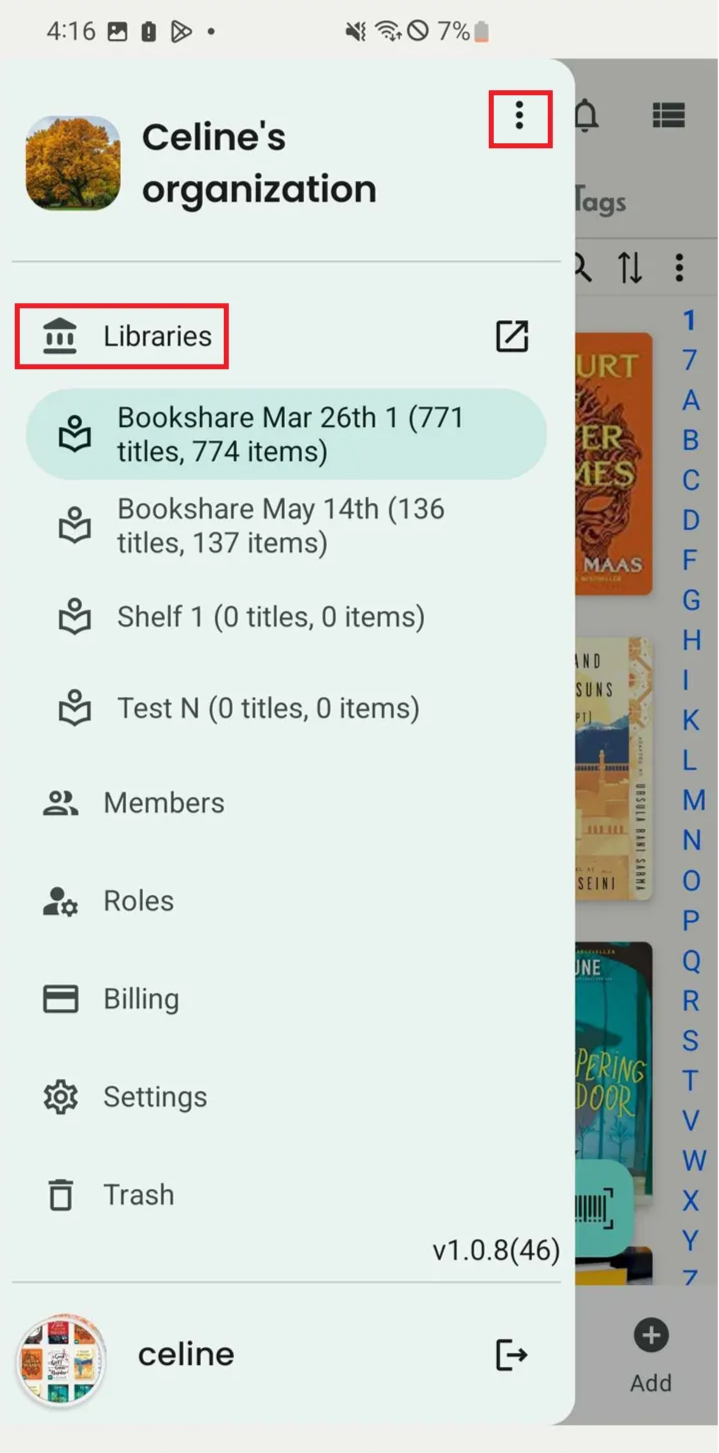
Step 15: Tap the three-dot icon next to each library to show more options.
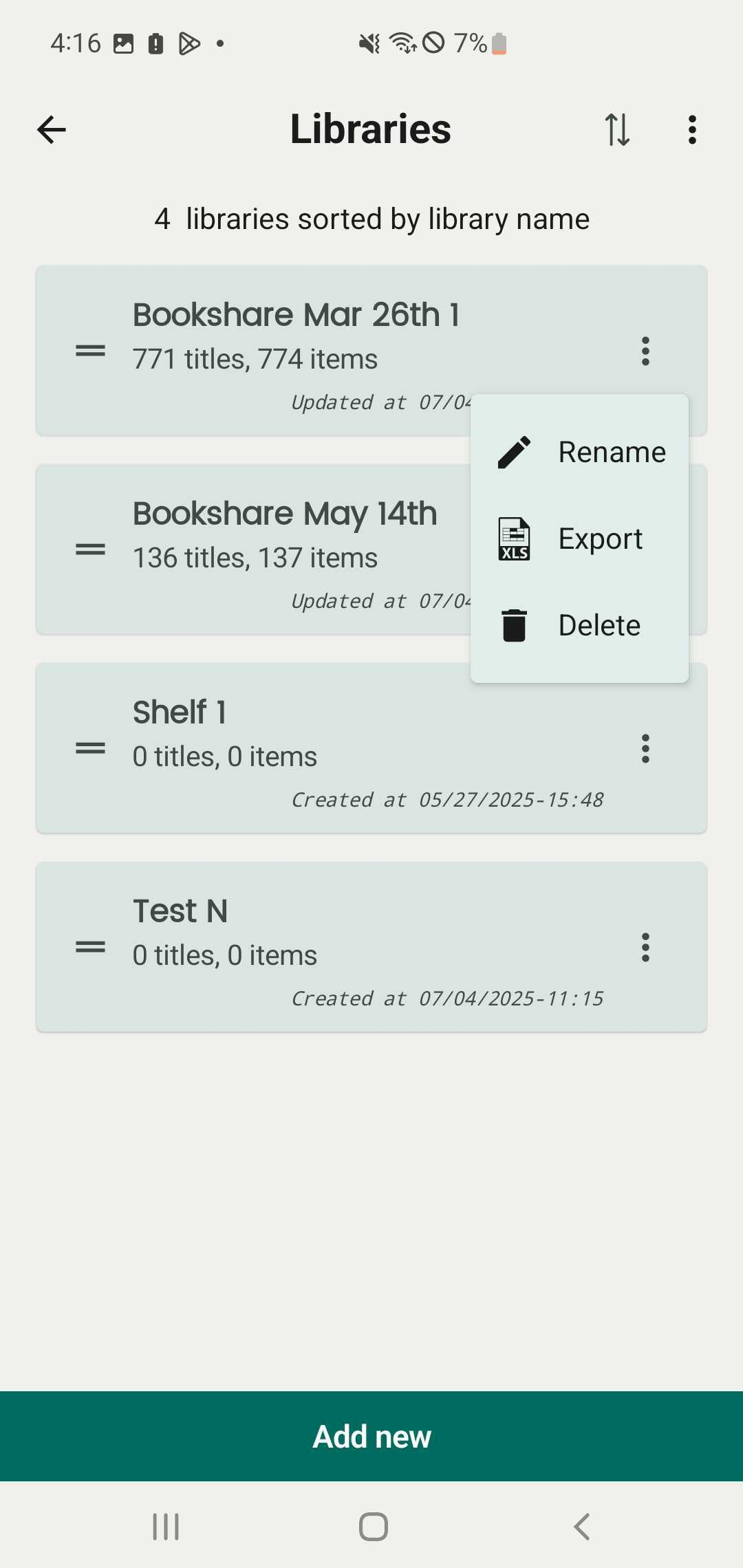
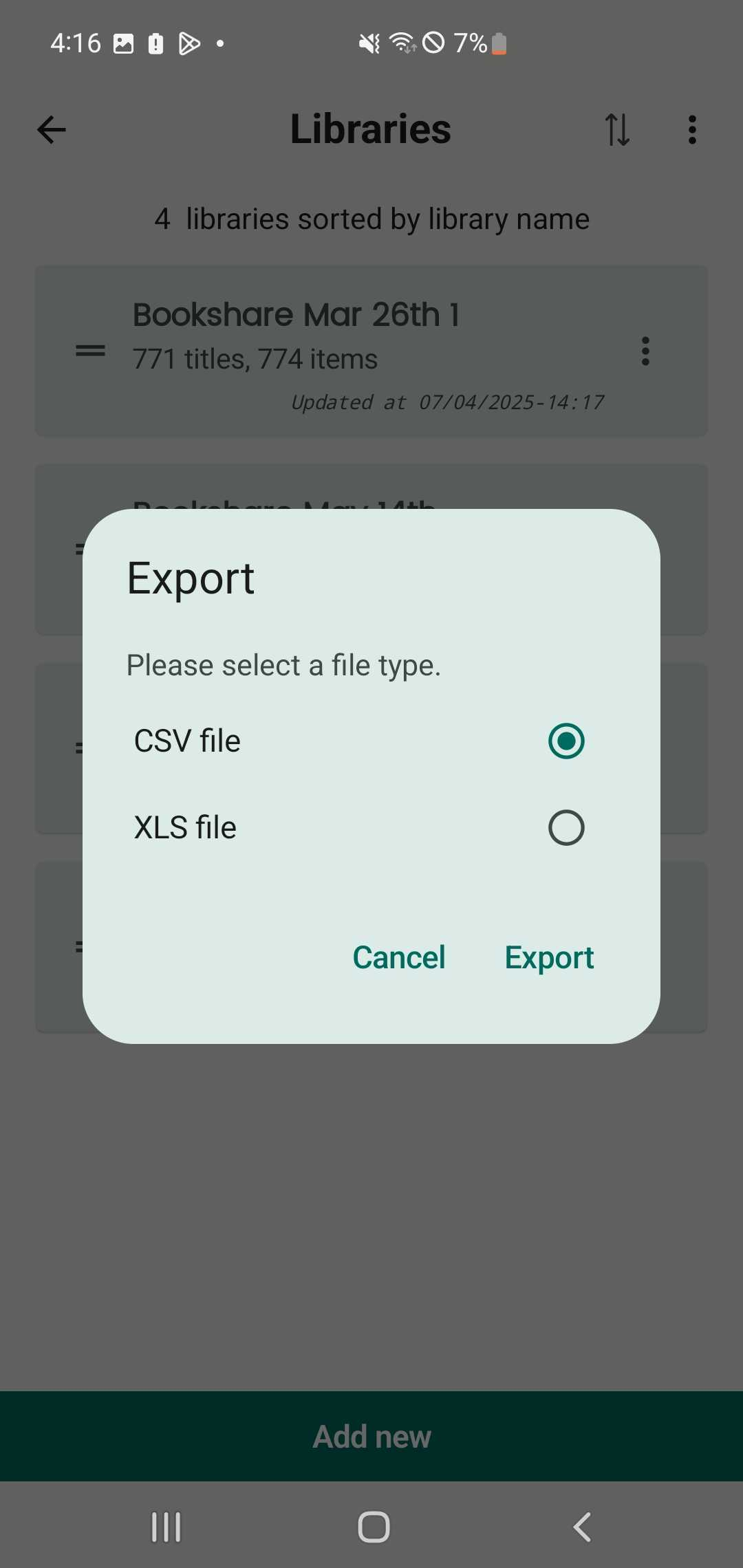
Step 16: Tap “Export”, then choose a file type:
- **CSV file**- **XLS file**Step 17: Press “Export”.
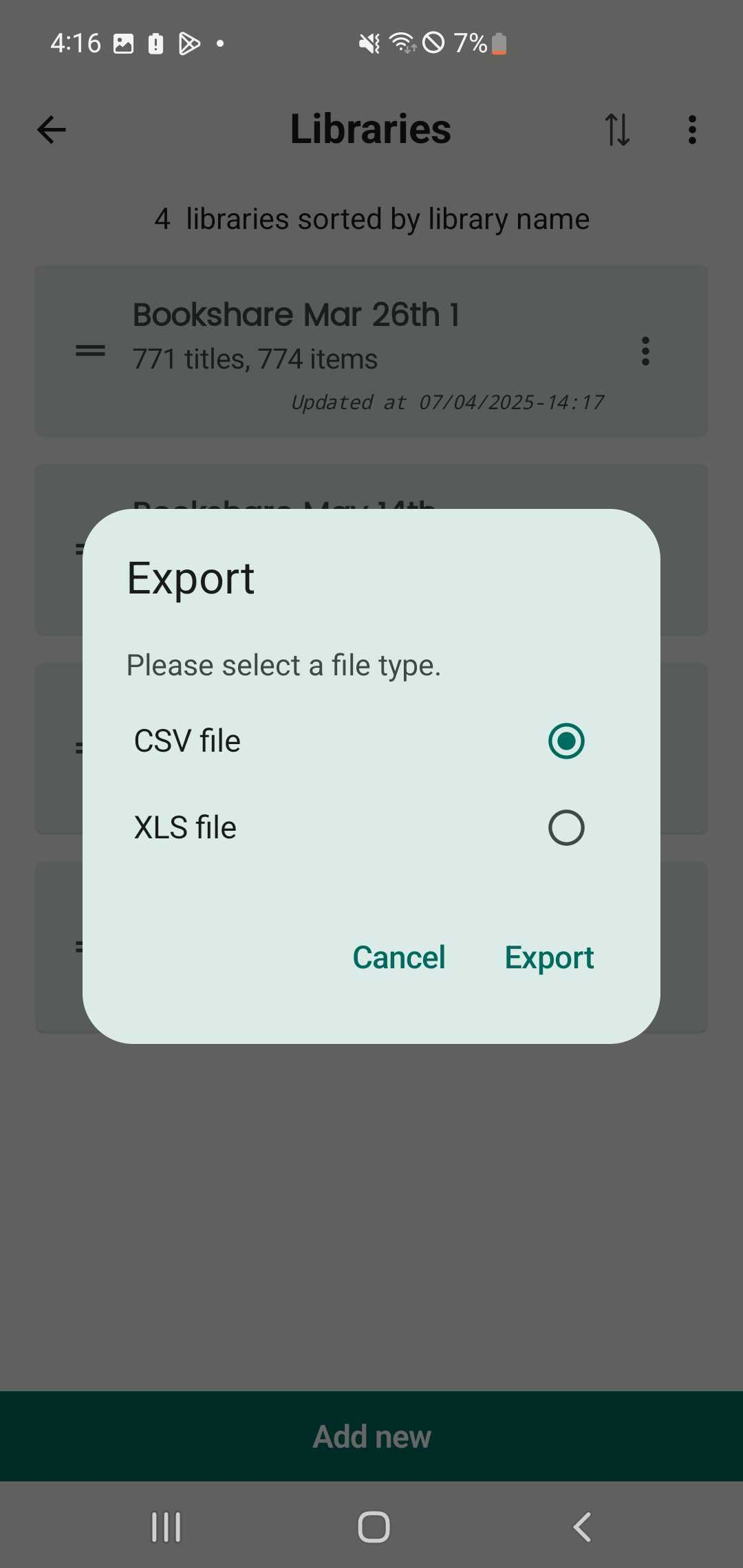
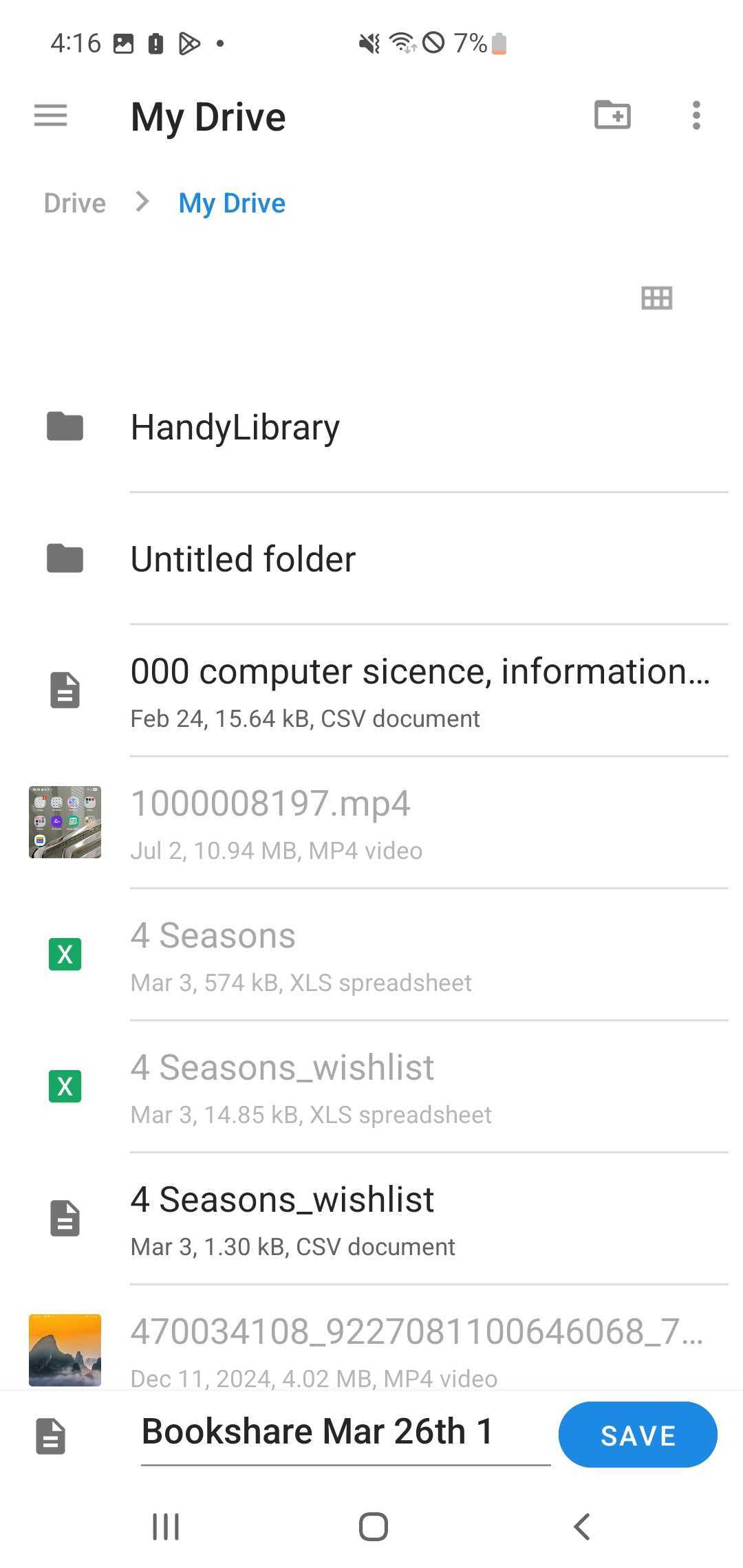
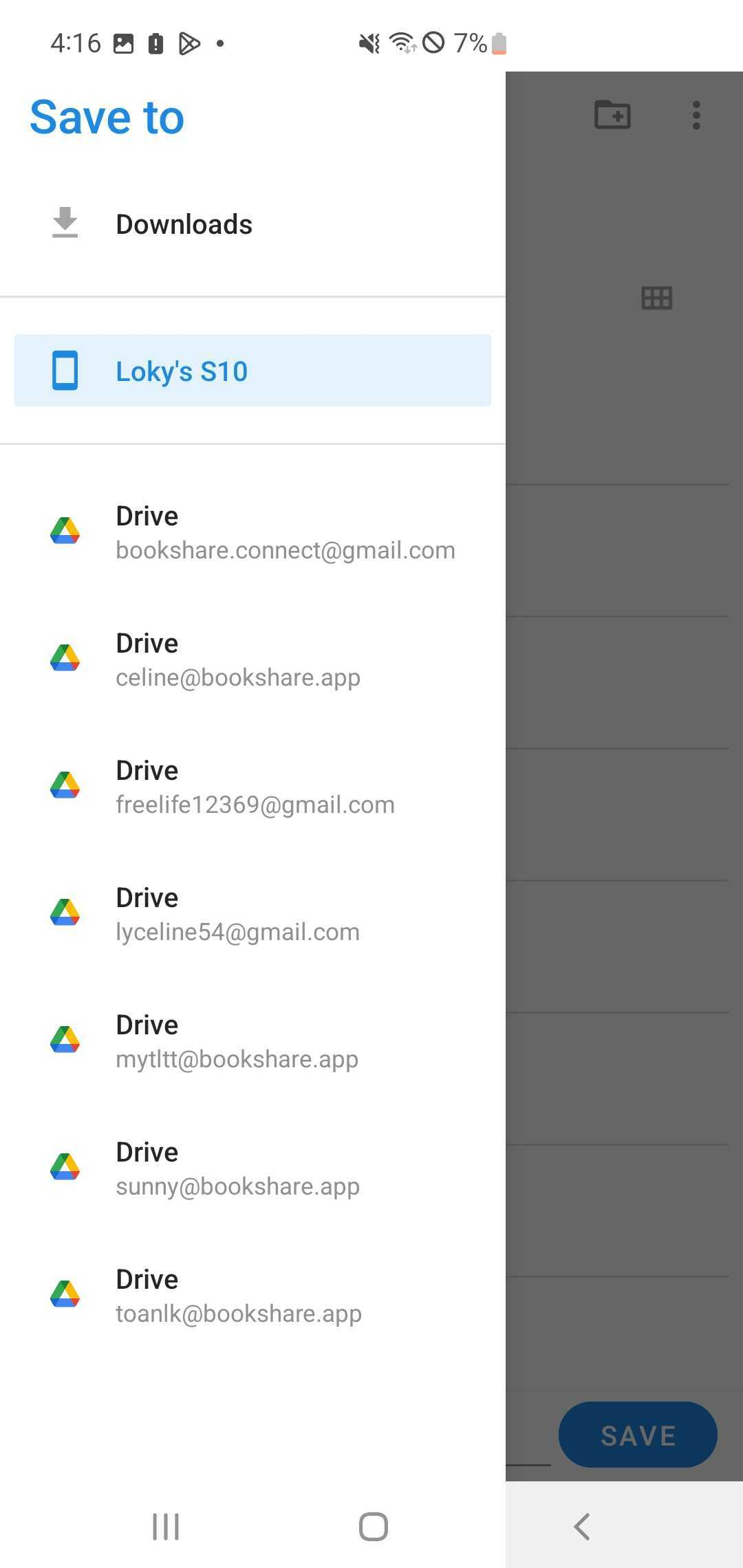
You can save the file to your Drive or device storage.
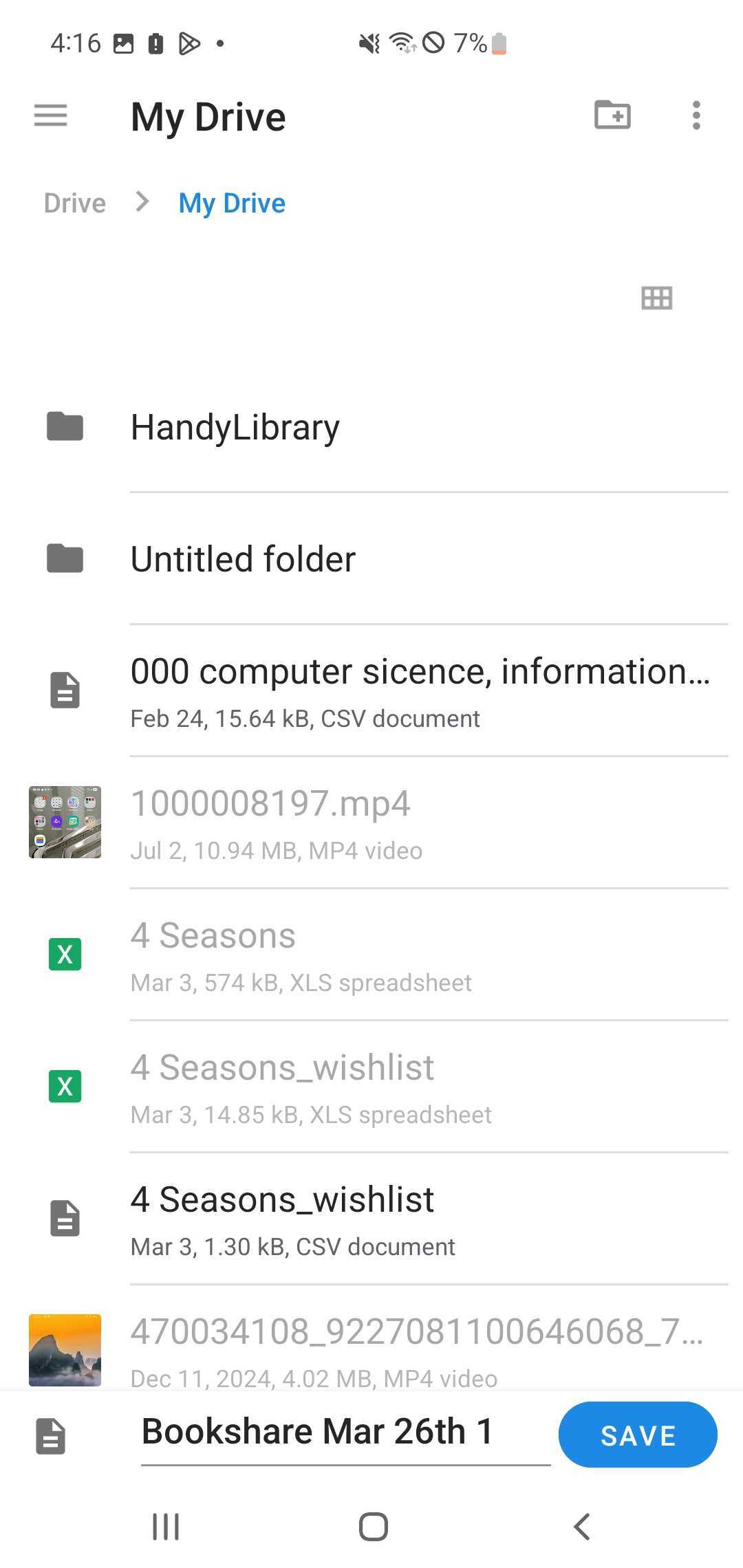
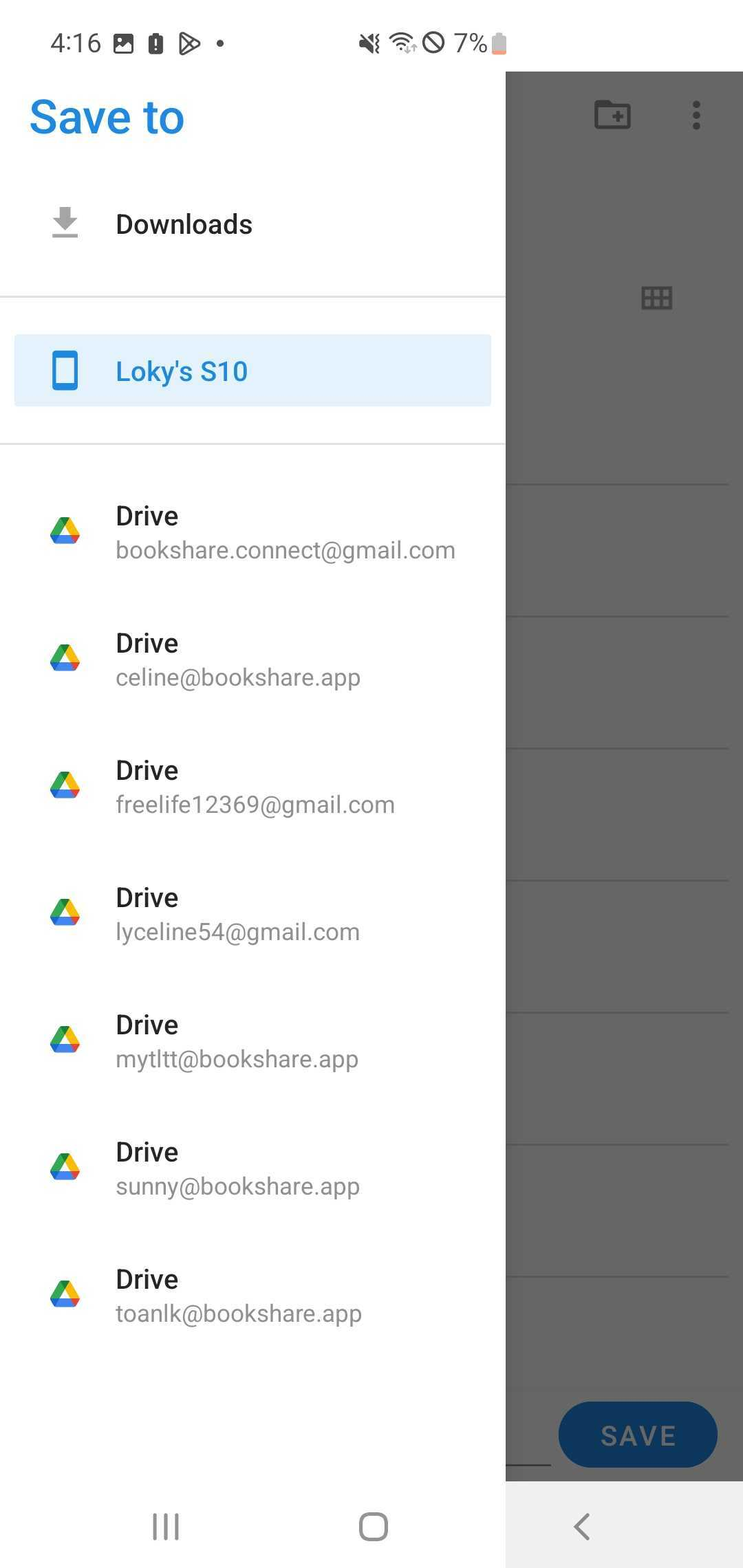
Export a list of book.
Step 18: Open app and go to Books tab
Step 19: Long press a book you want to export
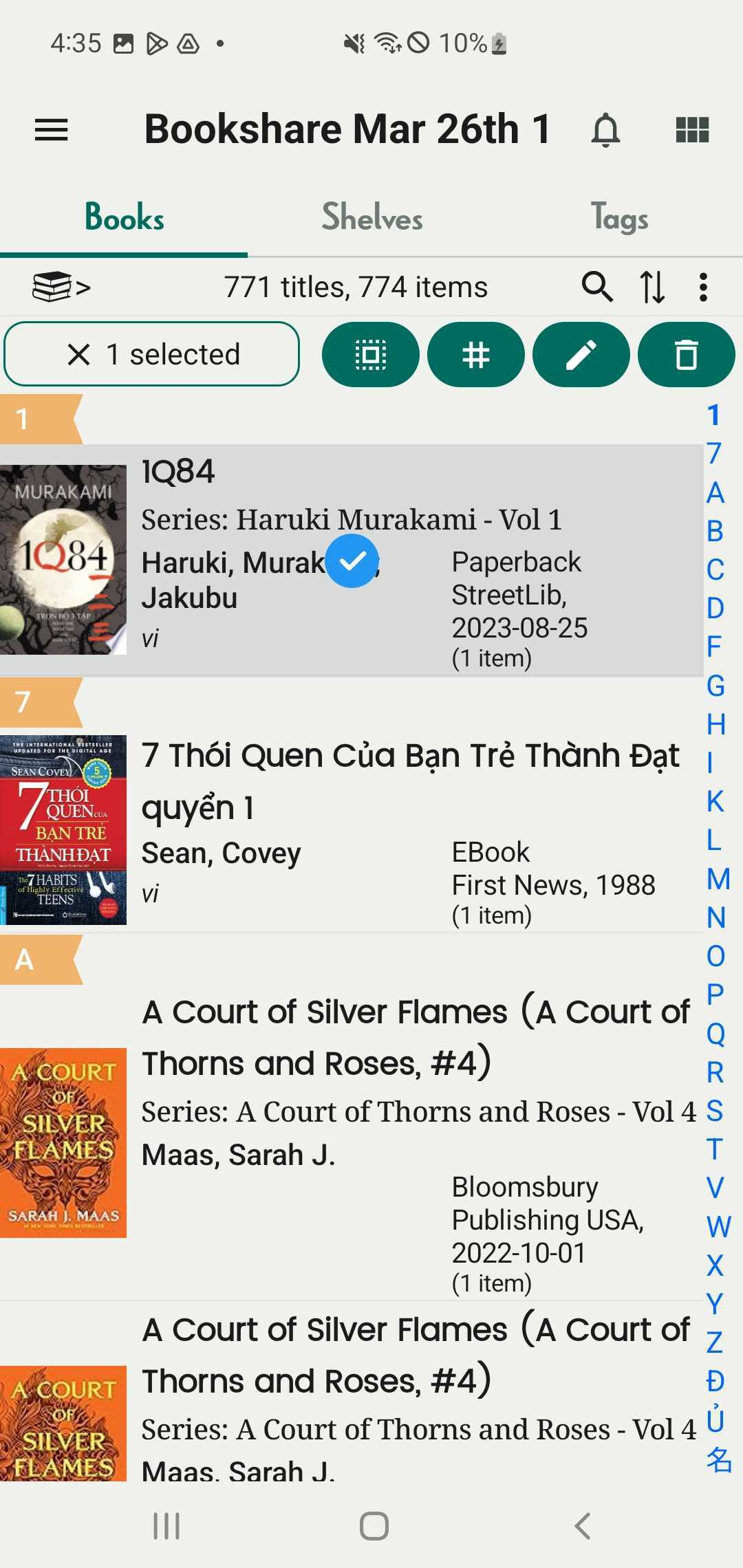
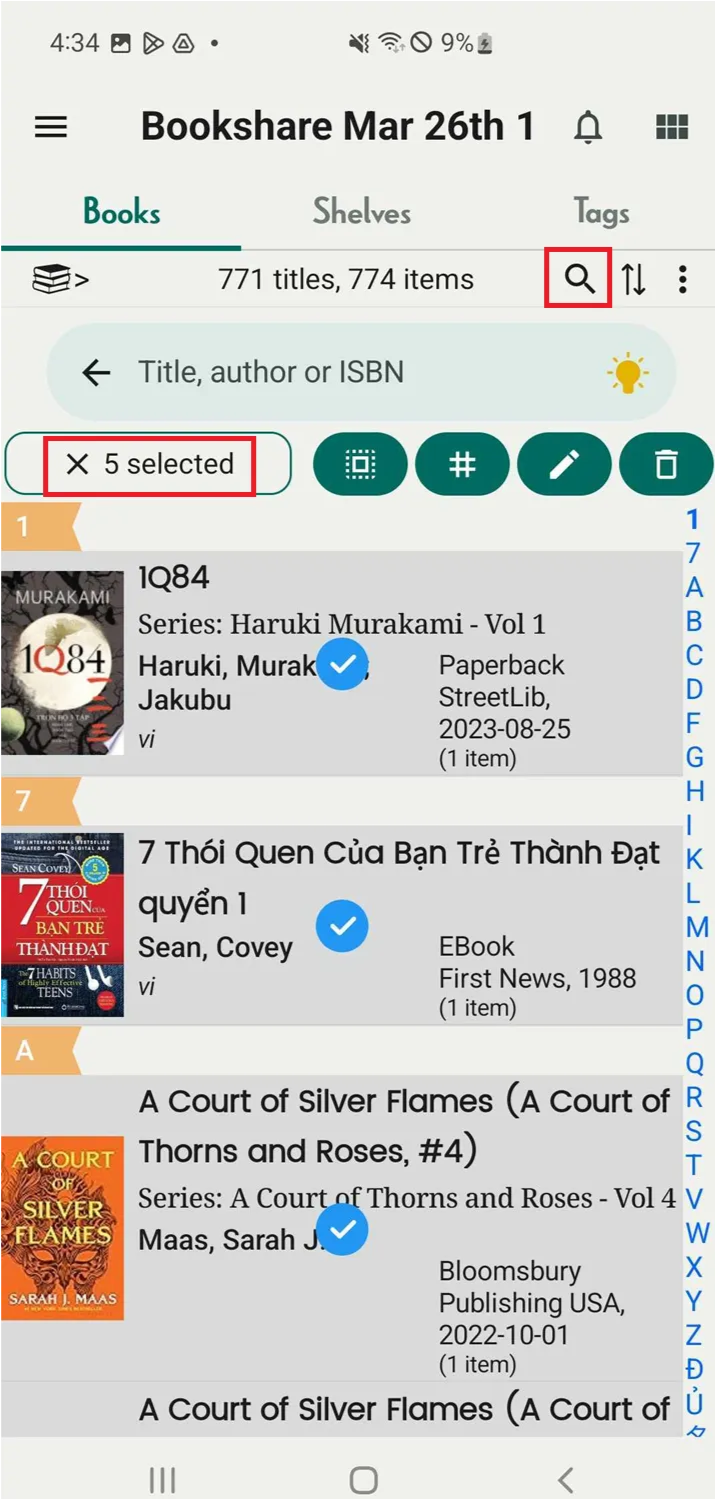
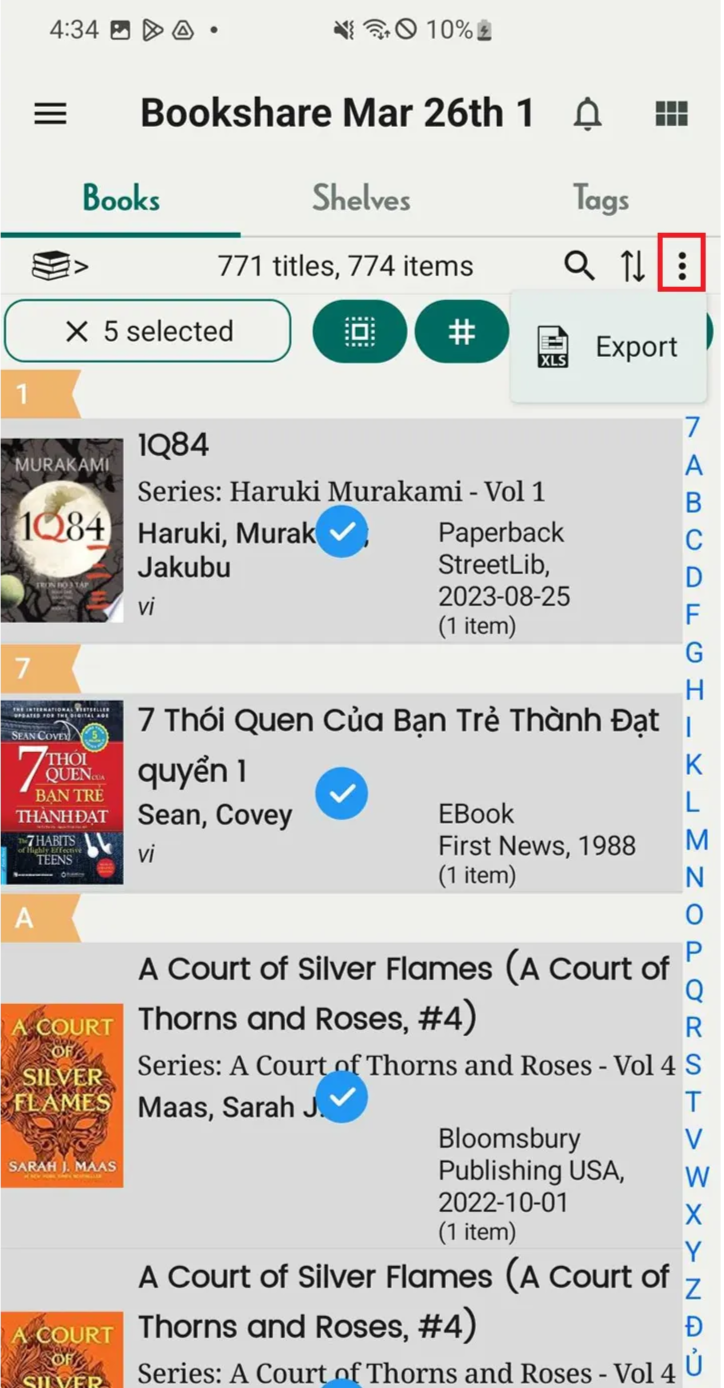
Step 20: Select more books if needed. You can tap the search icon to find books directly. The number of selected books will appear.
Step 21: Once done, tap the three-dot icon next to the two-arrow icon.
Step 22: Tap “Export”.
Step 23: Select a file type:
- CSV file
- XLS file
Step 24: You can save the file to your Drive or device storage.