
Placing Holds as a Library Member
Members of a library organization can self-reserve books and manage their reservations. This feature is only available to members with reservation permissions enabled. Among the default roles, the Guest role does not have permission to place reservations.
- A member is entitled to place holds on books from any library to which they have access.
- The actions a member can perform on their holds are:
- Place a Hold
- Suspend a hold
- Resume a hold
- Cancel Reservation
I. PLACE A HOLD
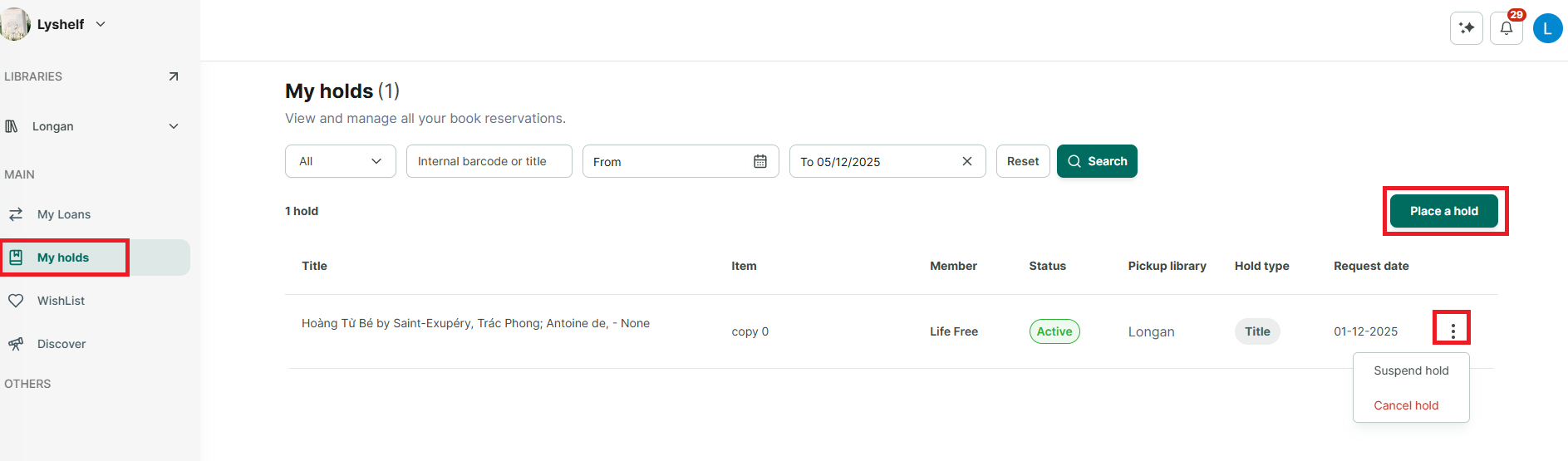
Step 1: Click the “Place a Hold” button.
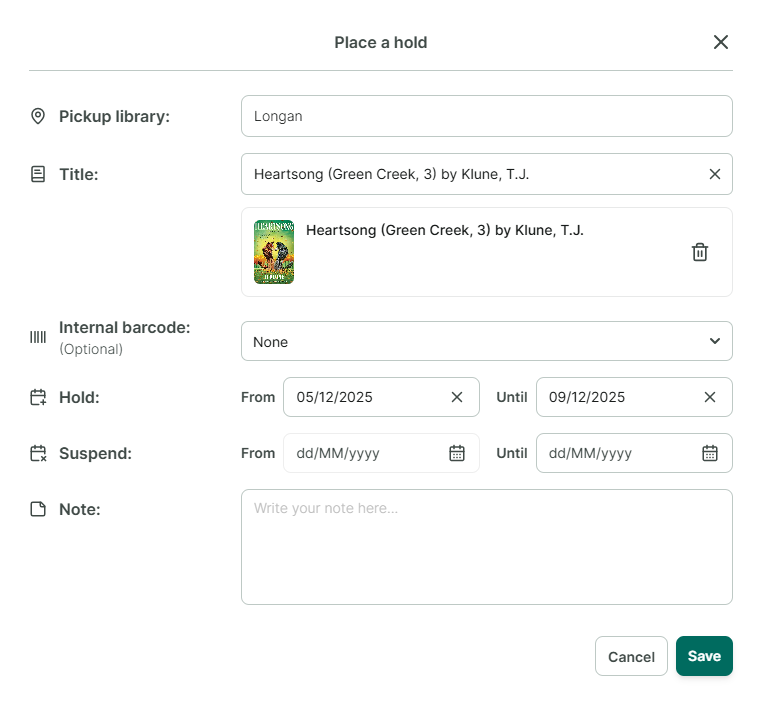
Step 2: Select the required fields in the hold details form: Library, Title, Internal Barcode (optional), Reservation Time From… To…, Suspend Duration (if needed), and Notes.
Step 3: Then click “Save” to create the hold.
- If the book has no existing holds or is not currently borrowed, the hold status will be “Active.”
- If the book already has existing holds or is currently borrowed, the hold status will be “Pending”
Step 4: After placing a hold on a book, the hold request will also be sent to the librarian for confirmation. Please monitor the hold status. When the status changes to “On hold shelf”, you can come and pick up the book.
II. SUSPEND – RESUME
A member can suspend a hold only when the book hold status is “Pending”
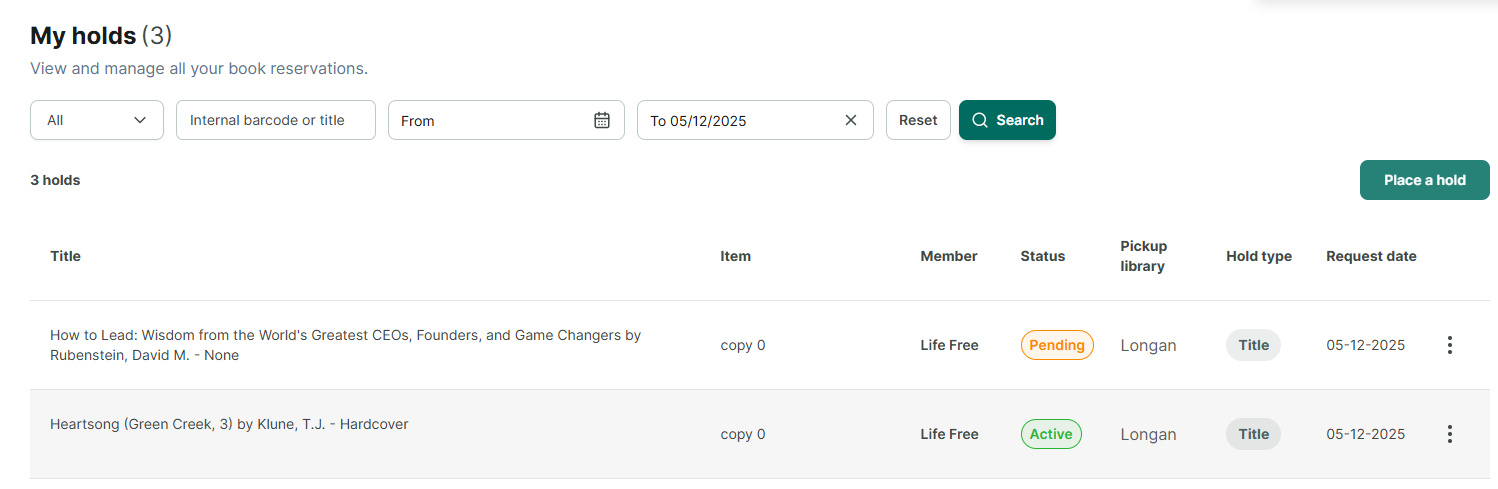
Step 5: Click on “My Holds” to view all book holds.
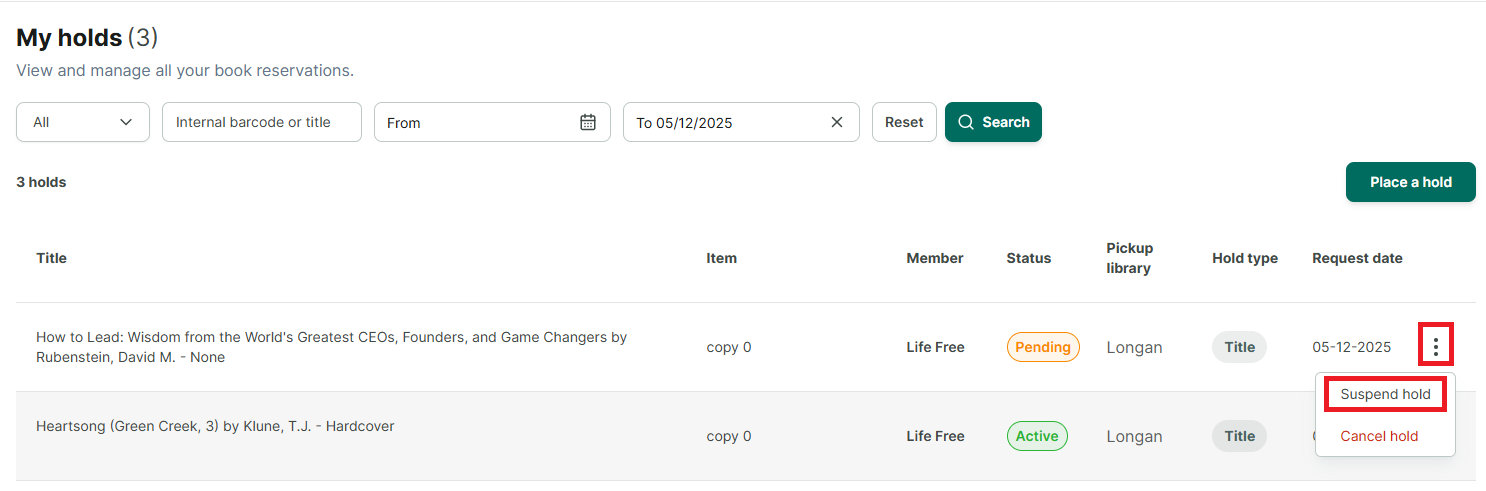
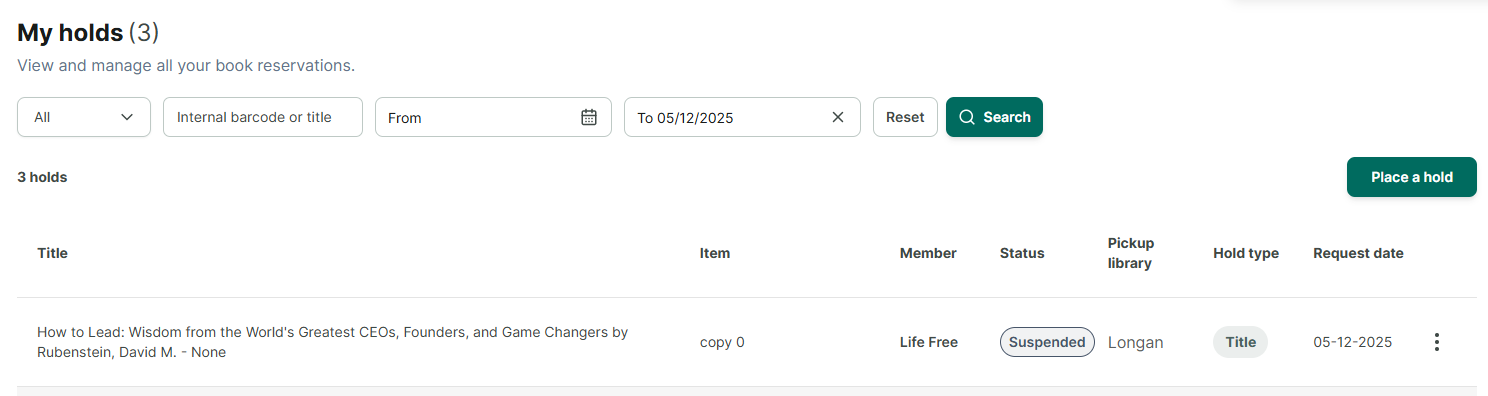
Step 6: Click the three-dot icon (⋮) next to the specific hold.
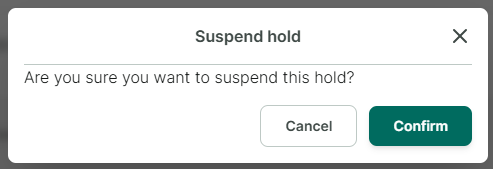
Step 7: Select “Suspend hold”
Step 8: Confirm the suspension.
Step 9: After confirmation, the status will change from “Pending” to “Suspended.”
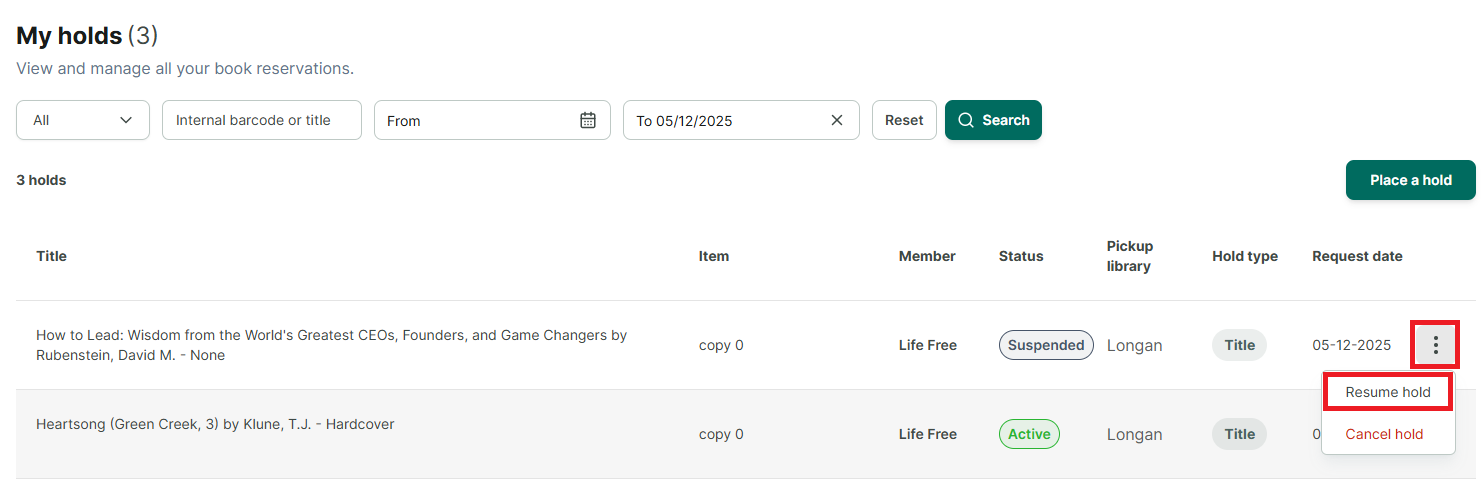
Step 10: If you wish to resume the hold: click the three-dot icon (⋮) → Select “Resume hold.”
Step 11: The hold status will change from “Suspended” back to “Pending”
III. CANCEL RESERVATION
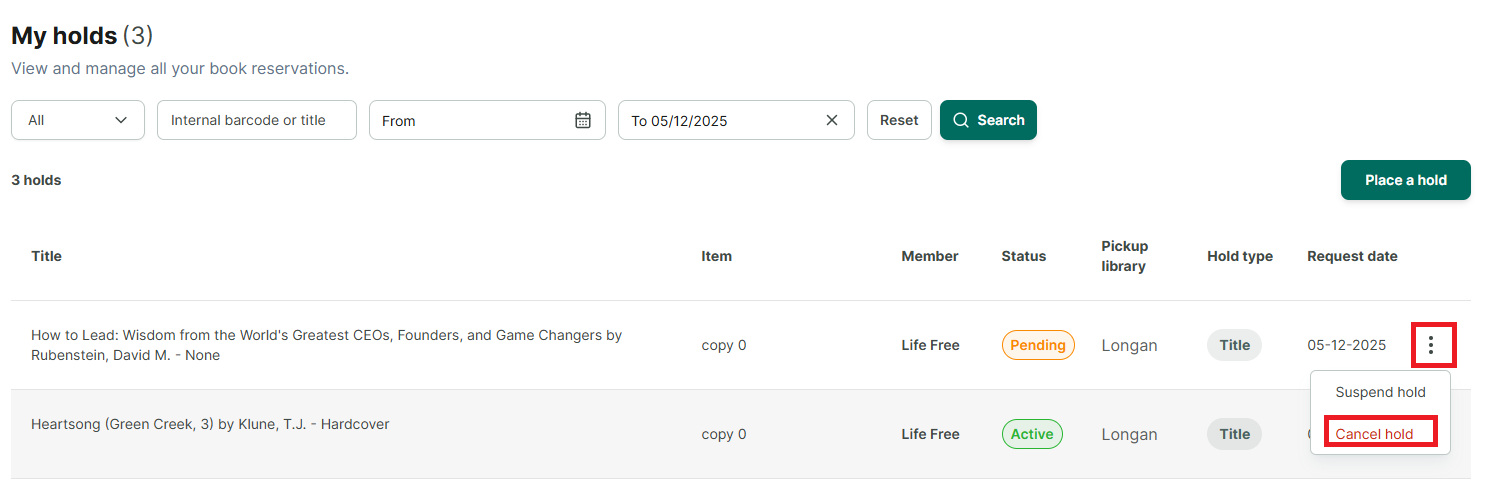
Step 12: Click the three-dot icon (⋮) on each hold.
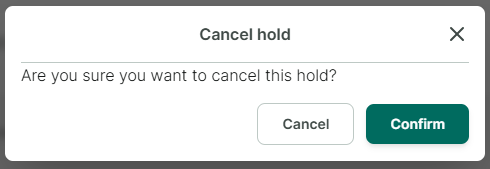
Step 13: Select “Cancel hold” and confirm.
