Quick Start for Admin and Libarian
View/Edit Organization information
Organization information
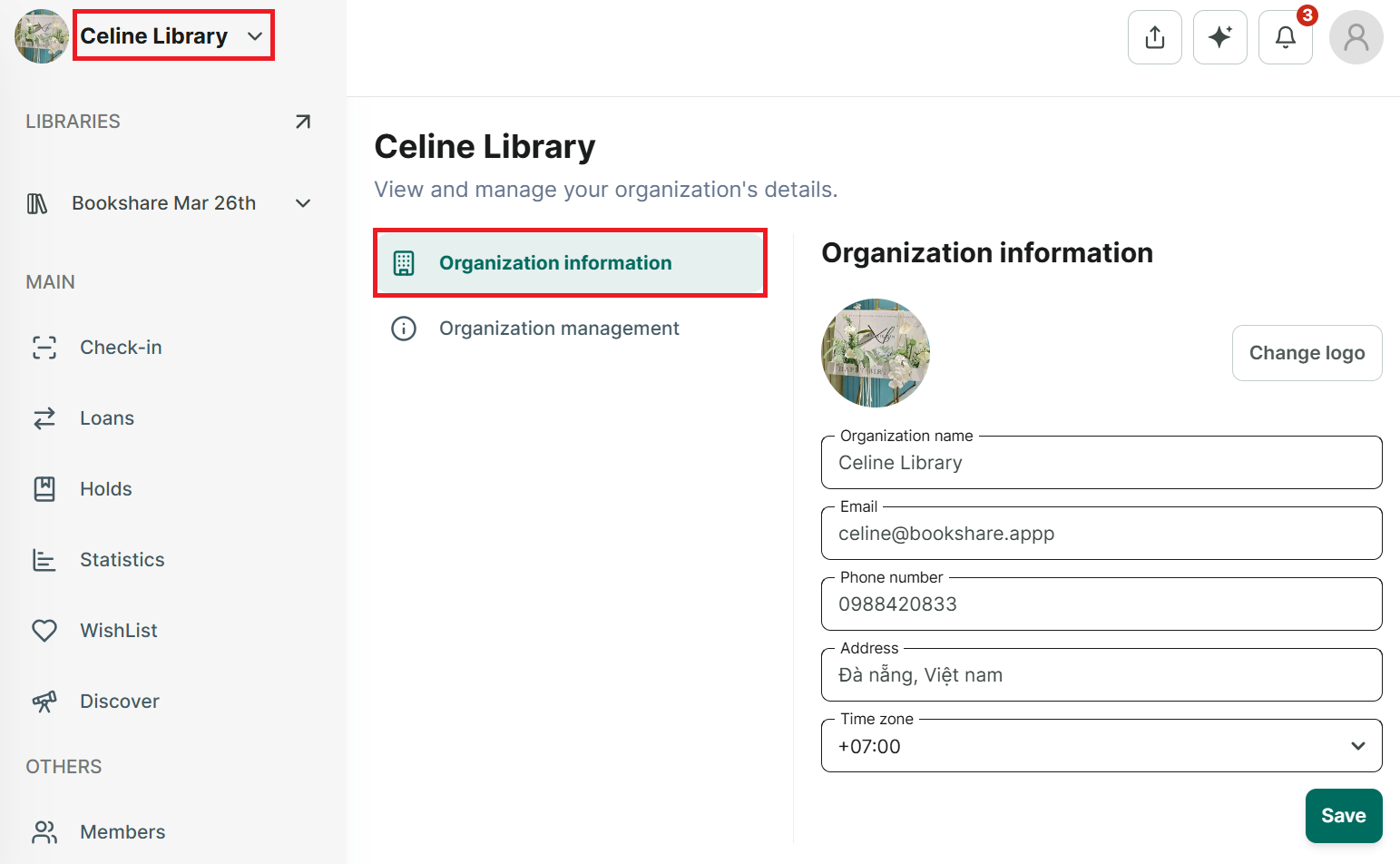
Step 1: Tap on the name of organization at the left top coner and press “Organization information”
Step 2: The screen displays the organization’s information. Edit information and press save
Step 3: You can edit all informations
Step 4: It displays the message “ Successfuly updated”
Organization Management
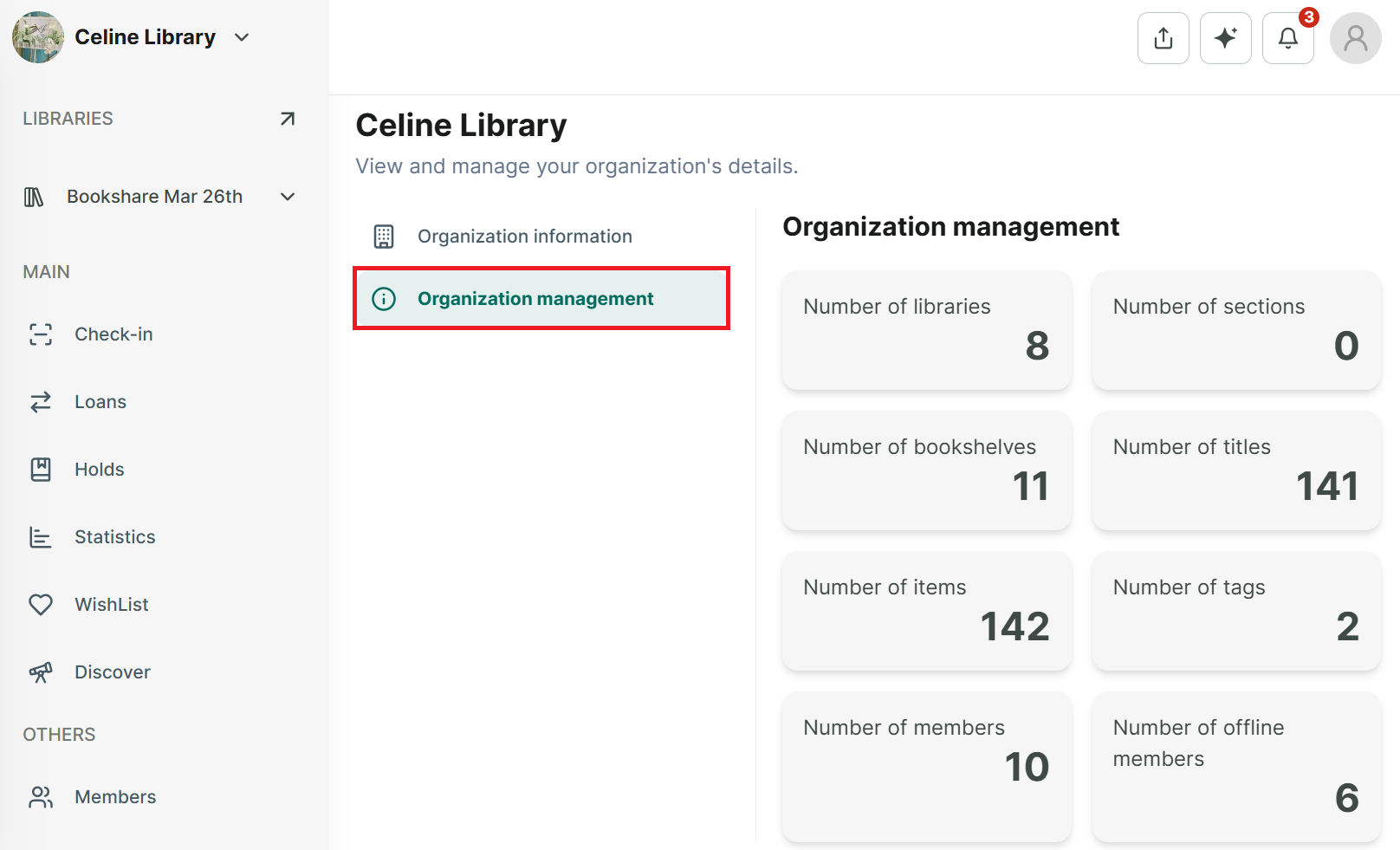
Step 5: You can select Organization Management to view all library item statistics.
(Note: Number of members means online members only.)
Add a new book
Step 6: Tap on “Add book” button
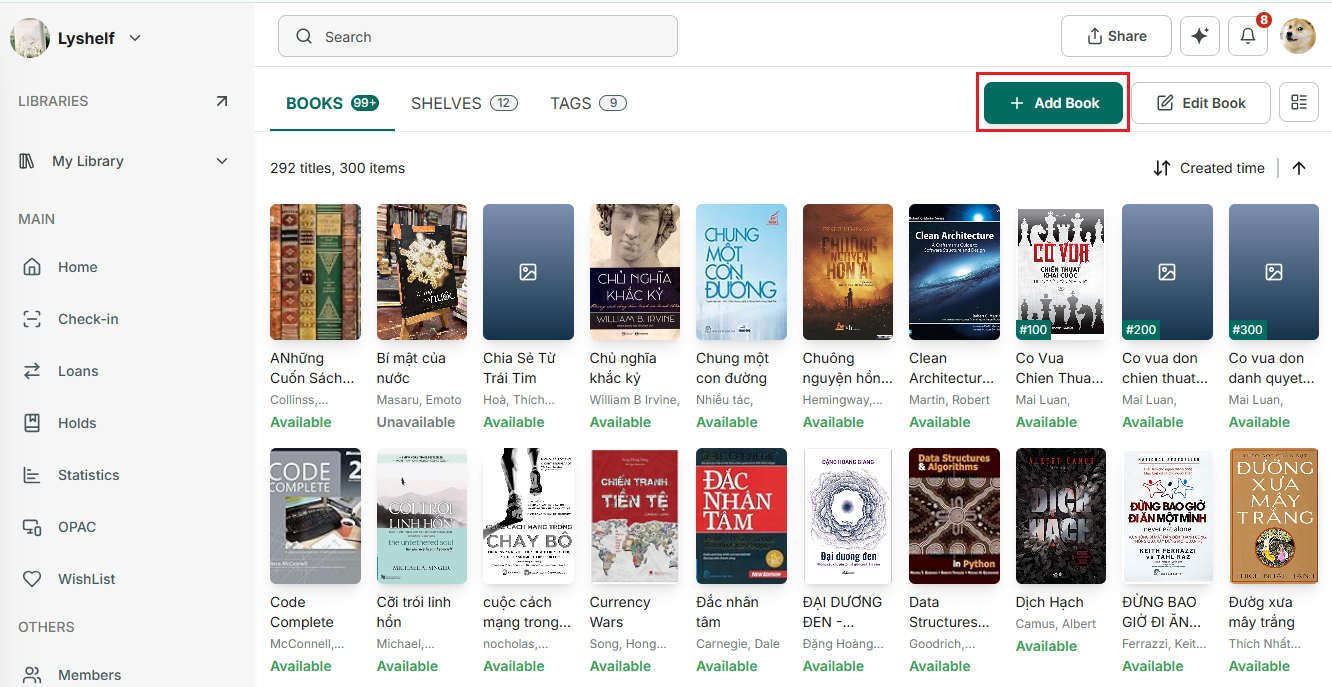
Step 7: Select option: Search online, manual input, import
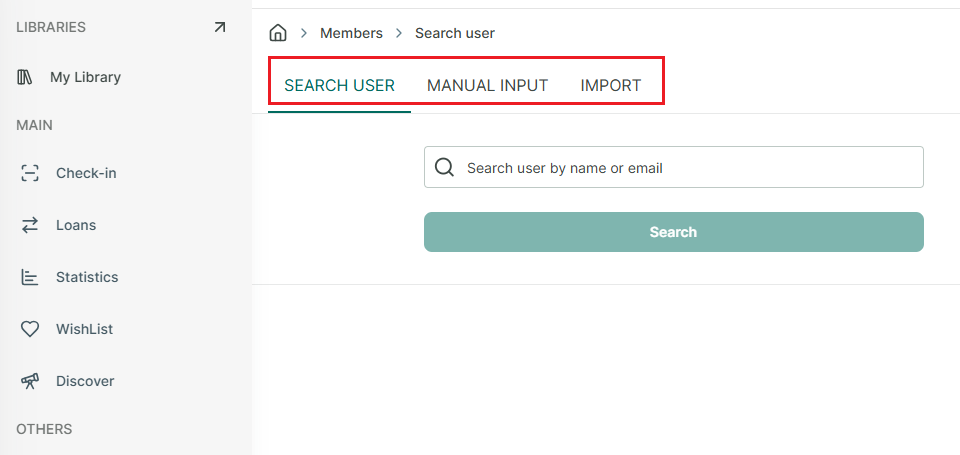
Step 8: Search online → select library → enter book title, author or ISBN → press search
Step 9: Manual input → select library → enter book informations, book cover → press “Add book”
Step 10: Import → Drag and drop or select a file → map data → review → importing → complete
Refer to the template for correct format file.
Add a new shelf/section
Step 11: On shelves tab, press “Add a new shelf” or “Add new section” button
Step 12: Shelf: Enter the Shelf name, description, location, select section (shelf group) → Save
Step 13: Section: enter section name → press Save
Add a new tag
Step 14: On Tags tab, tap on “Add new tag”
Step 15: Enter the tag name
Add a new Library
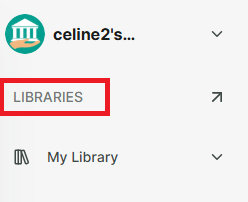
Step 16: Access “Libraries” section
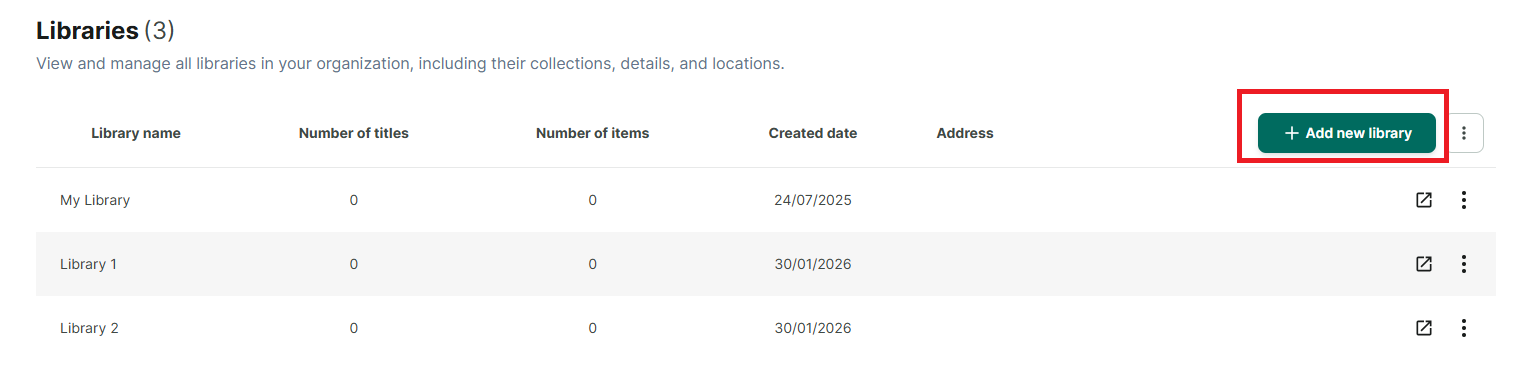
Step 17: tAp on “Add new libraries”
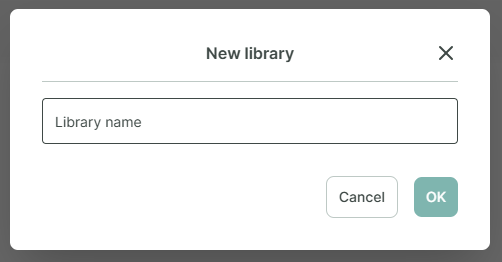
Step 18: Enter library name → press OK
Add new member
Step 19: Access “Members” section
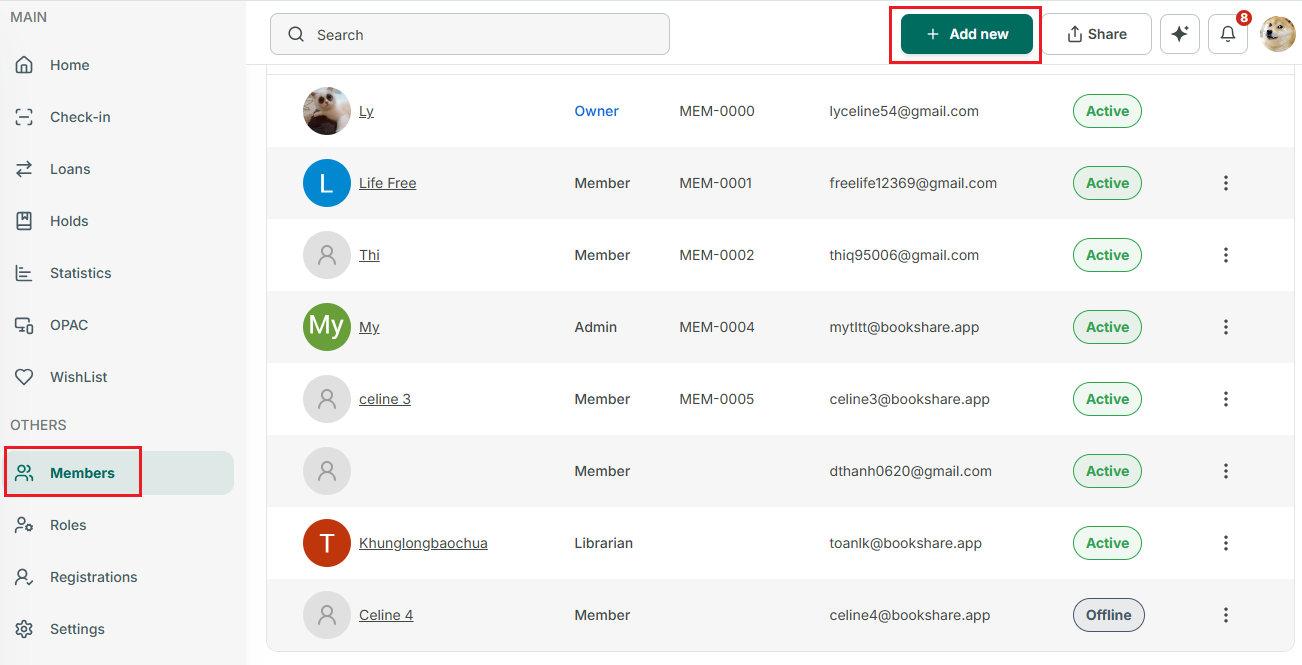
Step 20: Press “+Add new” button
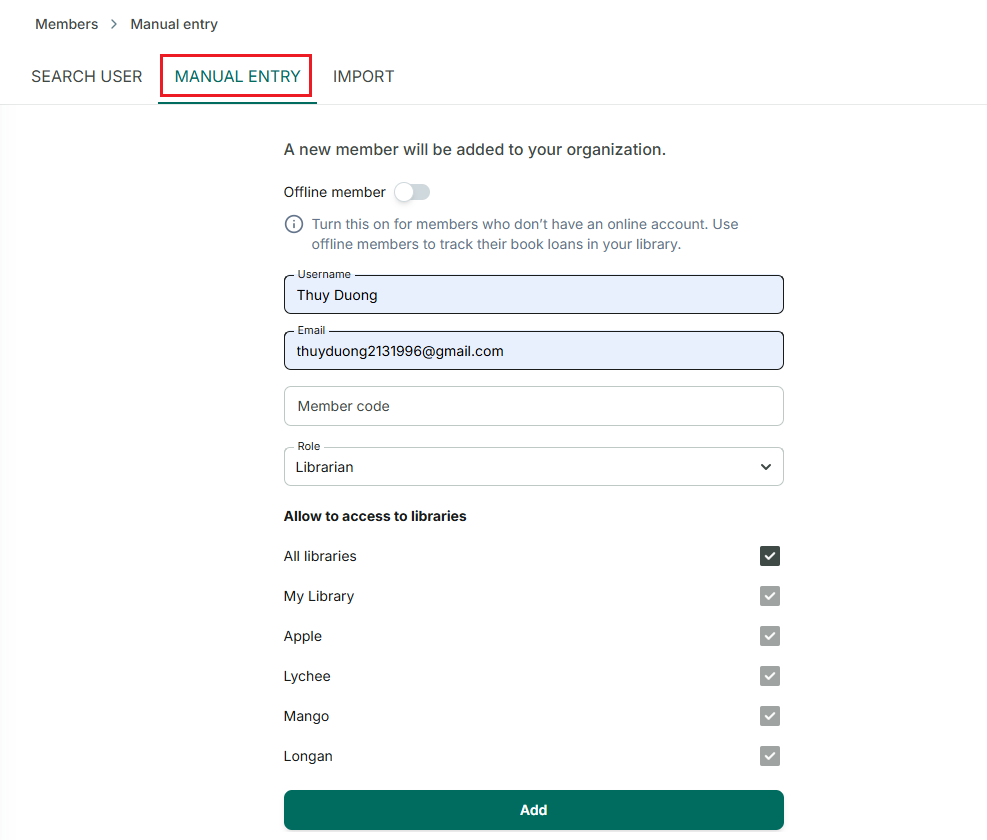
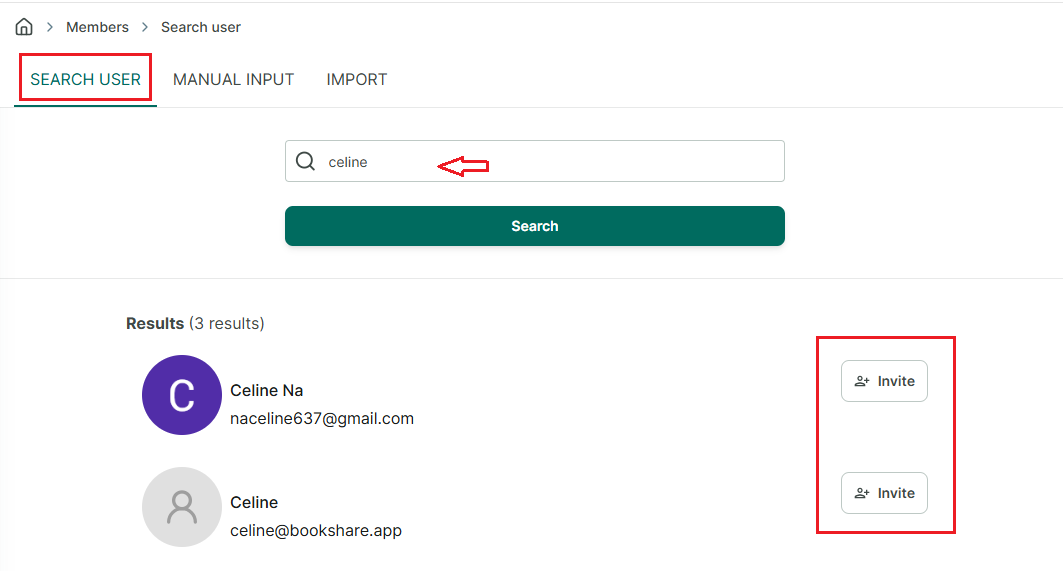
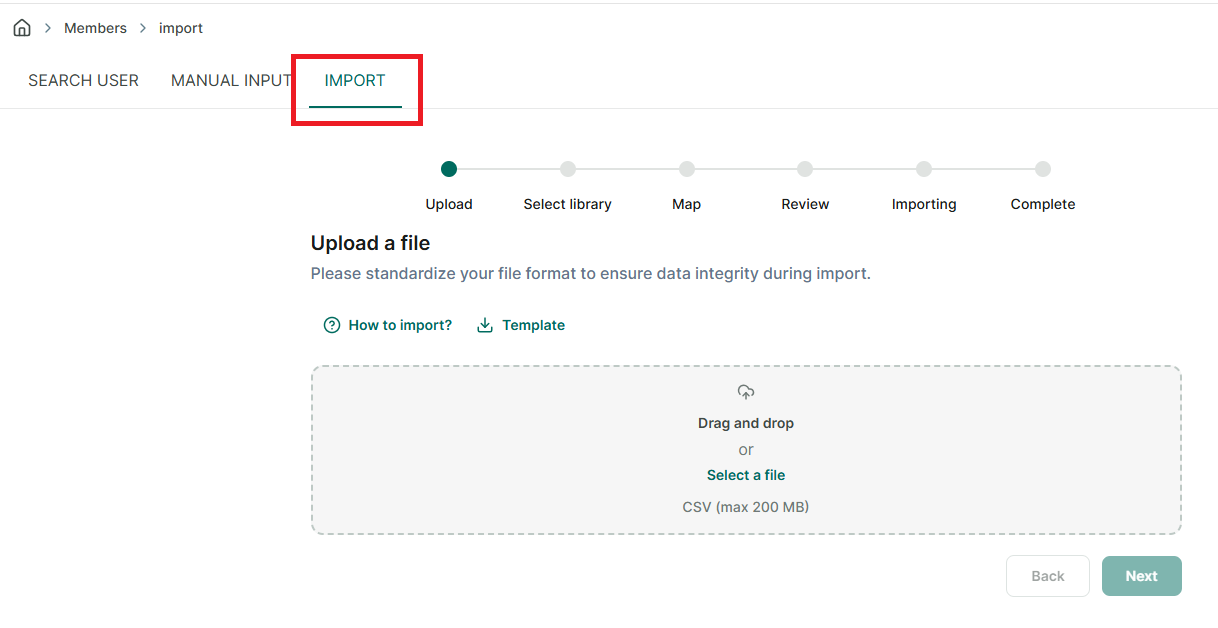
Step 21: Select an option:
- Manual entry → Enter Username, email, meber code (if needed), role, select Library → press Add → the invitation send to user
If the member is a student or only needs to borrow books, you can simply add them as an offline member. Just toggle the Offline member option and enter a username to add the member.
- Search User → Enter username or email → press search → press “invite” to send invitation to user
- Import → Select library → Drag and drop or select a file → map data → review → importing → complete Refer to the template for correct format file All members added will automatically be set as offline members.
Please access the for more details: Link
Add a new role
Step 22: Go to “Roles” section
Step 23: Press “Add role” button
Step 24: Enter role name, description, hierachy → select permissions → press Save
Create a new Loan transaction
Step 25: If you have multiple libraries, please select the onethat contains the book before creating the checkout. Go to Loans section.
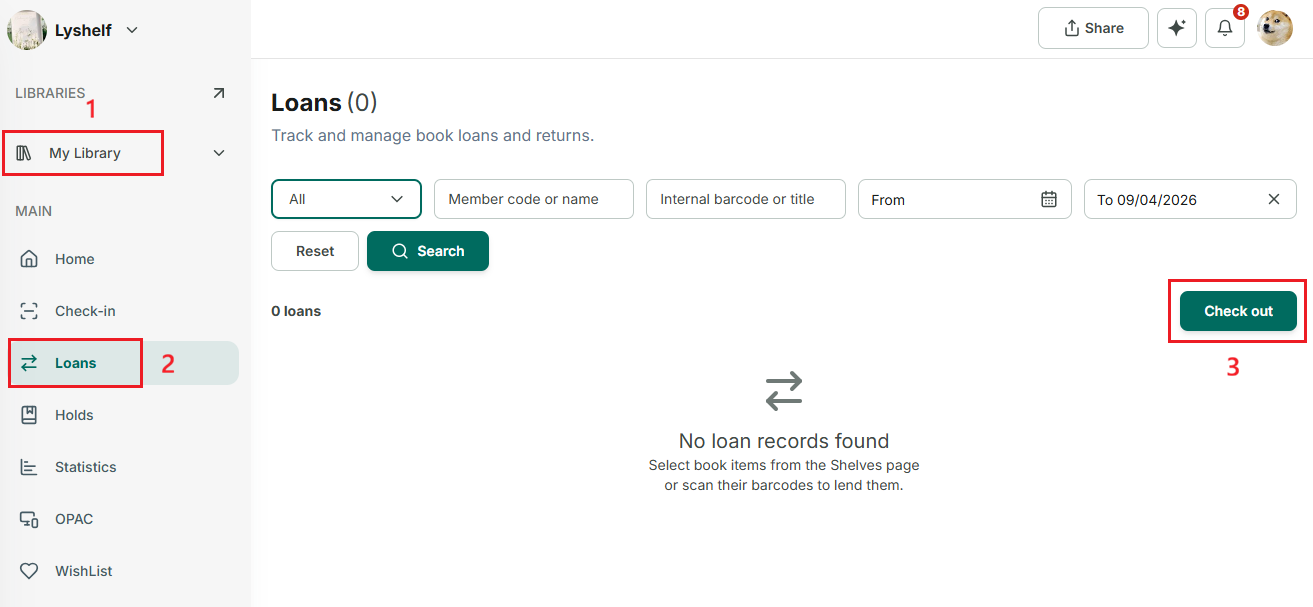
Step 26: Then, tap on “Checkout” button
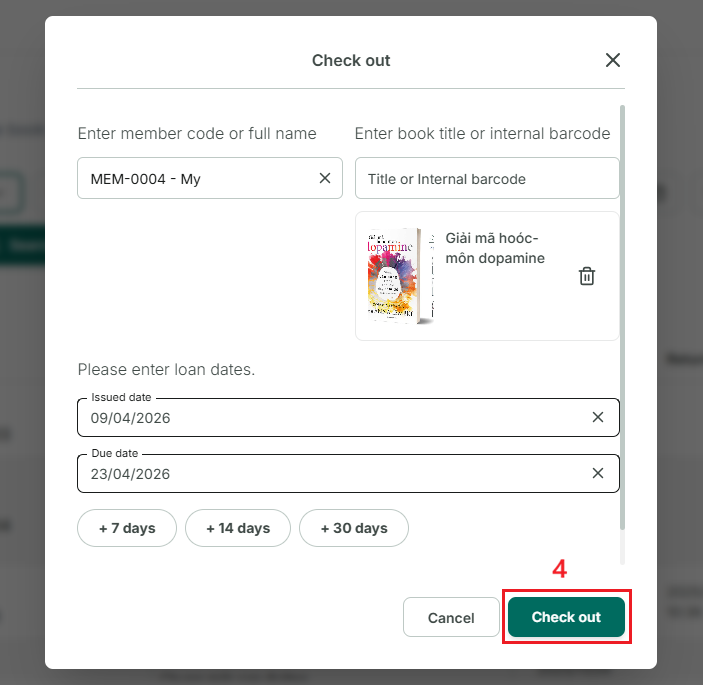
Step 27: In the first field, enter the name or member code to find the member. (Both online and offline members can borrow.)
In the second field, enter the **name of the book** you want to lend.→ Then, enter the due date, add a note if needed, and tap “Check out.”
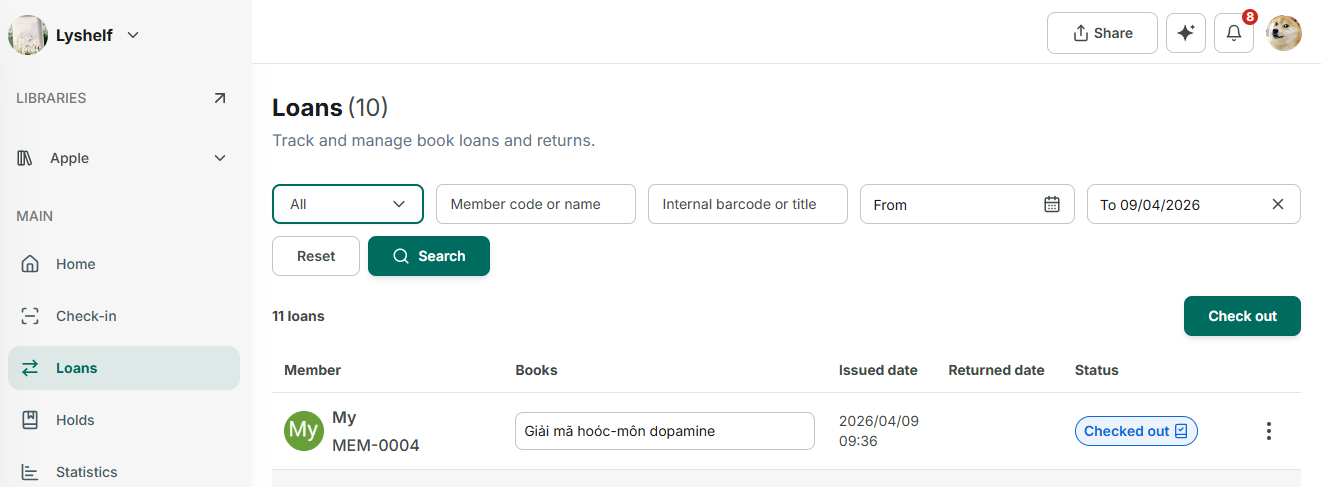
Step 28: After a successful check-out, the loan will appear on the main screen with a check-out status for easy tracking.
Barcode generator
Step 29: Access “Barcode generator” section
Step 30: Select barcode type: Member or Book → press “Generate”
Step 31: Select book barcode type → Generate
Step 32: Download barcode
Discover
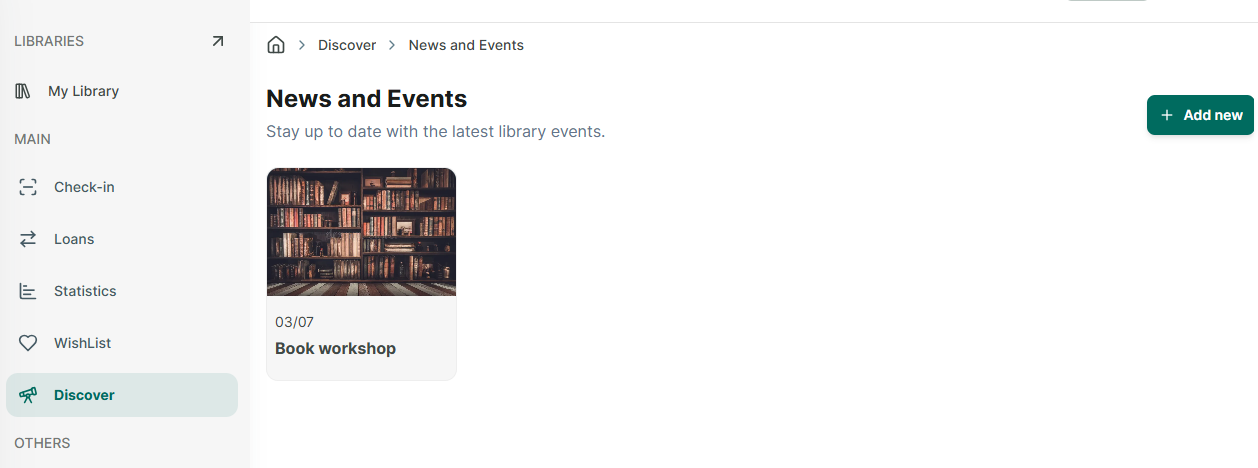
Step 33: Access “discover” section at the side menu.
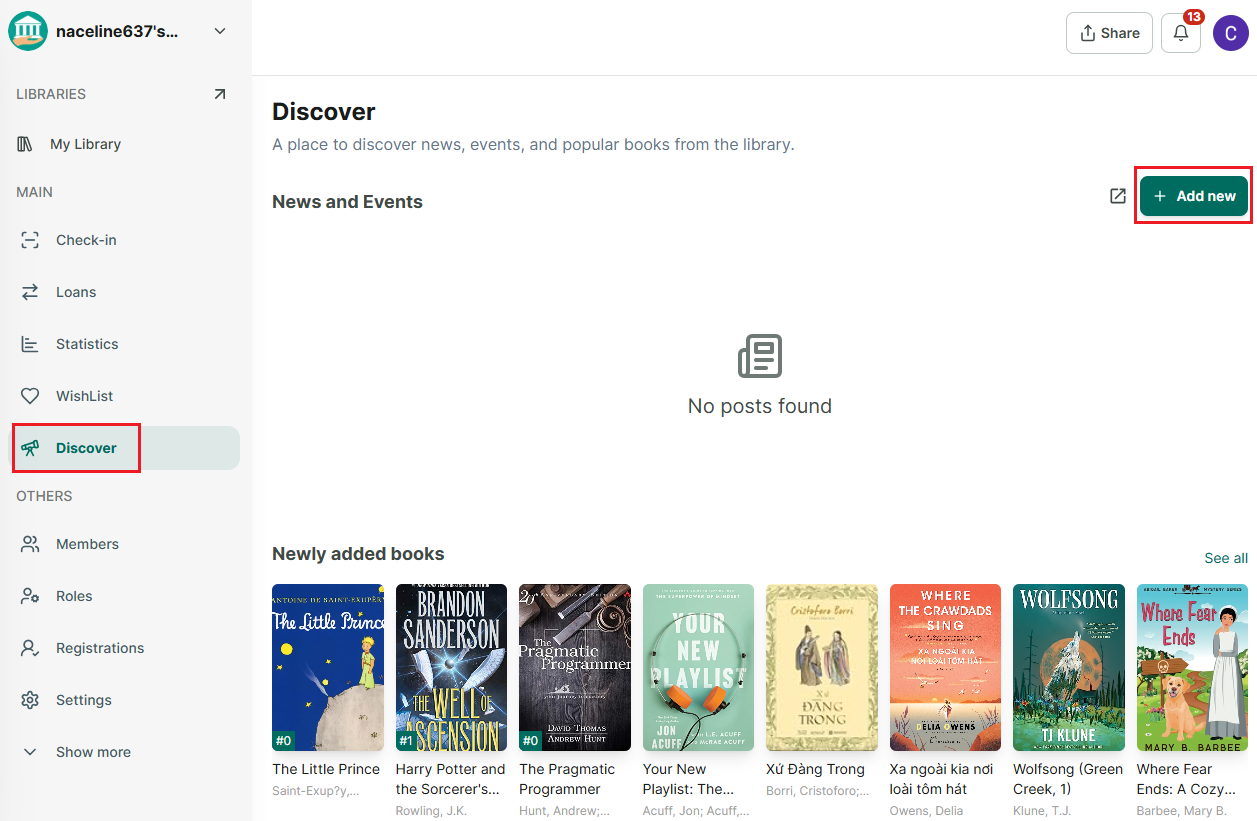
Step 34: You can create news and events for the library so that all members can stay updated. You can also track newly added books, most borrowed books, and recommendations for you.
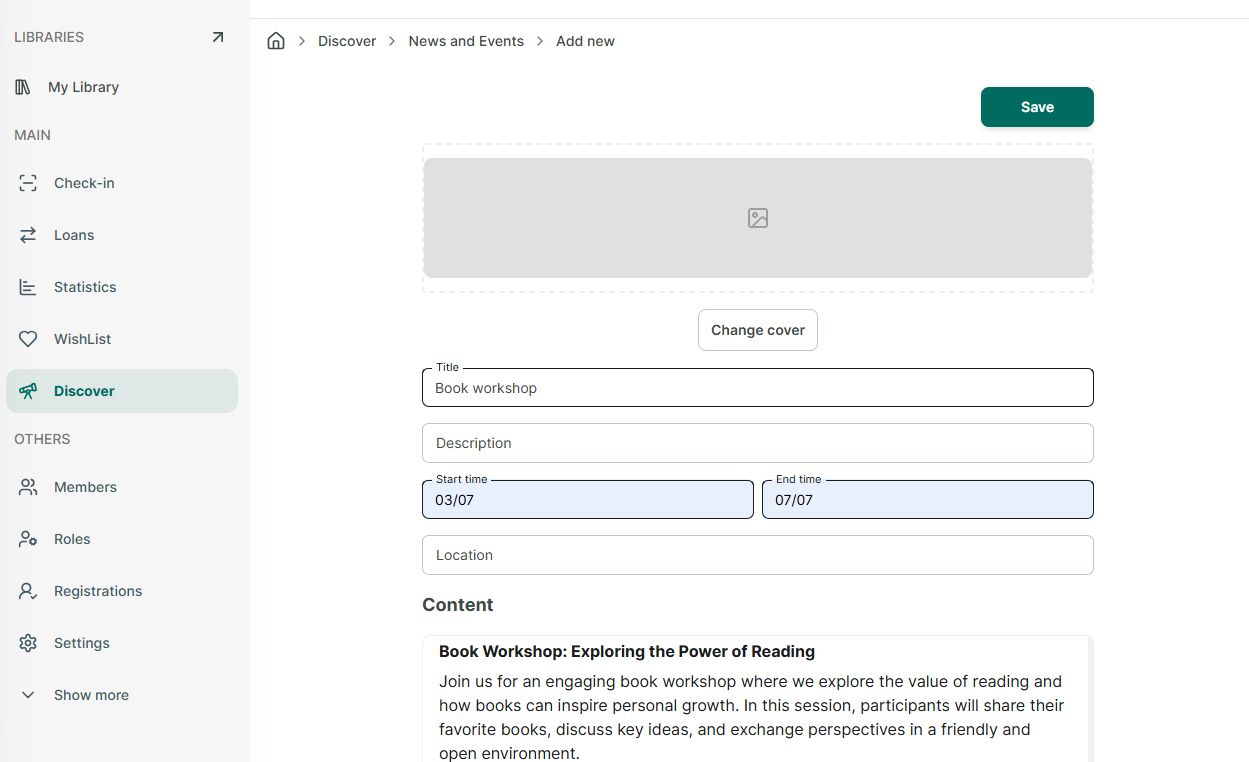
Step 35: To add News and events. Press “Add new”