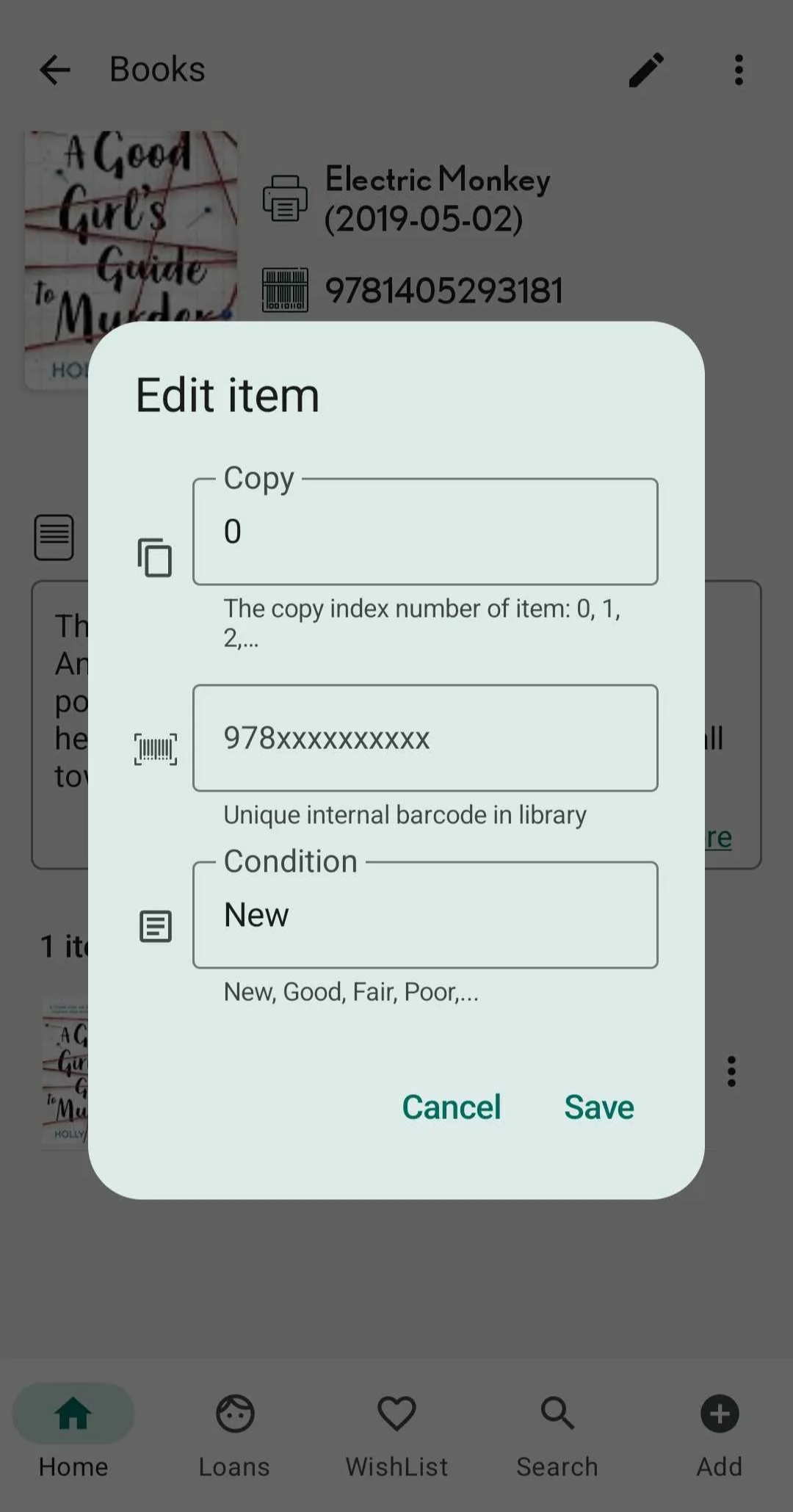
Edit a book/item
Set item cover as shelf cover
Step 1: Go to the Shelves tab and access the title details.
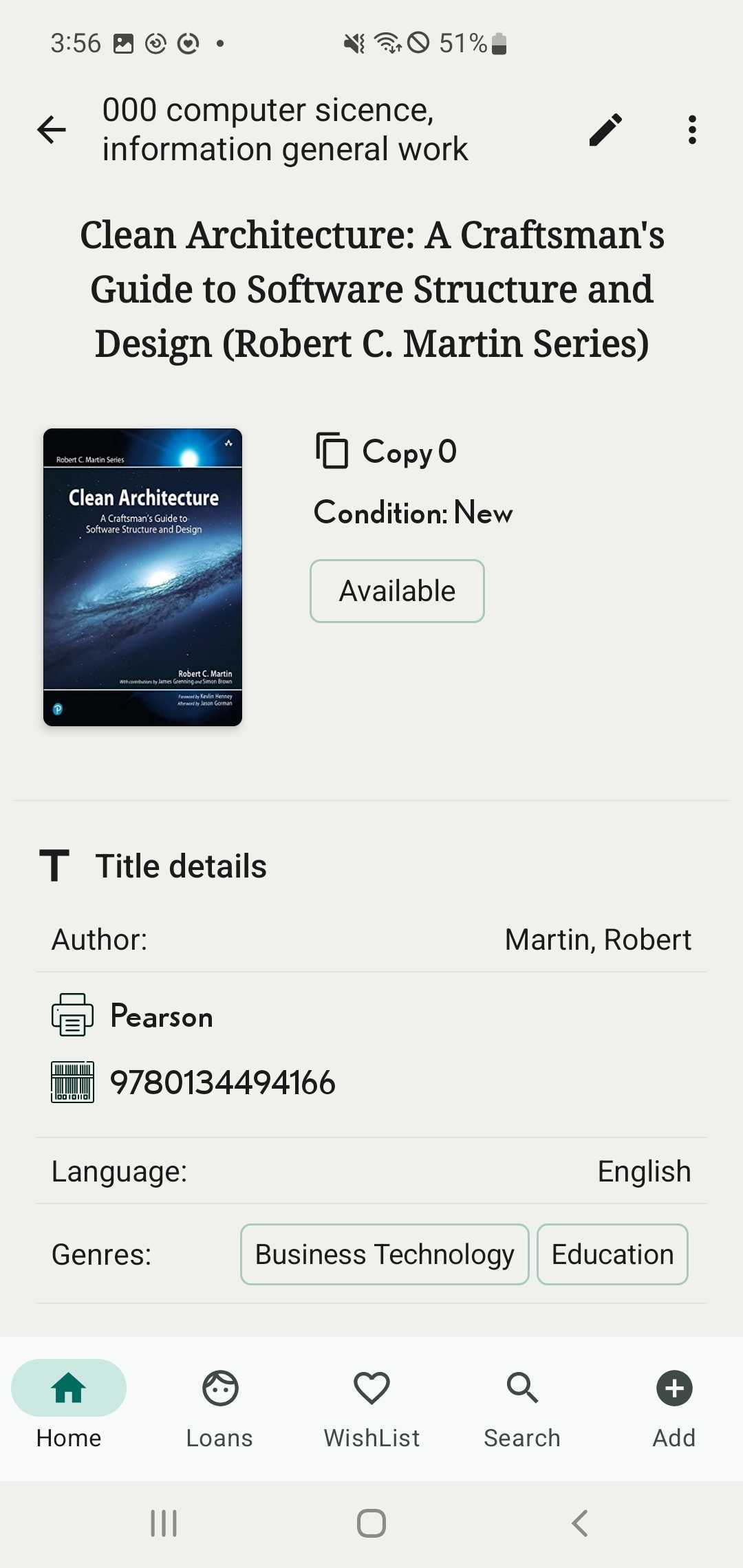
Step 2: Tap on the three-dot icon the right top of corner and it shows “Set item cover as shelf cover”
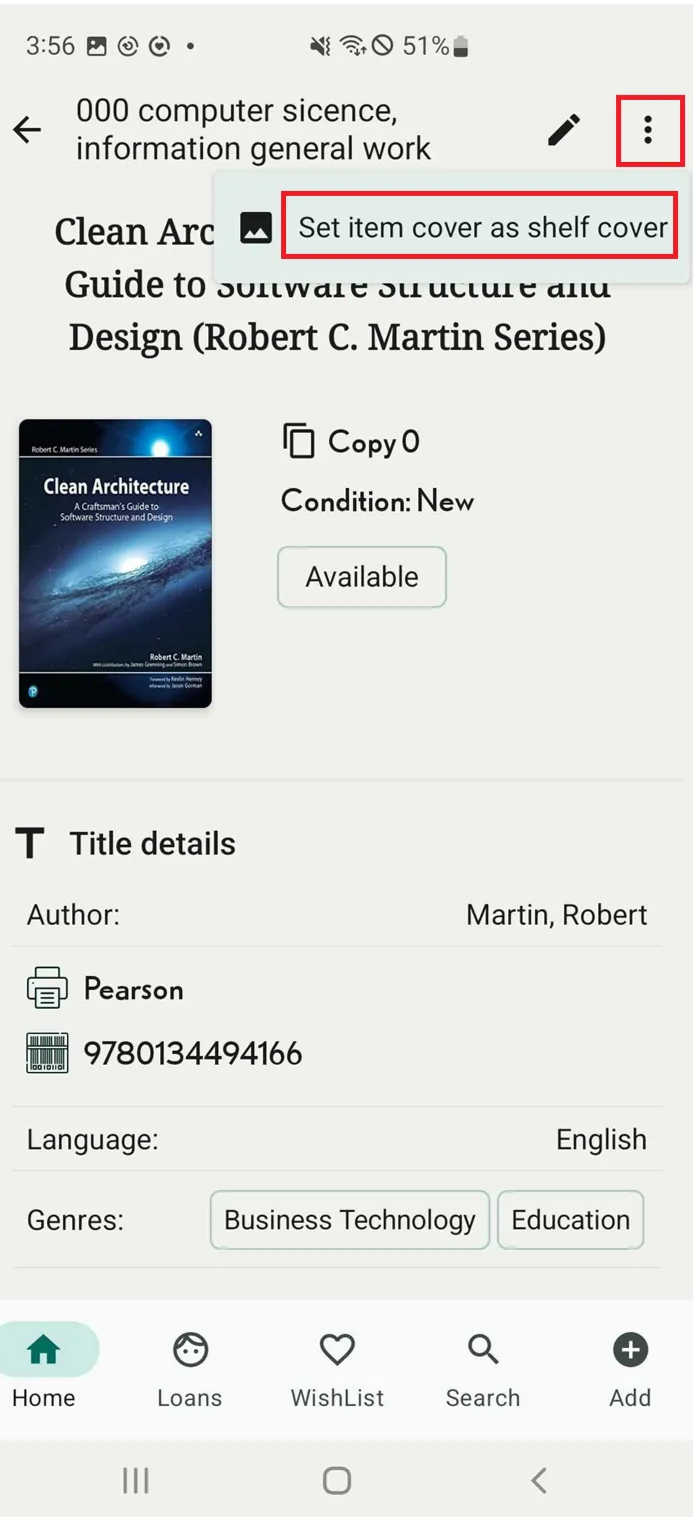
Step 3: The shelf cover will be appeared
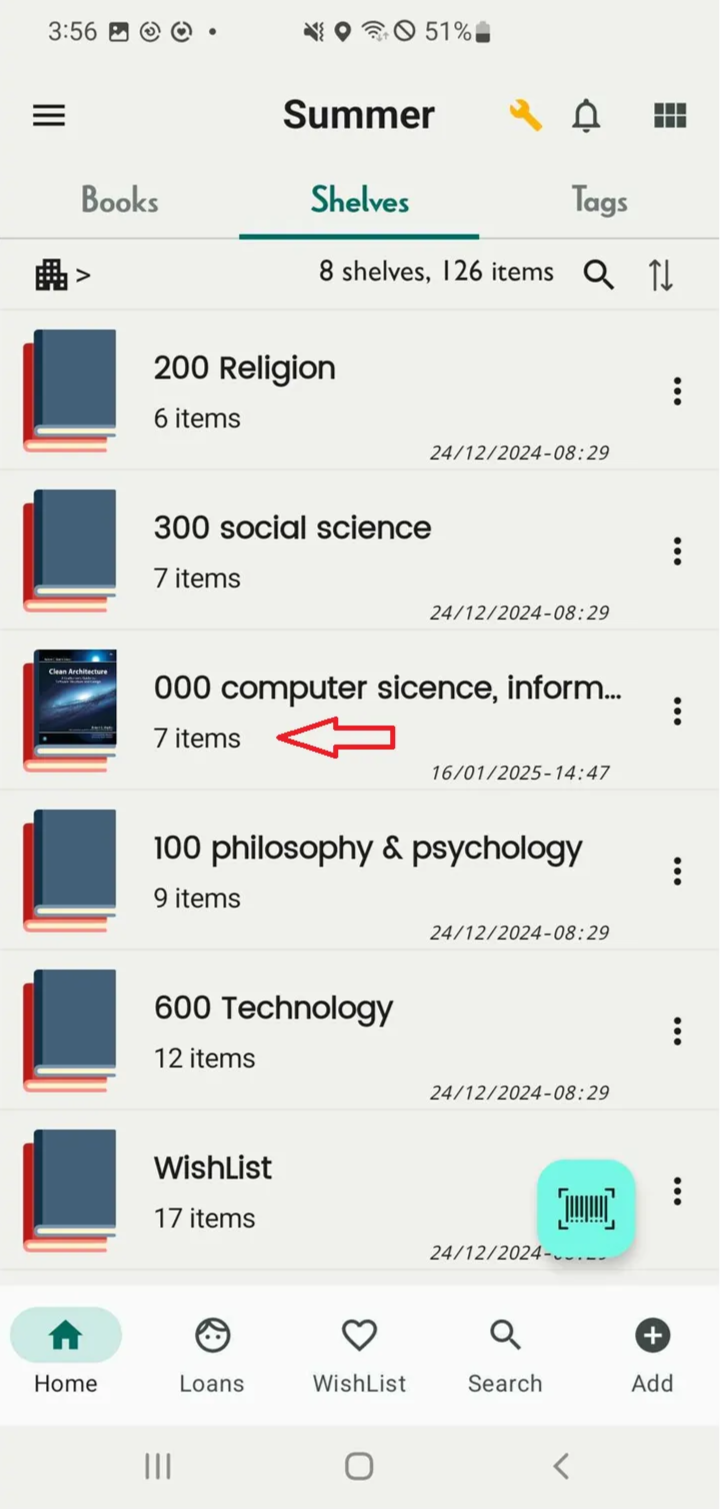
Change shelf for item
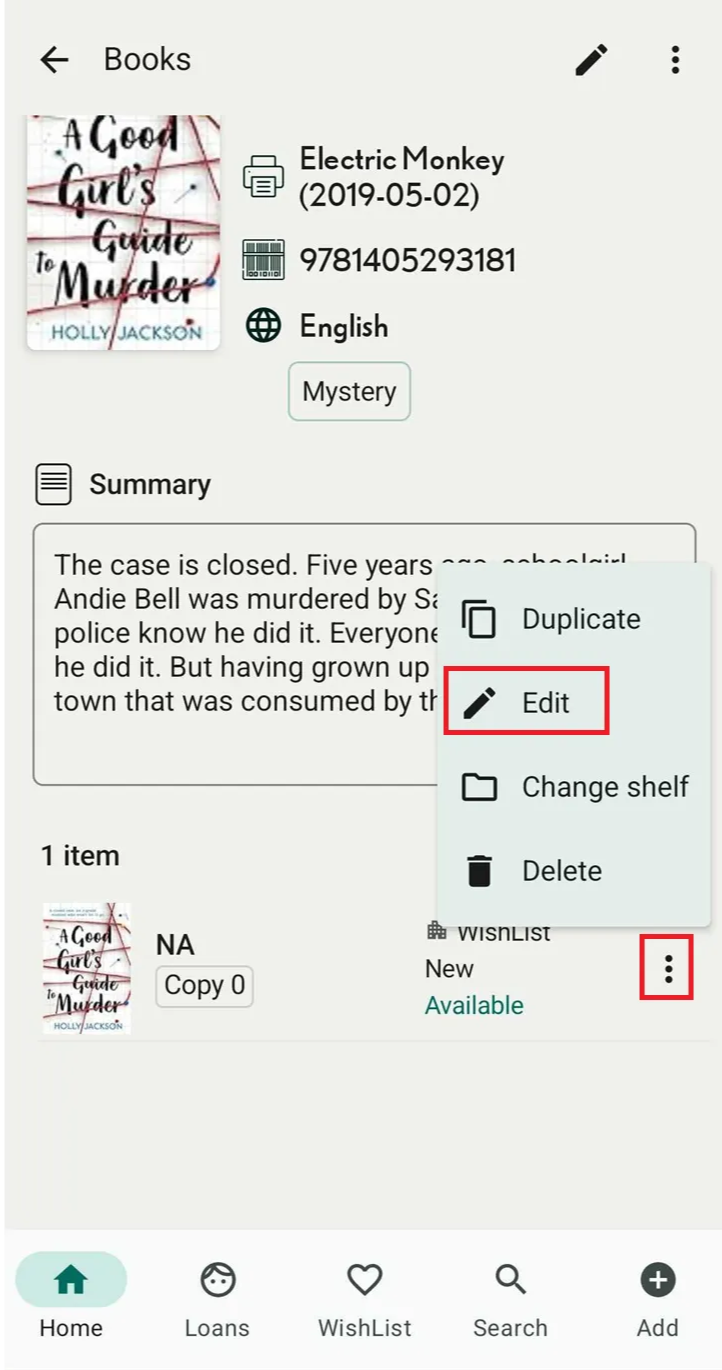
Step 4: Access the details of book. Scroll down to the item section.
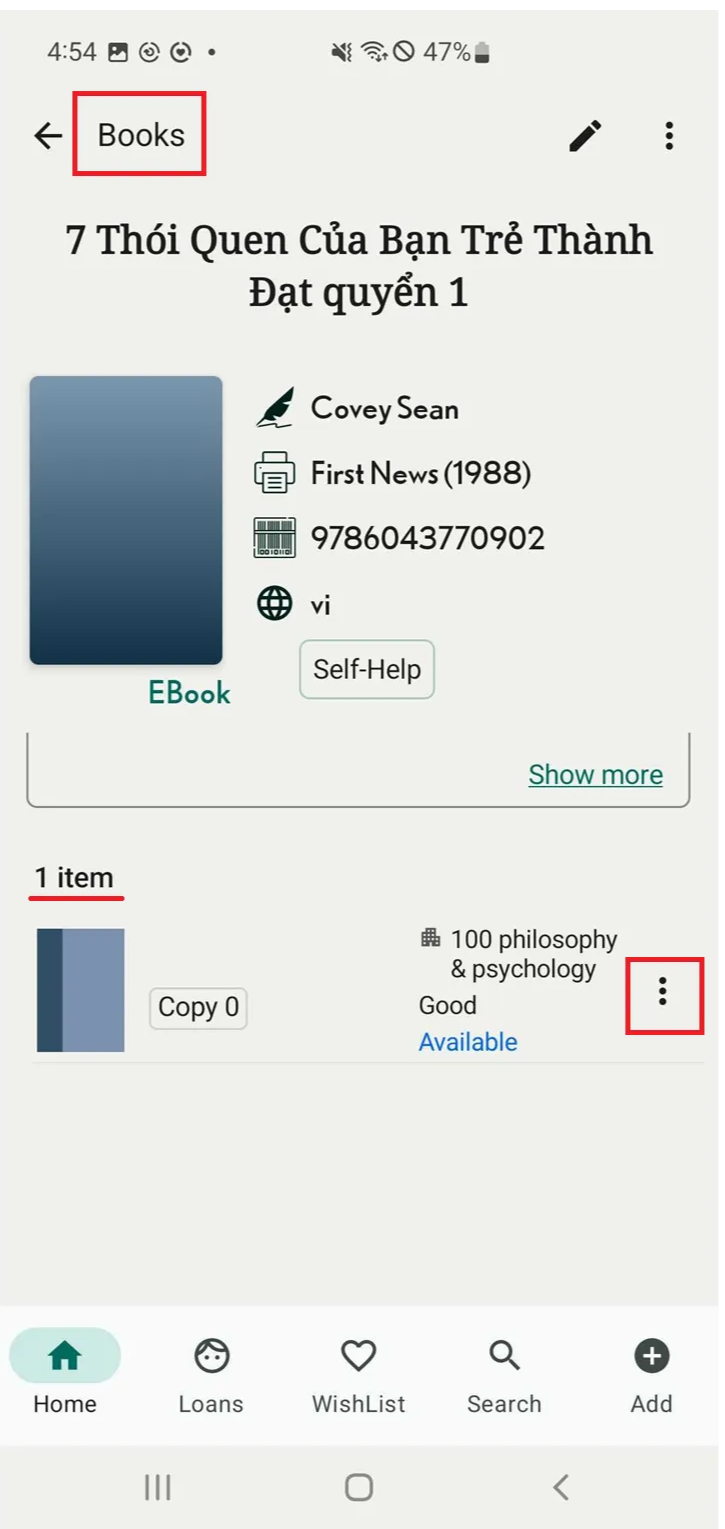
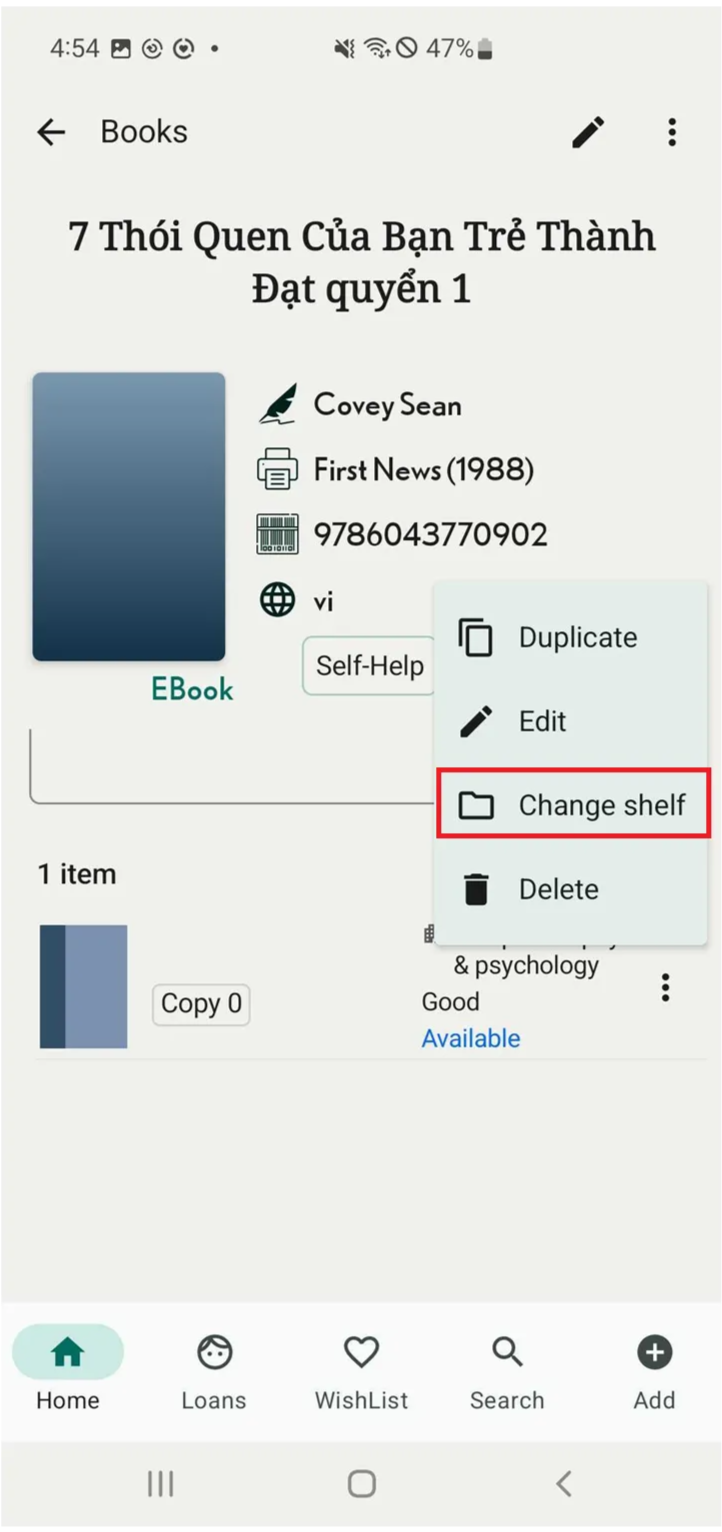
Step 5: Tap on the three-dot icon in the right side of item. There are 4 options:
- Duplicate
- Edit
- Change shelf
- Delete
Select “change shelf” or other option to edit item
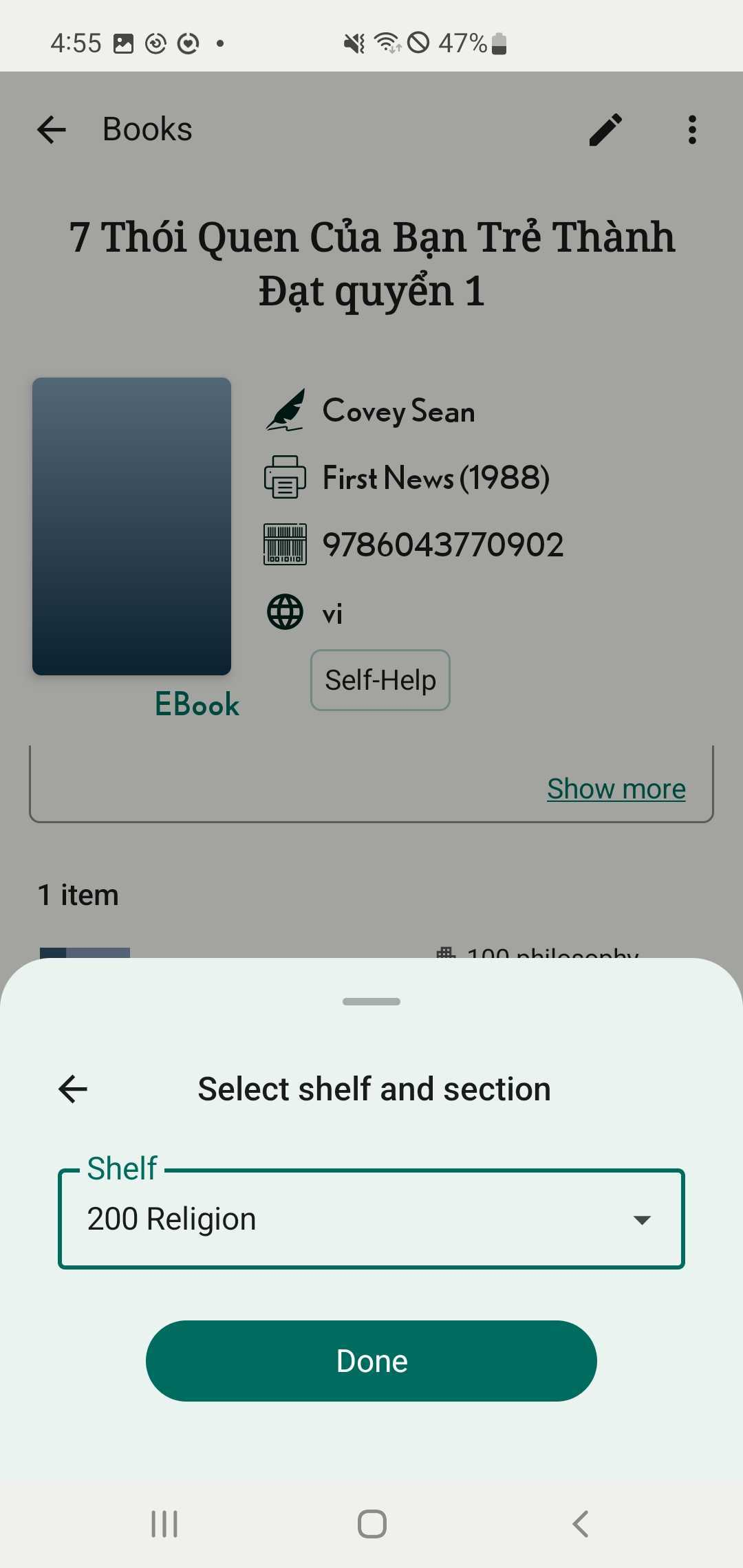
Step 6: Then Select Shelf and section and press “Done”
Btach edit tag
Step 7: Open app and go to books tab

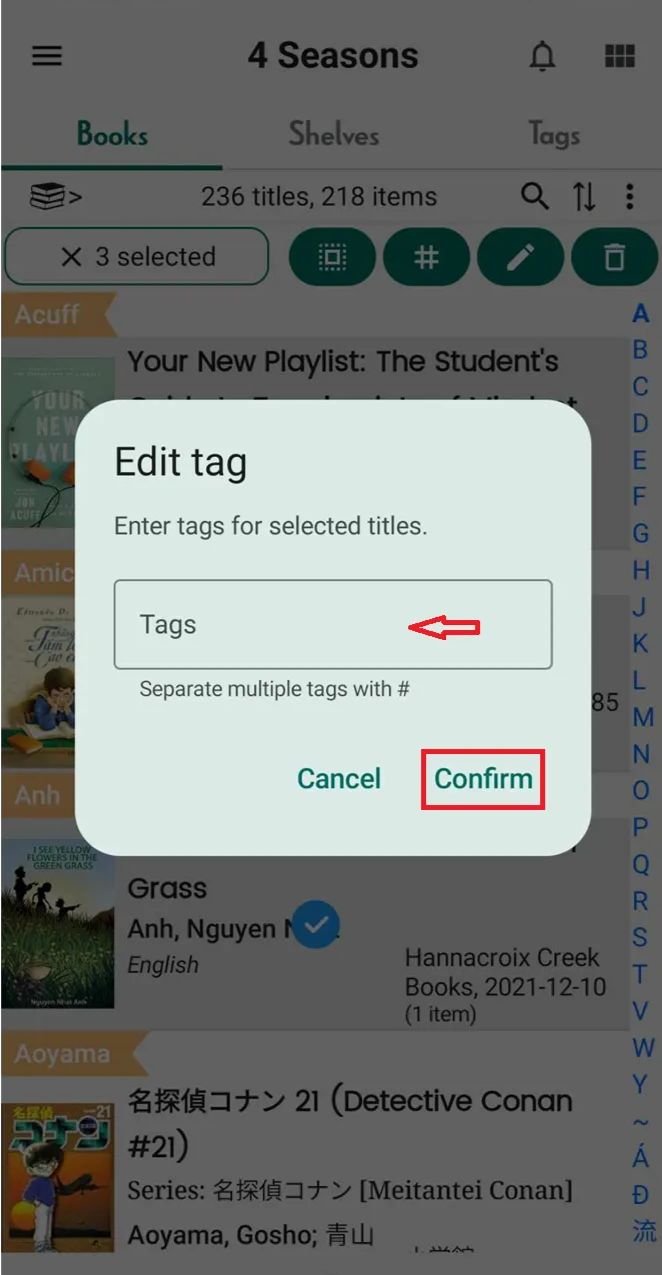
Step 8: Long-press any book to activate multi-selection, then select additional books. Tap on the tag icon

Step 9: Enter tags for selected titles and press confirm
Batch edit details of book - series/publisher
Step 10: Open app and go to books tab

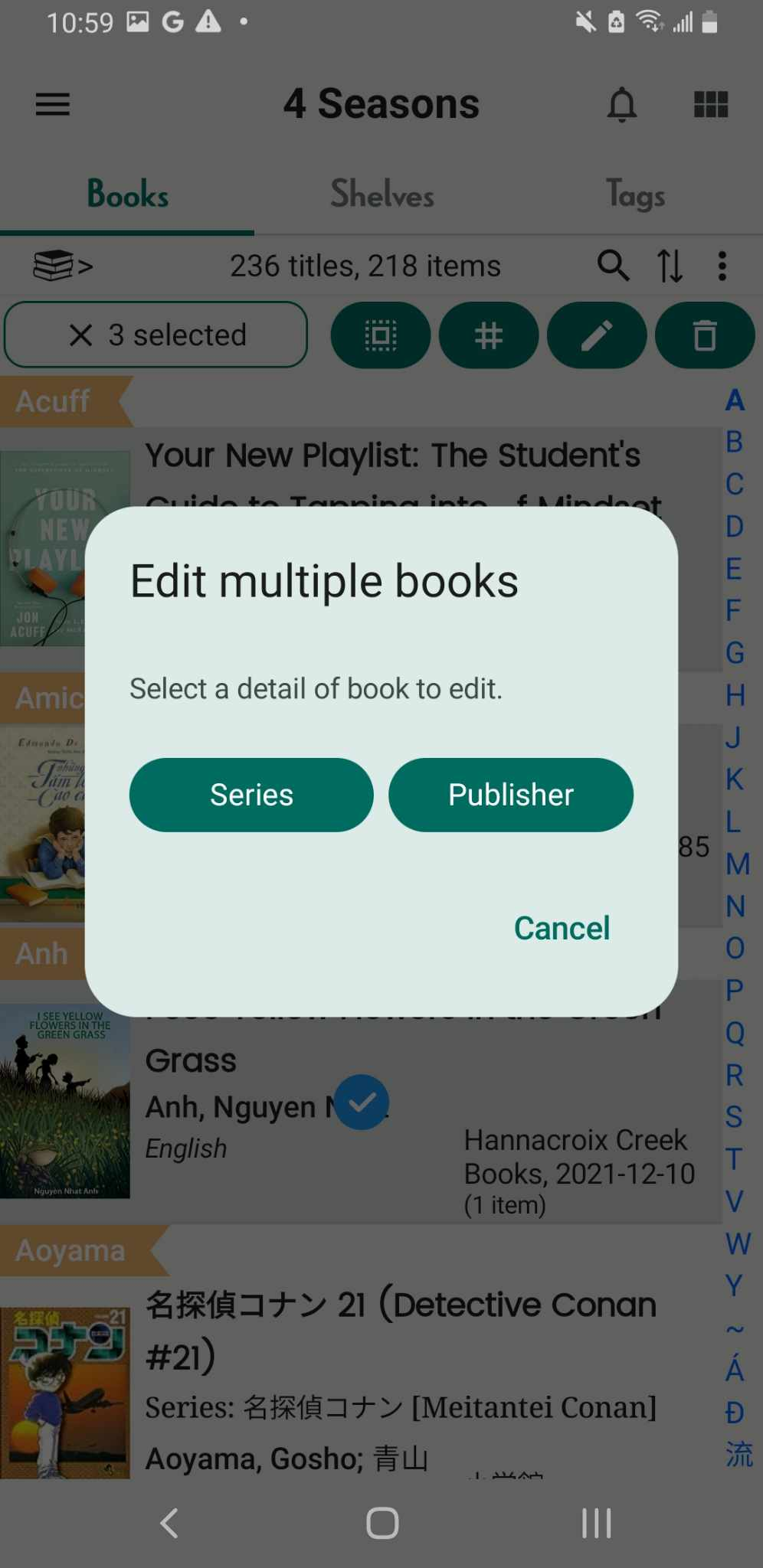
Step 11: Long-press any book to activate multi-selection, then select additional books. Tap on pencil icon

Step 12: You can select Series or Publisher to edit
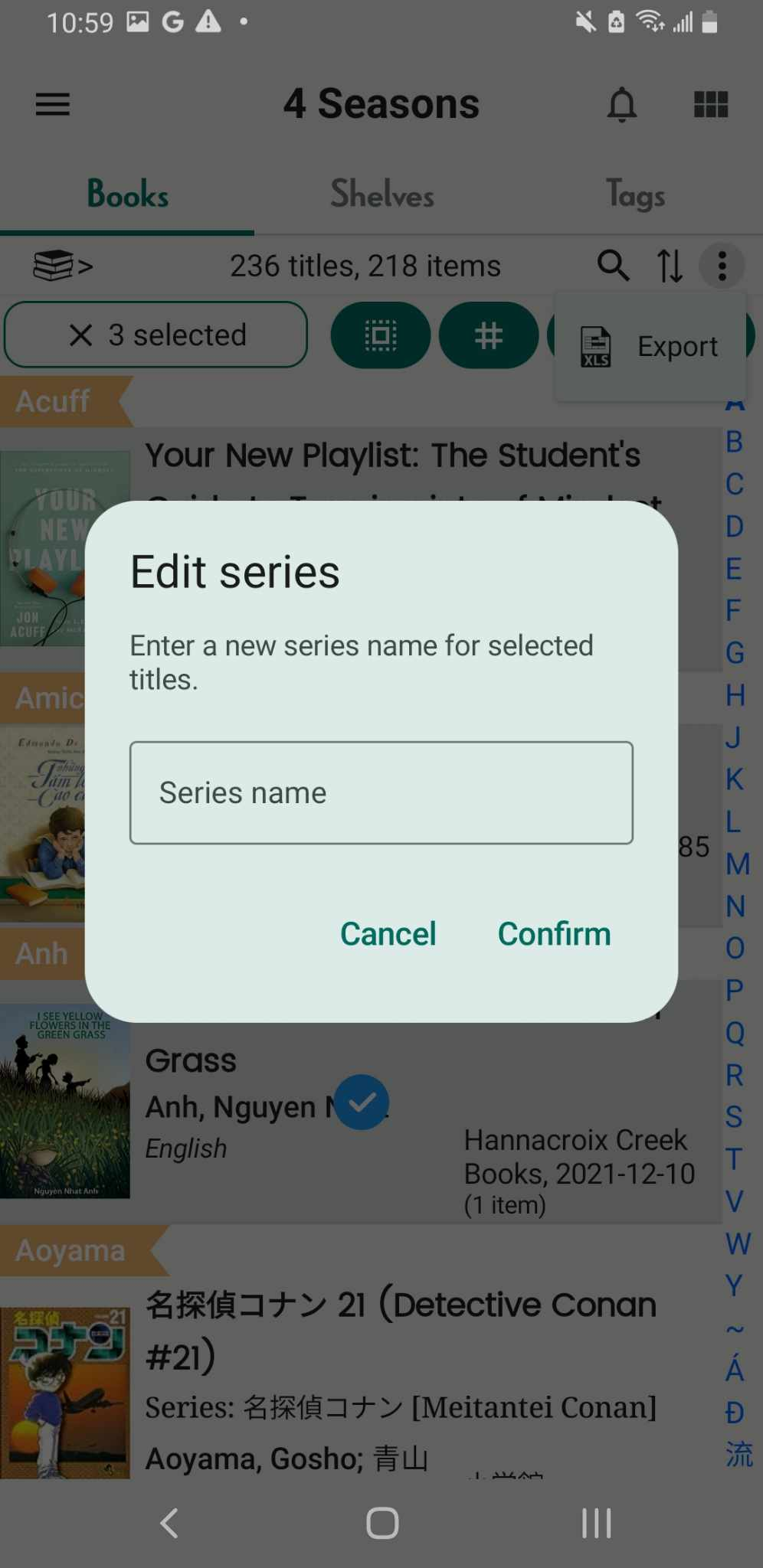
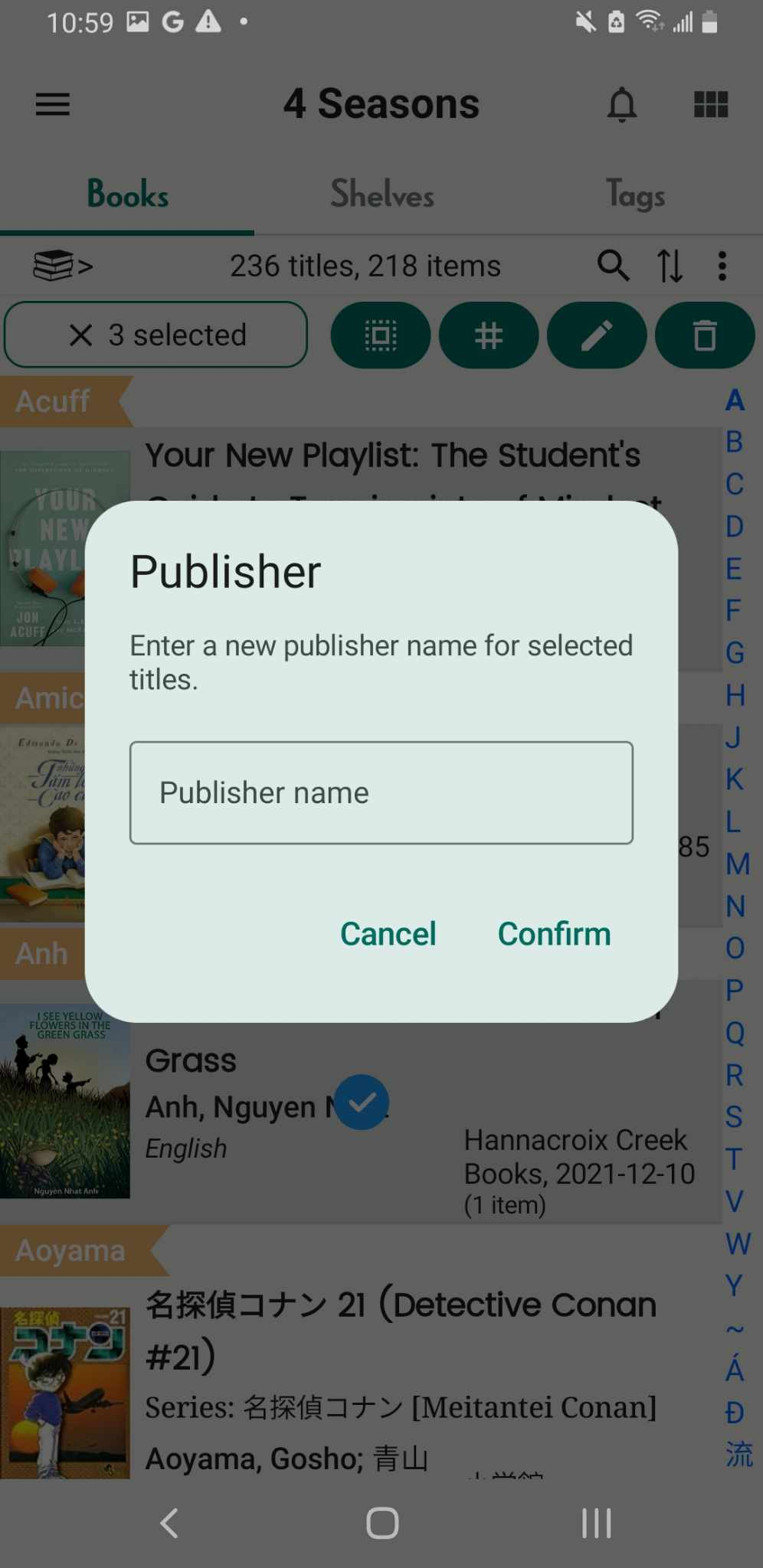
Step 13: Enter Series or Oublish and press Confirm
Edit item of book in Books Tab
Step 14: Open the app and go to the Books tab.
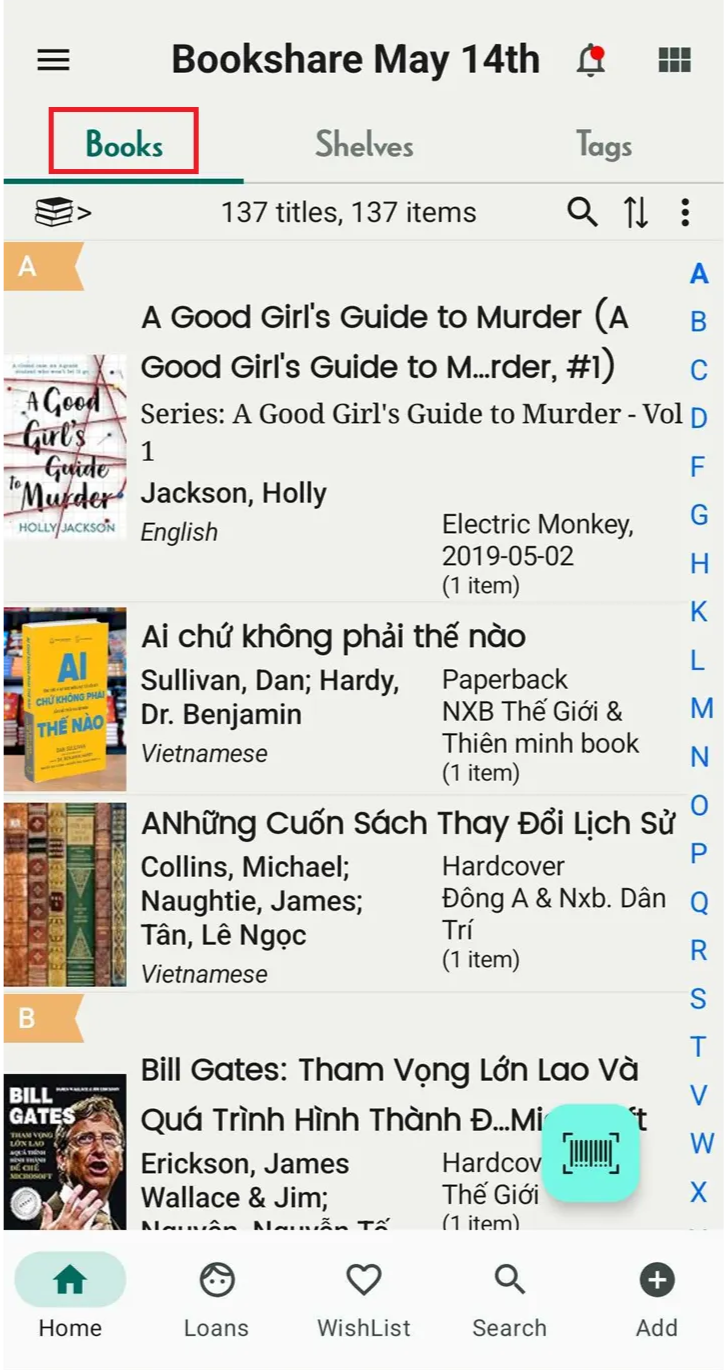
Step 15: Select a book to view its full details.
Step 16: Scroll down and tap the three-dot icon in the Item section.
Step 17: Choose Edit.
Step 18: Make your changes and tap Save. The item’s information will also be updated in item of book and in the shelf.