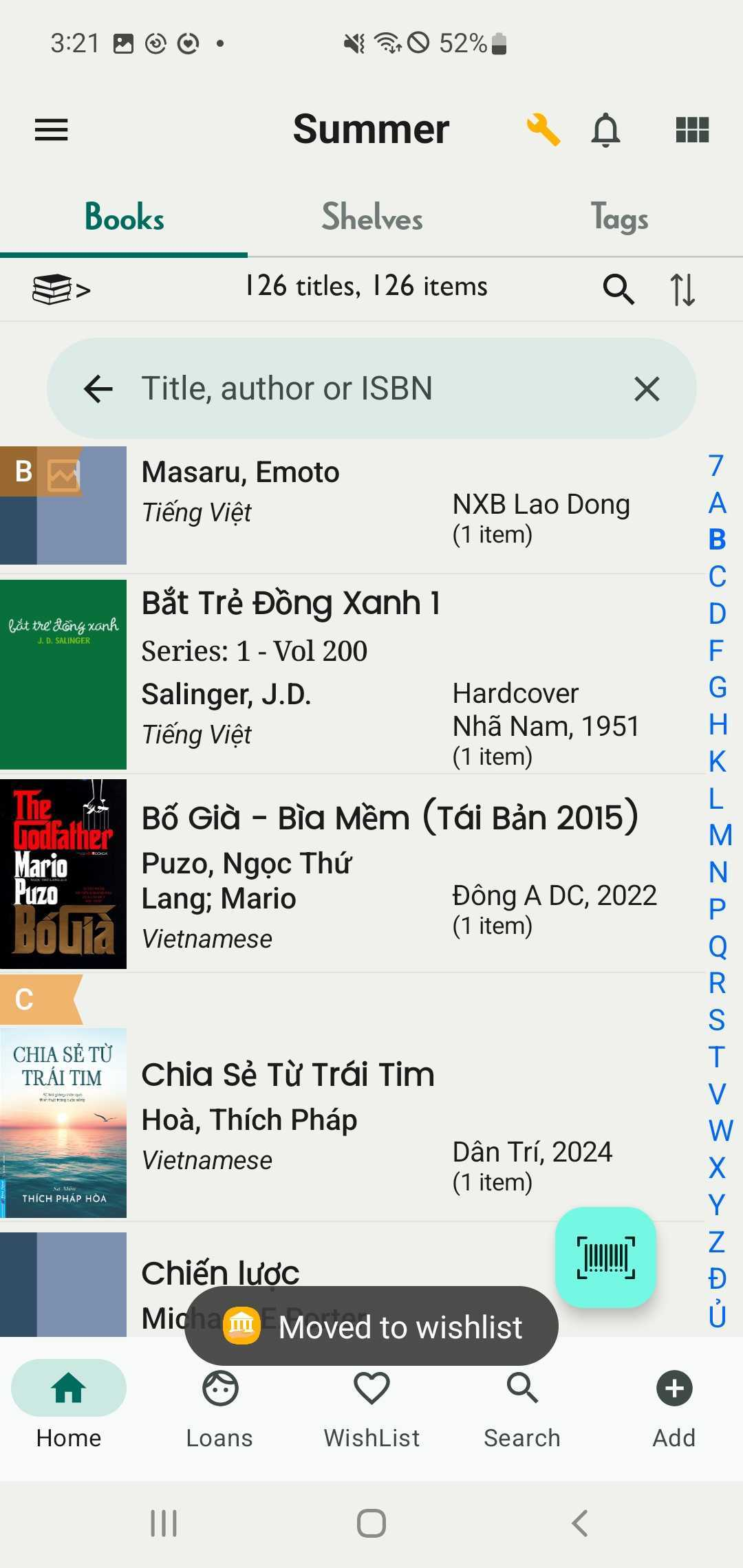
Wishlist
Export Wishlist
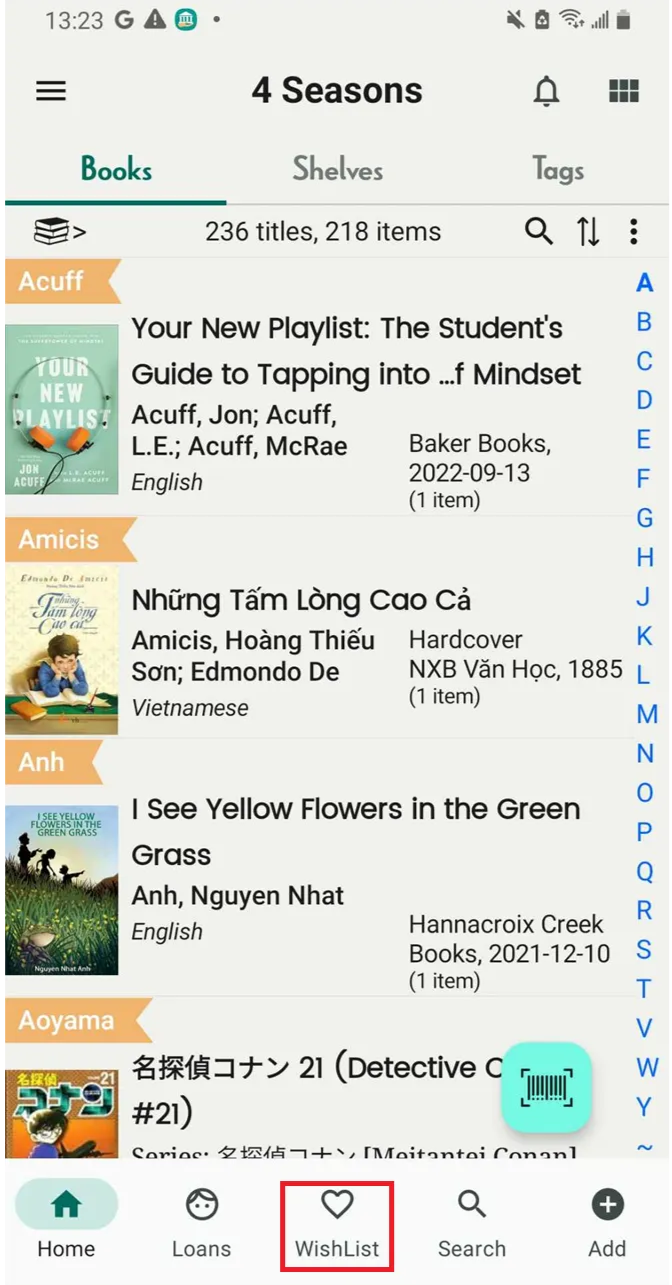
Step 1: Tap on the Wishlist field to view all the titles.
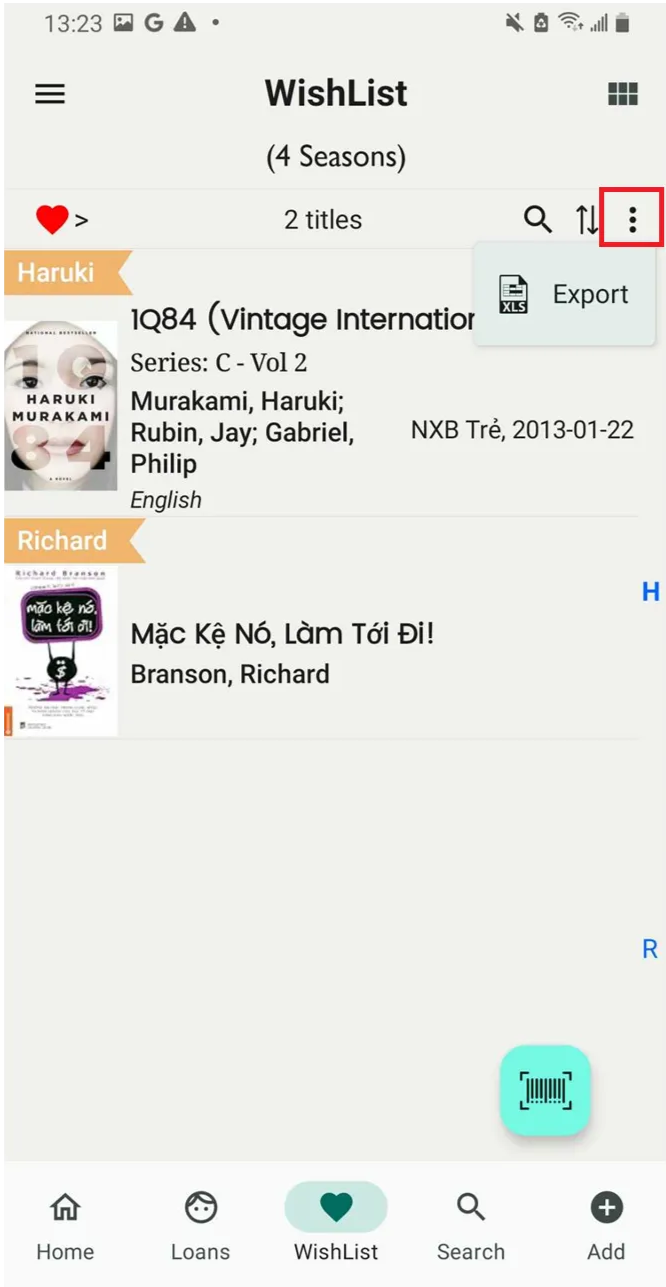
Step 2: Tap on the three-dot icon and select export
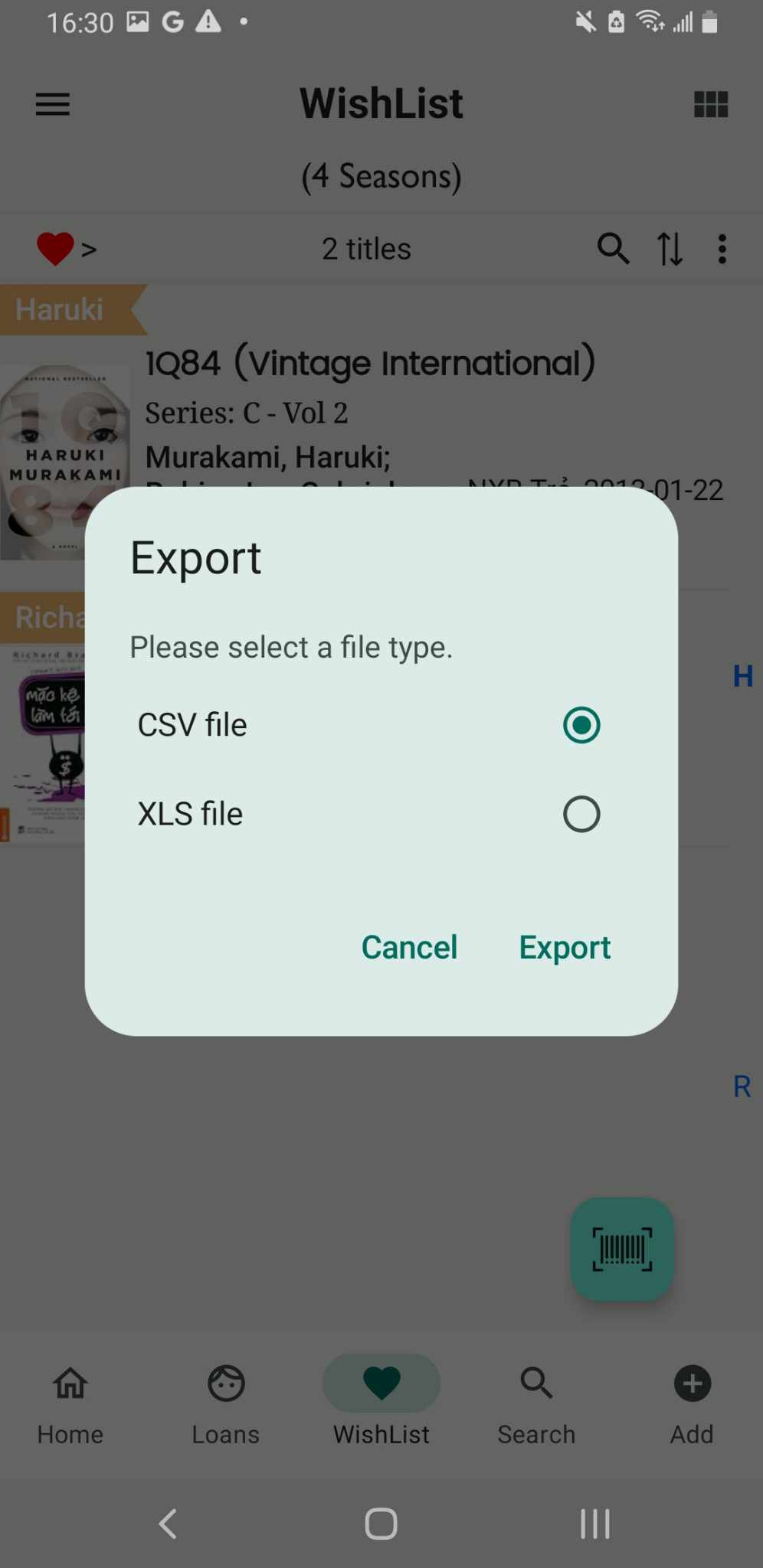
Step 3: Select a type file
- CSV
- XLS
Press Export
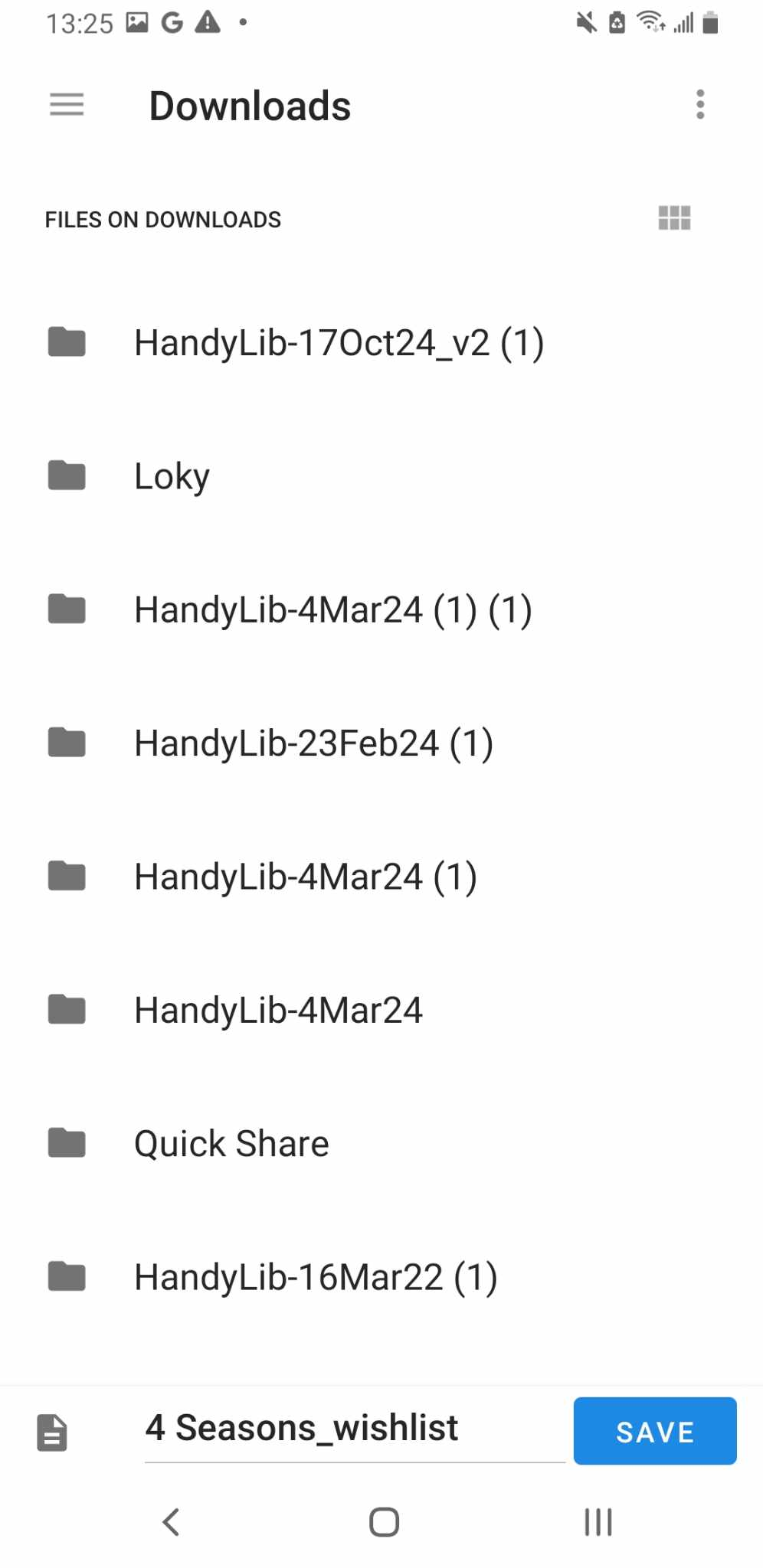
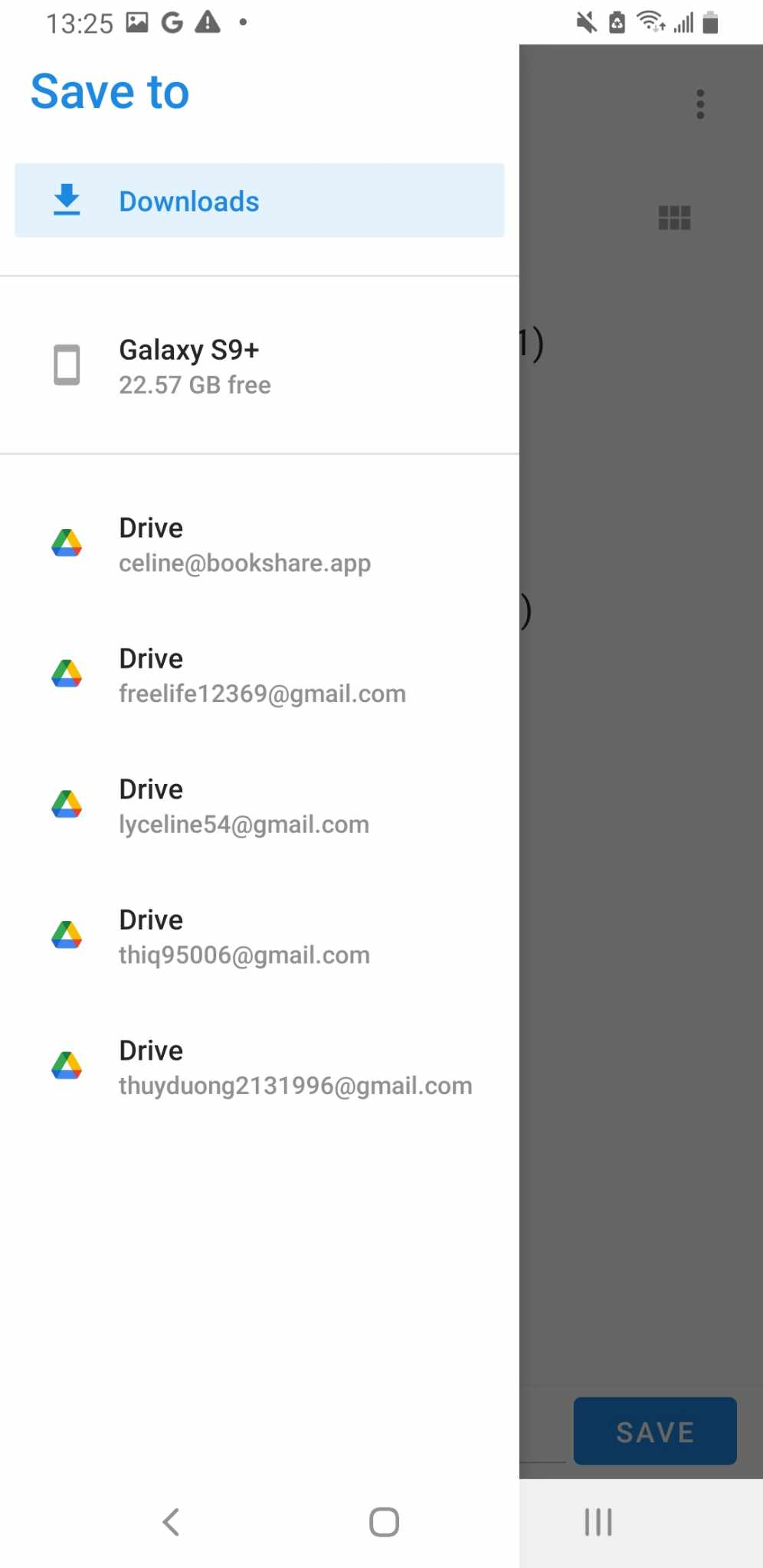
Step 4: Choosse where you want to save this file. You can save it on your device or Google Drive
Move title from wishlist to library and vice versa.
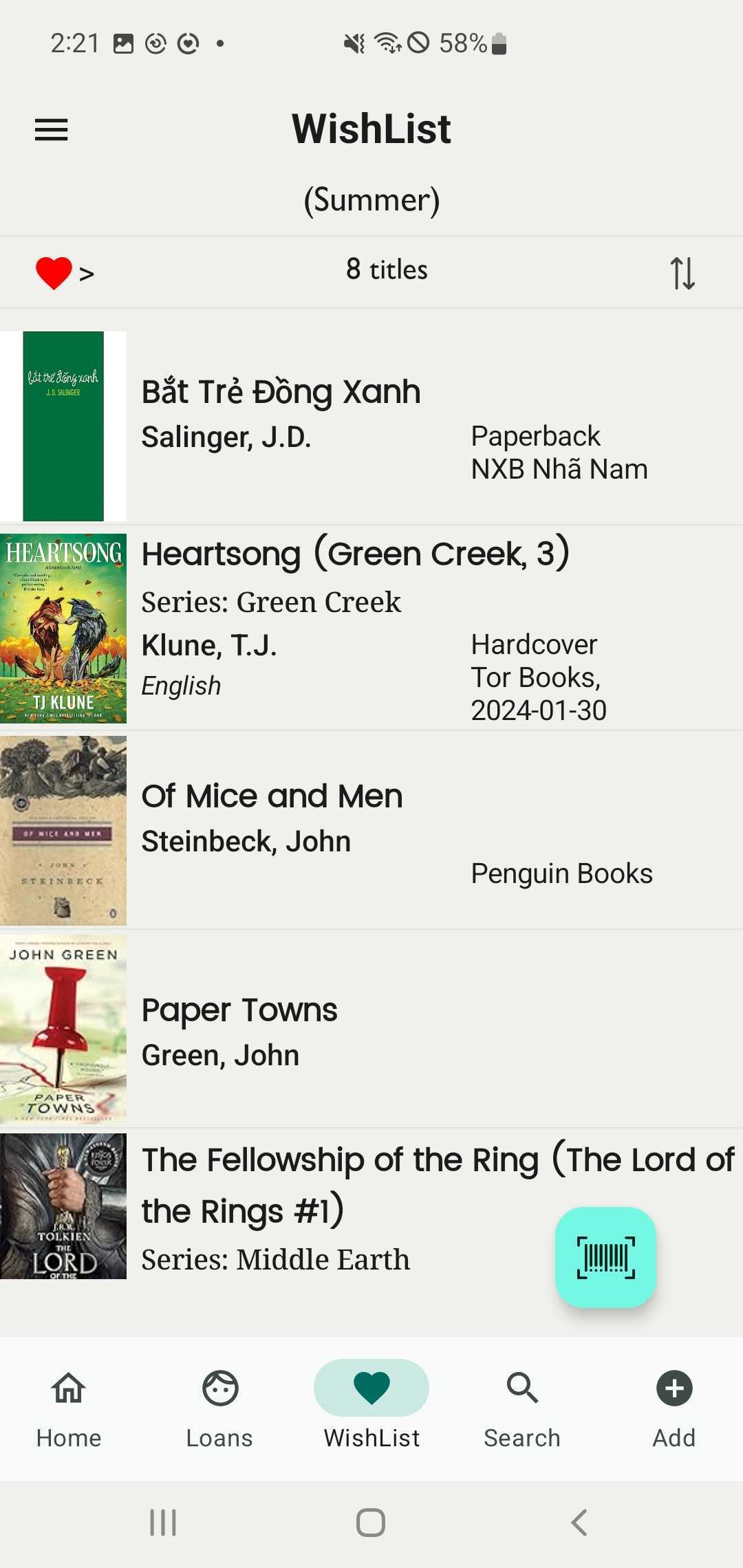
Step 5: Tap on the Wishlist field to view all the titles.
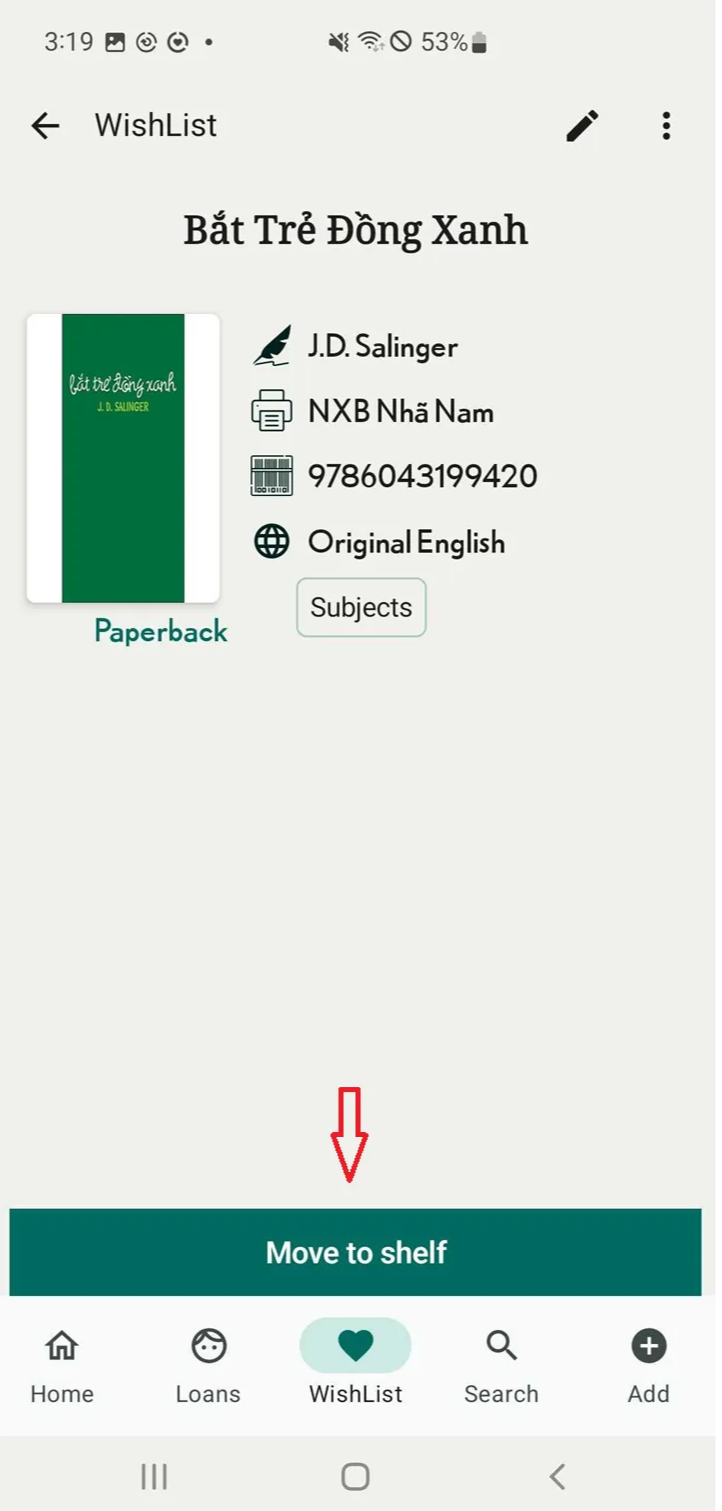
Step 6: Tap on the title to view all its details. Then, tap on “Move to Shelf” at the bottom of the screen.
Step 7: Select the shelf you want to move the title to, then press “Done.”
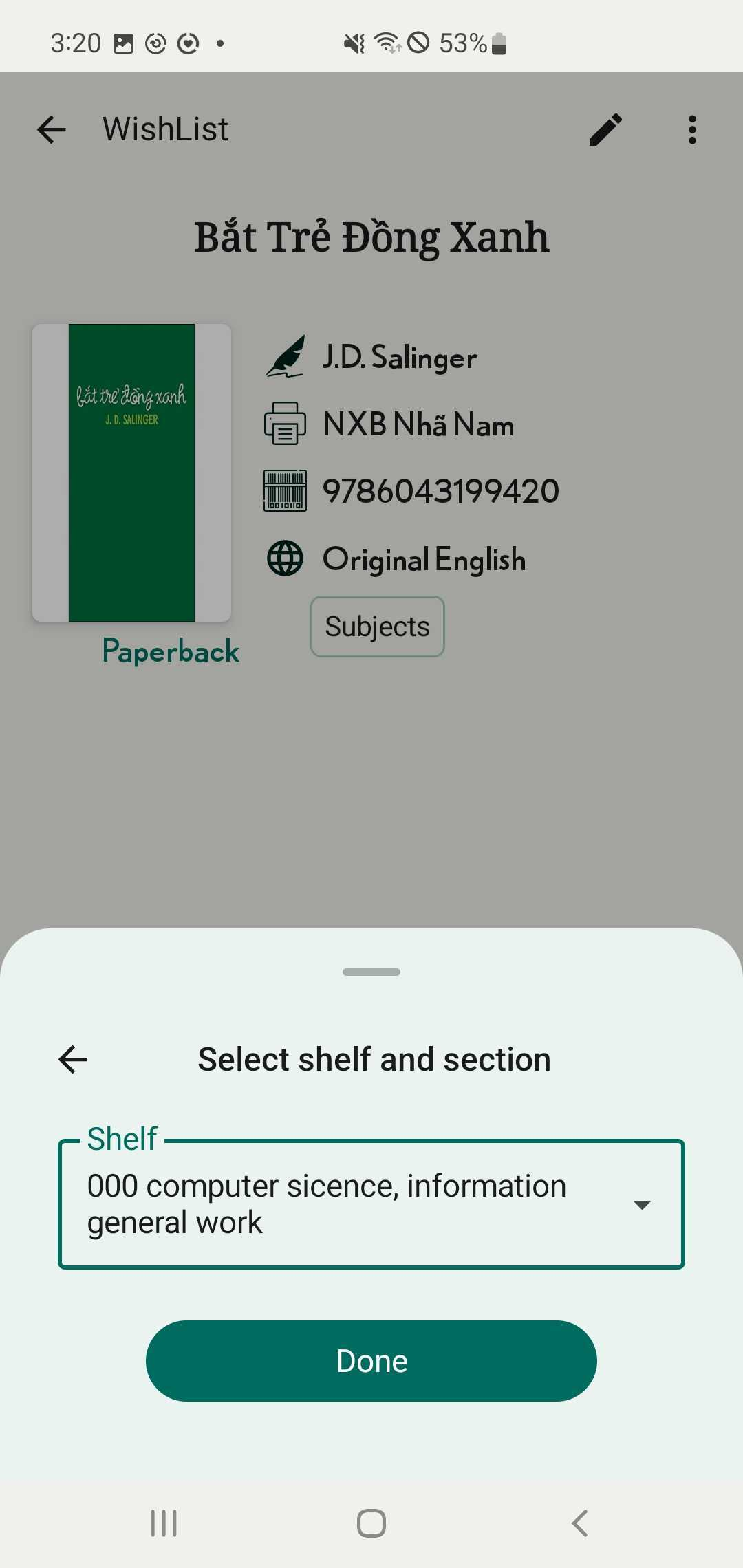
- Vice versa:
Step 8: Tap on the title in the book tab to view its details. Then, tap on the three-dot icon at the top right corner and select “Move to Wishlist.”
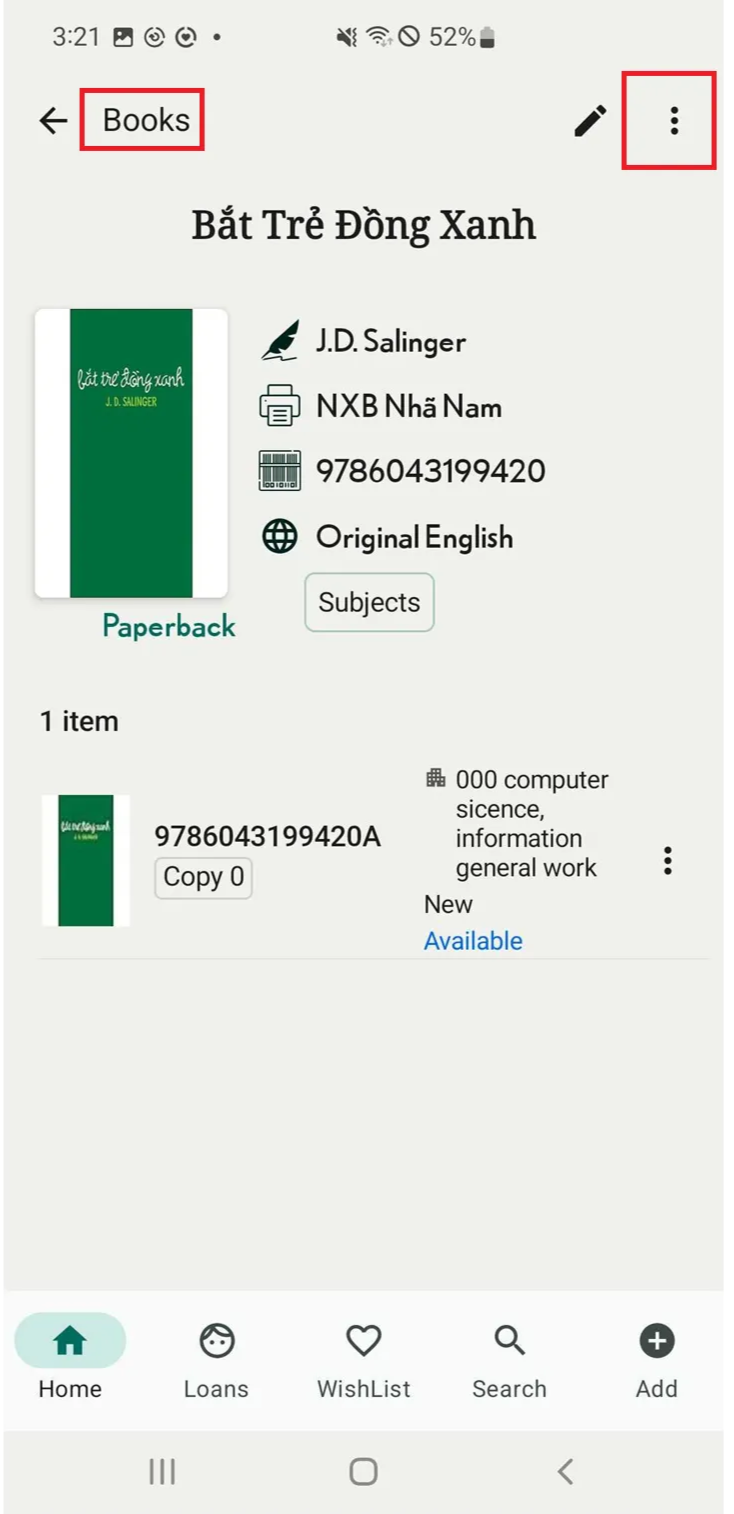
Step 9: Tap on the three-dot icon at the top right corner and select “Move to Wishlist.”
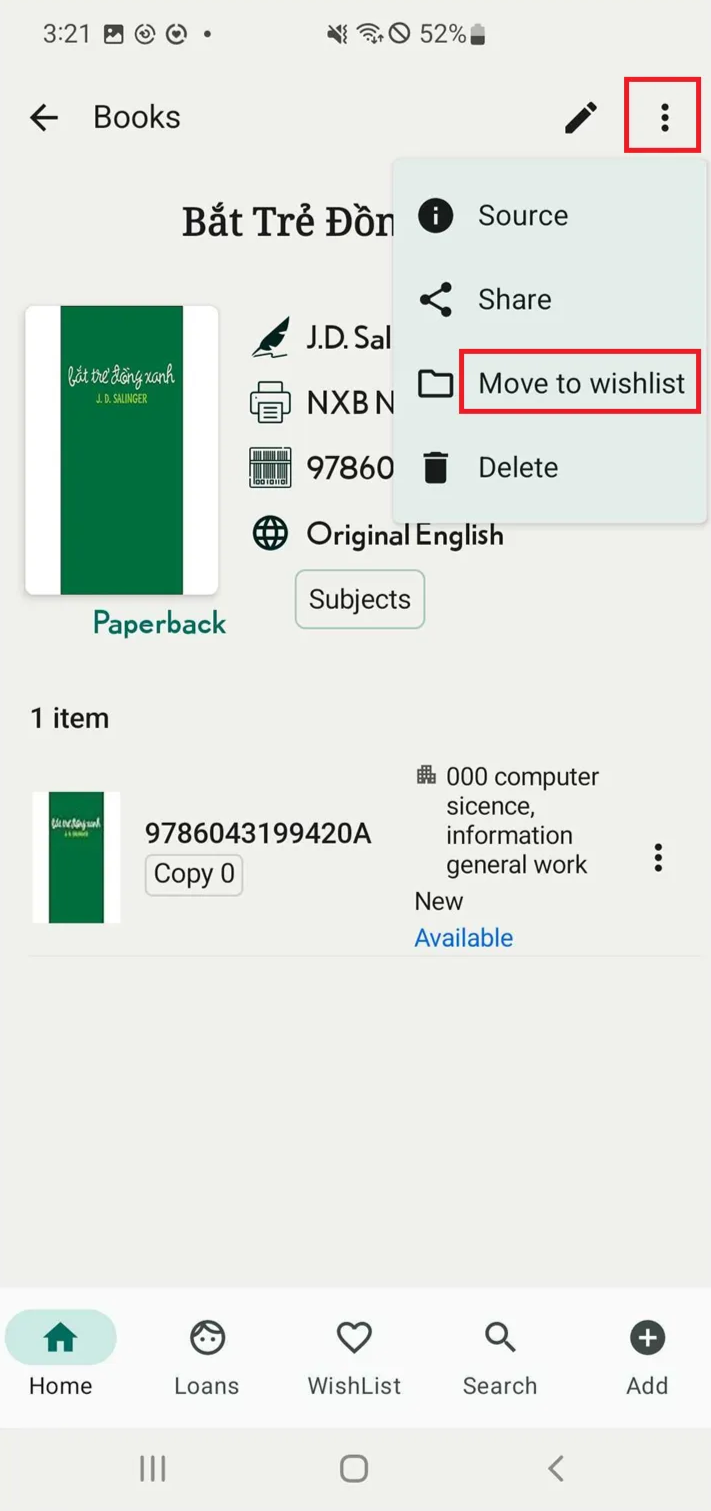
Step 10: Screen shows “Move to wishlist”