Loan
Create a Loan transaction
Step 1: If you have multiple libraries, please select the onethat contains the book before creating the checkout. Go to Loans section.
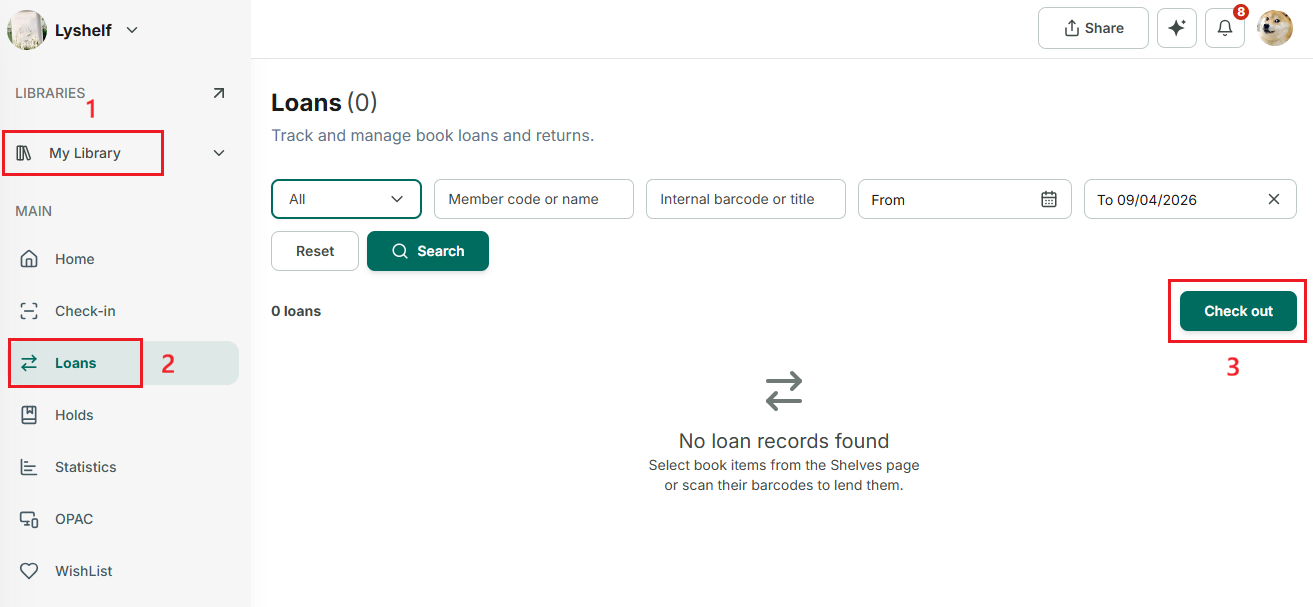
Step 2: Then, tap on “Checkout” button
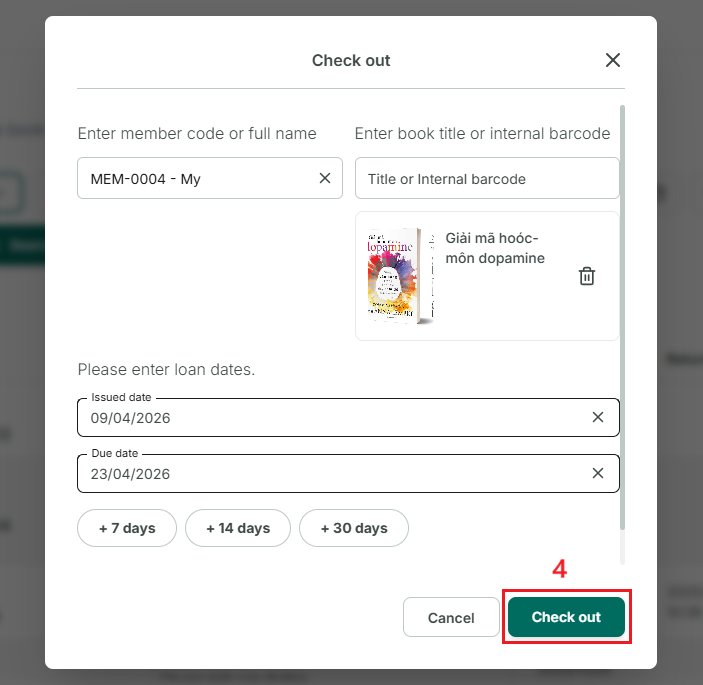
Step 3: In the first field, enter the name or member code to find the member. (Both online and offline members can borrow.)
In the second field, enter the **name of the book** you want to lend.→ Then, enter the due date, add a note if needed, and tap “Check out.”
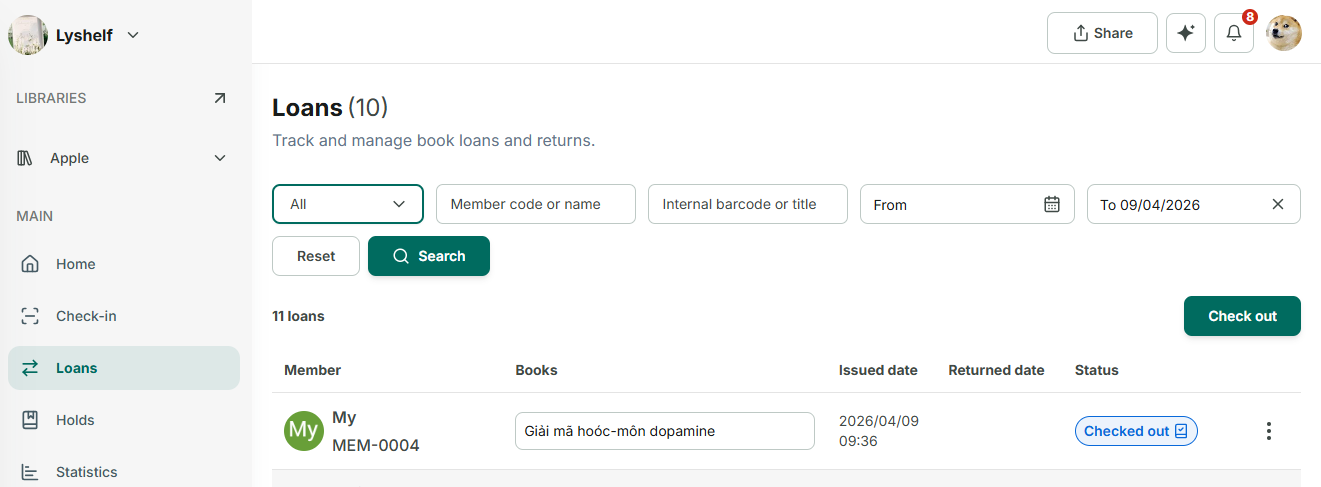
Step 4: After a successful check-out, the loan will appear on the main screen with a check-out status for easy tracking.
Create a Loan from the Books tab
Step 5: Open your library and select a book.
Step 6: At the items of book, tap on three dot icon to show more options
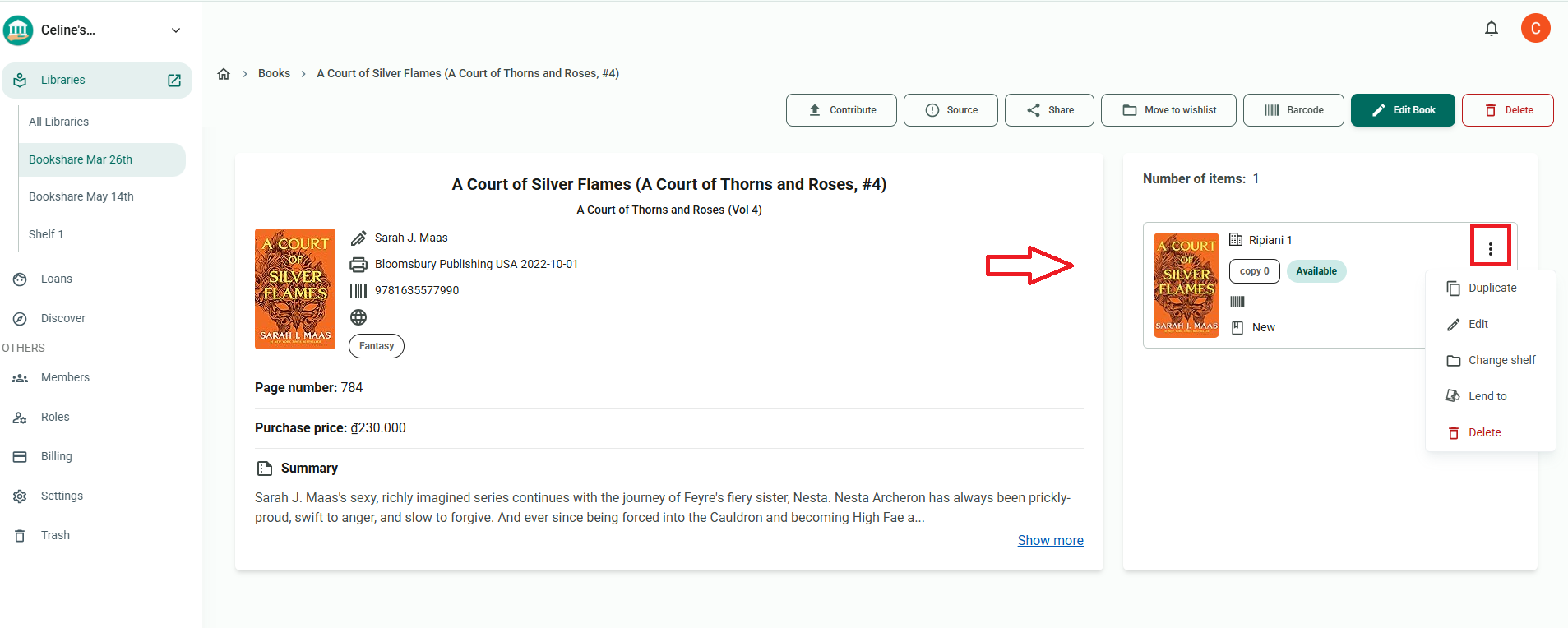
Step 7: Choose “Lend to”.
Step 8: Select a member, enter the due date, and tap OK.
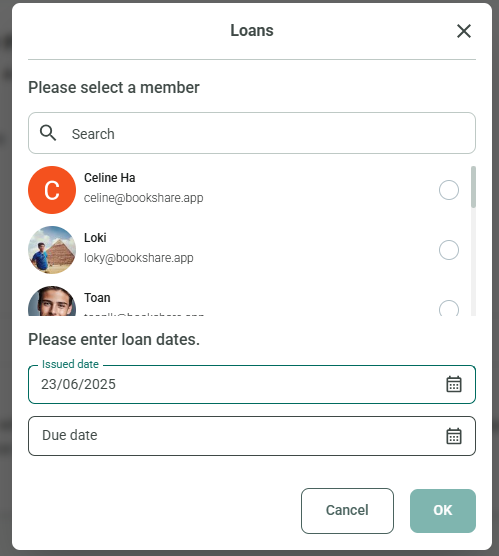
Step 9: At the side menu, tap on “Loans” to view the newly created loan.
Return the loan
Step 10: Access the Loans section at the side menu
Step 11: Search loan from a library
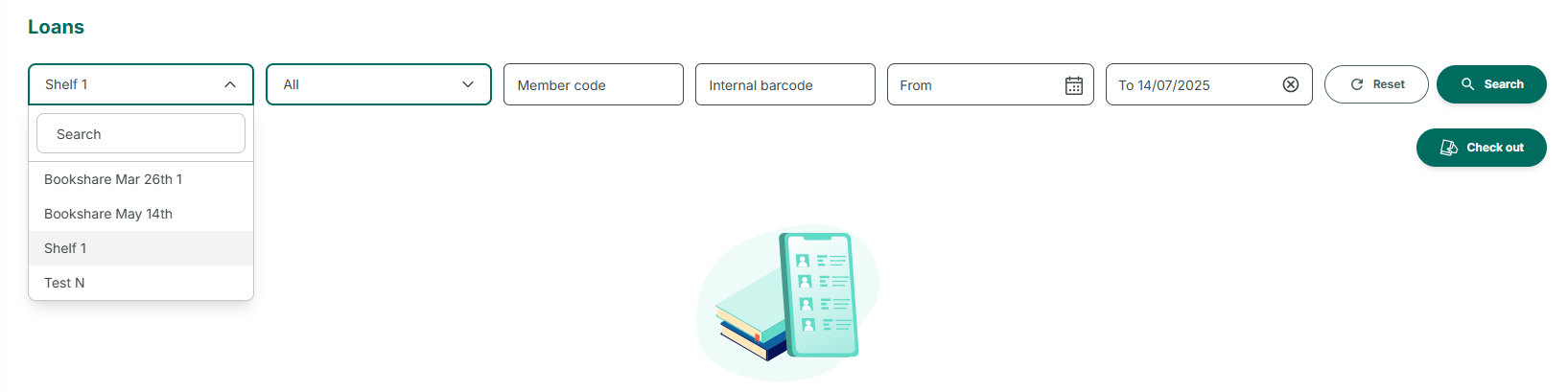
Step 12: Tap on a loan to show checkout details
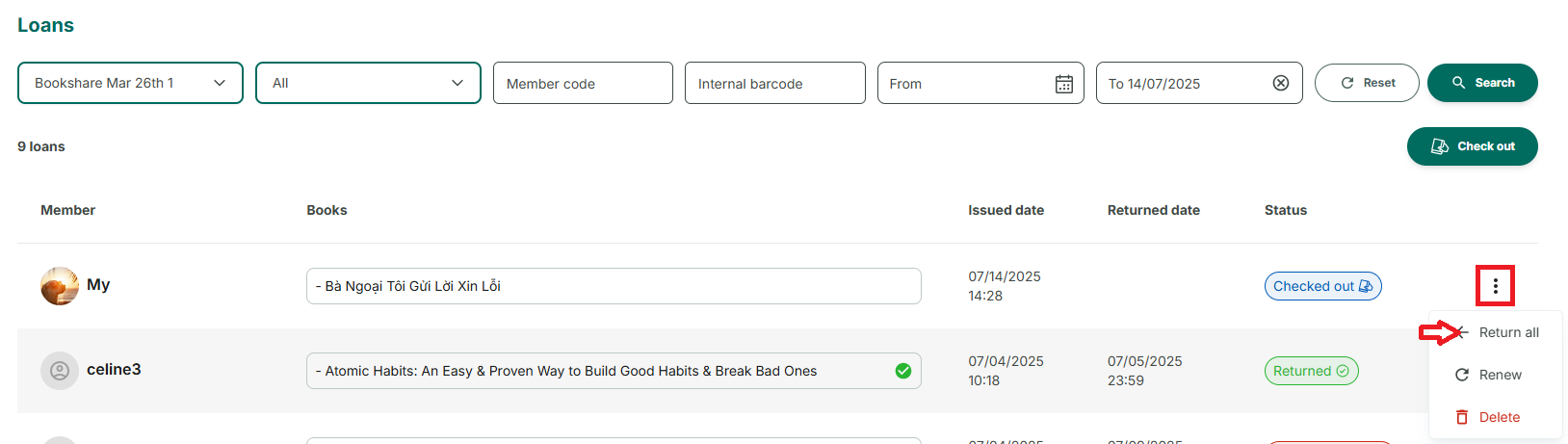
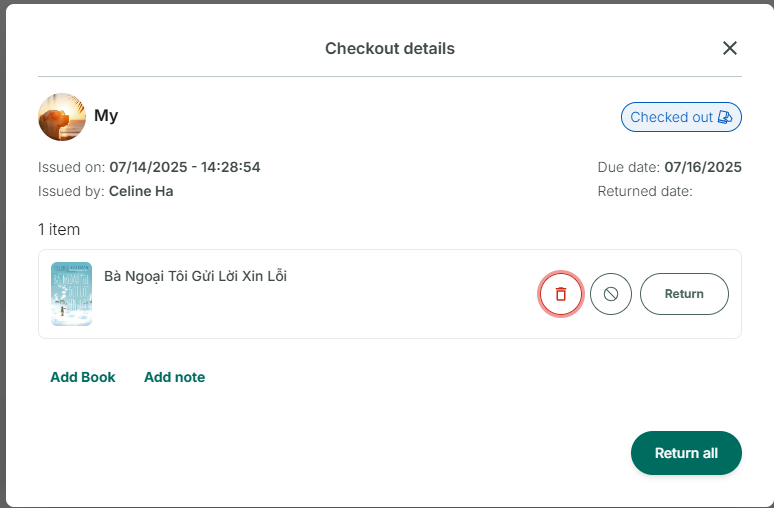
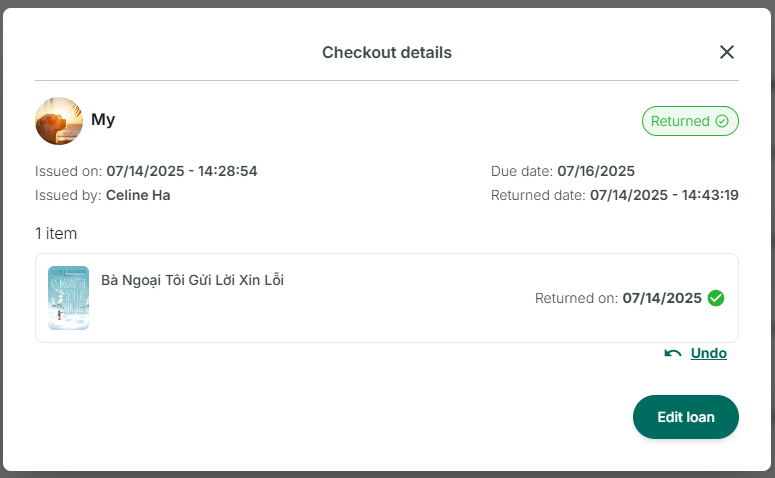
Step 13: Tap on “Return” or “Return all”. The status change to “Returned”. You can “undo” the action immediately afterward, but only once.
Renew the loan
Step 14: Access the Loans section at the side menu
Step 15: Press the three-dot icon in each loan. Three options:
- Return
- Renew
- Delete
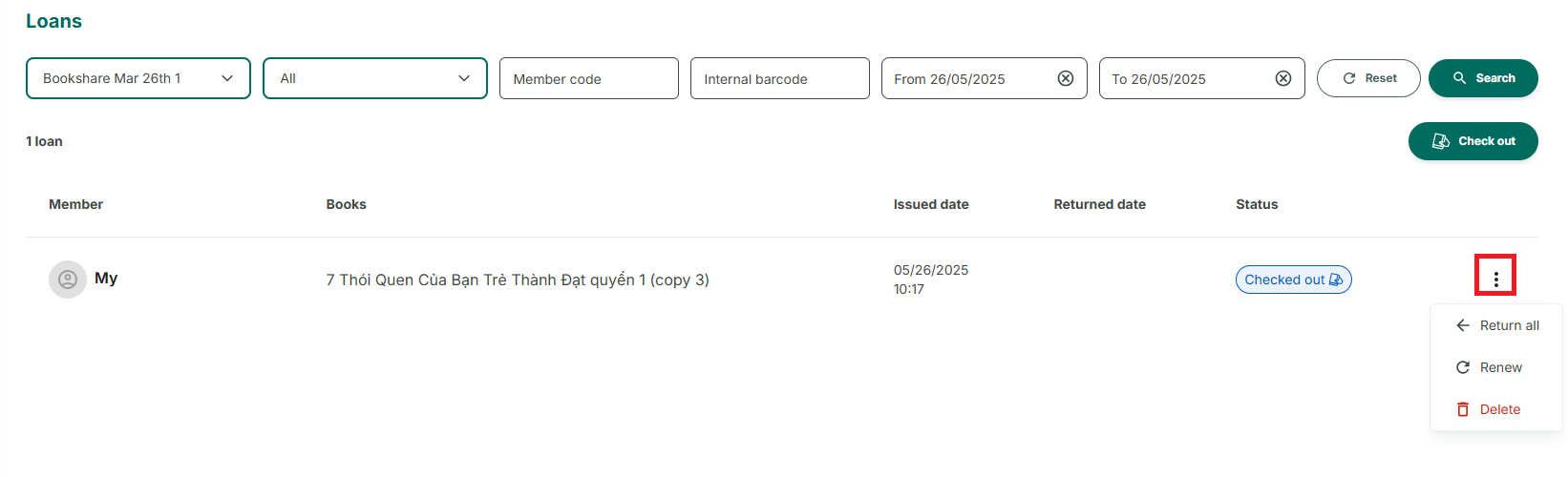
Step 16: Choose Renew, Please enter a new due day. Tap on the calendar icon, select a new due date, and press OK to confirm.
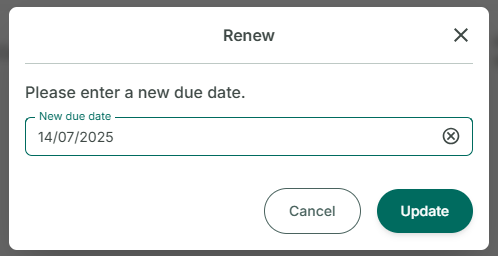
Step 17: The screen displays “renewed”, the loan is updated
Delete the loan
Step 18: Access the Loan section at the side menu
Step 19: Press the three-dot icon at each loan
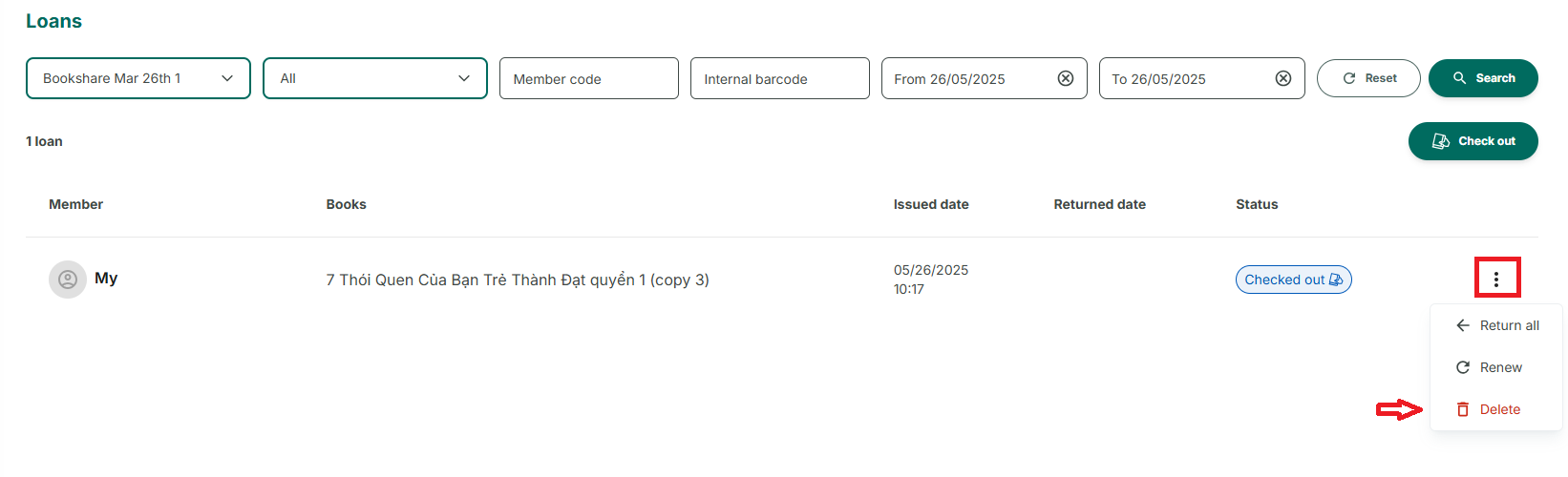
Step 20: If the book has not been returned, a warning message will appear. You can go back to return the loan and try deleting it again or delete it directly.
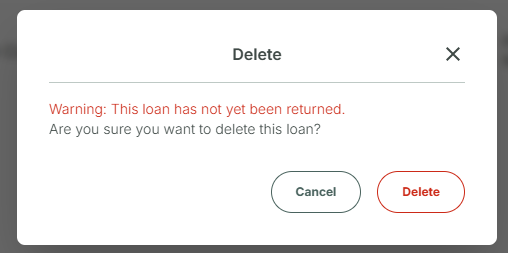
Step 21: The screen shows “Deleted”
Mark a book as lost
Step 22: Go to the Loans section and tap on a loan that includes the lost book.
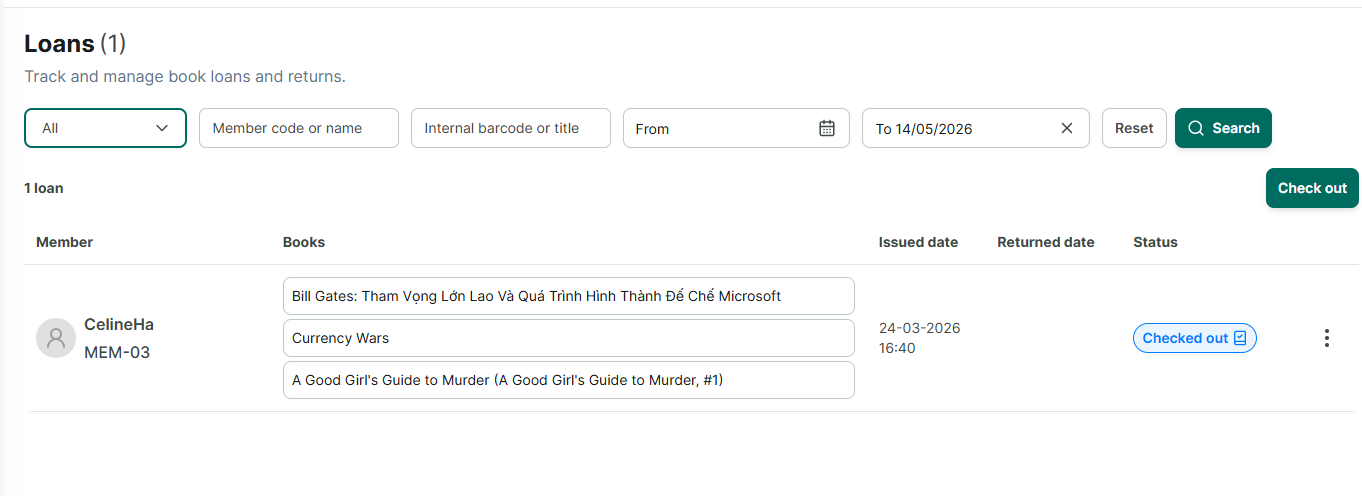
Step 23: The loan detail screen shows all the books and options to edit the loan.
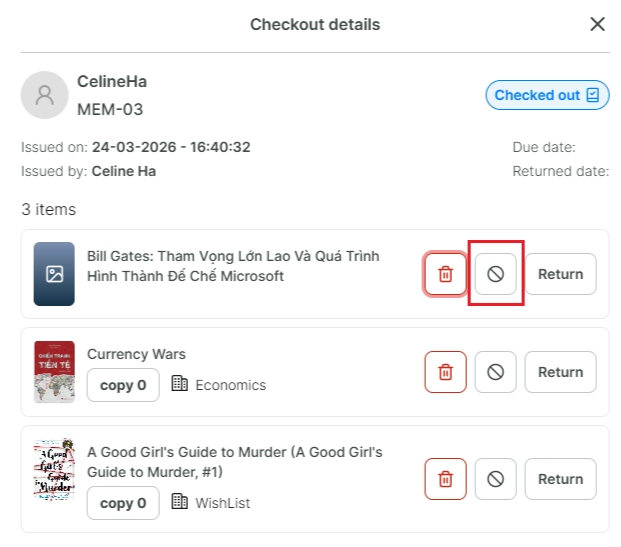
Step 24: Tap the circle icon with a slash next to each book.
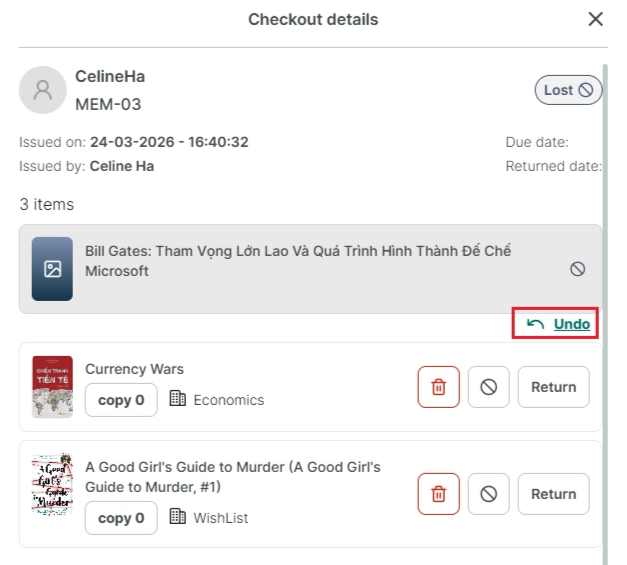
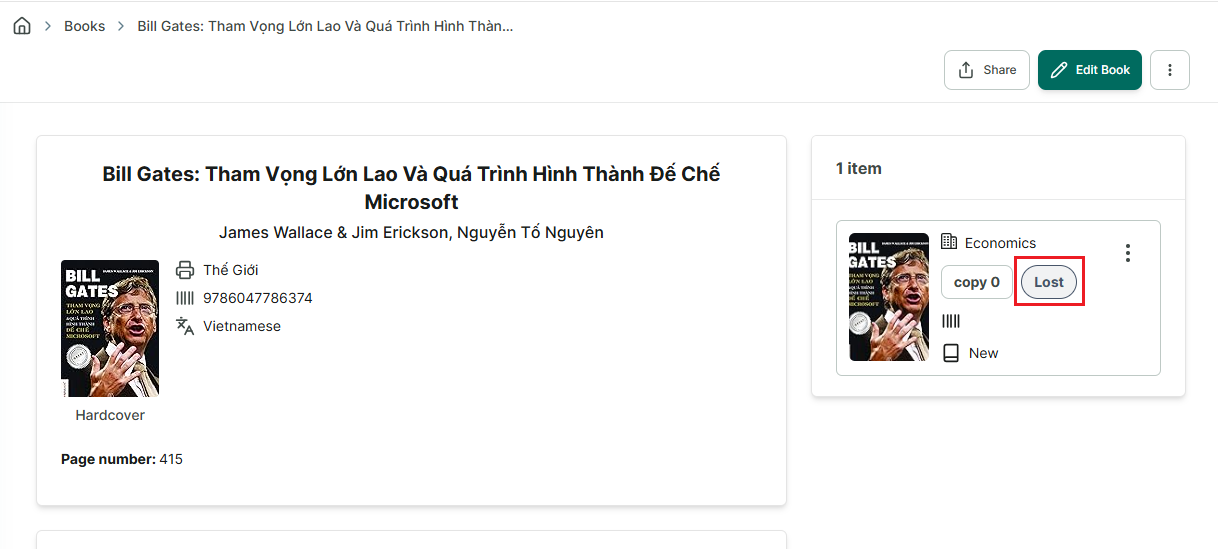
Step 25: This book will be marked as lost and unavailable on books and shelves tab.
Step 26: You can undo this action immediately afterward, but it can only be undone once.
In case, book is found and you want to mark book available again. Follow this steps:
Step 27: Go to the Loans section and tap on a loan that includes the lost book.
Step 28: If the loan contains only one book, click “Return” to mark the book as returned, and its status will automatically change to “Available.”
Step 29: If the loan contains multiple books, you need to click “Return All” to return all books, including the lost one. After returning, the lost book will also revert to the “Available” status.
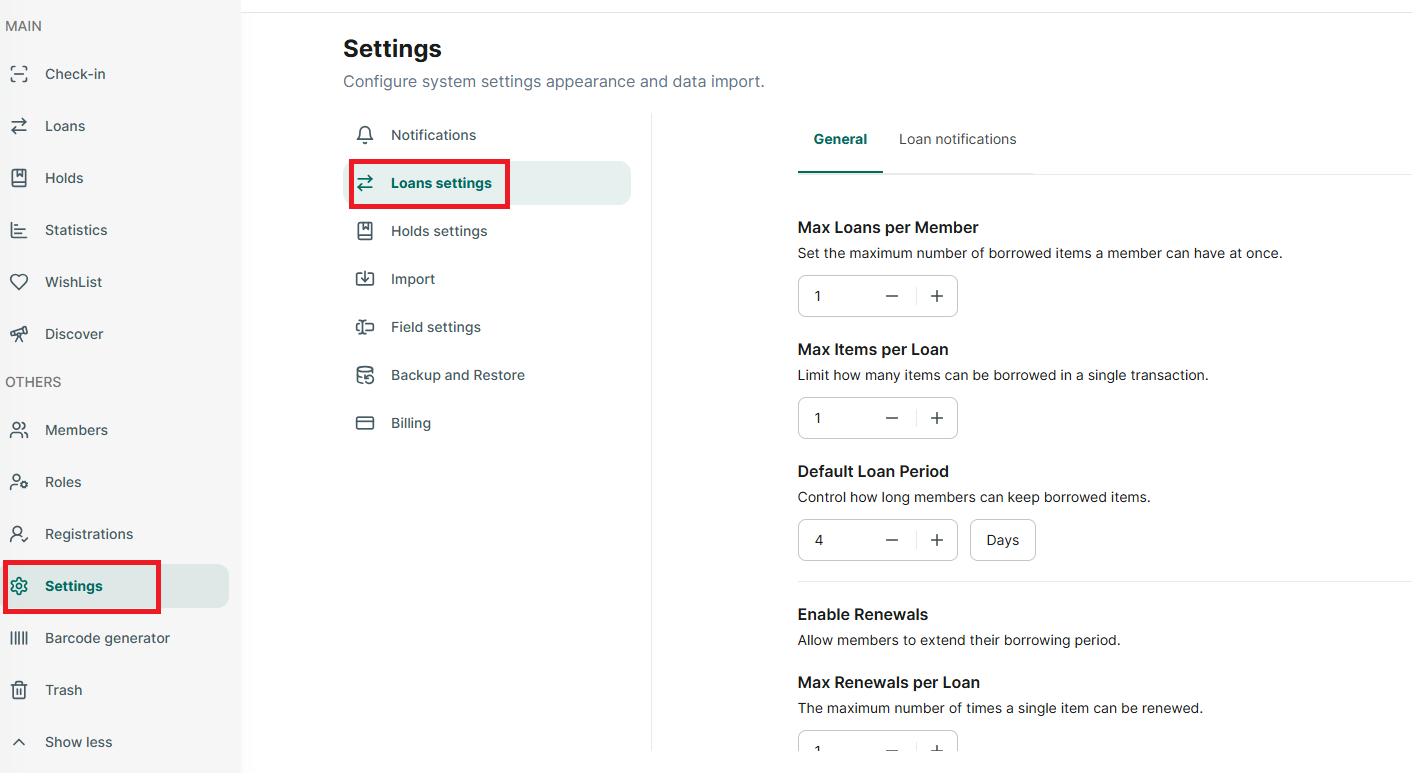
Settings
Step 30: Go to Settings section → seclect Loans settings
Step 31: You can set
- Max loan per member
- Max item per loan
- Default loan period
- Enable Renewals
- Max Renewals per Loan
- Default Renew Period
Step 32: Press “Save changes” to save or cancel to go back