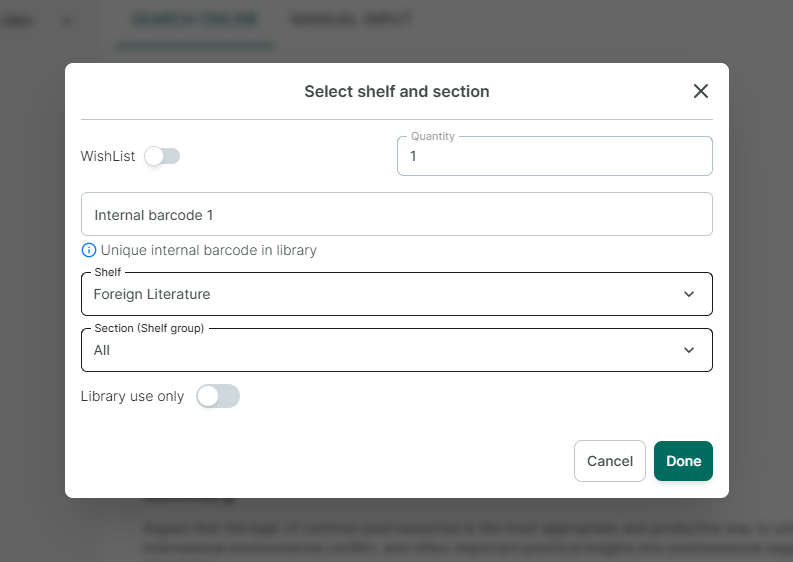
Add books by searching online
Step 1: Access the a library you want to add book
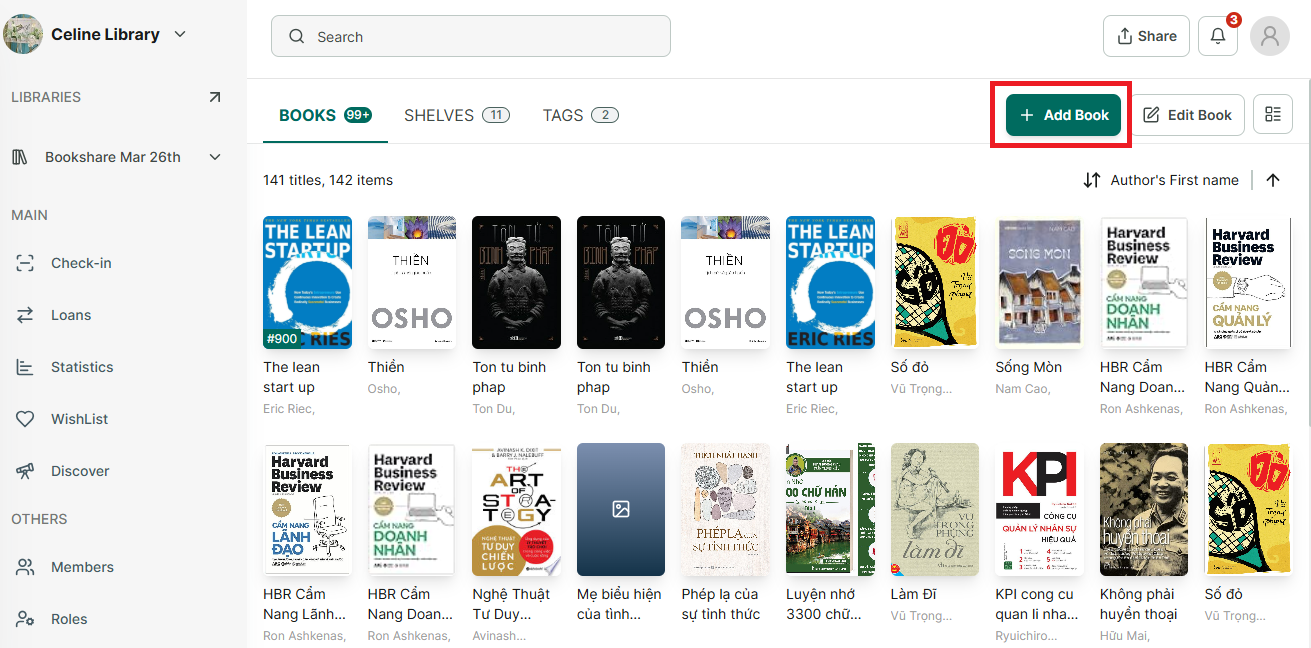
Step 2: Then press “Add book” button at the right top of conner.
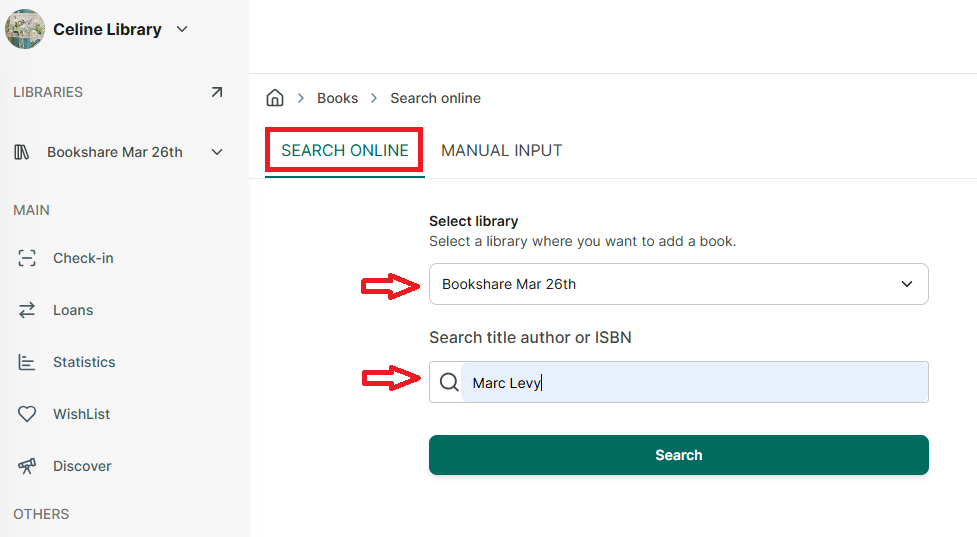
Step 3: Select “Search online” option
→ Then select other library if needed
→ Enter the book’s title, author, or ISBN to search.
→ Or you can scan the ISBN barcode instead of manually entering the ISBN in the search box. Simply place your cursor in the search field, then scan the book’s ISBN barcode, the code will be entered automatically. After that, click “Search” to find the book.
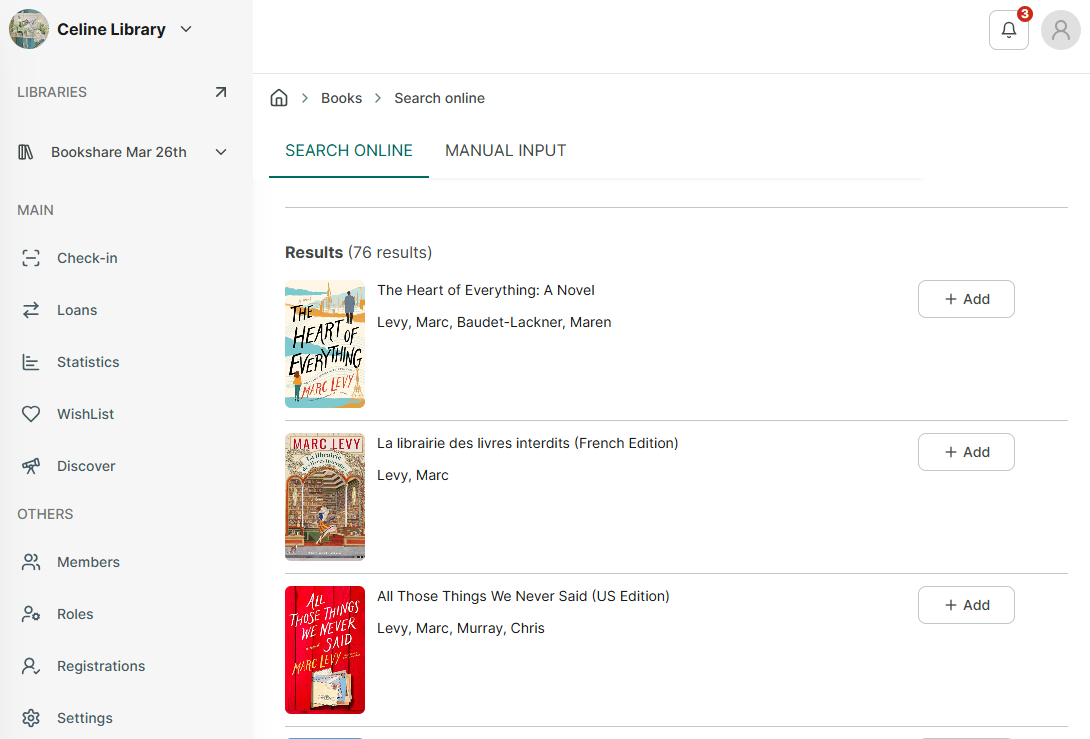
Step 4: It will display all relevant results, you can tap the “+ Add” button to add the book directly without previewing.
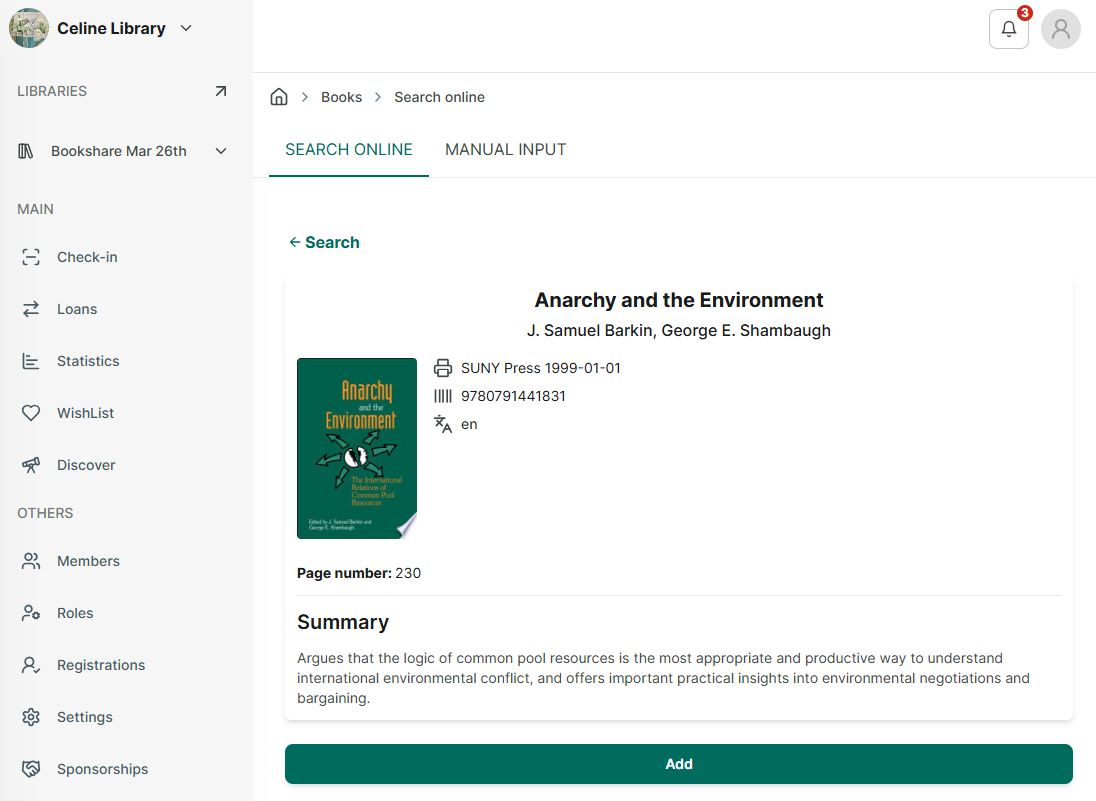
Step 5: Tap on a book to preview its details before adding it, or go back to the search results to view others.