Setting
Import Data From Handy Library
Step 1: In the Handy Library app - Export your library to ZIP file, store it on your device or Google Drive
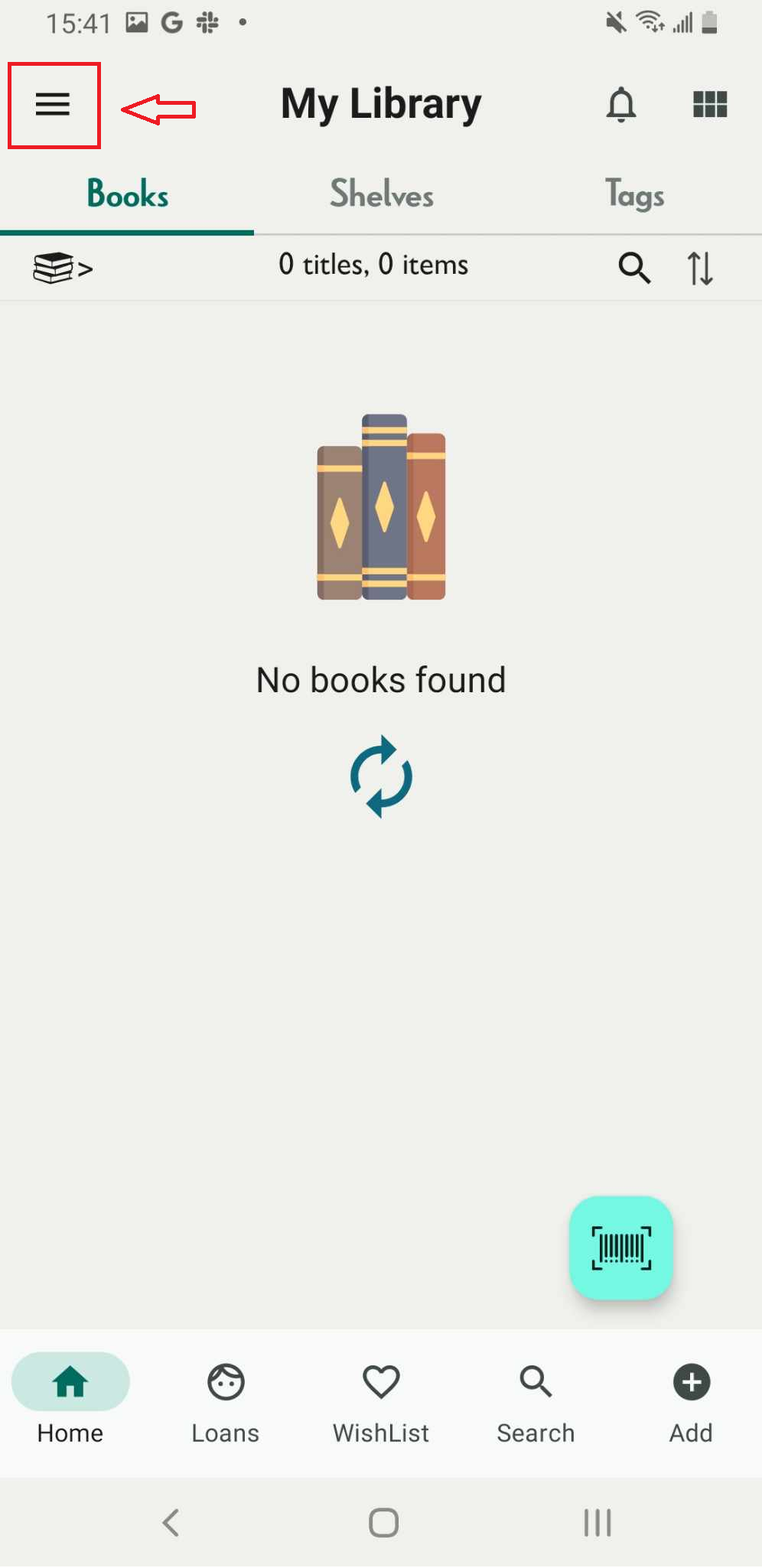
Step 2: Open Skoolib app. Tap on the three-line icon.
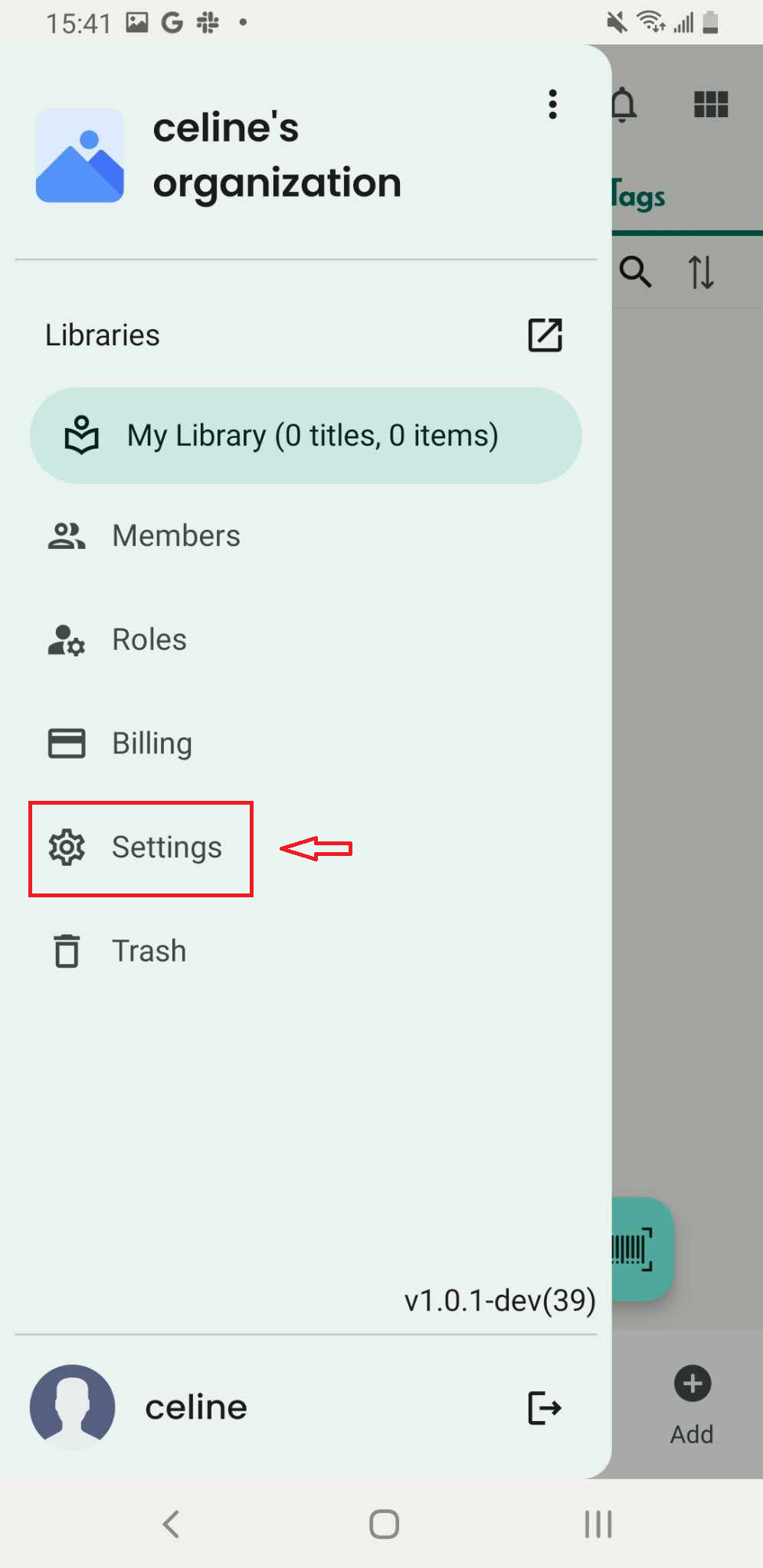
Step 3: It displays the side menu. Tap on “Setting”
Step 4: The Import function appears on the screen. Press “Import” to proceed.
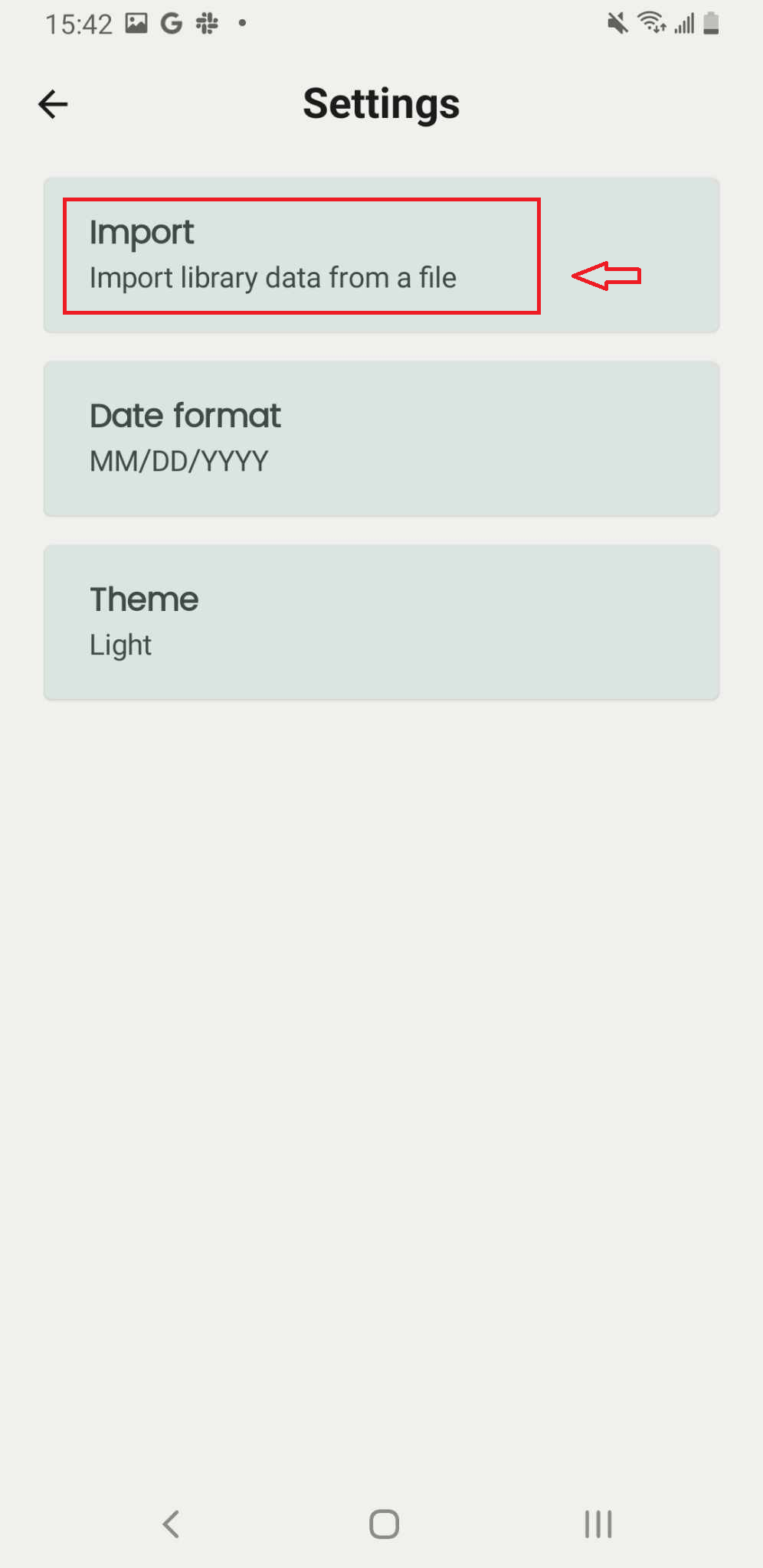
Step 5: Tap on “Select a data Zip file exported from the Handy Library app.”
Then choose library and press Import. Import information and two option such as Cancel and Select file.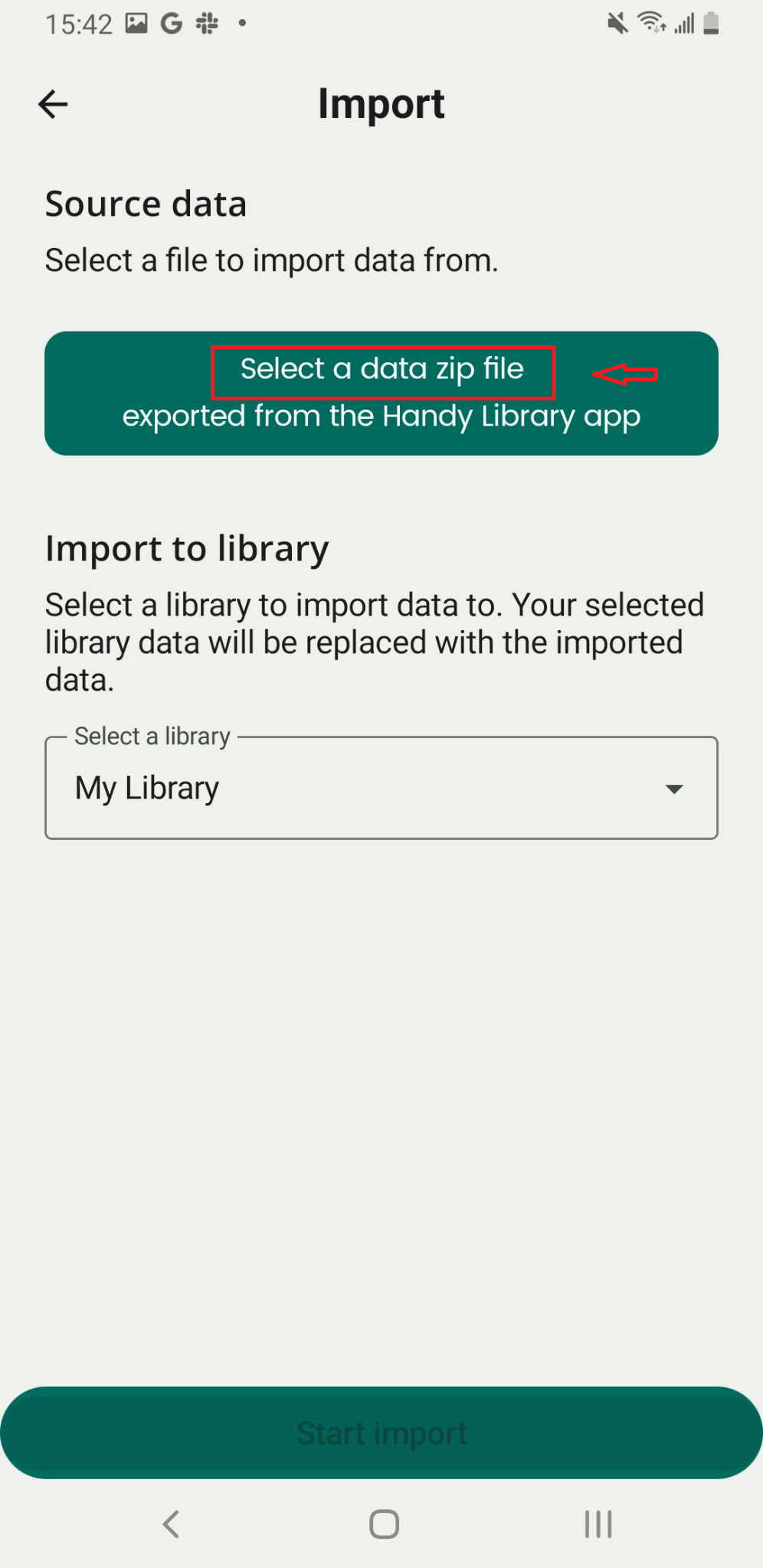
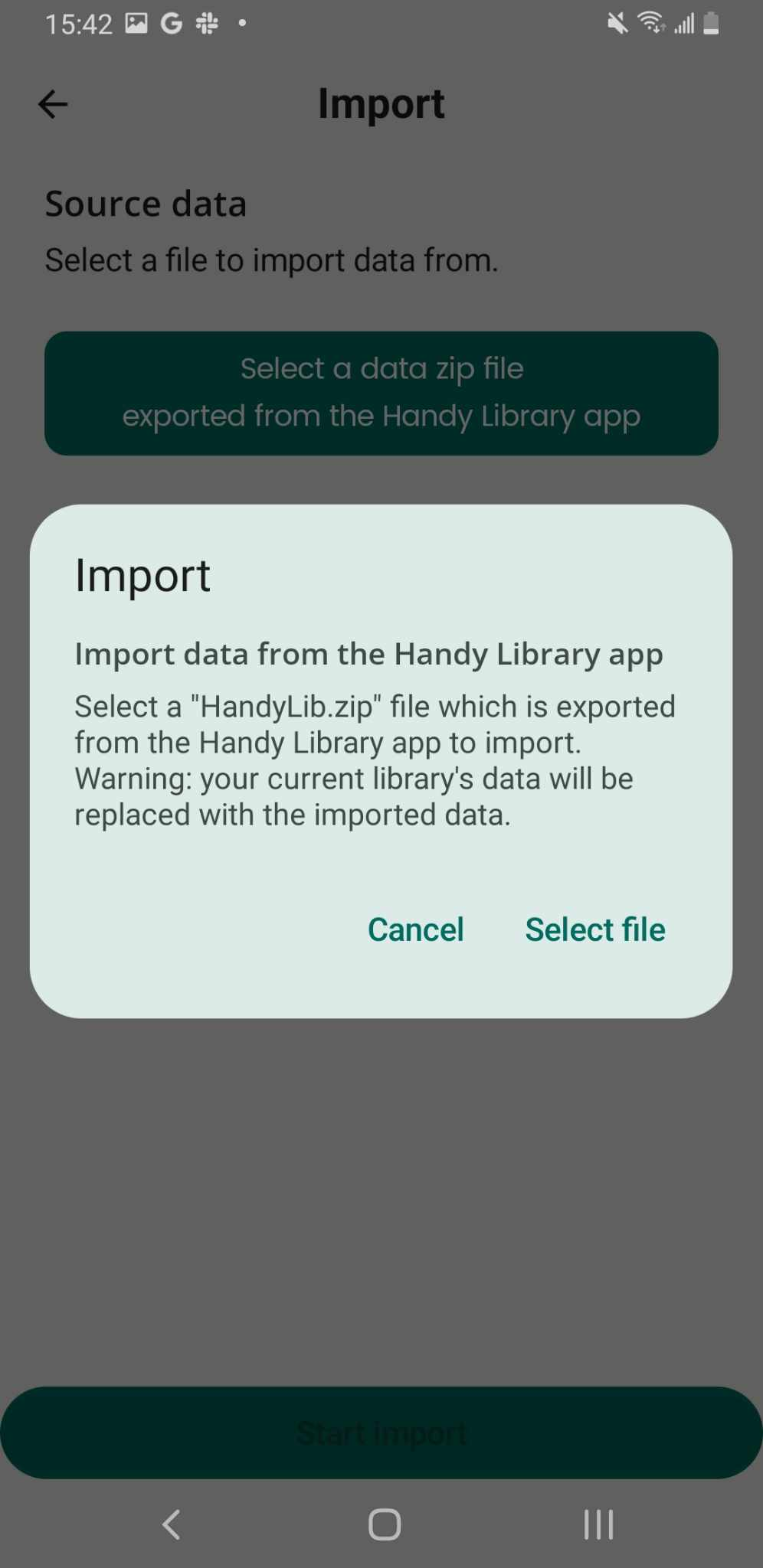
Step 6: The screen displays import information along with two options: Cancel and Select file.
- Press Cancel to go back.
- Press Select file to continue the process.
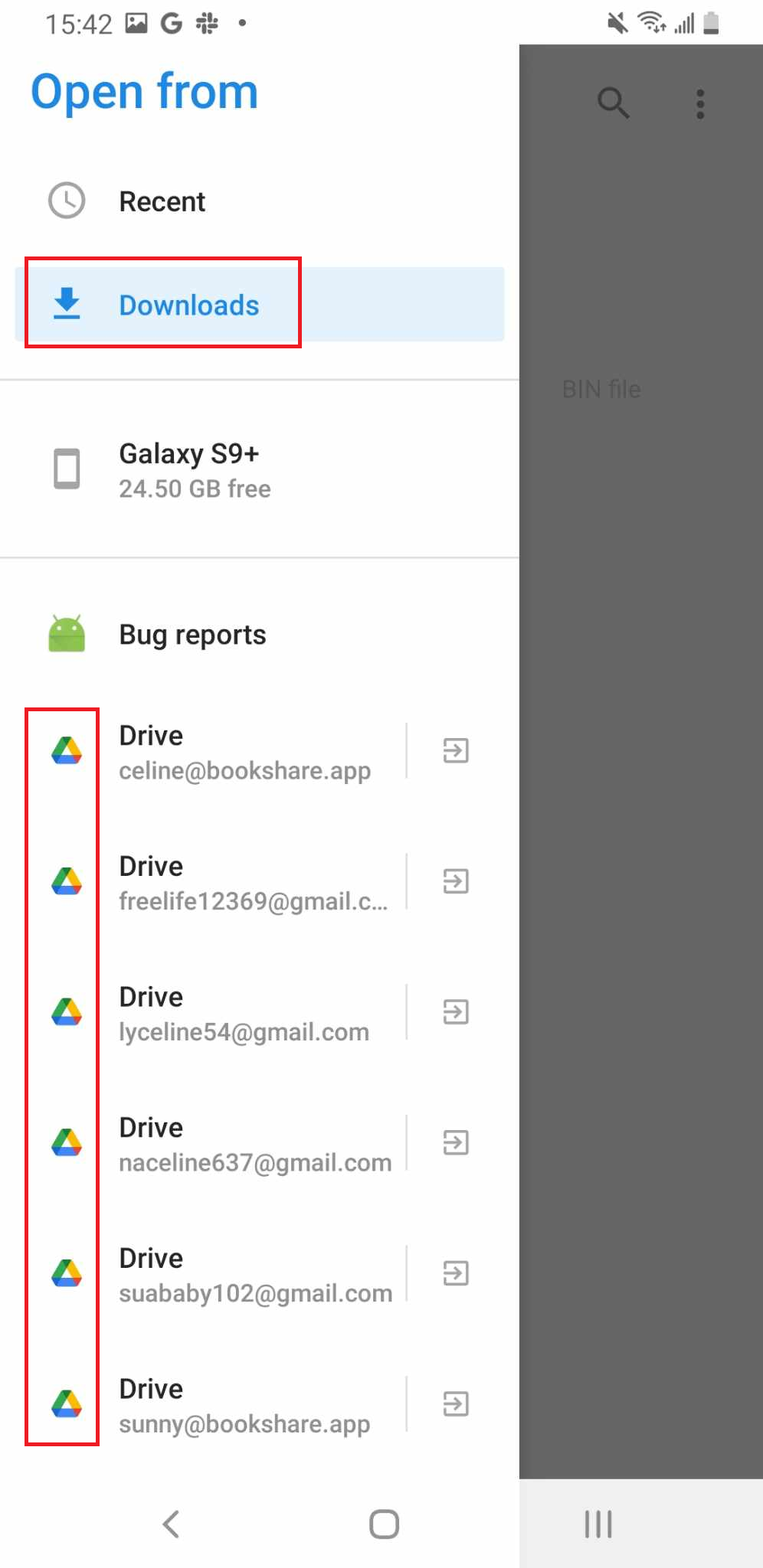
Step 7: Choose file from Google Driver or Current data on your device
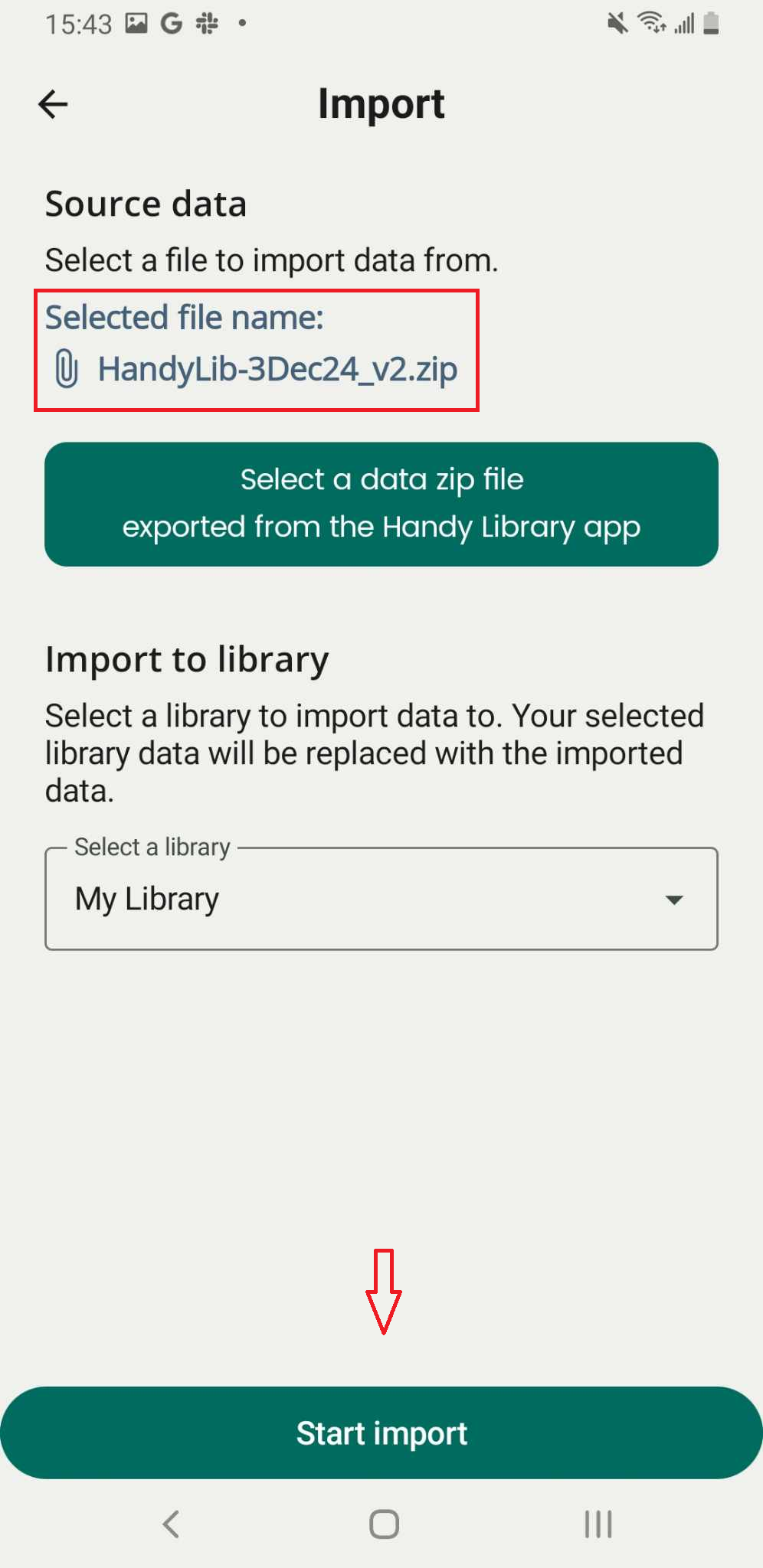
Step 8: The screen displays the selected file name from Handy Library. Press “Start Import”.
- The screen shows the import process message:
“Importing data from Handy Library. Please do not close the tab.”
- The progress is displayed as a percentage until completion.
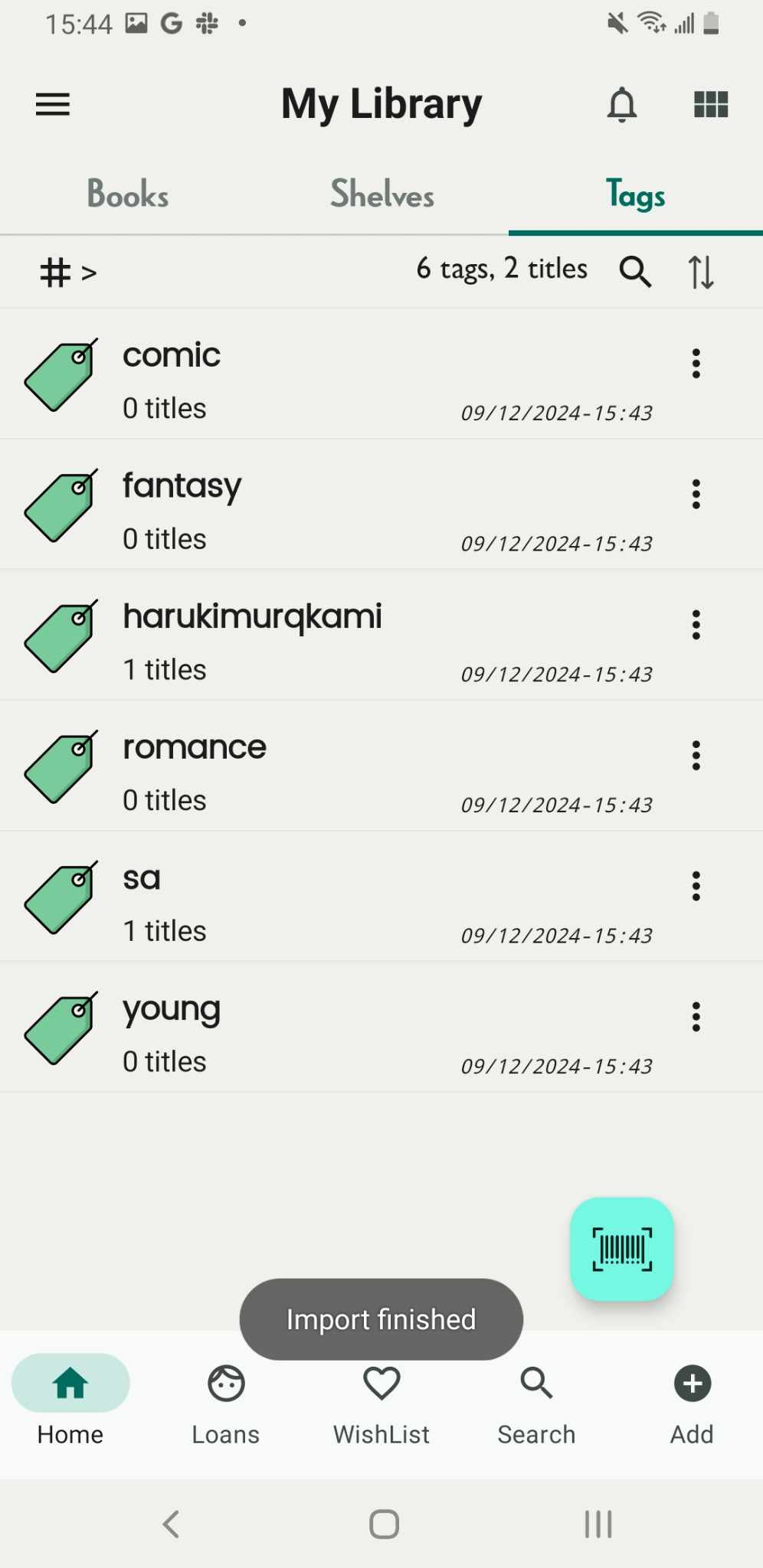
Step 9: It shows the message “Import finished” and shows all data
Change theme
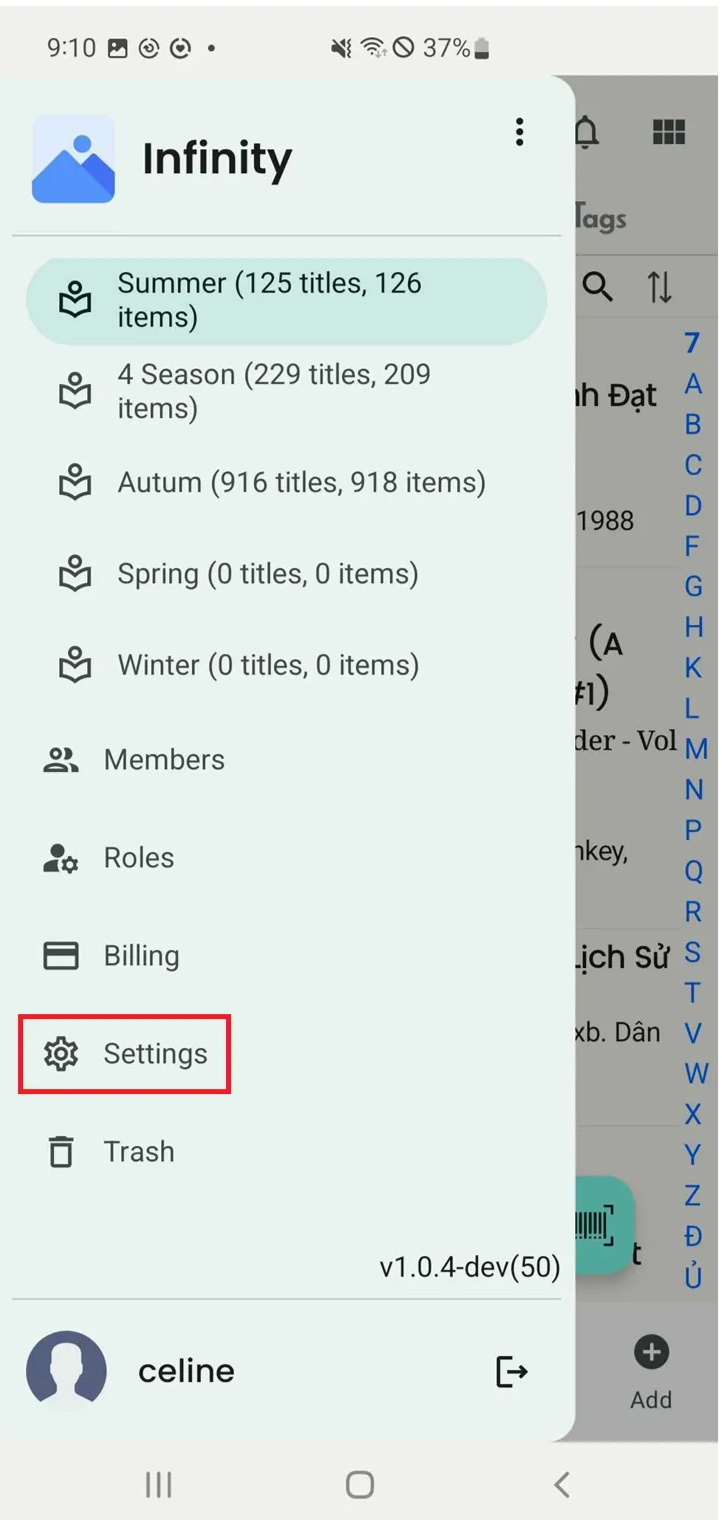
Step 10: Tap on the three-line menu icon and Tap on Settings
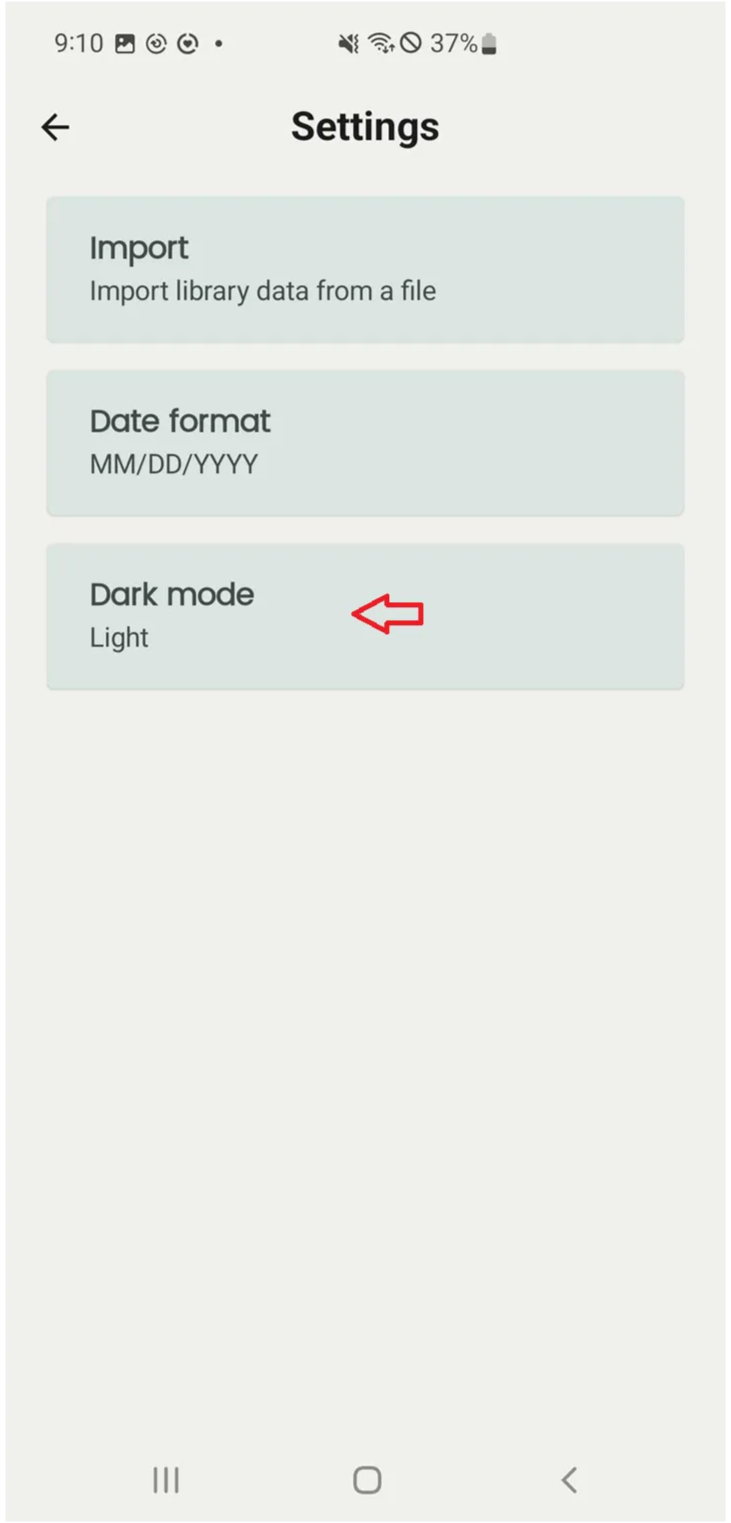
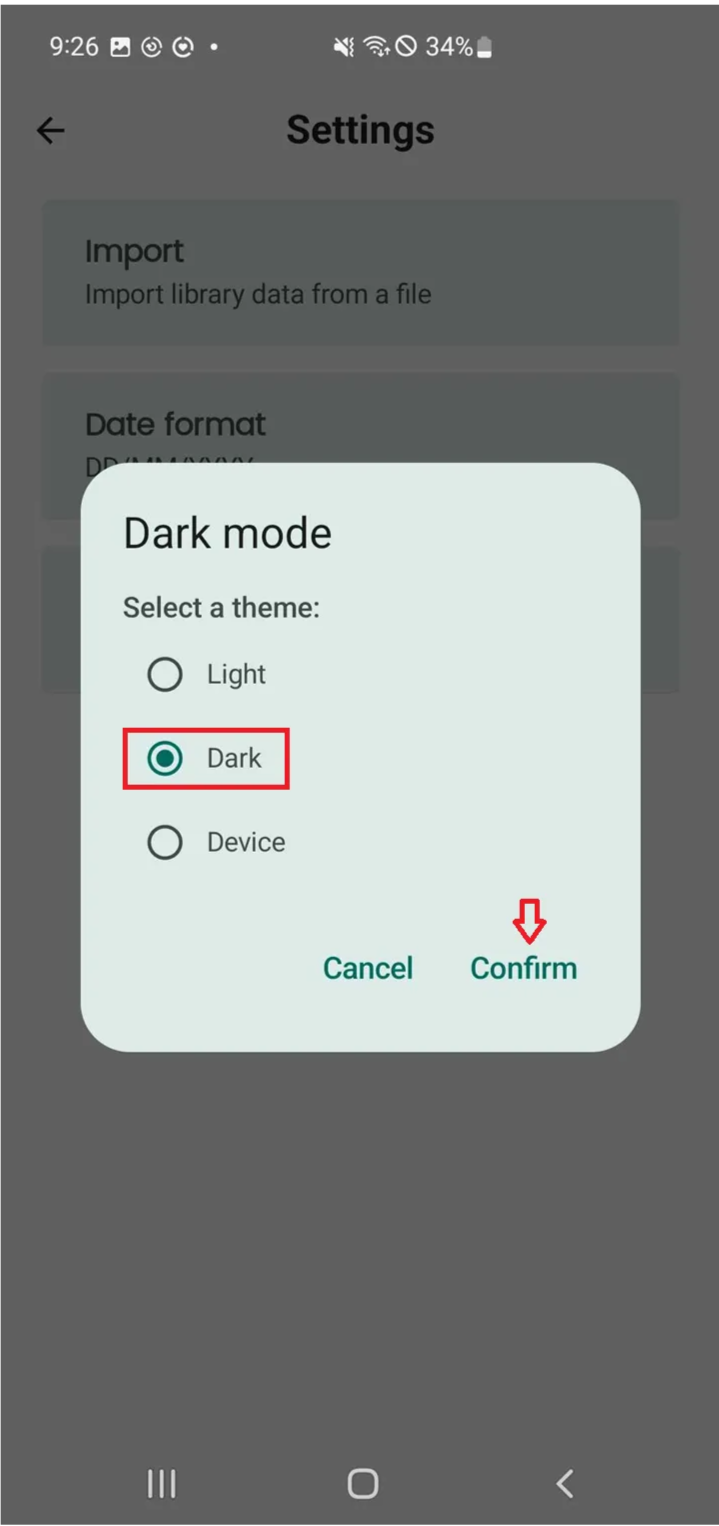
Step 11: Select “Dark mode”
Step 12: Tap “Confirm” if you want to choose this theme. The theme will be changed.
Date format
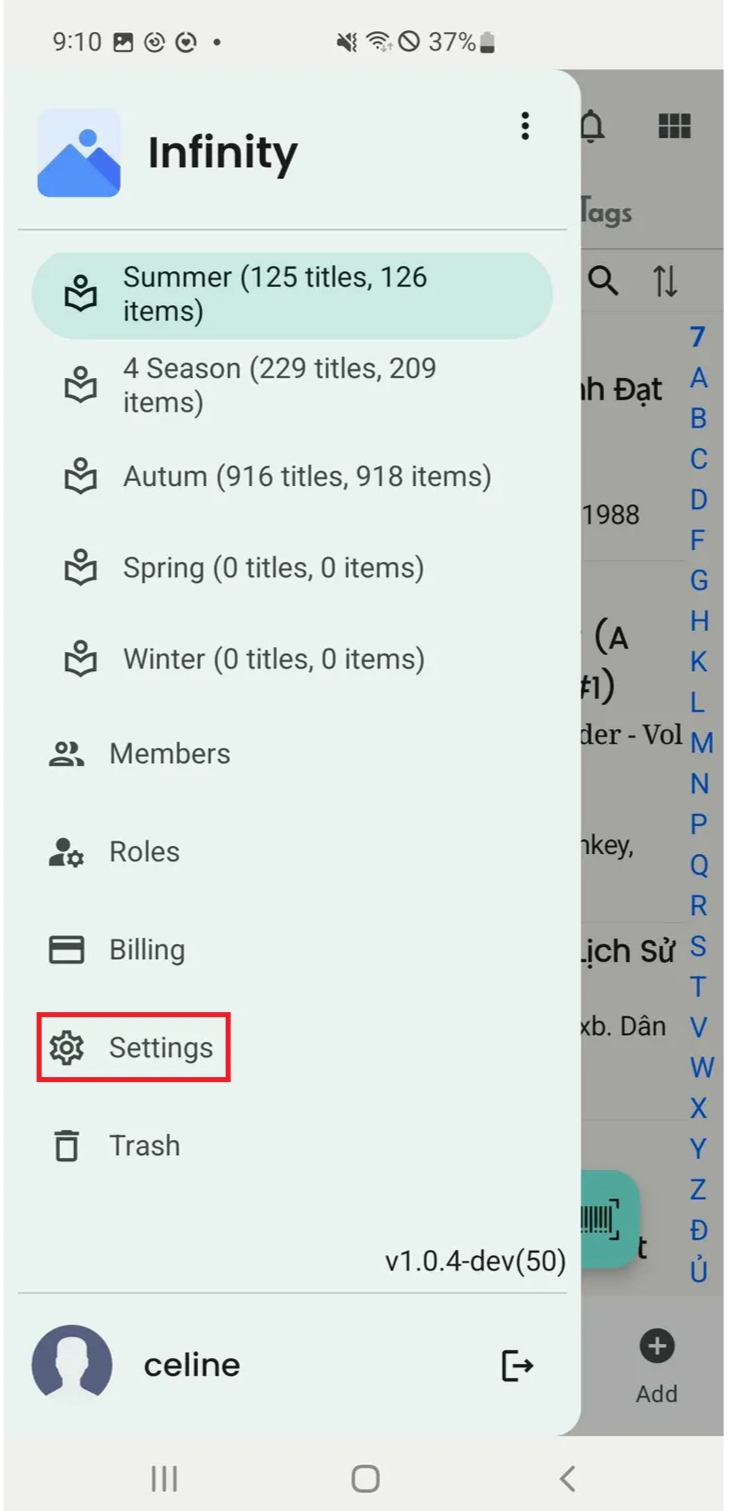
Step 13: Tap on three-line icon. The list of options will appear. Then, tap on Settings.
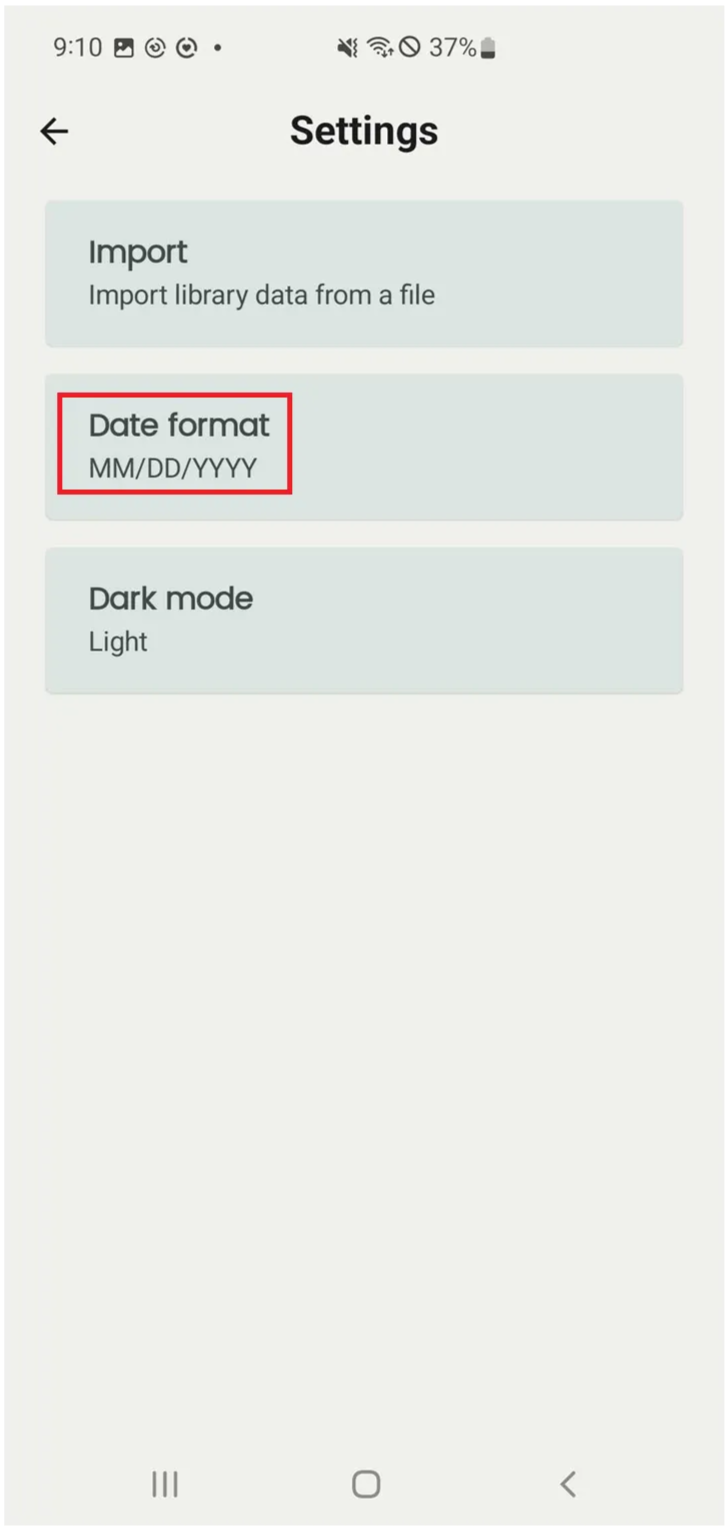
Step 14: Select “Date format”.
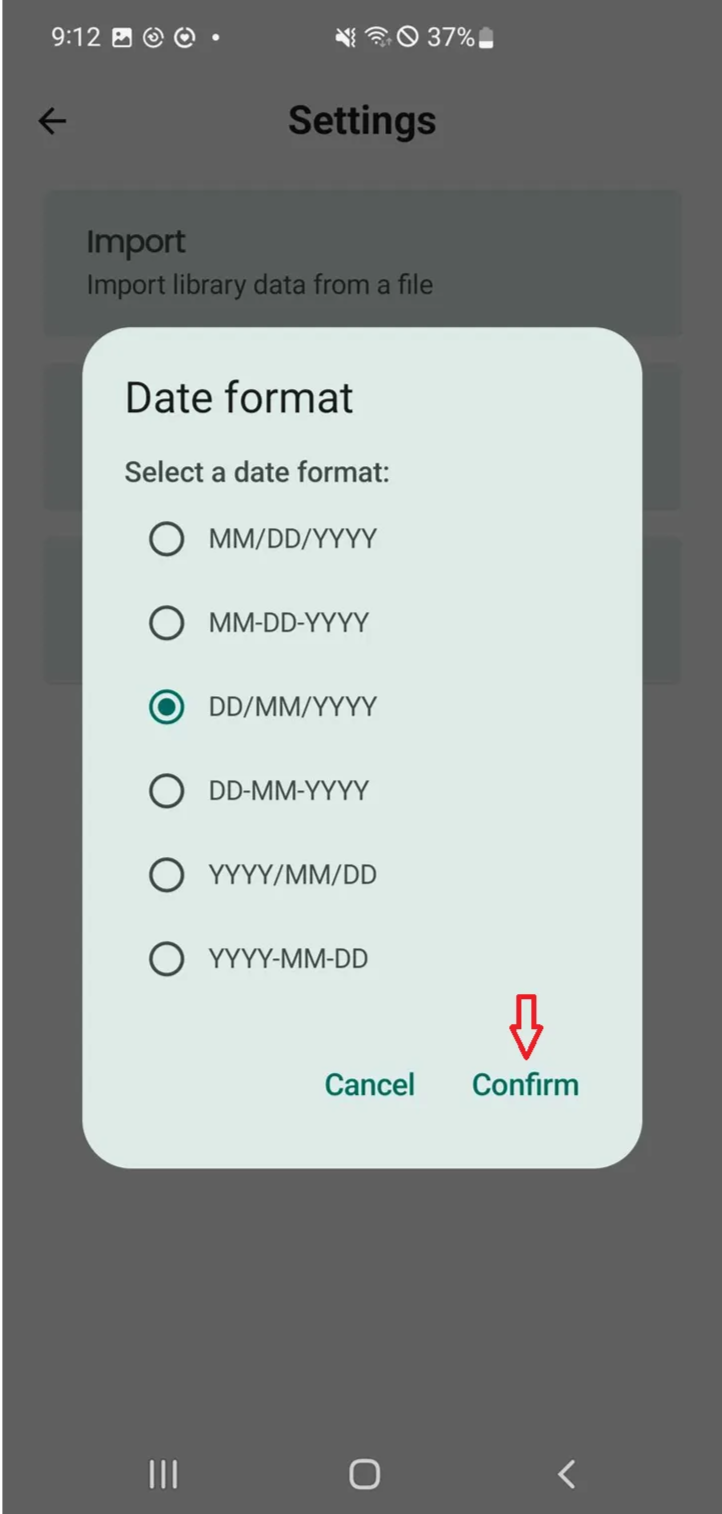
It shows: Select the date format:
- MM/DD/YYYY
- MM-DD-YYYY
- DD/MM/YYYY
- DD-MM-YYYY
- YYYY/MM/DD
- YYYY-MM-DD
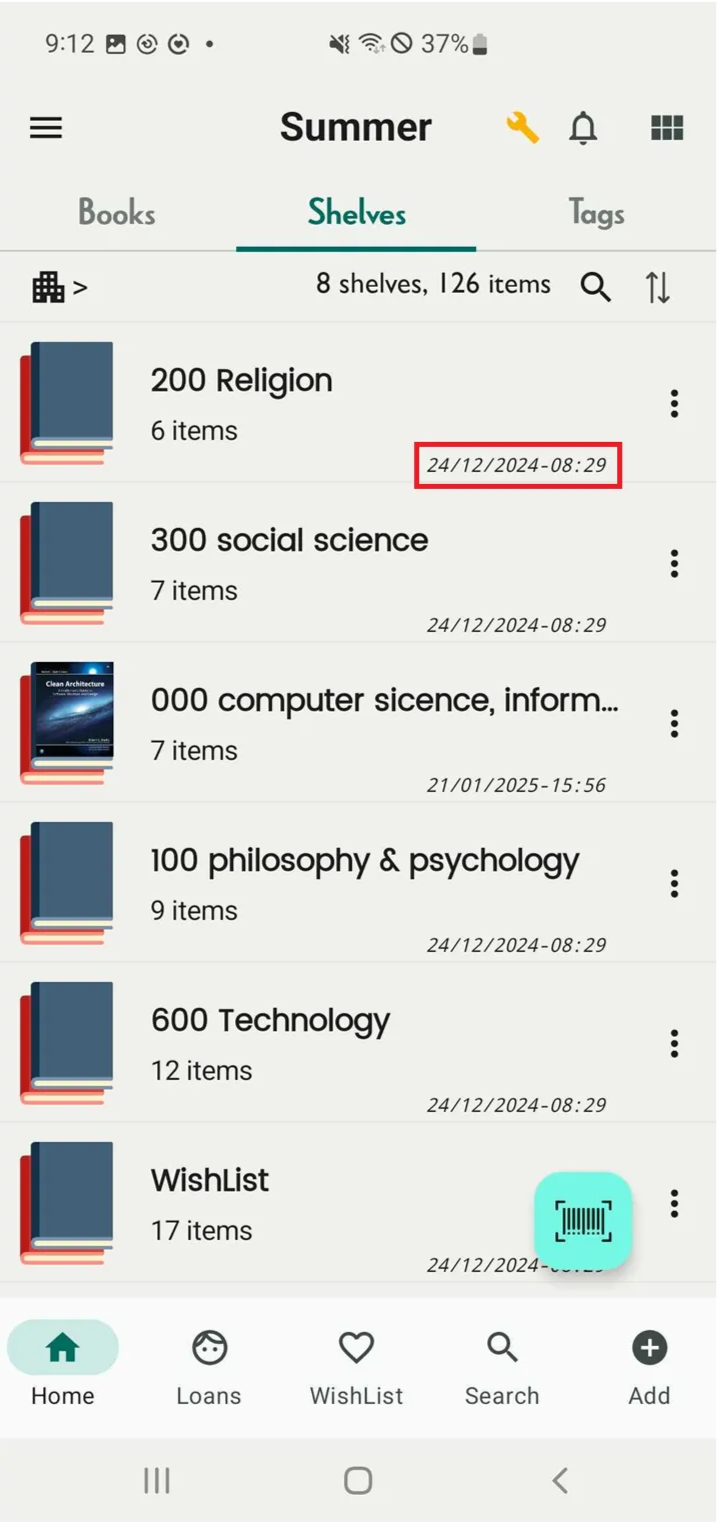
Step 15: You can select Cancel if you want to stop the action. To continue, choose a date format and press Confirm.