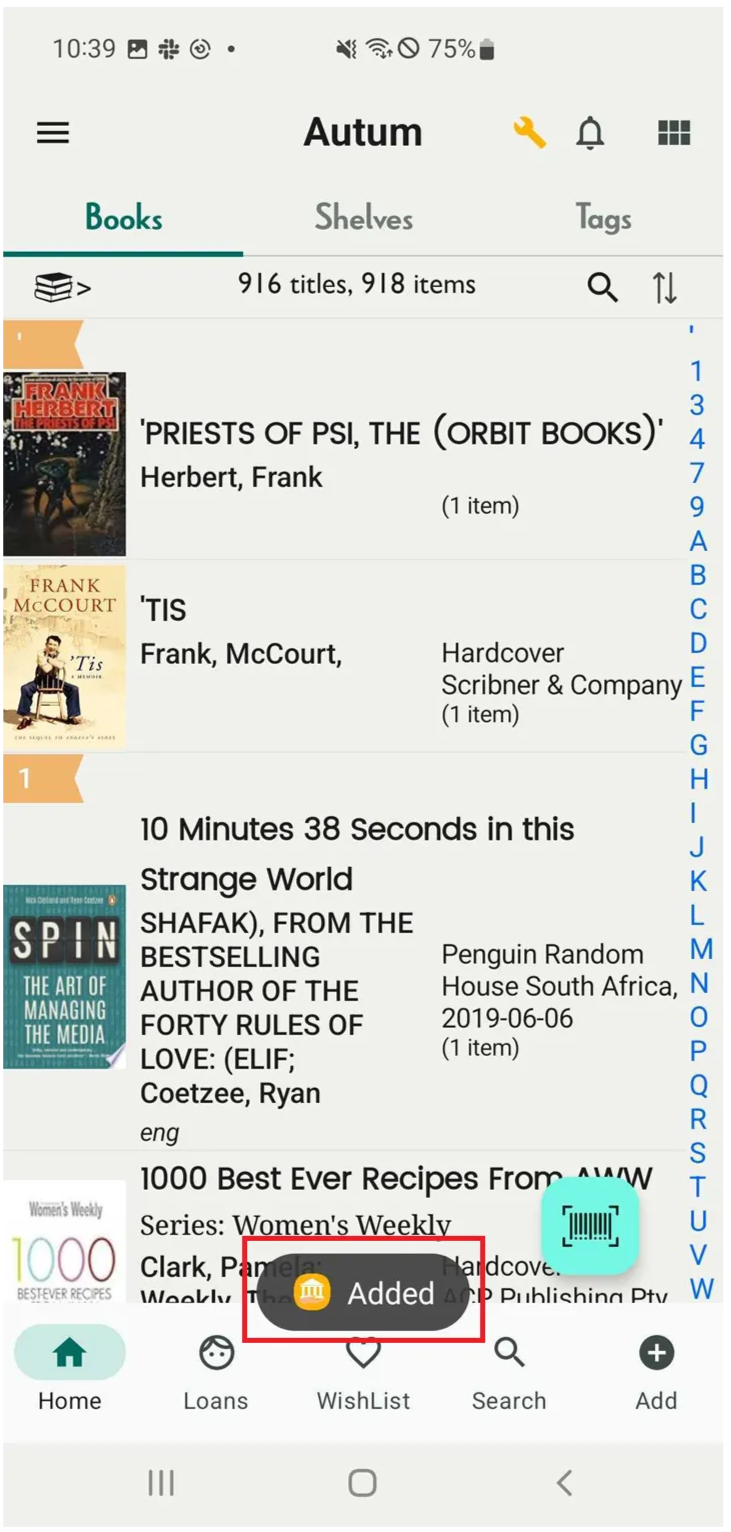
Add a new Shelf
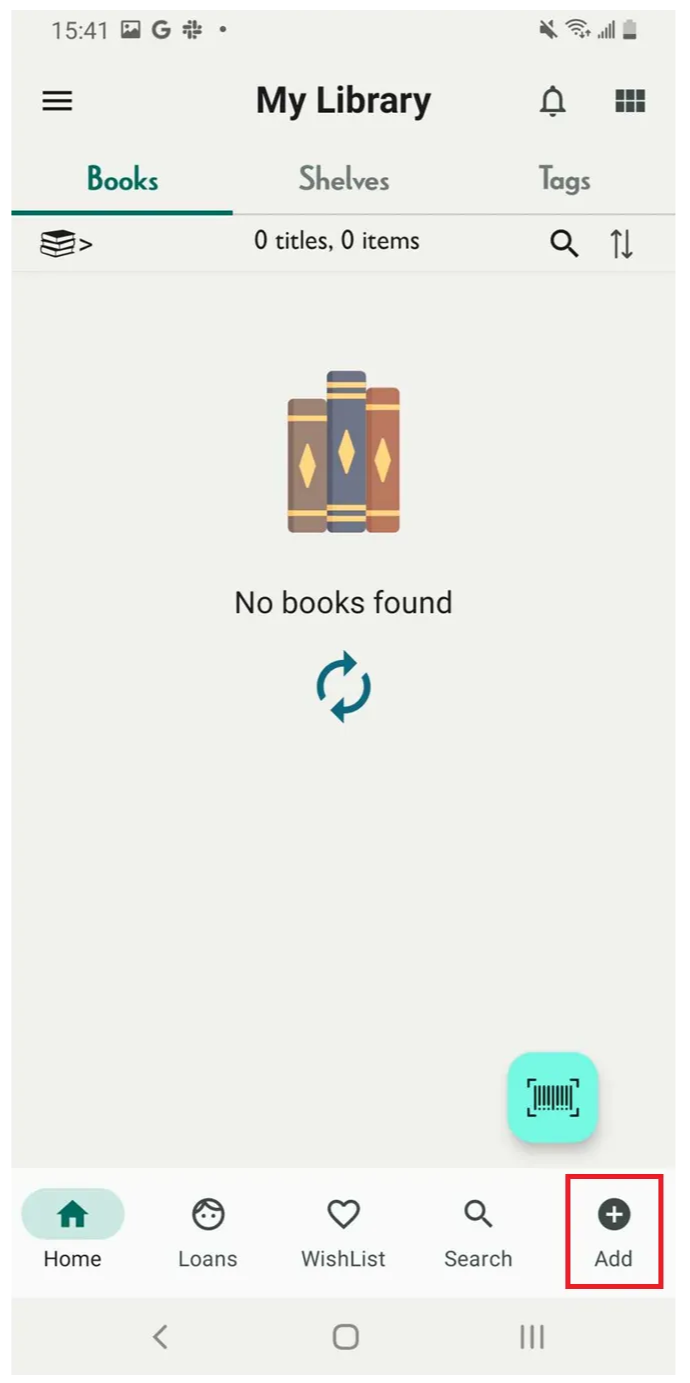
Step 1: Click on the “Add” function, indicated by the plus icon.
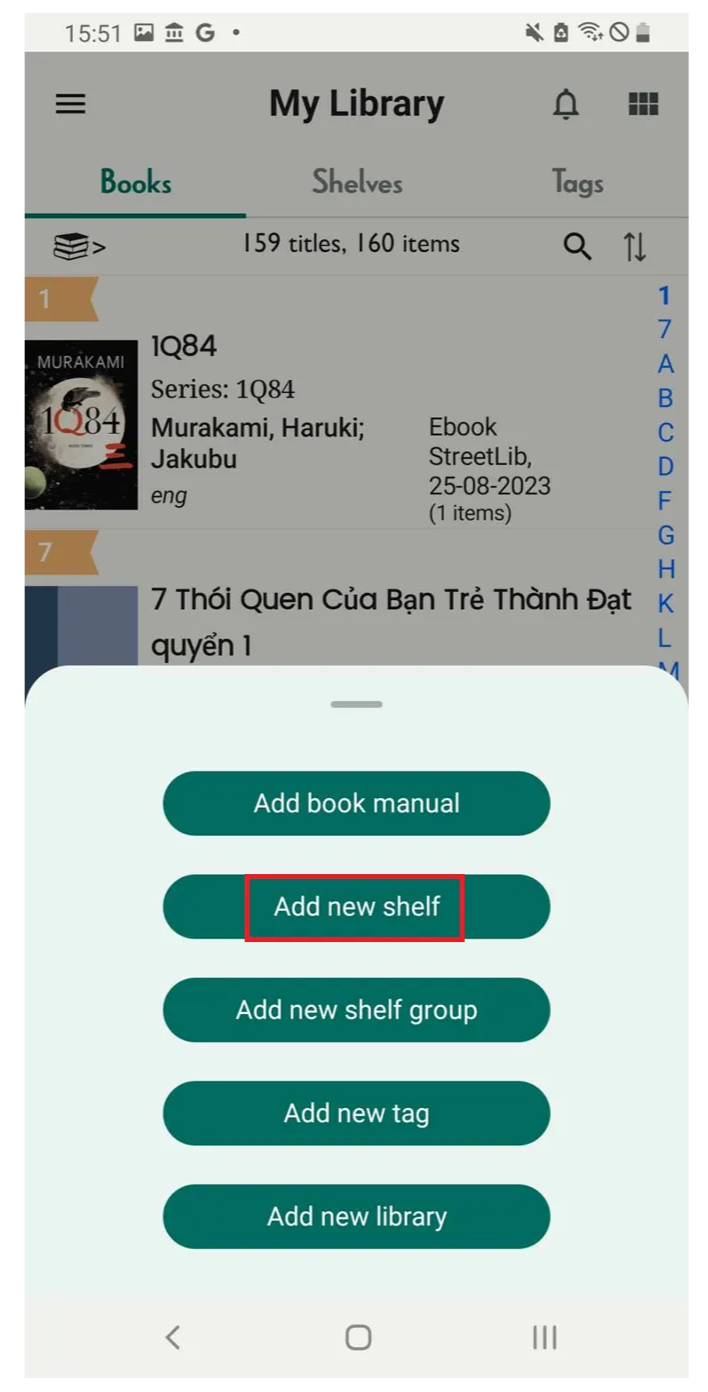
Step 2: Press “Add new shelf.”
Step 3: The information board is shown up- Shelf name. Shelf description- Location- Shelf group
→ Enter all the information.
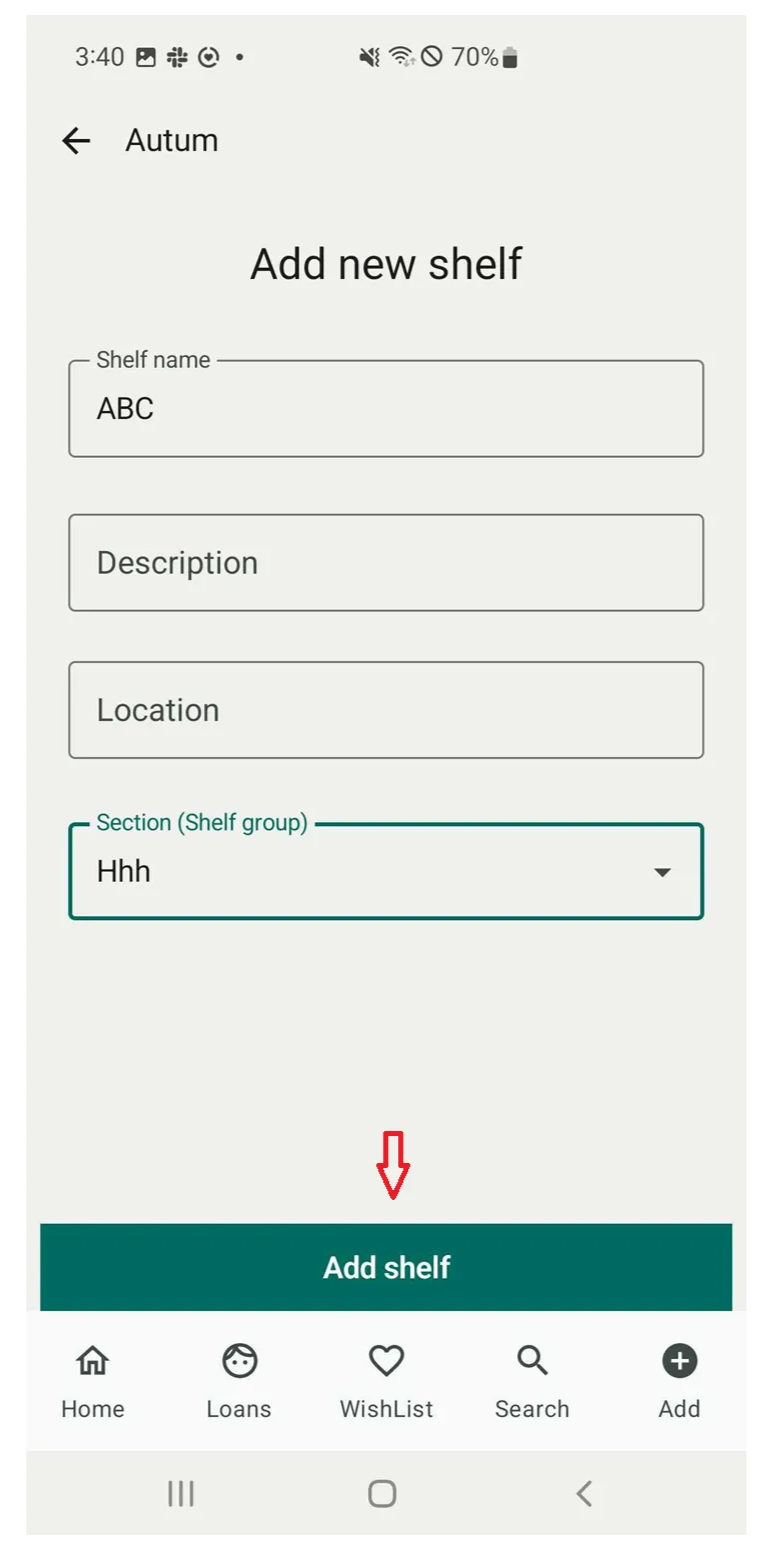
Step 4: Press “Add shelf”.
- The screen shows Shelf is added successfully
- The Shelf is shown up in the Shelf group