Others
Set/change tag cover
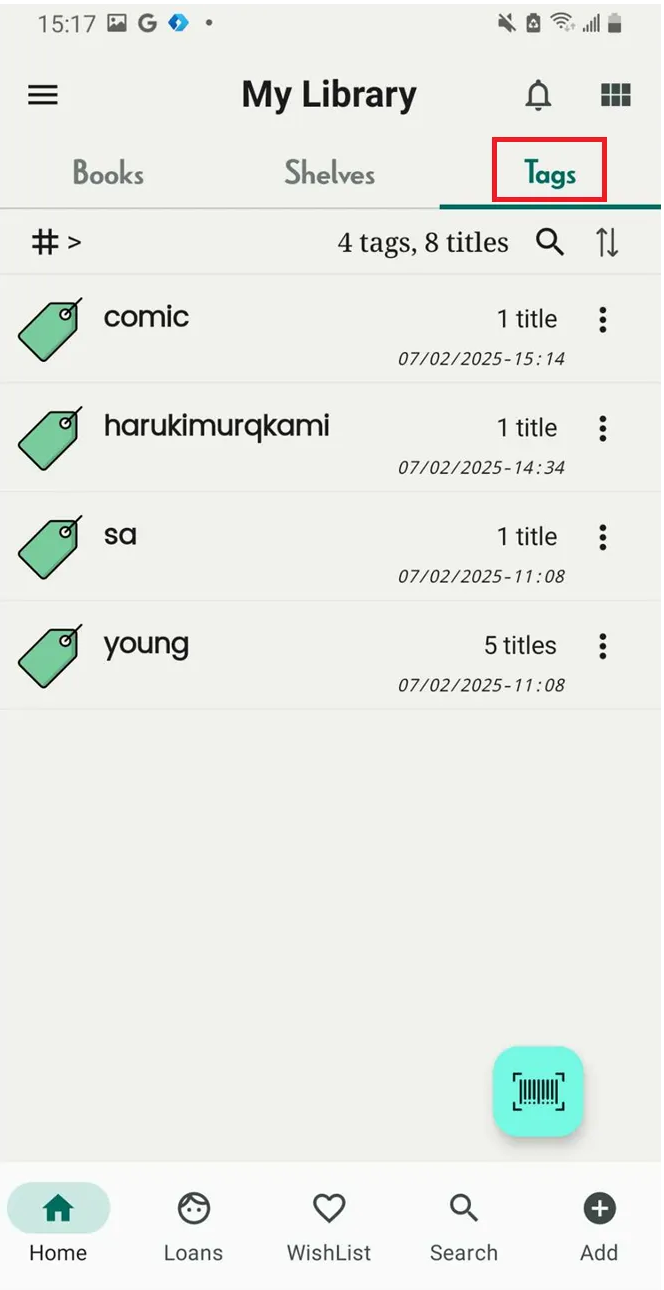
Step 1: Access Tag Tab
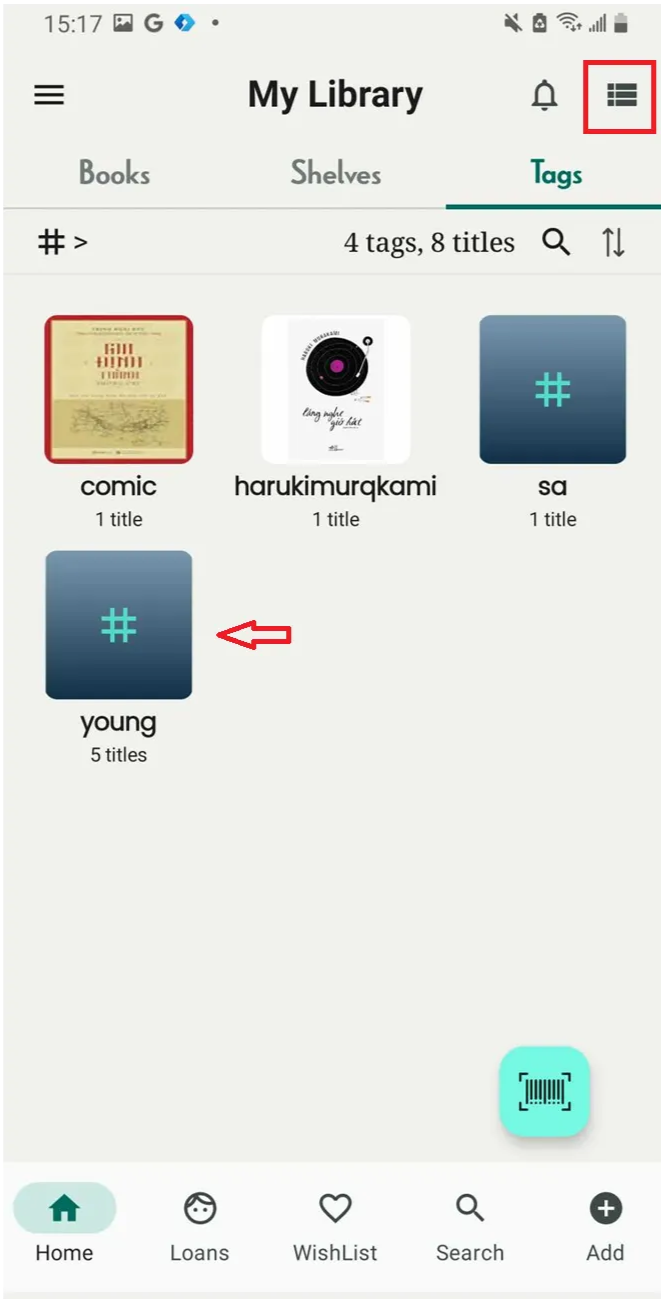
Step 2: Set tags in grid view by tapping the grid icon located at the top right-hand corner.
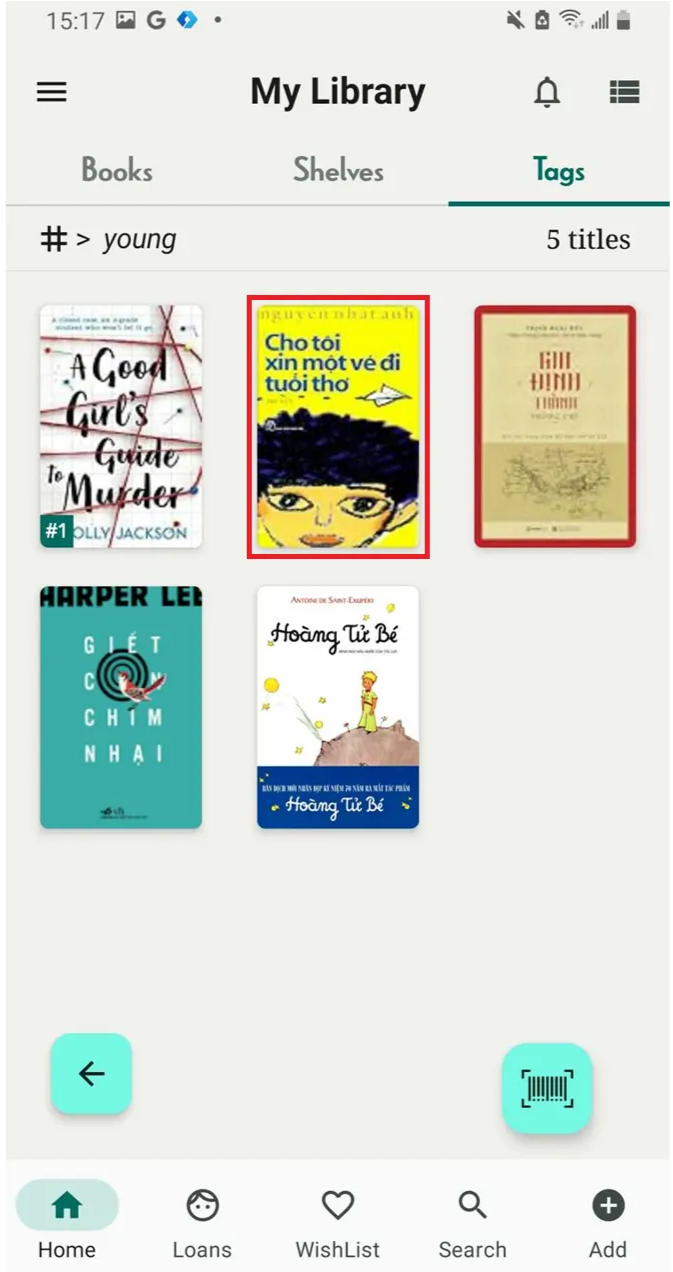
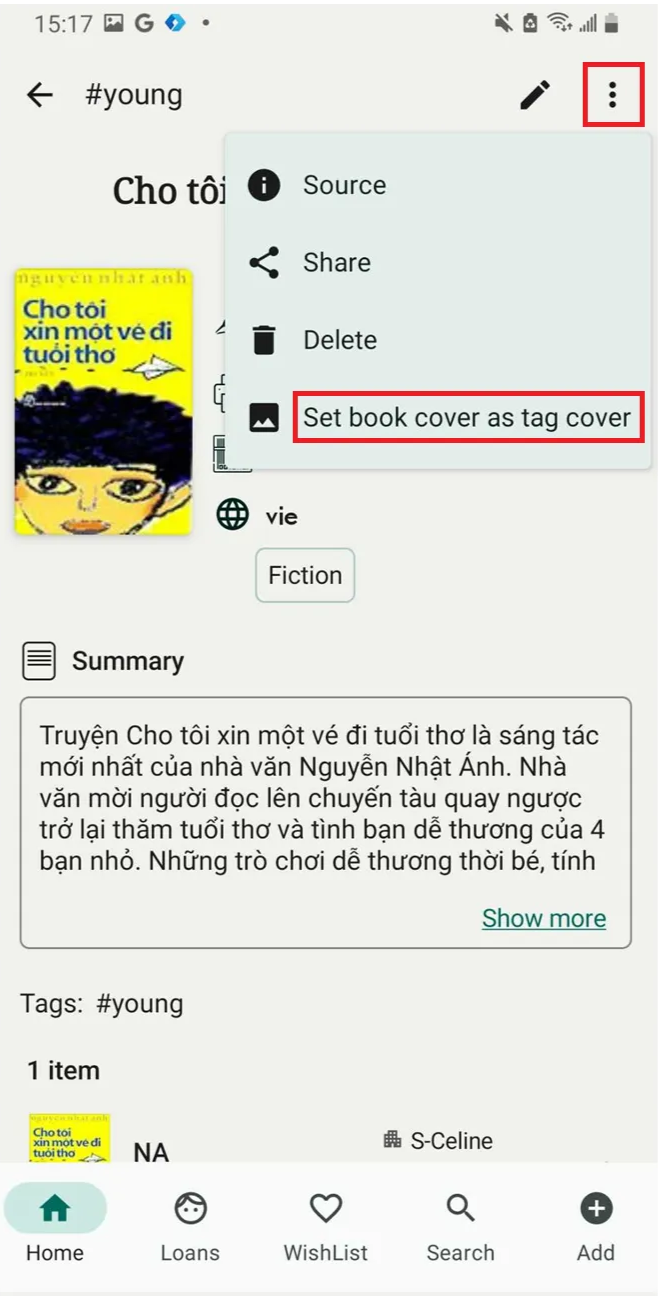
Step 3: Tap on a tag and pick a cover from a title
Step 4: Tap on three-dot icon at the right top of corner and select “Set book ccover as tag cover”
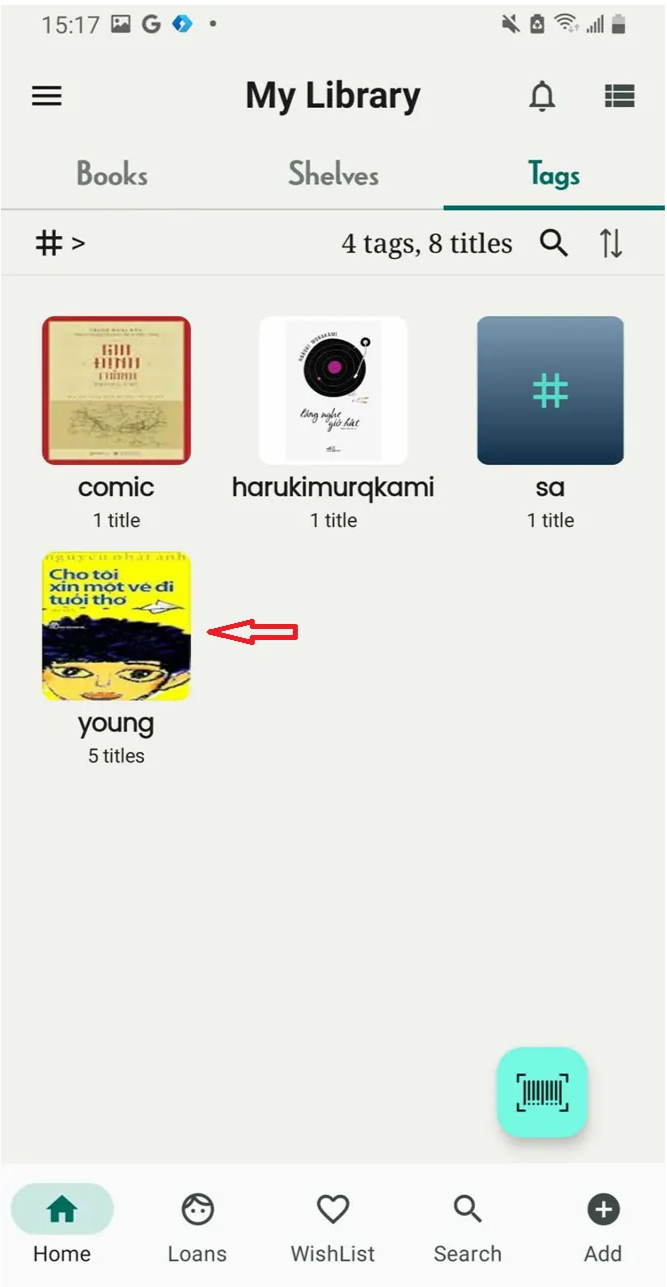
Step 5: Tag cover is updated
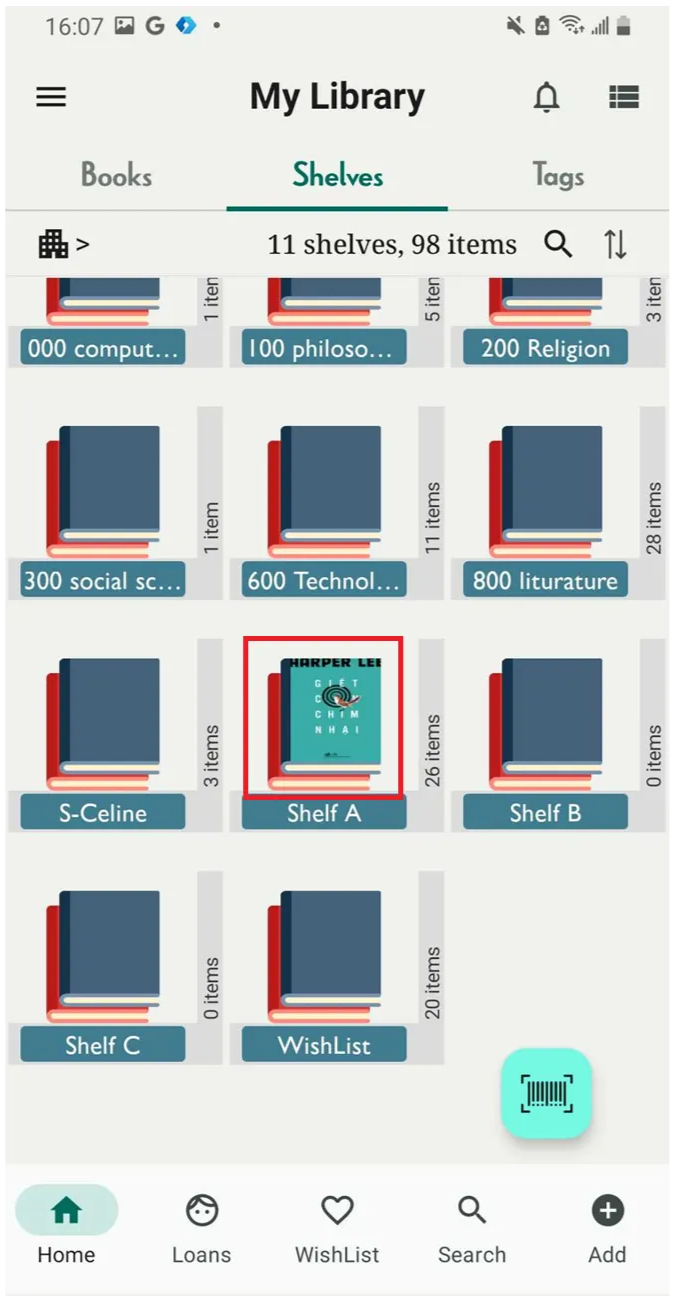
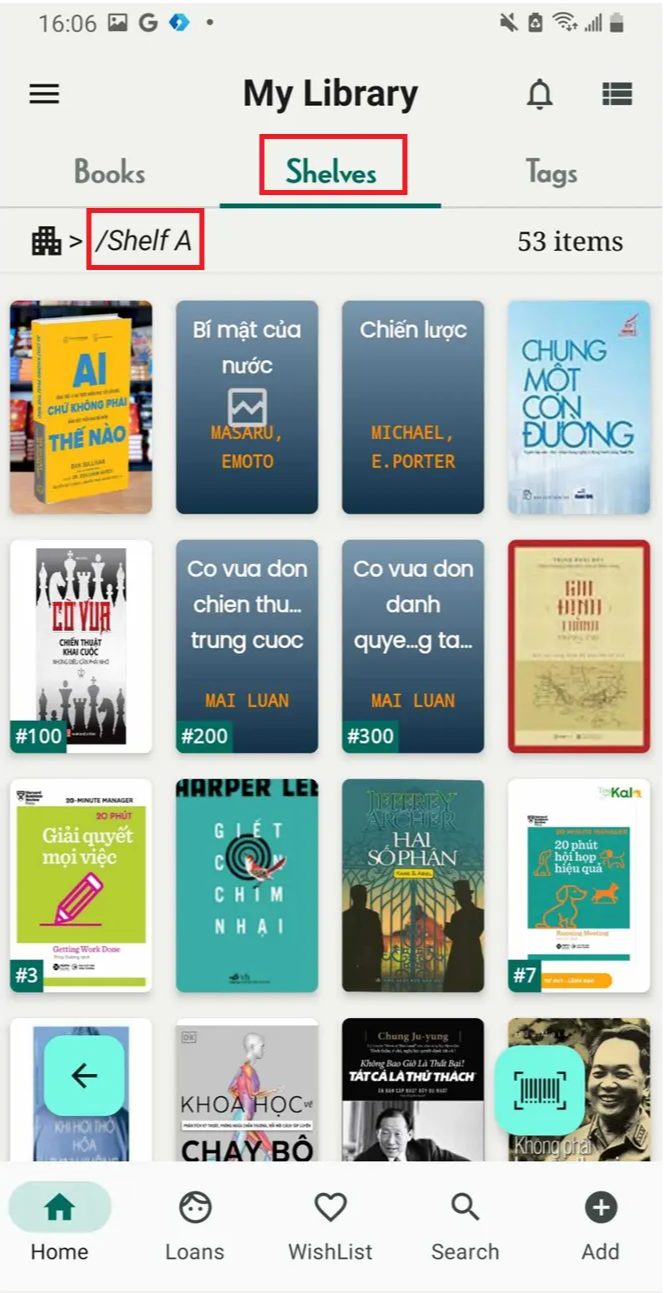
Set/change shelf cover
Step 6: Access a shelf.
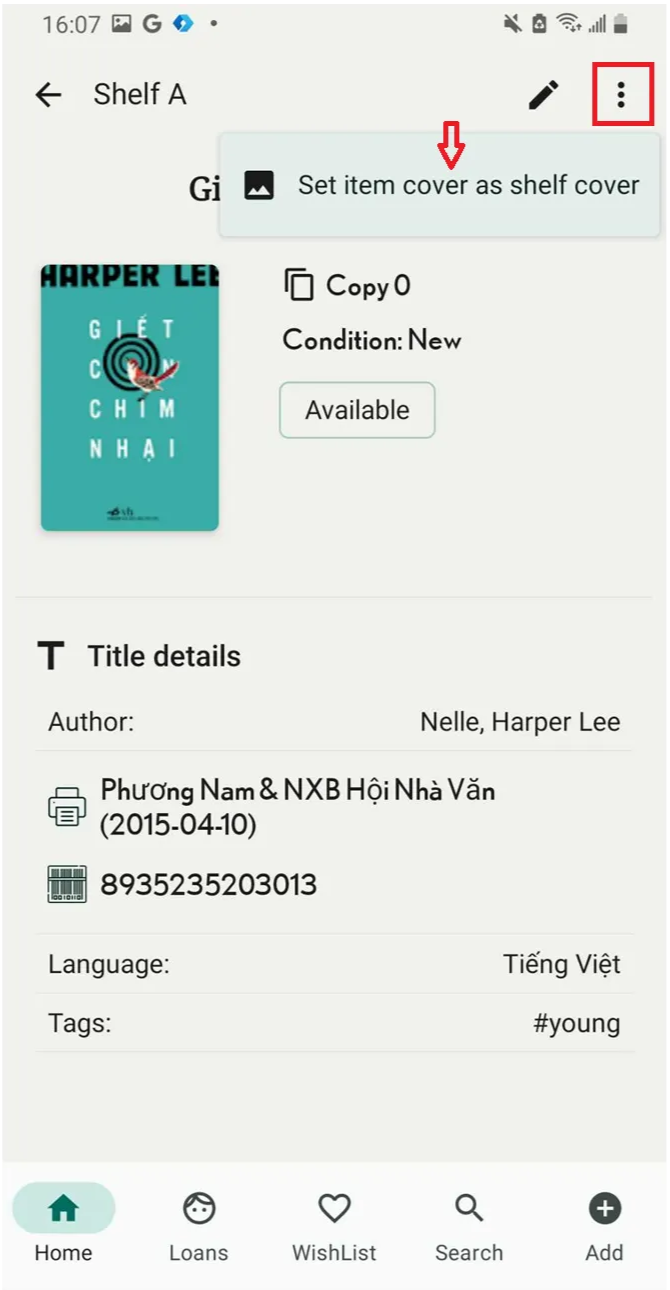
Step 7: Tap on the item you want to set as the shelf cover. Tap the three-line icon in the top right corner.
Press “Set item cover as shelf cover”
Step 8: The screen shows “Updated”