
Add book
Add books by searching online
Step 1: Access the a library you want to add book
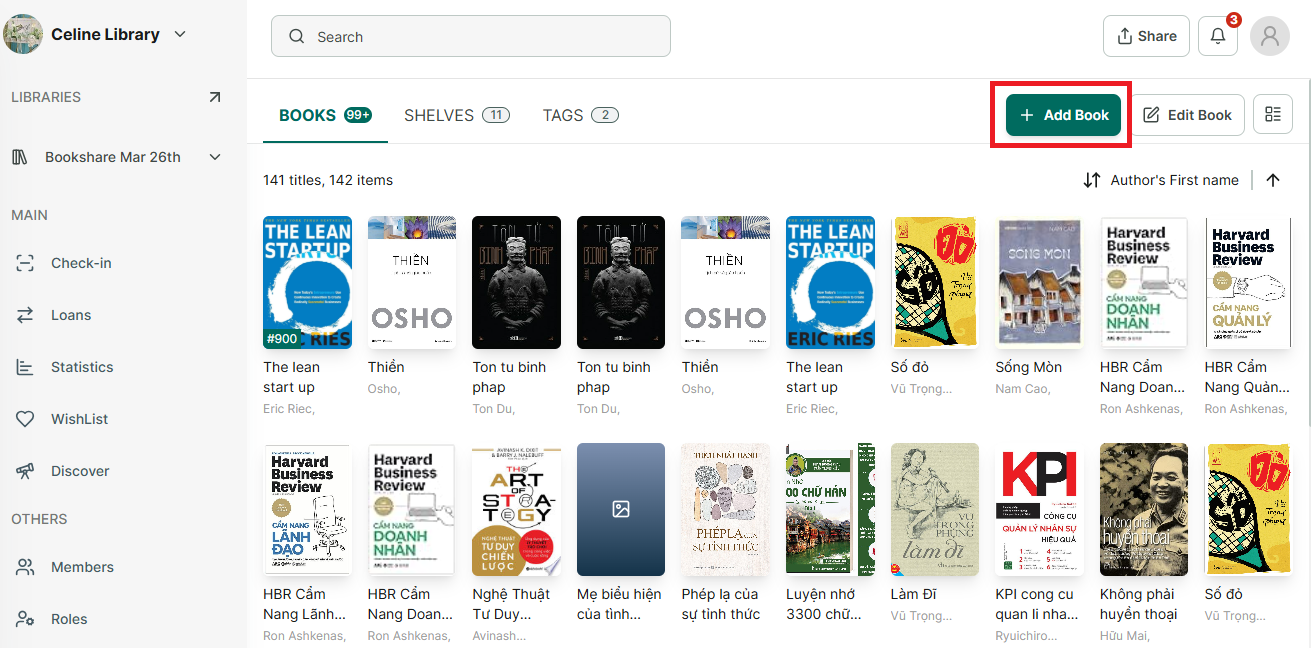
Step 2: Then press “Add book” button at the right top of conner.
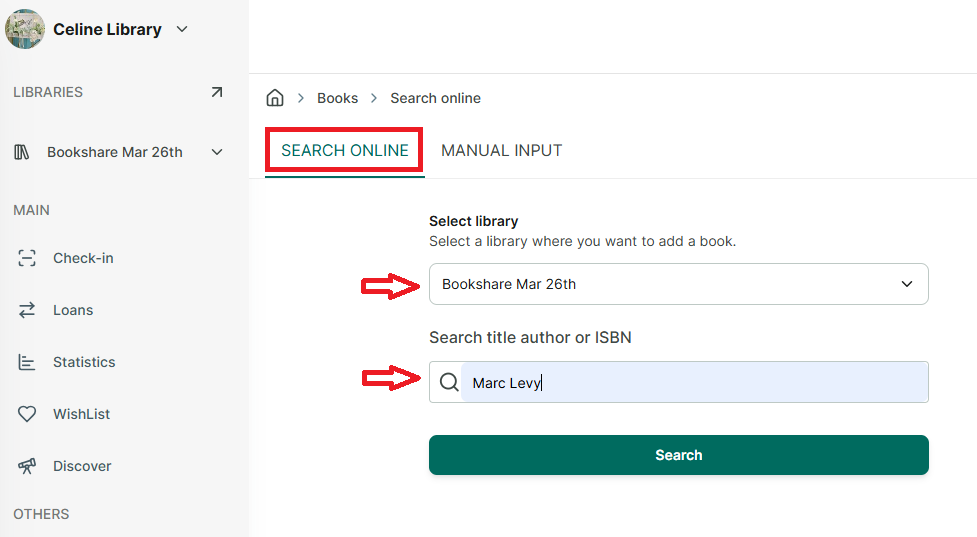
Step 3: Select “Search online” option
→ Then select other library if needed
→ Enter the book’s title, author, or ISBN to search.
→ Or you can scan the ISBN barcode instead of manually entering the ISBN in the search box. Simply place your cursor in the search field, then scan the book’s ISBN barcode, the code will be entered automatically. After that, click “Search” to find the book.
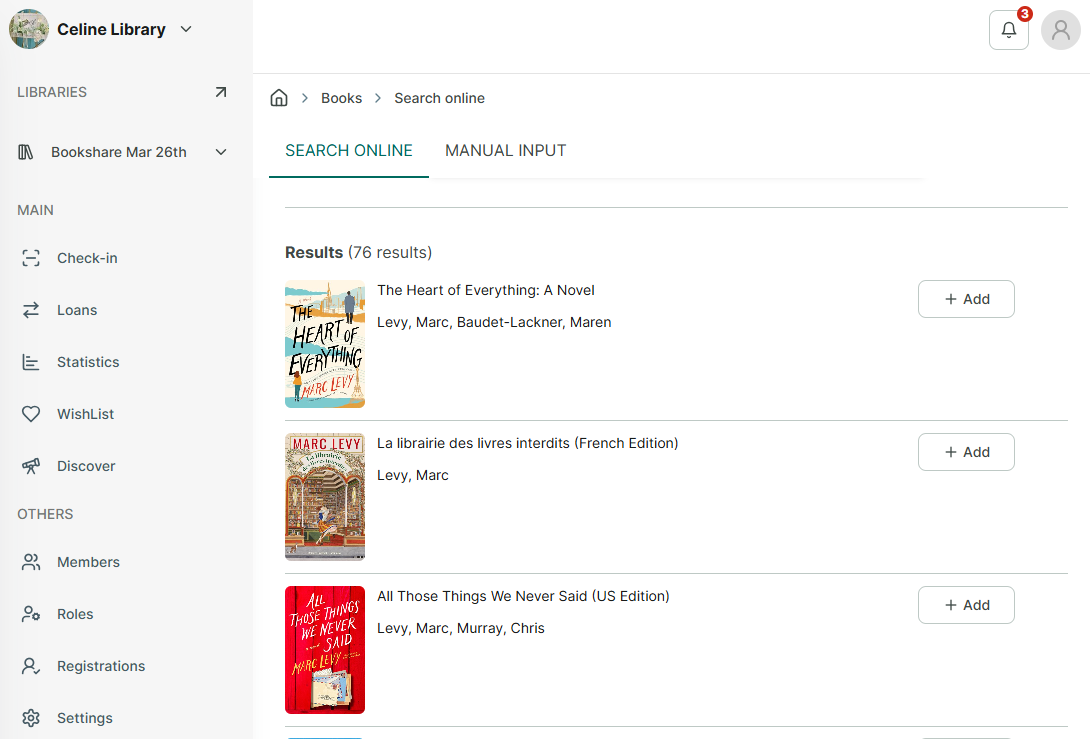
Step 4: It will display all relevant results, you can tap the “+ Add” button to add the book directly without previewing.
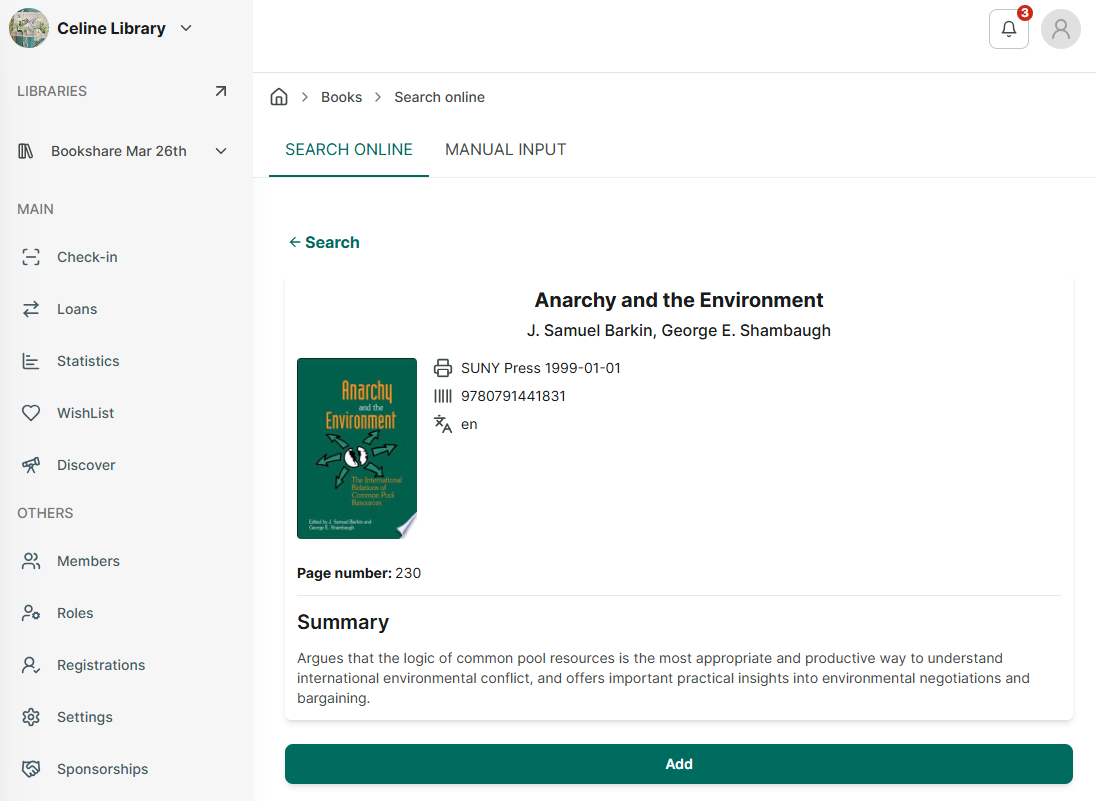
Step 5: Tap on a book to preview its details before adding it, or go back to the search results to view others.
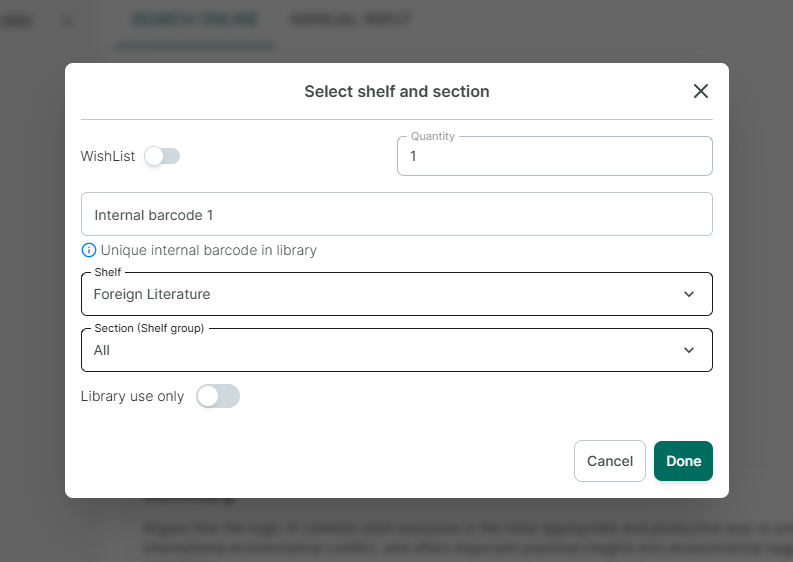
Step 6: Add the book, enter the quantity, select a shelf, section , and tap “Done.” The screen will show “Added.” If the item does not appear on the shelf, please reload.
Add book by manual input
Step 7: Access the a library you want to add book
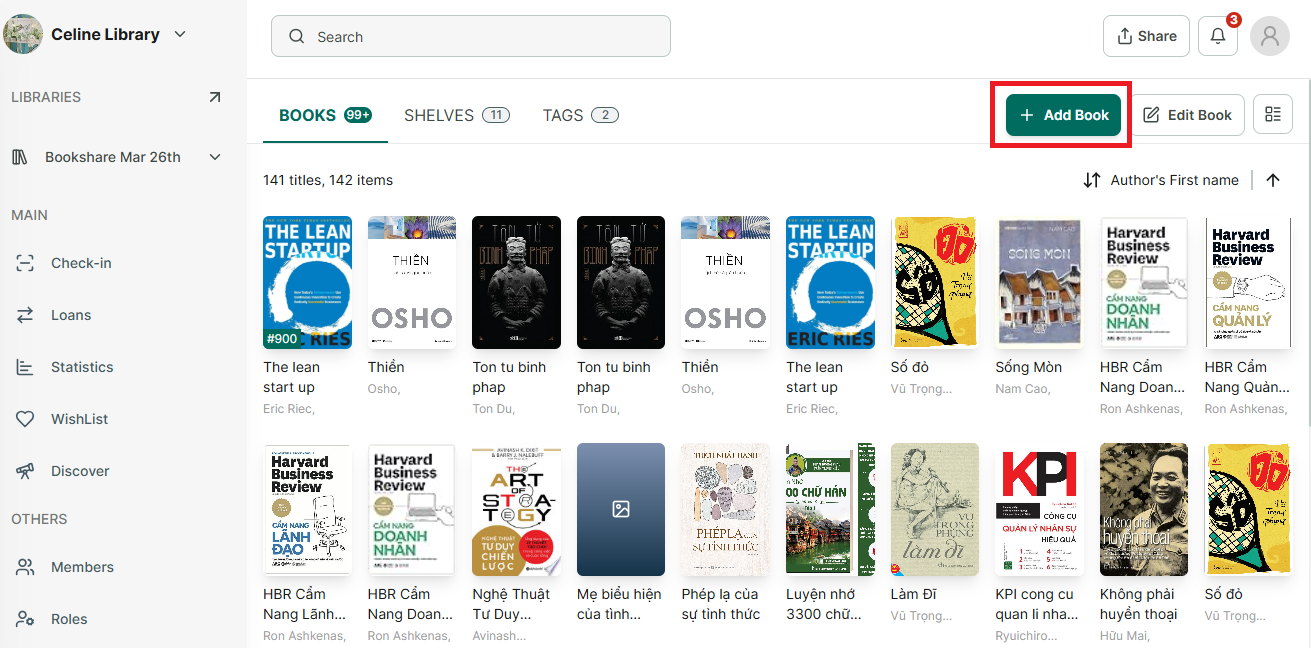
Step 8: Then press “Add book” button at the right top of conner.
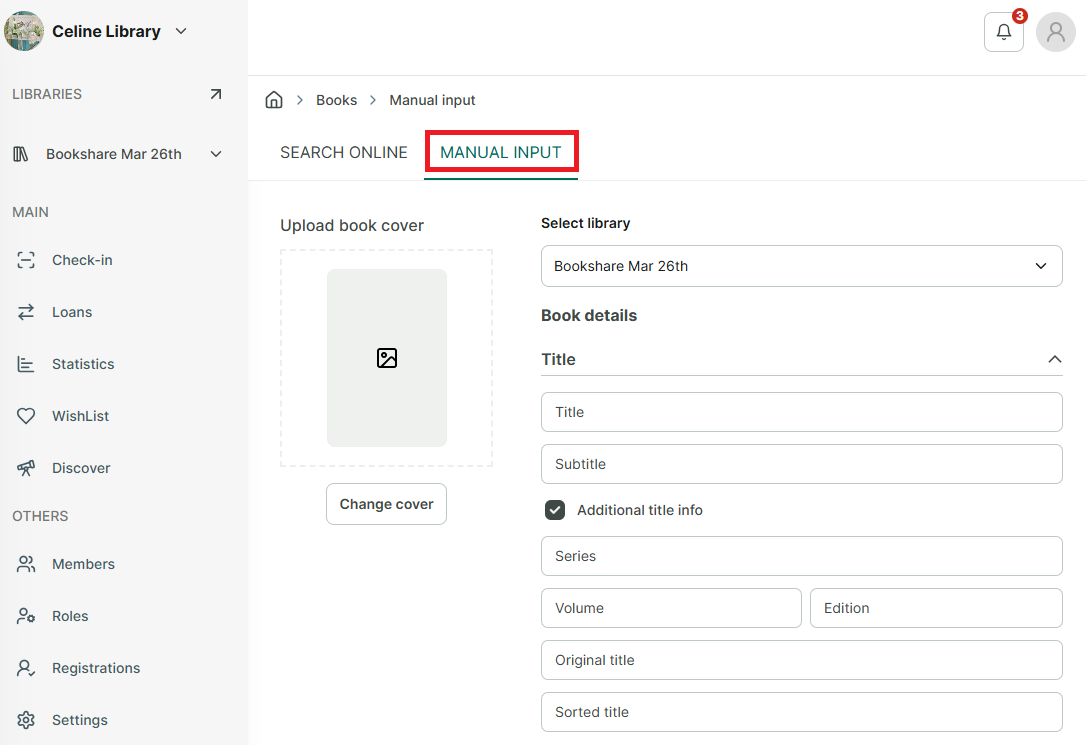
Step 9: Select “Manual input” option.
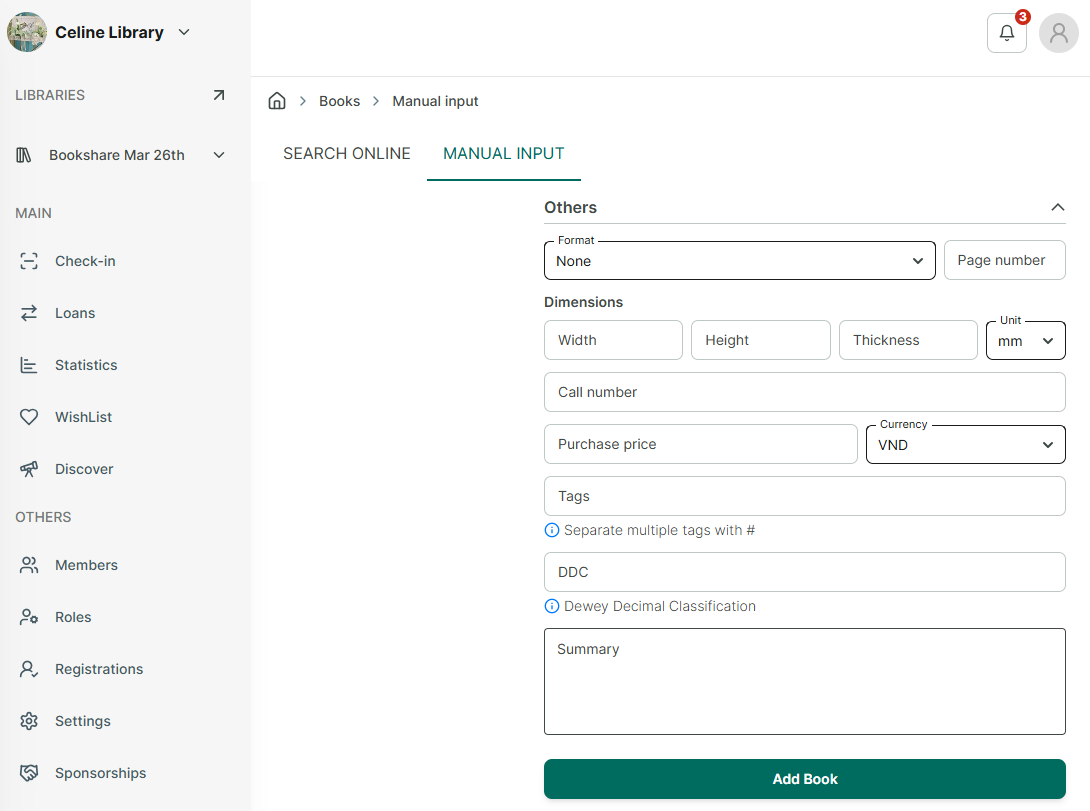
Step 10: Enter the book’s information, then press “Add Book.”
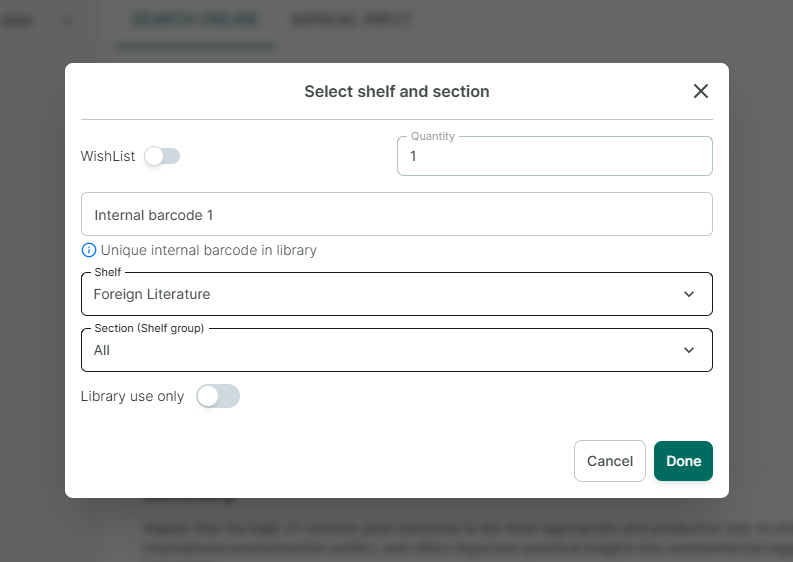
Step 11: Enter quantity, internal barcode (optional) and Select shelf, section.
Step 12: Press “Done.” The screen will show “Added.” If the item does not appear on the shelf, please reload.
Add books by importing a CSV file
Step 13: Access a library you want to import titles, click on the Add Book button
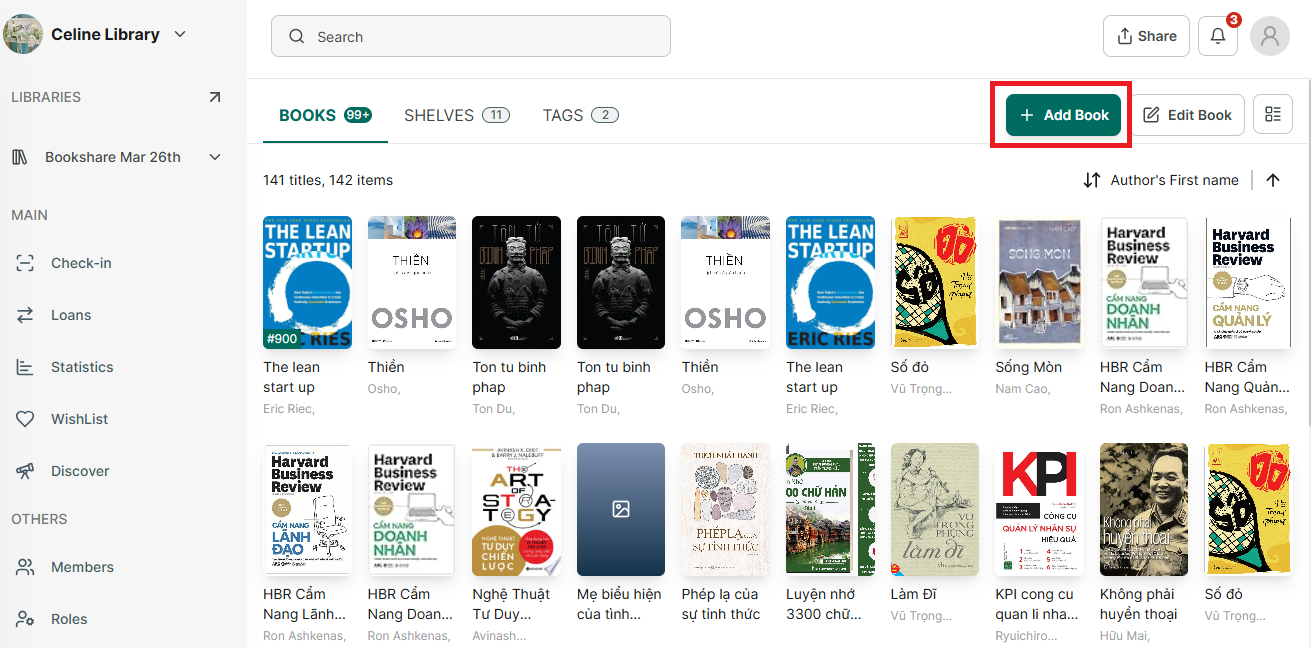
Step 14: Select the “Import” tab
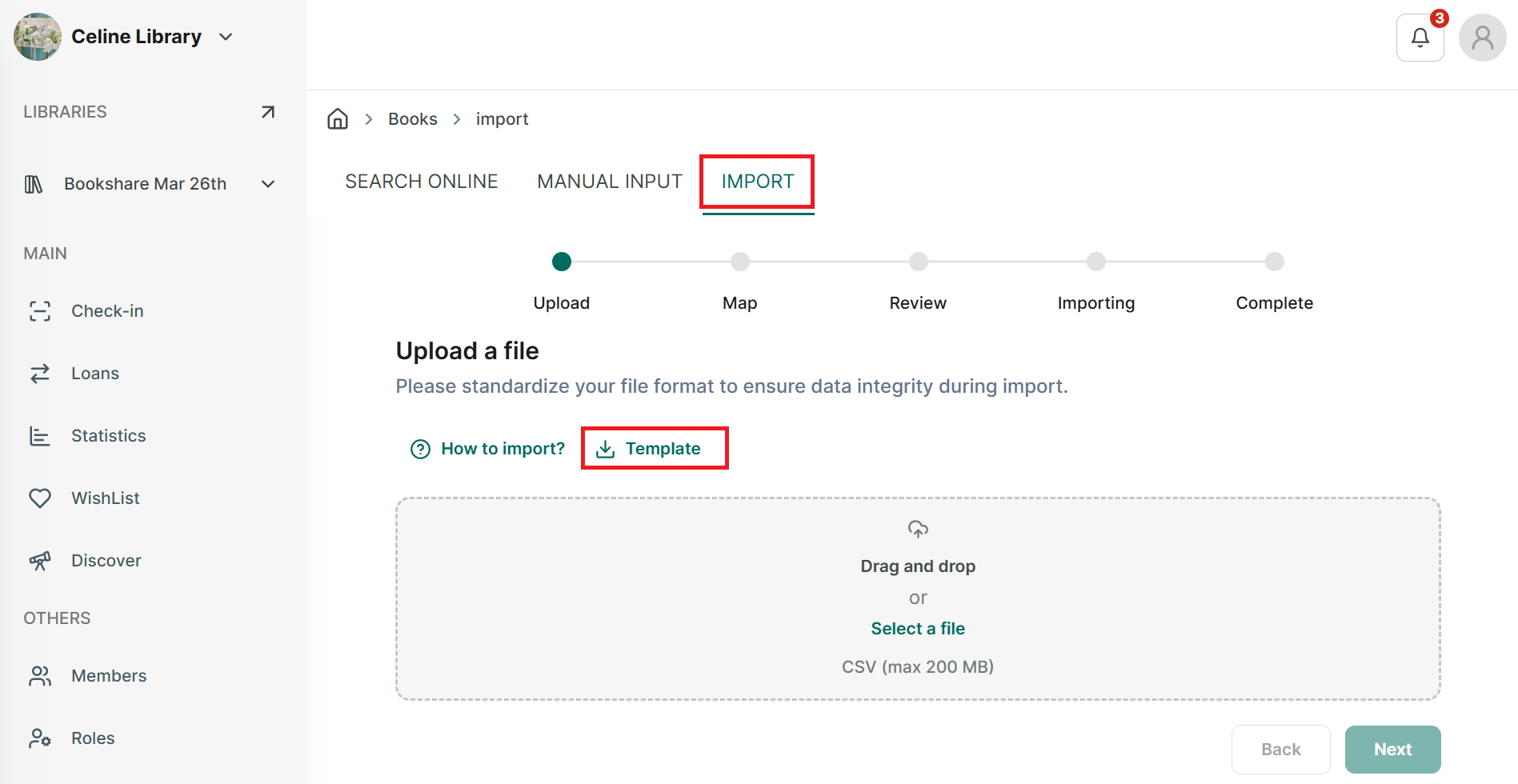
Step 15: You will need to upload a file to import your title list. If you do not have a pre-formatted file, you can download and use our existing template. Click on “Template.”
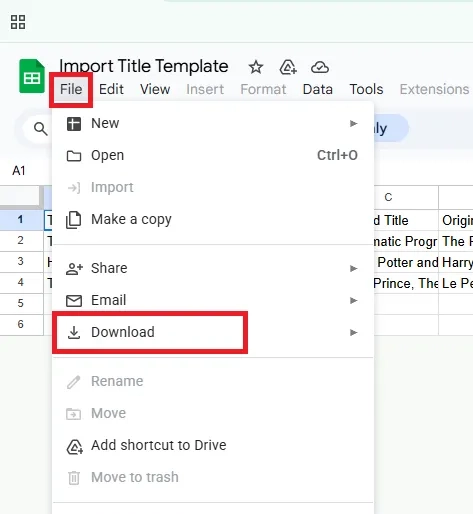
Step 16: The template will be displayed on the web; please download it to your device and keep the file format as CSV. After downloading, simply enter your data and save the file.
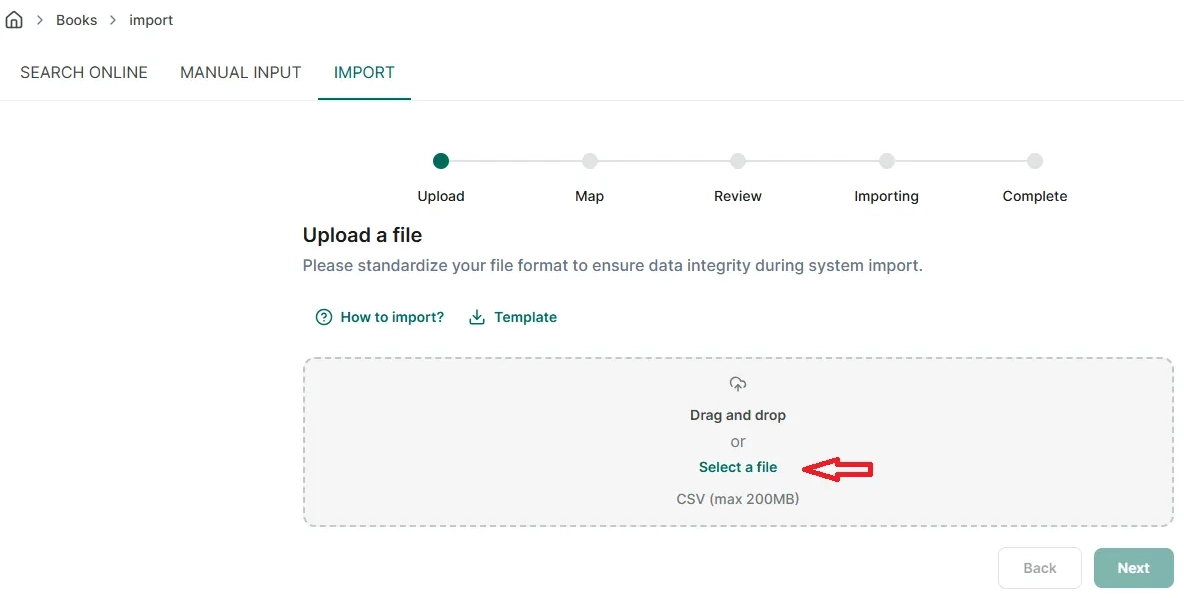
Step 17: Next, select the file you have just edited and upload it to the data input box.
Step 18: Once the file is displayed, click “Next.”
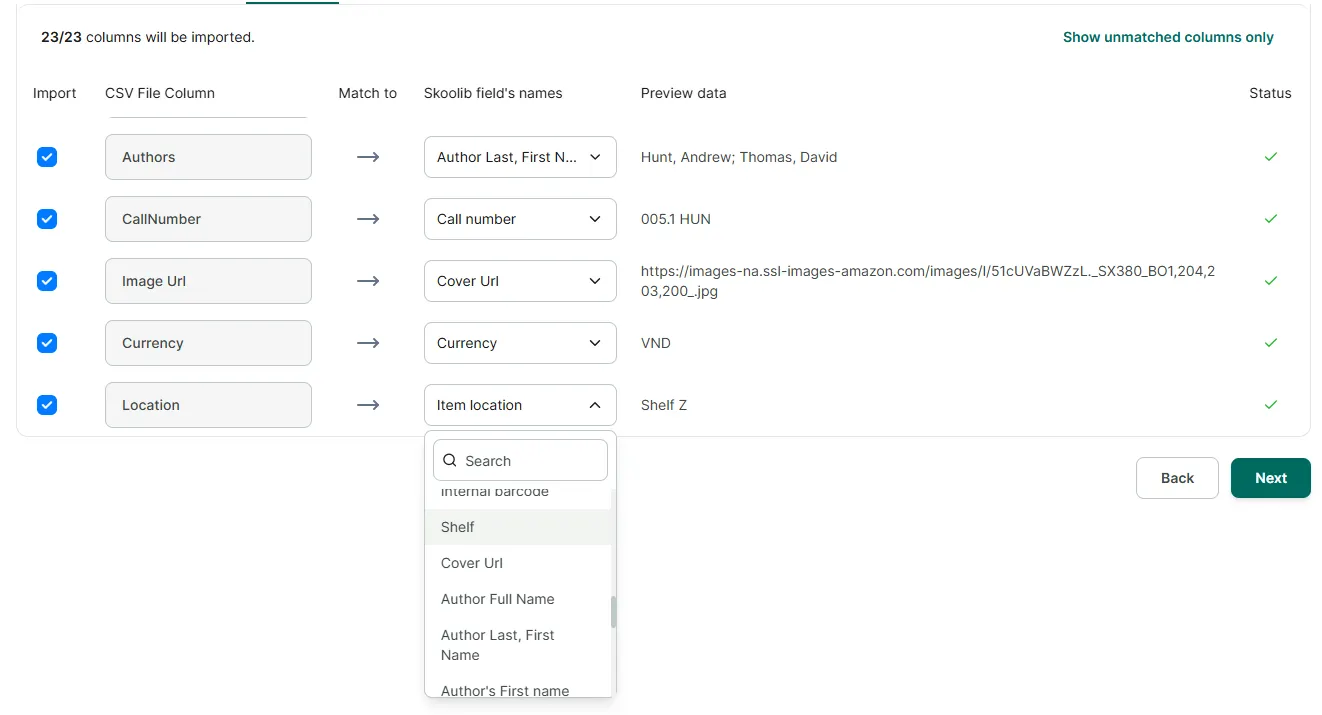
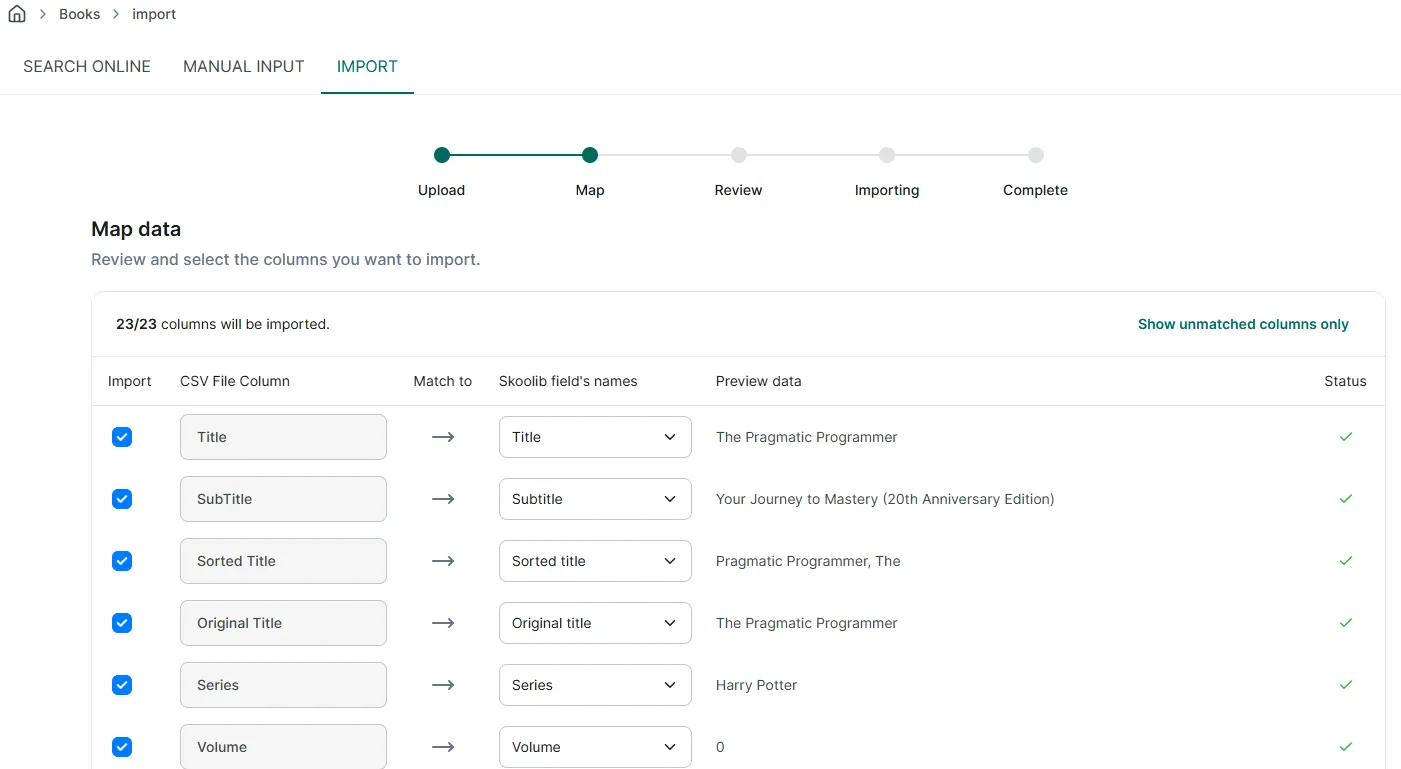
Step 19: Map Data: If you have added or modified any fields in the file, or if you are importing data exported from the Handy Library app, please select the corresponding fields in the app during this step to ensure data is correctly imported without errors. Then, click “Next.”
Step 20: For example, the ‘Location’ field should be mapped to the ‘Shelf’ field when importing data into Skoolib to ensure it displays as ‘Shelf Z’ correctly.
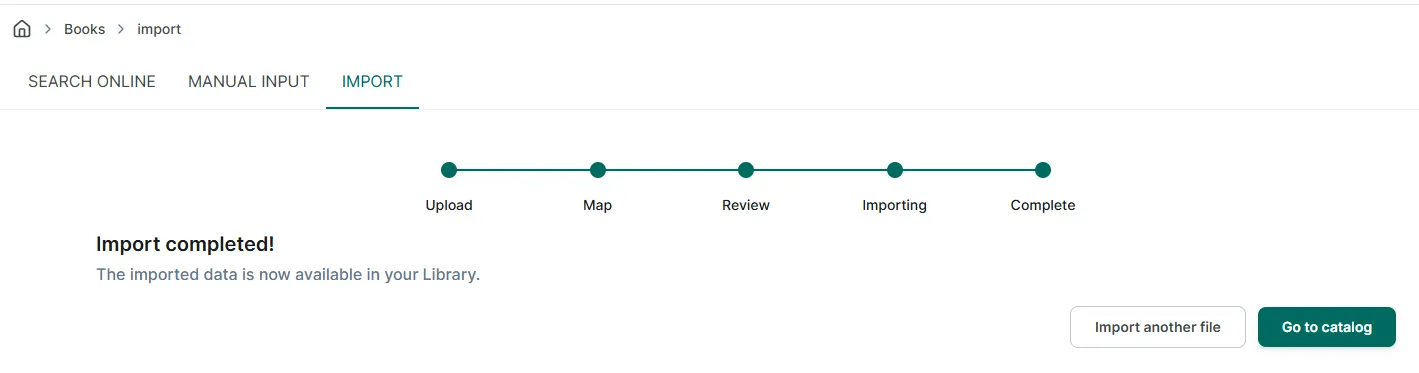
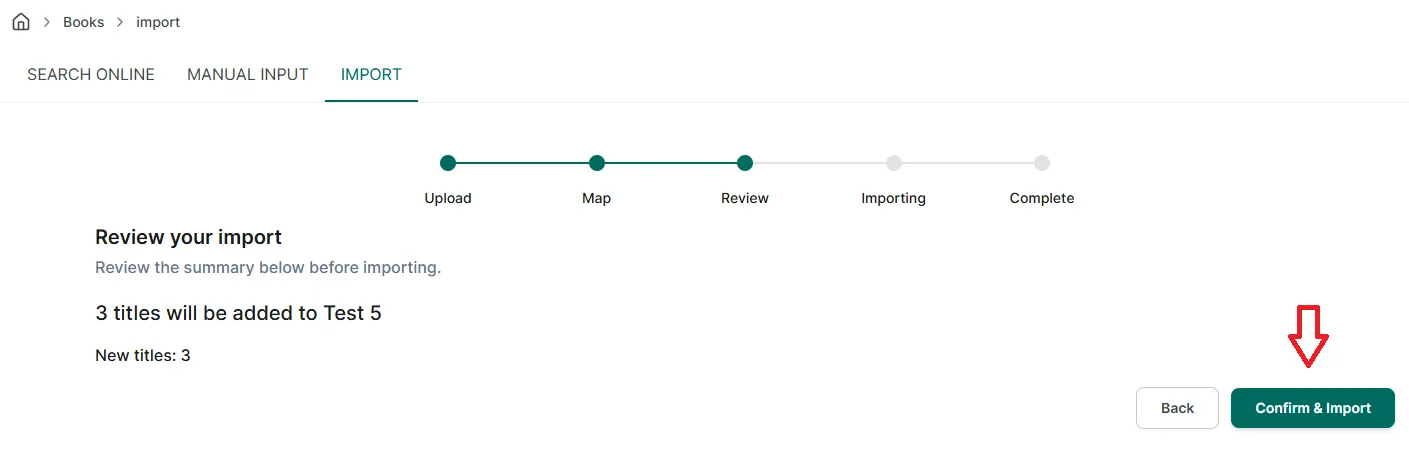
Step 21: Review: Review your data one last time before finalizing, then click “Confirm & Import.”
Step 22: Once the import process is successfully completed, you can select “Go to catalog” to view the information of the newly added titles.
Add book to wishlist
Step 23: Press the “Add book” icon at the Book section screen
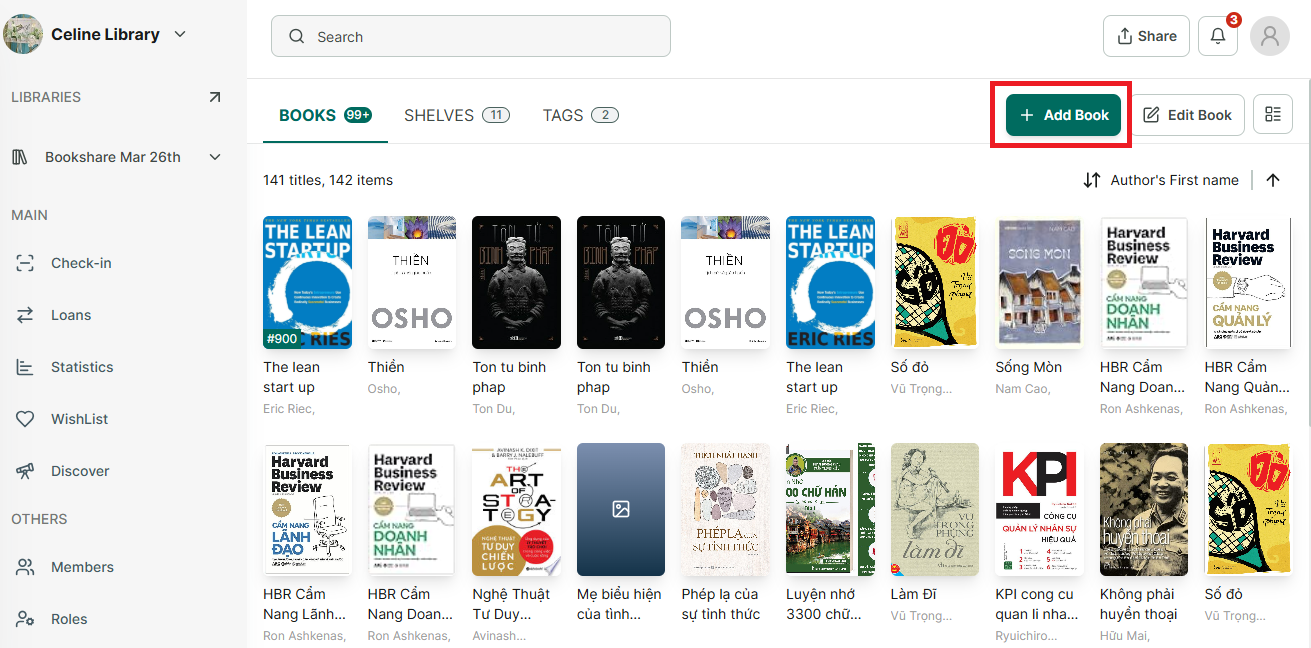
Step 24: Select “Search online” or “Manual input”
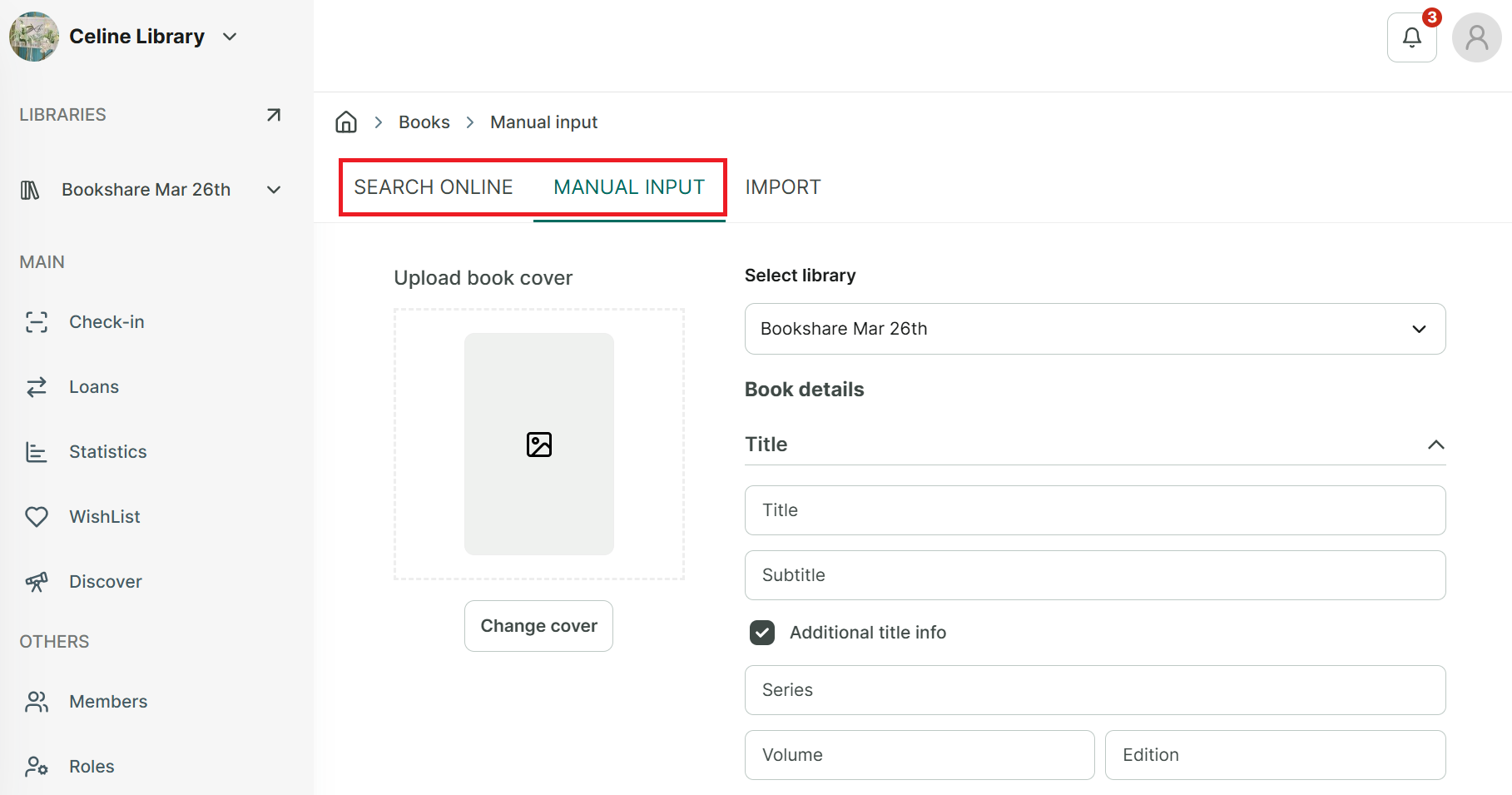
Step 25: Search for the book by ISBN, title, or author. Tap on the book found via online search, then press “Add.” Or add book manual then press “Add”
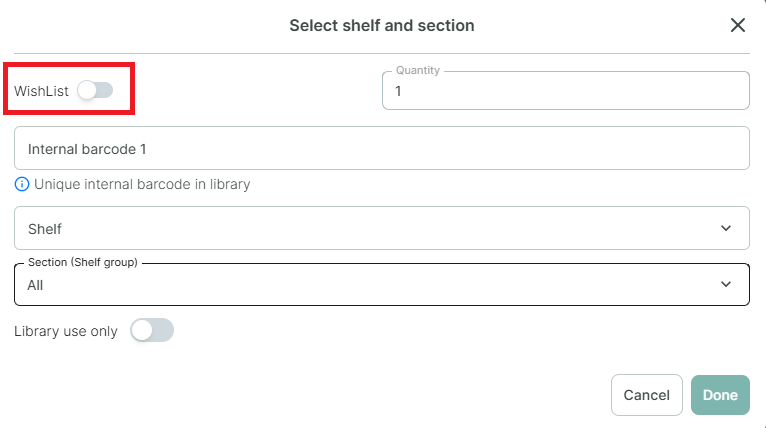
Step 26: Slide the toolbar to select the wishlist. Press Done
In some cases, after pressing “Done,” a message appears indicating that the title already exists in the library. You will be prompted to make a decision → Press “Continue.”