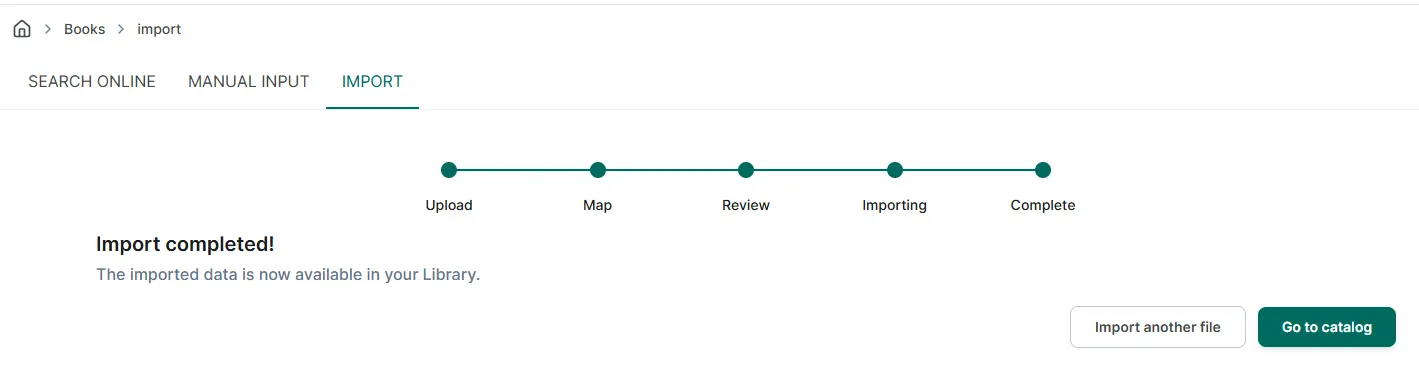
Add books by importing a CSV file
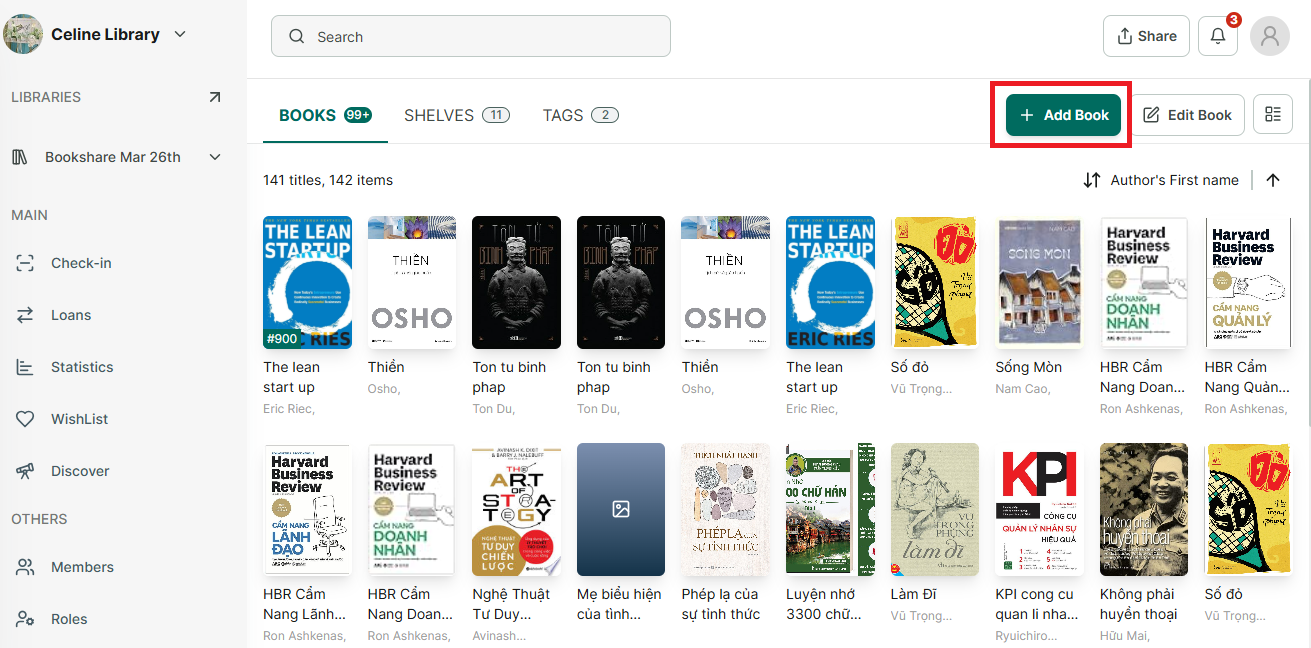
Step 1: Access a library you want to import titles, click on the Add Book button
Step 2: Select the “Import” tab
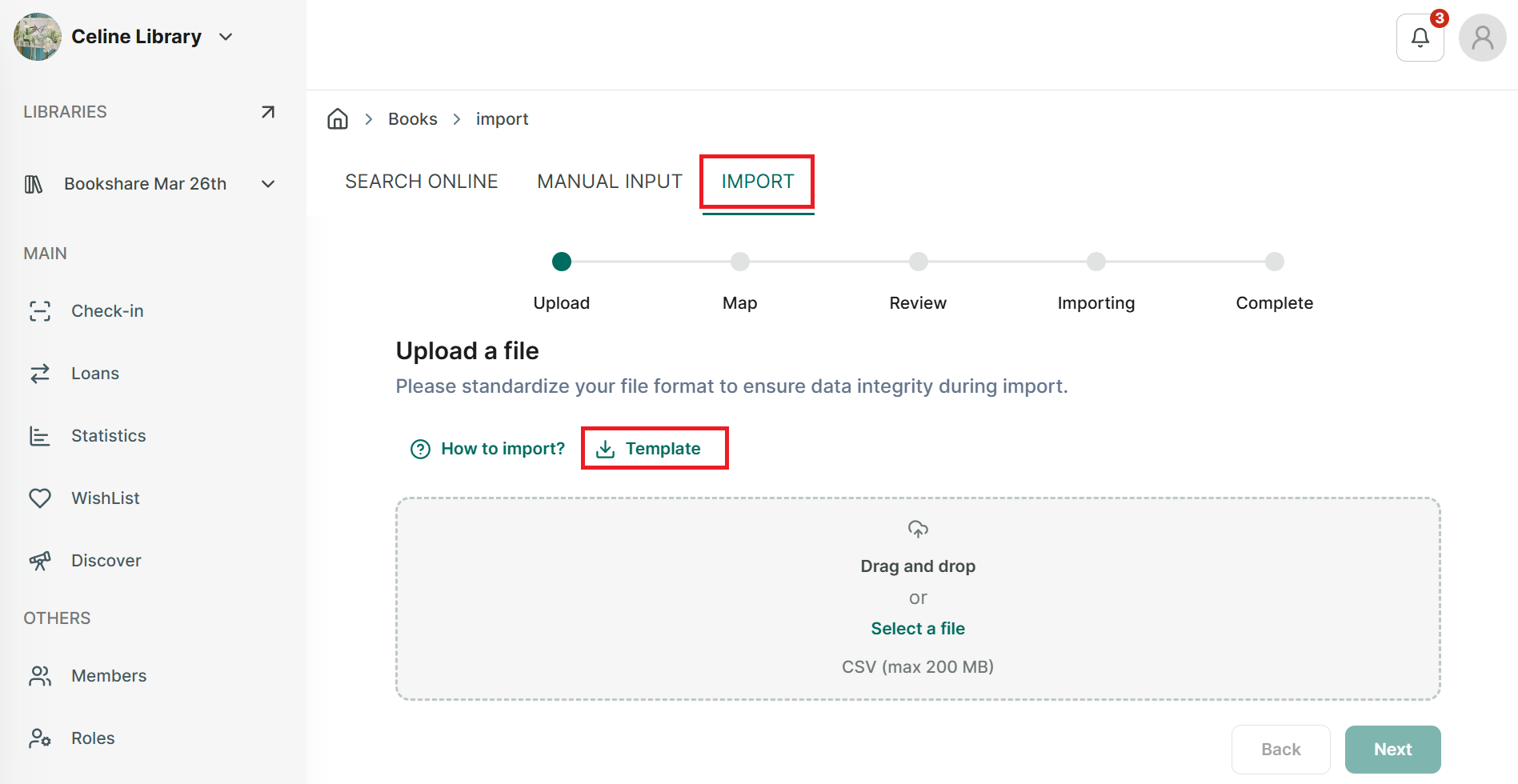
Step 3: You will need to upload a file to import your title list. If you do not have a pre-formatted file, you can download and use our existing template. Click on “Template.”
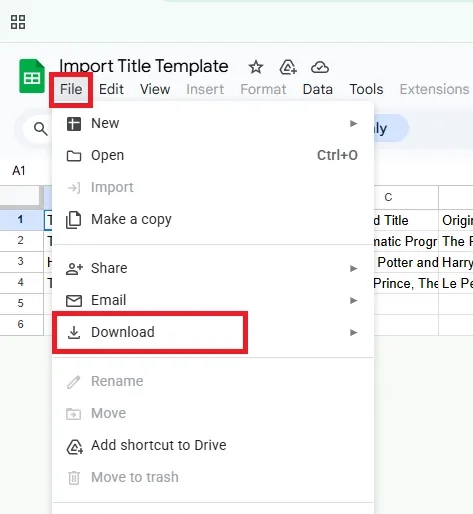
Step 4: The template will be displayed on the web; please download it to your device and keep the file format as CSV. After downloading, simply enter your data and save the file.
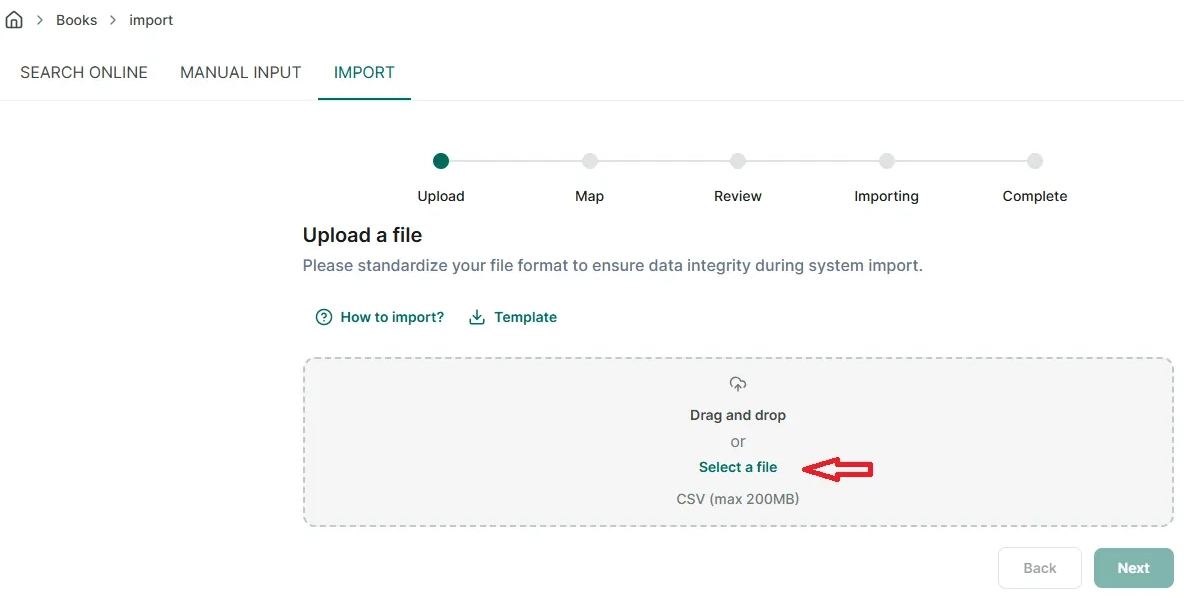
Step 5: Next, select the file you have just edited and upload it to the data input box.
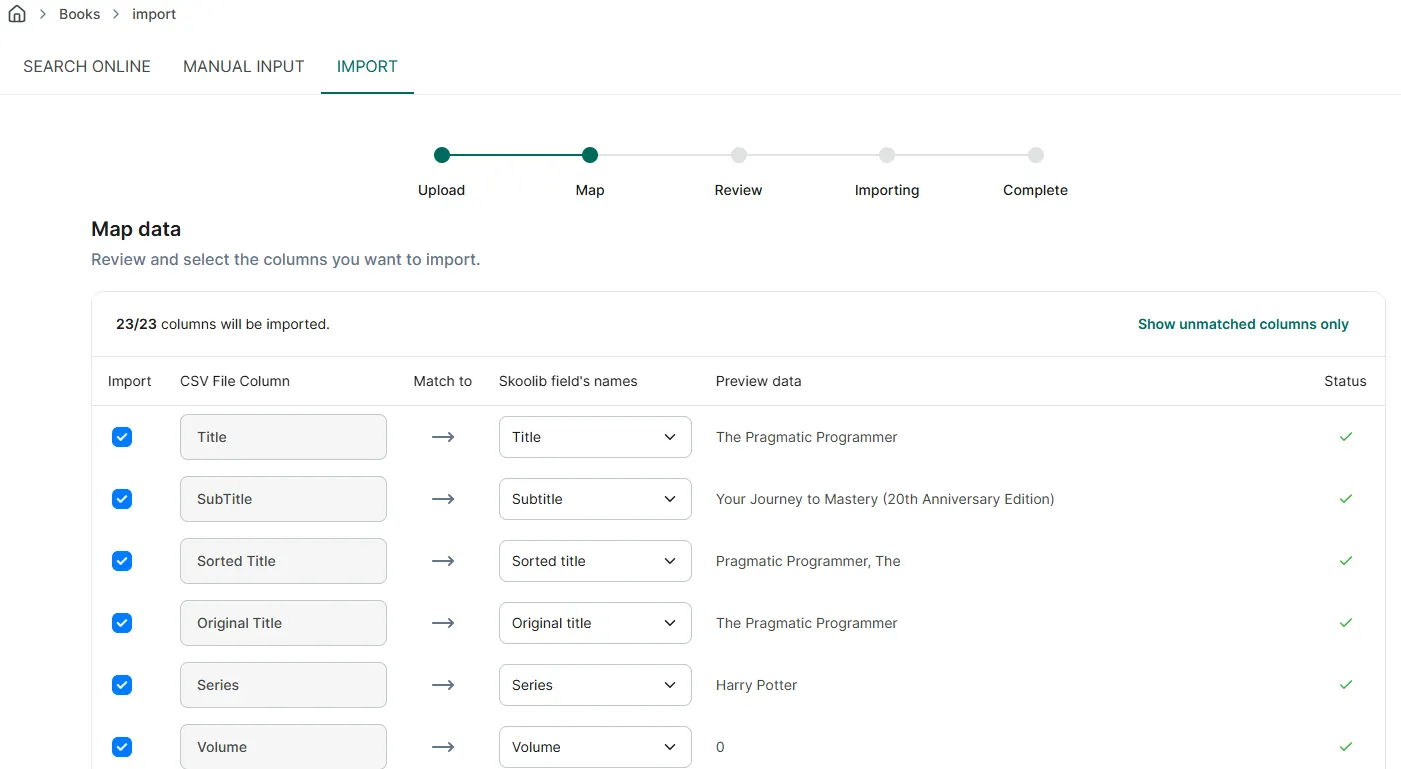
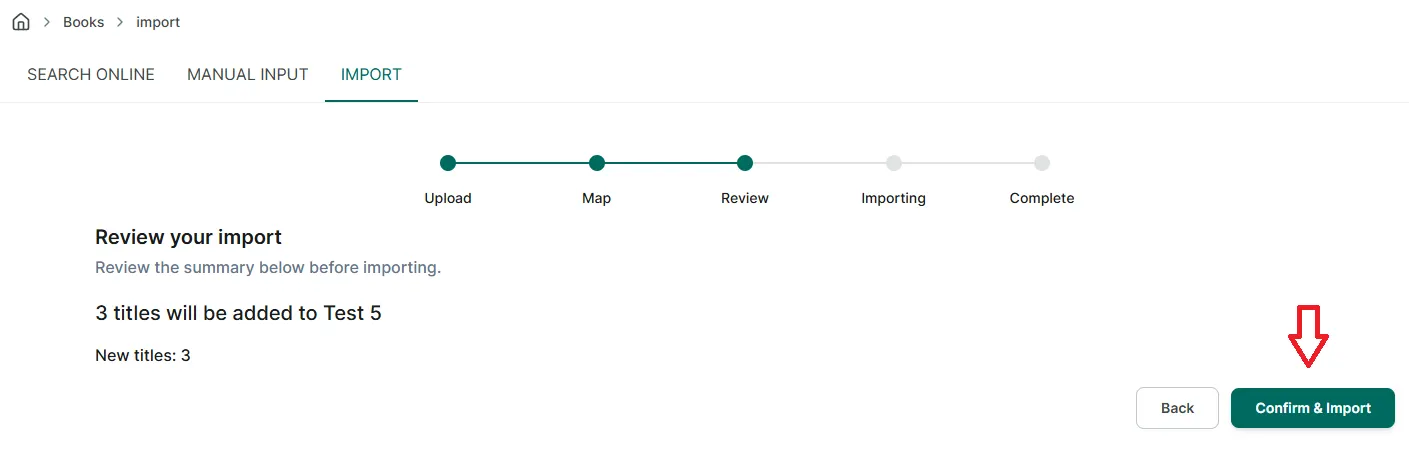
Step 6: Once the file is displayed, click “Next.”
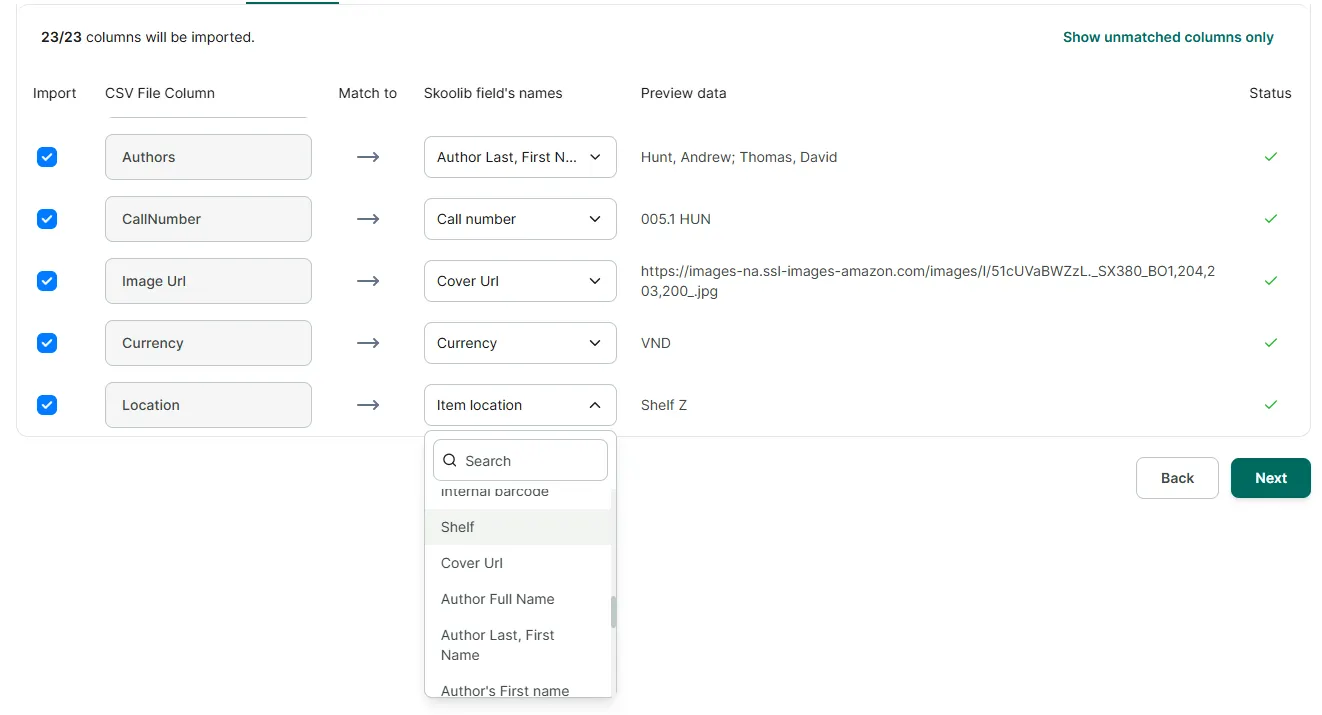
Step 7: Map Data: If you have added or modified any fields in the file, or if you are importing data exported from the Handy Library app, please select the corresponding fields in the app during this step to ensure data is correctly imported without errors. Then, click “Next.”
Step 8: For example, the ‘Location’ field should be mapped to the ‘Shelf’ field when importing data into Skoolib to ensure it displays as ‘Shelf Z’ correctly.