Change Password
Step 1: Tap the account/profile icon at the top right of the screen.
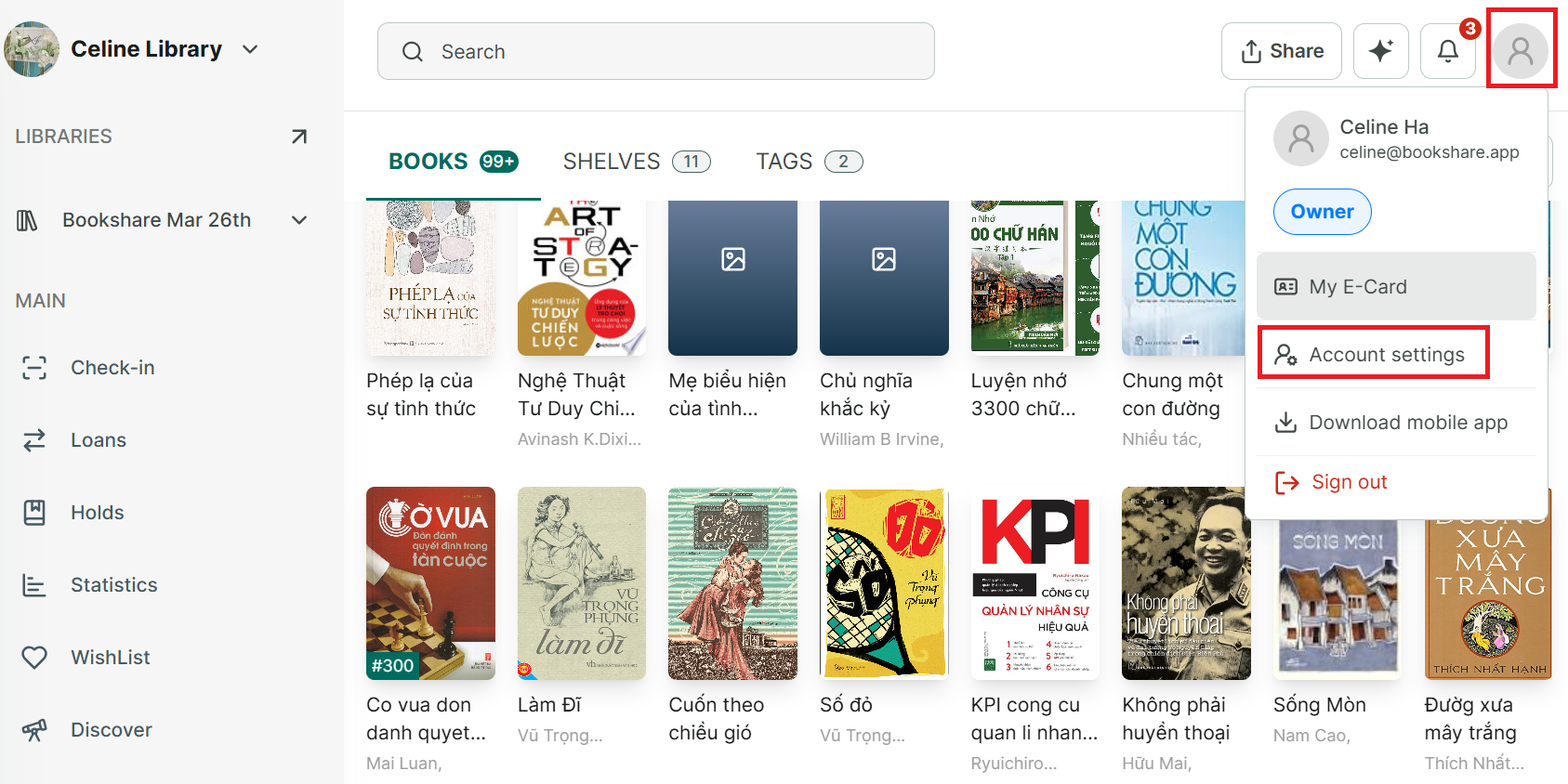
Step 2: Select “Account Settings.”
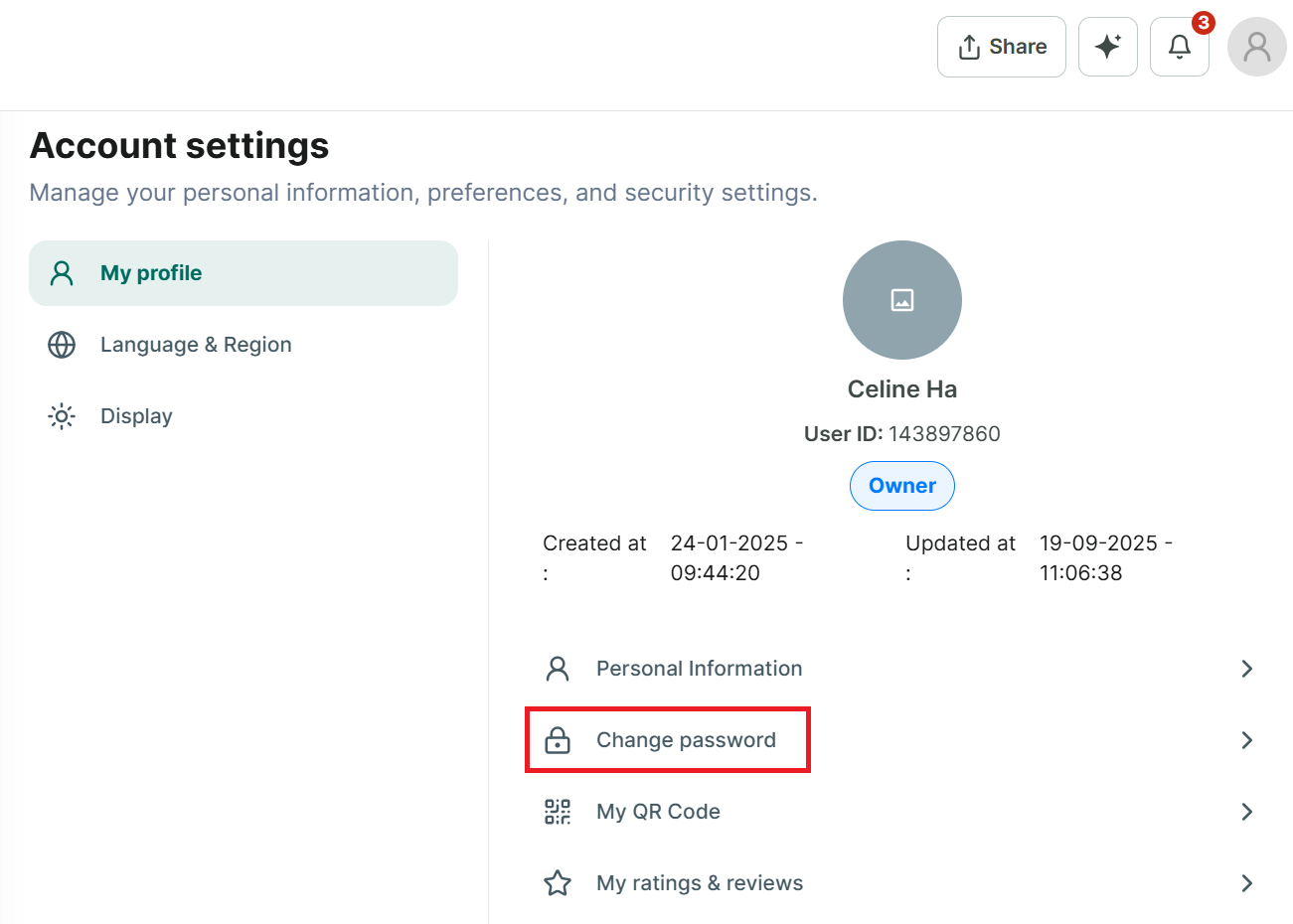
Step 3: Under “My Profile,” choose “Change Password.”
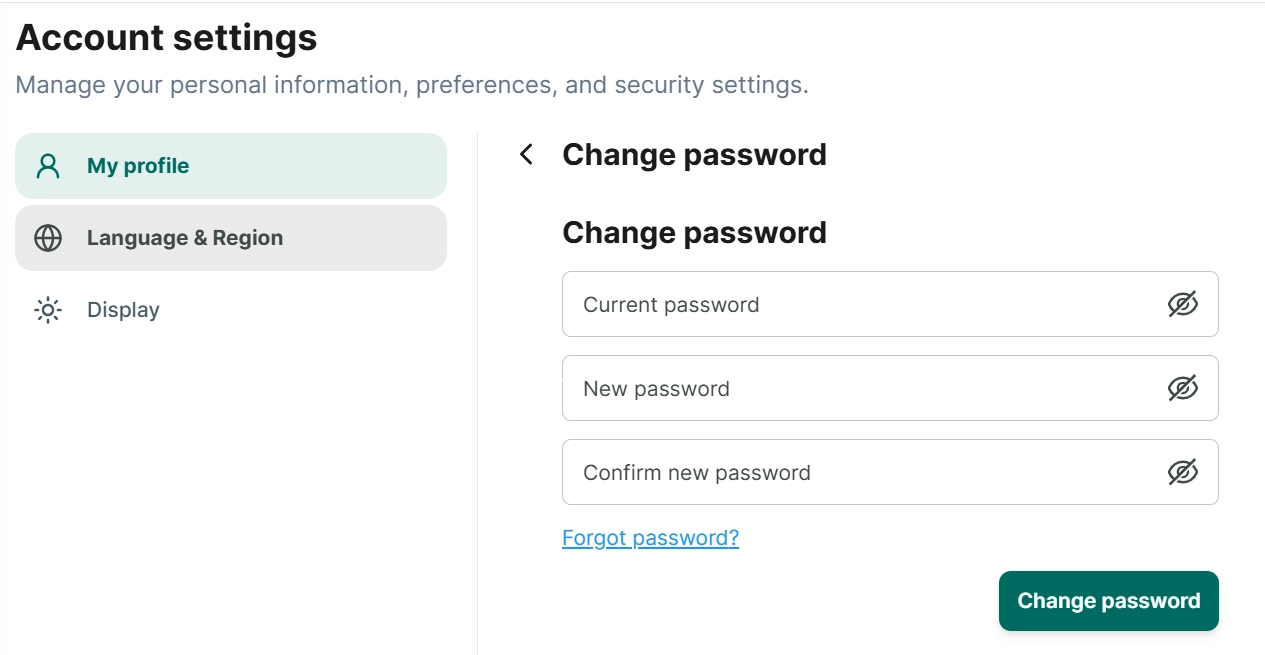
Step 4: Enter your current password, your new password, and confirm it → tap “Change Password.”
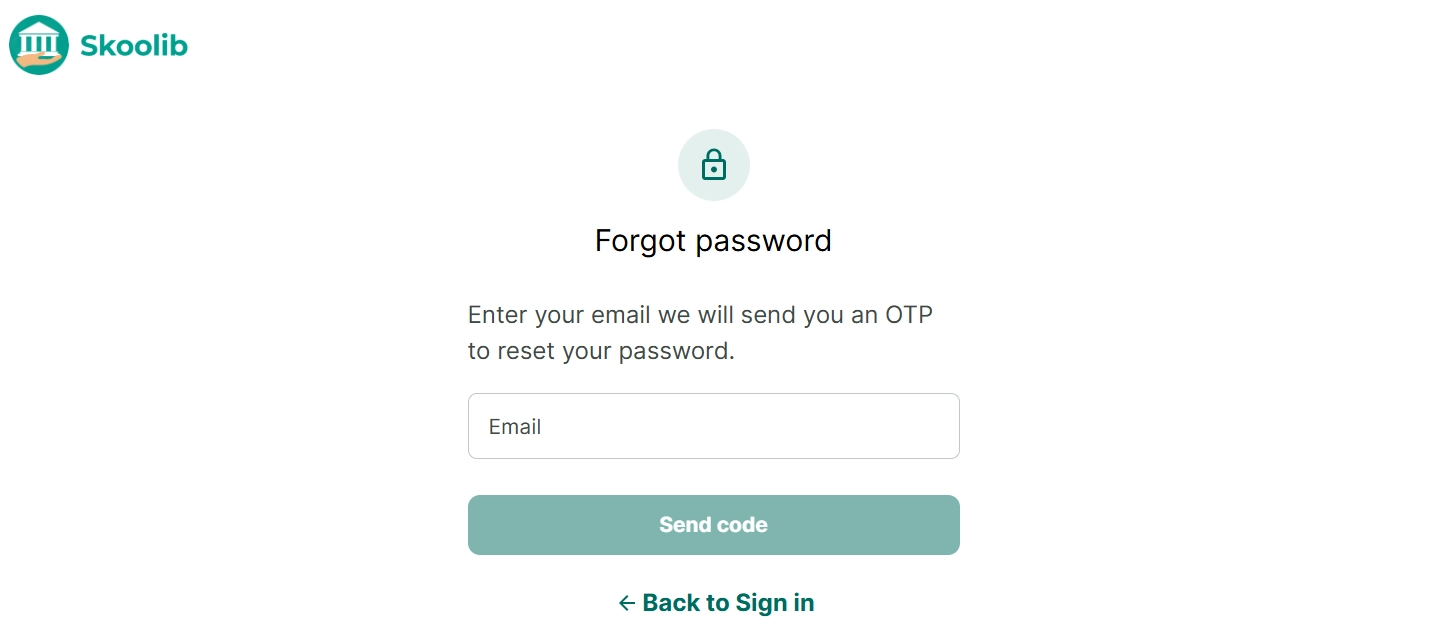
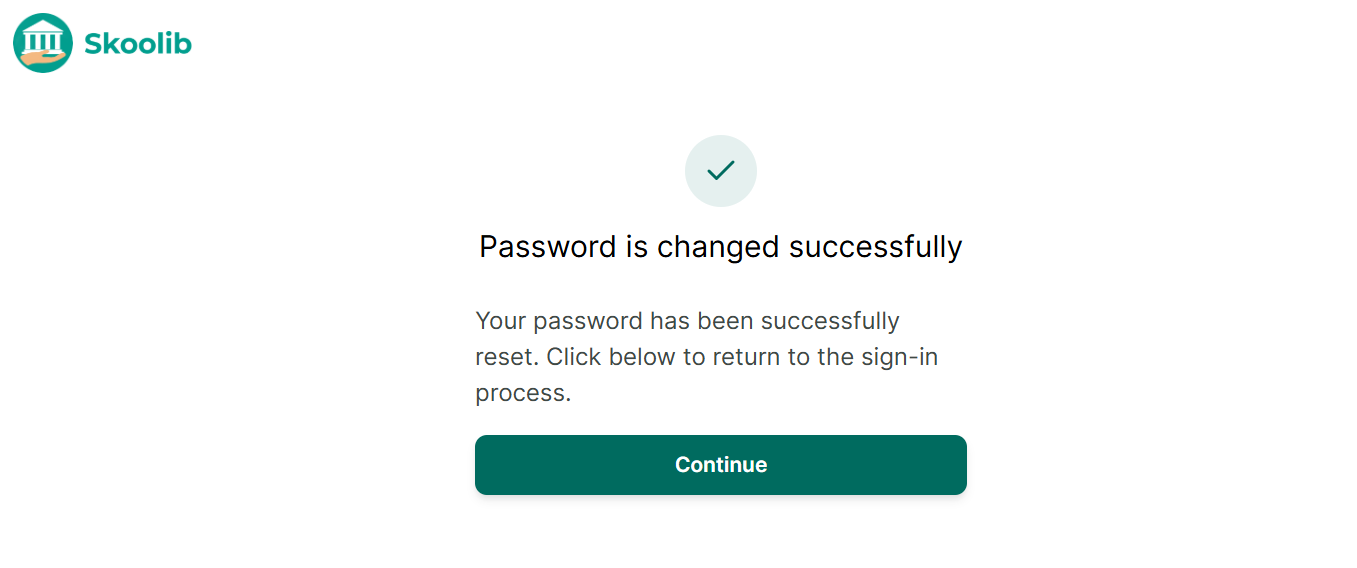
Step 5: A “Successfully updated” message will appear.
If you forgot your current password:
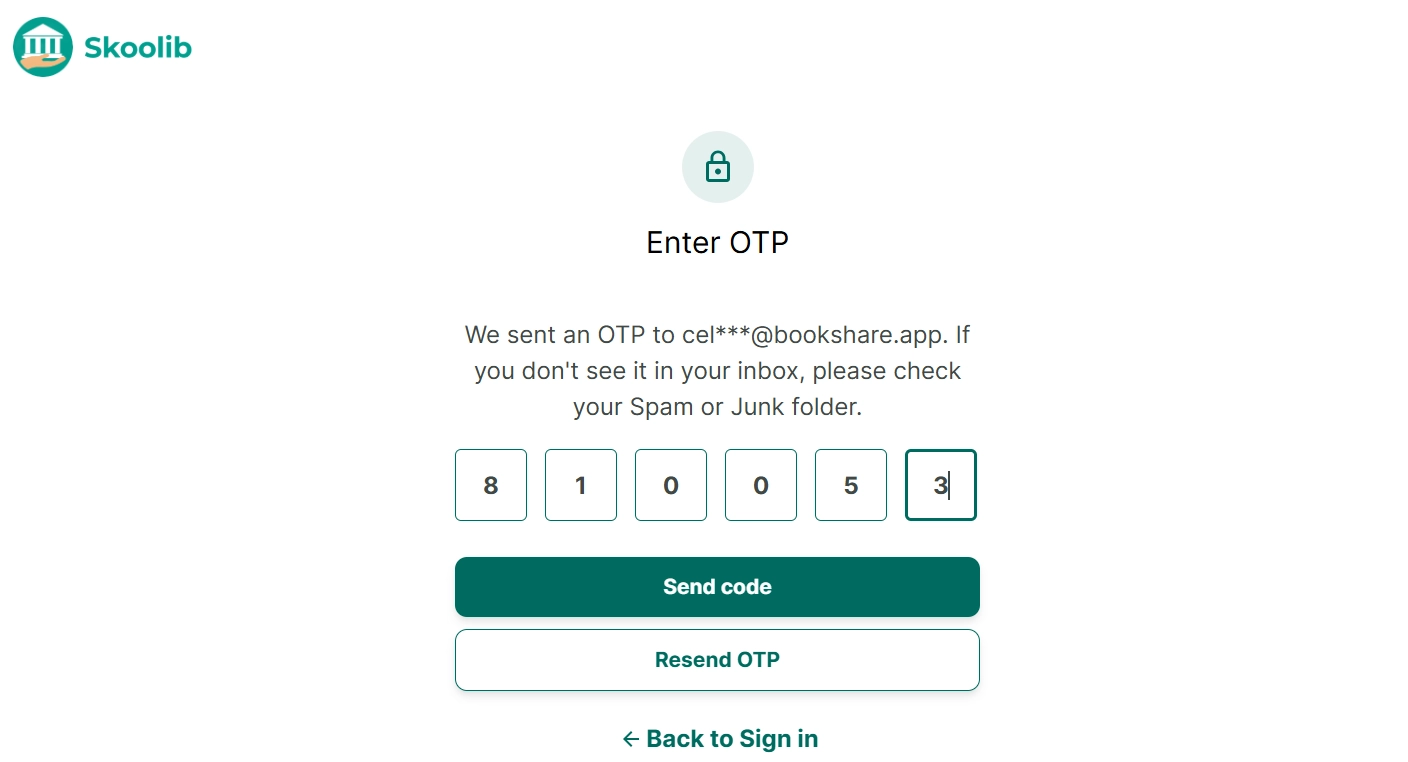
Step 6: Tap “Forgot Password.” You’ll be redirected to a page where you enter your email to receive an OTP code.
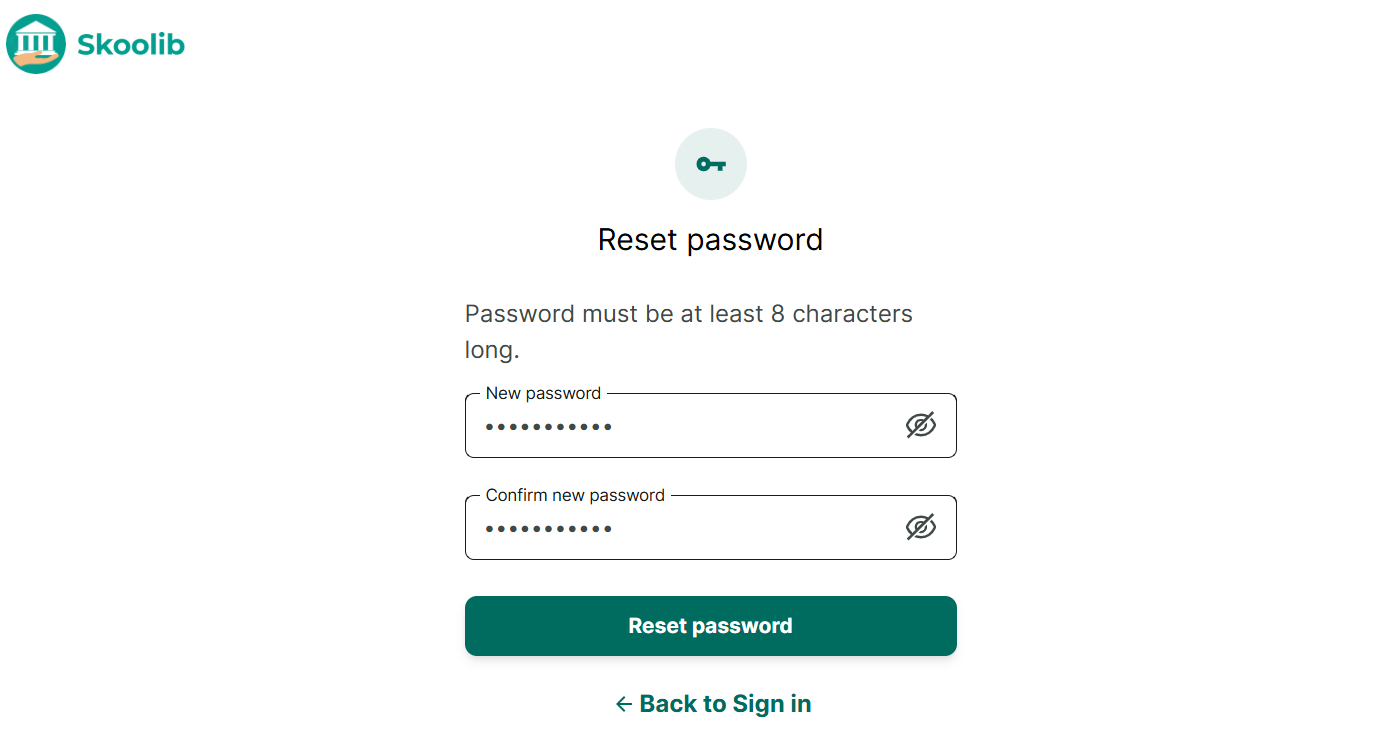
Step 7: Check your email and enter the OTP code.