Hold
How to place a hold: Placing a hold on an available book
Method 1: Placing a Hold from the “Holds” Section
Step 1: Click on the “Holds” section in the left menu.
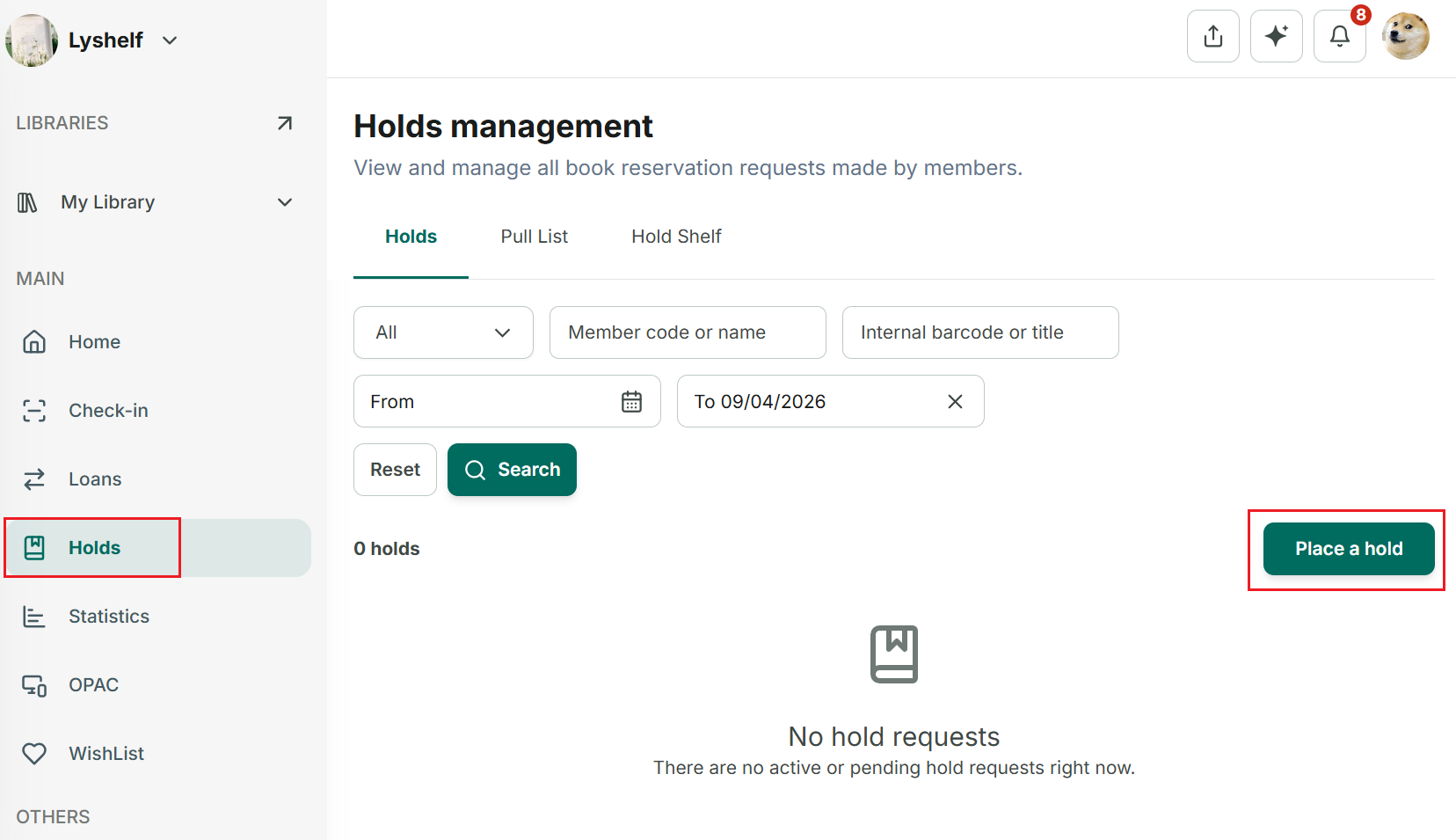
Step 2: Click the “Place a Hold” button on the screen.
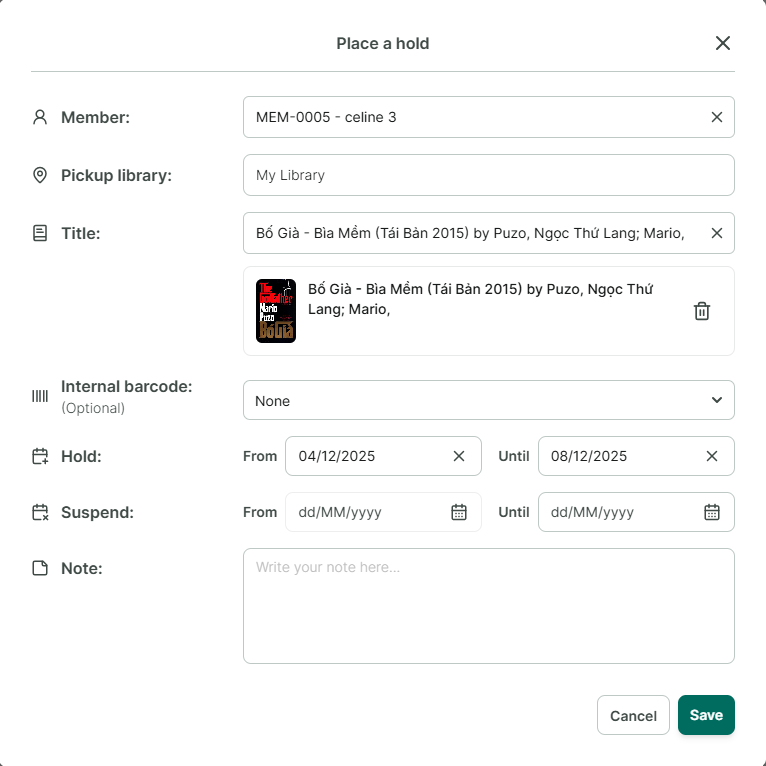
Step 3: The detailed hold form will appear, including:
- **Member** (search by name or member ID)- **Pickup Library** where the member will pick up the book- **Book Title**- **Barcode** (optional - will automatically select the available copy or the newest copy)- **Hold Time** (Start Date/Duration)- **Suspend Time** (can be added later if needed)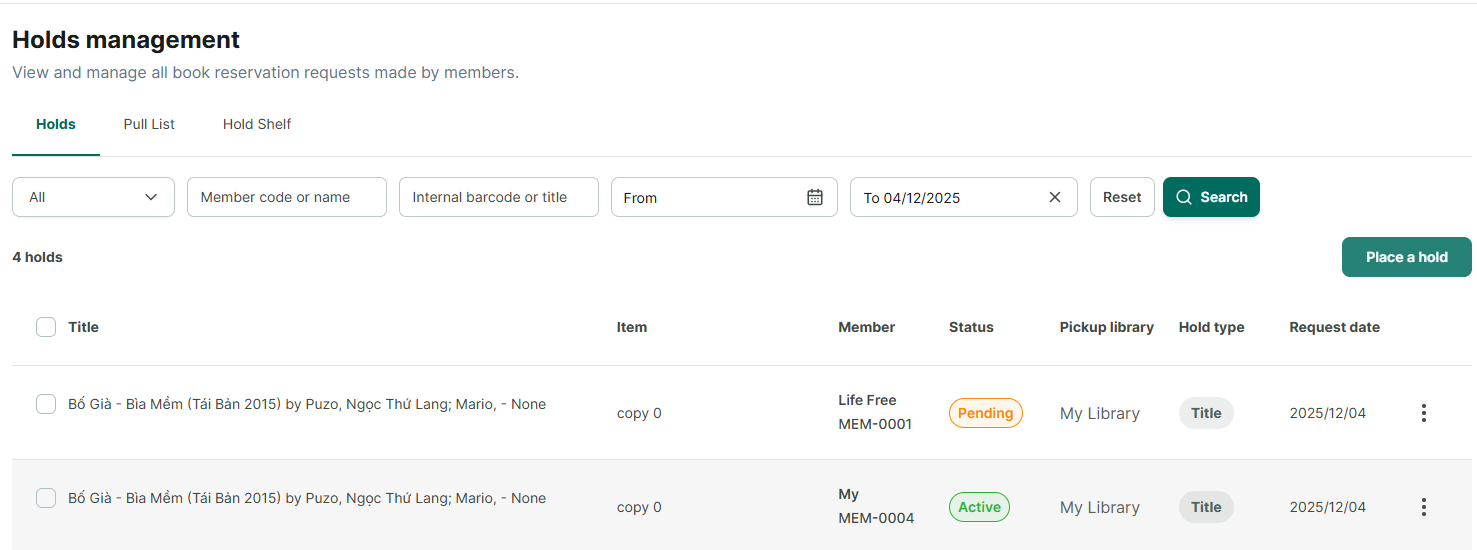
Step 4: Fill in the above fields and click “Save.”
Step 5: The hold is completed and is in the “Active” status. A single book may have multiple holds; therefore, subsequent holds for the same book will be in the “Pending” status.
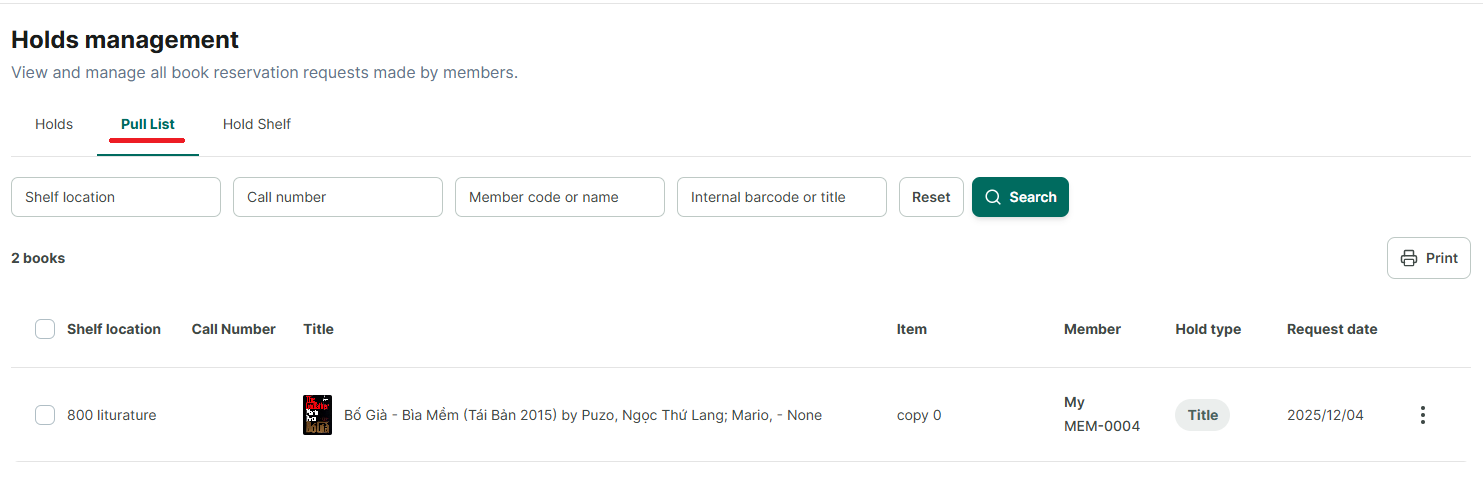
Step 6: The book will appear in the “Pull List.” This is the list of books that the librarian needs to retrieve to move to the hold shelf, ready for the member to collect.
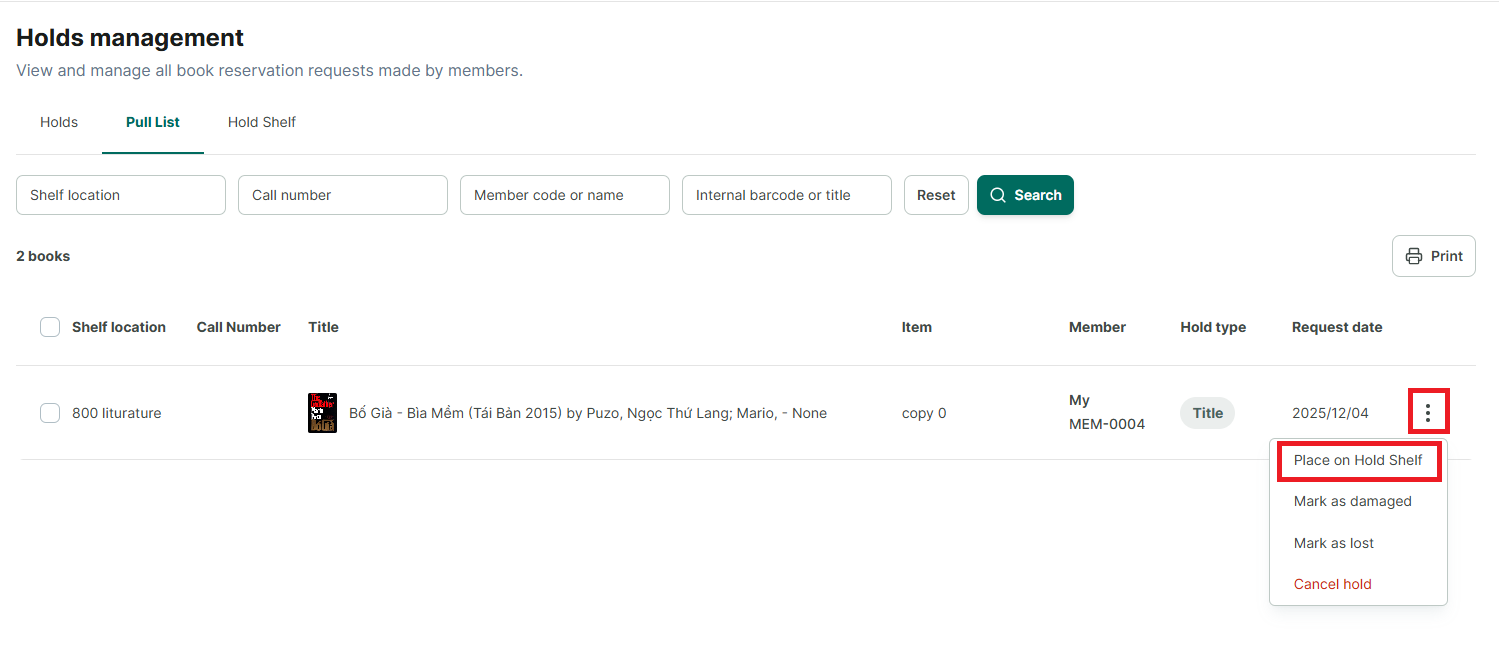
Step 7: Once the librarian has retrieved the book, they need to transfer it from the “Pull List” to the “Hold Shelf” to indicate that the book is ready for collection.
- Click the three-dot button (ellipses) and then select "**Place on Hold Shelf**."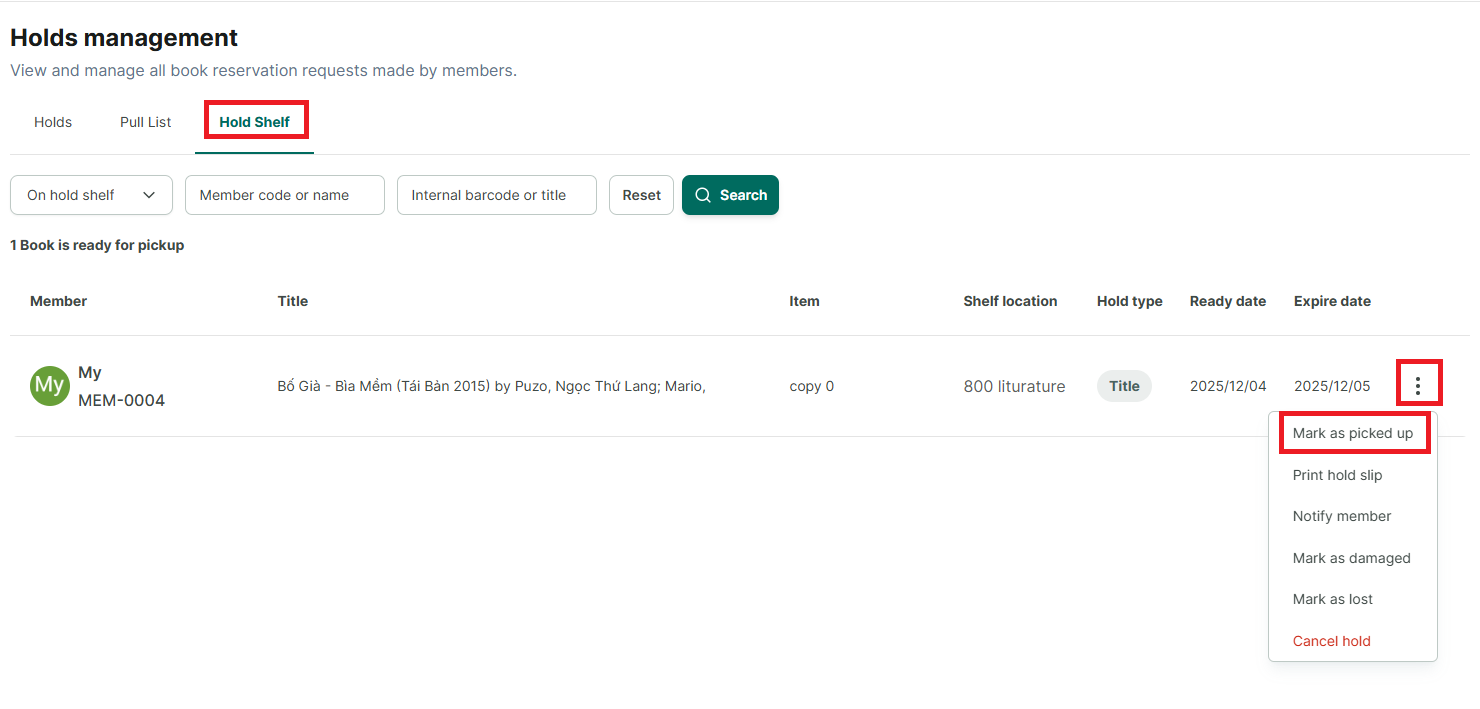
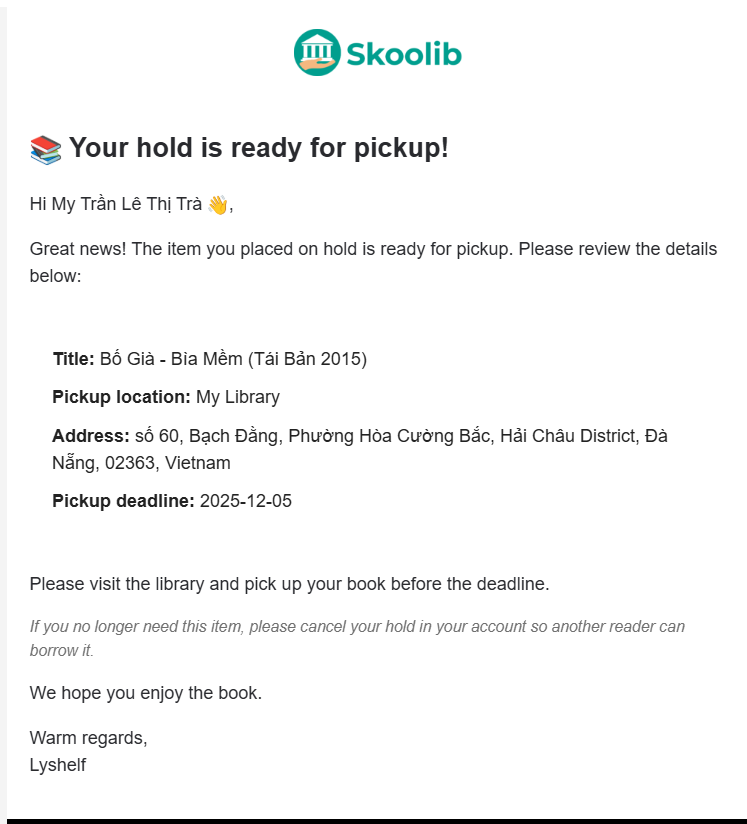
Step 8: When a book appears in the “Hold Shelf” section, the member will receive an email notification that the book is ready for pickup. This notification applies to both online and offline members, provided their email information has been updated.
Concurrently, the book’s status will change from “Available” to “On Hold Shelf” and will not be available for lending transactions to other members during this time.
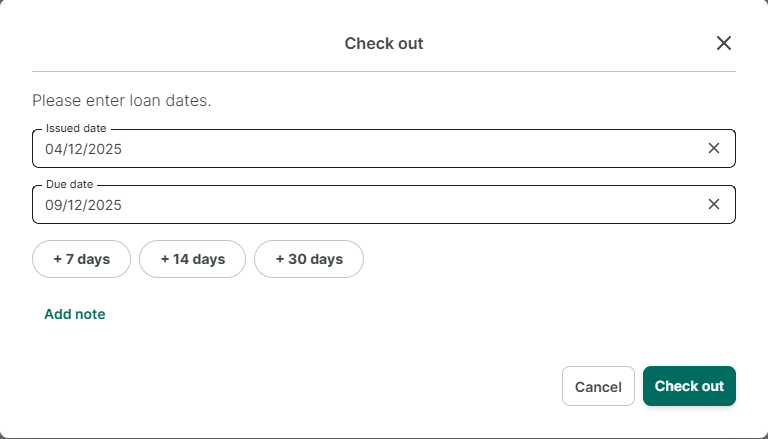
Step 9: After the member has arrived to collect the book, the librarian needs to mark the book as collected to create a loan transaction for this book.
Step 10: The Create Loan Transaction form appears. Add the due date and click “Lend” (Check Out).
Step 11: The book will be recorded as borrowed in the “Loans” section.
Method 2: Placing a Hold from the Book Details Section
Step 12: Open the details of a book for which you want to create a hold.
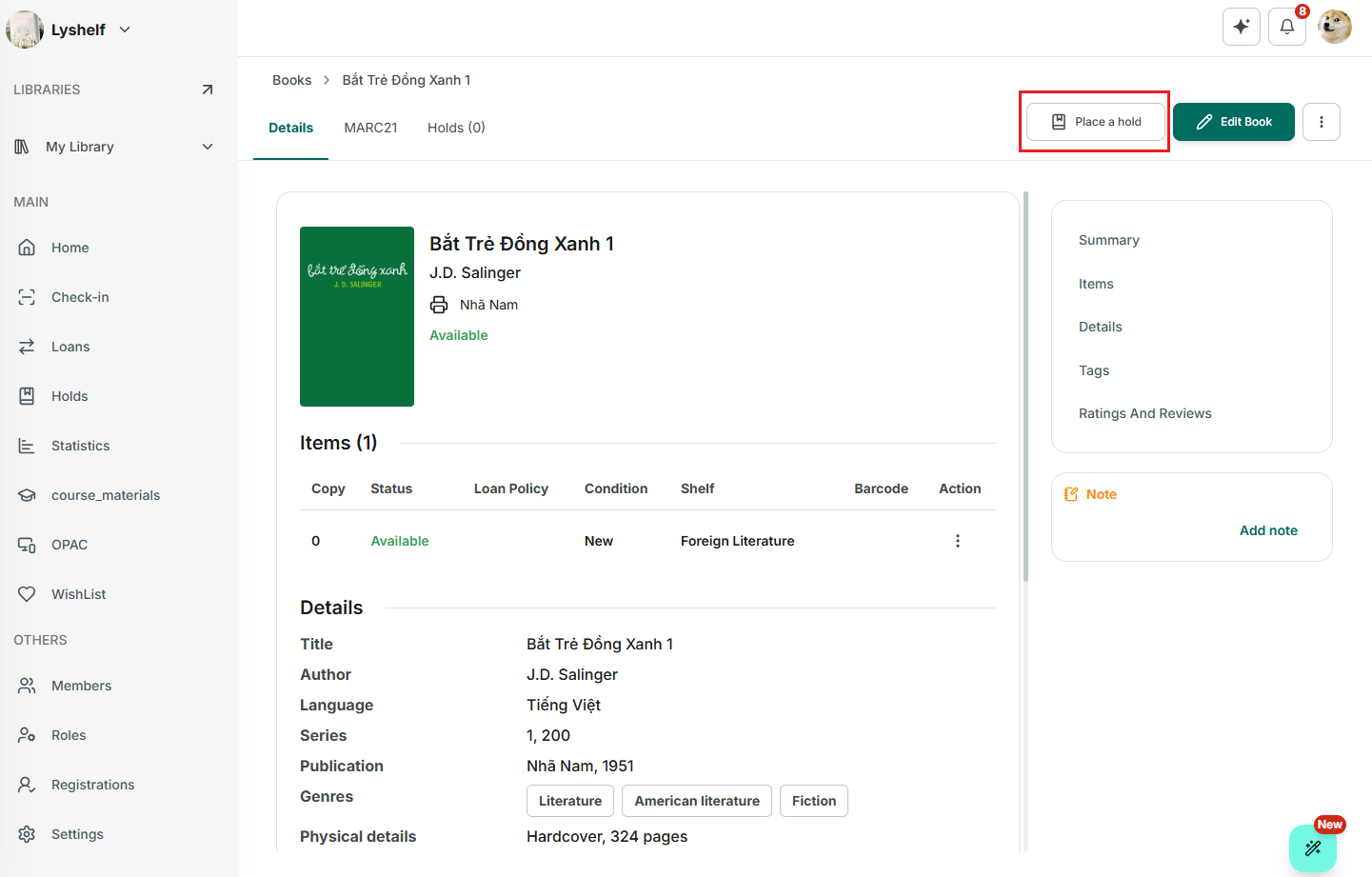
Step 13: Click the Place a Hold button on the toolbar.
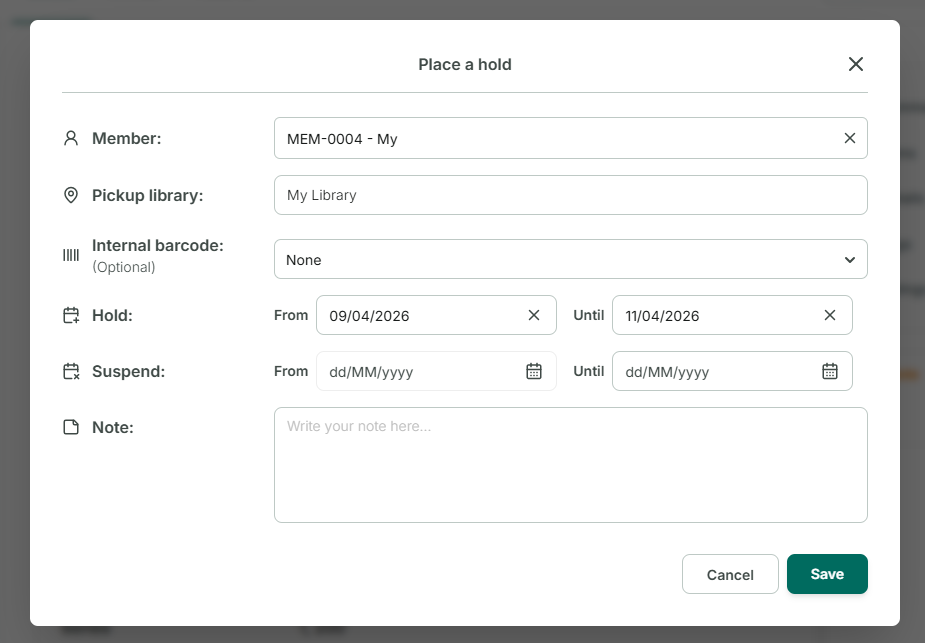
Step 14: Fill in the detailed hold form. The detailed hold form will appear, including:
- **Member** (search by name or member ID)- **Pickup Library** where the member will pick up the book- **Book Title**- **Barcode** (optional - will automatically select the available copy or the newest copy)- **Hold Time** (Start Date/Duration)- **Suspend Time** (can be added later if needed)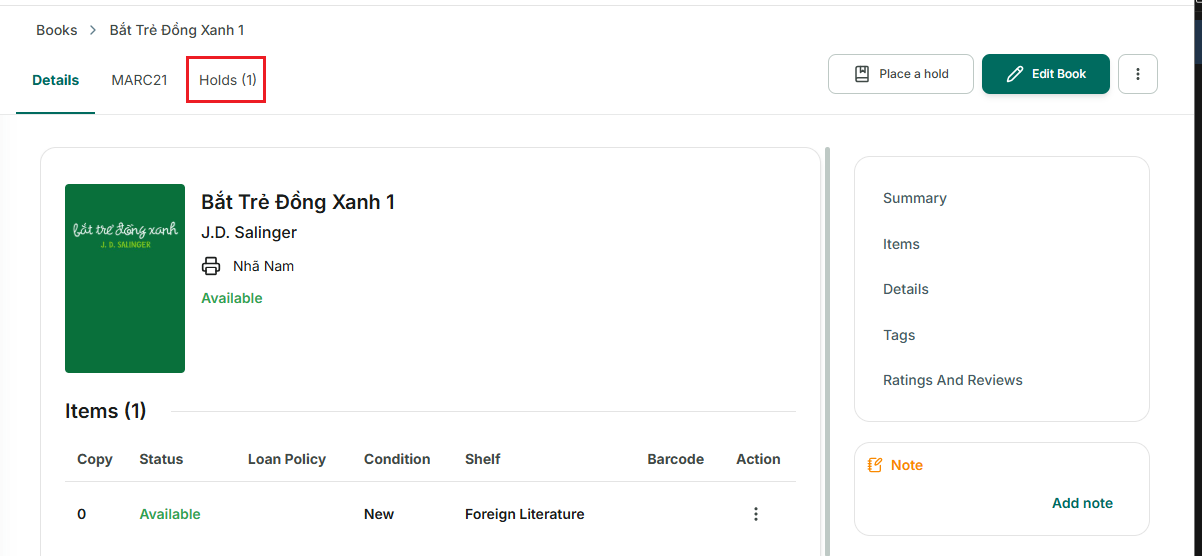
Step 15: Fill in the above fields and click “Save.”
Step 16: Monitor and manage the hold directly in the “Holds” section.
Step 17: Continue following Step 5 from Method 1 to complete the hold and check out the book.
Placing a hold on a book that is currently on loan or has existing holds.
Step 18: When a book has been checked out, its status is “Borrowed”
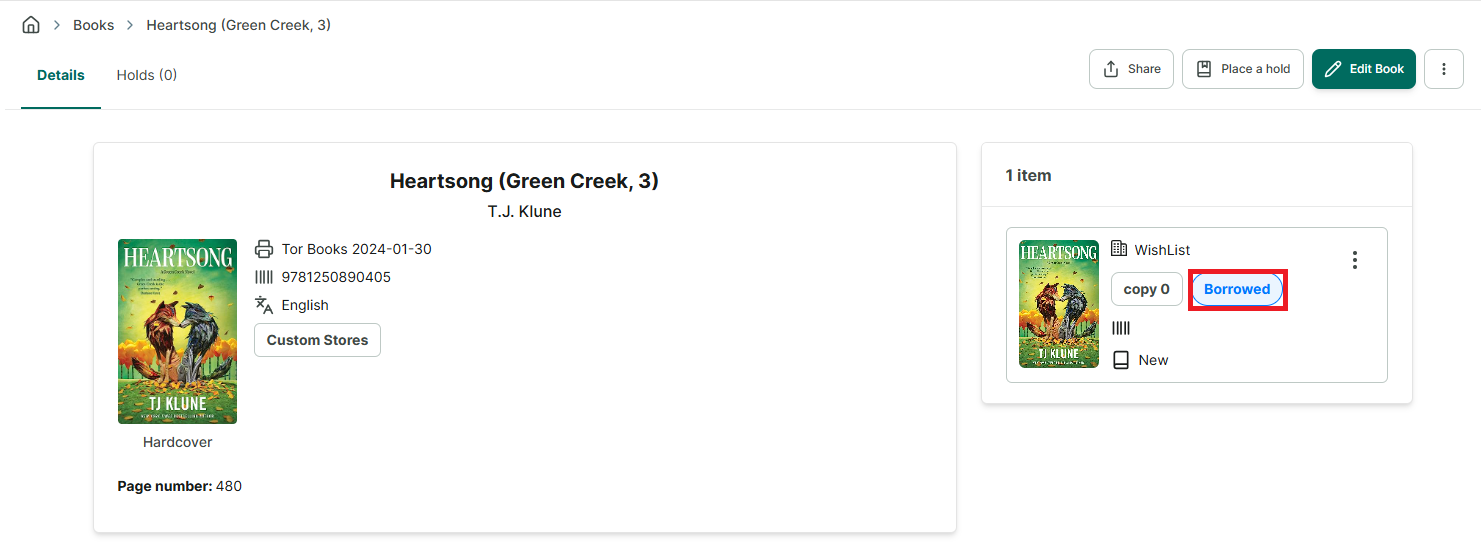
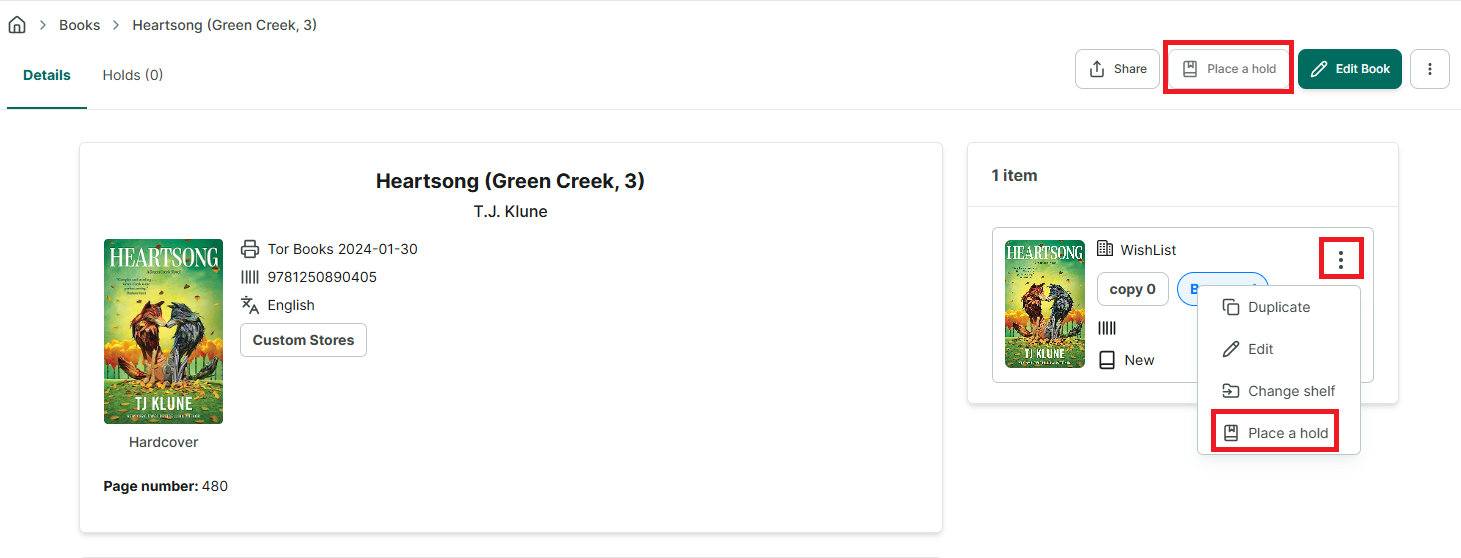
Step 19: You can place a hold directly from the book information screen. There are two “Place Hold” buttons:
• Place Hold on the main screen • Place Hold in the options menu for the book
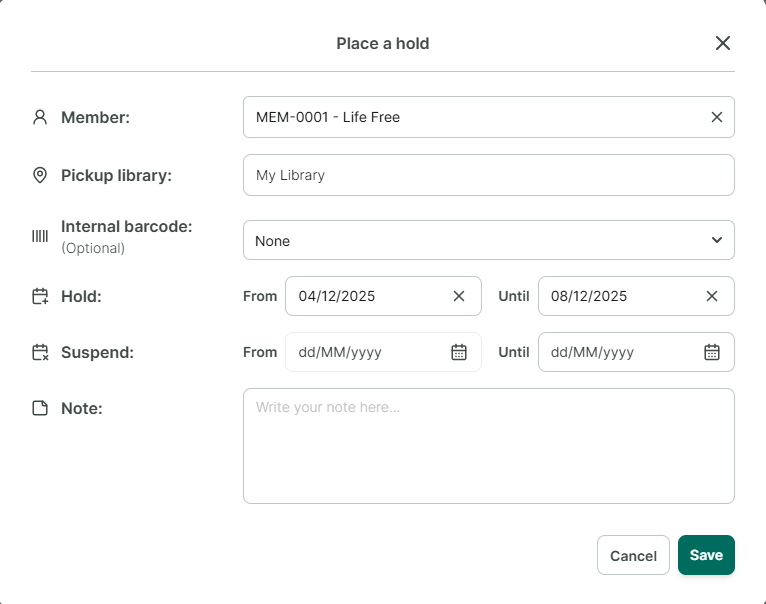
Step 20: Fill in the information on the hold form. Then click “Save.”
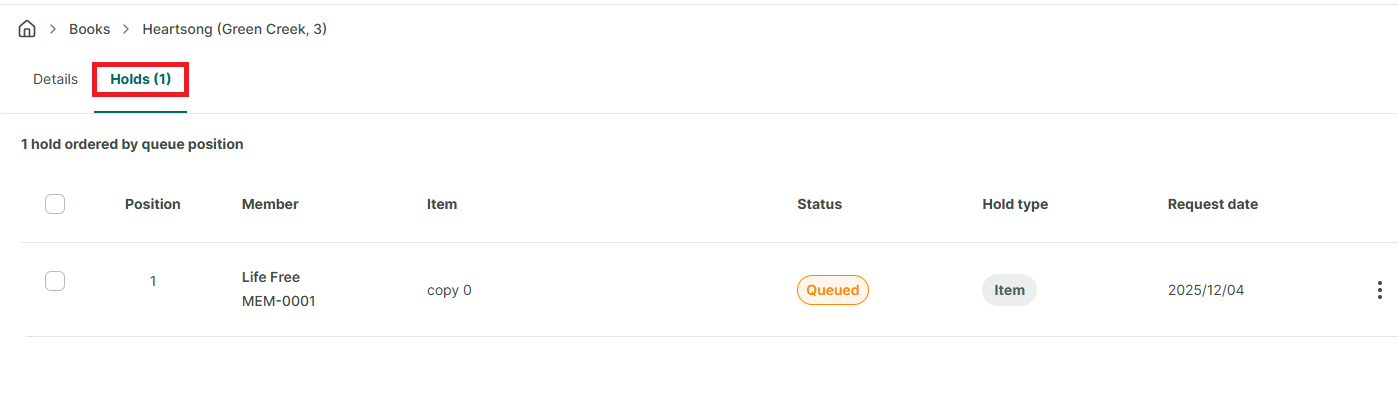
Step 21: After completion, check the book’s “Book Holds” section. The new hold will be in the ” Queued” status because there are already members who have holds on this currently loaned book.
Step 22: When the book is returned, the hold will automatically transfer to the next waiting member. The status on the page will be updated from “Queued” to “Active.” In the “Book Holds” section, the status will also change from “Pending” to “Active.”
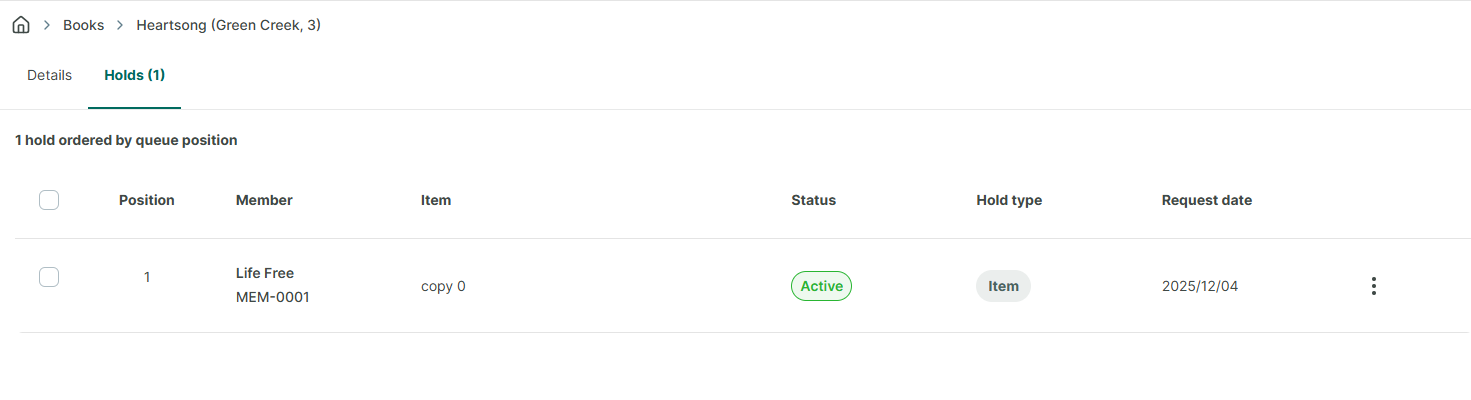
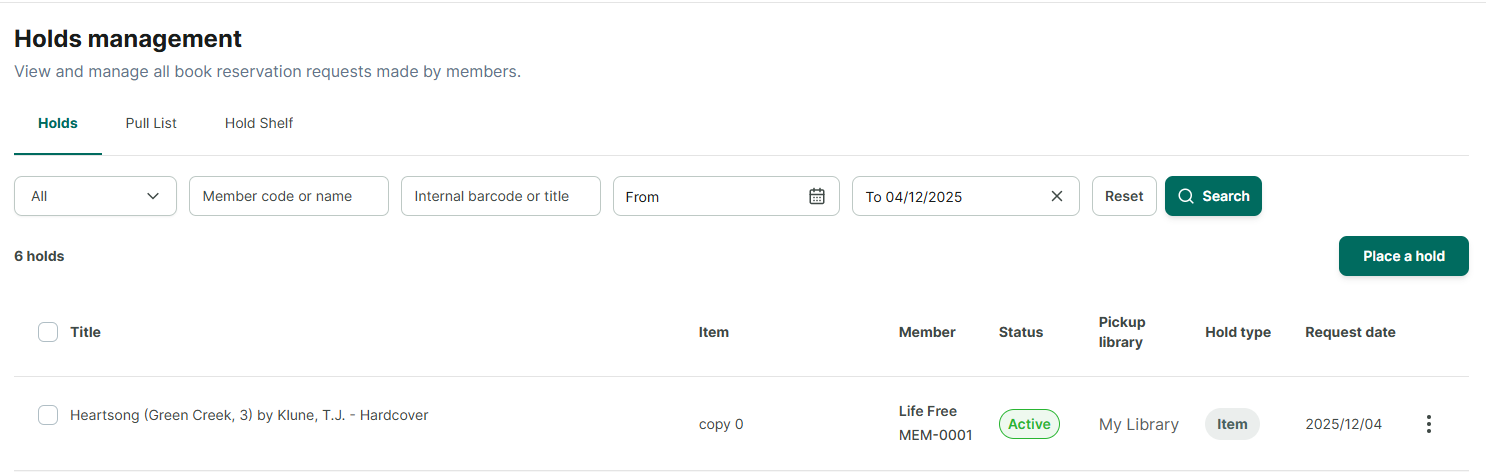
Step 23: Next, click on the “Pull List” to place the book on the “Hold Shelf” once it is ready, so that the member knows the book is available for checkout. The member will receive an email notification that the book is ready for pickup. This notification applies to both online and offline members, provided their email information has been updated.
◦ Click the three-dot button select "**Place on Hold Shelf**."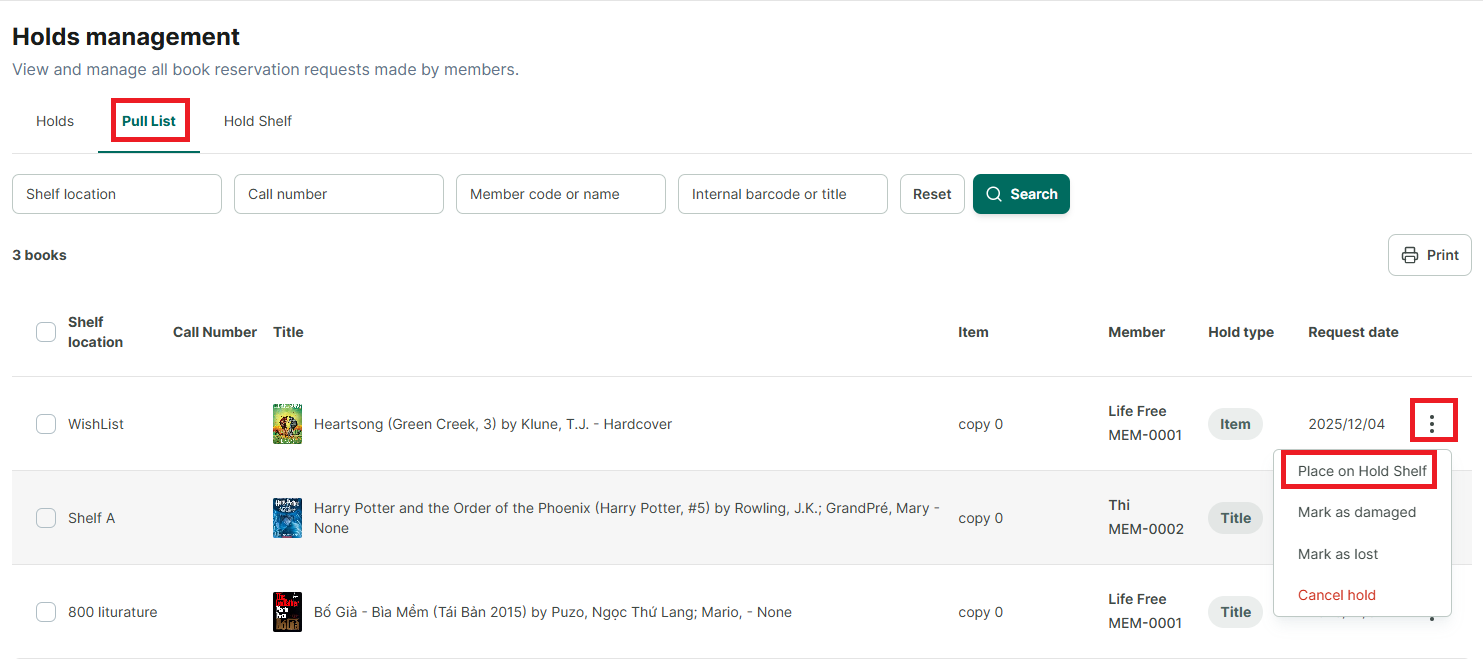
Step 24: After the member has arrived to collect the book, the librarian needs to mark the book as collected to create a loan transaction for this book from the “Hold Shelf.”
◦ Click the three-dot icon and select "**Mark as Picked up**"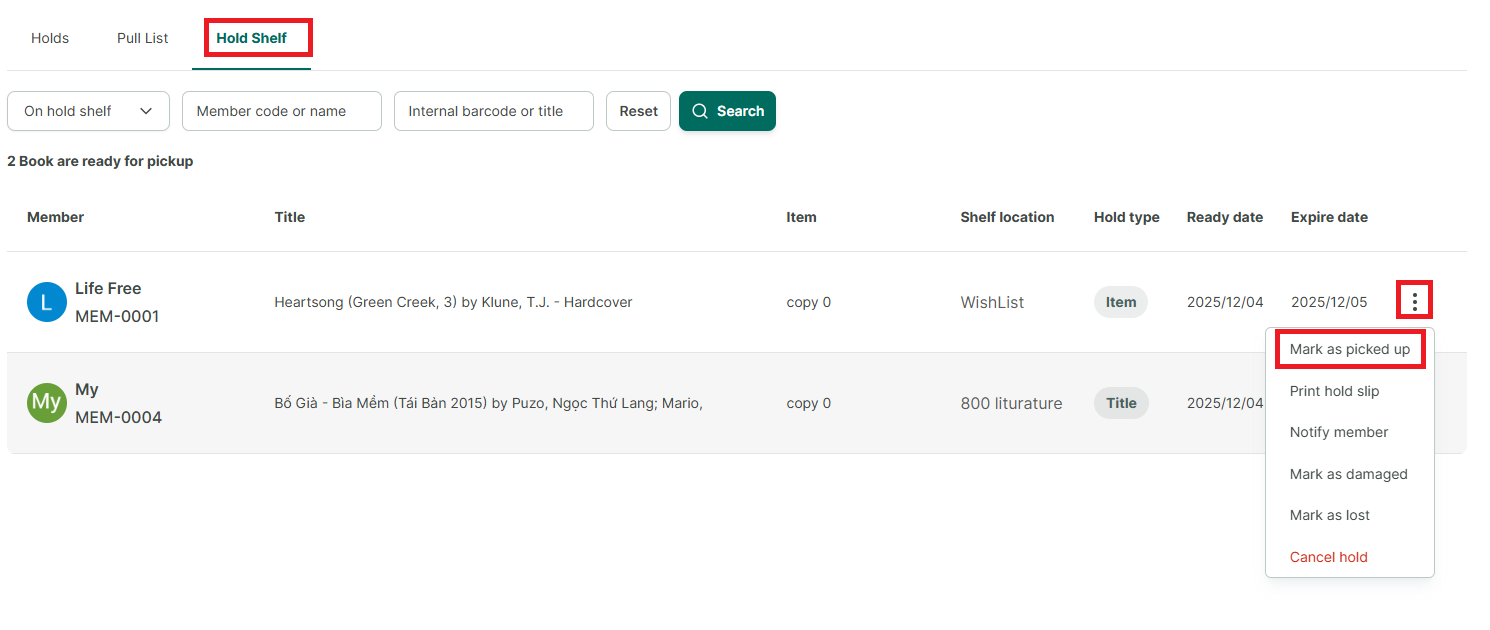
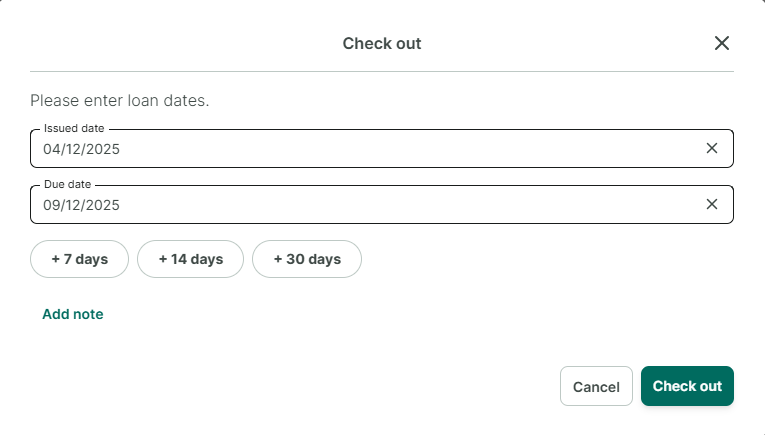
Step 25: The Create Loan Transaction form appears. Add the due date and click “Lend” (Check Out).
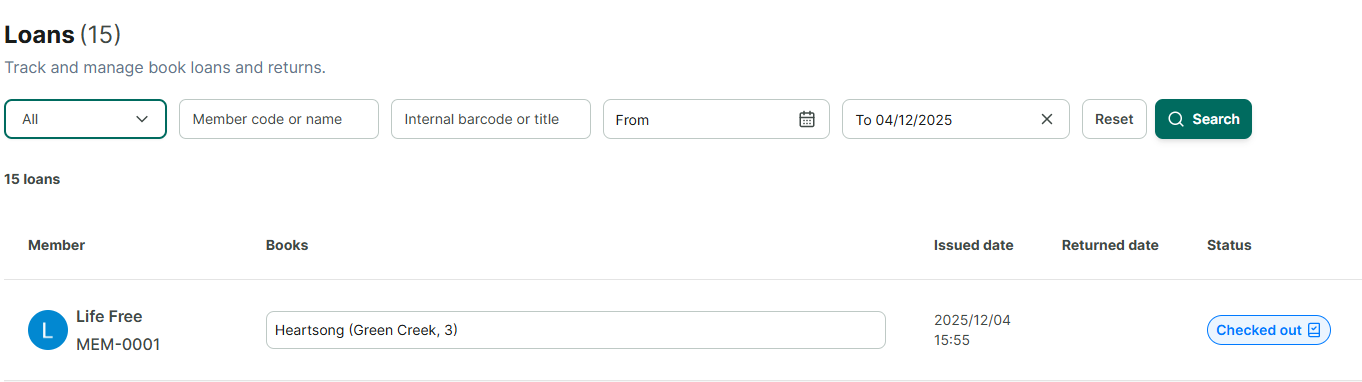
Step 26: The book will be recorded as borrowed in the “Loans” section.
A member places a hold but does not pick up the book, and the hold expires.
A member places a hold but does not pick up the book, and the hold expires.
A book has been placed on hold and is ready for pickup (located on the “Hold Shelf”).
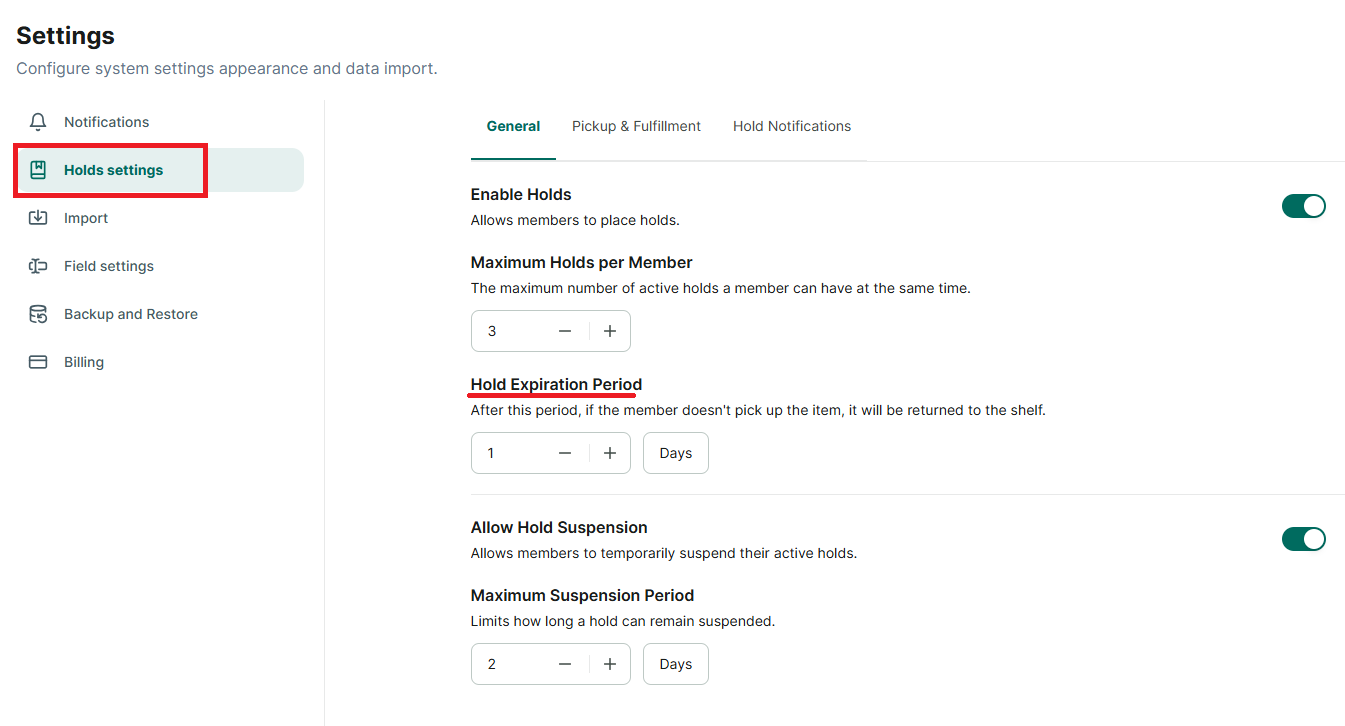
However, if the member does not pick up the book after the organization’s designated hold period, the hold will automatically expire and the book will return to the “Available” status so other members can borrow or place a hold on it.
How to set the hold duration for the organization:
- Go to “Settings” in the side menu
- Select “Hold Settings”
- In the General Settings section, adjust the number of days for the hold period (the countdown starts from the moment the book is placed on the “Hold Shelf”).
Member Cancels Hold Before Pickup
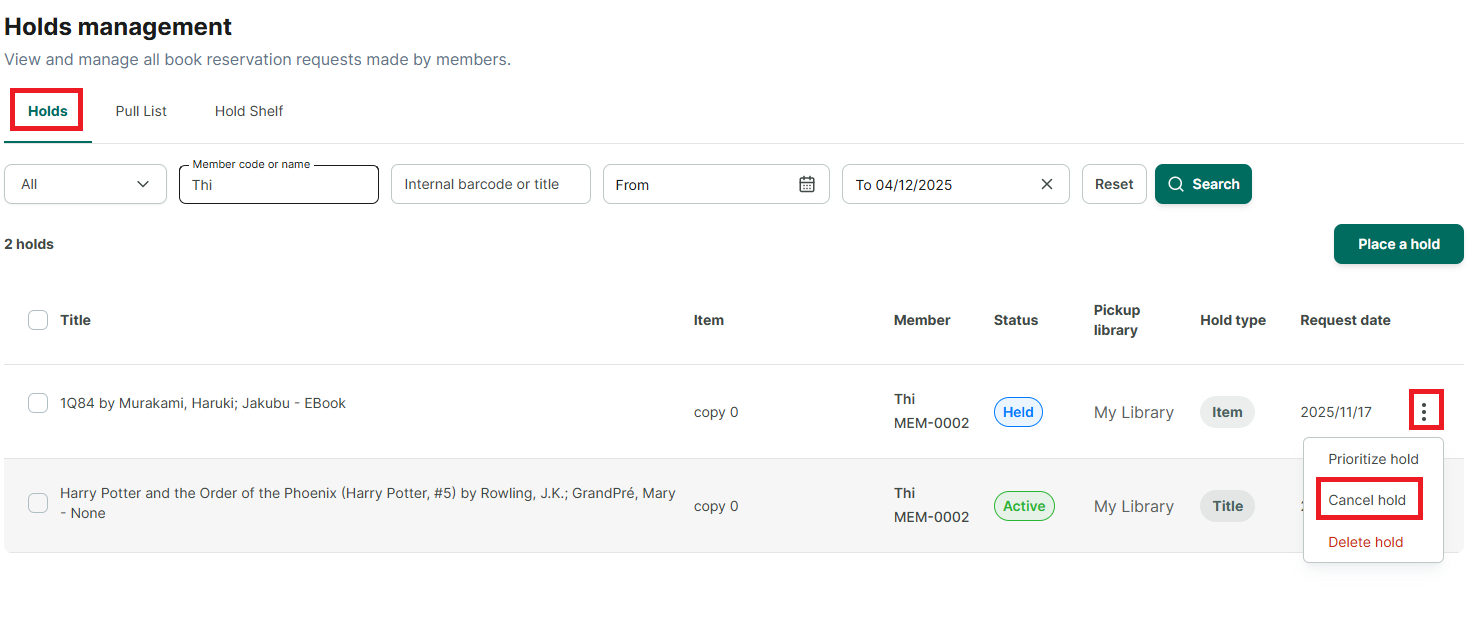
A member places a hold on a book but cancels the hold before the deadline. The librarian can perform the cancellation of the hold so that other members can place a hold and borrow that book.
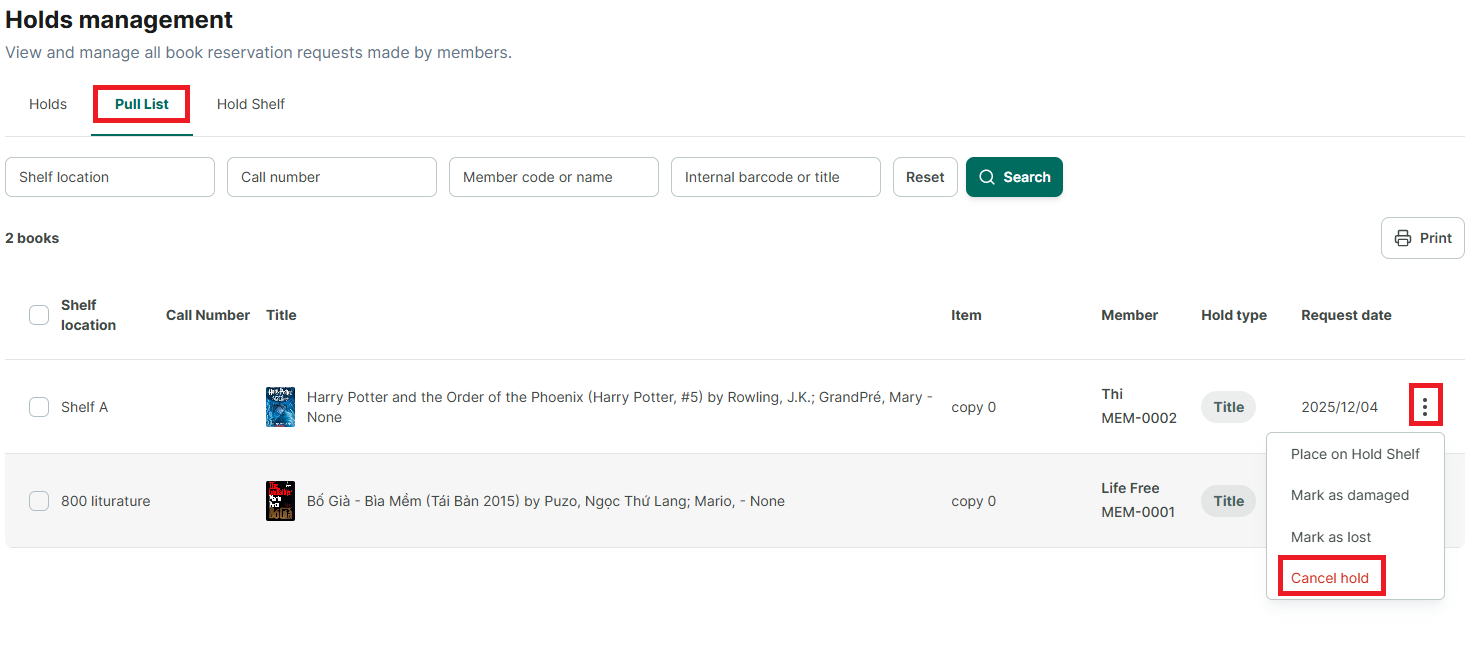
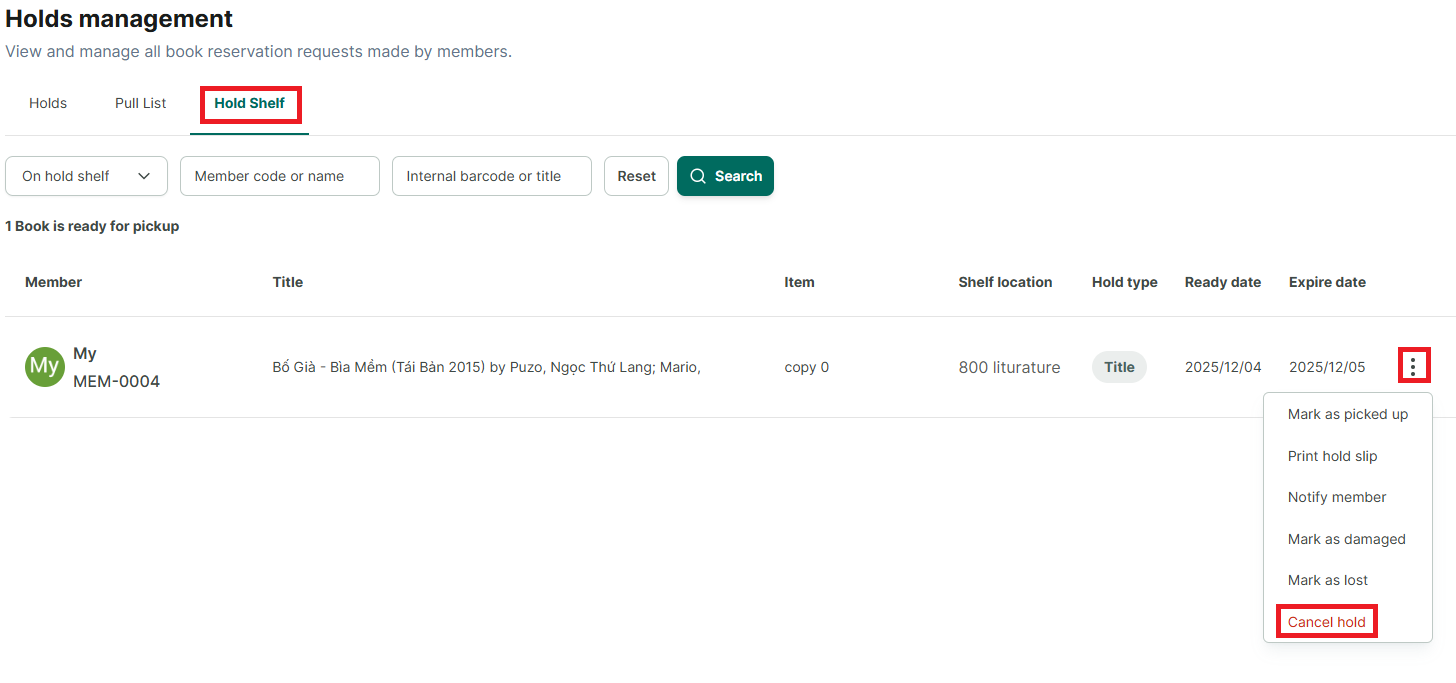
The librarian can Cancel the Hold from three locations:
Step 27: Holds
Step 28: Pull List
Step 29: Hold Shelf
Lost/Damaged Book After Member Places Hold
Step 30: A book is on hold in the “Active” status and is on the “Pull List.”
OR a book is on hold in the “Held” status and is on the “Hold Shelf.”
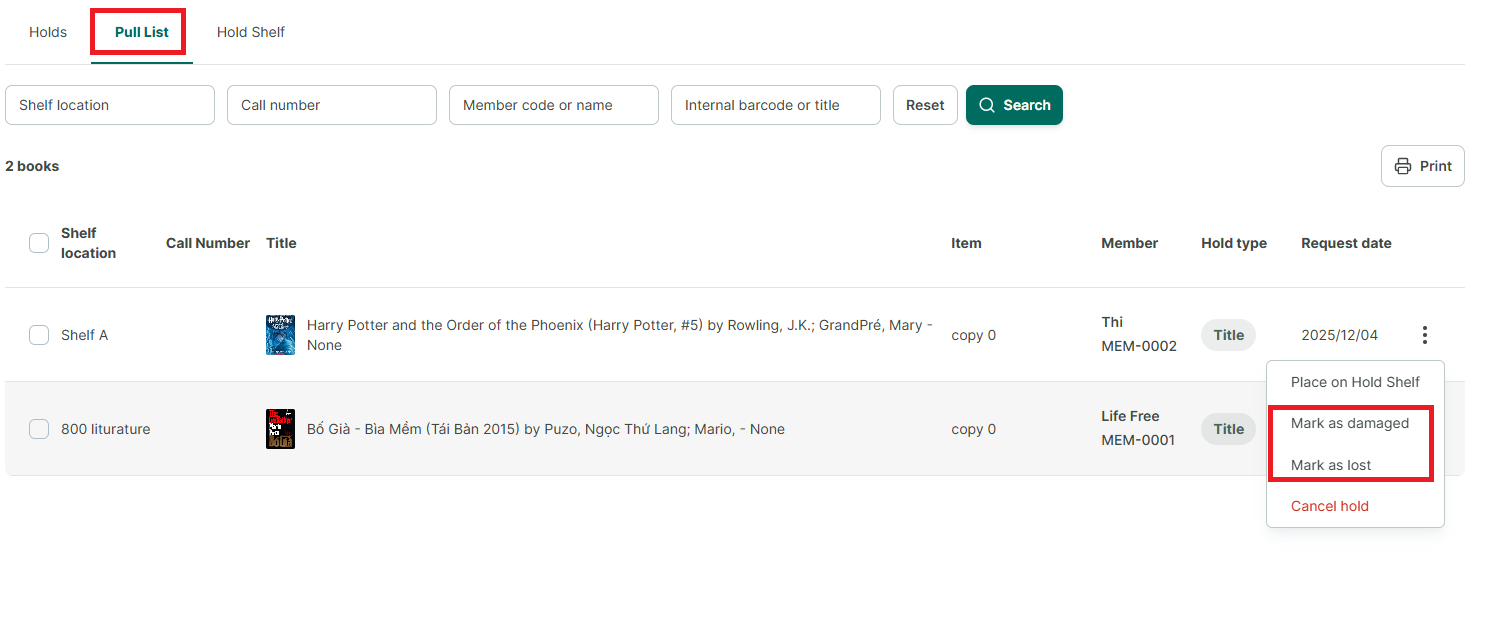
Step 31: However, upon inspection, the book is either lost or damaged and cannot be used for the hold. Mark the book as Lost/Damaged in the “Pickup List” section:
• Click the three-dot icon select “Mark as Damaged” or “Mark as Lost.”
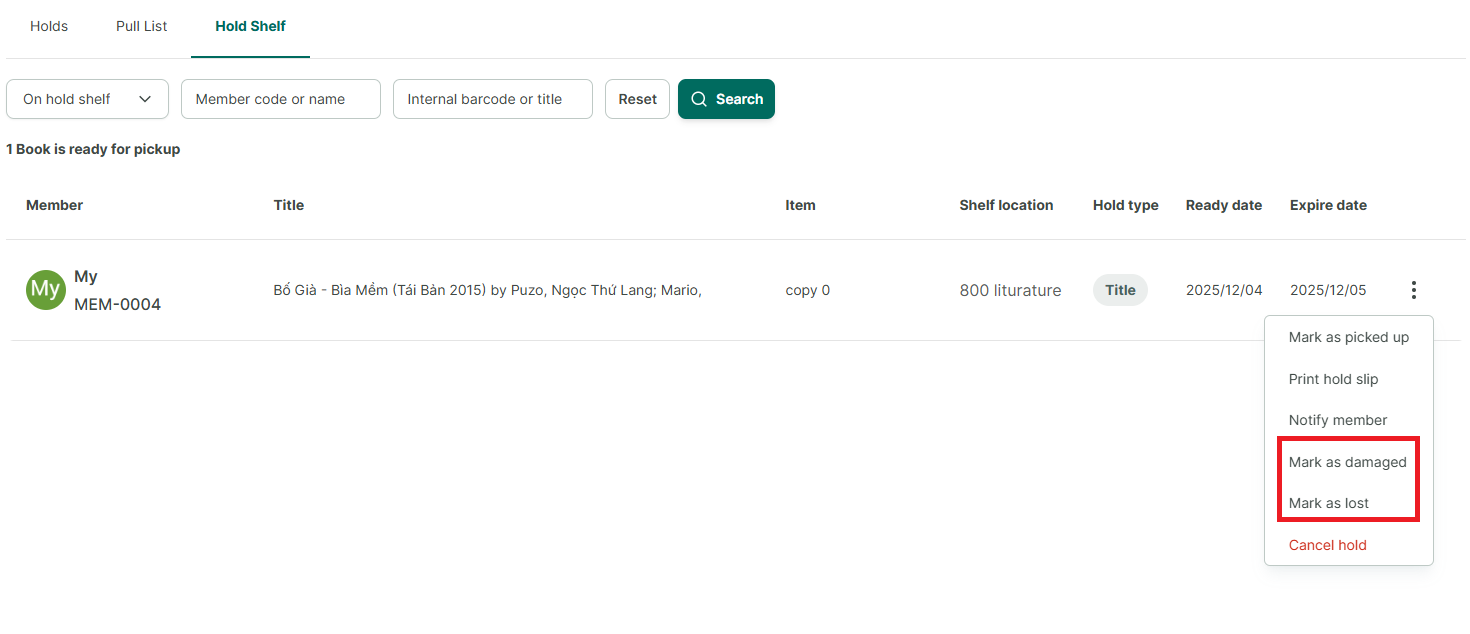
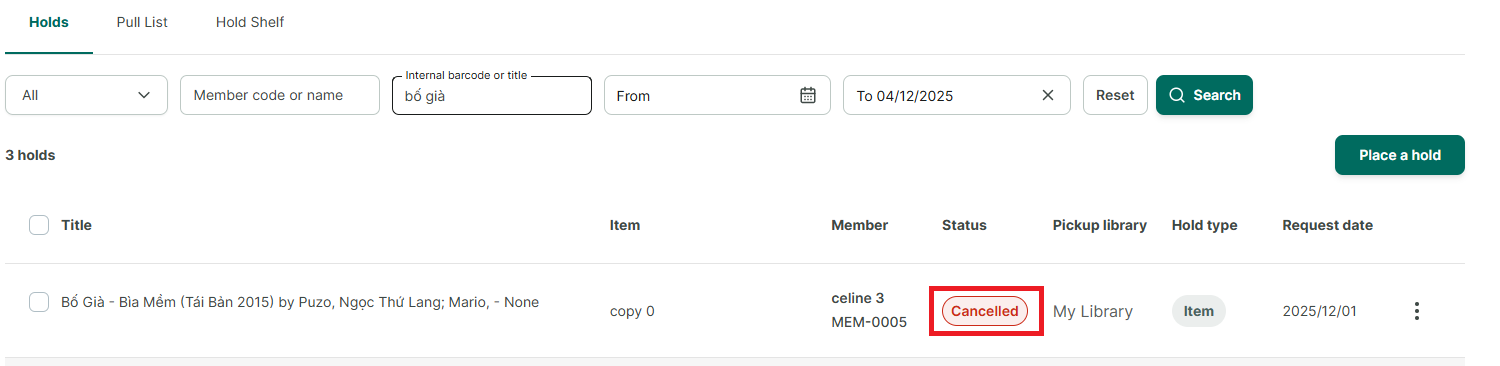
Step 32: After being marked as lost/damaged, the hold will automatically be canceled, changing the status from “Active” to “Canceled.”
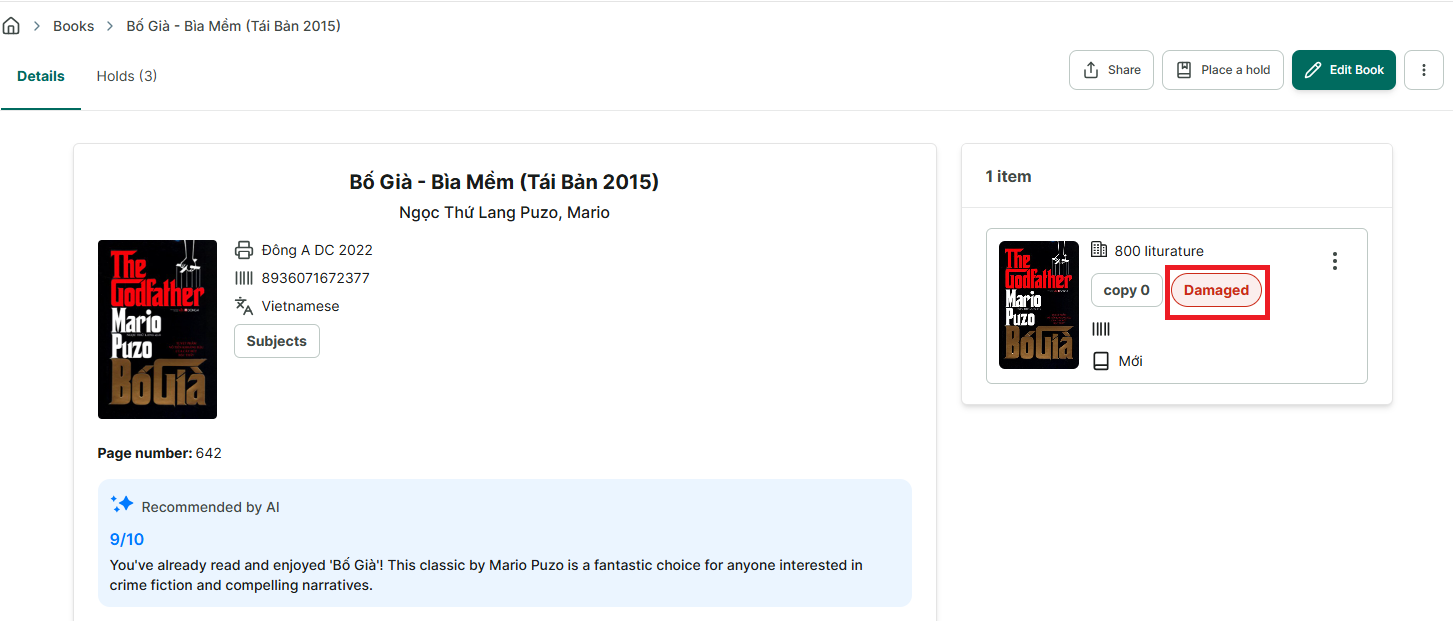
Step 33: The status of the book in the book details section will also be marked as Lost or Damaged.
Suspend a hold
The librarian sets a member’s hold pause time – the hold is in the “Pending” status
Step 34: Click on the hold that is in the “Pending” status.
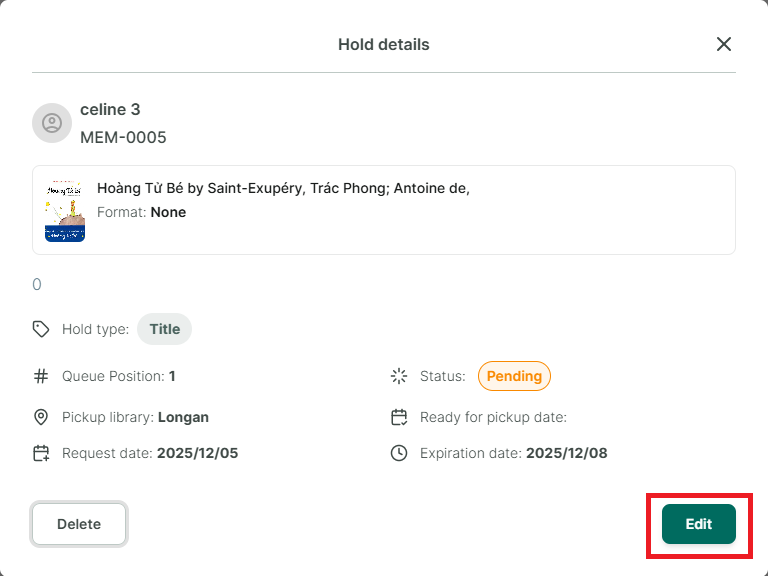
Step 35: Click the “Edit” button on the “Hold Details” screen.
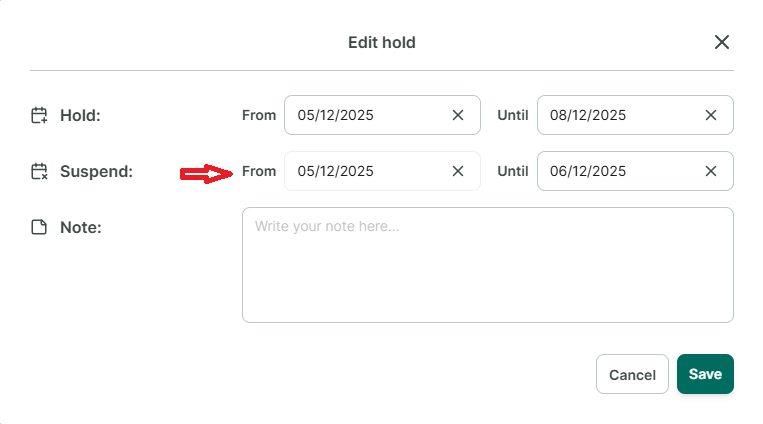
Step 36: Select the suspend duration and click Save.
Step 37: After 4 hours of updating the suspend duration, the booking status will change to “Suspended.”
Placing Holds as a Library Member
Members of a library organization can self-reserve books and manage their reservations. This feature is only available to members with reservation permissions enabled. Among the default roles, the Guest role does not have permission to place reservations.
- A member is entitled to place holds on books from any library to which they have access.
- The actions a member can perform on their holds are:
- Place a Hold
- Suspend a hold
- Resume a hold
- Cancel Reservation
I. PLACE A HOLD
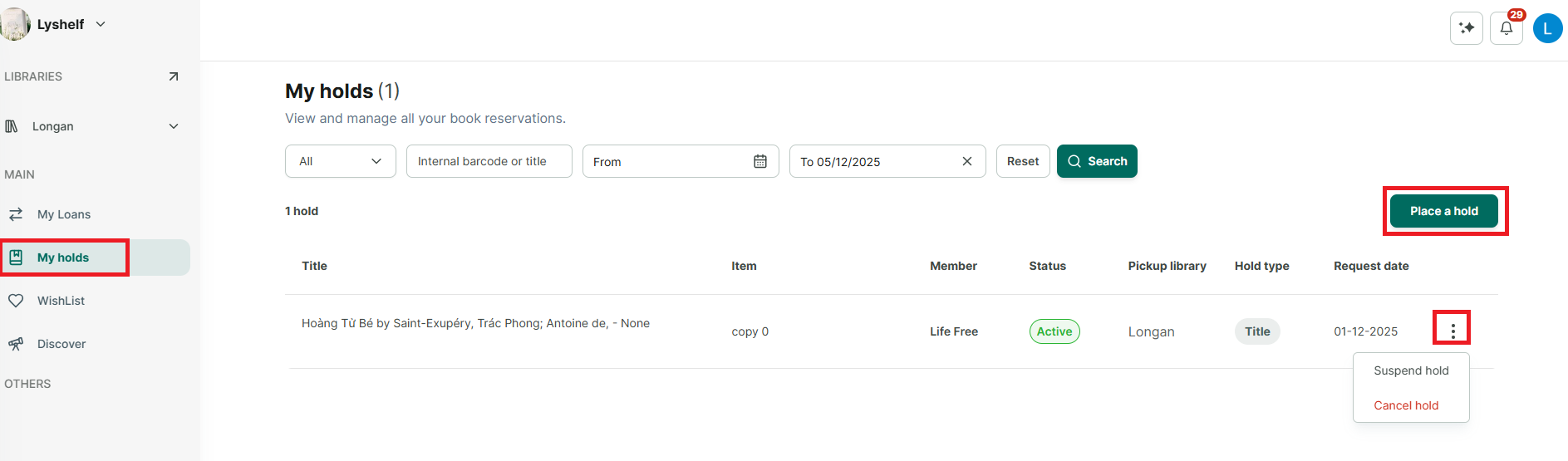
Step 38: Click the “Place a Hold” button.
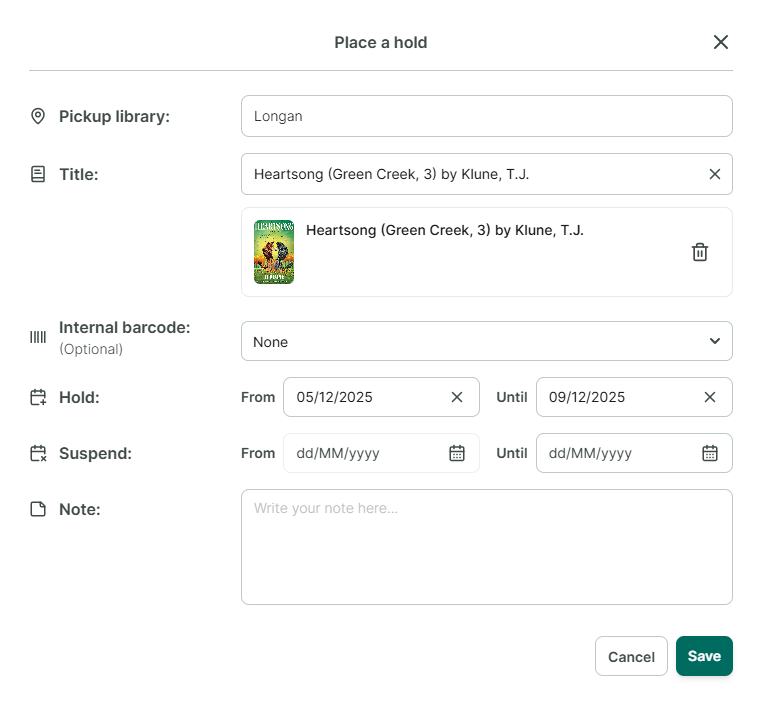
Step 39: Select the required fields in the hold details form: Library, Title, Internal Barcode (optional), Reservation Time From… To…, Suspend Duration (if needed), and Notes.
Step 40: Then click “Save” to create the hold.
- If the book has no existing holds or is not currently borrowed, the hold status will be “Active.”
- If the book already has existing holds or is currently borrowed, the hold status will be “Pending”
Step 41: After placing a hold on a book, the hold request will also be sent to the librarian for confirmation. Please monitor the hold status. When the status changes to “On hold shelf”, you can come and pick up the book.
II. SUSPEND – RESUME
A member can suspend a hold only when the book hold status is “Pending”
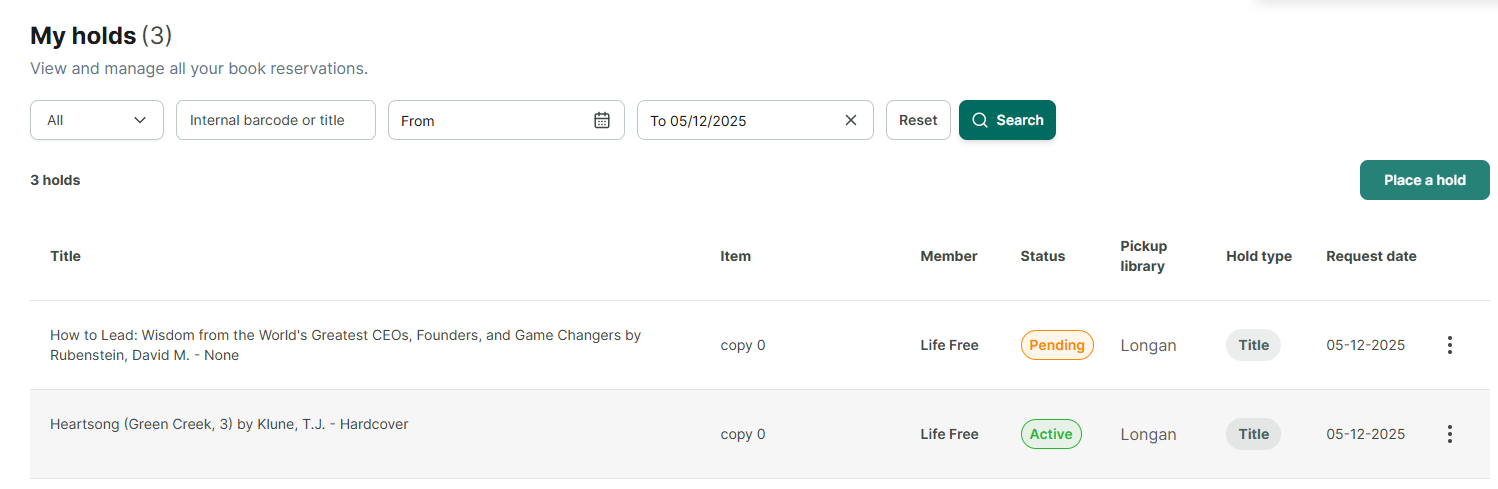
Step 42: Click on “My Holds” to view all book holds.
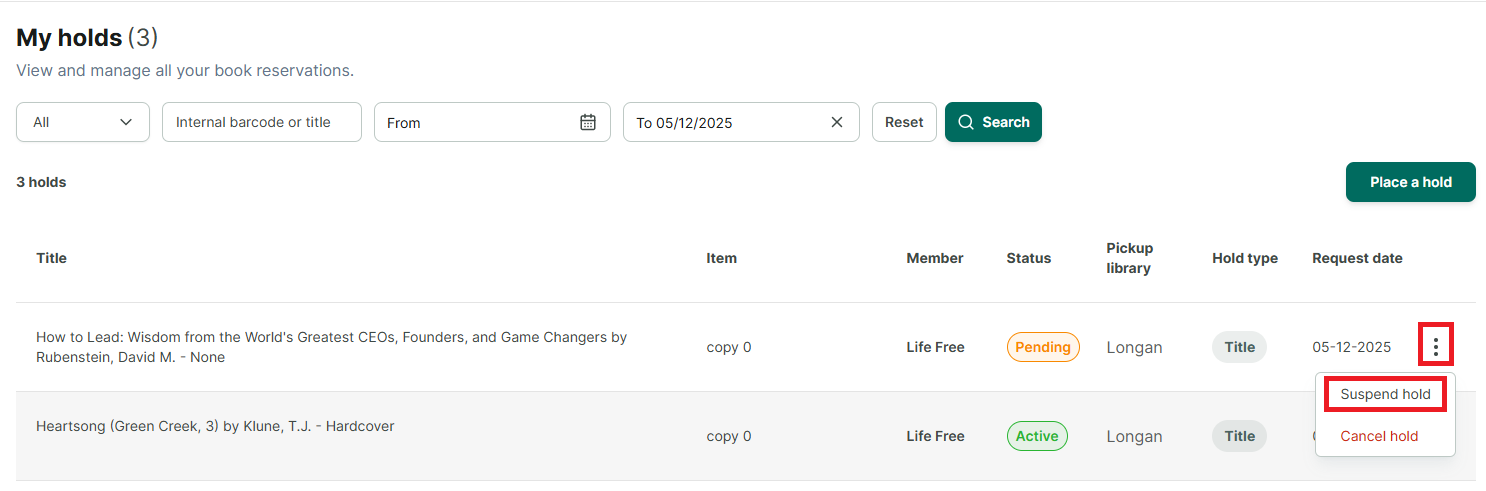
Step 43: Click the three-dot icon (⋮) next to the specific hold.
Step 44: Select “Suspend hold”
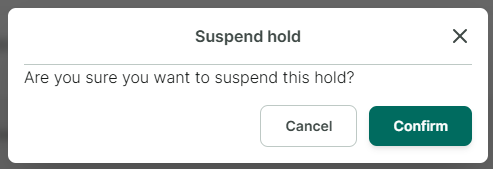
Step 45: Confirm the suspension.
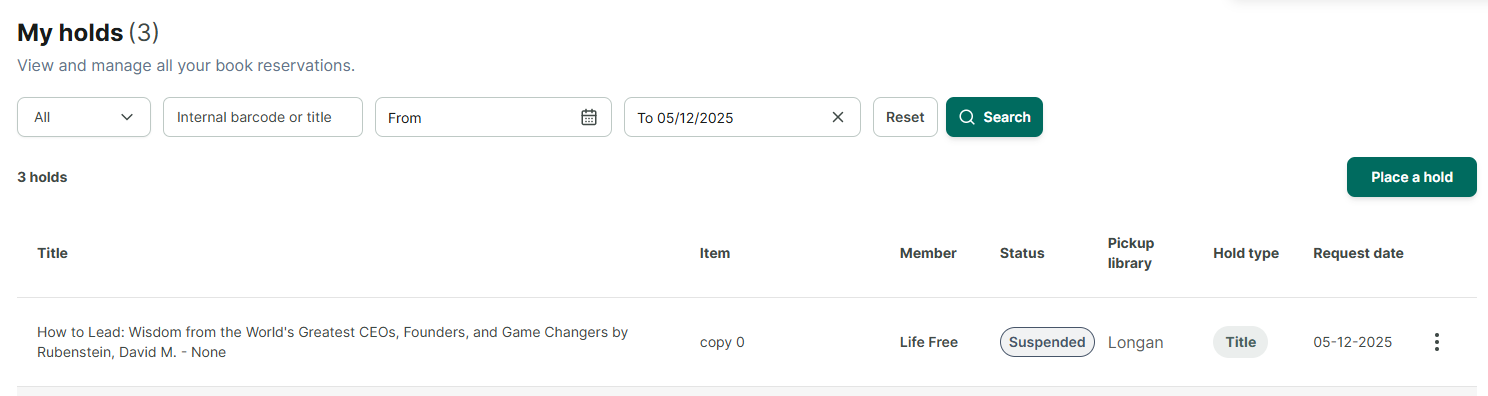
Step 46: After confirmation, the status will change from “Pending” to “Suspended.”
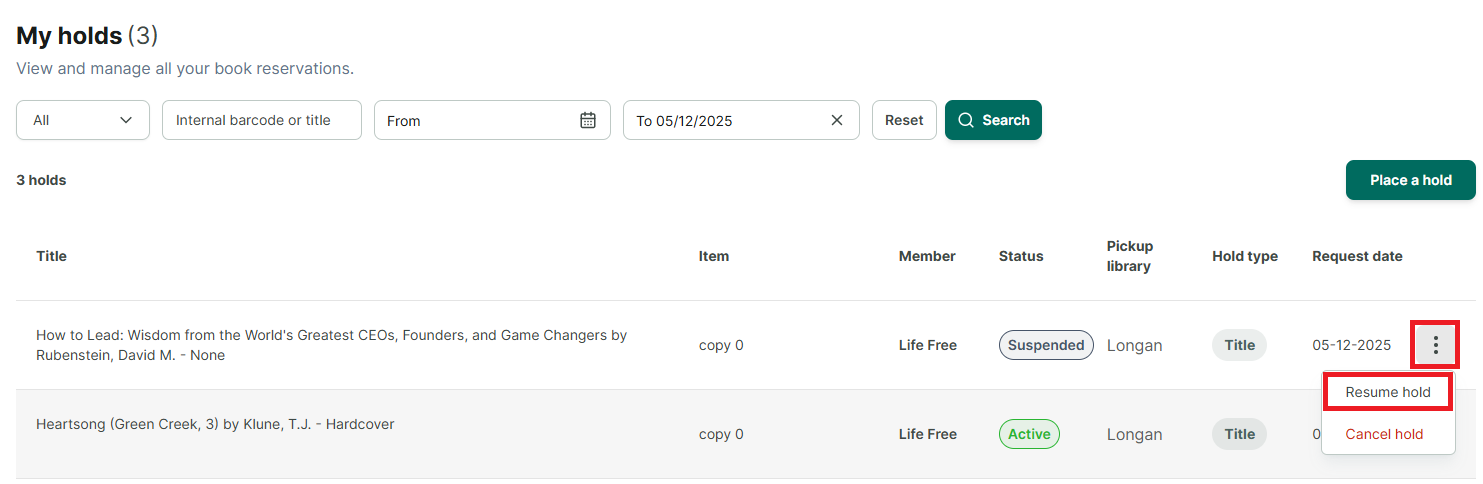
Step 47: If you wish to resume the hold: click the three-dot icon (⋮) → Select “Resume hold.”
Step 48: The hold status will change from “Suspended” back to “Pending”
III. CANCEL RESERVATION
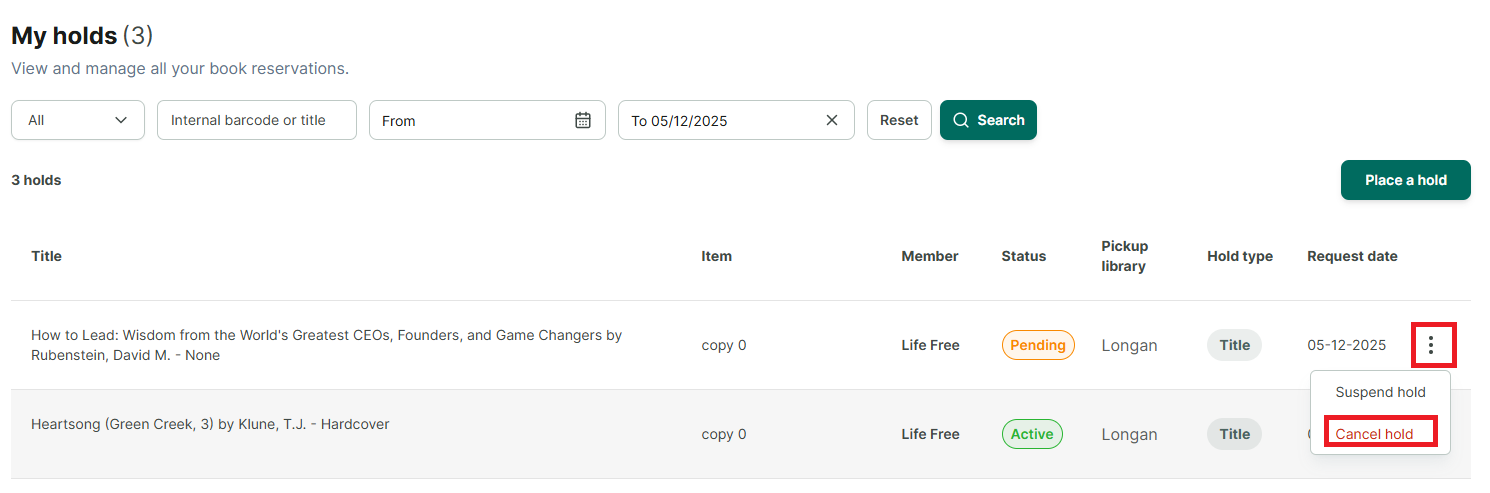
Step 49: Click the three-dot icon (⋮) on each hold.
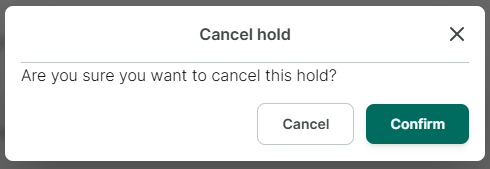
Step 50: Select “Cancel hold” and confirm.

Step 51: After confirmation, the hold status will change to “Canceled.”
Other Features
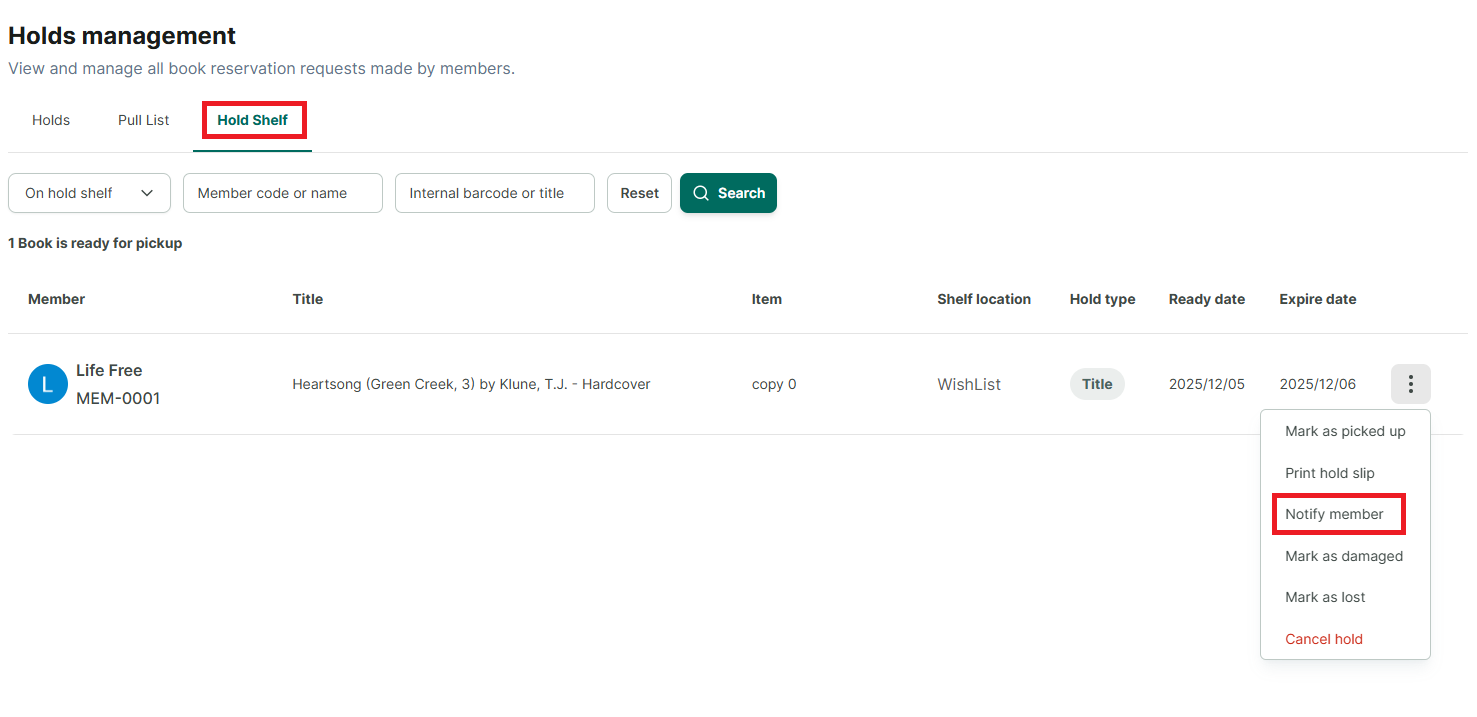
NOTIFY MEMBER
When a book is ready for a member to pick up and is placed on the “Holds Shelf,” the application will automatically send an email to the member. However, the librarian can also manually send a reminder notification email to the member.
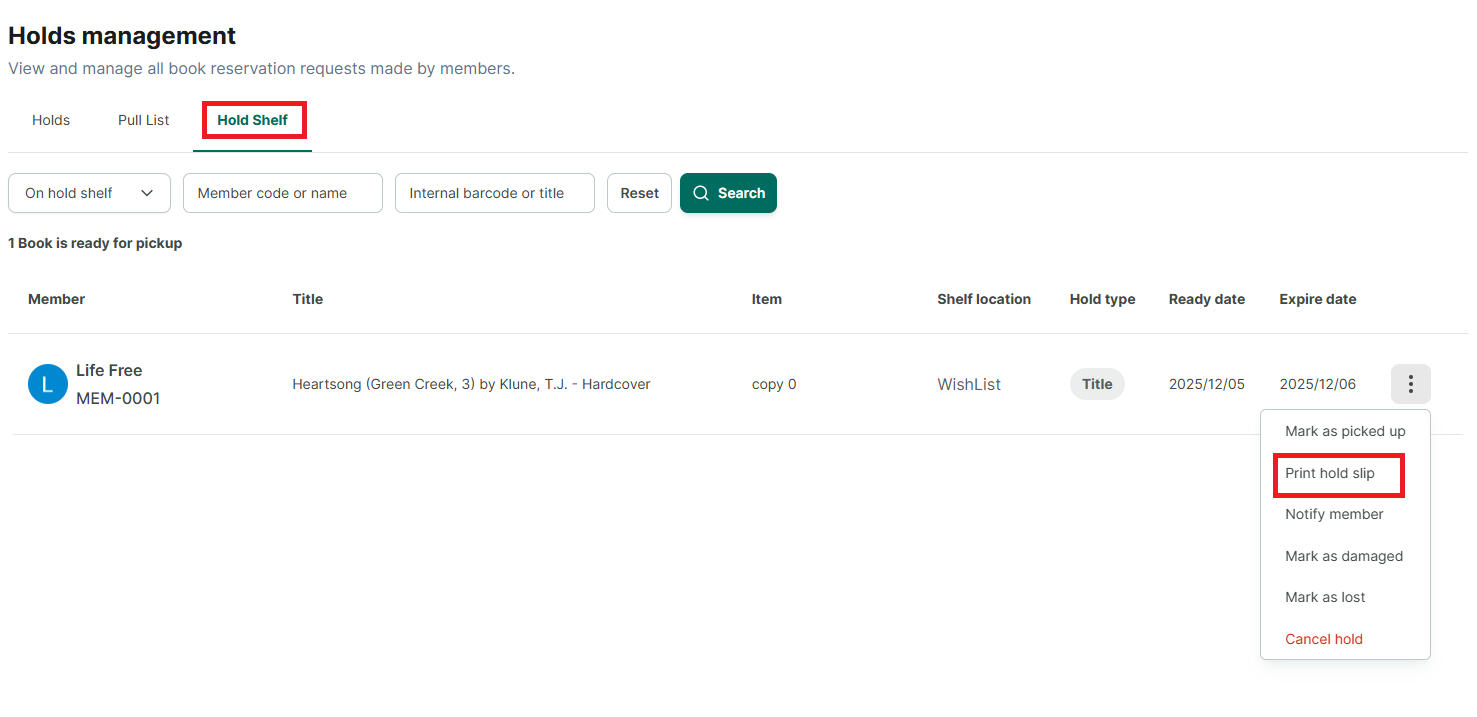
PRINT HOLD SLIPS
The librarian can print hold slips for management purposes, to give to the member upon book collection, or for other uses.
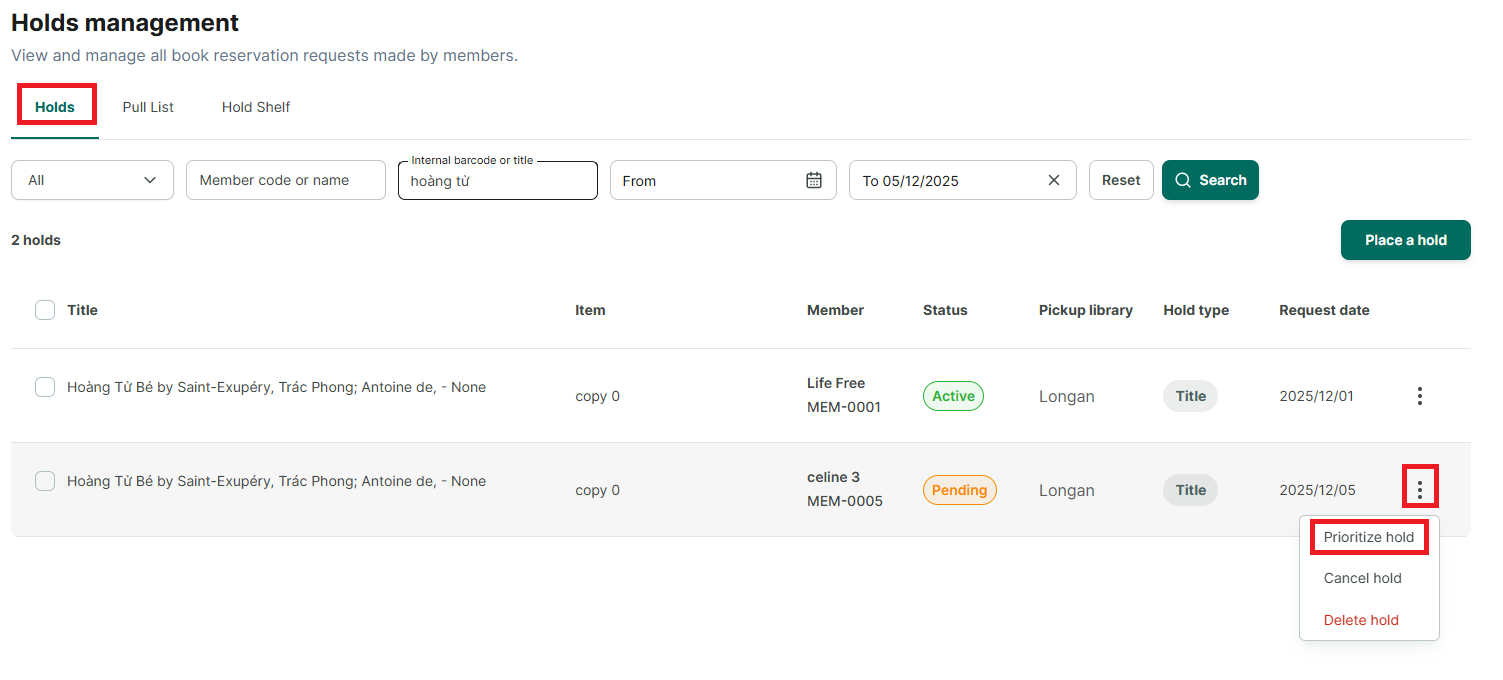
HOLD PRIORITY
The librarian can set priority for holds that are in the “Pending” status. When one member’s prior hold is fulfilled, the next hold will automatically be assigned to the prioritized member.
HOLD SETTINGS
General Settings for All Libraries
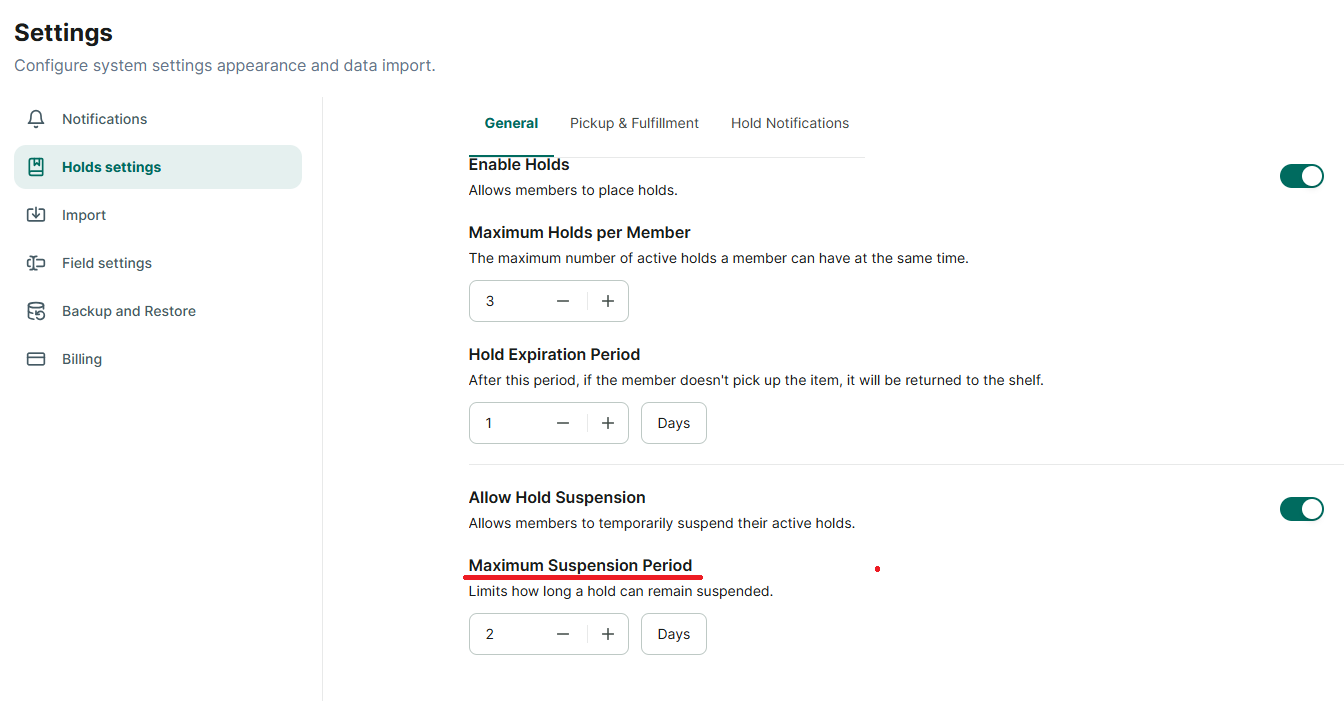
In the “Settings” section, the librarian can configure general options for book holds, such as enabling/disabling the feature, limiting the number of holds per member, setting the expiration time for holds, or setting notifications for the “Place a Hold” feature.
Step 52: Go to the “Settings” option in the left-hand menu and select “Hold Settings.”
Step 53: There are three main sections: “General Settings,” “Pickup & Fulfill,” and “Hold Notifications.”
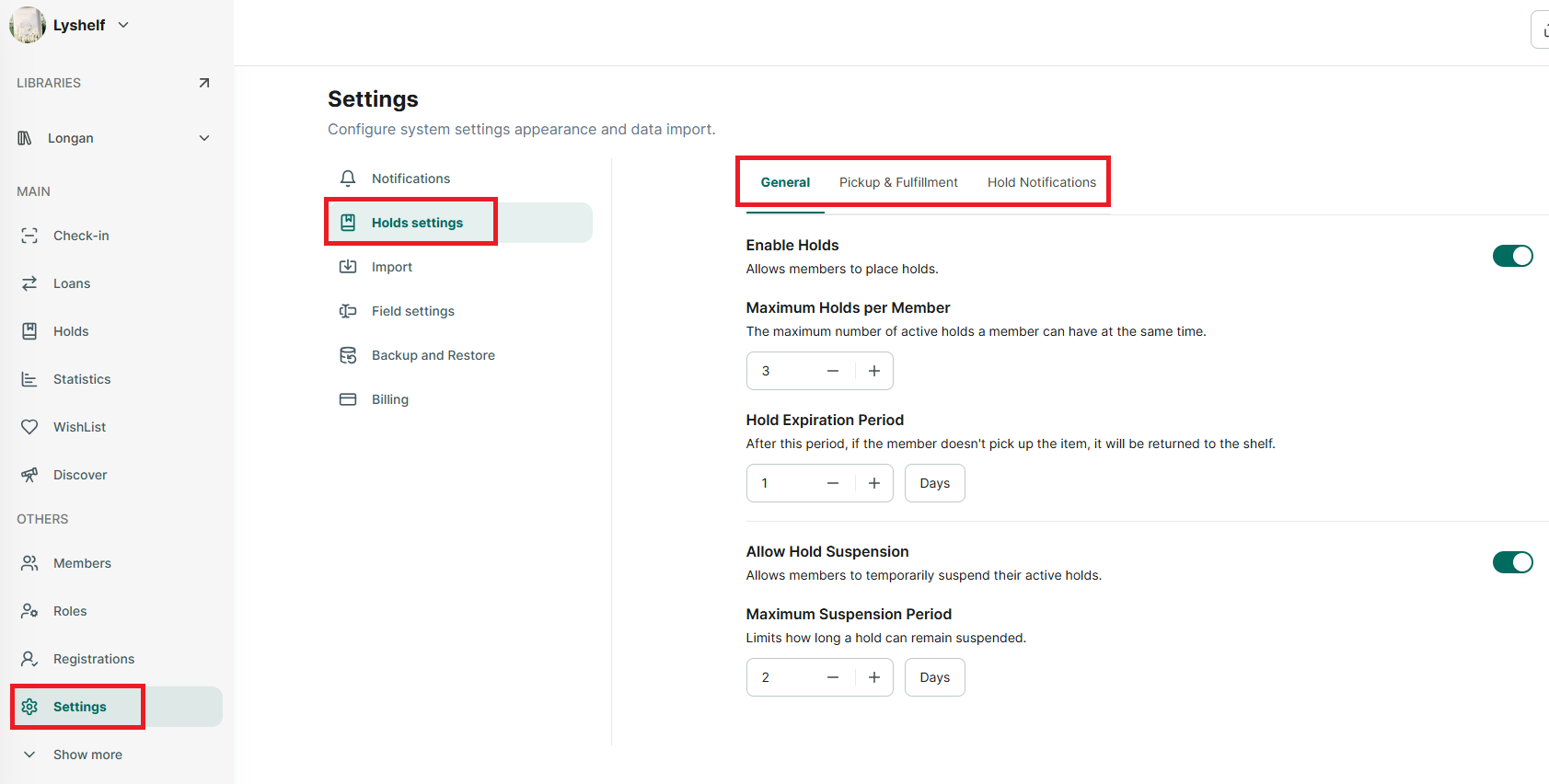
General Settings include:
- Enable Book Holds: If disabled, the “Book Hold” menu will be hidden, and no one will be allowed to place holds.
- Maximum Holds per Member
- Hold Expiration Period: The librarian sets this period to limit the time a member has to pick up the book after it is ready and placed on the “Holds Shelf.”
- Allow Hold Suspension (or Allow Suspending Reservations)
- Maximum Suspension Period
Receive & Fulfill includes:
- Holds Shelf Capacity Limit
Hold Notifications:
- When enabled, members will receive notifications regarding their book reservations.
Settings for Individual Libraries
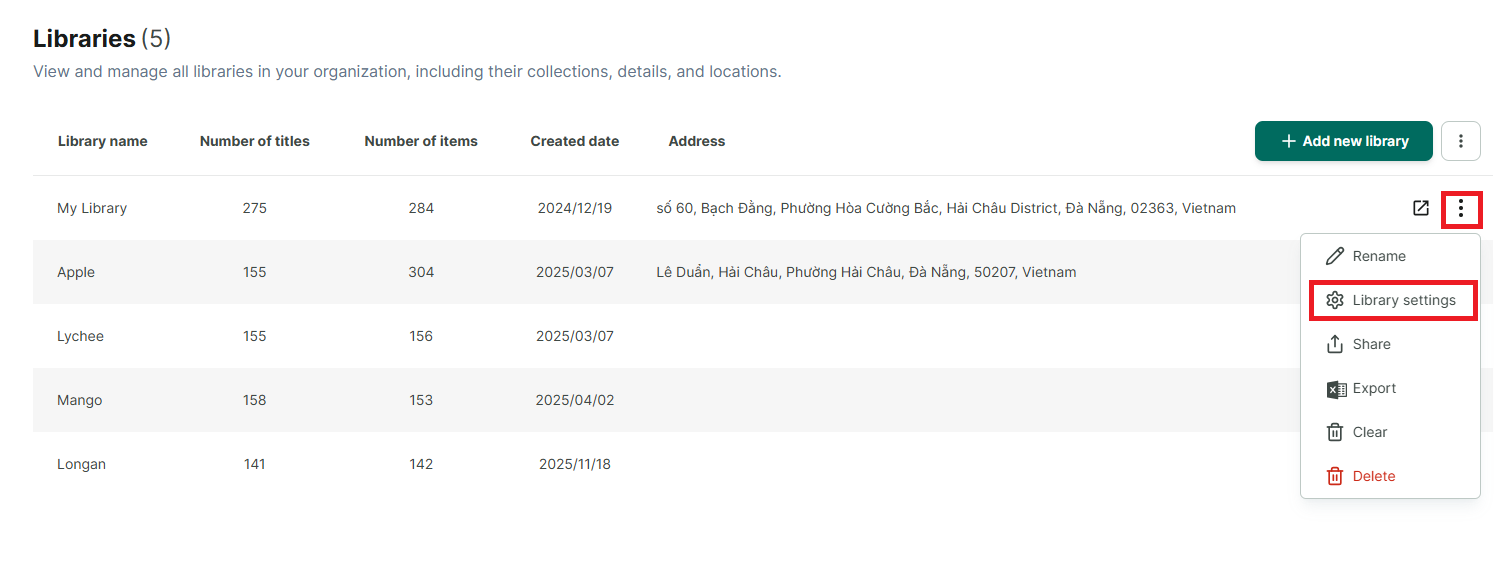
Step 54: Click on the “Libraries” menu item on the left to display all organizational libraries.
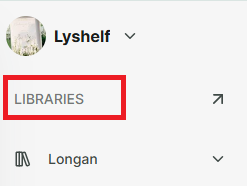
Step 55: Click the three-dot icon (⋮) next to each library to display options. Then select “Library Settings.”